> For the complete documentation index, see [llms.txt](https://docs.keeper.io/llms.txt). Markdown versions of documentation pages are available by appending `.md` to page URLs; this page is available as [Markdown](https://docs.keeper.io/keeperpam/commander-cli/command-reference/import-and-export-commands/cyberark-import.md).
# CyberArk Import
Migrating CyberArk Accounts to Keeper
Keeper Commander will log on to CyberArk Privilege Cloud Web Portal or the self-hosted Password Vault Web Access (PVWA), retrieve accounts and their passwords, and automatically create corresponding Server records in Keeper.
```sh
keeper import --format=cyberark server.domain
```
If the server is a CyberArk Privilege Cloud Web Portal, i.e., it ends in ".cyberark.cloud," then it will prompt for the CyberArk Identity Tenant ID and CyberArk Service User credentials
When importing from CyberArk Privilege Cloud, Commander detects the Identity tenant and asks which authentication method to use.:
```
CyberArk Identity Tenant ID: server
CyberArk Privilege Cloud authentication method:
[1] Service account (OAuth2 client credentials)
[2] User login with MFA / 2FA / SSO (CyberArk Identity)
Select authentication method [1/2] (default 1):
```
If the server is any other hostname or IP address, then it will prompt for the authentication method, username, and password for PVWA:
For self-hosted CyberArk PVWA, Commander first asks whether a client certificate is required.
```bash
import --format=cyberark
```
```
Processing... please wait.
CyberArk PVWA client certificate P12 path (leave empty if none):
```
```
CyberArk logon type (Cyberark, LDAP, RADIUS or Windows): LDAP
CyberArk username: myusername
CyberArk password:
```
:information\_source: Use **LDAP** (not Windows) to log in with an **Active Directory** account
CyberArk Accounts based on Platforms in the *Windows* and *\*NIX* groups will be imported as Server records. Accounts based on the *Business Website p*latform, i.e., CyberArk Workforce Password Management Accounts, will import as Login records.
### Selecting Safes
After successful authentication, Commander asks which Safes to import.
```
CyberArk safes as a comma-separated list (leave empty to get safes from the server):
```
Enter one or more Safe names separated by commas:
```
Windows-Admins,Linux-Root,Database-Privileged
```
Leave the prompt blank to let Commander get the Safe list from CyberArk.
### Nested Share Folder Support
CyberArk import now supports Nested Share Folders.
```bash
import --format=cyberark --nsf pvwa.company.com
```
With `--nsf`, CyberArk Safes are imported as Keeper Nested Share Folder paths, and records are placed into the matching Safe folder.
### Optional Client Certificate
For self-hosted CyberArk PVWA environments that require a client certificate, set the P12/PFX path and password before running the import.
```bash
export _CYBERARK_CLIENT_CERT_P12=/path/to/client-cert.p12
export _CYBERARK_CLIENT_CERT_PASSWORD='P12 passphrase'
import --format=cyberark pvwa.company.com
```
If `_CYBERARK_CLIENT_CERT_P12` is not set, Commander prompts for a P12 path. Leave the prompt blank if a client certificate is not required.
### Keeper Enterprise Provisioning
When the import is run by a Keeper Enterprise admin, Commander can also create Keeper access objects from CyberArk users and groups.
| CyberArk object | Keeper object |
| -------------------------------- | ---------------------- |
| CyberArk user group | Keeper Team |
| CyberArk user group | Keeper Role |
| CyberArk user with a valid email | Keeper user invitation |
| CyberArk group membership | Keeper Role assignment |
Existing Keeper Teams, Roles, and users are skipped instead of duplicated.
Use `--target-node` or `--node` to place new Teams, Roles, and users in a specific Keeper Enterprise node.
```bash
import --format=cyberark --target-node "Privileged Access" pvwa.company.com
import --format=cyberark --node 123456789 pvwa.company.com
```
To import records only and skip Keeper Team, Role, and user provisioning:
```bash
export _CYBERARK_SKIP_TEAMS=true
import --format=cyberark pvwa.company.com
```
### Non-Interactive Import
For automation, set the required values before running the command.
```bash
export _CYBERARK_LOGON_TYPE=LDAP
export _CYBERARK_USERNAME=admin@example.com
export _CYBERARK_PASSWORD='CyberArk password'
export _CYBERARK_SAFES="Windows-Admins,Linux-Root"
export _CYBERARK_ASSUME_YES=true
import --format=cyberark pvwa.company.com
```
`--dry-run` previews the Keeper record import. If you also want to prevent Keeper Team, Role, and user provisioning during testing, set `_CYBERARK_SKIP_TEAMS=true`.
### Additional Environment Variables
| Variable | Purpose |
| -------------------------------- | --------------------------------------------------------- |
| `_CYBERARK_LOGON_TYPE` | CyberArk logon type for self-hosted PVWA. |
| `_CYBERARK_USERNAME` | CyberArk username for self-hosted PVWA. |
| `_CYBERARK_PASSWORD` | CyberArk password for self-hosted PVWA. |
| `_CYBERARK_SAFES` | Comma-separated Safes to import. |
| `_CYBERARK_ASSUME_YES` | Skip confirmation when set to `true`, `yes`, or `1`. |
| `_CYBERARK_SKIP_TEAMS` | Skip Keeper Team, Role, and user provisioning. |
| `_CYBERARK_SKIP_ROLES` | Skip Keeper Role creation. |
| `_CYBERARK_SKIP_CREATE_USERS` | Skip Keeper user invitations and Role assignments. |
| `_CYBERARK_CLIENT_CERT_P12` | Optional P12/PFX client certificate path. |
| `_CYBERARK_CLIENT_CERT_PASSWORD` | Optional P12/PFX passphrase. |
| `_CYBERARK_CA_BUNDLE` | Optional CA bundle for self-hosted PVWA TLS verification. |
| `KEEPER_CYBERARK_USERNAME` | CyberArk Privilege Cloud username or client ID. |
| `KEEPER_CYBERARK_PASSWORD` | CyberArk Privilege Cloud password or client secret. |
| `KEEPER_CYBERARK_AUTH_METHOD` | CyberArk Privilege Cloud authentication method. |
### Membership Download
CyberArk Safe membership can be downloaded to a Keeper membership file.
```bash
download-membership --source=cyberark cyberark_membership.json
```
Then apply the membership file:
```bash
apply-membership cyberark_membership.json
```
Use `--folders-only` to download only Safe-to-folder membership:
```bash
download-membership --source=cyberark --folders-only cyberark_membership.json
```
### Importing Accounts
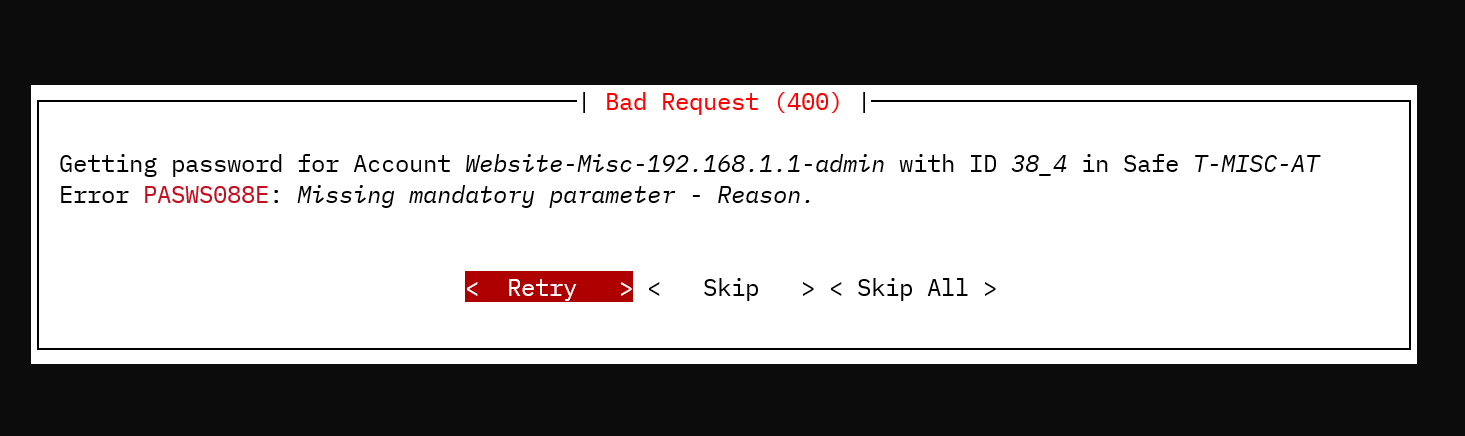
The process will list the Accounts to be imported, including the ID, Name, and Safe. It will also show a progress meter with a timer and ETA. If password retrieval fails for an Account, a Retry, Skip, or Skip All dialog is presented. The process can retry the request, skip the Account, or skip all Accounts that trigger the same HTTP status.
A dialog resulting from a 400 (Bad Request) HTTP response from the password API endpoint.
#### Skipped Accounts
The skipped Accounts will be listed after processing is complete. The list includes the *ID*, *Name*, *Safe*, and the *Error* code and message.
### Using a search string to limit the imported Accounts
The process will import all Accounts by default; however, appending a question mark (?) followed by the search string will limit processing to Accounts that match the search.
```bash
keeper import --format=cyberark 10.11.12.13?WinDomain
```
### Using a custom query string
Alternatively, if the search string contains '=', the process will pass it to the CyberArk Get Accounts endpoint as a query string. E.g.,
```
keeper import --format=cyberark example.cyberark.cloud?limit=10&offset=20
```
passes the limit and offset parameters to the Accounts endpoint, causing it to page the accounts 10 at a time, starting at the 20th account.
### PowerShell Method
The [end-user guide](/user-guides/import-records-1/import-from-cyberark-pacli.md) includes a process to import data into Keeper from Cyberark using a PowerShell script. Note, however, that it accesses the Vault server directly, so it only works on self-hosted servers.
---
# Agent Instructions
This documentation is published with GitBook. GitBook is the documentation platform designed so that both humans and AI agents can read, navigate, and reason over technical content effectively. Learn more at gitbook.com.
## Querying This Documentation
If you need additional information that is not directly available in this page, you can query the documentation by asking a question.
Perform an HTTP GET request on the following URL with the `ask` and `goal` query parameters:
```
GET https://docs.keeper.io/keeperpam/commander-cli/command-reference/import-and-export-commands/cyberark-import.md?ask=&goal=
```
`ask` is the immediate question: it should be specific, self-contained, and written in natural language.
`goal` is what the user is ultimately trying to achieve, the reason they need the answer. Sharing it helps GitBook give you a better, more relevant answer. A goal is most helpful when it describes the outcome the user wants rather than restating the question. For example, with `ask=how do I create an API token`, a goal like `automate deployments from our CI pipeline` lets GitBook tailor the answer to that use case.
The response will contain a direct answer to the question and relevant excerpts and sources from the documentation.
Use this mechanism when the answer is not explicitly present in the current page, you need clarification or additional context, or you want to retrieve related documentation sections.