# Policies
This section goes deeper into **policy types**, **status**, **controls**, and **filters** so you can design policies that match your security and compliance goals.
## Policy Types
Each policy has a **type** that determines what kind of action it controls.
| Type | What it controls | Typical use |
| ----------------------------------------------------------------------------- | --------------------------------------------------------------------- | ---------------------------------------------------------------------------------------------- |
| **Privilege Elevation** | When users can run as administrator (or elevate privileges). | Require MFA, approval, or justification before elevation; allow or block specific apps. |
| **File Access** | Access to files and folders. | Block or allow access to sensitive paths; require justification or approval for certain files. |
| **Command Line** | Execution of commands (e.g., PowerShell, shell, scripts). | Block dangerous commands; require approval for sensitive scripts. |
| **Least Privilege** | Whether a user keeps or loses local administrator rights. | Remove standing admin from most users; allow exceptions for specific roles or machines. |
|
Advanced Mode:
Update Settings
| Pushing configuration to the agent (e.g., plugin or global settings). | Roll out settings from the dashboard without touching each endpoint. |
|
Advanced Mode:
Update Jobs
| Deploying or updating job definitions on the agent. | Deploy automation and enforcement jobs from a central place. |
When a user (or process) triggers an action, the agent figures out the **event type** (e.g., privilege elevation, file access) and evaluates only the policies of that type. So a Privilege Elevation policy never blocks file access; a File Access policy never blocks elevation. You can combine multiple policy types to get full coverage.
## Policy Status
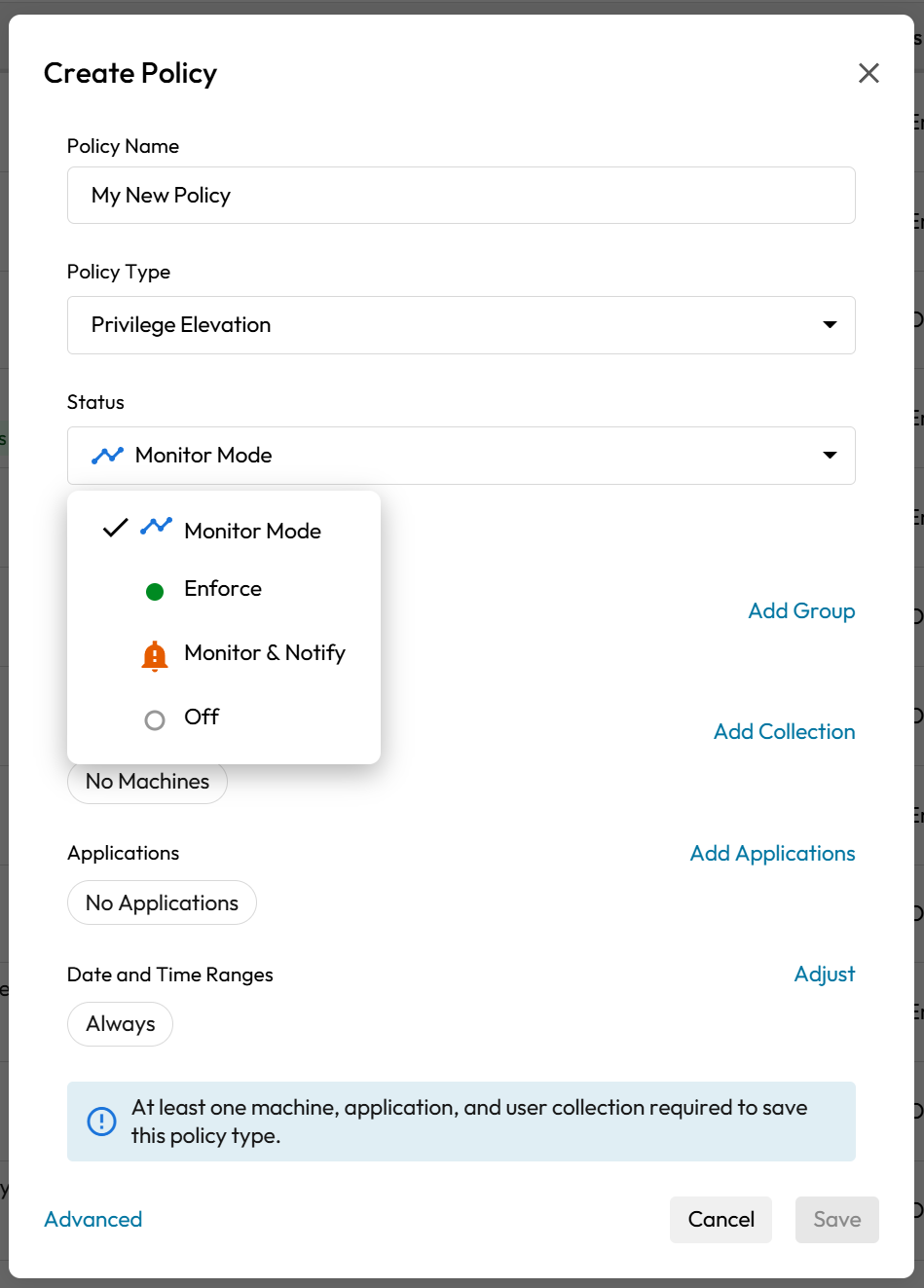
Each policy has a **status** that controls whether it actually enforces or only observes.
| Status | Evaluated? | Enforced? | What happens |
| -------------------- | ---------- | --------- | ------------------------------------------------------------------------------------------------------------------------------- |
| **Off** | No | No | Policy is ignored. Use this to disable a policy without deleting it. |
| **Enforce** | Yes | Yes | Policy is evaluated and controls (Allow, Deny, MFA, Approval, etc.) are applied. |
| **Monitor** | Yes | No | Policy is evaluated and logged, but no control is applied—actions are allowed. Use to see impact before enforcing. |
| **Monitor & Notify** | Yes | No | Same as Monitor, but users or admins can be notified when the policy would have matched. Good for training and gradual rollout. |
Start with **Monitor** or **Monitor & Notify** for new policies, confirm behavior in reports and logs, then switch to **Enforce** when you’re ready.
## Controls
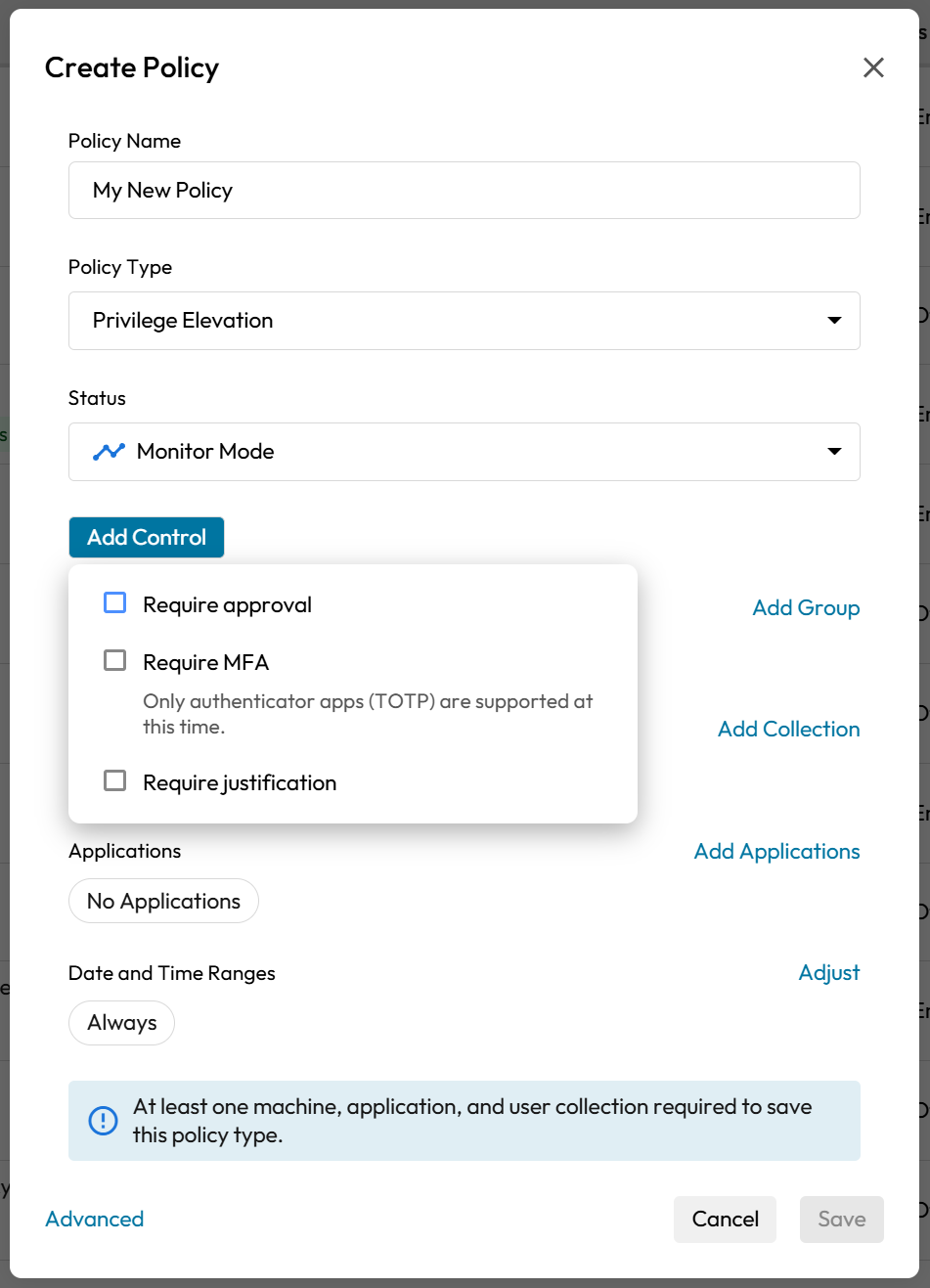
**Controls** define what happens when a policy **matches** a request: allow, deny, or require an extra step (MFA, justification, approval).
| Control | Meaning |
| ------------------------- | -------------------------------------------------------------------------------------------------------------------------- |
| **Require MFA** | Require multi-factor authentication before the action proceeds. Adds a strong auth step for sensitive actions. |
| **Require Justification** | Require the user to enter a reason (business justification) before the action proceeds. Good for audit and compliance. |
| **Require Approval** | Send the request to an approver; the action proceeds only if approved. Use for high-risk or sensitive elevation or access. |
| **Advanced: Allow** | Explicitly allow the action. Useful for whitelisting specific apps or users. |
| **Advanced: Audit** | Log the action but don’t block or require any step. Use for visibility without changing behavior. |
| **Advanced: Deny** | Block the action. Highest priority; overrides other controls. Use for apps or commands you never want to allow. |
In **Advanced** options you can often configure **Auto-Approve** or **Auto-Deny** for specific cases (e.g., allow list of commands or apps that always succeed or always fail without going through the full approval flow). Check your dashboard for where these are set.
You can combine controls (e.g., Require MFA **and** Approval) so that high-risk actions get multiple checks. The product applies precedence rules (e.g., Deny overrides Allow) so the final outcome is clear.
## Advanced Mode & Filters
**Filters** define **who** and **what** a policy applies to. Typically all of the following must match for the policy to apply:
* **Users:** Which users or groups (e.g., by collection or wildcard).
* **Machines:** Which endpoints or deployment groups.
* **Applications:** Which executables, paths, or patterns (often with variables and wildcards).
* **Optional:** Time of day, day of week, or date range.
More **specific** filters (e.g., a single app and a single group) usually take precedence over **broad** ones (e.g., “all users” and “all machines”). So you can have a default policy for everyone and override it with a more specific policy for a subset.
**Advanced** **Mode** options may include:
* **Auto-Approve / Auto-Deny:** For allow lists or deny lists of commands or apps.
* **Custom rules:** Extra conditions (e.g., risk score, location) if your deployment supports them.
* **Extension / AllowCommands:** In some setups, an explicit list of allowed commands (e.g., for time sync or specific admin tools). If a command isn’t in the list, it may be denied when using an allow-list model.
Design policies so that the most specific cases are defined first, then use broader policies for defaults. Use [Reference: Variables & Wildcards](https://docs.keeper.io/en/keeperpam/endpoint-privilege-manager/examples/advanced-examples/variables-and-wildcards) to keep filters manageable with variables and wildcards.