# RDP Protocol - Azure Virtual Machine

## Overview

In this guide, you will learn how to configure a Azure Virtual Machine on your **PAM Machine** and configure the **RDP protocol** to successfully launch a zero-trust connection to the Azure Virtual Machine — directly from your Keeper Vault.

### Summary

For this setup, you need to do the following:

1. [Enable the Connection Enforcement Policies](#step-1-enable-connection-enforcement-policies)
2. [Install and Configure the Keeper Gateway](#step-2-install-and-configure-the-keeper-gateway)
3. [Create and configure the PAM Configuration File](#step-3-configuring-the-pam-configuration)
4. [Create the PAM Machine and PAM User record types](#step-4-create-and-configure-pam-machine-and-pam-user-s-records)
5. [Configure PAM Settings and the RDP Connection Protocol](#step-5-configuring-pam-settings-and-rdph-protocol)

After completing the above, you can launch zero-trust connections to the Azure Virtual Machine directly from your Keeper Vault.

## Step 1 - Enable Connection Enforcement Policies

From the Admin Console, enable the corresponding [PAM Enforcement Policies](https://docs.keeper.io/en/keeperpam/privileged-access-manager/getting-started/enforcement-policies) for connections:

<table><thead><tr><th>Policy</th><th>Definition</th><th>Commander CLI</th></tr></thead><tbody><tr><td>Can configure connection settings</td><td>Allow users to configure Connection and Session Recordings settings on PAM Machine, PAM Directory, PAM Database and PAM Configuration Record Types</td><td><pre data-overflow="wrap"><code>ALLOW_CONFIGURE_PAM_CLOUD_CONNECTION_SETTINGS
</code></pre></td></tr><tr><td>Can launch connections</td><td>Allow users to launch connections on PAM Machine, PAM Directory, PAM Database Record Types</td><td><pre data-overflow="wrap"><code>ALLOW_LAUNCH_PAM_ON_CLOUD_CONNECTION
</code></pre></td></tr><tr><td>Can view session recordings</td><td>Allow users to view Session Recordings</td><td><pre data-overflow="wrap"><code>ALLOW_VIEW_KCM_RECORDINGS
</code></pre></td></tr></tbody></table>

## Step 2 - Install and configure the Keeper Gateway

Prior to creating the PAM Record types in your Vault, the Keeper Gateway needs to be installed in your infrastructure. Visit the following guides based on your needs:

* [Windows Installation](https://docs.keeper.io/en/keeperpam/privileged-access-manager/getting-started/gateways/windows-installation)
* [Linux Installation](https://docs.keeper.io/en/keeperpam/privileged-access-manager/getting-started/gateways/linux-installation)
* [Docker Installation](https://docs.keeper.io/en/keeperpam/privileged-access-manager/getting-started/gateways/gateway-with-docker)

Additionally, the Keeper Gateways needs to be configured with the Gateway token. For more information, visit this [page](https://docs.keeper.io/en/keeperpam/privileged-access-manager/getting-started/gateways/one-time-access-token).

{% hint style="success" %}
Steps 3 and Step 4 can be automated with the Gateway Wizard. For more information, visit this [page](https://docs.keeper.io/en/keeperpam/privileged-access-manager/quick-start-sandbox).
{% endhint %}

## Step 3 - Configuring the PAM Configuration

The [PAM Configuration ](https://docs.keeper.io/en/keeperpam/privileged-access-manager/getting-started/pam-configuration)contains critical information on your infrastructure, settings and associated Keeper Gateway. Visit the following pages for more details based on your target infrastructure:

* [Setting up Local Environment on the PAM Configuration](https://docs.keeper.io/en/keeperpam/privileged-access-manager/getting-started/pam-configuration/local-environment-setup)
* [Setting up AWS Environment on the PAM Configuration](https://docs.keeper.io/en/keeperpam/privileged-access-manager/getting-started/pam-configuration/aws-environment-setup)
* [Setting up Azure Environment on the PAM Configuration](https://docs.keeper.io/en/keeperpam/privileged-access-manager/getting-started/pam-configuration/azure-environment-setup)

## Step 4 - Create and Configure PAM Machine and PAM User(s) Records

After setting up your Gateway and PAM Configuration Record, the Azure Virtual Machine and its users need to be configured on PAM Record types in your Vault:

* [PAM Machine](https://docs.keeper.io/en/keeperpam/privileged-access-manager/getting-started/pam-resources/pam-machine) - The Azure Virtual machine is configured on this record type
* [PAM User](https://docs.keeper.io/en/keeperpam/privileged-access-manager/getting-started/pam-resources/pam-user) - The Azure Virtual User is configured on this record type

Refer to this example on how to configure Azure Virtual Machine on a PAM Machine record type:

{% content-ref url="../../getting-started/pam-resources/pam-machine/example-azure-virtual-machine" %}
[example-azure-virtual-machine](https://docs.keeper.io/en/keeperpam/privileged-access-manager/getting-started/pam-resources/pam-machine/example-azure-virtual-machine)
{% endcontent-ref %}

## Step 5 - Configuring PAM Settings and RDP Protocol

The PAM Machine record type contains the necessary information required for the Keeper Gateway to locate and establish a connection with the machine, while the PAM User record type contains the necessary information to authenticate the connection.

The PAM Settings need to be configured to enable connections or tunnels on the target defined on the PAM Machine Record. To configure the RDP protocol, visit the following page:

{% content-ref url="../session-protocols/rdp-connections" %}
[rdp-connections](https://docs.keeper.io/en/keeperpam/privileged-access-manager/connections/session-protocols/rdp-connections)
{% endcontent-ref %}

## Launching Connections

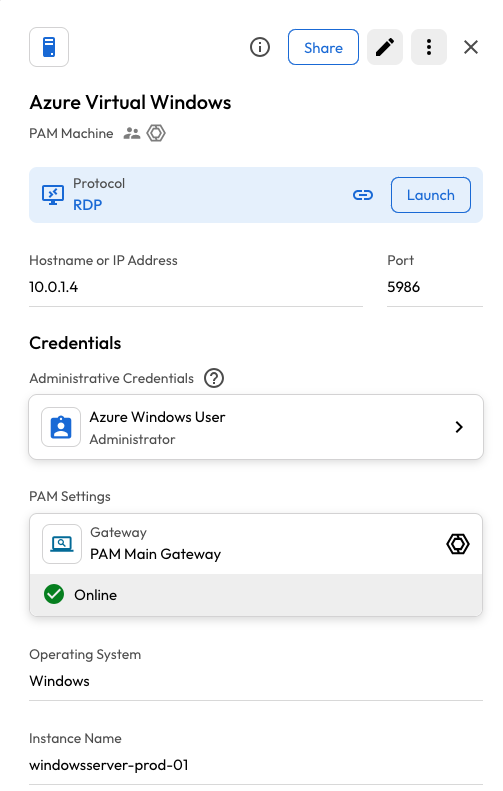
Once you have configured the RDP Protocol connection on your PAM Machine Record, your record will contain the following connection banner with the "Launch" Button:

<figure><img src="https://762006384-files.gitbook.io/~/files/v0/b/gitbook-x-prod.appspot.com/o/spaces%2F-MJXOXEifAmpyvNVL1to%2Fuploads%2FZBUDyxfsAtkjADjosOn0%2Fazurerdpconn.png?alt=media&#x26;token=3df39c9a-6214-4842-9b3d-ad63a6ead05a" alt=""><figcaption></figcaption></figure>

In the above image, an Azure Virtual Machine has been configured on the PAM Machine Record. When clicking launch, the Vault Client will render a window with the established connection protocol to the specified target:

## Sharing PAM Machine Records

PAM Machine records can be shared with other Keeper users within your organization. However, the recipient must have the appropriate PAM enforcement policies in place to utilize KeeperPAM features on the shared PAM records.

When sharing a PAM Machine record, the linked admin credentials will **not** be shared. For example, if the PAM Machine is configured with an Azure Virtual Machine, the recipient can connect to the Azure Virtual Machine on the PAM Machine record without having direct access to the linked credentials.
