# Example: Azure Windows VM

## Overview

In this example, you'll learn how to configure a Azure Windows VM in your Keeper Vault as a PAM Machine record.

## Prerequisites

Prior to proceeding with this guide, make sure you have

1. [Installed and configured the Keeper Gateway](https://docs.keeper.io/en/keeperpam/privileged-access-manager/getting-started/gateways/one-time-access-token)
2. [Set up a PAM Configuration for your target Environment](https://docs.keeper.io/en/keeperpam/privileged-access-manager/getting-started/pam-configuration)

## PAM Machine Record

Machines such as a Azure Virtual Machines can be configured on the PAM Machine record type.

### Creating a PAM Machine

To create a PAM Database:

* Click on **Create New**
* Depending on your use case, click on "Rotation", "Tunnel", or "Connection"
* On the prompted window:
  * Select "**New Record**"
  * Select the Shared Folder you want the record to be created in
  * Specify the Title
  * Select "**Machine**" for the Target
* Click "**Next**" and complete all of the required information.

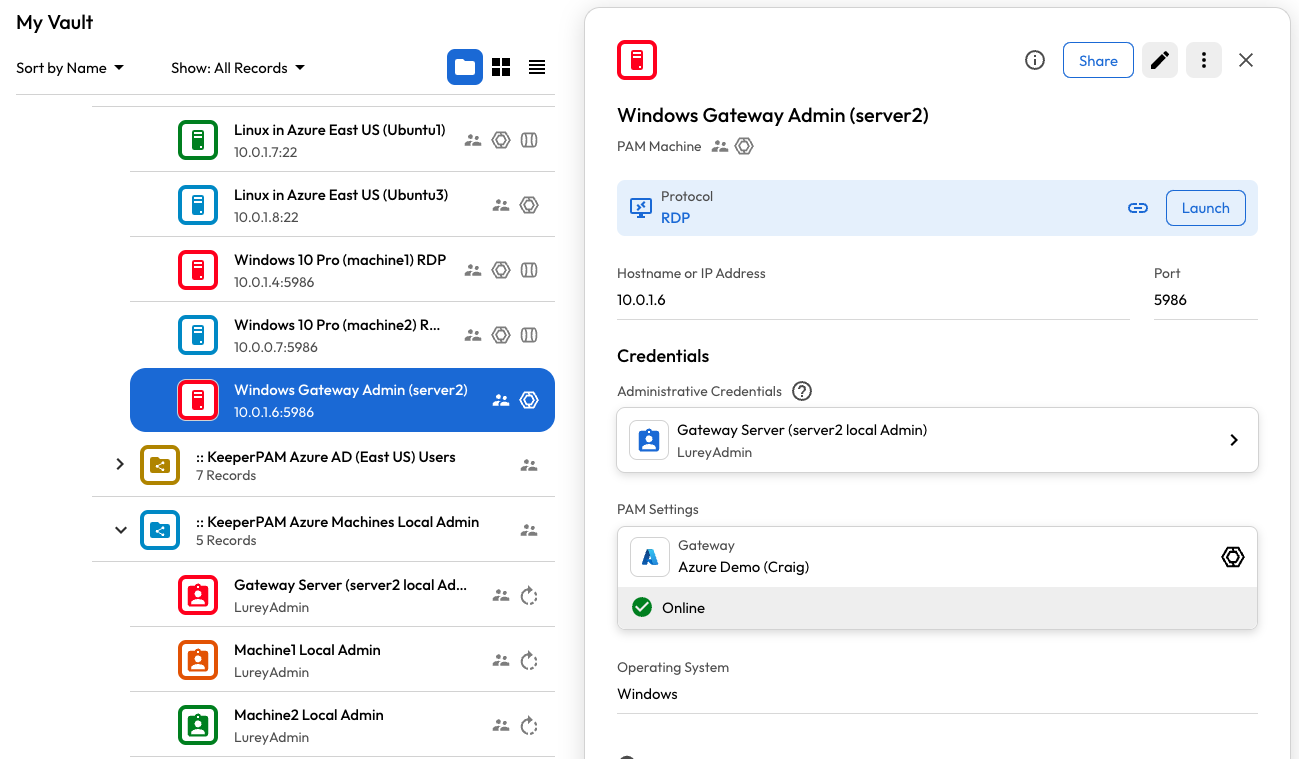
<figure><img src="https://762006384-files.gitbook.io/~/files/v0/b/gitbook-x-prod.appspot.com/o/spaces%2F-MJXOXEifAmpyvNVL1to%2Fuploads%2Fes2MA1KVac2YXpHVcHp5%2FScreenshot%202025-02-09%20at%208.48.45%E2%80%AFPM.png?alt=media&#x26;token=75fb48b0-f924-4ffa-aa22-4528c4b0977a" alt=""><figcaption><p>Example of Azure Windows VM</p></figcaption></figure>

### Configure a Windows Machine on the PAM Machine Record

Suppose I have a Azure Virtual Machine with the hostname "10.0.1.4", the following table lists all the configurable fields and their respective values:

<table><thead><tr><th width="230">Field</th><th width="253">Description</th><th>Value</th></tr></thead><tbody><tr><td>Title (Required)</td><td>Title of the PAM Machine Record</td><td><code>Windows VM</code></td></tr><tr><td>Hostname or IP Address (Required)</td><td>Address or RDP endpoint or Server name of the Machine Resource</td><td><code>10.0.1.4</code></td></tr><tr><td>Port (Required)</td><td>Port to connect to the Azure VM for rotation. 22 for SSH, 5986 for WinRM</td><td>5986</td></tr><tr><td>Operating System</td><td>The target's Operating System</td><td>Set to: <code>Windows</code></td></tr><tr><td>Instance Name</td><td>Azure or AWS Instance Name</td><td><strong>Required</strong> if AWS/Azure Machine<br><code>webserver-prod-01</code></td></tr><tr><td>Instance ID</td><td>Azure or AWS Instance ID</td><td><strong>Required</strong> if AWS/Azure Machine</td></tr><tr><td>Provider Group</td><td>Azure or AWS Provider Group</td><td><strong>Required</strong> if a managed Azure Machine</td></tr><tr><td>Provider Region</td><td>Azure or AWS Provider Region</td><td><strong>Required</strong> if a managed AWS Machine</td></tr></tbody></table>

### Configuring PAM Settings on the PAM Machine

On the "PAM Settings" section of the vault record, you can configure the KeeperPAM Connection and Tunnel settings and link a PAM User credential for performing rotations and connections. Tunnels do not require a linked credential. The following table lists all the configurable fields and their respective values for the Azure Virtual Machine:

<table><thead><tr><th>Field</th><th width="235">Description</th><th>Required</th></tr></thead><tbody><tr><td>PAM Configuration</td><td>Associated PAM Configuration record which defines the environment</td><td><strong>Required -</strong> This is the PAM configuration you created in the prerequisites</td></tr><tr><td>Administrative Credential Record</td><td>Linked PAM User credential used for connection and administrative operations</td><td><strong>Required</strong><br>Visit this <a href="#administrative-credential-record">section</a> for more details</td></tr><tr><td>Protocol</td><td>Native protocol used for connecting from the Gateway to the target</td><td><strong>Required -</strong> for this example: "RDP"</td></tr><tr><td>Session Recording</td><td>Options for recording sessions and typescripts</td><td>See <a href="https://github.com/Keeper-Security/gitbook-secrets-manager/blob/master/privileged-access-manager/session-recording-and-playback/README.md">session recording</a></td></tr><tr><td>Connection Parameters</td><td>Connection-specific protocol settings which can vary based on the protocol type</td><td>See this <a href="https://github.com/Keeper-Security/gitbook-secrets-manager/blob/master/privileged-access-manager/connections/session-protocols/rdp-connections/README.md">section</a> for RDP protocol settings<br><br>We recommend specifying the <strong>Connection Port</strong> at a minimum. E.g. "3389" for RDP.</td></tr></tbody></table>

### Administrative Credential Record

The **Admin Credential Record** in the PAM Machine links the admin user to the PAM Machine record in your Keeper Vault. This admin user is used for performing password rotations and authenticating connections.

User Accounts can be configured on the PAM User record. Visit this [page](https://docs.keeper.io/en/keeperpam/privileged-access-manager/getting-started/pam-resources/pam-user) for more information.

#### Setting a Non Admin User as the Administrative Credential Record

If you prefer not to authenticate a connection using the admin credential, you can optionally designate a regular user of the resource as the admin credential.

## Sharing PAM Machine Records

PAM Machine records can be shared with other Keeper users within your organization. However, the recipient must have the appropriate PAM enforcement policies in place to utilize KeeperPAM features on the shared PAM records.

When sharing a PAM Machine record, the linked admin credentials will **not** be shared. For example, if the PAM Machine is configured with a Azure Virtual Machine, the recipient can connect to the Azure Virtual Machine on the PAM Machine record without having direct access to the linked credentials.

* Learn more about [Sharing and Access Control](https://docs.keeper.io/en/keeperpam/privileged-access-manager/getting-started/access-controls)
