# Automation Controller

## Features
* Store Secrets Manager configurations securely in Ansible Automation Controller
* Use Automation Controller to manage and launch Ansible projects utilizing the [Secrets Manager Ansible plugin](https://docs.keeper.io/en/keeperpam/secrets-manager/integrations/ansible/ansible-plugin) which features:
* Retrieving secrets from the Keeper vault to use in Ansible Playbooks
* Updating the value of secrets in the Keeper Vault from Ansible
* Updating record notes fields
* Creating new records
* Copying files from the Keeper Vault
{% hint style="info" %}
For a complete list of Keeper Secrets Manager features see the [Overview](https://docs.keeper.io/en/keeperpam/secrets-manager/overview)
{% endhint %}
## KSM Configuration
The first step in using Ansible Automation Controller with Keeper Secrets Manager is to get and initialize a Base64 configuration. The [Secret Manager Configuration](https://docs.keeper.io/en/keeperpam/secrets-manager/about/secrets-manager-configuration) document will explain how to get a configuration using the [Keeper Secret Manager CLI](https://docs.keeper.io/keeperpam/secrets-manager/secrets-manager-command-line-interface) or [Commander CLI.](https://docs.keeper.io/keeperpam/commander-cli)
Using **Commander CLI**, add a new device can generate a Base64 configuration without using a one time access token.
```
keeper secrets-manager client add --app MyApp --config-init b64
```
The Keeper Secrets Manager CLI requires a one-time access token. This can be obtained from the Web Vault by adding a new device to an application.
```
$ ksm init default US:XXXX
```
Another way using the `keeper_init_token` role included in the Keeper Secrets Manager collection, which can used after Automation Controller is setup. An example will appear at the end of this document.
The Base64 configuration can be added to the inventories, hosts, or templates variables sections. It can also be added to the playbook repository as an Ansible secret. The variable name is `keeper_config.`
## Creating a credential type and credential
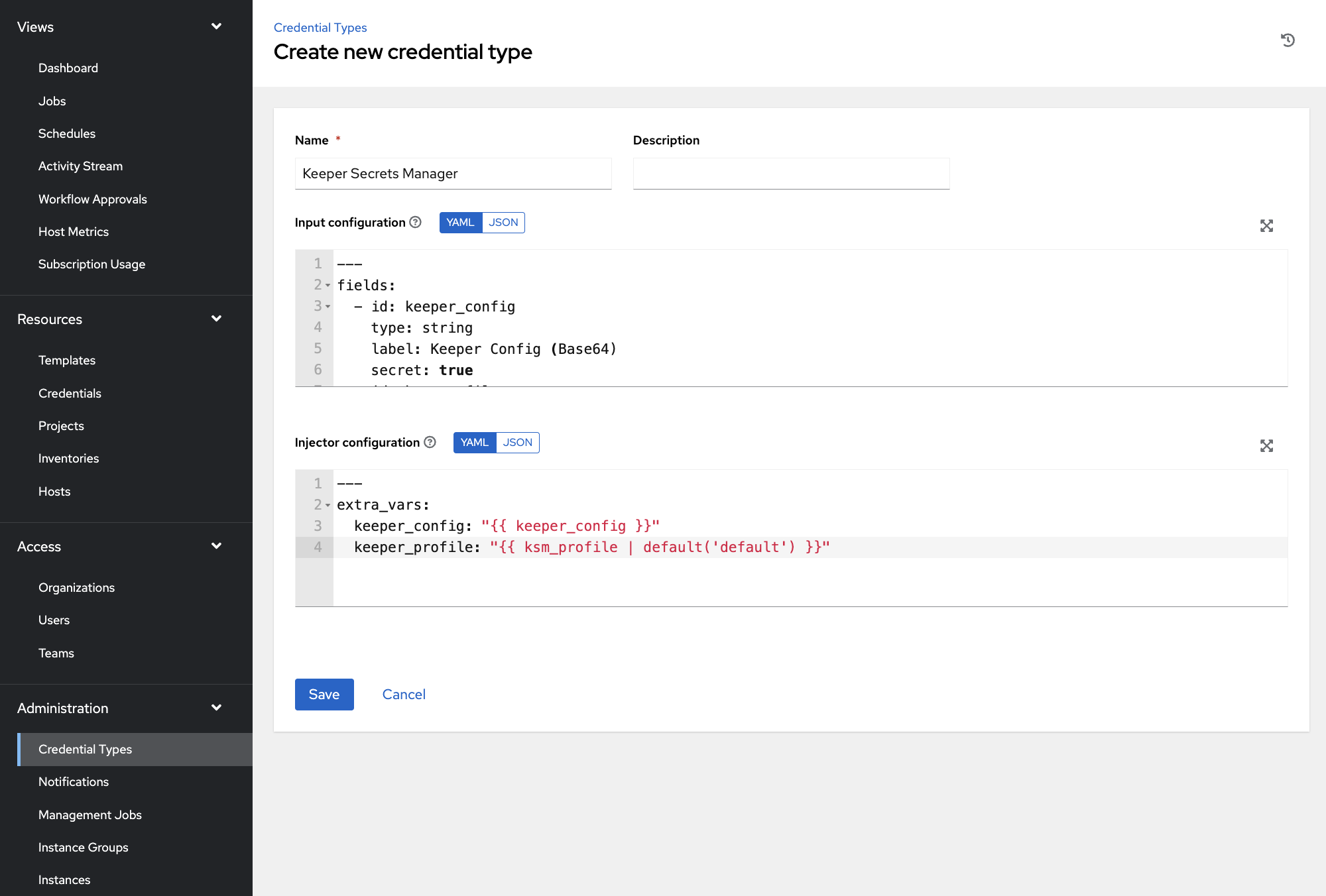
To create Keeper Secrets Manager custom credential type go to **Credential Types** under **Administration** and click **Add.**
Give your **credential type** a name and set **Input configuration** to:
```yaml
---
fields:
- id: keeper_config
type: string
label: Keeper Config (Base64)
secret: true
required:
- keeper_config
```
Then set **Injector configuration** to:
```yaml
---
extra_vars:
keeper_config: "{{ keeper_config }}"
```
Click **Save.**
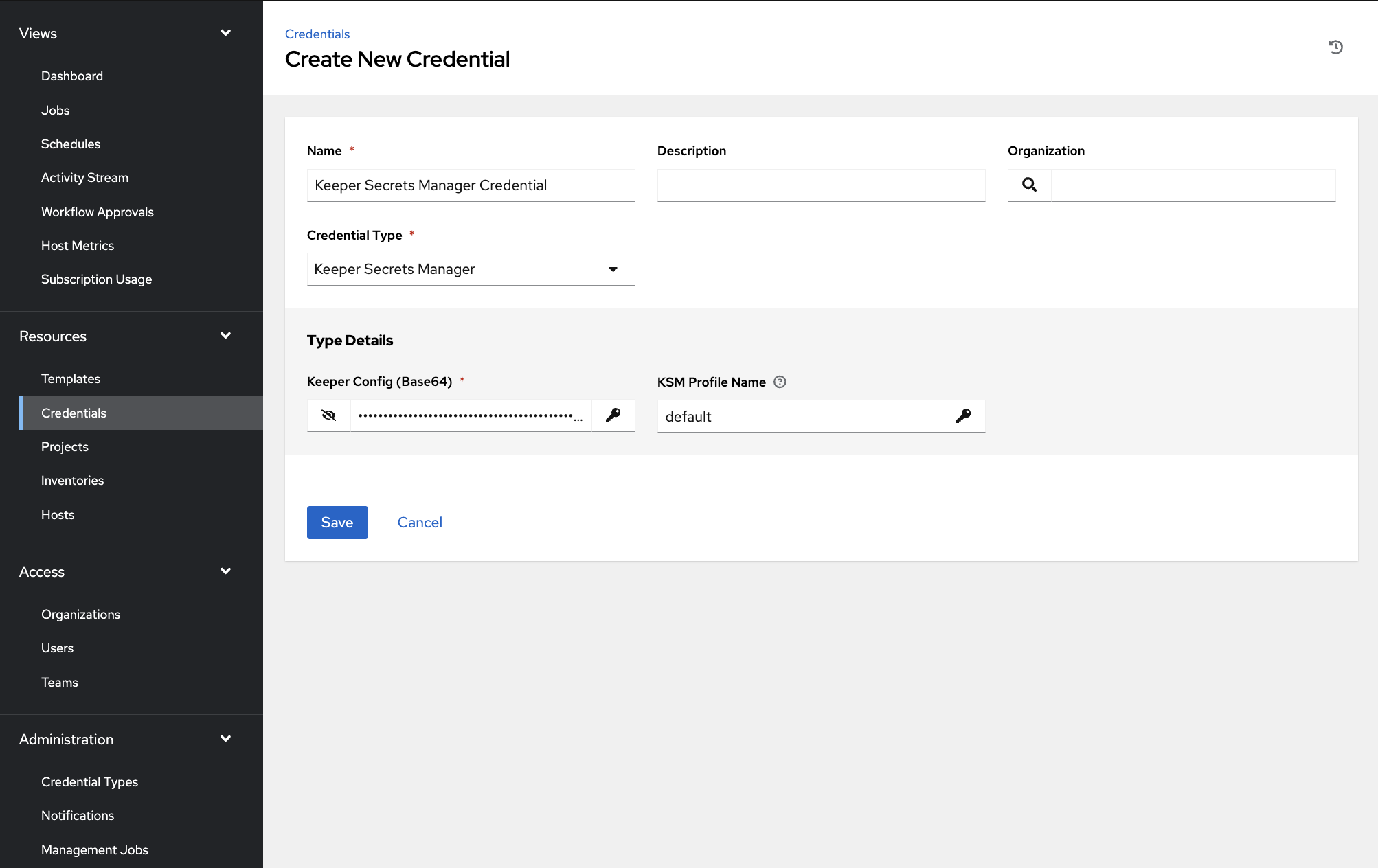
Go to **Credentials** under **Resources** section and click **Add**.
Set a **Name** for your credential, choose **Credential Type** you created earlier and add your **Base64** token to **Keeper Config** input. Click **Save**.
The credential will be used when the **Template** is setup.
## Execution Environment
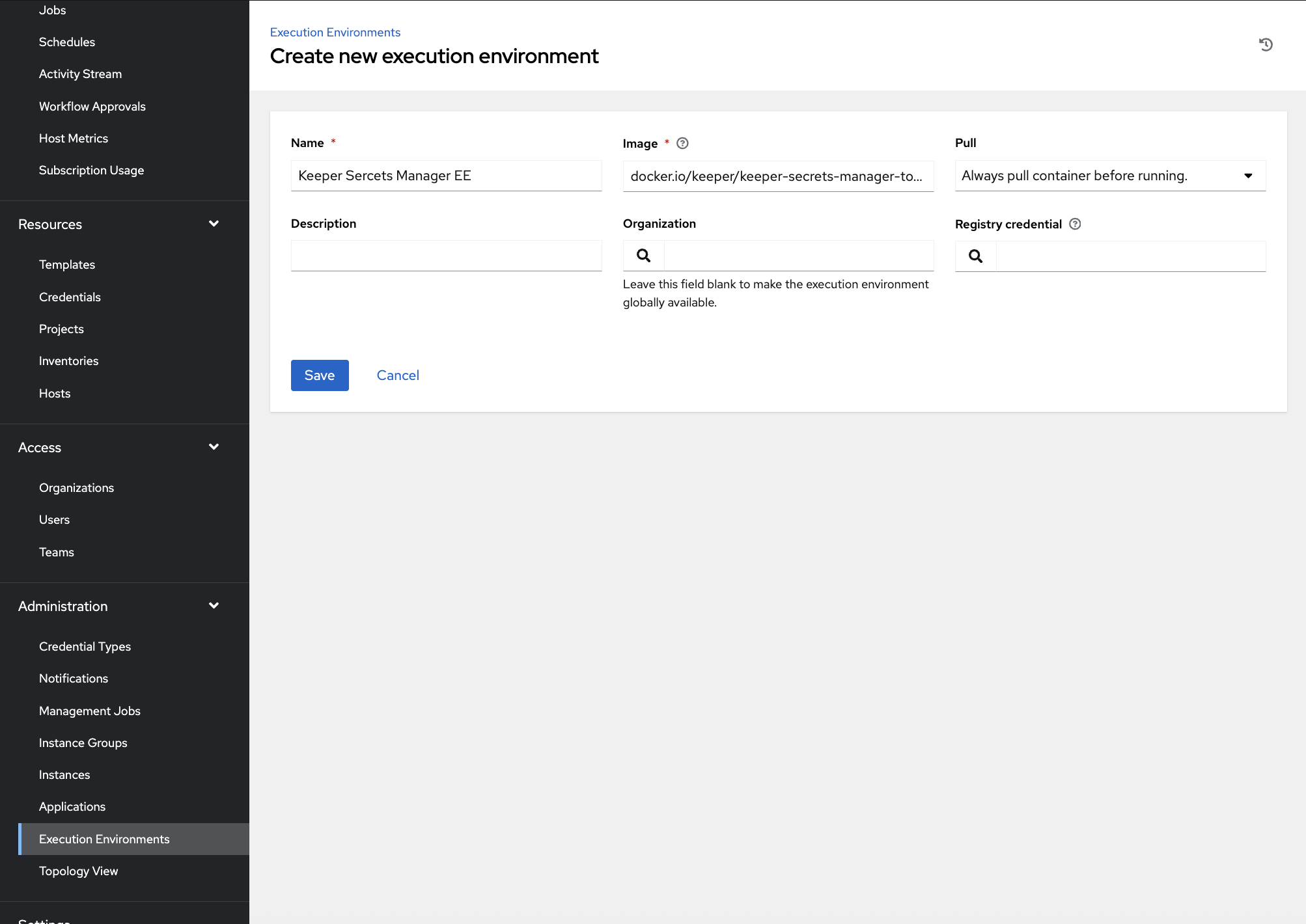
To use the Keeper Secrets Manager plugins in Ansible Automation Controller an Execution Environment containing the Keeper Secrets Manager SDK is required. This SDK is included in the Docker image `keeper/keeper-secrets-manager-tower-ee`. In your instance of Ansible Automation Controller, select **Execution Environment** in the **Administration** menu, then click **Add**.
The **Image** value is `docker.io/keeper/keeper-secrets-manager-tower-ee:latest` or `docker.io/keeper/keeper-secrets-manager-tower-ee:` if there is a specific tag version.
The value for **Pull** should be set to *Always pull container before running* is you are using the **latest** tag. If you pin the tag to a specific tag version of `keeper/keeper-secrets-manager-tower-ee` then set the value to *Only pull the image if not present before running*.
For more information, see the image's [DockerHub page](https://hub.docker.com/r/keeper/keeper-secrets-manager-tower-ee).
{% hint style="info" %}
As of version 1.4.0, the Execution Environment image includes the following system packages required by Ansible Automation Platform:
* `openssh-clients` — Provides `ssh-agent`, required by AAP at container startup
* `sshpass` — Required for password-based SSH connections
* `rsync` — Required by the `ansible.builtin.synchronize` module
* `git` — Required by the `ansible.builtin.git` module
If you are using a pinned image tag older than 1.4.0 and encounter `[dumb-init] ssh agent: No such file or directory`, upgrade to the 1.4.0 or later image tag.
{% endhint %}
## Projects
### Playbook Repository
#### Using the Keeper Security Manager collection from [Ansible Galaxy](https://galaxy.ansible.com/ui/repo/published/keepersecurity/keeper_secrets_manager/)
To use the Keeper Secrets Manager plugins in your projects, create a `collections` directory in your source repository, if one does not already exists. Then create, or add to, the file `requirements.yml` the following value.
```yaml
---
collections:
- keepersecurity.keeper_secrets_manager
```
#### Playbook
The directory structure should look like the following.
```
$ tree
.
├── collections
│ └── requirements.yml
├── playbook_1.yml
└── playbook_2.yml
```
{% hint style="info" %}
Ansible Automation Controller uses it's own stdout callback plugin. So using keeper\_redact will not work. It's important to add `no_log: True` to tasks that may display secrets in the log.
{% endhint %}
```yaml
---
- name: Playbook One
hosts: all
collections:
- keepersecurity.keeper_secrets_manager
tasks:
- name: "Make User SSH Directory, if does not exists"
file:
path: "/home/user/.ssh"
state: directory
recurse: yes
- name: "Copy SSH Keys"
keeper_copy:
notation: "{{ your_record_uid }}/field/keyPair[{{ item.notation_key }}]"
dest: "/home/user/.ssh/{{ item.filename }}"
mode: "0600"
loop:
- { notation_key: "privateKey", filename: "id_rsa" }
- { notation_key: "publicKey", filename: "id_rsa.pub" }
```
### Project
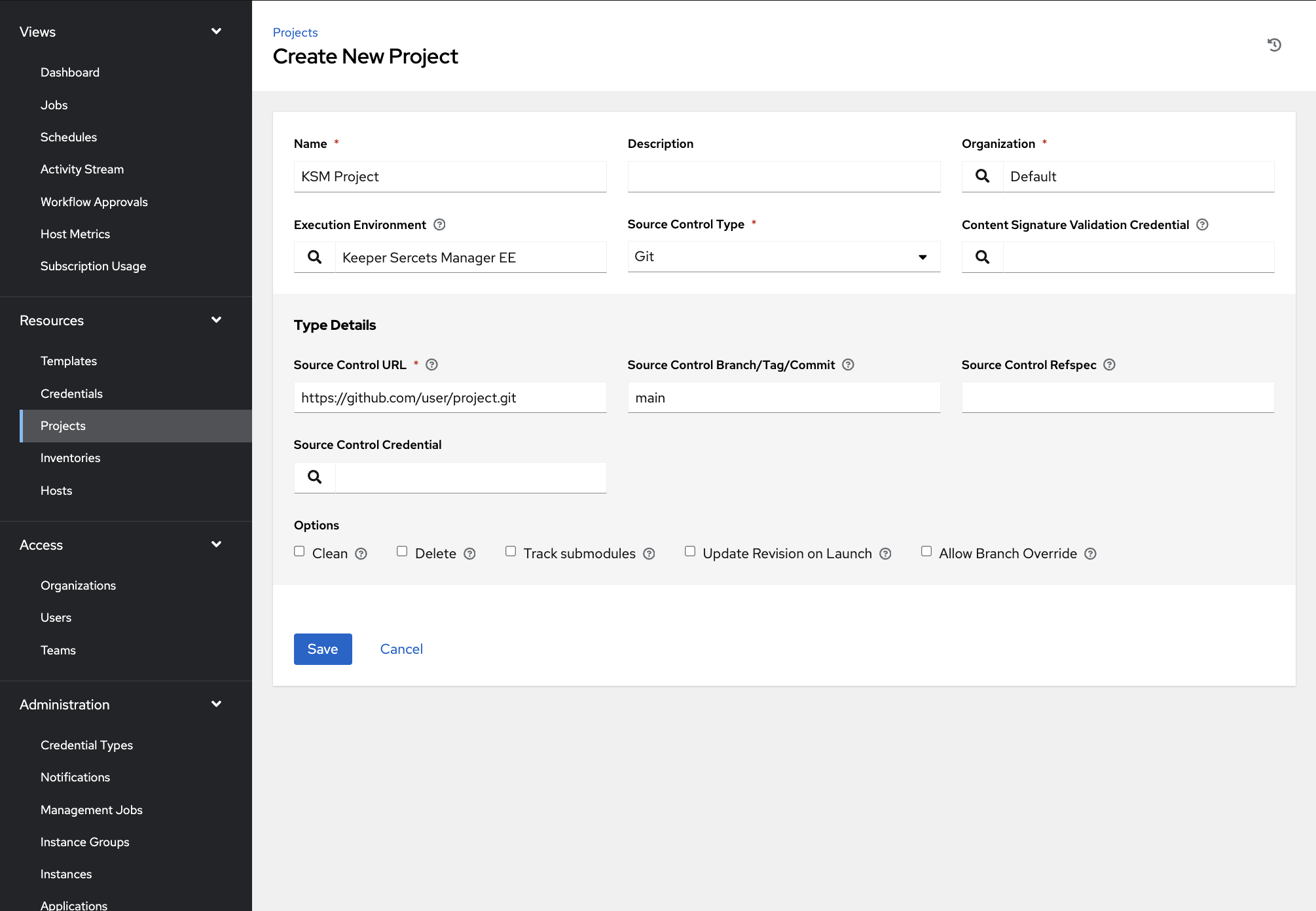
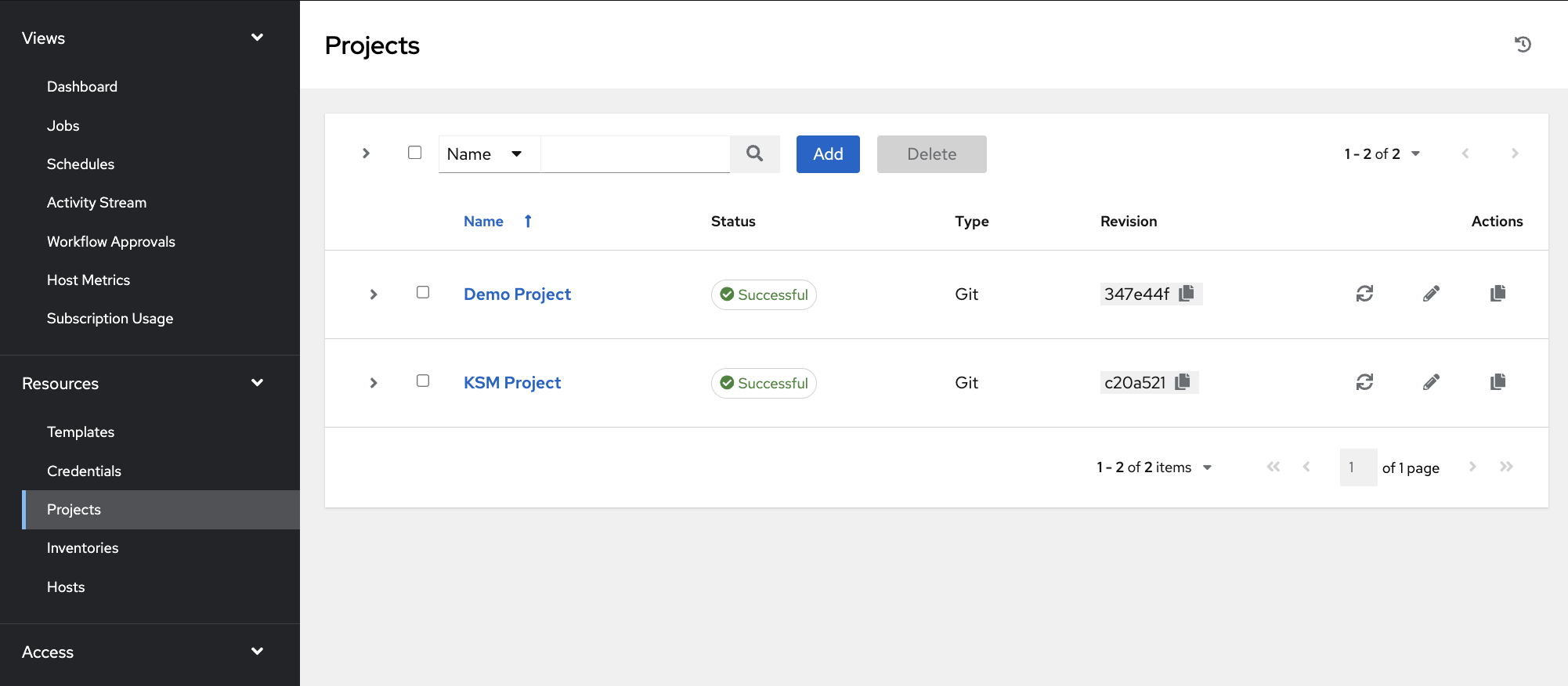
Once you have added the collection to your source repository, a new **Project** can be created.
Make sure to select the Execution Environment that you created that uses the `keeper/keeper-secrets-manager-tower-ee` image.
In the example above, the source repository was Git with the appropriate details. Your company may use a different source control.
After it is saved, your created project should be synced.
## Template
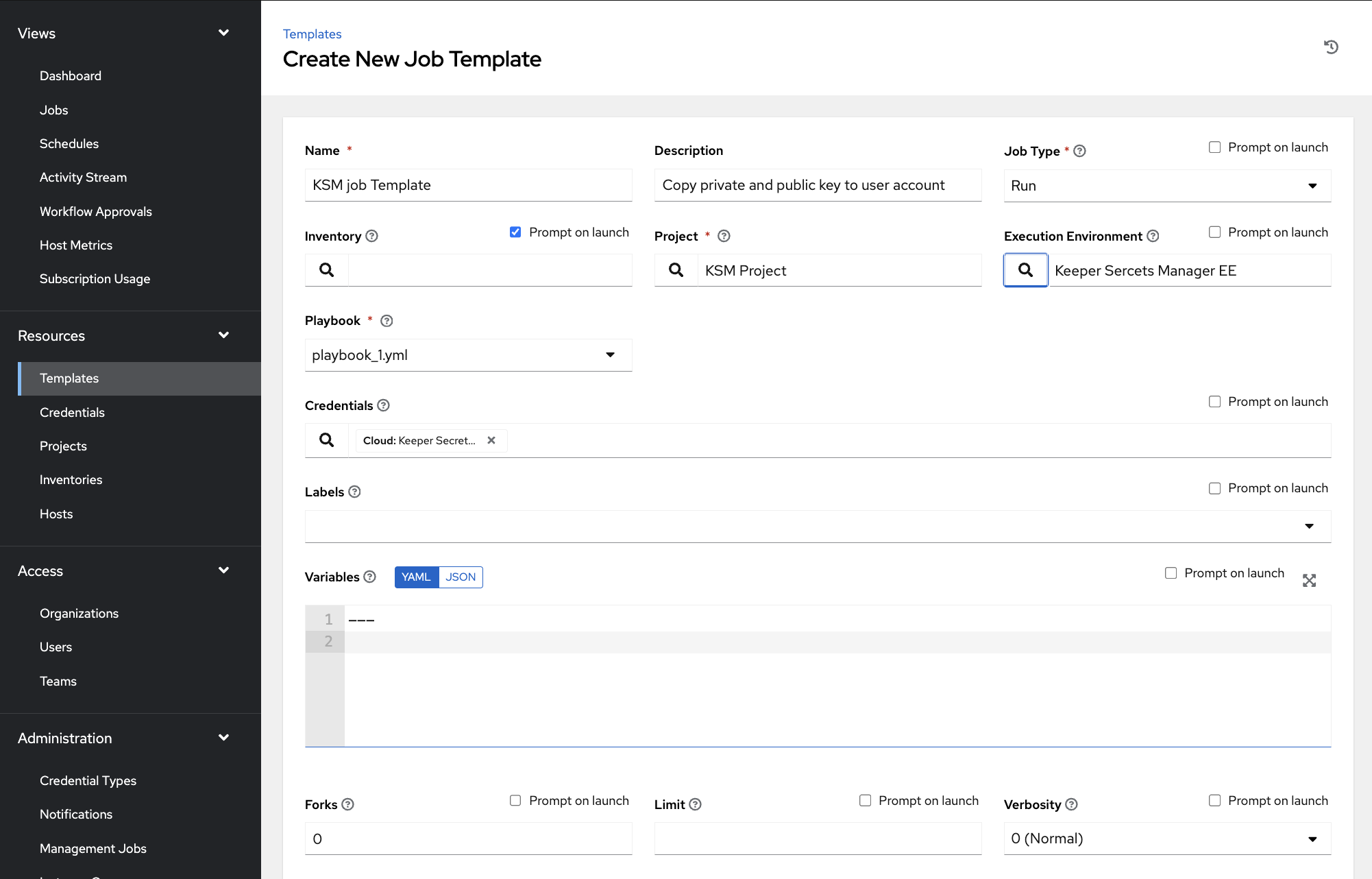
In your instance of Ansible Automation Controller, select **Templates** in the **Resources** menu, then click **Add**.
For **Projects** select the project that was just created that contain the playbooks. For **Execution Environment** select the execution environment that contains the *Keeper Secrets Manager Tower EE* docker image. For **Playbook** select a playbook from your source repository.
For **Credentials** select the **Keeper Secrets Manager Credential** you created. You can also select the credential to use for connection to your inventory servers.
Finish by clicking the **Save** button at the bottom of the page.
## Launching a Template
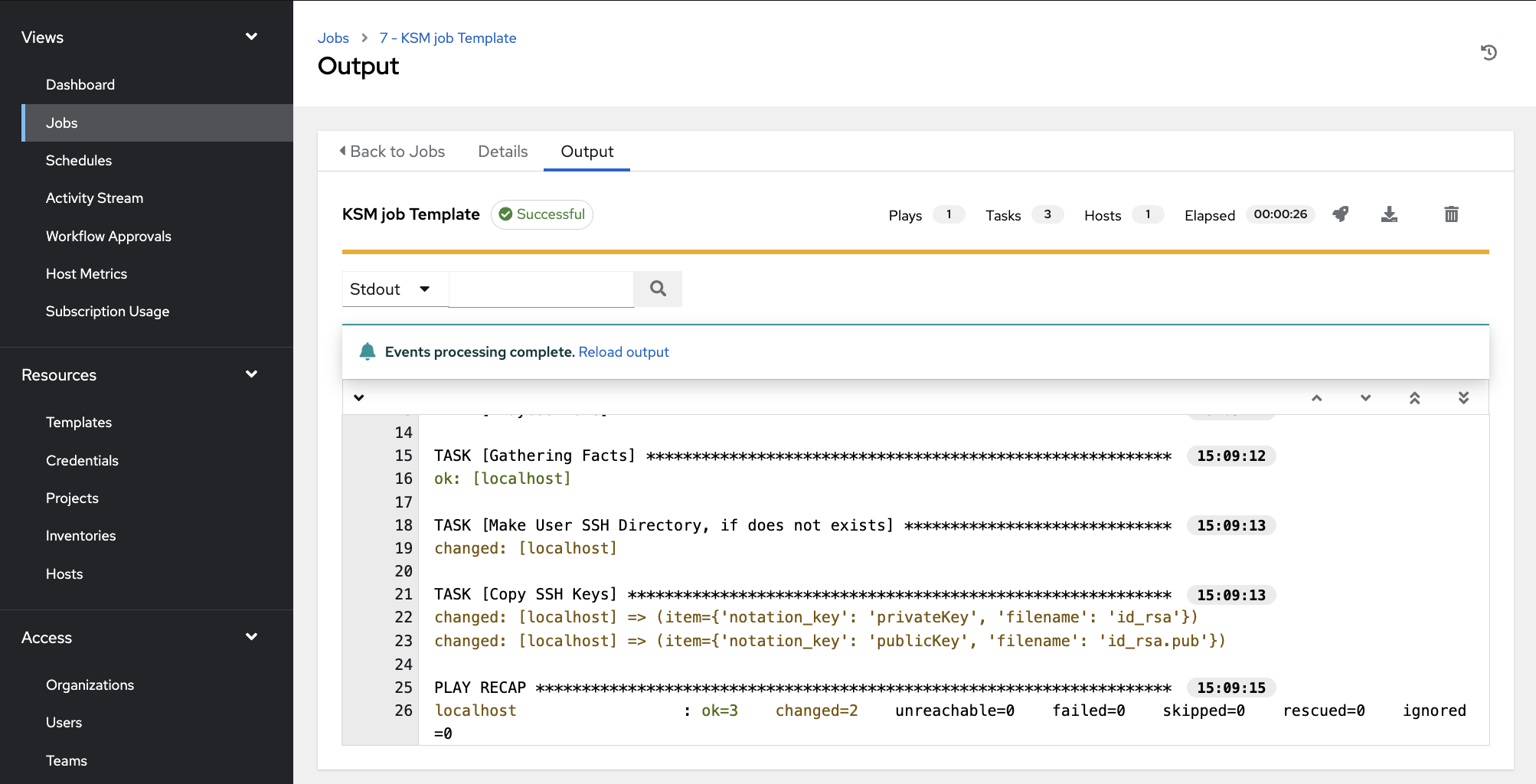
The last step is to launch a template to create a job.
With the configuration now in the available variables, the `keeper_copy` action can retrieve the public and private SSH key from the Keeper Vault and copy them into location on the remote machine.
{% hint style="info" %}
See the [Ansible Plugin documentation](https://docs.keeper.io/en/keeperpam/secrets-manager/integrations/ansible/ansible-plugin) for all the Secrets Manager capabilities available to Ansible
{% endhint %}