# Browser Extensions

<figure><img src="https://914511346-files.gitbook.io/~/files/v0/b/gitbook-x-prod.appspot.com/o/spaces%2F-LSGVtOTYUIkVBoYtFvK%2Fuploads%2FHSk4KzUQF1gILQrtDQ6H%2FBE.jpg?alt=media&#x26;token=4e12f711-c476-4ec2-99f3-7aca5e39d4ad" alt=""><figcaption></figcaption></figure>

## Overview

KeeperFill is Keeper’s powerful, autofilling browser extension. Once you install the Keeper Browser Extension, you can conveniently autofill your logins, passwords, passkeys and save new records that you create to your Keeper Vault. The KeeperFill browser extension is available for every web browser including Chrome, Firefox, Safari, Edge, Opera and other Chromium-based browsers.

## Installation & Setup

Below you will find browser-specific installation and setup instructions. Instructions will vary across different browsers and operating systems.

* [Chrome](https://docs.keeper.io/en/user-guides/browser-extensions/keeperfill-for-chrome-and-brave)
* [Firefox](https://docs.keeper.io/en/user-guides/browser-extensions/keeperfill-for-firefox)
* [Safari](https://docs.keeper.io/en/user-guides/browser-extensions/keeperfill-for-safari)
* [Edge](https://docs.keeper.io/en/user-guides/browser-extensions/keeperfill-for-edge)
* [Opera](https://docs.keeper.io/en/user-guides/browser-extensions/keeperfill-for-opera)
* [Other Chromium-based browsers](https://docs.keeper.io/en/user-guides/browser-extensions/keeperfill-for-chrome-and-brave) such as Brave

## Disable Your Browser's Password Manager&#x20;

Since your browser's native password manager can interfere with Keeper, we strongly recommend disabling it once you've downloaded the Keeper Browser Extension. This eliminates potential conflicts and ensures you receive the best possible KeeperFill experience without the hassle of manual configuration.&#x20;

* **Administrative Controls:** In a future release, administrative controls will be implemented in the Keeper Admin Console, allowing organizations to determine whether KeeperFill automatically disables a browser’s built-in password manager.
* **Existing Passwords:** Existing passwords saved in your browser's password manager will not be removed if this feature is enabled.
* **Autofill for Payments, Addresses & Personal Information:** Payments, addresses and personal information saved in your browser's password manager will be unaffected by this feature.

**Existing Users**&#x20;

If you are an existing user, this new feature update *may* trigger the browser extension to register an error — if it does, just click "Turn on" or "Accept permissions" (depending on your browser) to re-enable Keeper. Accepting permissions allows Keeper the option to disable your browser's built-in password manager.

<div><figure><img src="https://914511346-files.gitbook.io/~/files/v0/b/gitbook-x-prod.appspot.com/o/spaces%2F-LSGVtOTYUIkVBoYtFvK%2Fuploads%2Fpad2cTJYTIwX2L8GoAQM%2Fimage%20(36).png?alt=media&#x26;token=144d5101-6940-4696-b86f-541c3bebff20" alt=""><figcaption></figcaption></figure> <figure><img src="https://914511346-files.gitbook.io/~/files/v0/b/gitbook-x-prod.appspot.com/o/spaces%2F-LSGVtOTYUIkVBoYtFvK%2Fuploads%2FlYO1FzXWQW6Os92b1MTT%2Fimage%20(37).png?alt=media&#x26;token=49d4baa5-0faf-4564-a10d-3b65afdb6cad" alt=""><figcaption></figcaption></figure></div>

**Set Up**

Upon logging into Keeper for the first time (or following an update) a prompt will suggest that you choose your default password manager and import the passwords from your browser. Click **Continue** to complete this quick setup or **Skip For Now.**&#x20;

<figure><img src="https://914511346-files.gitbook.io/~/files/v0/b/gitbook-x-prod.appspot.com/o/spaces%2F-LSGVtOTYUIkVBoYtFvK%2Fuploads%2FBPxX3ZqigjwRr7nXcSKU%2FIntro.png?alt=media&#x26;token=97c8db99-d871-483b-917d-4db24fa143b9" alt="" width="180"><figcaption><p>Prompt to Begin Setup</p></figcaption></figure>

Check the box for "Keeper Security" or toggle "Disable Built-in Password Manager" on (this prompt will vary depending on if your specific browser type is detected or not). Next, click **Continue** to complete the process.&#x20;

<div><figure><img src="https://914511346-files.gitbook.io/~/files/v0/b/gitbook-x-prod.appspot.com/o/spaces%2F-LSGVtOTYUIkVBoYtFvK%2Fuploads%2FKI34Mf6mn9hCjFe7xPJR%2FWith%20Browser%20Detection%20(3).png?alt=media&#x26;token=7d61a673-0522-4680-a8fd-89c5db4907e5" alt="" width="180"><figcaption><p>Keeper Selected as Default <br>Password Manager</p></figcaption></figure> <figure><img src="https://914511346-files.gitbook.io/~/files/v0/b/gitbook-x-prod.appspot.com/o/spaces%2F-LSGVtOTYUIkVBoYtFvK%2Fuploads%2Ff5MgFtMkOcLJpgXko5hw%2FWithout%20Browser%20Detection%20(2).png?alt=media&#x26;token=855267a3-224d-4764-8142-e80af99abe9e" alt="" width="180"><figcaption><p>Disable Built-In Password Manager</p></figcaption></figure></div>

{% hint style="info" %}

## Click "Skip For Now" at the bottom of the extension window if you'd like to skip this process at any point in the set up wizard. You can also manage this feature at any time from Keeper's Settings menu.&#x20;

{% endhint %}

## Logging In

Most users can log into the KeeperFill browser extension with their email address and master password. If you are part of an Enterprise rollout, you may be directed to log in with your Enterprise SSO login credentials.

When you log in or out of your Keeper Web Vault you will be simultaneously logged in or out of KeeperFill and vice-versa.

<figure><img src="https://914511346-files.gitbook.io/~/files/v0/b/gitbook-x-prod.appspot.com/o/spaces%2F-LSGVtOTYUIkVBoYtFvK%2Fuploads%2FW6sQanwnVNx5VIGCHwOB%2FScreen%20Shot%202023-10-10%20at%2011.48.53%20AM.png?alt=media&#x26;token=5c557c10-3e42-40d2-bb7f-2df7cff1f2b9" alt=""><figcaption><p>KeeperFill Master Password Login</p></figcaption></figure>

For customers who log in with SSO, typically entering the email address will route to the corresponding identity provider login screen. If your Keeper administrator requires a specific Enterprise Domain entry, click on **Enterprise SSO Login**.

<figure><img src="https://914511346-files.gitbook.io/~/files/v0/b/gitbook-x-prod.appspot.com/o/spaces%2F-LSGVtOTYUIkVBoYtFvK%2Fuploads%2FMoicEqEKYfzQKge34uAl%2FScreen%20Shot%202023-10-10%20at%2011.48.53%20AM%20(1).png?alt=media&#x26;token=0a5b91b0-860f-4f91-9012-fc1a69be7539" alt=""><figcaption><p>KeeperFill Login for Enterprise SSO</p></figcaption></figure>

{% hint style="info" %}
If Keeper does not automatically route you to the proper data center location or identity provider, please contact your Keeper administrator.

For GovCloud customers, ensure that the "US (GOV)" region is selected.
{% endhint %}

## Stay Logged In

By default, users are logged out of Keeper if their browser window closes, or if their computer restarts. Keeper's "Stay Logged In" feature allows you to remain logged into Keeper for a configurable duration.

<figure><img src="https://914511346-files.gitbook.io/~/files/v0/b/gitbook-x-prod.appspot.com/o/spaces%2F-LSGVtOTYUIkVBoYtFvK%2Fuploads%2FRZAJVtsrSgdwcLoyJYsV%2FScreenshot%202025-06-26%20at%2010.43.36%E2%80%AFAM.png?alt=media&#x26;token=e4f53ccc-3861-4753-ac98-b34d75423b33" alt="" width="563"><figcaption><p>KeeperFill Settings > Security</p></figcaption></figure>

To enable Stay Logged In, click the **options icon** > **Settings > Security**, then enable "Stay Logged In".

<figure><img src="https://914511346-files.gitbook.io/~/files/v0/b/gitbook-x-prod.appspot.com/o/spaces%2F-LSGVtOTYUIkVBoYtFvK%2Fuploads%2FNaOBrOLUALxitKmiUIDt%2FScreenshot%202025-06-26%20at%2010.43.26%E2%80%AFAM.png?alt=media&#x26;token=f01592ba-d124-4923-8aca-62a4860252e5" alt="" width="563"><figcaption><p>Stay Logged In Enabled</p></figcaption></figure>

Keeper recommends that you also set the "Inactivity Logout Timer" which automatically logs you out of Keeper after a period of inactivity. You can set this timer to the duration you prefer (minutes, hours, or days) and your session will resume even once you close your browser.

<figure><img src="https://914511346-files.gitbook.io/~/files/v0/b/gitbook-x-prod.appspot.com/o/spaces%2F-LSGVtOTYUIkVBoYtFvK%2Fuploads%2FF2rlzIobUzSqx3r2zLD3%2FScreenshot%202025-06-26%20at%2010.47.54%E2%80%AFAM.png?alt=media&#x26;token=d13b702a-fca9-4e55-93ad-090ee8e4eac4" alt="" width="563"><figcaption><p>Inactivity Logout Timer</p></figcaption></figure>

## Record Overview

Records now conveniently appear directly on the home screen as a list, with “Suggested Record(s)” at the top to easily fill the credentials that match the website you're on.

<figure><img src="https://914511346-files.gitbook.io/~/files/v0/b/gitbook-x-prod.appspot.com/o/spaces%2F-LSGVtOTYUIkVBoYtFvK%2Fuploads%2FDRUop0CxKGgIelcMKBKm%2FScreenshot%202025-06-26%20at%2010.53.35%E2%80%AFAM.png?alt=media&#x26;token=0c910a0d-01bd-400c-a2cb-941394398b0c" alt=""><figcaption><p>Suggested and Recently Used Records</p></figcaption></figure>

Select a record to view all its details as well as conveniently take common actions like launching, sharing, editing, and accessing the record's options menu.

<div><figure><img src="https://914511346-files.gitbook.io/~/files/v0/b/gitbook-x-prod.appspot.com/o/spaces%2F-LSGVtOTYUIkVBoYtFvK%2Fuploads%2FnAXgxHnJ9s7qb0keMlXU%2FScreenshot%202025-06-26%20at%2010.55.51%E2%80%AFAM.png?alt=media&#x26;token=8d3d1726-e9a8-4671-9844-8c4d039273da" alt="" width="563"><figcaption><p>Record Details and Action Buttons</p></figcaption></figure> <figure><img src="https://914511346-files.gitbook.io/~/files/v0/b/gitbook-x-prod.appspot.com/o/spaces%2F-LSGVtOTYUIkVBoYtFvK%2Fuploads%2FfIy0jWXZaZvvj1umpbxz%2FScreenshot%202025-06-26%20at%2010.56.12%E2%80%AFAM.png?alt=media&#x26;token=b92bc6e2-d889-47bd-a2e5-8ef6af316b0e" alt="" width="563"><figcaption><p>Options Menu</p></figcaption></figure></div>

## Suggested Records, Sort & Filter

Vault records appear directly on the browser extension home screen, making it quick and easy to find exactly what you are looking for.

<figure><img src="https://914511346-files.gitbook.io/~/files/v0/b/gitbook-x-prod.appspot.com/o/spaces%2F-LSGVtOTYUIkVBoYtFvK%2Fuploads%2FmucqONN0NYA3d00C44cs%2FUpdated%2016.9%20GIF.gif?alt=media&#x26;token=7fde2259-d533-4800-b446-dac81ce66189" alt="" width="218"><figcaption></figcaption></figure>

Easily fill credentials with suggested records that match the website you're on. Favorite records will appear on top when more than one suggested record is shown.

<figure><img src="https://914511346-files.gitbook.io/~/files/v0/b/gitbook-x-prod.appspot.com/o/spaces%2F-LSGVtOTYUIkVBoYtFvK%2Fuploads%2FG4uOSN57EKcnLrQwhnJQ%2FScreen%20Shot%202024-05-14%20at%201.18.56%20PM.png?alt=media&#x26;token=33140b76-a93b-4c82-8c2a-b41a295daab0" alt="" width="375"><figcaption><p>Suggested Records List</p></figcaption></figure>

Sort records by most recently used, name, or date modified. Filter by favorites, record type, and more.

<div align="center"><figure><img src="https://914511346-files.gitbook.io/~/files/v0/b/gitbook-x-prod.appspot.com/o/spaces%2F-LSGVtOTYUIkVBoYtFvK%2Fuploads%2FxFNYEreNfJpk0svEvDXL%2FScreen%20Shot%202024-05-14%20at%201.23.55%20PM.png?alt=media&#x26;token=d13eda5b-ecbd-4758-9552-d172160e6c75" alt="" width="563"><figcaption><p>Recent Records</p></figcaption></figure> <figure><img src="https://914511346-files.gitbook.io/~/files/v0/b/gitbook-x-prod.appspot.com/o/spaces%2F-LSGVtOTYUIkVBoYtFvK%2Fuploads%2FjEFICBaK1VDsrwxaxtYU%2FScreen%20Shot%202024-05-14%20at%201.19.44%20PM.png?alt=media&#x26;token=450c3c54-8b59-484a-8309-876635ef0b9d" alt="" width="563"><figcaption><p>Sort &#x26; Filter</p></figcaption></figure></div>

## Autofill Your Passwords

The KeeperFill Browser Extension allows you to autofill your passwords and save new login credentials you create to your vault.

If it's the first time you are logging into a site with KeeperFill, you will be asked if you would like Keeper to autofill your login.

Keep in mind, you must already have created a Keeper record for this site containing the website address for Keeper to recognize, match and fill your login. Upon clicking **Yes**, your credentials will be autofilled into the login form and you will be logged in.

<figure><img src="https://914511346-files.gitbook.io/~/files/v0/b/gitbook-x-prod.appspot.com/o/spaces%2F-LSGVtOTYUIkVBoYtFvK%2Fuploads%2FKzL5t53Dtqm9ZRVOi72B%2FScreenshot%202025-06-26%20at%2011.52.15%E2%80%AFAM.png?alt=media&#x26;token=30e1d05e-00ad-4820-82f0-90e24dd47277" alt=""><figcaption><p>Autofill Login Credentials With Keeper</p></figcaption></figure>

Records appear directly on the home screen as a list, with “Suggested Records” at the top to easily fill the credentials that match the website you're on. Select the record, then click **Autofill** to fill the credentials into the site's log in form.

<figure><img src="https://914511346-files.gitbook.io/~/files/v0/b/gitbook-x-prod.appspot.com/o/spaces%2F-LSGVtOTYUIkVBoYtFvK%2Fuploads%2FoKVP8u8vqV8Qp0ZzYkH9%2FScreenshot%202025-06-26%20at%2011.04.21%E2%80%AFAM.png?alt=media&#x26;token=7f5a2b75-ae45-44f7-8c68-a969b17e400b" alt=""><figcaption><p>Suggested Records</p></figcaption></figure>

<figure><img src="https://914511346-files.gitbook.io/~/files/v0/b/gitbook-x-prod.appspot.com/o/spaces%2F-LSGVtOTYUIkVBoYtFvK%2Fuploads%2F7i6qJWPXo3NKz97i4dxV%2FScreenshot%202025-06-26%20at%2011.03.53%E2%80%AFAM.png?alt=media&#x26;token=d9a21662-0c93-44dd-a8a9-4c0bc9327707" alt=""><figcaption><p>Autofill Your Login Credentials With KeeperFill</p></figcaption></figure>

{% embed url="<https://vimeo.com/585559712>" %}
AutoFill With KeeperFill
{% endembed %}

## KeeperAI Autofill

Keeper offers AI-powered autofill that intelligently recognizes and fills login forms across websites using local AI processing with zero-knowledge encryption.

Unlike traditional autofill solutions that struggle with modern single-page applications, complex authentication flows, and multilingual websites, KeeperAI Autofill uses locally-processed machine learning to understand form context, recognize usage patterns and predict multi-step authentication sequences to intelligently suggest the most appropriate login credentials.

The system is designed with privacy as a core principle. All AI model inference runs locally within the browser extension runtime, ensuring that form data, credentials and browsing patterns never leave the user's device.

{% hint style="info" %}
To report any issues with KeeperAI Autofill please email [feedback+aIautofill@keepersecurity.com](mailto:feedback+AIautofill@keepersecurity.com).
{% endhint %}

#### Activate KeeperAI

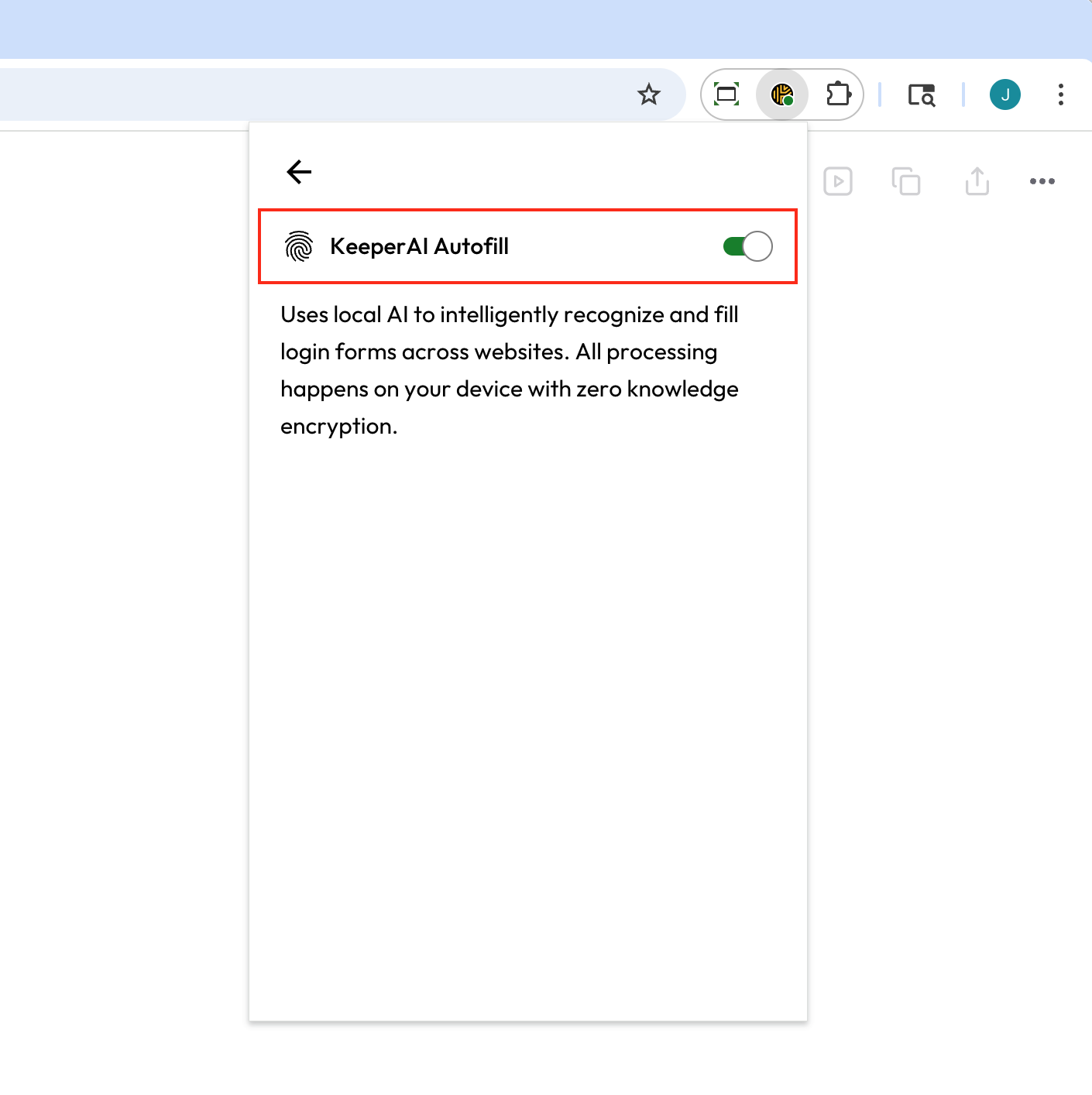
To activate KeeperAI Autofill, navigate to your extension **Settings**, select **KeeperAI Autofill** then toggle the feature on.

<div><figure><img src="https://914511346-files.gitbook.io/~/files/v0/b/gitbook-x-prod.appspot.com/o/spaces%2F-LSGVtOTYUIkVBoYtFvK%2Fuploads%2FcJTHxd7UOGLzerc1t5Zc%2FScreenshot%202025-09-17%20at%2011.52.43%E2%80%AFAM.png?alt=media&#x26;token=da50ccef-dd82-4dd7-a0f9-7d2d84e09657" alt="" width="375"><figcaption><p>Settings > KeeperAI Autofill</p></figcaption></figure> <figure><img src="https://914511346-files.gitbook.io/~/files/v0/b/gitbook-x-prod.appspot.com/o/spaces%2F-LSGVtOTYUIkVBoYtFvK%2Fuploads%2Flo1l4S3GDIg6D4jGQ1pW%2FScreenshot%202025-09-17%20at%2011.55.33%E2%80%AFAM.png?alt=media&#x26;token=80599fde-9d41-4c41-9716-bb47aa4bb3d1" alt="" width="375"><figcaption><p>KeeperAI Autofill Enabled</p></figcaption></figure></div>

{% hint style="info" %}
For Business and Enterprise users, the use of KeeperAI Autofill may be restricted by your Keeper Administrator.
{% endhint %}

## Searching Your Vault

The KeeperFill toolbar provides easy access to all of your vault records You can quickly search for a website login or anything else stored in your vault. The search feature is case insensitive and will match any record within your vault as you type.

<figure><img src="https://914511346-files.gitbook.io/~/files/v0/b/gitbook-x-prod.appspot.com/o/spaces%2F-LSGVtOTYUIkVBoYtFvK%2Fuploads%2FFjOd3tGYxOxmW4c06PCI%2FScreen%20Shot%202024-05-14%20at%201.45.23%20PM.png?alt=media&#x26;token=c6739235-eb16-46a1-9328-2fe22359db41" alt="" width="375"><figcaption><p>Search Your Vault</p></figcaption></figure>

## Understanding Record Matching

When logging into a website, KeeperFill will provide a list of matching records. The matching is performed by looking at the "Website Address" field of the record as well as the custom fields.

The list of matching records is determined by looking at the URLs stored within your Keeper record. Once the list is generated, a series of logical steps determines the sort order of the selection list and which specific record is selected as the default choice.

**(1)** If the page you're visiting has a subdomain (e.g. xyz.google.com), then Keeper first looks at the subdomain for the closest match in your vault records. The best matches are sorted by the last time they were used.

**(2)** After checking subdomain, Keeper looks at the "path" information (e.g. xzy.google.com/some/path) and compares it to the path stored within your Keeper record. The best matches are again sorted by the last time they were used.

**(3)** If the page contains an email address on the screen (such as a pre-filled email field) then Keeper will pre-select the record from the subdomain and path criteria which contains the email field.

## Create a New Record

With KeeperFill, there are multiple paths to create a new record and save it to your vault.

### Toolbar Window

You can quickly create a record from the KeeperFill toolbar at any time by clicking the **yellow plus button**. If you have no suggested records for the website you are on, Keeper will display an **Add Record** button instead. Click this button to "quick add" a record by auto-generating its "Title" and "URL" based on the website you are visiting.

<figure><img src="https://914511346-files.gitbook.io/~/files/v0/b/gitbook-x-prod.appspot.com/o/spaces%2F-LSGVtOTYUIkVBoYtFvK%2Fuploads%2F3l3kEG7rX3wXvFkThgiY%2FScreenshot%202025-06-26%20at%2011.11.13%E2%80%AFAM.png?alt=media&#x26;token=3db033b6-ed3a-436c-b167-6cf4f4b9dc64" alt="" width="563"><figcaption><p>Add or Create Record</p></figcaption></figure>

You can also choose which folders any given record is stored in. Record location can be selected on existing records as well as new records you are in the process of creating. Simply click the "Location" dropdown menu to select the folder or subfolder you would like the record to reside in.

<figure><img src="https://914511346-files.gitbook.io/~/files/v0/b/gitbook-x-prod.appspot.com/o/spaces%2F-LSGVtOTYUIkVBoYtFvK%2Fuploads%2Fz20fo4bupuKSwRKWu53t%2FScreenshot%202025-06-26%20at%2011.12.58%E2%80%AFAM.png?alt=media&#x26;token=25fde618-0513-45d4-a997-69e952821c51" alt="" width="563"><figcaption><p>Create a New Record</p></figcaption></figure>

{% hint style="info" %}

#### Check the box for "Trim URL" if you would like Keeper to automatically simplify the URL and improve matching across different pages of the website.

{% endhint %}

### Fill Prompt

Alternatively, you can create a new record from a website's "account creation" or "sign in" page by selecting the Keeper icon in the form field. On "account creation" pages, click the **Create a Record** or **Add to Keeper** button that appears to be routed to a secure Extension Tab, where you can create a new vault record. On "sign in" pages, the same **Create a Record** and **Add to Keeper** buttons will appear if you have no matching records for that website.

<figure><img src="https://914511346-files.gitbook.io/~/files/v0/b/gitbook-x-prod.appspot.com/o/spaces%2F-LSGVtOTYUIkVBoYtFvK%2Fuploads%2FRKnuqhxwobE6qv2cl6EW%2FScreen%20Shot%202024-06-28%20at%2012.17.49%20PM.png?alt=media&#x26;token=8076268a-bd65-41f3-8ecf-cb5137540725" alt=""><figcaption><p>Add New Account to Keeper</p></figcaption></figure>

If you do have matching record(s) and you'd like to create a new record, use the options menu in the prompt that appears to begin creating a new record in the secure Extension Tab.

<figure><img src="https://914511346-files.gitbook.io/~/files/v0/b/gitbook-x-prod.appspot.com/o/spaces%2F-LSGVtOTYUIkVBoYtFvK%2Fuploads%2FwVmkAK7Zl3YwkEEy5S7q%2FScreen%20Shot%202024-07-02%20at%2011.02.15%20AM.png?alt=media&#x26;token=a5a626df-8de5-4499-9286-365f9fa8349d" alt=""><figcaption><p>Options Menu > Create New</p></figcaption></figure>

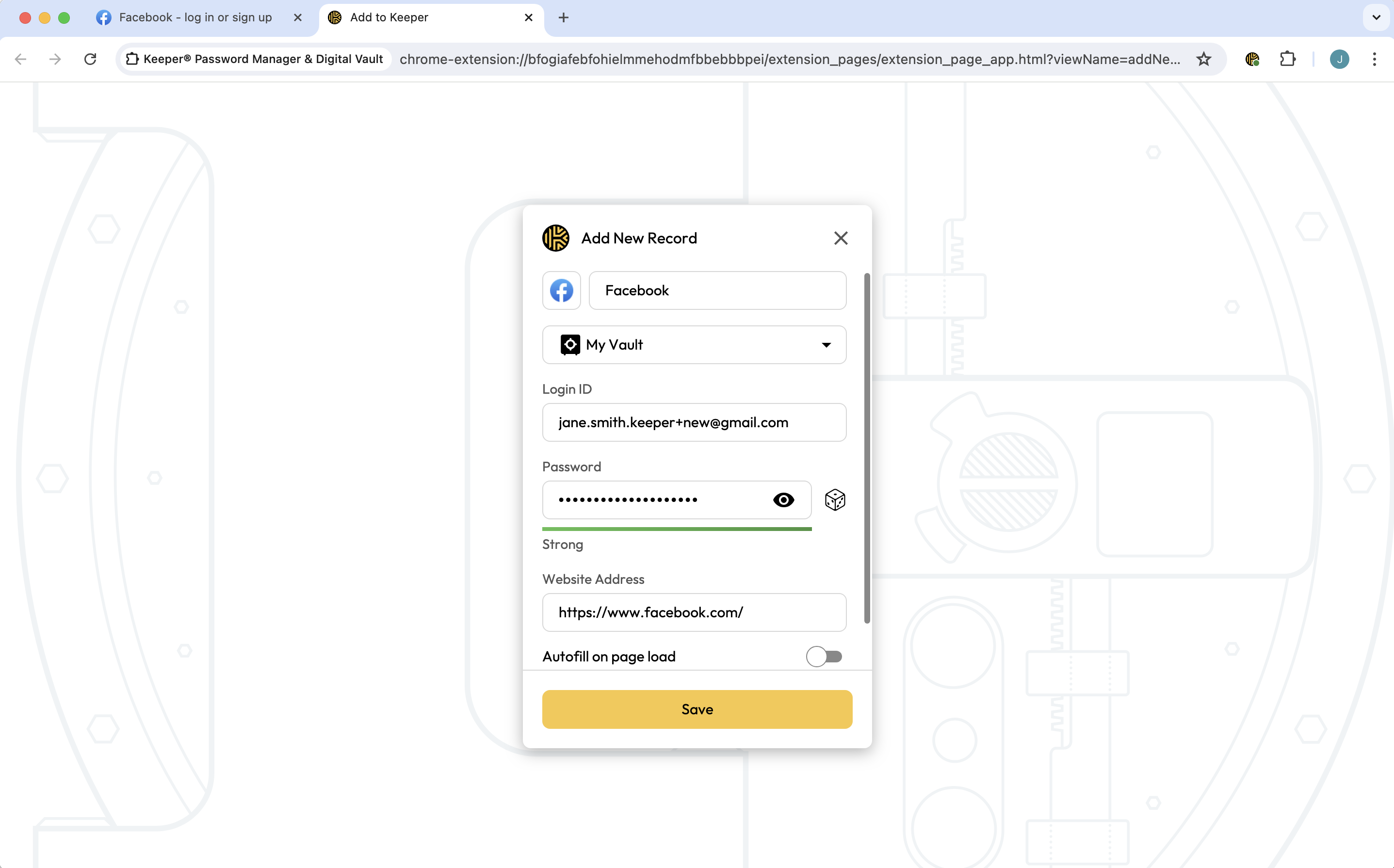
When you begin creating a record in Keeper's Extension Tab, the record "URL" and "Title" will be auto-generated. If you entered any data into the site's username or password fields before opening the Extension Tab, those values will be automatically populated into the new record form as well.

Upon reviewing and saving the record details, the Extension Tab will close and you will be automatically routed back to the website you came from. For additional convenience, Keeper will auto-fill the username and password fields on this website, if they are not already populated.

<figure><img src="https://914511346-files.gitbook.io/~/files/v0/b/gitbook-x-prod.appspot.com/o/spaces%2F-LSGVtOTYUIkVBoYtFvK%2Fuploads%2FVPbEFptxYuVf1Z5PSOBn%2FScreen%20Shot%202024-07-02%20at%2011.06.24%20AM.png?alt=media&#x26;token=fc4601a6-a5da-4739-adc3-7a9ef9c6c605" alt=""><figcaption><p>Create a New Record in Keeper's Extension Tab</p></figcaption></figure>

### Save Prompt

Keeper will offer to save a password to the vault, if you login manually on a site by typing or pasting in the login and password. The "Save Password Prompt" feature is enabled by default, and can be disabled in the browser extension settings menu. For Enterprise customers, this feature can also be enforced on or off.

<figure><img src="https://914511346-files.gitbook.io/~/files/v0/b/gitbook-x-prod.appspot.com/o/spaces%2F-LSGVtOTYUIkVBoYtFvK%2Fuploads%2F2ENPNtb1Ty1bqWZItYDe%2FScreenshot%202025-06-19%20at%2010.34.20%E2%80%AFPM.png?alt=media&#x26;token=f1b9b01c-93ef-4d90-8046-744e0b52d3f6" alt=""><figcaption><p>Save Password Prompt</p></figcaption></figure>

Note: For enterprise environments, the "Save Password Prompt" will only appear if the password entered by the user meets the complexity requirements enforced by the Keeper Administrator. See [role policies](https://app.gitbook.com/s/-LO5CAzpxoaEquZJBpYz/roles/enforcement-policies#record-passwords) for more information on password complexity enforcements.

### Add Additional Website Address

When creating a new record or editing an existing record, users can add additional website addresses to the record by clicking the **Add Custom Field** button and selecting URL. This functionality allows users to efficiently store and organize all related website domains for a record directly from the browser extension.

<div><figure><img src="https://914511346-files.gitbook.io/~/files/v0/b/gitbook-x-prod.appspot.com/o/spaces%2F-LSGVtOTYUIkVBoYtFvK%2Fuploads%2F16eFZgWUVeHRSTtfuSlz%2FEdit%20mode.jpg?alt=media&#x26;token=0030f991-b32e-4cde-97dd-639637c96f8f" alt="" width="186"><figcaption><p>Add Custom Field</p></figcaption></figure> <figure><img src="https://914511346-files.gitbook.io/~/files/v0/b/gitbook-x-prod.appspot.com/o/spaces%2F-LSGVtOTYUIkVBoYtFvK%2Fuploads%2FHACOd1GM2edpDs5eaFOM%2FCustom%20Fields%20(1).jpg?alt=media&#x26;token=05c63205-7fa1-4fa8-b1b0-d7296bf08e96" alt="" width="186"><figcaption><p>Add Additional URL</p></figcaption></figure></div>

Add as many website addresses as you'd like and easily reorder them with drag-and-drop.

Click the **option icon** to the right of a website address to:

* Set it as the primary address (this will swap the selected address with the record's primary address)
* Edit the field label
* Remove the website address

***

<figure><img src="https://914511346-files.gitbook.io/~/files/v0/b/gitbook-x-prod.appspot.com/o/spaces%2F-LSGVtOTYUIkVBoYtFvK%2Fuploads%2FHo3ugEXfVOPeV7ZfXstB%2FScreenshot%202025-10-06%20at%2012.59.43%E2%80%AFPM.png?alt=media&#x26;token=18fdf511-3aff-4c4d-8975-4118f4fe07af" alt="" width="563"><figcaption></figcaption></figure>

## Passkeys

A passkey is a cryptographic key that allows you to log into your accounts and apps without having to enter a password or second factor.

Storing passkeys in your Keeper Vault allows them to be used across different browsers and operating systems. They can also be shared with other users like any other record in your vault.

Passkeys can be used as a replacement for any FIDO2 security key for either first factor or second factor login to supported websites.

{% hint style="info" %}
Passkeys as a primary login factor only work on websites and applications that have been specifically built to support them. [The list of supported sites](https://www.keepersecurity.com/passkeys-directory/) is growing every day.
{% endhint %}

### Create a Passkey

To create and save a passkey for a site, typically you'll need to visit the "Security" or "Account Settings" page of the website.

Upon clicking "Create Passkey" at the desired site, Keeper will intercept the request. Click **Create Passkey** to create and save the passkey to your vault.

<figure><img src="https://914511346-files.gitbook.io/~/files/v0/b/gitbook-x-prod.appspot.com/o/spaces%2F-LSGVtOTYUIkVBoYtFvK%2Fuploads%2FzSFkUq8OxugxydrHDTnE%2Fpasskey3.jpeg?alt=media&#x26;token=24181b93-5aa5-434d-89f6-6c6dfb440741" alt=""><figcaption><p>Create a Passkey With Keeper</p></figcaption></figure>

### Log In With a Passkey

The next time you visit a website that supports passkey login, locate the "Sign in with a Passkey" or similar action button on the site, then click **Use Passkey** in the KeeperFill window to log in.

<figure><img src="https://914511346-files.gitbook.io/~/files/v0/b/gitbook-x-prod.appspot.com/o/spaces%2F-LSGVtOTYUIkVBoYtFvK%2Fuploads%2F0GnCPRW1U1Y1o0Tj6Q8A%2FScreenshot%202023-05-31%20at%207.59.37%20AM.jpg?alt=media&#x26;token=a10e6aaf-3a6a-498a-9d02-a062819f6ca3" alt=""><figcaption><p>Log In With Passkey</p></figcaption></figure>

{% hint style="info" %}
To learn more about Keeper and Passkeys, including Passkeys for mobile, [click here](https://docs.keeper.io/en/user-guides/passkeys).
{% endhint %}

## Password & Passphrase Generators

Long, random passwords that are created for each account help protect your information and reduce your exposure to data breaches. Alternatively, by combining multiple words, *passphrases* are an even more secure alternative to traditional passwords.

Keeper's password generator can create and securely store strong, random passwords or passphrases for all of your sites and apps.

### **Generate a Password**

To begin, click the **dice icon** within a new or existing record. You can customize your password by character length (8-99 characters) and choose to include lowercase and uppercase letters, numbers and symbols.

Check the box at the bottom of the toolbar if you'd like to make your selections the default setting for all passwords moving forward. Select **Use Password** to update the record or **Copy Password** to copy it to your clipboard.

<div><figure><img src="https://914511346-files.gitbook.io/~/files/v0/b/gitbook-x-prod.appspot.com/o/spaces%2F-LSGVtOTYUIkVBoYtFvK%2Fuploads%2FOzVEFY10aC4KVgZ7yo6H%2FScreen%20Shot%202024-10-02%20at%2010.53.51%20AM.png?alt=media&#x26;token=b19a2f2e-4b32-4a49-b610-d502788bc486" alt="" width="563"><figcaption><p>Edit/Create Password</p></figcaption></figure> <figure><img src="https://914511346-files.gitbook.io/~/files/v0/b/gitbook-x-prod.appspot.com/o/spaces%2F-LSGVtOTYUIkVBoYtFvK%2Fuploads%2Fc0c7hnPMBBk8edyXXV6A%2FScreen%20Shot%202024-10-02%20at%2010.53.14%20AM.png?alt=media&#x26;token=dc7c76b7-58a9-4afb-8a2a-5587a124597b" alt="" width="563"><figcaption><p>Password Generator</p></figcaption></figure></div>

### **Generate a Passphrase**

Click the **dice icon** within a new or existing record and from the dropdown menu next to "Type", select **Passphrase**.

You can customize your passphrase by setting the length, including capitals and numbers in the passphrase and choosing from various symbols to separate the words.

Passphrases can be up to 20 words long, with a minimum length of 5 words and each word including at least 3 characters.

Check the box at the bottom of the toolbar if you'd like to make your selections the default setting for all passphrases moving forward. Select **Use Passphrase** to update the record or **Copy Passphrase** to copy it to your clipboard.

<div><figure><img src="https://914511346-files.gitbook.io/~/files/v0/b/gitbook-x-prod.appspot.com/o/spaces%2F-LSGVtOTYUIkVBoYtFvK%2Fuploads%2FEtVjo7Cg4ExBssKFbRtx%2FScreen%20Shot%202024-10-02%20at%2010.53.04%20AM.png?alt=media&#x26;token=cd76397f-cd1e-4946-83df-bb7751a06bc7" alt="" width="563"><figcaption><p>Select Passphrase</p></figcaption></figure> <figure><img src="https://914511346-files.gitbook.io/~/files/v0/b/gitbook-x-prod.appspot.com/o/spaces%2F-LSGVtOTYUIkVBoYtFvK%2Fuploads%2Fo5gWF0nqpxQ6MDyCLgLW%2FScreen%20Shot%202024-10-02%20at%2010.58.03%20AM.png?alt=media&#x26;token=c053ed24-ac2c-4857-b9f1-88d8279785ac" alt="" width="563"><figcaption><p>Passphrase Generator</p></figcaption></figure></div>

{% hint style="info" %}
This will NOT automatically change the website's existing login password. You must still visit the corresponding website's "Change Password" form to update the old password to match the new, stronger password. Click [here ](https://docs.keeper.io/en/user-guides/tips-and-tricks/password-changing-with-keeperfill)to learn how to easily change your password with KeeperFill.
{% endhint %}

Alternatively, you can generate a standalone password or passphrase by clicking the **Options Menu >** **Password Generator**.

<figure><img src="https://914511346-files.gitbook.io/~/files/v0/b/gitbook-x-prod.appspot.com/o/spaces%2F-LSGVtOTYUIkVBoYtFvK%2Fuploads%2FiaeUJ3CrQ6fcXAYmik9w%2FScreen%20Shot%202024-10-02%20at%2011.29.11%20AM.png?alt=media&#x26;token=079d7f29-21bd-46c9-8e7f-7a682e9efcf9" alt=""><figcaption><p>Options Menu > Password/Passphrase Generator</p></figcaption></figure>

### Generator History

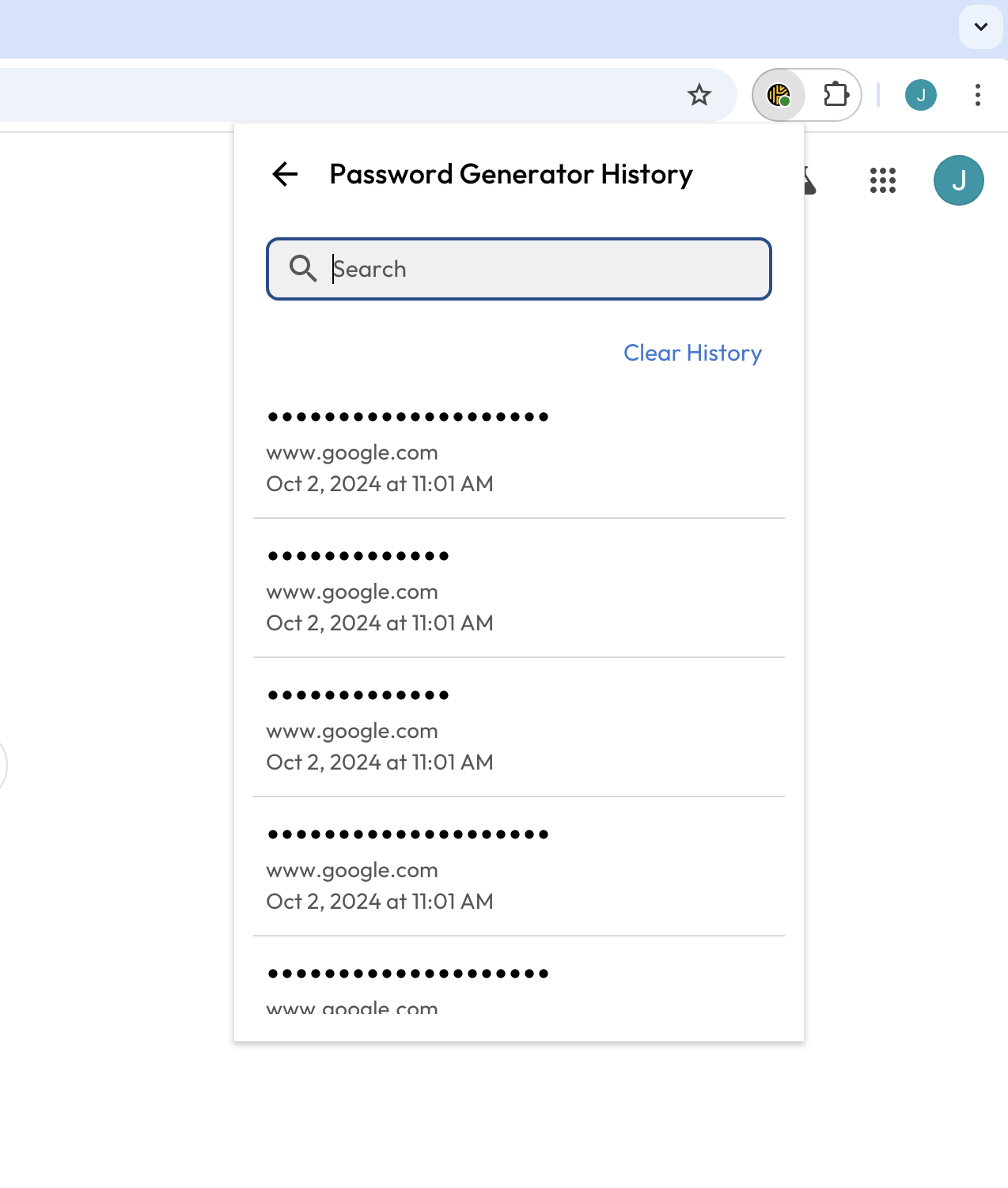
To view your password/passphrase history, click the **clock icon** within the generator screen. Hover your cursor over a password to either view it or copy it to your clipboard.

<div><figure><img src="https://914511346-files.gitbook.io/~/files/v0/b/gitbook-x-prod.appspot.com/o/spaces%2F-LSGVtOTYUIkVBoYtFvK%2Fuploads%2FwjMHll34WwlqzEQmH0uA%2FScreen%20Shot%202024-10-02%20at%2010.58.03%20AM.png?alt=media&#x26;token=e325109b-32bd-4e7c-8539-f395dbba7557" alt="" width="563"><figcaption><p>View Generator History</p></figcaption></figure> <figure><img src="https://914511346-files.gitbook.io/~/files/v0/b/gitbook-x-prod.appspot.com/o/spaces%2F-LSGVtOTYUIkVBoYtFvK%2Fuploads%2FEmLarYOh88HzFfzeX8FO%2FScreen%20Shot%202024-10-02%20at%2011.03.55%20AM.png?alt=media&#x26;token=ede2da6b-1f18-4184-8eb0-06a0f9a678c4" alt="" width="563"><figcaption><p>Show or Copy Password</p></figcaption></figure></div>

Your password generator history can be cleared at any time by clicking **Clear History**.

<figure><img src="https://914511346-files.gitbook.io/~/files/v0/b/gitbook-x-prod.appspot.com/o/spaces%2F-LSGVtOTYUIkVBoYtFvK%2Fuploads%2Ft1X1zOJiY2HitWgJGNd1%2FScreen%20Shot%202024-10-02%20at%2011.04.56%20AM.png?alt=media&#x26;token=9bc85e29-f250-4209-af75-61e5d9983725" alt="" width="375"><figcaption><p>Generator History</p></figcaption></figure>

### **Password Enforcement Policies**

For Enterprise customers, the password generator on end-user vaults will adhere to the minimum character length, minimum number of lowercase/uppercase/numbers/symbols and allowed list of symbols as defined by your Keeper Administrator.

The passphrase generator on end-user vaults is enabled by default, but can be disabled by your admin. Passphrases will adhere to the minimum number of words and can be configured to include capital letters and numbers. The separators between words will be selected from the list of allowed symbols.

For more information on record password enforcement policies, please see our [Enterprise Guide](https://docs.keeper.io/en/v/enterprise-guide/roles/enforcement-policies#password-generator).

## Change a Password

KeeperFill makes it easy to change your passwords. When a user visits a site's "Change Password" page, you will receive a prompt from Keeper asking if you would like help changing your password. By clicking **Yes**, Keeper will run a wizard that walks you through a few quick steps to change your password and simultaneously update the record in your vault. These steps will include a series of prompts detailing the following actions:

* Autofill your old/current password
* Automatically generate and autofill a new secure password
* Confirm the changes and save them to your vault

<figure><img src="https://914511346-files.gitbook.io/~/files/v0/b/gitbook-x-prod.appspot.com/o/spaces%2F-LSGVtOTYUIkVBoYtFvK%2Fuploads%2FV13A93Uhg0hZgf7LKaPf%2FScreen%20Shot%202023-10-11%20at%201.01.07%20PM.png?alt=media&#x26;token=ab74b180-93f8-43b7-bb63-9a04bc2df102" alt=""><figcaption><p>KeeperFill's Password Change Prompt</p></figcaption></figure>

{% embed url="<https://vimeo.com/736584776>" %}
Changing Your Passwords
{% endembed %}

## Autofill Custom Fields

Keeper can automatically fill custom fields into login forms. From the Keeper Web Vault, create a custom field in your record, ensuring the label matches that of the field you want to fill. (e.g. "Last 4 digits of SS&#x4E;**"**).

<figure><img src="https://914511346-files.gitbook.io/~/files/v0/b/gitbook-x-prod.appspot.com/o/spaces%2F-LSGVtOTYUIkVBoYtFvK%2Fuploads%2FsLqlUwmxKo5D0MHHdydP%2FScreen%20Shot%202023-10-16%20at%2010.29.19%20AM%20(1).png?alt=media&#x26;token=a25f1601-e055-48e7-9990-4900054e7e74" alt=""><figcaption><p>Create Custom Field</p></figcaption></figure>

<figure><img src="https://914511346-files.gitbook.io/~/files/v0/b/gitbook-x-prod.appspot.com/o/spaces%2F-LSGVtOTYUIkVBoYtFvK%2Fuploads%2FIG0teMSXfnSeq57ZUC4Z%2FScreen%20Shot%202023-10-16%20at%2010.23.27%20AM.png?alt=media&#x26;token=cb011520-ad60-46e0-8ef3-c152e98e8bb6" alt=""><figcaption><p>Autofilled Custom Field</p></figcaption></figure>

You can also fill the the custom field value via the fill window.

<figure><img src="https://914511346-files.gitbook.io/~/files/v0/b/gitbook-x-prod.appspot.com/o/spaces%2F-LSGVtOTYUIkVBoYtFvK%2Fuploads%2FxnpaIBH70MtjeJF6lFPK%2FScreen%20Shot%202023-10-16%20at%2010.25.32%20AM.png?alt=media&#x26;token=c7d540a7-5819-4f8d-8658-dd95abc7c3f9" alt="" width="375"><figcaption><p>Fill Custom Field</p></figcaption></figure>

## Keyboard Shortcuts

If you prefer to use keyboard shortcuts instead of mouse clicks to autofill your passwords, follow the steps below:

1. Navigate to the site you would like to log in to.
2. To open the KeeperFill extension, enter **shift+command+K** (Mac) or **Alt+K** (Windows).
3. In the field provided, enter your search terms.
4. Use the **up and down arrows** on your keyboard to find and select the record you are searching for.
5. Use the **enter/return** key to open the record details and **shift+enter/return** keys to launch and fill a record.

{% hint style="info" %}
You can modify the shortcut command to your preference in your browser's extension settings.
{% endhint %}

<figure><img src="https://914511346-files.gitbook.io/~/files/v0/b/gitbook-x-prod.appspot.com/o/spaces%2F-LSGVtOTYUIkVBoYtFvK%2Fuploads%2FBZleJDvE6aNHc5j2o8Z3%2FScreen%20Shot%202022-07-26%20at%2011.59.15%20AM.png?alt=media&#x26;token=5e7d1e9f-97fb-497a-b439-5175f6d2be17" alt=""><figcaption><p>chrome://extensions/shortcuts</p></figcaption></figure>

## Two-Factor Codes for TOTP

### Autofilling 2FA Codes

Upon autofilling your username and password via KeeperFill, when prompted, a stored two-factor code will also be autofilled into the field provided.

Alternatively, you can click the **copy icon** next to the code and paste it into the field provided.

<figure><img src="https://914511346-files.gitbook.io/~/files/v0/b/gitbook-x-prod.appspot.com/o/spaces%2F-LSGVtOTYUIkVBoYtFvK%2Fuploads%2FsqtISTTZKpQIXO8zyUWo%2FScreen%20Shot%202024-06-05%20at%2012.29.44%20PM.png?alt=media&#x26;token=8cf23502-9340-4afe-a669-760ec6574875" alt=""><figcaption><p>Fill Two-Factor Code</p></figcaption></figure>

{% embed url="<https://vimeo.com/356075220>" %}
Two-Factor Codes Integration
{% endembed %}

Storing two-factor codes in your Keeper Vault has several advantages:

* Keeper two-factor codes are more secure than using SMS text messages.
* Two-factor codes stored in Keeper are protected with strong zero-knowledge encryption.
* They can be auto-filled quickly while logging in to a site, saving time and reducing friction.
* Keeper records are securely backed up so if you lose a device you don’t have to reset all the codes.
* Keeper records are shareable. If you have multiple people that need to log in with the same credentials, they won’t need to track down the person who has the only device containing the code.

### TOTP Scanner

When configuring multi-factor authentication for any account, you can capture TOTP codes directly through the Browser Extension without switching between apps.

Simply hover to the right of a record name click the **options icon** and select **Scan 2FA Code**. Keeper will automatically detect and save the 2FA code to your Keeper record, making it instantly available for future logins.

<div><figure><img src="https://914511346-files.gitbook.io/~/files/v0/b/gitbook-x-prod.appspot.com/o/spaces%2F-LSGVtOTYUIkVBoYtFvK%2Fuploads%2FzWgJUTQ3FiCmMUnI6mzu%2FBE%20Toolbar%20Home%20-%20Portrait%20(1).png?alt=media&#x26;token=3f64b45f-ff8f-4c49-8778-16afb2019cce" alt="" width="361"><figcaption><p>Options > Scan 2FA Code</p></figcaption></figure> <figure><img src="https://914511346-files.gitbook.io/~/files/v0/b/gitbook-x-prod.appspot.com/o/spaces%2F-LSGVtOTYUIkVBoYtFvK%2Fuploads%2FKaecpBDBmLxYt4n9bzEK%2FBE%20Toolbar%20Home%20-%20Portrait%20(2).png?alt=media&#x26;token=3f95215c-3c50-496e-b972-00785e7b6e8b" alt=""><figcaption><p>2FA Code Added to Record</p></figcaption></figure></div>

TOTP codes can also be quickly added from the record "Create" and "Edit" screens. If a secret key is provided instead of a QR code, you can manually enter it to generate your two-factor code.

<figure><img src="https://914511346-files.gitbook.io/~/files/v0/b/gitbook-x-prod.appspot.com/o/spaces%2F-LSGVtOTYUIkVBoYtFvK%2Fuploads%2F7dts1XdMnevPKQH9tHz5%2FScreenshot%202025-07-11%20at%2010.50.37%E2%80%AFAM.png?alt=media&#x26;token=5f741b09-485c-41b7-8249-7afa79ed89fa" alt="" width="563"><figcaption><p>Scan 2FA Code or Enter Secret Key</p></figcaption></figure>

## Payment Cards & Addresses

From the fill window you can view and fill the payment cards and addresses that are stored in your vault.

<figure><img src="https://914511346-files.gitbook.io/~/files/v0/b/gitbook-x-prod.appspot.com/o/spaces%2F-LSGVtOTYUIkVBoYtFvK%2Fuploads%2Fc8Xt0aQyus2ybN1OI4sb%2FScreen%20Shot%202023-10-16%20at%2011.32.57%20AM.png?alt=media&#x26;token=4b810948-f076-4d65-821e-d7ddfcb44efd" alt=""><figcaption><p>Payment Cards &#x26; Addresses Stored in Keeper</p></figcaption></figure>

## Right-Click Context Menu

KeeperFill is fully integrated with your browser's right-click context menu and offers an alternative filling method. Simply right-click on a login field to produce a context menu. Select Keeper to fill logins, two-factor codes, payment cards, addresses and create and edit records.

<figure><img src="https://914511346-files.gitbook.io/~/files/v0/b/gitbook-x-prod.appspot.com/o/spaces%2F-LSGVtOTYUIkVBoYtFvK%2Fuploads%2FKuM0MMAYzXHKPm945Qfg%2FScreen%20Shot%202023-10-16%20at%2011.00.13%20AM.png?alt=media&#x26;token=4de43470-0c55-419e-b1ba-3a0d8de7d5fb" alt=""><figcaption><p>Fill Login via Right-Click Context Menu</p></figcaption></figure>

<figure><img src="https://914511346-files.gitbook.io/~/files/v0/b/gitbook-x-prod.appspot.com/o/spaces%2F-LSGVtOTYUIkVBoYtFvK%2Fuploads%2FfYXc1c5qroEGQSrikIyD%2FScreen%20Shot%202023-10-16%20at%2011.12.16%20AM.png?alt=media&#x26;token=aeaf3575-51a1-4b40-acaa-0e0739bee868" alt=""><figcaption><p>Fill Payment Card via Right-Click Context Menu</p></figcaption></figure>

{% hint style="info" %}
For security reasons, only records with a matching domain name for the site you visit will display in the menu of autofill options.
{% endhint %}

### Add 2FA Codes to Records

You can also quickly capture 2FA codes from the right-click context menu. When a website displays a QR code during two-factor authentication (2FA) setup, simply right-click on the QR code to open the context menu and select **Keeper > Scan 2FA Code** to save it directly to the matching record in your vault.

<figure><img src="https://914511346-files.gitbook.io/~/files/v0/b/gitbook-x-prod.appspot.com/o/spaces%2F-LSGVtOTYUIkVBoYtFvK%2Fuploads%2FFu3Sw5TpK5UqJyKMDVPN%2FContext%20Menu%402x.png?alt=media&#x26;token=13aac08e-2baf-4529-a3bb-08f341ae17bf" alt=""><figcaption><p>Right-Click Context Menu to Scan 2FA Code</p></figcaption></figure>

<figure><img src="https://914511346-files.gitbook.io/~/files/v0/b/gitbook-x-prod.appspot.com/o/spaces%2F-LSGVtOTYUIkVBoYtFvK%2Fuploads%2FHwyUC0xzGEcsuyz57vPP%2FSide%20Panel%20-%20Single%20record%20suggestion%402x.png?alt=media&#x26;token=e7659cfd-2bc6-4a1f-8033-0c731311a763" alt=""><figcaption><p>Add Scanned 2FA Code to Record</p></figcaption></figure>

## Account Switching

Have more than one Keeper account? Keeper supports the use of multiple vaults on the same device and makes it easy to seamlessly switch between your personal and business accounts for example, without having to log out of your current session.

To switch accounts, click on your **user icon** and select the account you'd like to switch to or tap **Add Account** to register another account on that browser.

<div><figure><img src="https://914511346-files.gitbook.io/~/files/v0/b/gitbook-x-prod.appspot.com/o/spaces%2F-LSGVtOTYUIkVBoYtFvK%2Fuploads%2FBs111jKAxT1vpjnlG8ZW%2FMulti%20Accounts.png?alt=media&#x26;token=d69619d9-e722-4e1d-907d-81ced6b5e13a" alt="" width="361"><figcaption><p>Account User Icon</p></figcaption></figure> <figure><img src="https://914511346-files.gitbook.io/~/files/v0/b/gitbook-x-prod.appspot.com/o/spaces%2F-LSGVtOTYUIkVBoYtFvK%2Fuploads%2FZYkfb8sXxuFCHiv3AwS0%2F2x%20Accounts.png?alt=media&#x26;token=b5015855-85b8-448e-ab2e-f4fac6cbc04b" alt="" width="361"><figcaption><p>Account Switch/Add</p></figcaption></figure></div>

{% hint style="info" %}
Quick account switching only works for active sessions that are already logged in.
{% endhint %}

Easily remove unwanted accounts from the browser by hovering to the right of an account email then clicking on the **remove icon**.

<figure><img src="https://914511346-files.gitbook.io/~/files/v0/b/gitbook-x-prod.appspot.com/o/spaces%2F-LSGVtOTYUIkVBoYtFvK%2Fuploads%2FcmlfsSChlpKYWf3TLA1b%2FAccount%20Hover.png?alt=media&#x26;token=2d7cfdaf-b0c2-4fdf-ae4c-8aa6382873aa" alt="" width="361"><figcaption><p>Remove Account from Browser</p></figcaption></figure>

## Tools & Settings

All your KeeperFill tools and settings are consolidated in an easy to use Options Menu found in the upper right corner of the KeeperFill toolbar.

<figure><img src="https://914511346-files.gitbook.io/~/files/v0/b/gitbook-x-prod.appspot.com/o/spaces%2F-LSGVtOTYUIkVBoYtFvK%2Fuploads%2FiyyIvdJ5bzXovfp2sYwQ%2FScreen%20Shot%202024-10-01%20at%2012.25.27%20PM.png?alt=media&#x26;token=aea18522-0890-4db4-b574-4df9928c89af" alt="" width="563"><figcaption><p>Options Menu > Settings Menu</p></figcaption></figure>

The Settings Menu covers everything from security settings, appearance, autofill and autosubmit functionality, the various KeeperFill prompts, and much more.

<div><figure><img src="https://914511346-files.gitbook.io/~/files/v0/b/gitbook-x-prod.appspot.com/o/spaces%2F-LSGVtOTYUIkVBoYtFvK%2Fuploads%2FANUCGVHDlVJlBGYIKkMO%2FScreenshot%202025-06-26%20at%2011.32.11%E2%80%AFAM.png?alt=media&#x26;token=7e74b615-5b49-479a-96cd-59342dc2a3b0" alt=""><figcaption><p>Settings Menu</p></figcaption></figure> <figure><img src="https://914511346-files.gitbook.io/~/files/v0/b/gitbook-x-prod.appspot.com/o/spaces%2F-LSGVtOTYUIkVBoYtFvK%2Fuploads%2Ft8eR0hx7HeagI1vTxocH%2FScreenshot%202025-06-26%20at%2011.32.55%E2%80%AFAM.png?alt=media&#x26;token=45ecc1dc-8f9c-4f90-aa4d-c6b5f036b8d1" alt=""><figcaption><p>Settings Menu Continued</p></figcaption></figure></div>

### Landscape Mode

Users can customize their viewing experience with the ability to expand the extension window via “Landscape Mode”. The dual-pane window allows you to view your record details and records list at the same time – providing seamless access to what you need most.

You can easily switch between “Landscape” and “Portrait” mode with a single click of a button on your extension toolbar.

<figure><img src="https://914511346-files.gitbook.io/~/files/v0/b/gitbook-x-prod.appspot.com/o/spaces%2F-LSGVtOTYUIkVBoYtFvK%2Fuploads%2F2MeWdXFUWE7gO7MeqF8E%2FScreen%20Shot%202024-10-01%20at%2012.25.27%20PM%20copy.png?alt=media&#x26;token=2fdb7d86-bf05-44bc-bf8f-c039107681d1" alt="" width="563"><figcaption><p>Switch to Landscape Mode</p></figcaption></figure>

<figure><img src="https://914511346-files.gitbook.io/~/files/v0/b/gitbook-x-prod.appspot.com/o/spaces%2F-LSGVtOTYUIkVBoYtFvK%2Fuploads%2FV2HYQT8ysO65ZQ1xmBcl%2FScreen%20Shot%202024-10-01%20at%2012.28.30%20PM.png?alt=media&#x26;token=0ef4af2b-f6fb-48b7-b86d-dde7abe3aa52" alt=""><figcaption><p>Landscape Mode</p></figcaption></figure>

### Reporting Autofill Issues with the Snapshot Tool

From time to time, users inform us that autofill is not functioning as expected on certain websites. The Snapshot Tool greatly simplifies the process of reporting and fixing autofill issues by seamlessly providing Keeper's Engineering Team with key website information.

To report an Autofill Issue, there are 2 locations to access this feature: From the on-page form fill and the browser extension toolbar.

#### On-Page Form Fill

From the on-page form filling screen, click on the overflow menu > Report an Autofill Issue

<figure><img src="https://914511346-files.gitbook.io/~/files/v0/b/gitbook-x-prod.appspot.com/o/spaces%2F-LSGVtOTYUIkVBoYtFvK%2Fuploads%2FWQQsw5WuhQFIEOmosR2Z%2Fsnapshot-tool-1.png?alt=media&#x26;token=bd4dd5f2-374e-4c71-99a9-b98d7fde39a3" alt=""><figcaption></figcaption></figure>

#### Activation

This works on:

* Login pages (Username, Password)
* TOTP code pages
* Payment and identity pages

#### Reporting Issues

If you are having trouble with a website's login page, simply select **Report an Autofill Issue** from the extension Options menu or from the fill tool.

<figure><img src="https://914511346-files.gitbook.io/~/files/v0/b/gitbook-x-prod.appspot.com/o/spaces%2F-LSGVtOTYUIkVBoYtFvK%2Fuploads%2FLzAVINoHfN4l50cqKC0M%2FBE%20Toolbar%20Home%20-%20Capture.png?alt=media&#x26;token=2a10bd52-9b14-4923-86a9-59b8b7c65667" alt="" width="375"><figcaption><p>Report Issue from the Extension Toolbar</p></figcaption></figure>

#### Browser Extension Toolbar

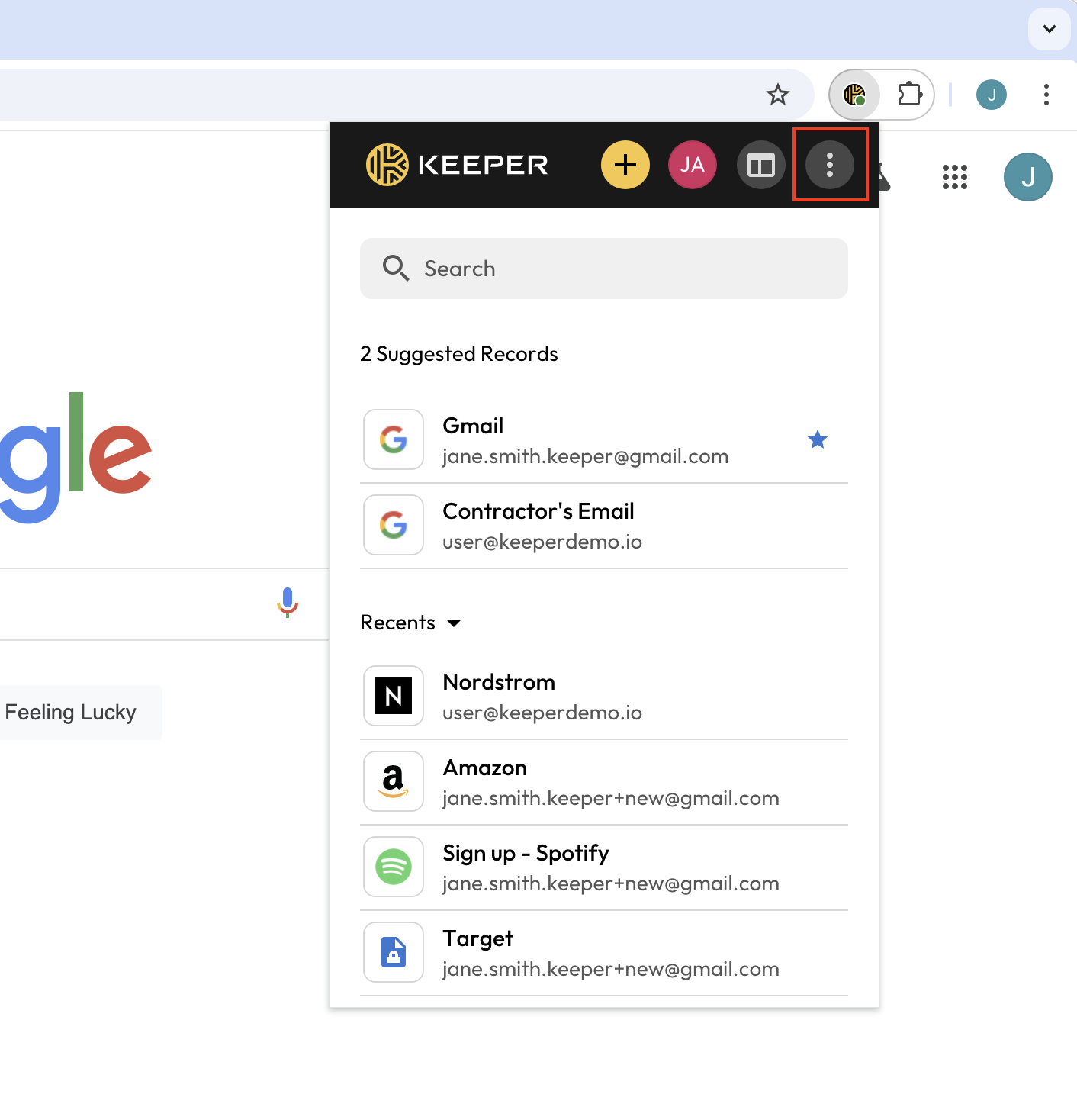
From the browser extension toolbar window, click on the **overflow menu** > **Report an Autofill Issue**.

<figure><img src="https://914511346-files.gitbook.io/~/files/v0/b/gitbook-x-prod.appspot.com/o/spaces%2F-LSGVtOTYUIkVBoYtFvK%2Fuploads%2FReWUdGC5JCc7w0asC5At%2Fsnapshot-tool-2.png?alt=media&#x26;token=2c84709c-45d5-4966-b21e-b46ec8ccab4f" alt=""><figcaption></figcaption></figure>

<figure><img src="https://914511346-files.gitbook.io/~/files/v0/b/gitbook-x-prod.appspot.com/o/spaces%2F-LSGVtOTYUIkVBoYtFvK%2Fuploads%2Fd4ywHc5GhpbuJbCRkJvf%2FAutofill%20Prompt%402x.png?alt=media&#x26;token=b0829fdf-4ede-453b-8128-e9da55f94895" alt="" width="563"><figcaption><p>Report Issue from the Fill Tool</p></figcaption></figure>

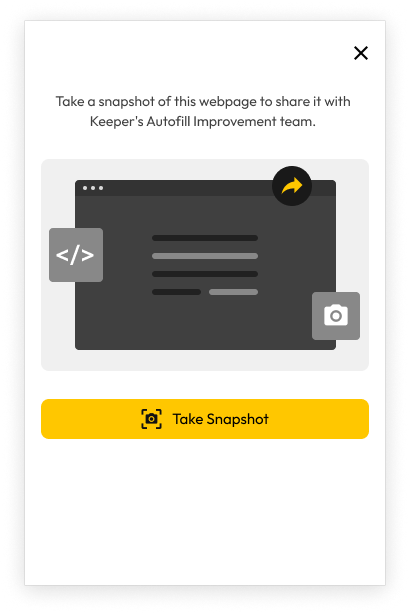
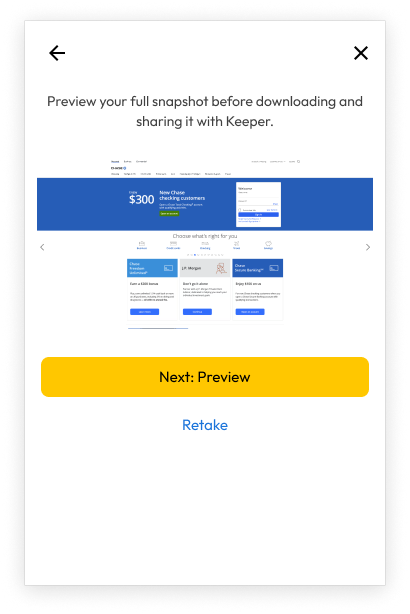
Click **Take Snapshot** to take a screen capture of your current browser window. Click **Next: Preview** to review exactly what data will be sent to Keeper, ensuring there is no confidential information included before you proceed.

<div><figure><img src="https://914511346-files.gitbook.io/~/files/v0/b/gitbook-x-prod.appspot.com/o/spaces%2F-LSGVtOTYUIkVBoYtFvK%2Fuploads%2FeN3QxJozGxi5yKfNrADl%2FTake%20a%20Screenshot.png?alt=media&#x26;token=06ea625a-ad89-41c4-875c-1ab6debc2cb2" alt="" width="308"><figcaption><p>Take Snapshot</p></figcaption></figure> <figure><img src="https://914511346-files.gitbook.io/~/files/v0/b/gitbook-x-prod.appspot.com/o/spaces%2F-LSGVtOTYUIkVBoYtFvK%2Fuploads%2Fx6ftOgipmrLR5lvRESJz%2FPreview%20%26%20Continue.png?alt=media&#x26;token=5433b423-707a-4bc2-a7fa-df52e2bca5e9" alt="" width="308"><figcaption><p>Next: Preview</p></figcaption></figure></div>

Next, select from the provided list of autofill issues or describe your own.

Keeper will NOT send credentials or confidential information. We only send the screenshot and HTML page structure exactly as displayed in the preview window.

<figure><img src="https://914511346-files.gitbook.io/~/files/v0/b/gitbook-x-prod.appspot.com/o/spaces%2F-LSGVtOTYUIkVBoYtFvK%2Fuploads%2F1rz8eWU9KojU1Lgrzwmy%2FPreview%20Tab%20-%20%20Dropdown.png?alt=media&#x26;token=c475747b-2549-46b1-8b10-98f72c535d40" alt=""><figcaption></figcaption></figure>

Click **Report Issue** to send the information to the Keeper Team.

<figure><img src="https://914511346-files.gitbook.io/~/files/v0/b/gitbook-x-prod.appspot.com/o/spaces%2F-LSGVtOTYUIkVBoYtFvK%2Fuploads%2FyDRgsychw05A2qQynf1F%2FPreview%20Tab%20-%20%20Complete%20(2).png?alt=media&#x26;token=01b8d8a5-3e2f-46eb-8bef-c5de86b867cd" alt=""><figcaption></figcaption></figure>

{% hint style="info" %}
If you need to re-submit an issue for a website, return to the extension toolbar or fill tool and click **Report an Autofill Issue > Retake**.
{% endhint %}

#### Autofill Fixes

The Keeper Team will promptly receive the necessary information to diagnose and resolve the filling issue. Once a solution is implemented, an update will be released to all customers. You will receive an email notification confirming the update. In many cases, site-specific fixes can be turned around within the same day.

### Biometric Login with Passkeys

Keeper supports biometric login with a passkey, allowing users to authenticate using a device-bound passkey that replaces all traditional login methods – including master password, SSO, and 2FA.

{% hint style="info" %}
**Biometric login with Passkeys is available on Chrome, Edge and other Chromium-based browsers**. Mozilla Firefox support will be available with Firefox release 147 or 148 pending [this Mozilla ticket](https://bugzilla.mozilla.org/show_bug.cgi?id=1956484). Safari is also pending native passkey support from Apple.
{% endhint %}

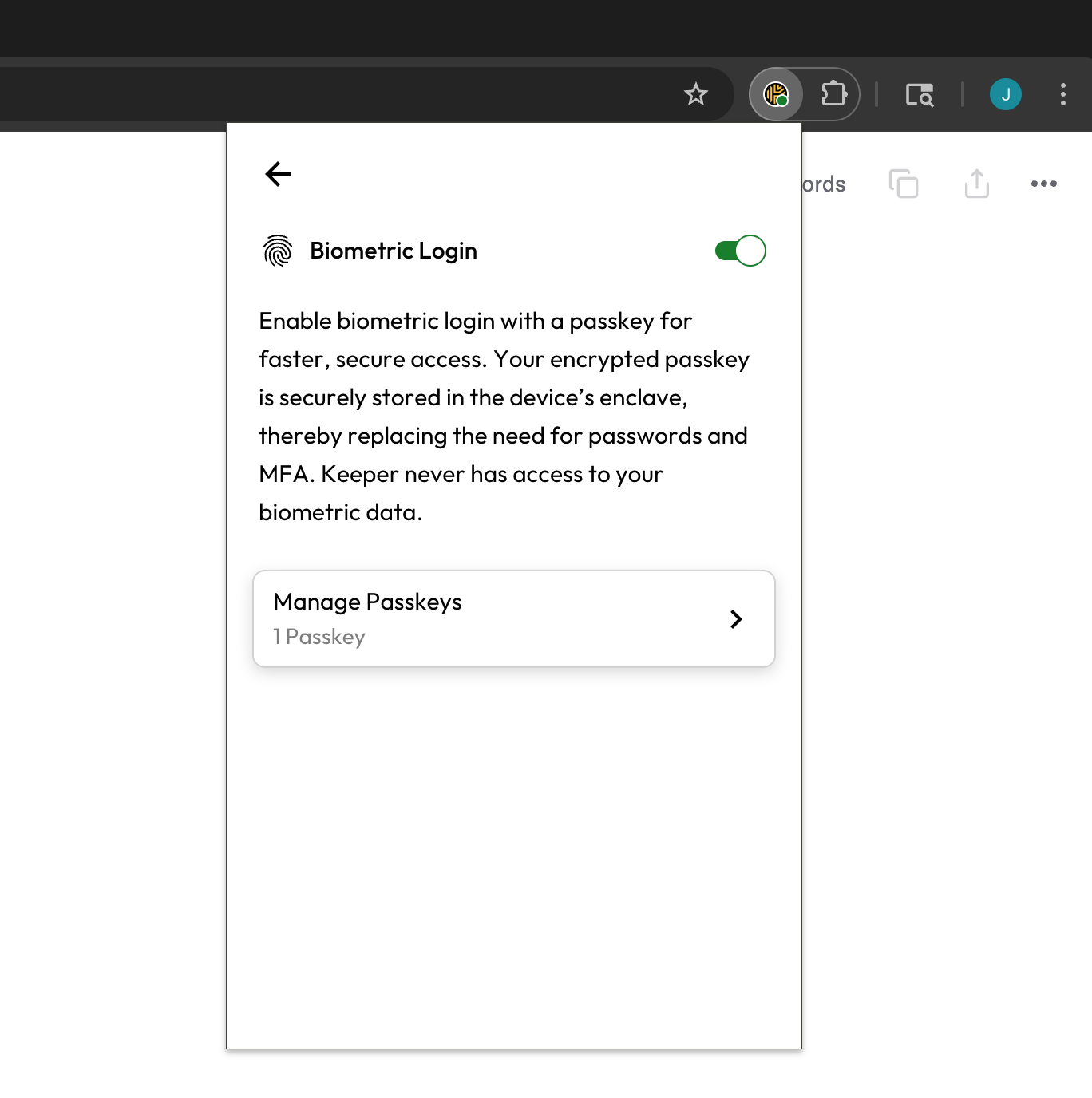
To activate biometric login, navigate to the extension "Settings" menu and Select **Biometric Login**. When you toggle biometric login “on”, Keeper will prompt you to create a Passkey and the platform will request a biometric or PIN authentication, depending upon the capabilities of your device.

<figure><img src="https://914511346-files.gitbook.io/~/files/v0/b/gitbook-x-prod.appspot.com/o/spaces%2F-LSGVtOTYUIkVBoYtFvK%2Fuploads%2FInPRVJIwRpPBqZikn94o%2FScreenshot%202025-06-26%20at%2012.59.22%E2%80%AFPM.png?alt=media&#x26;token=6f4d95c4-a14c-4275-a71b-9181953289d8" alt="" width="563"><figcaption><p>Create a Passkey Using Your Device's Biometric Scanner</p></figcaption></figure>

{% hint style="info" %}
For Business and Enterprise users, the use of Biometric Login may be restricted by your Keeper Administrator.
{% endhint %}

Once created, the passkey login acts as a complete replacement for both your first factor – master password or SSO and the second factor such as TOTP, SMS, or DUO (if configured).

<figure><img src="https://914511346-files.gitbook.io/~/files/v0/b/gitbook-x-prod.appspot.com/o/spaces%2F-LSGVtOTYUIkVBoYtFvK%2Fuploads%2FFRQYqleoF5WdH7g25zCn%2FScreenshot%202025-06-26%20at%2012.59.00%E2%80%AFPM.png?alt=media&#x26;token=65610913-666f-47f8-9366-9eead89abc62" alt="" width="563"><figcaption><p>Biometric Login Enabled</p></figcaption></figure>

You can now unlock the Keeper Browser Extension using your device’s built-in biometric authentication. Click **Biometric Login** at Keeper's login screen and use your fingerprint or facial recognition to access your vault instantly.

<figure><img src="https://914511346-files.gitbook.io/~/files/v0/b/gitbook-x-prod.appspot.com/o/spaces%2F-LSGVtOTYUIkVBoYtFvK%2Fuploads%2FWjdPpY05sZRZBxopJcXN%2FScreenshot%202025-07-11%20at%2010.59.36%E2%80%AFAM.png?alt=media&#x26;token=791ea7c6-56fc-4ac7-8c75-e40d8d04446d" alt=""><figcaption><p>Biometric Login Initiated on Google Chrome for Mac</p></figcaption></figure>

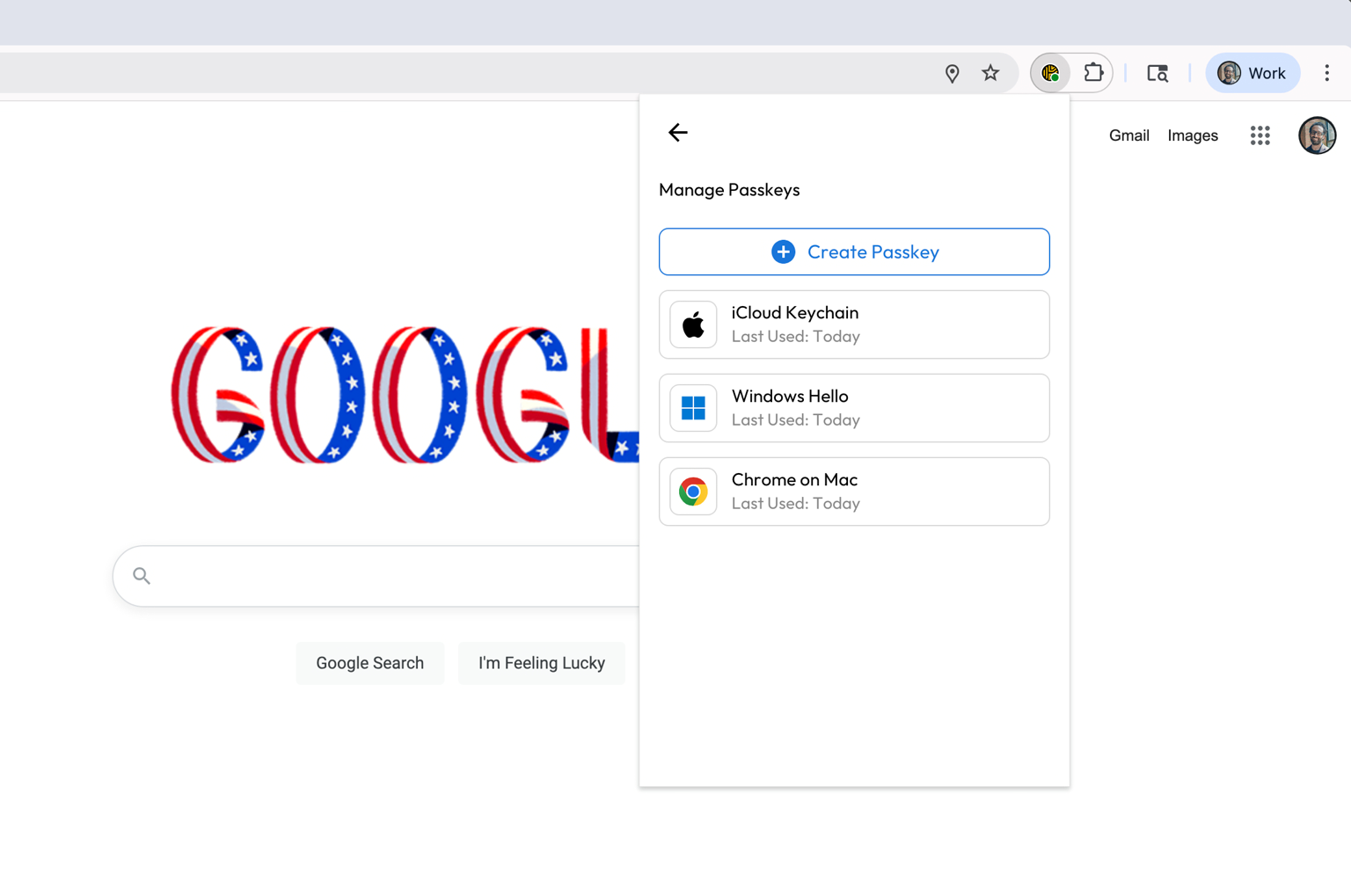
Multiple Passkeys can be stored in your Keeper account to account for the various platforms you may use. In this example, a passkey is available in iCloud Keychain, Windows Hello and Google Chrome. On each platform where you use Keeper, click **Manage Passkeys** to create a new one.

<figure><img src="https://914511346-files.gitbook.io/~/files/v0/b/gitbook-x-prod.appspot.com/o/spaces%2F-LSGVtOTYUIkVBoYtFvK%2Fuploads%2FTwqkbN21bR1Jl0PGmzpq%2Fbio%20login.avif?alt=media&#x26;token=0d66041c-cabb-41a8-8abc-e4c5c9494649" alt=""><figcaption><p>Multiple Passkeys Configured</p></figcaption></figure>

### Advanced Settings

Keeper offers two advanced settings for individual records tailored to certain autofill use cases.

#### **Overwrite Field Content**

This setting allows users to control whether a record’s Custom Fields can autofill into fields on a webpage that are already populated. Previously, Custom Field content wouldn't autofill into an already-populated field.

#### **Autofill on Subsequent Pages**

This setting will prevent Keeper from attempting to autofill any given record on multiple pages in a row. Disabling this setting can help prevent accidental “false positive” autofill scenarios, where Keeper autofills on a page you don’t want it to.

To access the Advanced Settings menu, select the record overflow menu/options icon.

<figure><img src="https://914511346-files.gitbook.io/~/files/v0/b/gitbook-x-prod.appspot.com/o/spaces%2F-LSGVtOTYUIkVBoYtFvK%2Fuploads%2FbGegPa6MB9U81uiKTYbl%2F7.png?alt=media&#x26;token=347eaa03-22eb-4993-8d14-c8cad74745f2" alt=""><figcaption><p>Advanced Settings Menu</p></figcaption></figure>

<figure><img src="https://914511346-files.gitbook.io/~/files/v0/b/gitbook-x-prod.appspot.com/o/spaces%2F-LSGVtOTYUIkVBoYtFvK%2Fuploads%2FquIHGOr4X44U0W702RiR%2F8.png?alt=media&#x26;token=c78cb79d-f36c-4165-82d0-3433c75306ab" alt=""><figcaption><p>Advanced Settings</p></figcaption></figure>

### Field Icons

Users have the option to entirely disable form field icons – these are the Keeper icons that appear within website login fields. This will allow you to disable the icons without disabling KeeperFill’s autofill and auto submit functionality.

<figure><img src="https://914511346-files.gitbook.io/~/files/v0/b/gitbook-x-prod.appspot.com/o/spaces%2F-LSGVtOTYUIkVBoYtFvK%2Fuploads%2FoyjgAFSmytmJPHa7jDyu%2FScreen%20Shot%202024-10-02%20at%2012.54.25%20PM.png?alt=media&#x26;token=9bedd1dd-7613-471b-8a87-cce56b159361" alt="" width="375"><figcaption><p>Field Icons Setting</p></figcaption></figure>

### Clipboard Expiration

If "Clipboard Expiration" is enabled, Keeper will automatically clear your computer’s clipboard after a short delay whenever you copy information from your browser extension. Durations range from 30 to 120 seconds. This security feature mitigates the risk of confidential data remaining on your clipboard for extended periods, thereby reducing potential exposure to other applications.

<figure><img src="https://914511346-files.gitbook.io/~/files/v0/b/gitbook-x-prod.appspot.com/o/spaces%2F-LSGVtOTYUIkVBoYtFvK%2Fuploads%2F52uhqUFSSwHAIO3vqvNt%2FScreenshot%202025-06-26%20at%2012.14.27%E2%80%AFPM.png?alt=media&#x26;token=cdf43d54-0d17-4bd6-8660-0ac5f946d8c3" alt="" width="563"><figcaption><p>Clipboard Expiration Setting</p></figcaption></figure>

### Autofill on Page Load

If "Autofill on page load" is enabled, Keeper will automatically fill a matching record into the login fields of the website. Users can enable this feature on an individual record basis.

<figure><img src="https://914511346-files.gitbook.io/~/files/v0/b/gitbook-x-prod.appspot.com/o/spaces%2F-LSGVtOTYUIkVBoYtFvK%2Fuploads%2Fth02uZxiD1rEo6e97mMp%2FScreen%20Shot%202024-09-17%20at%209.53.09%20AM.png?alt=media&#x26;token=bbc277e9-9208-4d69-bc8e-2d73559a9c7f" alt="" width="563"><figcaption><p>Autofill On Page Load Enabled for Record</p></figcaption></figure>

### Autosubmit After Autofill

If "Autosubmit After Autofill" is enabled, Keeper will automatically submit the form and log in to the website after autofilling your username and password. Users can enable this feature on an individual record basis, or universally enable it for all of your records within KeeperFill's Settings Menu.

<figure><img src="https://914511346-files.gitbook.io/~/files/v0/b/gitbook-x-prod.appspot.com/o/spaces%2F-LSGVtOTYUIkVBoYtFvK%2Fuploads%2Fv6844zTjZykD7UW2tXFd%2FScreen%20Shot%202024-09-17%20at%209.53.09%20AM%20copy.png?alt=media&#x26;token=5a7c5aa8-b2c7-4c02-bc87-f17538073bc7" alt="" width="563"><figcaption><p>Autosubmit After Autofill Enabled for Record</p></figcaption></figure>

### Verify Mode&#x20;

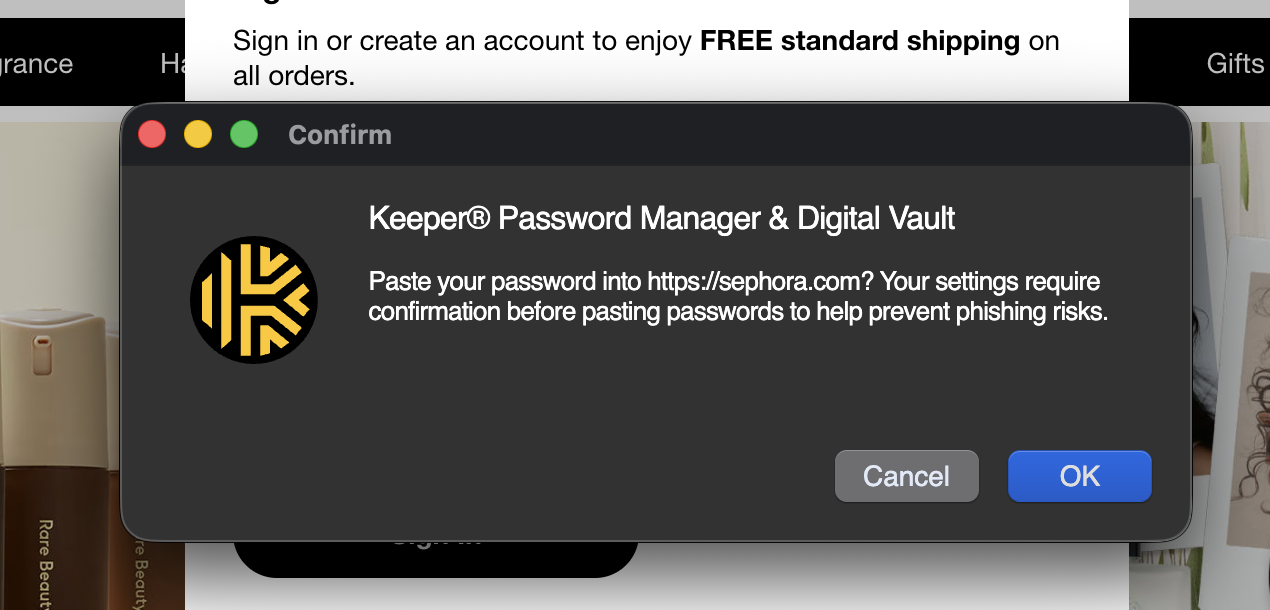
When Verify Mode is enabled, pasting a password into a login form triggers an instant check against the records in your vault. If the site doesn't match a record, you'll receive a real-time warning before anything is submitted, showing which site triggered the alert, with the option to proceed or cancel. This security setting protects against phishing and accidental exposure.&#x20;

<figure><img src="https://914511346-files.gitbook.io/~/files/v0/b/gitbook-x-prod.appspot.com/o/spaces%2F-LSGVtOTYUIkVBoYtFvK%2Fuploads%2FybG8xfosaMmGCTTqhDB6%2FScreenshot%202026-04-02%20at%2011.18.03%E2%80%AFAM.png?alt=media&#x26;token=7955f4c9-ba1c-4afc-8bd0-6018c34e8669" alt="" width="563"><figcaption><p>Verify Mode Warning</p></figcaption></figure>

To enable Verify Mode, navigate to **Settings > Security**.

<div><figure><img src="https://914511346-files.gitbook.io/~/files/v0/b/gitbook-x-prod.appspot.com/o/spaces%2F-LSGVtOTYUIkVBoYtFvK%2Fuploads%2FqY1Jd3pO4DMV18sJJWRh%2Fimage%20(40).png?alt=media&#x26;token=08931472-cf19-4acc-8f5f-f1255d75a5d0" alt="" width="181"><figcaption><p>Settings > Security</p></figcaption></figure> <figure><img src="https://914511346-files.gitbook.io/~/files/v0/b/gitbook-x-prod.appspot.com/o/spaces%2F-LSGVtOTYUIkVBoYtFvK%2Fuploads%2FTvxhKoijrbEtIMQ1L4L8%2Fimage%20(41).png?alt=media&#x26;token=a4708559-c759-4d34-9d8f-9f65e065b9e1" alt="" width="188"><figcaption><p>Verify Mode Configuration</p></figcaption></figure></div>

You can then customize how aggressively the extension monitors your activity:

* **Off:** Passwords fill or paste without any confirmation.&#x20;
* **Medium:** You'll only be warned if you copy a password from your vault and paste it into a *different* site than the one it's saved for.
* **High:** You'll be warned any time you paste a password on a site that isn't saved in your vault at all, regardless of where the password came from.
* **Maximum:** You'll always be asked to confirm before pasting a password, even on websites you've already saved and trust.

Choose a higher level of protection if you want more peace of mind, or a lower one if you prefer fewer interruptions during your normal browsing.

### Accessibility

With the accessibility setting, users have the ability to control tabbing behavior and focus on the Keeper icon within form fields.

Select the **Options Menu > Settings > Accessibility** to disable this setting, preventing focus on the Keeper icons when tabbing through form fields with keyboard controls.

<figure><img src="https://914511346-files.gitbook.io/~/files/v0/b/gitbook-x-prod.appspot.com/o/spaces%2F-LSGVtOTYUIkVBoYtFvK%2Fuploads%2F7GqaJKtr5Suu1xQUP7lP%2FScreen%20Shot%202024-05-15%20at%201.03.46%20PM.png?alt=media&#x26;token=b51b555f-34bd-4663-9978-9e291d4cec1f" alt="" width="375"><figcaption><p>Accessibility Focus Setting</p></figcaption></figure>

### **Match on Subdomain**

The "Match on Subdomain" setting enables KeeperFill to differentiate a record's subdomain (if present) from its domain. In doing so, Keeper will only display records matches based on strict subdomain matching to the website you are currently visiting.

Example: If a user has a record with a website address containing a **subdomain** and **domain** such as "subdomain1.company.com" and another record with the website address containing only the **domain** "company.com" and attempts to log in to "subdomain1.company.com, the only record match that will appear is "subdomain1.company.com".

To enable this feature, select the **Options Menu >** **Settings > Match on Subdomain**.

<figure><img src="https://914511346-files.gitbook.io/~/files/v0/b/gitbook-x-prod.appspot.com/o/spaces%2F-LSGVtOTYUIkVBoYtFvK%2Fuploads%2FONGlwXg8q2Y0PXB33dre%2FScreen%20Shot%202024-10-02%20at%2012.49.20%20PM.png?alt=media&#x26;token=9305ef90-b646-4bd6-a2a8-dbe67390abd1" alt="" width="375"><figcaption><p>Match on Subdomain Setting</p></figcaption></figure>