> For the complete documentation index, see [llms.txt](https://docs.keeper.io/llms.txt). Markdown versions of documentation pages are available by appending `.md` to page URLs; this page is available as [Markdown](https://docs.keeper.io/enterprise-guide/jp/deploying-keeper-to-end-users/keeper-fill/mac/plist-policy-deployment-chrome/jamf-pro-r-policy-deployment-chrome.md).
# Jamf Proでのポリシーの展開 - Chrome
Jamf Proを利用したカスタム構成プロファイルの展開
## Jamf Proを利用したGoogle Chrome PLIST (.plist) ポリシーの展開
Jamf Proを使用して、Google Chromeの.plist構成プロファイルを組織内のコンピュータに展開する方法を解説します。
### **作成したPLISTファイルをアップロード**
Jamf Proに指定する環境設定ドメインのプロパティを定義したGoogle Chrome PLISTファイルを手動で作成し、アップロードします。
1. Jamf Proにログインします。
2. ページ上部の **\[Computers]** (コンピュータ) をクリックします。
3. **\[Configuration Profiles]** (構成プロファイル) をクリックします。
4. **\[New]** (新規) をクリックします。
5. 一般Payloadを使用して、プロファイルを適用するレベルや配布方法などの基本設定を構成します。
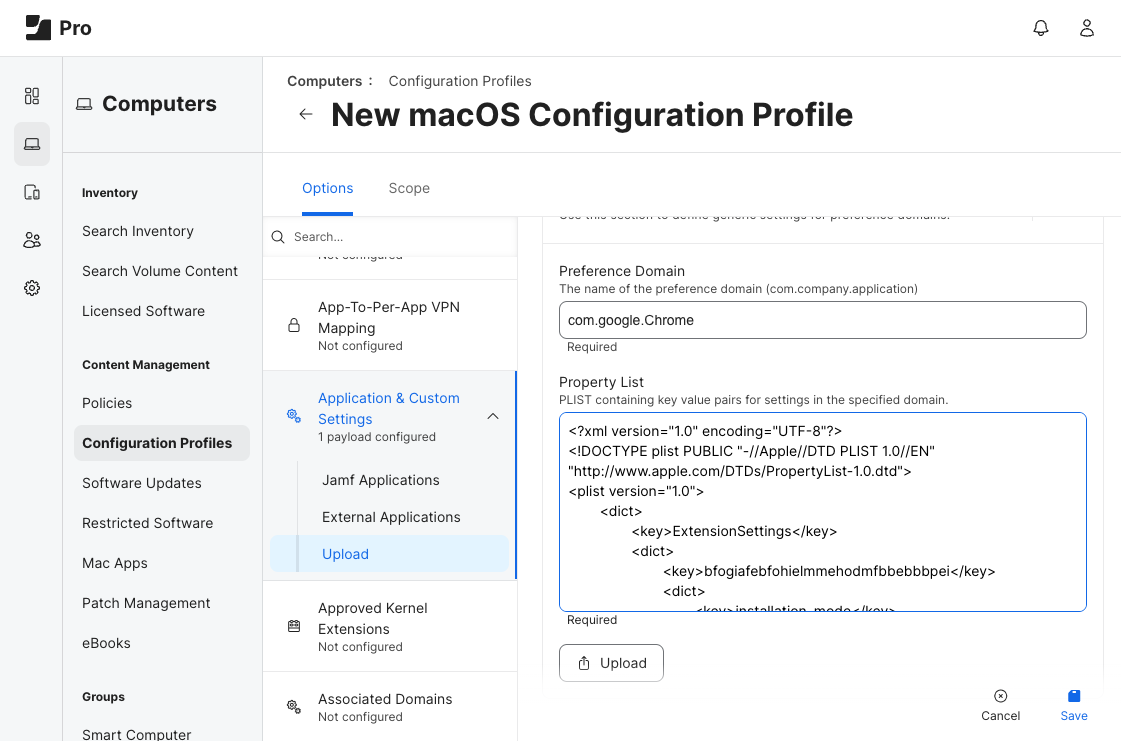
6. **\[Application & Custom Settings]** (アプリケーションとカスタム設定) Payloadをクリックし、**\[Upload]** (アップロード) をクリックします。
7. **\[Add]** をクリックします。
8. **Preference Domain (環境設定ドメイン)** に**com.google.Chrome**と入力します。
9. カスタムPLISTファイルをアップロードするには、 **\[Upload File]** (ファイルのアップロード) を選択し、プロパティを設定する環境設定ドメインを入力します。
10. **\[Upload PLIST File]** (PLISTファイルのアップロード) をクリックし、先ほど作成した `com.google.Chrome.plist` ファイルを選択します。
{% hint style="info" %}
PLISTファイルにフォーマットエラーが含まれている場合、[PLIST (.plist) ポリシーの展開](/enterprise-guide/jp/deploying-keeper-to-end-users/keeper-fill/mac/plist-policy-deployment-chrome.md)に記載の手順に従って、問題を修正します。
{% endhint %}
11. **\[Scope]** (適用範囲) タブをクリックし、構成プロファイルのスコープを構成します。
12. **\[Save]** (保存) をクリックします。
Jamf Pro構成プロファイル
---
# Agent Instructions
This documentation is published with GitBook. GitBook is the documentation platform designed so that both humans and AI agents can read, navigate, and reason over technical content effectively. Learn more at gitbook.com.
## Querying This Documentation
If you need additional information that is not directly available in this page, you can query the documentation by asking a question.
Perform an HTTP GET request on the following URL with the `ask` and `goal` query parameters:
```
GET https://docs.keeper.io/enterprise-guide/jp/deploying-keeper-to-end-users/keeper-fill/mac/plist-policy-deployment-chrome/jamf-pro-r-policy-deployment-chrome.md?ask=&goal=
```
`ask` is the immediate question: it should be specific, self-contained, and written in natural language.
`goal` is what the user is ultimately trying to achieve, the reason they need the answer. Sharing it helps GitBook give you a better, more relevant answer. A goal is most helpful when it describes the outcome the user wants rather than restating the question. For example, with `ask=how do I create an API token`, a goal like `automate deployments from our CI pipeline` lets GitBook tailor the answer to that use case.
The response will contain a direct answer to the question and relevant excerpts and sources from the documentation.
Use this mechanism when the answer is not explicitly present in the current page, you need clarification or additional context, or you want to retrieve related documentation sections.