> For the complete documentation index, see [llms.txt](https://docs.keeper.io/llms.txt). Markdown versions of documentation pages are available by appending `.md` to page URLs; this page is available as [Markdown](https://docs.keeper.io/enterprise-guide/jp/deploying-keeper-to-end-users/keeper-fill/mac/plist-policy-deployment-chrome/kandji.md).
# Kandjiの展開
KandjiポリシーによるKeeperブラウザ拡張機能の展開
## KandjiポリシーによるKeeperブラウザ拡張機能の展開
**まず、変換元となる.plistファイルを準備します。** 未作成の場合は、[PLIST (.plist) ポリシーの展開](/enterprise-guide/jp/deploying-keeper-to-end-users/keeper-fill/mac/plist-policy-deployment-chrome.md)の手順に従って作成してください。
### Keeperの.plistファイルを.mobileconfigファイルに変換する
KandjiでKeeperのブラウザ拡張機能を展開するには、[Apple Configurator 2](https://support.apple.com/ja-jp/guide/apple-configurator-mac/pmd85719196/mac)でカスタム構成プロファイルを作成します。
### 構成プロファイルの作成と展開手順
### Kandjiでの構成
まず **\[一般]** タブでプロファイルの基本情報を更新します。IdentifierとUUIDは変更する必要はありません。
注: エンドユーザーにプロファイルを削除させないようにする場合は、**\[プロファイルの削除をユーザーに許可しない]** をオンにします。
## Edge
画面右上の検索で**Microsoft Edge**を探し、プロファイルに追加します。
## Chrome
画面右上の検索で**Google Chrome**を探し、プロファイルに追加します。
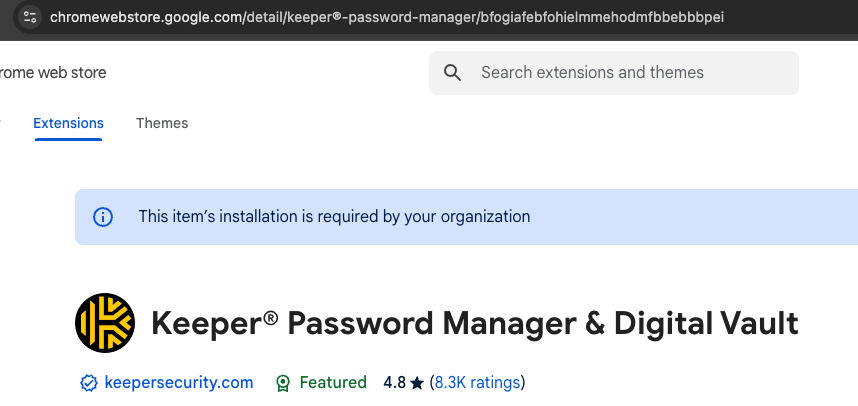
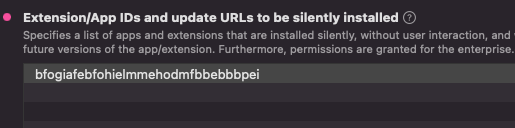
Keeper ID `bfogiafebfohielmmehodmfbbebbbpei` を追加します。[Chromeウェブストア](https://chromewebstore.google.com)で「Keeper Password Manager & Digital Vault」を検索して製品ページを開き、URL末尾の文字列をコピーしてください。
## Firefox
画面右上の検索で**Firefox**を探し、プロファイルに追加します。
拡張機能の指定方法は、[Mozillaアドオン](https://addons.mozilla.org)の該当ページで確認できます。
## Brave Browser
画面右上の検索で**Brave Browser**を探し、プロファイルに追加します。
Keeper ID `bfogiafebfohielmmehodmfbbebbbpei` を追加します。取得手順はGoogle Chromeと同じで、[Chromeウェブストア](https://chromewebstore.google.com)の製品ページURL末尾の文字列をコピーします (BraveもChromeウェブストアを利用するため、IDはChromeと同じです)。
## Kandjiへのアップロード
必要なブラウザの設定を追加したら、構成プロファイル(.mobileconfig)を保存します。保存先は、後から見つけやすいフォルダにしてください。
---
# Agent Instructions
This documentation is published with GitBook. GitBook is the documentation platform designed so that both humans and AI agents can read, navigate, and reason over technical content effectively. Learn more at gitbook.com.
## Querying This Documentation
If you need additional information that is not directly available in this page, you can query the documentation by asking a question.
Perform an HTTP GET request on the following URL with the `ask` and `goal` query parameters:
```
GET https://docs.keeper.io/enterprise-guide/jp/deploying-keeper-to-end-users/keeper-fill/mac/plist-policy-deployment-chrome/kandji.md?ask=&goal=
```
`ask` is the immediate question: it should be specific, self-contained, and written in natural language.
`goal` is what the user is ultimately trying to achieve, the reason they need the answer. Sharing it helps GitBook give you a better, more relevant answer. A goal is most helpful when it describes the outcome the user wants rather than restating the question. For example, with `ask=how do I create an API token`, a goal like `automate deployments from our CI pipeline` lets GitBook tailor the answer to that use case.
The response will contain a direct answer to the question and relevant excerpts and sources from the documentation.
Use this mechanism when the answer is not explicitly present in the current page, you need clarification or additional context, or you want to retrieve related documentation sections.
-ja.png?alt=media)