> For the complete documentation index, see [llms.txt](https://docs.keeper.io/llms.txt). Markdown versions of documentation pages are available by appending `.md` to page URLs; this page is available as [Markdown](https://docs.keeper.io/enterprise-guide/jp/deploying-keeper-to-end-users/keeper-fill/mac/plist-policy-deployment-chrome/microsoft-intune-r-policy-deployment-chrome.md).
# Microsoft Intuneポリシーの展開 - Chrome
Microsoft Intuneを利用したカスタム構成プロファイルの展開
## Microsoft Intuneを利用したGoogle Chrome PLIST (.plist) ポリシーの展開
Microsoft Intuneを使用して、Google Chromeの.plist構成プロファイルを組織内のコンピュータに展開する方法を解説します。
### Google Chromeプロファイルを作成
1. [Microsoft Intune管理センター](https://go.microsoft.com/fwlink/?linkid=2109431)にサインインします。
2. **\[デバイス] > \[構成プロファイル] > \[プロファイルの作成]** を選択します。
3. 以下のプロパティを入力します。
* **プラットフォーム:** **macOS**
* **プロファイル:** **環境設定ファイル**
4. **\[作成]** を選択します。

5. **\[基本]** タブで、以下のプロパティを入力します。
* **名前**: 後で簡単に識別できるように、ポリシーに基づいた名前を入力します。例としては、**macOS:Add preference file that configures Google Chrome on devices (macOS: デバイスのGoogle Chromeを構成する環境設定ファイルを追加する)** などが挙げられます。
* **説明**: 任意でポリシーの説明を入力します。
6. **\[次へ]** をクリックします。
7. **\[構成設定]** タブで設定を構成します。
* **基本設定ドメイン名**: バンドルIDとして `com.google.Chrome` と入力します。
* **プロパティリストファイル**: アプリに関連付けられているプロパティリストファイルを選択します。必ず先程作成したcom.google.Chrome.plistファイルを選択します。
プロパティリストファイルのキー情報が表示されます。キー情報を変更する必要がある場合、別のエディタでリストファイルを開き、Intuneにファイルを再アップロードします。
{% hint style="info" %}
ファイルの形式が適切であることを確認します。ファイルにはキーと値のペアのみを含める必要があり、キーと値のペアを``、``、``タグで囲んではいけません。PLISTファイルにフォーマットエラーが含まれている場合、[PLIST (.plist) ポリシーの展開](/enterprise-guide/jp/deploying-keeper-to-end-users/keeper-fill/mac/plist-policy-deployment-chrome.md)ページに記載の手順に従って修正します。
{% endhint %}
8. **\[次へ]** をクリックします。
9. **スコープタグ** (任意) で、`US-IL IT Team` や `Chicago_ITDepartment` など、特定のITグループ向けにプロファイルを絞り込むタグを割り当てます。スコープタグの詳細については、[分散型ITにRBACとスコープタグを使用する](https://docs.microsoft.com/en-us/mem/intune/fundamentals/scope-tags)をご参照ください。
10. **\[次へ]** をクリックします。
11. **\[割り当て]** で、プロファイルを受け取るユーザーまたはグループを選択します。プロファイルの割り当ての詳細については、[ユーザープロファイルとデバイスプロファイルの割り当て](https://docs.microsoft.com/en-us/mem/intune/configuration/device-profile-assign)をご参照ください。
12. **\[次へ]** をクリックします。
13. **\[確認と作成]** で、設定を確認します。**\[作成]** を選択すると、変更内容が保存され、プロファイルが割り当てられます。ポリシーはプロファイルリストにも表示されます。
### Google Chromeプロファイルを割り当てる
1. **\[デバイス] > \[構成プロファイル]** を選択します。すべてのプロファイルが一覧で表示されます。
2. 割り当てるプロファイルを選択し、**\[プロパティ] > \[割り当て] > \[編集]** を選択します。
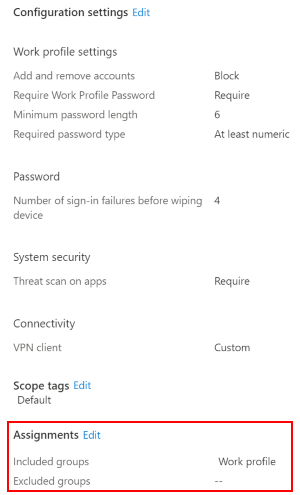
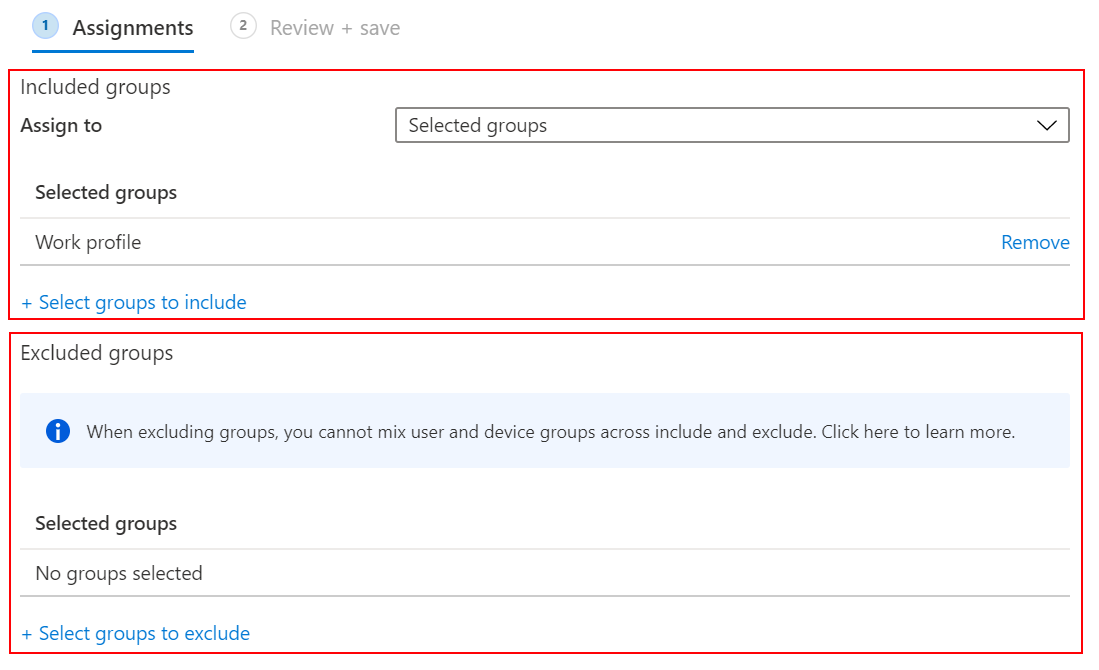
3. **\[含まれるグループ]** または **\[除外されるグループ]** を選択してから **\[グループの追加]** をクリックします。グループを選択する際には、Microsoft Entraグループを選択します。複数のグループを選択する場合、**Ctrl**キーを押しながらグループを選択します。
4. **\[確認と保存]** を選択します。この手順では、プロファイルは割り当てられません。
5. **\[保存]** を選択します。保存すると、プロファイルが割り当てられます。Intuneサービスでデバイスがチェックされると、グループにプロファイル設定が表示されます。
### スコープタグまたは適用ルールを使用する
プロファイルを作成または更新する際、**スコープタグ**および**適用ルール**をプロファイルに追加することもできます。
**スコープタグ**は、プロファイルを `US-IL IT Team` や `Chicago_ITDepartment` などの特定のグループに限定するのに最適な方法です。スコープタグの詳細については、[分散ITにロールベースのアクセス制御とスコープのタグを使用する](https://learn.microsoft.com/ja-jp/mem/intune/fundamentals/scope-tags)のページをご参照ください。
---
# Agent Instructions
This documentation is published with GitBook. GitBook is the documentation platform designed so that both humans and AI agents can read, navigate, and reason over technical content effectively. Learn more at gitbook.com.
## Querying This Documentation
If you need additional information that is not directly available in this page, you can query the documentation by asking a question.
Perform an HTTP GET request on the following URL with the `ask` and `goal` query parameters:
```
GET https://docs.keeper.io/enterprise-guide/jp/deploying-keeper-to-end-users/keeper-fill/mac/plist-policy-deployment-chrome/microsoft-intune-r-policy-deployment-chrome.md?ask=&goal=
```
`ask` is the immediate question: it should be specific, self-contained, and written in natural language.
`goal` is what the user is ultimately trying to achieve, the reason they need the answer. Sharing it helps GitBook give you a better, more relevant answer. A goal is most helpful when it describes the outcome the user wants rather than restating the question. For example, with `ask=how do I create an API token`, a goal like `automate deployments from our CI pipeline` lets GitBook tailor the answer to that use case.
The response will contain a direct answer to the question and relevant excerpts and sources from the documentation.
Use this mechanism when the answer is not explicitly present in the current page, you need clarification or additional context, or you want to retrieve related documentation sections.