> For the complete documentation index, see [llms.txt](https://docs.keeper.io/llms.txt). Markdown versions of documentation pages are available by appending `.md` to page URLs; this page is available as [Markdown](https://docs.keeper.io/enterprise-guide/jp/deploying-keeper-to-end-users/mobile-applications.md).
# モバイルアプリ
Intuneを利用したモバイルアプリの展開
## 概要
KeeperのiOSおよびAndroid向けモバイルアプリはネイティブアプリで、レコード管理、共有管理、自動入力などボルトの各機能を利用できます。エンドユーザーへの展開は、アプリストアからのダウンロード、またはモバイルデバイス管理プラットフォームで行います。
* [App Store](#app-store-deployment)
* [Intune](#microsoft-intune-deployment)
* [MaaS360 by HCL](/enterprise-guide/jp/deploying-keeper-to-end-users/mobile-applications/ibm-maas360.md)
## App Storeからデプロイ
### iOS
iOS用Keeperは、アプリストアから直接インストールできます。
* [iOS App StoreのKeeper](https://apps.apple.com/jp/app/keeper-password-manager/id287170072)
### Android
Android用Keeperは、Google Playからインストールできます。
* [Google PlayのKeeper](https://play.google.com/store/apps/details?id=com.callpod.android_apps.keeper)
## Microsoft Intuneによるデプロイ
Microsoft Intuneを通じて、Keeperをユーザーへ展開できます。
### iOS
Intune経由でiOSアプリをユーザーに展開する手順です。
1. Microsoft Intune管理センターで、アプリの種類として「iOSストアアプリ」を選択します。

2. Keeperを検索します。

3. Callpod Inc.のKeeper Password Managerを選択します。

4. \[Create] (作成) をクリックします。
{% hint style="info" %}
iOSアプリについて
* 発行元はKeeper Securityの持株会社である「Callpod Inc.」と表示されます。これは正常です。
* App StoreのURL:\
* バンドルIDが必要な場合は `D4D2433BGC` (大文字小文字を区別) です。
{% endhint %}
### Android
Intune経由でAndroidアプリをユーザーに展開する手順です。
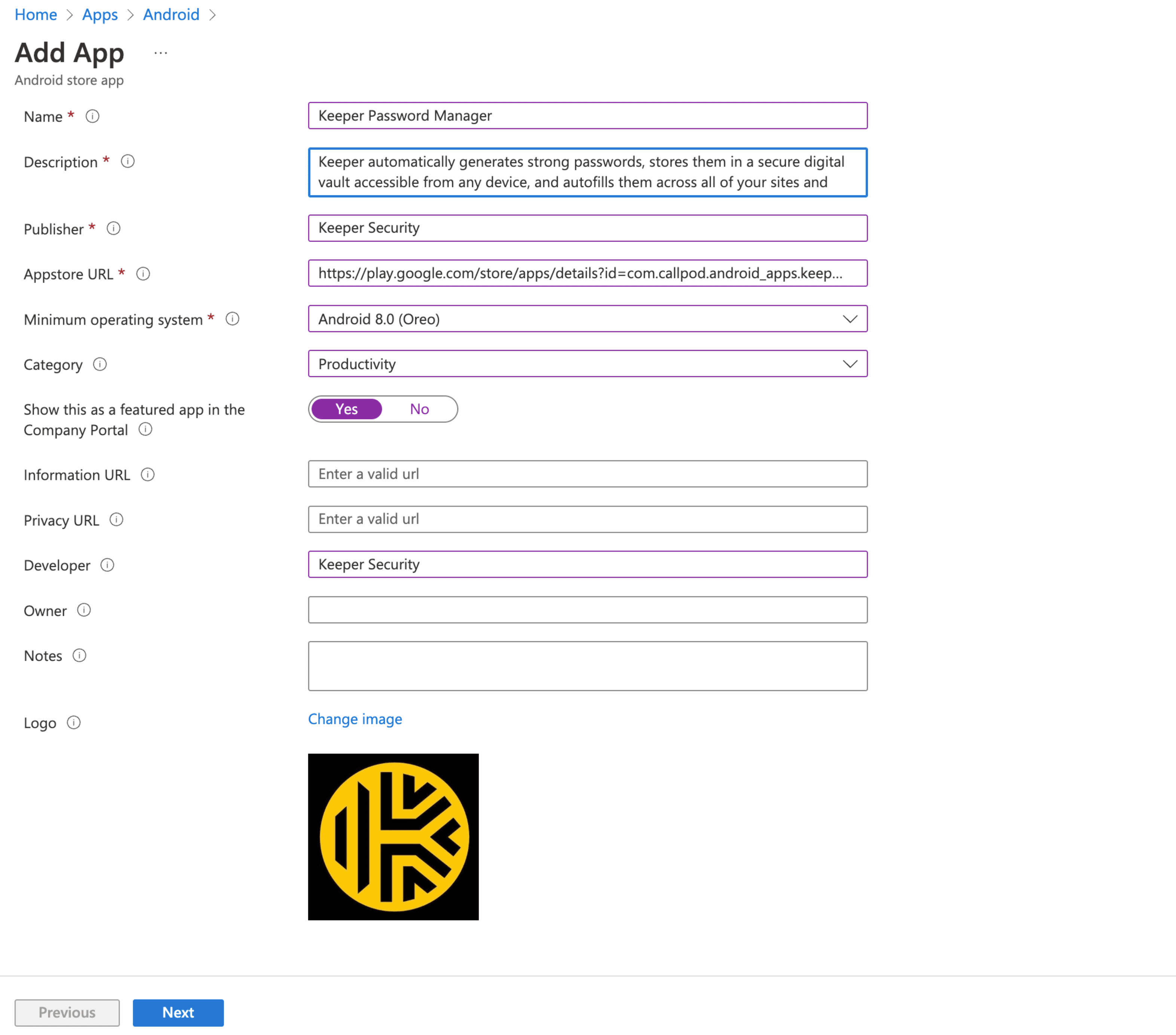
1. アプリの種類で「Android store app」を選択します。
2. 以下の情報を入力します。説明は自由にカスタマイズできます。
| 属性 | 値 |
| -------------------------- | --------------------------------------------------------------------------------------------------------------------------------------------------------------- |
| 名前 | Keeper Password Manager |
| 説明 | Keeperを使用すると、強力なパスワードを自動的に生成して、あらゆるデバイスからアクセス可能な安全なデジタルボルトに保存し、すべてのサイトやアプリでパスワードを自動入力することができます。Keeperは強力な暗号化機能を備えており、データ漏洩やランサムウェアなどのサイバー攻撃から、パスワードや機密情報を保護します。 |
| アプリストアのURL | |
| 最低限のオペレーティングシステム | Android 8.0 (Oreo) |
| カテゴリ | Productivity |
| ポータル サイトでこれをおすすめアプリとして表示する | はい |
| 開発者 | Keeper Security |
3. アプリケーションを作成します。
アプリケーションを作成
{% hint style="info" %}
Androidアプリについて
* 識別子が必要な場合は `com.callpod.android_apps.keeper` です。
{% endhint %}
---
# Agent Instructions
This documentation is published with GitBook. GitBook is the documentation platform designed so that both humans and AI agents can read, navigate, and reason over technical content effectively. Learn more at gitbook.com.
## Querying This Documentation
If you need additional information that is not directly available in this page, you can query the documentation by asking a question.
Perform an HTTP GET request on the following URL with the `ask` and `goal` query parameters:
```
GET https://docs.keeper.io/enterprise-guide/jp/deploying-keeper-to-end-users/mobile-applications.md?ask=&goal=
```
`ask` is the immediate question: it should be specific, self-contained, and written in natural language.
`goal` is what the user is ultimately trying to achieve, the reason they need the answer. Sharing it helps GitBook give you a better, more relevant answer. A goal is most helpful when it describes the outcome the user wants rather than restating the question. For example, with `ask=how do I create an API token`, a goal like `automate deployments from our CI pipeline` lets GitBook tailor the answer to that use case.
The response will contain a direct answer to the question and relevant excerpts and sources from the documentation.
Use this mechanism when the answer is not explicitly present in the current page, you need clarification or additional context, or you want to retrieve related documentation sections.