> For the complete documentation index, see [llms.txt](https://docs.keeper.io/llms.txt). Markdown versions of documentation pages are available by appending `.md` to page URLs; this page is available as [Markdown](https://docs.keeper.io/enterprise-guide/jp/event-reporting/microsoft-sentinel/microsoft-sentinel-with-azure-marketplace.md).
# Azure Marketplace経由でのMicrosoft Sentinel連携
Azure Marketplace経由でKeeper SIEMイベントをMicrosoft Sentinelに連携するクイックセットアップ手順
### 概要
本ページでは、Keeper SecurityのSIEMイベントをMicrosoft Sentinelと統合するための、インストールから設定までの手順を取り扱います。Keeper Securityは、Microsoft Sentinelの**Content Hub**セクションにおいて、商用リージョンおよび政府リージョン向けの標準統合として利用できます。
### 1. Azure Marketplace連携の作成
Azure **Marketplace**に移動し、**Keeper Security SIEM integration with Microsoft Sentinel**の連携を探します。
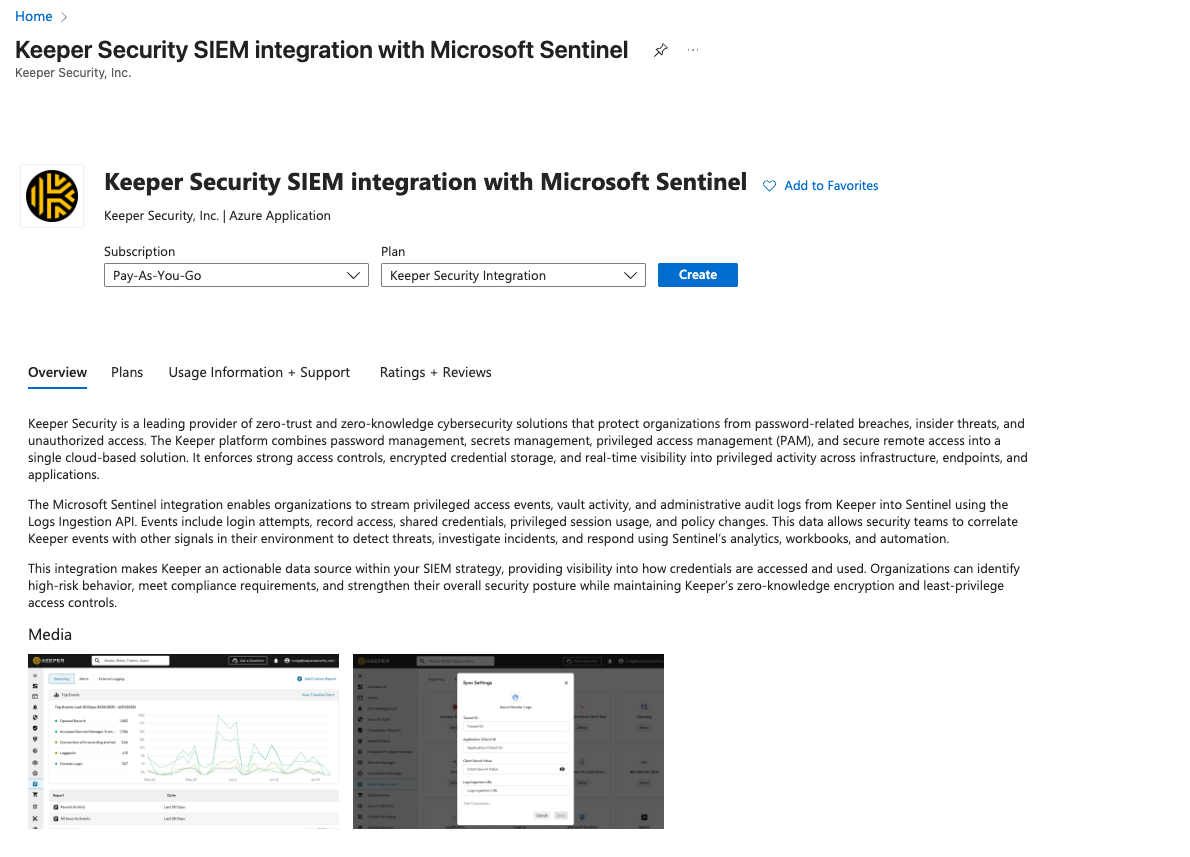 サブスクリプションとプランの選択
* Azureサブスクリプションを選択します。
* プランとして**Keeper Security Integration**を選びます。
* **\[作成]** ボタンをクリックします。
サブスクリプションとプランの選択
* Azureサブスクリプションを選択します。
* プランとして**Keeper Security Integration**を選びます。
* **\[作成]** ボタンをクリックします。
%20(1)-ja.png?alt=media) ***
### 2. プロジェクトの基本情報を設定
* ソリューションをデプロイする**リソースグループ**を選択します。
* ログを取り込む**Log Analytics ワークスペース**を選びます。
* サブスクリプションが正しく選択されていることを確認します。
***
### 3. 確認と作成
* 以下の内容を確認します
* 名前
* サブスクリプション
* リソース グループ
* ワークスペース
* **\[作成]** をクリックしてデプロイを進めます。
***
### 2. プロジェクトの基本情報を設定
* ソリューションをデプロイする**リソースグループ**を選択します。
* ログを取り込む**Log Analytics ワークスペース**を選びます。
* サブスクリプションが正しく選択されていることを確認します。
***
### 3. 確認と作成
* 以下の内容を確認します
* 名前
* サブスクリプション
* リソース グループ
* ワークスペース
* **\[作成]** をクリックしてデプロイを進めます。
%20(1)%20(1)%20(1)-ja.png?alt=media)
%20(1)%20(1)-ja.png?alt=media) ***
### 4. Keeperデータコネクタを開く
Azureで**Microsoft Sentinel**に移動し、ワークスペースを開きます。
Sentinelワークスペースで、**\[構成]** → **\[データ コネクタ]** に移動します。
**Keeper Security Push Connector**をクリックして、Entra連携を構成します。
***
### 4. Keeperデータコネクタを開く
Azureで**Microsoft Sentinel**に移動し、ワークスペースを開きます。
Sentinelワークスペースで、**\[構成]** → **\[データ コネクタ]** に移動します。
**Keeper Security Push Connector**をクリックして、Entra連携を構成します。
%20(1)-ja.png?alt=media) ***
### 5. Entra構成の生成
* **Keeper Security connector resources**ボタンをクリックします。
* 以下の情報が自動的に生成されます
* テナント ID (ディレクトリ ID)
* アプリケーション (クライアント) ID
* クライアント シークレット
* データ収集エンドポイント URL
* データ収集不変 ID (DCR ID)
{% hint style="warning" %}
これらの値を安全な場所にコピーしてください。クライアントシークレットは機密情報として扱ってください。
{% endhint %}
***
### 5. Entra構成の生成
* **Keeper Security connector resources**ボタンをクリックします。
* 以下の情報が自動的に生成されます
* テナント ID (ディレクトリ ID)
* アプリケーション (クライアント) ID
* クライアント シークレット
* データ収集エンドポイント URL
* データ収集不変 ID (DCR ID)
{% hint style="warning" %}
これらの値を安全な場所にコピーしてください。クライアントシークレットは機密情報として扱ってください。
{% endhint %}
%20(1)-ja.png?alt=media) ***
### 6. Keeper管理コンソールの設定
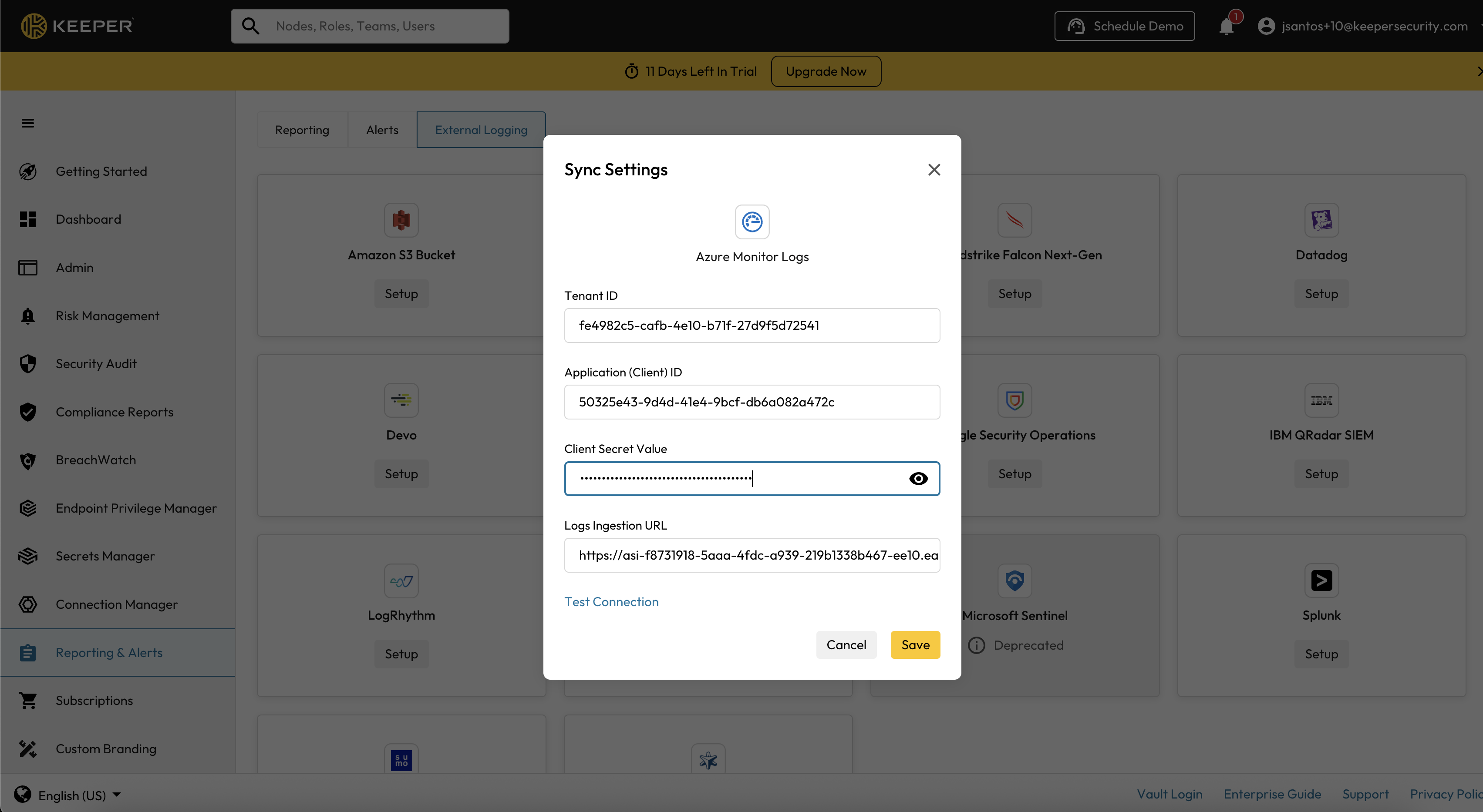
**Keeper管理コンソール** → **レポート・アラート** → **Azure Monitor Logs** に移動し、[手順5](#5.-generate-entra-configuration) で取得した情報を入力します。
* **Azure Tenant ID**
* **Application (Client) ID**
* **Client Secret Value**
* **Endpoint URL** (以下の形式で構成)
#### ログ取り込みURL形式の例
{% code overflow="wrap" %}
```
/dataCollectionRules//streams/Custom-KeeperSecurityEventNewLogs?api-version=2023-01-01
```
{% endcode %}
* **DCR\_ID:** データコレクタールールの不変IDを使用
* **Custom-KeeperSecurityEventNewLogs:** Azureが作成するテーブル名
***
### 6. Keeper管理コンソールの設定
**Keeper管理コンソール** → **レポート・アラート** → **Azure Monitor Logs** に移動し、[手順5](#5.-generate-entra-configuration) で取得した情報を入力します。
* **Azure Tenant ID**
* **Application (Client) ID**
* **Client Secret Value**
* **Endpoint URL** (以下の形式で構成)
#### ログ取り込みURL形式の例
{% code overflow="wrap" %}
```
/dataCollectionRules//streams/Custom-KeeperSecurityEventNewLogs?api-version=2023-01-01
```
{% endcode %}
* **DCR\_ID:** データコレクタールールの不変IDを使用
* **Custom-KeeperSecurityEventNewLogs:** Azureが作成するテーブル名
 ***
### 7. 任意: 分析ルール「Master Password Changed」を有効にする
***
### 7. 任意: 分析ルール「Master Password Changed」を有効にする
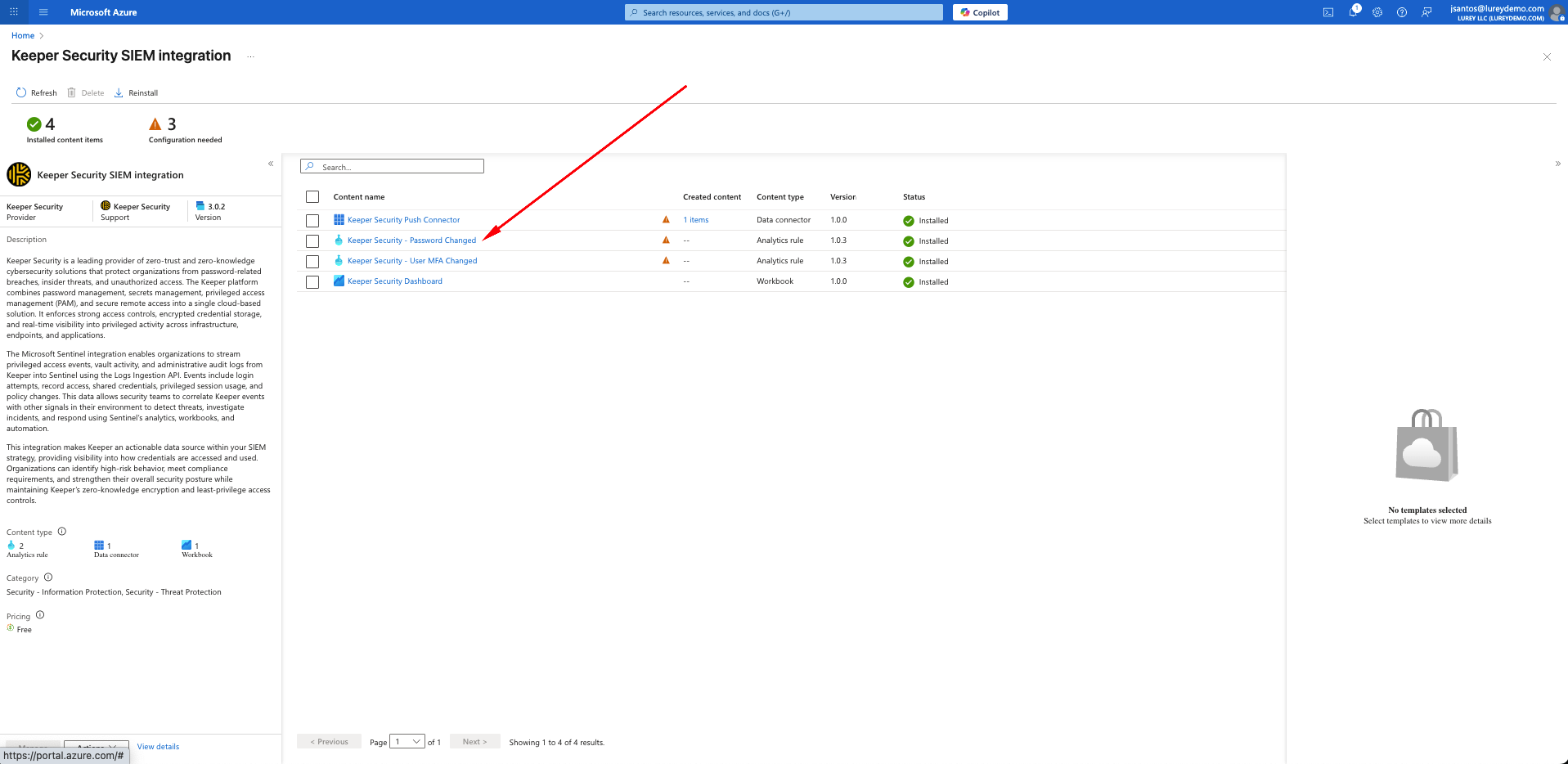 Microsoft Sentinelで、Keeperユーザーがマスターパスワードを変更した際に自動的に検知する分析ルールを任意で有効にできます。
#### 手順1. インストール済みコンテンツにアクセス
* Microsoft Sentinelで、**\[コンテンツ ハブ]** → **\[Keeper Security SIEM Integration]** に移動します。
* インストール済みコンテンツ項目の下にある**Keeper Security – Password Changed (分析ルール)** を探します。
* クリックして構成を開始します。
***
#### 手順2. ルール テンプレートを開く
* ルール テンプレート**Keeper Security – Password Changed**を選択します。
* 右側のパネルで **\[ルールの作成]** をクリックします。
* 分析ルール ウィザードが起動します。
***
#### 手順3. 一般設定を構成
* 名前: *Keeper Security – Password Changed* (既定)
* 説明: Keeper SecurityのPassword Changedイベントが検出されたときに情報インシデントを作成します。
* 重大度: 情報
* MITRE ATT\&CK: 永続化 (T1556) を選択
* 状態: 有効のままにする
* **\[次へ: ルール ロジックの設定]** をクリックします。
***
#### 手順4. ルール ロジックの定義
* 以下のクエリを使用します。
```kusto
KeeperSecurityEventNewLogs_CL
| where AuditEvent == "change_master_password"
```
⚠️ 注: テーブル `KeeperSecurityEventNewLogs_CL` が存在することを確認してください (KeeperのログがSentinelに流入し始めると自動的に作成されます)。ログがまだ取り込まれていない場合、検証時にクエリエラーが発生することがあります。
* **\[イベントのグループ化]** では、**\[各イベントごとにアラートをトリガーする]** を選択します。
* **\[次へ: インシデント設定]** をクリックします。
***
#### 手順5. インシデント設定の構成
* 有効化: このルールによってトリガーされたアラートからインシデントを作成する
* アラートのグループ化: 無効 (パスワードイベントを個別に検知するために推奨)
* **\[次へ: 自動応答]** をクリックします。
***
#### 手順6. 任意 – 自動応答の追加
* Logic Appプレイブックを接続すると、自動応答アクション (例: Teamsまたはメールでセキュリティチームに通知) を実行できます。
* 自動化ルールを使用しない場合は、空のままにしておきます。
* **\[次へ: レビューと作成]** をクリックします。
***
#### 手順7. レビューと作成
* すべての詳細を確認します。
* ルール名
* クエリ
* 重大度
* エンティティ マッピング: Username → アカウント、RemoteAddress → IP
* **\[作成]** をクリックして完了します。
***
### 8. 任意: 分析ルール「User MFA Changed」を有効にする
Microsoft Sentinelで、Keeperユーザーがマスターパスワードを変更した際に自動的に検知する分析ルールを任意で有効にできます。
#### 手順1. インストール済みコンテンツにアクセス
* Microsoft Sentinelで、**\[コンテンツ ハブ]** → **\[Keeper Security SIEM Integration]** に移動します。
* インストール済みコンテンツ項目の下にある**Keeper Security – Password Changed (分析ルール)** を探します。
* クリックして構成を開始します。
***
#### 手順2. ルール テンプレートを開く
* ルール テンプレート**Keeper Security – Password Changed**を選択します。
* 右側のパネルで **\[ルールの作成]** をクリックします。
* 分析ルール ウィザードが起動します。
***
#### 手順3. 一般設定を構成
* 名前: *Keeper Security – Password Changed* (既定)
* 説明: Keeper SecurityのPassword Changedイベントが検出されたときに情報インシデントを作成します。
* 重大度: 情報
* MITRE ATT\&CK: 永続化 (T1556) を選択
* 状態: 有効のままにする
* **\[次へ: ルール ロジックの設定]** をクリックします。
***
#### 手順4. ルール ロジックの定義
* 以下のクエリを使用します。
```kusto
KeeperSecurityEventNewLogs_CL
| where AuditEvent == "change_master_password"
```
⚠️ 注: テーブル `KeeperSecurityEventNewLogs_CL` が存在することを確認してください (KeeperのログがSentinelに流入し始めると自動的に作成されます)。ログがまだ取り込まれていない場合、検証時にクエリエラーが発生することがあります。
* **\[イベントのグループ化]** では、**\[各イベントごとにアラートをトリガーする]** を選択します。
* **\[次へ: インシデント設定]** をクリックします。
***
#### 手順5. インシデント設定の構成
* 有効化: このルールによってトリガーされたアラートからインシデントを作成する
* アラートのグループ化: 無効 (パスワードイベントを個別に検知するために推奨)
* **\[次へ: 自動応答]** をクリックします。
***
#### 手順6. 任意 – 自動応答の追加
* Logic Appプレイブックを接続すると、自動応答アクション (例: Teamsまたはメールでセキュリティチームに通知) を実行できます。
* 自動化ルールを使用しない場合は、空のままにしておきます。
* **\[次へ: レビューと作成]** をクリックします。
***
#### 手順7. レビューと作成
* すべての詳細を確認します。
* ルール名
* クエリ
* 重大度
* エンティティ マッピング: Username → アカウント、RemoteAddress → IP
* **\[作成]** をクリックして完了します。
***
### 8. 任意: 分析ルール「User MFA Changed」を有効にする
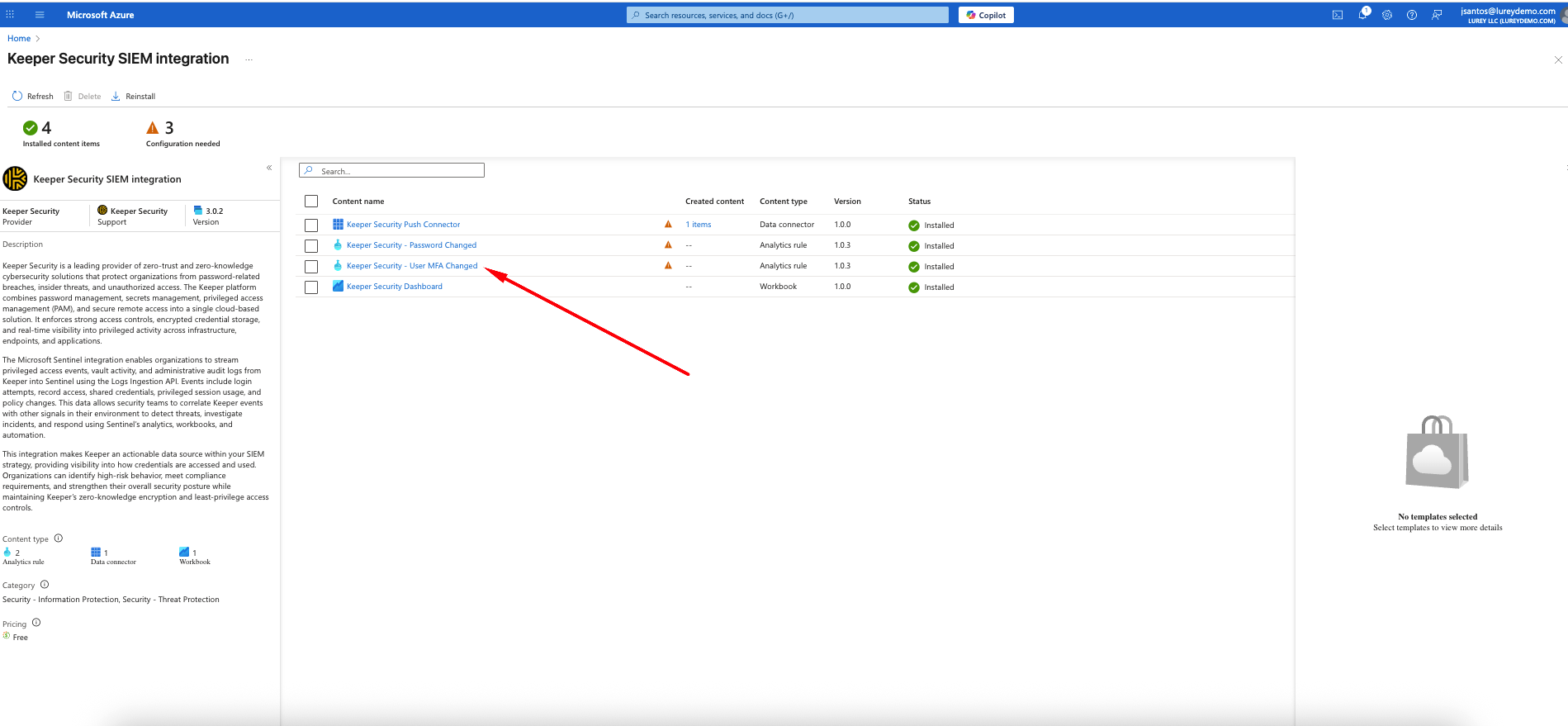 Microsoft Sentinelで、Keeperユーザーが多要素認証 (MFA) 設定を変更した際に自動的に検知する分析ルールを任意で有効にできます。これにより、ユーザーが2要素認証を有効または無効にした際の状況を可視化できます。
***
#### 手順1. インストール済みコンテンツにアクセス
* Microsoft Sentinelで、**\[コンテンツ ハブ]** → **\[Keeper Security SIEM Integration]** に移動します。
* インストール済みコンテンツ項目の下で、**Keeper Security – User MFA Changed**を選択します。
* クリックして詳細を表示します。
***
#### 手順2. ルール テンプレートを開く
* **Keeper Security – User MFA Changed**を選択します。
* 右側のパネルで **\[ルールの作成]** をクリックします。
* 分析ルール ウィザードが起動します。
***
#### 手順3. 一般設定を構成
* 名前: *Keeper Security – User MFA Changed* (既定)
* 説明: Keeper SecurityでMFA設定が変更されたときに情報インシデントを作成します。
* 重大度: 情報
* MITRE ATT\&CK: 永続化 (T1556) を選択
* 状態: 有効のままにする
* **\[次へ: ルール ロジックの設定]** をクリックします。
***
#### 手順4. ルール ロジックの定義
以下のクエリを使用します。
```kusto
KeeperSecurityEventNewLogs_CL
| where AuditEvent in ("set_two_factor_off", "set_two_factor_on")
```
* **\[イベントのグループ化]** では、**\[各イベントごとにアラートをトリガーする]** を選択します。
* **\[次へ: インシデント設定]** をクリックします。
***
#### 手順5. インシデント設定の構成
* 有効化: このルールによってトリガーされたアラートからインシデントを作成する
* アラートのグループ化: 無効 (各MFA変更を個別のインシデントとして作成する)
* **\[次へ: 自動応答]** をクリックします。
***
#### 手順6. 任意 – 自動応答の追加
* Logic Appプレイブックを接続すると、自動応答アクション (例: Teams、Slack、またはメールでSOCチームに通知) を実行できます。
* 自動化ルールを使用しない場合は、空のままにしておきます。
* **\[次へ: レビューと作成]** をクリックします。
***
#### 手順7. レビューと作成
* すべての詳細を確認します。
* ルール名
* クエリ
* 重大度
* エンティティ マッピング (Username → アカウント、RemoteAddress → IP)
* **\[作成]** をクリックして完了します。
***
### 9. 任意: ワークブック「Keeper Security Dashboard」を有効にする
Microsoft Sentinelで、Keeperユーザーが多要素認証 (MFA) 設定を変更した際に自動的に検知する分析ルールを任意で有効にできます。これにより、ユーザーが2要素認証を有効または無効にした際の状況を可視化できます。
***
#### 手順1. インストール済みコンテンツにアクセス
* Microsoft Sentinelで、**\[コンテンツ ハブ]** → **\[Keeper Security SIEM Integration]** に移動します。
* インストール済みコンテンツ項目の下で、**Keeper Security – User MFA Changed**を選択します。
* クリックして詳細を表示します。
***
#### 手順2. ルール テンプレートを開く
* **Keeper Security – User MFA Changed**を選択します。
* 右側のパネルで **\[ルールの作成]** をクリックします。
* 分析ルール ウィザードが起動します。
***
#### 手順3. 一般設定を構成
* 名前: *Keeper Security – User MFA Changed* (既定)
* 説明: Keeper SecurityでMFA設定が変更されたときに情報インシデントを作成します。
* 重大度: 情報
* MITRE ATT\&CK: 永続化 (T1556) を選択
* 状態: 有効のままにする
* **\[次へ: ルール ロジックの設定]** をクリックします。
***
#### 手順4. ルール ロジックの定義
以下のクエリを使用します。
```kusto
KeeperSecurityEventNewLogs_CL
| where AuditEvent in ("set_two_factor_off", "set_two_factor_on")
```
* **\[イベントのグループ化]** では、**\[各イベントごとにアラートをトリガーする]** を選択します。
* **\[次へ: インシデント設定]** をクリックします。
***
#### 手順5. インシデント設定の構成
* 有効化: このルールによってトリガーされたアラートからインシデントを作成する
* アラートのグループ化: 無効 (各MFA変更を個別のインシデントとして作成する)
* **\[次へ: 自動応答]** をクリックします。
***
#### 手順6. 任意 – 自動応答の追加
* Logic Appプレイブックを接続すると、自動応答アクション (例: Teams、Slack、またはメールでSOCチームに通知) を実行できます。
* 自動化ルールを使用しない場合は、空のままにしておきます。
* **\[次へ: レビューと作成]** をクリックします。
***
#### 手順7. レビューと作成
* すべての詳細を確認します。
* ルール名
* クエリ
* 重大度
* エンティティ マッピング (Username → アカウント、RemoteAddress → IP)
* **\[作成]** をクリックして完了します。
***
### 9. 任意: ワークブック「Keeper Security Dashboard」を有効にする
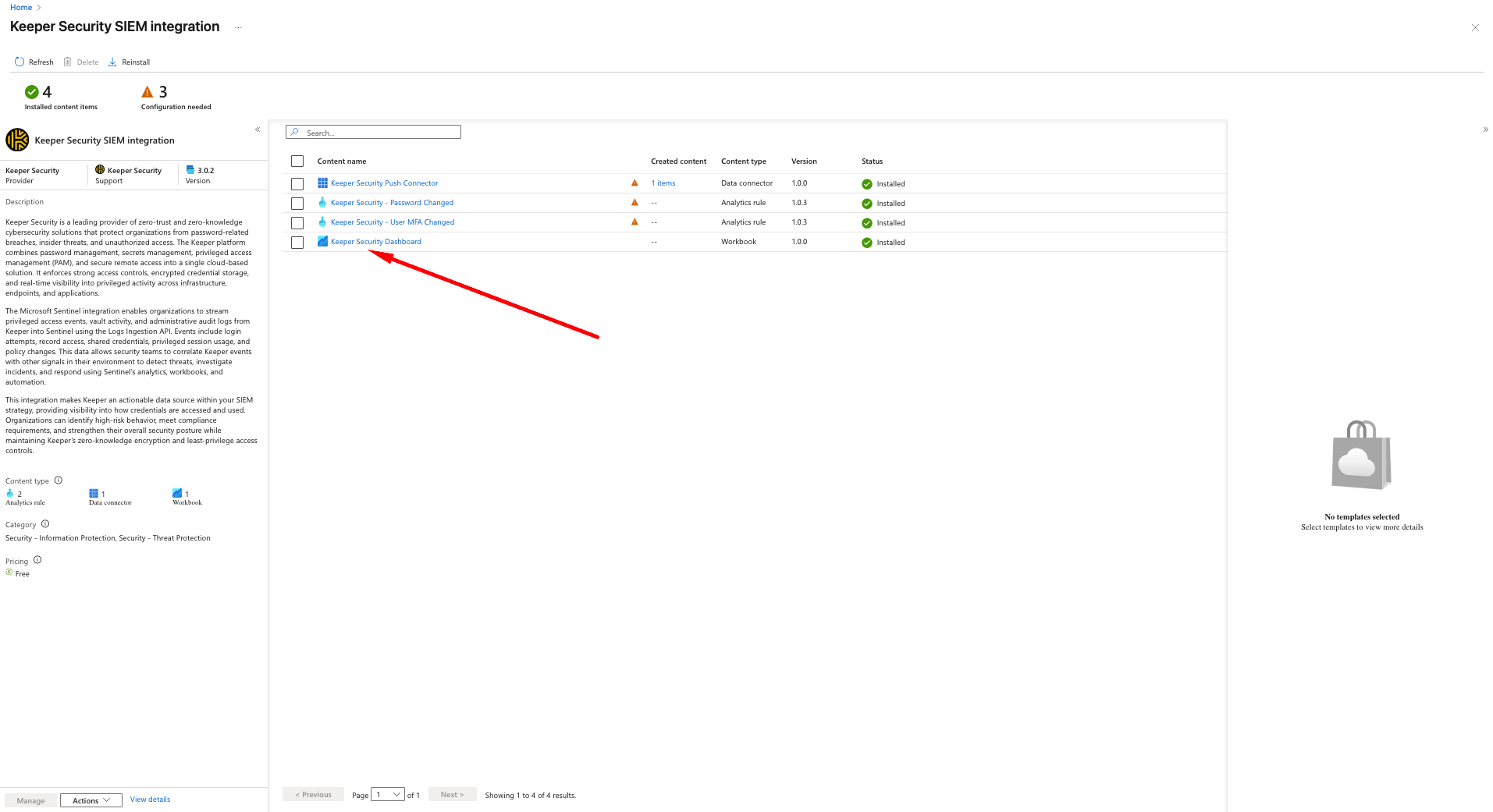 Microsoft Sentinelで、Keeperのイベントデータを可視化するためにKeeper Securityダッシュボードのワークブックを任意で有効にできます。このダッシュボードでは、パスワード変更、MFAイベント、特権操作、およびKeeperの全体的な利用傾向に関するインサイトを確認できます。
***
#### 手順1. インストール済みコンテンツにアクセス
* Microsoft Sentinelで、**\[コンテンツ ハブ]** → **\[Keeper Security SIEM Integration]** に移動します。
* インストール済みコンテンツ項目の下で、**Keeper Security Dashboard**を選択します。
***
#### 手順2. ワークブック テンプレートを保存
* ワークブックビューから**Keeper Security Dashboard**を選択します。
* 右側のパネルで **\[保存]** をクリックします。
* テンプレートが個人用のワークブック一覧に追加されます。
***
#### 手順3. 保存したワークブックを開く
* 保存後、**\[ワークブック]** に移動します。
* 一覧から**Keeper Security Dashboard**を選択します。
* **\[保存済みワークブックの表示]** をクリックして開きます。
***
#### 手順4. Keeperイベントを可視化
Keeper Security Dashboardには、以下のようなあらかじめ構築されたグラフやインサイトが含まれています。
* パスワード変更 (ユーザーによるマスターパスワード変更の監査履歴)
* MFAイベント (MFAの有効化/無効化の追跡)
* ユーザーアクティビティ (ログイン、セッション利用、レコードアクセス)
* セキュリティアラート (ポリシー変更、特権操作、異常パターン)
***
### ✅ 設定完了
設定が正しく行われると、Microsoft Sentinel内の以下のテーブルにログが表示されます。
```
KeeperSecurityEventNewLogs_CL
```
Azure Monitor Logsの取り込み方法を使用した、KeeperとMicrosoft Sentinelの統合が完了しました。
---
# Agent Instructions
This documentation is published with GitBook. GitBook is the documentation platform designed so that both humans and AI agents can read, navigate, and reason over technical content effectively. Learn more at gitbook.com.
## Querying This Documentation
If you need additional information that is not directly available in this page, you can query the documentation by asking a question.
Perform an HTTP GET request on the following URL with the `ask` and `goal` query parameters:
```
GET https://docs.keeper.io/enterprise-guide/jp/event-reporting/microsoft-sentinel/microsoft-sentinel-with-azure-marketplace.md?ask=&goal=
```
`ask` is the immediate question: it should be specific, self-contained, and written in natural language.
`goal` is what the user is ultimately trying to achieve, the reason they need the answer. Sharing it helps GitBook give you a better, more relevant answer. A goal is most helpful when it describes the outcome the user wants rather than restating the question. For example, with `ask=how do I create an API token`, a goal like `automate deployments from our CI pipeline` lets GitBook tailor the answer to that use case.
The response will contain a direct answer to the question and relevant excerpts and sources from the documentation.
Use this mechanism when the answer is not explicitly present in the current page, you need clarification or additional context, or you want to retrieve related documentation sections.
Microsoft Sentinelで、Keeperのイベントデータを可視化するためにKeeper Securityダッシュボードのワークブックを任意で有効にできます。このダッシュボードでは、パスワード変更、MFAイベント、特権操作、およびKeeperの全体的な利用傾向に関するインサイトを確認できます。
***
#### 手順1. インストール済みコンテンツにアクセス
* Microsoft Sentinelで、**\[コンテンツ ハブ]** → **\[Keeper Security SIEM Integration]** に移動します。
* インストール済みコンテンツ項目の下で、**Keeper Security Dashboard**を選択します。
***
#### 手順2. ワークブック テンプレートを保存
* ワークブックビューから**Keeper Security Dashboard**を選択します。
* 右側のパネルで **\[保存]** をクリックします。
* テンプレートが個人用のワークブック一覧に追加されます。
***
#### 手順3. 保存したワークブックを開く
* 保存後、**\[ワークブック]** に移動します。
* 一覧から**Keeper Security Dashboard**を選択します。
* **\[保存済みワークブックの表示]** をクリックして開きます。
***
#### 手順4. Keeperイベントを可視化
Keeper Security Dashboardには、以下のようなあらかじめ構築されたグラフやインサイトが含まれています。
* パスワード変更 (ユーザーによるマスターパスワード変更の監査履歴)
* MFAイベント (MFAの有効化/無効化の追跡)
* ユーザーアクティビティ (ログイン、セッション利用、レコードアクセス)
* セキュリティアラート (ポリシー変更、特権操作、異常パターン)
***
### ✅ 設定完了
設定が正しく行われると、Microsoft Sentinel内の以下のテーブルにログが表示されます。
```
KeeperSecurityEventNewLogs_CL
```
Azure Monitor Logsの取り込み方法を使用した、KeeperとMicrosoft Sentinelの統合が完了しました。
---
# Agent Instructions
This documentation is published with GitBook. GitBook is the documentation platform designed so that both humans and AI agents can read, navigate, and reason over technical content effectively. Learn more at gitbook.com.
## Querying This Documentation
If you need additional information that is not directly available in this page, you can query the documentation by asking a question.
Perform an HTTP GET request on the following URL with the `ask` and `goal` query parameters:
```
GET https://docs.keeper.io/enterprise-guide/jp/event-reporting/microsoft-sentinel/microsoft-sentinel-with-azure-marketplace.md?ask=&goal=
```
`ask` is the immediate question: it should be specific, self-contained, and written in natural language.
`goal` is what the user is ultimately trying to achieve, the reason they need the answer. Sharing it helps GitBook give you a better, more relevant answer. A goal is most helpful when it describes the outcome the user wants rather than restating the question. For example, with `ask=how do I create an API token`, a goal like `automate deployments from our CI pipeline` lets GitBook tailor the answer to that use case.
The response will contain a direct answer to the question and relevant excerpts and sources from the documentation.
Use this mechanism when the answer is not explicitly present in the current page, you need clarification or additional context, or you want to retrieve related documentation sections.