> For the complete documentation index, see [llms.txt](https://docs.keeper.io/llms.txt). Markdown versions of documentation pages are available by appending `.md` to page URLs; this page is available as [Markdown](https://docs.keeper.io/enterprise-guide/jp/keeper-msp/migration-of-mcs/mc-to-msp.md).
# MSP間のMC移行
MSP間でのMC移行
## 概要
KeeperコマンダーCLIを使用して、1社または複数の管理対象企業 (MC) をMSP間で移行します。
{% hint style="warning" %}
**MSPまたはMCの移行を開始する前に、まずKeeperのサポートチームにご連絡ください。**
MSP Americas & APAC: \
MSP EMEA:
承認後、Keeperコマンダーを使用して管理対象企業の移行をリクエストしてください。
{% endhint %}
**シナリオ:** 移行元MSPが移行を開始します。移行先MSPが承認します。Keeper Securityが確認します。移行元MSPが完了します。
**コマンドリファレンス:** [コマンダーCLI/SDK](/enterprise-guide/jp/keeper-msp/commander-cli-sdk.md)
## 用語
| 用語 | 定義 |
| ---------- | -------------------------------------------- |
| **MSP** | マネージドサービスプロバイダー。他の企業を管理するKeeper Securityテナント |
| **MC** | 管理対象企業。MSPが管理するKeeper Securityテナント |
| **移行元MSP** | 移行対象の管理対象企業を現在管理しているMSP |
| **移行先MSP** | 管理対象企業の管理を引き継ぐMSP |
#### 本ガイドで使用するアカウント例
以下の例は、ご利用環境の管理者名とメールアドレスに置き換えてください。
| ロール | 管理者名 | 管理者メールアドレス |
| --------- | --------------------- | --------------------------------- |
| 移行元MSP管理者 | `sending-msp-admin` | `sending-msp-admin@example.com` |
| 移行先MSP管理者 | `receiving-msp-admin` | `receiving-msp-admin@example.com` |
## 要件
* KeeperコマンダーCLIのインストールと構成が完了していること
* 移行元MSPまたは移行先MSPの**主要管理者**であること
* 移行先MSP管理者の名前とメールアドレスが分かっていること
## 手順1. 移行元MSP: 移行の開始
移行元MSP管理者がコマンダーにログインし、移行先MSPへ移行リクエストを送信します。
**1. 移行元MSP管理者としてコマンダーにログインします**
```
Email: sending-msp-admin@example.com
Password:
```
**2. 移行リクエストを送信します**
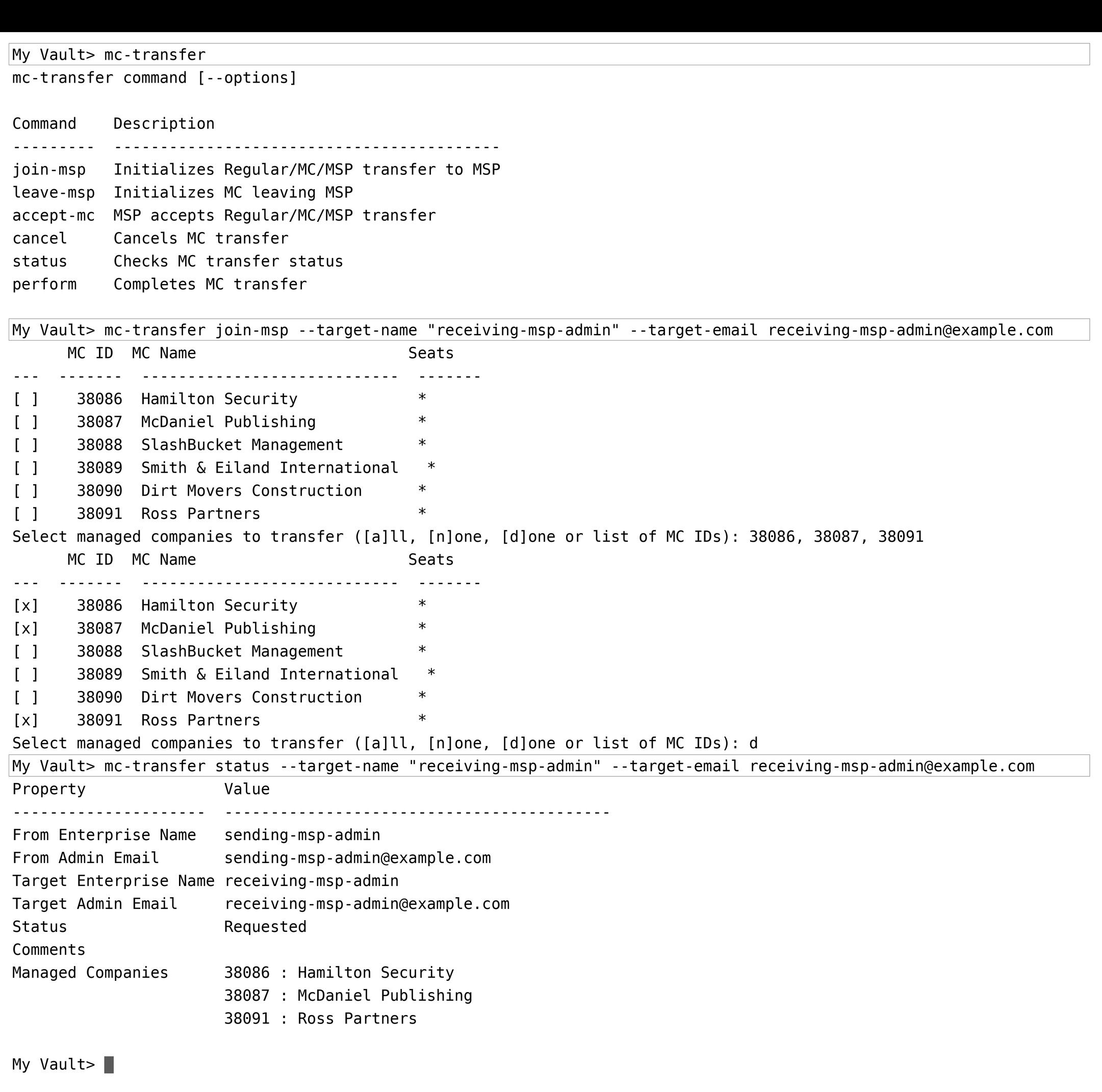
```
mc-transfer join-msp --target-name "receiving-msp-admin" --target-email receiving-msp-admin@example.com
```
**3. 移行リクエストが送信されたことを確認します**
```
mc-transfer status --target-name "receiving-msp-admin" --target-email receiving-msp-admin@example.com
```
移行先MSPの承認待ちと表示されます。
## 手順2. 移行先MSP: 移行の承認
移行先MSP管理者がログインし、届いている移行リクエストを承認します。
**1. 移行先MSP管理者としてコマンダーにログインします**
```
Email: receiving-msp-admin@example.com
Password:
```
**2. 届いている移行リクエストを確認します**
```
mc-transfer status --target-name "sending-msp-admin" --target-email sending-msp-admin@example.com
```
**3. 移行を承認します**
```
mc-transfer accept-mc --target-name "sending-msp-admin" --target-email sending-msp-admin@example.com
```
**4. 承認を確認します**
```
mc-transfer status --target-name "sending-msp-admin" --target-email sending-msp-admin@example.com
```
移行が承認され、法務承認待ちであると表示されます。
## 手順3. 法務承認
双方が合意すると、Keeper Securityの法務チームから双方のMSPにメールが届きます。
* Keeperから求められた情報の提出
* 移行の承認または却下
* 双方への結果のメール通知
{% hint style="info" icon="pencil-line" %}
この手順ではコマンダー上の操作は不要です。法務承認が完了してから、以降の手順へ進んでください。
{% endhint %}
## 手順4. 移行元MSP: 移行の完了
Keeperが移行を承認したら、移行元MSP管理者がコマンダーで移行を完了します。
**1. 移行元MSP管理者としてコマンダーにログインします**
```
Email: sending-msp-admin@example.com
Password:
```
**2. 法務承認のステータスを確認します**
```
mc-transfer status --target-name "receiving-msp-admin" --target-email receiving-msp-admin@example.com
```
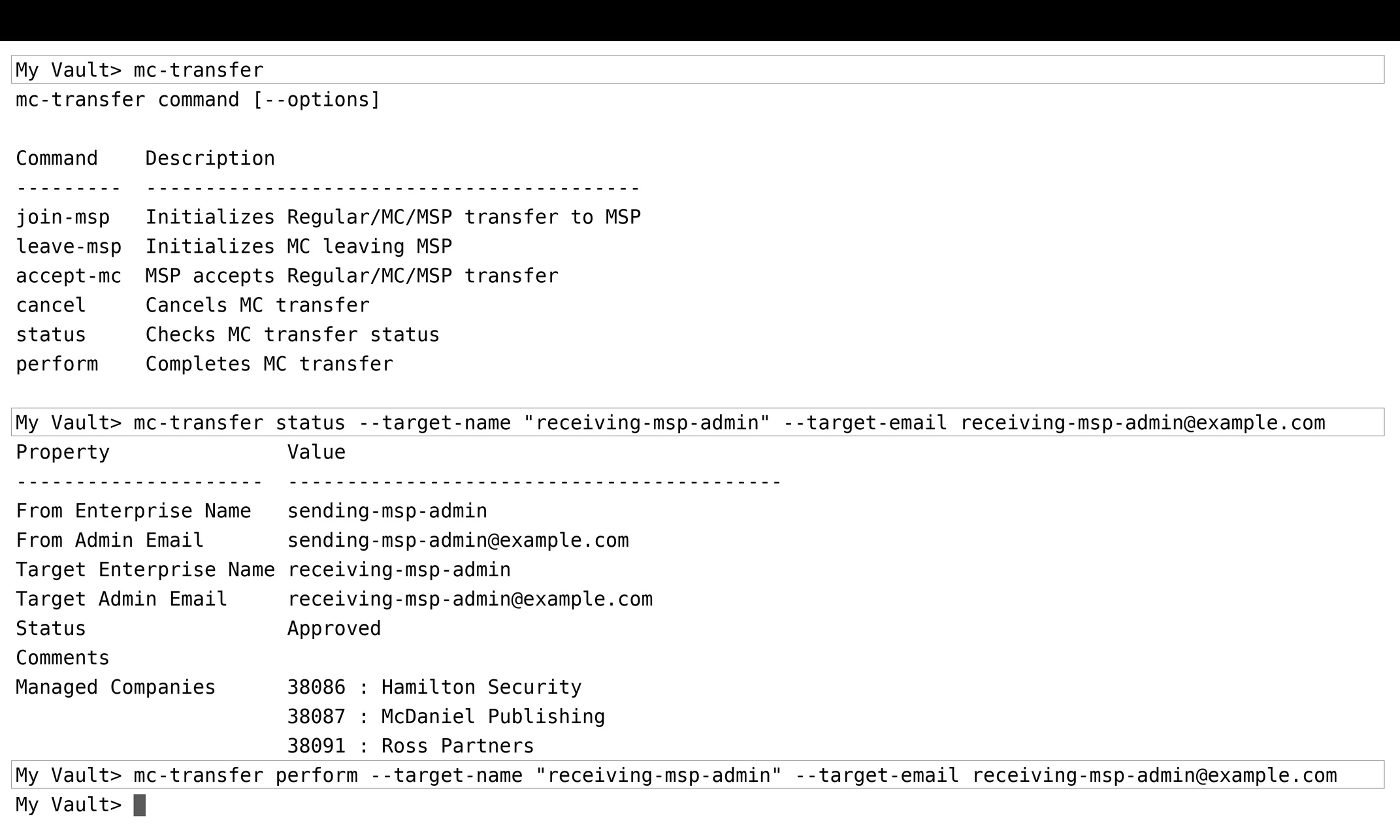
**3. 移行を実行します**
```
mc-transfer perform --target-name "receiving-msp-admin" --target-email receiving-msp-admin@example.com
```
管理対象企業は、移行先MSPへ移行されます。
## 移行のキャンセル方法
保留中の移行を、法務承認の**前に**キャンセルする場合は、移行元MSP管理者が以下のコマンドを実行します。
```
mc-transfer cancel --target-name "receiving-msp-admin" --target-email receiving-msp-admin@example.com
```
Keeperが承認する**前に**キャンセルしてください。このコマンドでは、完了済みの移行を取り消すことはできません。
## コマンドリファレンス
| 手順 | 実行者 | コマンド |
| -------- | ------- | ----------------------------------------------------------------------------------------- |
| 移行の開始 | 移行元MSP | `mc-transfer join-msp --target-name "" --target-email ` |
| ステータスの確認 | 双方のいずれか | `mc-transfer status --target-name "" --target-email ` |
| 移行の承認 | 移行先MSP | `mc-transfer accept-mc --target-name "" --target-email ` |
| 移行の完了 | 移行元MSP | `mc-transfer perform --target-name "" --target-email ` |
| 移行のキャンセル | 移行元MSP | `mc-transfer cancel --target-name "" --target-email ` |
---
# Agent Instructions
This documentation is published with GitBook. GitBook is the documentation platform designed so that both humans and AI agents can read, navigate, and reason over technical content effectively. Learn more at gitbook.com.
## Querying This Documentation
If you need additional information that is not directly available in this page, you can query the documentation dynamically by asking a question.
Perform an HTTP GET request on the current page URL with the `ask` query parameter, and the optional `goal` query parameter:
```
GET https://docs.keeper.io/enterprise-guide/jp/keeper-msp/migration-of-mcs/mc-to-msp.md?ask=&goal=
```
`ask` is the immediate question: it should be specific, self-contained, and written in natural language.
`goal` is optional and describes the broader end goal you are ultimately trying to accomplish on behalf of the user. GitBook uses it to tailor the answer towards what is most useful for that goal.
The response will contain a direct answer to the question and relevant excerpts and sources from the documentation.
Use this mechanism when the answer is not explicitly present in the current page, you need clarification or additional context, or you want to retrieve related documentation sections.
.jpg?alt=media)