# PSA請求の照合

<figure><img src="/files/0ilzjSiMaCEY4lkeyYP3" alt=""><figcaption></figcaption></figure>

#### 概要

弊社のパートナーであるGradient MSPとのサードパーティ統合により、Keeper MSP管理者は請求プロセス全体の強力な高度な可視性を得ることができます。

KeeperとGradient MSPの統合により、MSPは以下のことが可能になります。

* クライアントの利用状況を確認 - 月末に不足の事態が発生することがなくなる
* サービス利用を即座にPSAに同期

ビジネスを成長させる機会を特定します。

* 不採算サービスの特定
* 収益と利益を増加させる機会に焦点を絞る

GradientMSPは現在、以下の最もよく使用されているPSAと統合しています。

* Connectwise Manage
* Datto Autotask
* BMS by Kaseya
* Syncro
* Pulseway
* HALOPSA
* Accelo
* Tigerpaw
* CloudBlue PSA

{% embed url="<https://vimeo.com/856813196>" %}
Keeper 101: Keeper - Gradient PSA Billing Reconciliation Video
{% endembed %}

#### Gradient MSPをKeeperに接続する

1. Gradient MSP Synthesizeに[ログイン](https://app.usegradient.com/login)します。まだGradient MSPアカウントをお持ちでない場合は、メールアドレスまたはSSO認証情報を入力して簡単に作成できます。

<figure><img src="/files/1yLdxss6J5etaJZfbv6o" alt=""><figcaption><p>GradientMSP Synthesize Login</p></figcaption></figure>

2. **「Integrations」** (統合) タブに移動します。

<figure><img src="/files/id9ZFljmuZZB79VUElTe" alt=""><figcaption><p>Integrations（統合）タブに移動</p></figcaption></figure>

3. Keeper Security Integrationを選択し、**\[Connect]** (接続)をクリックします。

<figure><img src="/files/TcUCHvv6LdDFAafJeynF" alt=""><figcaption><p>Keeper Security Integrationの接続</p></figcaption></figure>

4. **「Billing Only」**&#x3092;選択し、**\[Continue]** (続行) をクリックします。

<figure><img src="/files/y6m8mopkuuBwUfezCpPy" alt=""><figcaption></figcaption></figure>

5. **\[Generate API Token]** をクリックし、**「Gradient API Key」**&#x3092;コピーします。統合ごとに固有のAPI Keyが割り当てられることに注意してください。このキーを安全な場所に保存してください。一度しか取得できません。

<figure><img src="/files/Cd0EU0NkJuFfgwX18yg0" alt=""><figcaption><p>API TOKEN生成</p></figcaption></figure>

<figure><img src="/files/CMHQ5xYzLNamdWZGSxKW" alt=""><figcaption><p>API TOKENをコピーする</p></figcaption></figure>

6. **\[Open Vendor Portal]** (ベンダーポータルを開く) をクリックします。Keeper MSPコンソールの新しいタブが開きます。

<figure><img src="/files/P1P1fUSvpUfuvmSPtdNG" alt=""><figcaption><p>Vendor Portal を開き、Keeper MSP コンソールを開く</p></figcaption></figure>

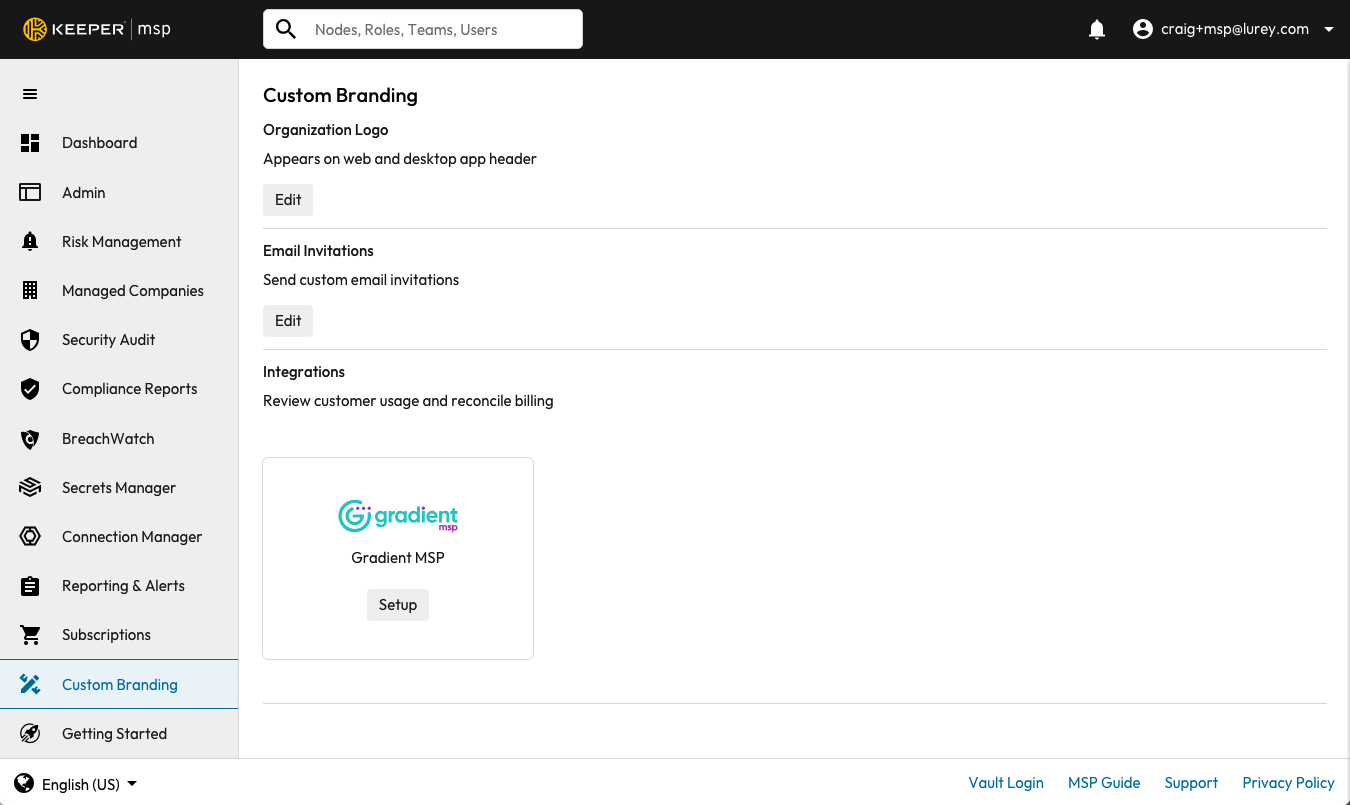
7. Keeper MSPコンソールで、**「カスタムブランディング」**&#x30BF;ブを選択し、Gradient MSP統合の下の **\[セットアップ]** をクリックします。

<figure><img src="/files/rRH27cCcpRvtR7b5dFP8" alt=""><figcaption></figcaption></figure>

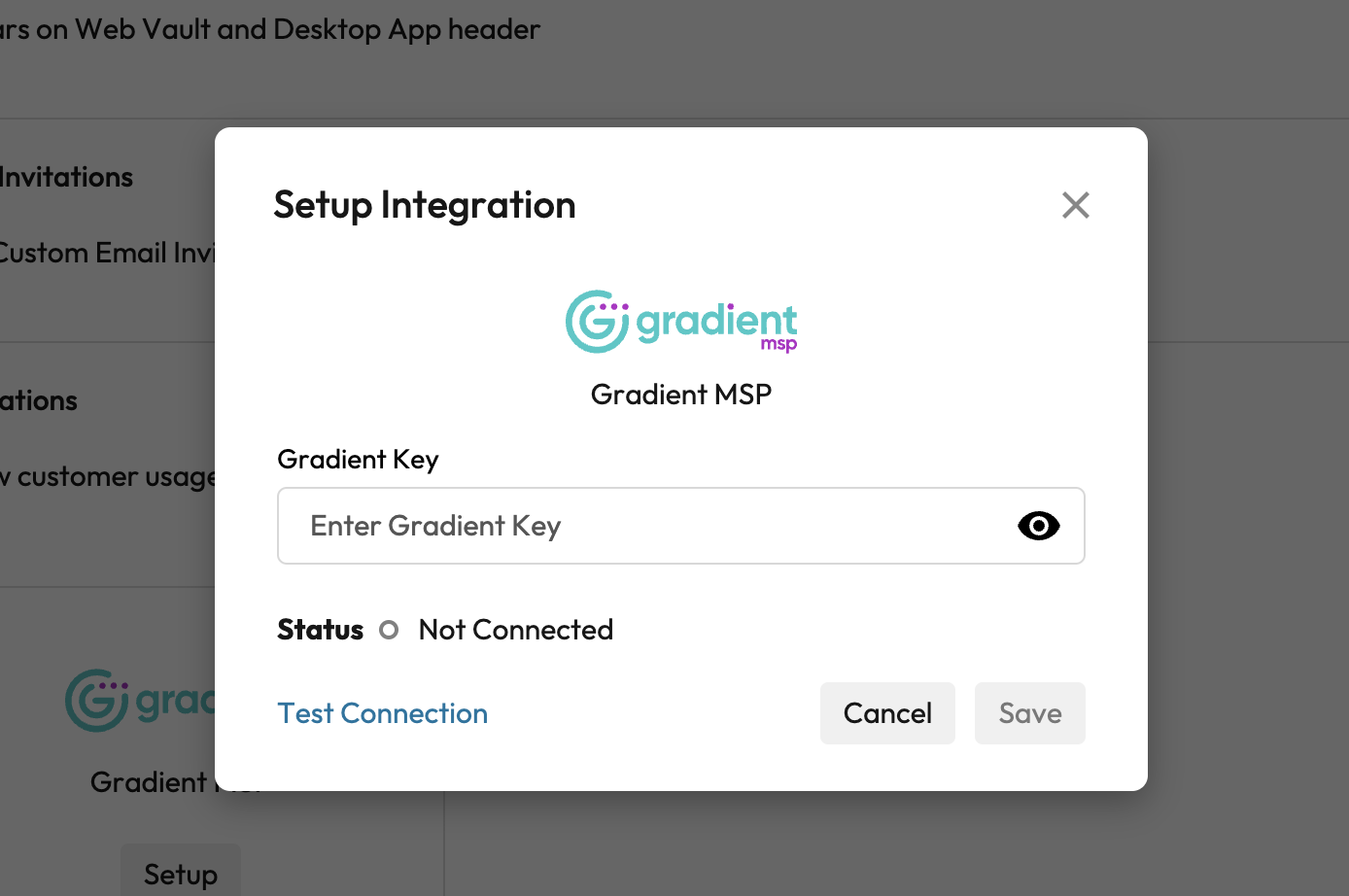
8. Gradient Keyを貼り付ける画面が開きます。そし&#x3066;**\[テスト接続]**&#x3068;**\[保存]**&#x3092;クリックします。

<figure><img src="/files/Ag2j5mLNCa6uSitxQAo3" alt=""><figcaption><p>Gradientキーをコピー > テスト接続 > 保存</p></figcaption></figure>

9. Synthesizeに戻り、**\[Next]** (次へ) をクリックしてサービスとアカウントのマッピングを完了します。

<figure><img src="/files/a3AiueHRnbmmUMkN2gHw" alt=""><figcaption><p>[Next]をクリックして、サービスとアカウントのマッピングを開始します。</p></figcaption></figure>

#### マップアカウントとサービス

1. 左側のSynthesizeから右側のKeeper Securityにカードをドラッグしてアカウントをマッピングします。完了後、**\[Next]** をクリックします。

<figure><img src="/files/RV18Rz2DvtUg4fZwDSvR" alt=""><figcaption><p>ドラッグ・アンド・ドロップでアカウントをマッピング</p></figcaption></figure>

2. 完全一致するものについては自動的にマッピングされます。残りについては、フィルタボタンをクリックするか、Synthesizeの検索バーに入力して検索することができます。
3. 左側のSynthesizeから右側のKeeper Securityにカードをドラッグして、サービスをマッピングします。完了後、**\[Next]** をクリックします。

<figure><img src="/files/F0BUHGMQ1almGrw3EmxF" alt=""><figcaption><p>ドラッグ・アンド・ドロップでマッピング・サービス</p></figcaption></figure>

4. サービスは、フィルタボタンをクリックするかSynthesizeの検索バーに入力して検索できます。
5. アカウントとサービスのマッピングを終了します。

<figure><img src="/files/ELJcXeUe8sPMn2i3SsRq" alt=""><figcaption><p>アカウントとサービスのマッピングを終了します。</p></figcaption></figure>

6. 画面がポップアップ表示され、すべての手順が完了し、データを受信する準備ができたことが通知されます。**\[OK]** をクリックしてセットアップを完了します。

<figure><img src="/files/YHcgUTa3UqfWjlRiasUS" alt=""><figcaption><p>OKをクリックしてセットアップを完了します。</p></figcaption></figure>

7. Keeper Securityに戻ると、統合カードが接続され、同期するために保留中の更新が表示されます。
8. **\[マッピングを同期]** をクリックします。

<figure><img src="/files/B7fEkeoLMVGLO6wOA1Sq" alt=""><figcaption></figcaption></figure>

9. 同期が完了すると、統合カードが更新され、「接続されました」と表示されます。

{% hint style="info" %}
Gradientでマッピングを変更するたびに、Keeperからマッピングを同期する必要があります。
{% endhint %}

#### Gradient MSP Synthesizeでリコンサイルする

Synthesizeに戻り、ページを更新して照合します。

<figure><img src="/files/yRnhwiWSG26nejChcvin" alt=""><figcaption><p>Gradient MSP Reconciliation View</p></figcaption></figure>

{% hint style="info" %}
Datto Autotask ユーザーへの重要なお知らせです。Autotask は小数値をサポートしていません。Autotask に書き込まれた値はすべて切り上げられます。
{% endhint %}

#### 統合の解除

1. Synthesizeにログインし、Integrationsタブに移動します。
2. 接続された統合にフィルタします。
3. Keeper Security Integrationカードを選択し、設定をクリックします。
4. 切断と確認をクリックします。

この統合を解除すると、認証設定およびすべてのアカウントとサービスのマッピングが削除されます。この統合を再接続することはできますが、アカウントとサービスのマッピングをやり直す必要があります。

Gradient MSPプラットフォームの詳細および Synthesizeプラットフォームの詳細については、Gradient MSPをご覧ください。

{% embed url="<https://www.meetgradient.com/>" %}


---

# Agent Instructions: Querying This Documentation

If you need additional information that is not directly available in this page, you can query the documentation dynamically by asking a question.

Perform an HTTP GET request on the current page URL with the `ask` query parameter:

```
GET https://docs.keeper.io/enterprise-guide/jp/keeper-msp/psa-billing-reconciliation.md?ask=<question>
```

The question should be specific, self-contained, and written in natural language.
The response will contain a direct answer to the question and relevant excerpts and sources from the documentation.

Use this mechanism when the answer is not explicitly present in the current page, you need clarification or additional context, or you want to retrieve related documentation sections.