> For the complete documentation index, see [llms.txt](https://docs.keeper.io/llms.txt). Markdown versions of documentation pages are available by appending `.md` to page URLs; this page is available as [Markdown](https://docs.keeper.io/enterprise-guide/jp/user-and-team-provisioning/custom-invite-and-logo.md).
# 招待メールとロゴのカスタマイズ
ユーザーを招待する前に、招待メールとロゴをカスタマイズ
### カスタム招待メール
ユーザーをKeeperに追加する前に、ボルトに会社のロゴをアップロードし、Keeperボルトの作成を案内するための招待メールをカスタマイズしておきましょう。これらの設定は、Keeperプラットフォームの迅速な導入に役立つことが確認されており、強くお勧めします。
{% hint style="info" %}
セキュリティ上の理由から、カスタム招待メールは予約済みドメインに対してのみご利用になれます。テナントに現在予約されていないドメインのユーザーに招待を送信する場合は、[ドメイン予約のページ](/enterprise-guide/jp/domain-reservation.md)をご参照ください。
{% endhint %}
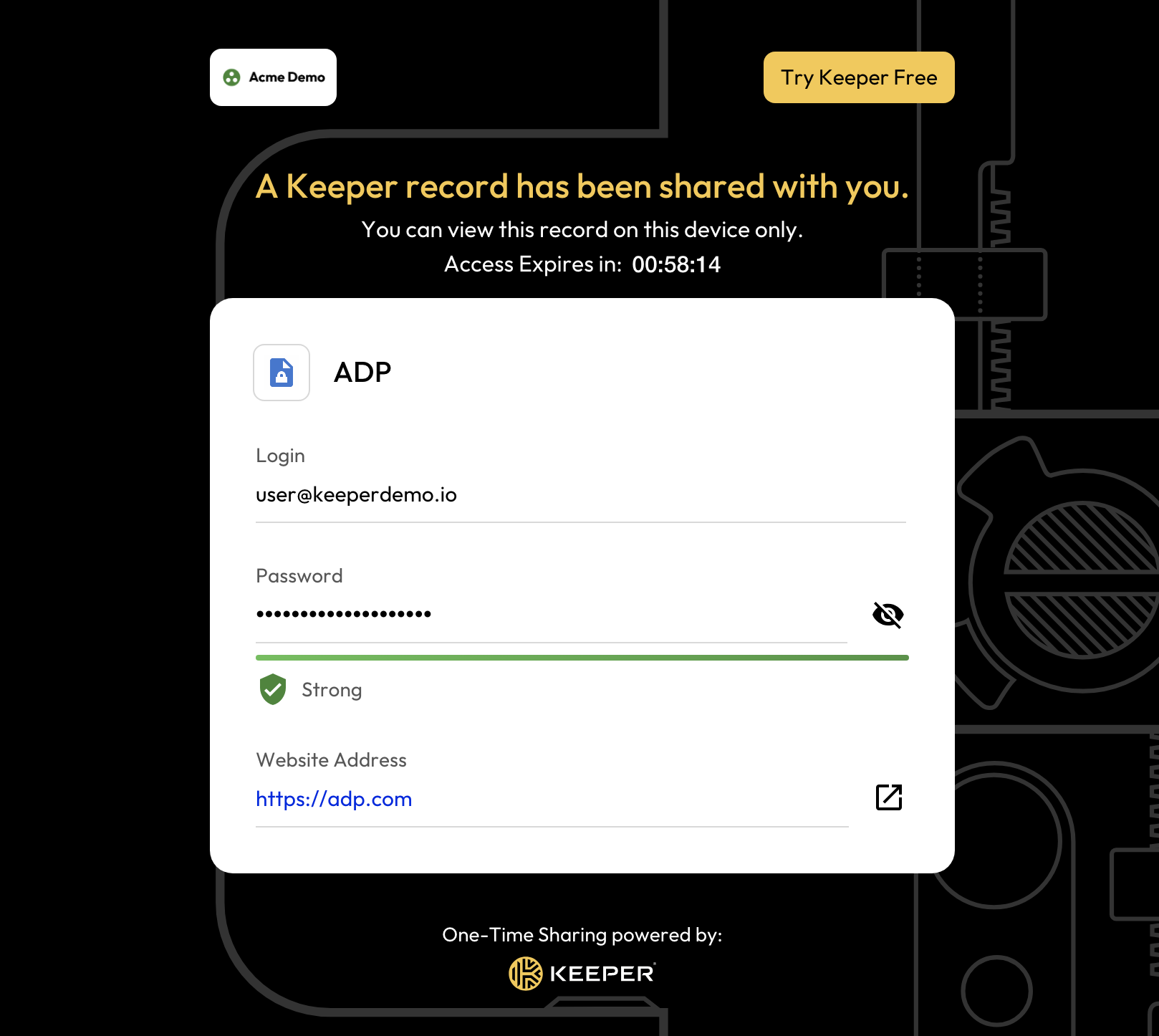
**\[環境設定]** を選択し、「招待メール」の横にある **\[編集]** を選択して、メールの言語、件名、ロゴをカスタマイズします。

招待メールのテンプレートでは以下の4つの項目をカスタマイズできます。
* 件名
* メッセージの見出し
* メッセージ本文
* ダウンロードボタンのテキスト
#### マークダウン記法
メッセージの本文では、プレーンテキストと基本的なマークダウン記法を使用できます。以下はマークダウン記法の例です。
```
Embedded Image from URL:

**This is bold text**
*This is Italic*
# This is Heading 1
## This is Heading 2
Link Text:
Visit [Keeper](https://keepersecurity.com)!
```
Keeperでサポートされているマークダウン言語の詳細については、以下をご参照ください。
{% content-ref url="/pages/q5abUmVbvDvwuN88TfKN" %}
[カスタムEメールでのマークダウン記法](/enterprise-guide/jp/user-and-team-provisioning/custom-invite-and-logo/custom-email-markdown-language.md)
{% endcontent-ref %}
#### カスタム招待メールのテンプレート
### ノード単位でのボルト用ロゴのカスタマイズ
サブノードに異なるボルト用ロゴとワンタイム共有用ロゴを設定したい場合は、Keeperコマンダーの `enterprise-node` コマンドで各ノードにカスタムロゴを設定できます。
```
enterprise-node --logo-file "/path/to/logo.jpg" Tokyo
```
本機能の詳細は[こちらのページ](/keeperpam/jp/commander-cli/command-reference/enterprise-management-commands.md#custom-emails)をご参照ください。
MSPでご使用の場合は、管理対象会社をノードに関連付けることができます。この方法を使用すると、各ノードにカスタムロゴファイルを追加できます。
---
# Agent Instructions
This documentation is published with GitBook. GitBook is the documentation platform designed so that both humans and AI agents can read, navigate, and reason over technical content effectively. Learn more at gitbook.com.
## Querying This Documentation
If you need additional information that is not directly available in this page, you can query the documentation by asking a question.
Perform an HTTP GET request on the following URL with the `ask` and `goal` query parameters:
```
GET https://docs.keeper.io/enterprise-guide/jp/user-and-team-provisioning/custom-invite-and-logo.md?ask=&goal=
```
`ask` is the immediate question: it should be specific, self-contained, and written in natural language.
`goal` is what the user is ultimately trying to achieve, the reason they need the answer. Sharing it helps GitBook give you a better, more relevant answer. A goal is most helpful when it describes the outcome the user wants rather than restating the question. For example, with `ask=how do I create an API token`, a goal like `automate deployments from our CI pipeline` lets GitBook tailor the answer to that use case.
The response will contain a direct answer to the question and relevant excerpts and sources from the documentation.
Use this mechanism when the answer is not explicitly present in the current page, you need clarification or additional context, or you want to retrieve related documentation sections.