> For the complete documentation index, see [llms.txt](https://docs.keeper.io/llms.txt). Markdown versions of documentation pages are available by appending `.md` to page URLs; this page is available as [Markdown](https://docs.keeper.io/keeper-connection-manager/authentication/authenticating-users-with-saml/oracle.md).
# Oracle
This documentation will detail how to connect your Oracle Cloud environment to Keeper Security Connection Manager for the purpose of Single Sign-On.
Identity Domains
Go to your Oracle Admin Console and navigate to the Identity Domains Overview page, then select **Applications** as depicted above.
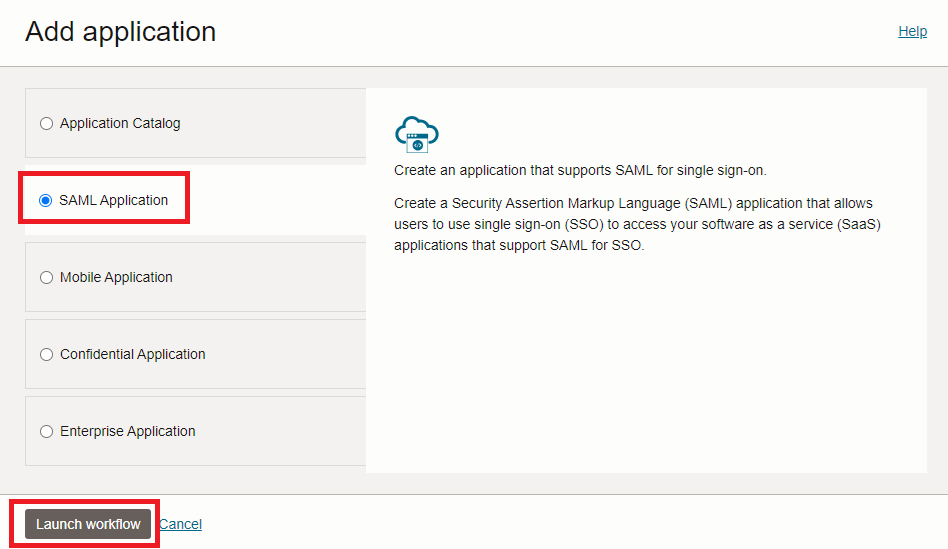
Add Application
Click on **Add Application**.
SAML Application
Select **SAML** as the application type.
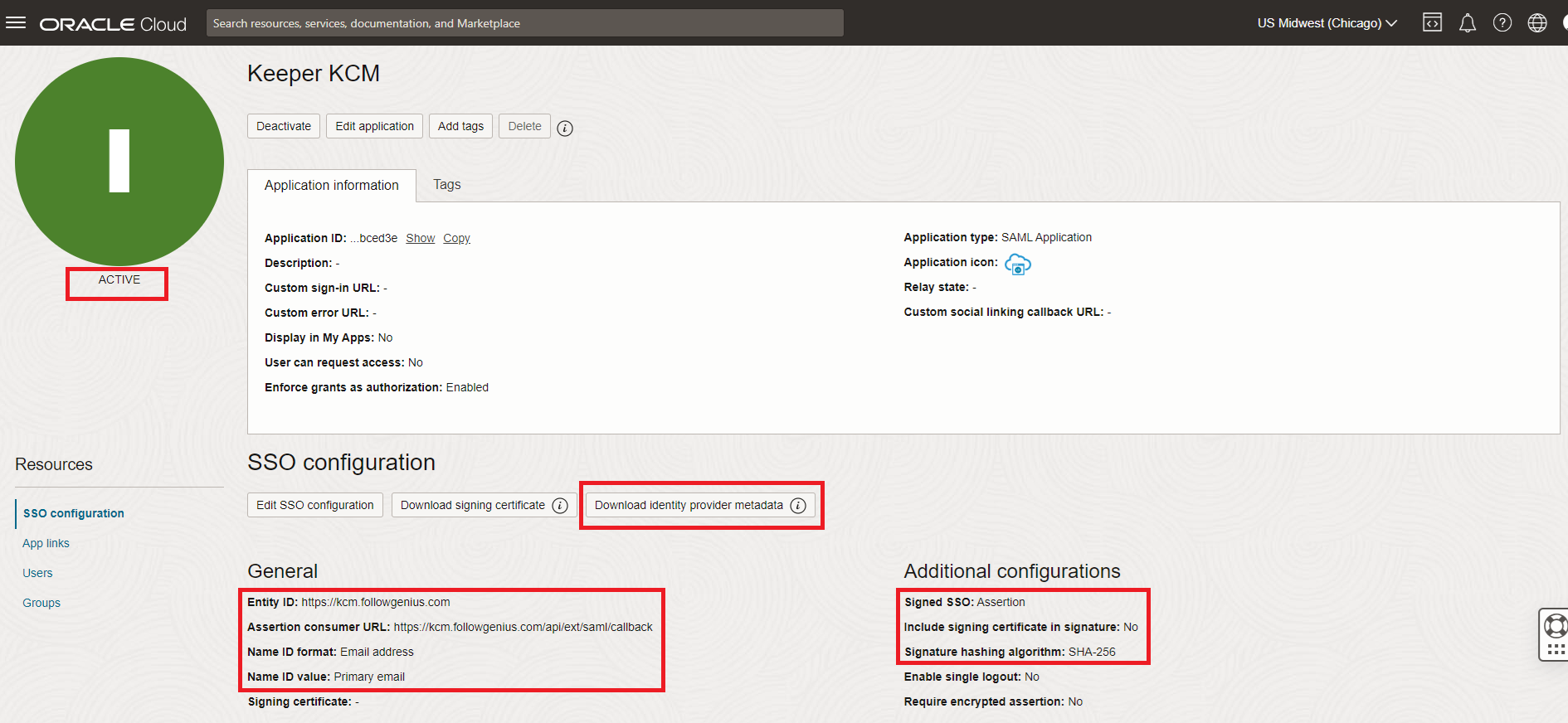
SSO Configuration
Apply the appropriate settings to the Application Information as needed for your security posture. Click on **Edit SSO Configuration**. Download the **Metadata** and rename the file to **metadata.xml**. Set the **Entity ID** to the URL of your Connection Manager server. For example: ****. For the **Assertion Consumer URL**, add **/api/ext/saml/callback** to the end of the domain URL. For example: ****. Next, set the **Name ID** Format to **Email Address** and the **Name ID Value** to **Primary Email**. Leave the **Signed SSO** setting as **Assertion**. **Uncheck the box** to **Include Signing Certificate in Signature**, and leave the **Signature Hashing Algorithm** as **SHA-256**.
SAML Attributes
Assign attributes for **email** as listed above mapped to the value **User Name**. Add another attribute for **groups** with the settings of **Type Value Group Membership** and a **Condition** of **All groups**.
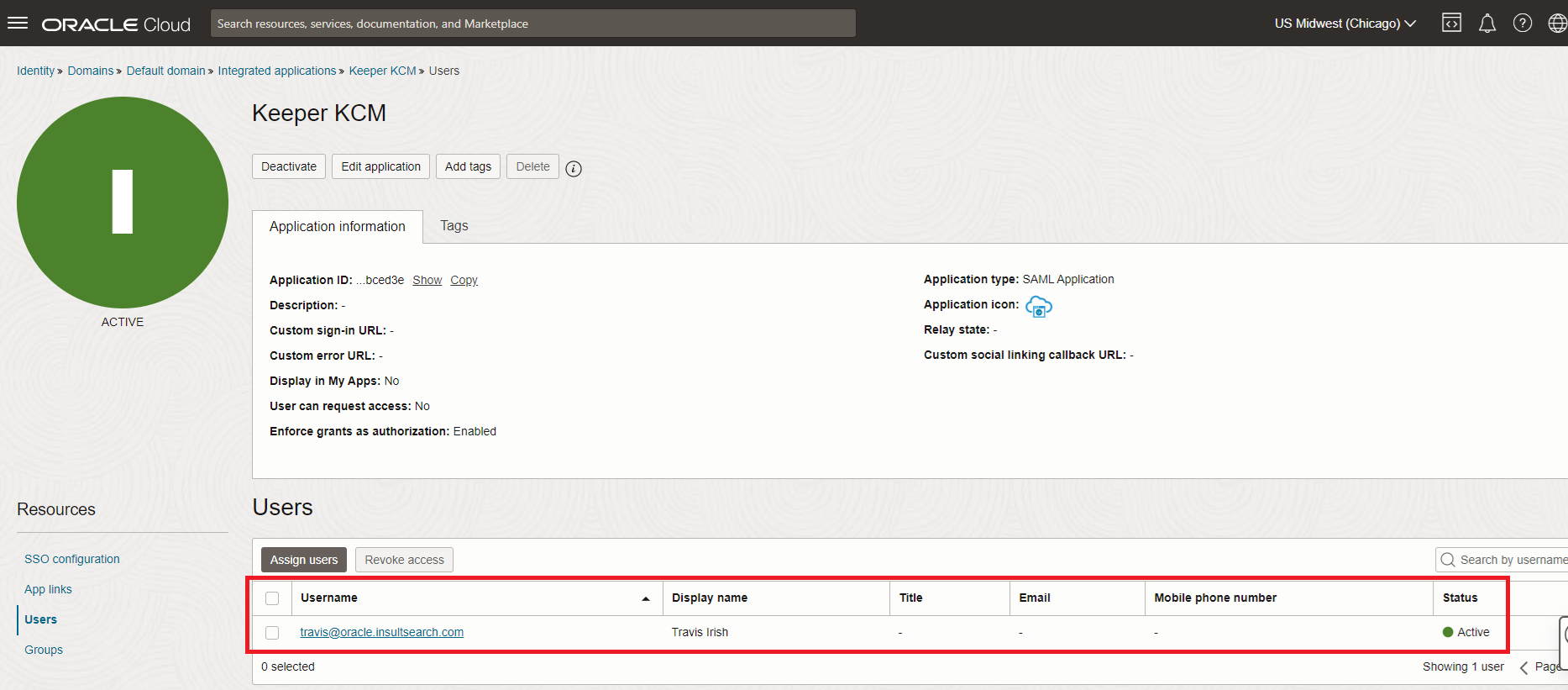
Assign Users
Assign Groups
Assign **users** and **groups** as appropriate to your SAML application. You'll need to assign at least one user for testing purposes.
**Connection Manager Server Configuration**
Upload the **metadata.xml** file to your KCM server and move it into the directory **/etc/kcm-setup**.
Reconfigure
Run the reconfigure command after production hours on your Connection Manager server.
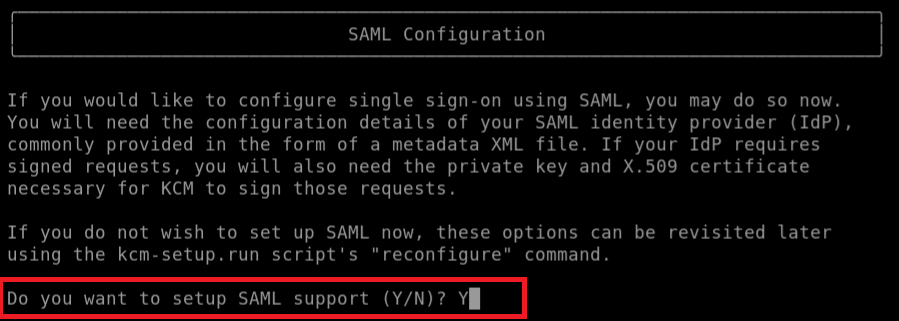
Confirm SAML
Say **Y** to the option when presented to **setup SAML support**.
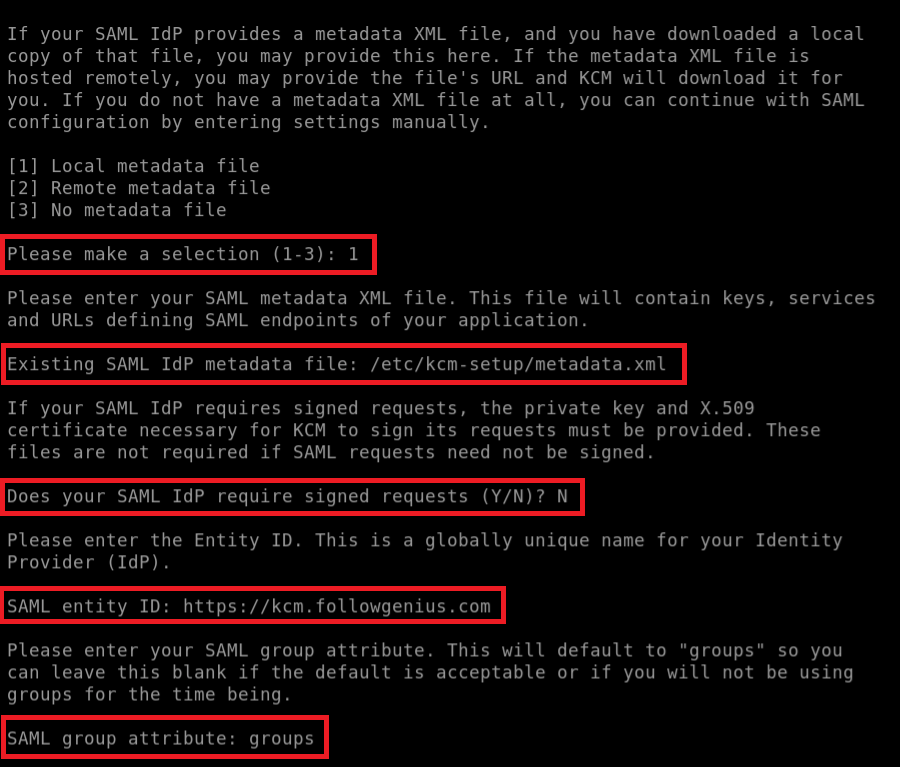
Metadata
Select **1** for **Local Metadata file**. Then input the path of your **metadata file** as **/etc/kcm-setup/metadata.xml** and press enter. Answer **N** to **Does your SAML IDP require signed requests?** Input your **SAML entity ID** as the URL of your Connection Manager instance. For example: ****. Then enter **groups** as the **SAML group attribute**.
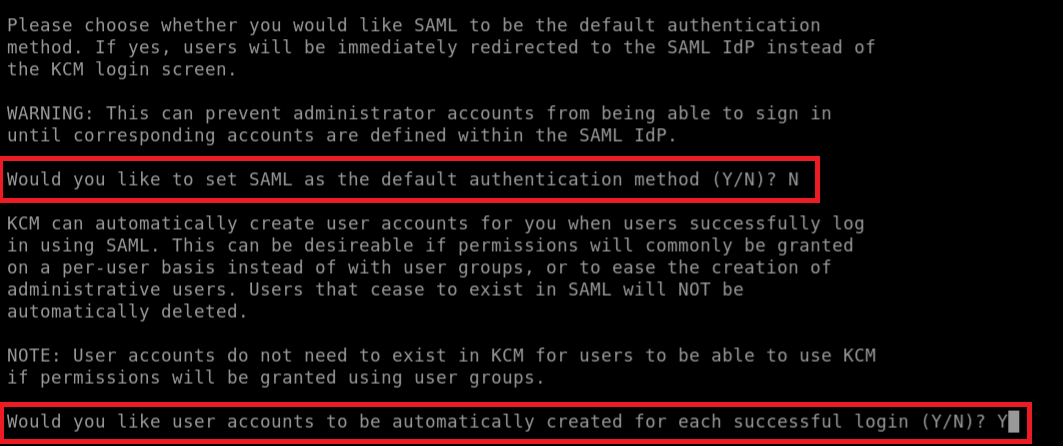
Default
Choose which setting best applies to your security posture with regard to the **default authentication method**. If you want Just-In-Time provisioning of users, then answer **Y** to **Would you like user accounts to be automatically created for each successful login?**
SAML Login
Click the **SAML** link to authenticate to the main sign on page.
User Created
Your **user email address** should display in the top right corner after authenticating.
---
# Agent Instructions
This documentation is published with GitBook. GitBook is the documentation platform designed so that both humans and AI agents can read, navigate, and reason over technical content effectively. Learn more at gitbook.com.
## Querying This Documentation
If you need additional information that is not directly available in this page, you can query the documentation by asking a question.
Perform an HTTP GET request on the following URL with the `ask` and `goal` query parameters:
```
GET https://docs.keeper.io/keeper-connection-manager/authentication/authenticating-users-with-saml/oracle.md?ask=&goal=
```
`ask` is the immediate question: it should be specific, self-contained, and written in natural language.
`goal` is what the user is ultimately trying to achieve, the reason they need the answer. Sharing it helps GitBook give you a better, more relevant answer. A goal is most helpful when it describes the outcome the user wants rather than restating the question. For example, with `ask=how do I create an API token`, a goal like `automate deployments from our CI pipeline` lets GitBook tailor the answer to that use case.
The response will contain a direct answer to the question and relevant excerpts and sources from the documentation.
Use this mechanism when the answer is not explicitly present in the current page, you need clarification or additional context, or you want to retrieve related documentation sections.