> For the complete documentation index, see [llms.txt](https://docs.keeper.io/llms.txt). Markdown versions of documentation pages are available by appending `.md` to page URLs; this page is available as [Markdown](https://docs.keeper.io/keeper-connection-manager/jp/authentication/authenticating-users-with-saml/microsoft-azure.md).
# Microsoft Azure
KeeperコネクションマネージャーとMicrosoft AzureのSAML連携設定
## Azureの設定
インストール方法に関係なく、最初にMicrosoft Azureを使用してSAML 2.0 IDプロバイダを設定します。
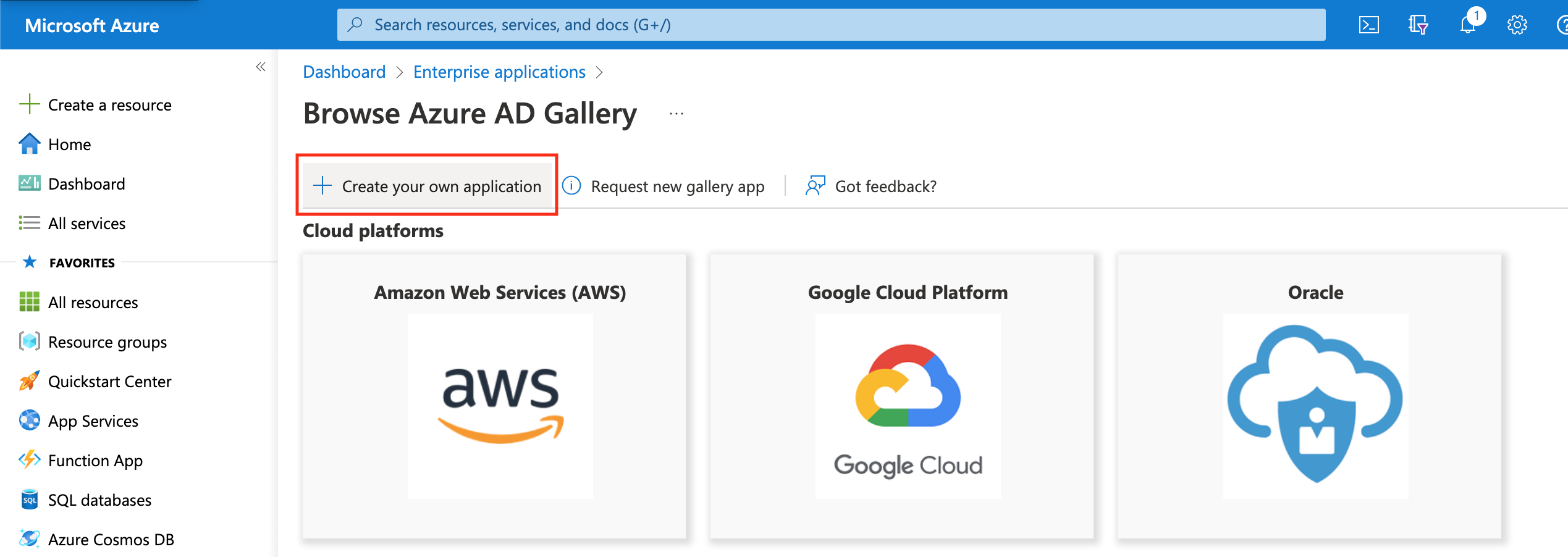
1. Azureで、\[Enterprise Applications] (エンタープライズアプリケーション) に移動し、アプリケーションを新規作成します。
2. エンタープライズアプリケーションに名前を付け、 「Non-gallery」のアプリケーションを選択します。
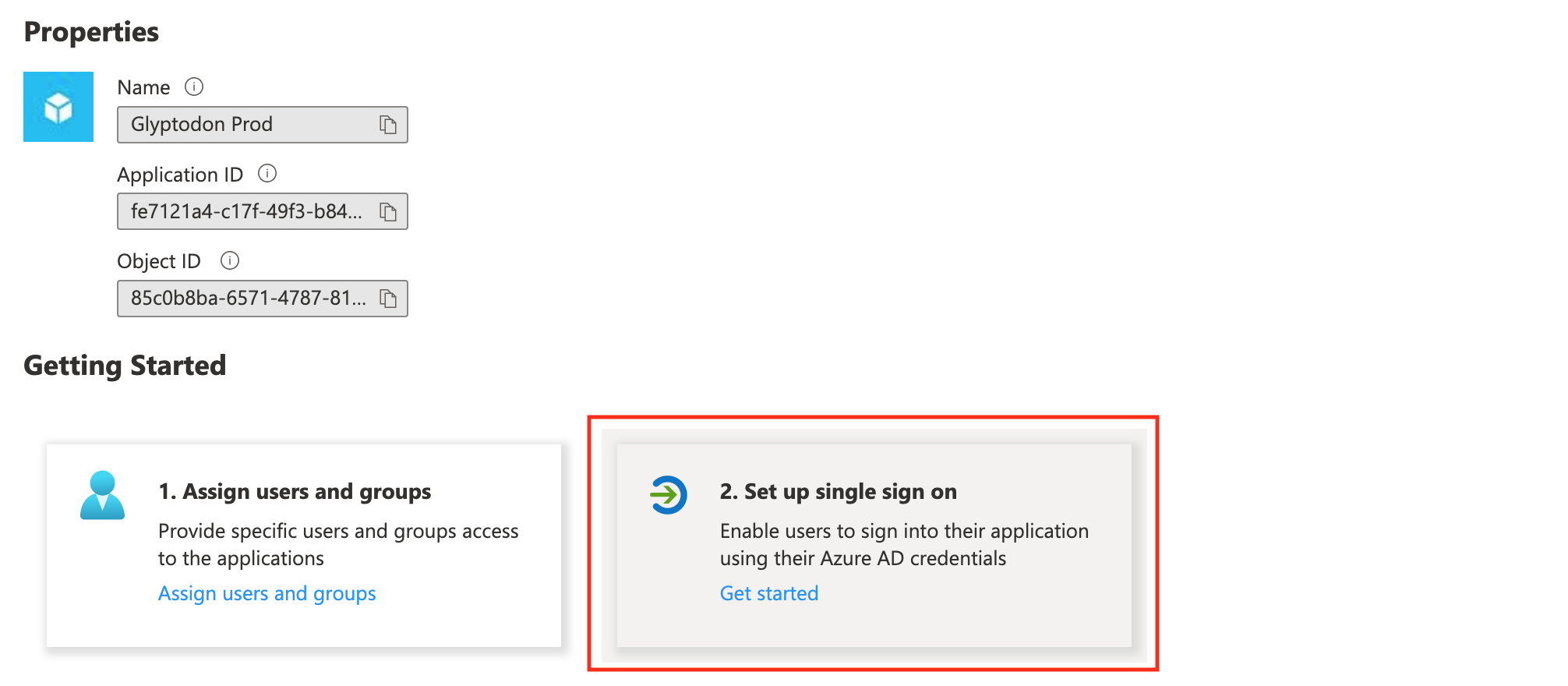
3. SAMLを使用したシングルサインオンを設定します。
4. SAMLの設定
5. SAMLのプロパティを設定して、AzureからKeeperコネクションマネージャーのインストールURLを指すようにします。
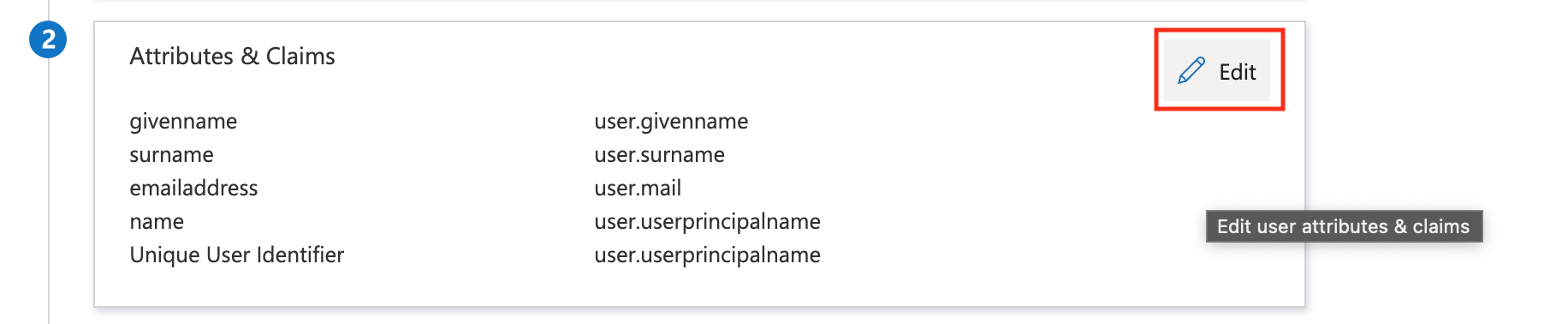
6. AzureグループからKeeperコネクションマネージャーのユーザーグループへのマッピングに対応するには、Attributes & Claims (属性と要求) を編集してからGroup Claim (グループ要求) を追加します。
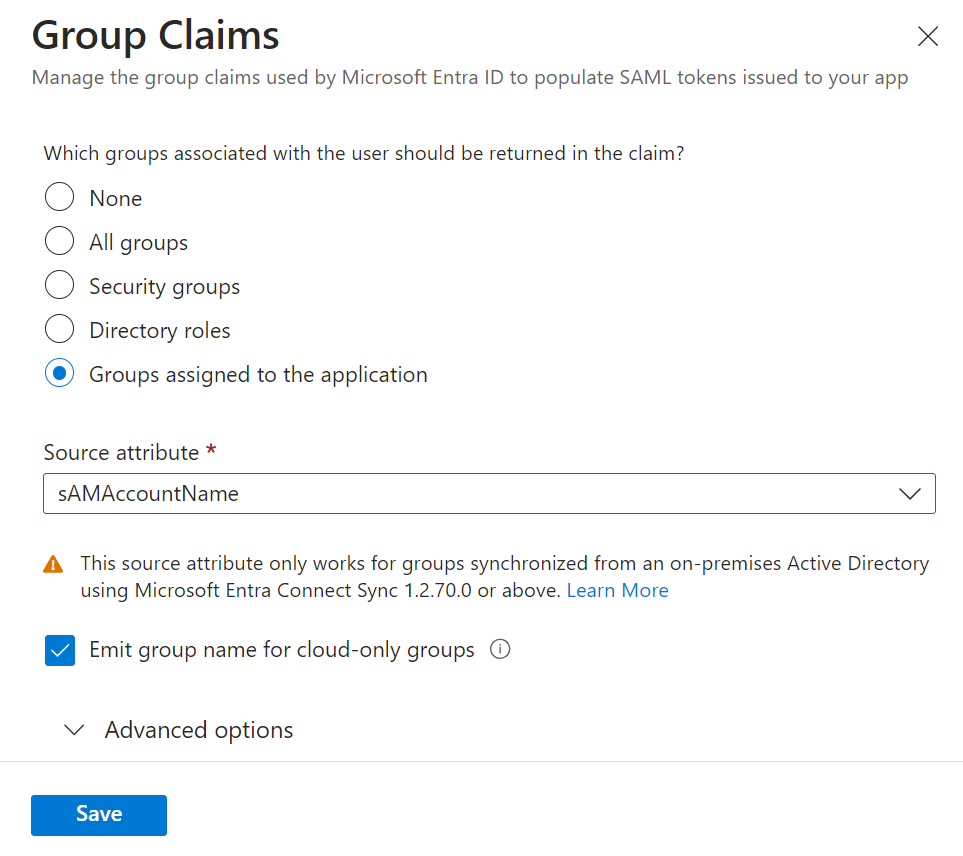
グループ要求を追加
ポップアップが表示されたら、Group claimを常に送信するか、または特定のグループもしくは割り当てられたユーザーに対してのみ送信するかを設定できます。
{% hint style="info" %}
ハイブリッド環境の場合、グループがオンプレミス AD からのものである場合、セキュリティ グループの表示名の変更が必要になる場合があります。
{% endhint %}
IDプロバイダのグループ割り当てをKeeperコネクションマネージャーグループに自動的にマッピングする場合は、`saml-group-attribute` パラメータがIDプロバイダグループ属性と一致するように定義するようにします。マッピングが機能するには、Keeperコネクションマネージャーグループの名前がこの識別子と完全に一致している必要があります。
{% hint style="info" %}
AzureグループからKeeperコネクションマネージャーのグループへのマッピングは、グループのGUIDを使用して行われます。KeeperコネクションマネージャーにAzureグループのGUIDに合致する名前のグループが含まれている場合、ユーザーはそのユーザーグループに割り当てられたすべての接続を受信します。
{% endhint %}
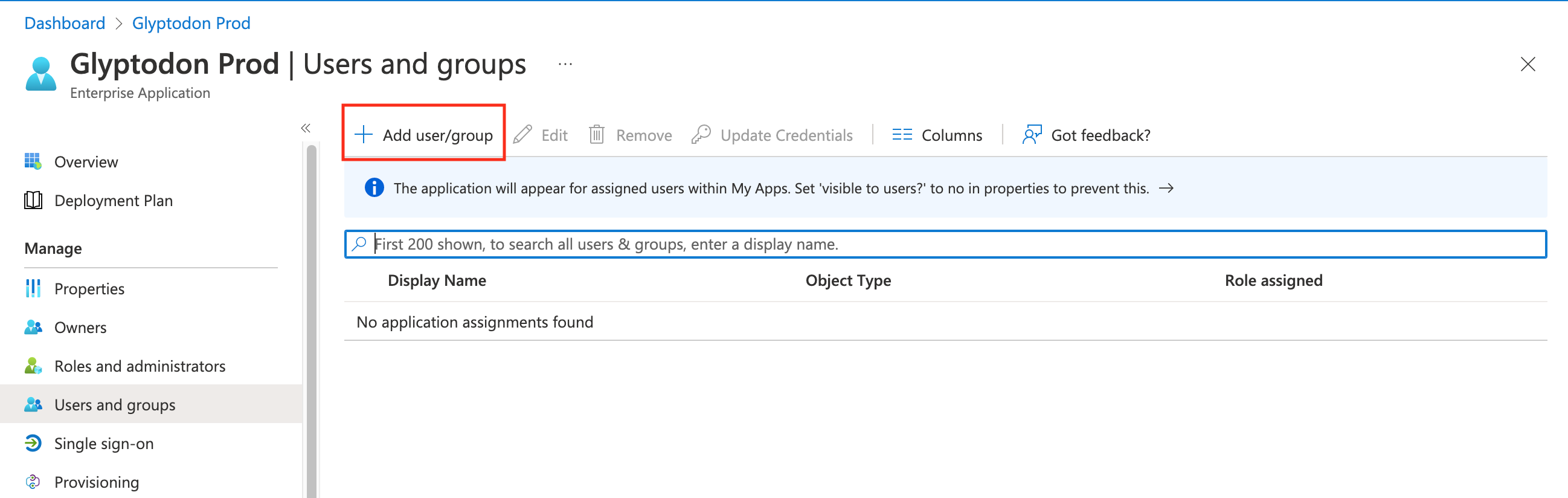
7. SAML接続アプリの通常の操作と同様に、ユーザーやグループをKeeperコネクションマネージャーアプリケーションに割り当てます。
ユーザーおよびグループを割り当て
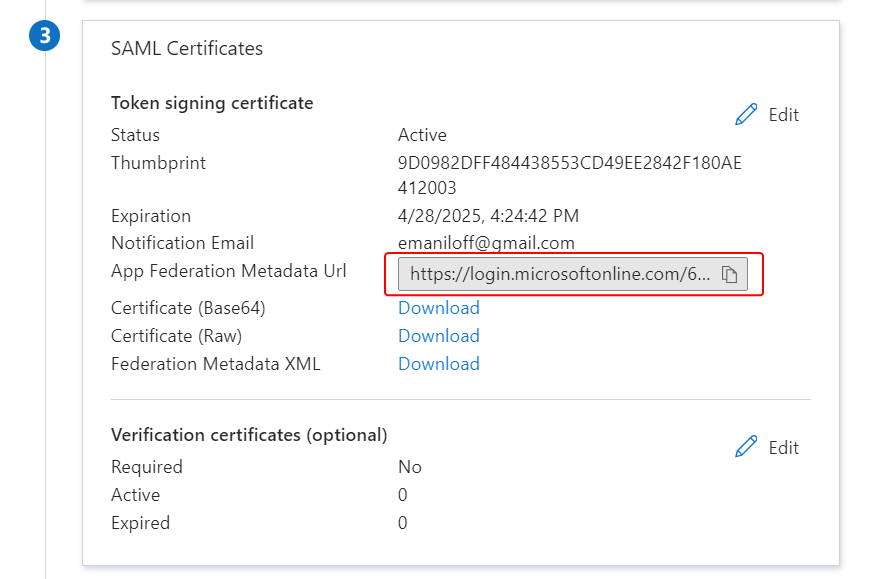
8. App Federation MatadataのURLをコピーし、KCMサーバーのウィンドウに貼り付けます。
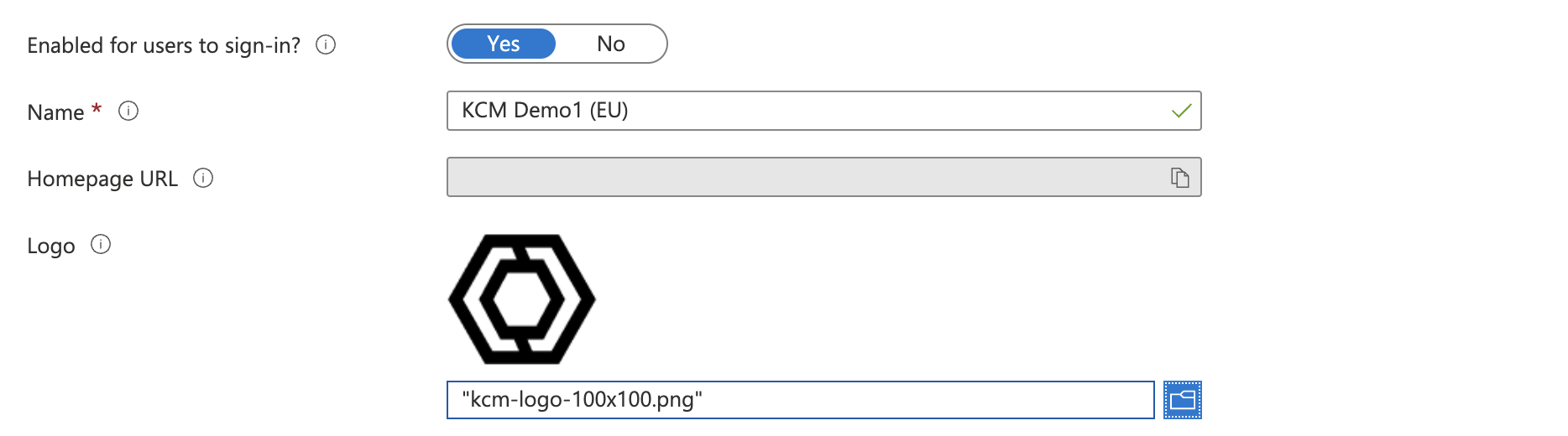
9. **KCMのロゴを追加します。**
\[Enterprise Application] (エンタープライズアプリケーション) の\[Properties] (プロパティ) 画面から、KCMのロゴをアップロードします。 ファイルは以下からダウンロードします。
{% file src="/files/SoLavVVrD0hTimmlrWAT" %}
ロゴは以下のように表示されます。
---
# Agent Instructions
This documentation is published with GitBook. GitBook is the documentation platform designed so that both humans and AI agents can read, navigate, and reason over technical content effectively. Learn more at gitbook.com.
## Querying This Documentation
If you need additional information that is not directly available in this page, you can query the documentation by asking a question.
Perform an HTTP GET request on the following URL with the `ask` and `goal` query parameters:
```
GET https://docs.keeper.io/keeper-connection-manager/jp/authentication/authenticating-users-with-saml/microsoft-azure.md?ask=&goal=
```
`ask` is the immediate question: it should be specific, self-contained, and written in natural language.
`goal` is what the user is ultimately trying to achieve, the reason they need the answer. Sharing it helps GitBook give you a better, more relevant answer. A goal is most helpful when it describes the outcome the user wants rather than restating the question. For example, with `ask=how do I create an API token`, a goal like `automate deployments from our CI pipeline` lets GitBook tailor the answer to that use case.
The response will contain a direct answer to the question and relevant excerpts and sources from the documentation.
Use this mechanism when the answer is not explicitly present in the current page, you need clarification or additional context, or you want to retrieve related documentation sections.