> For the complete documentation index, see [llms.txt](https://docs.keeper.io/llms.txt). Markdown versions of documentation pages are available by appending `.md` to page URLs; this page is available as [Markdown](https://docs.keeper.io/keeper-connection-manager/jp/authentication/authenticating-users-with-saml/onelogin.md).
# OneLogin
KeeperコネクションマネージャーとOneLoginのSAML連携設定
## OneLoginの設定
インストール方法に関係なく、最初にSAML 2.0 IDプロバイダを設定します。
OneLogin開発者アカウントが必要です。
### OneLoginを設定
1. [OneLogin](https://www.onelogin.com/)ダッシュボードにログインし、**\[Administration]** (管理) をクリックします。次に、**\[Applications]** (アプリケーション) > **\[Add App]** (アプリを追加) を選択します。
2. **\[SAML]** を検索し、**\[SAML Test Connector (IdP)]** (SAMLテストコネクタ (IdP)) を選択します。
3. プロンプトが表示されたら、アプリの表示名を変更し、アプリケーション名と説明を入力します。Keeperコネクションマネージャーのロゴをアップロードすることもできます。**\[Save]** (保存) をクリックします。
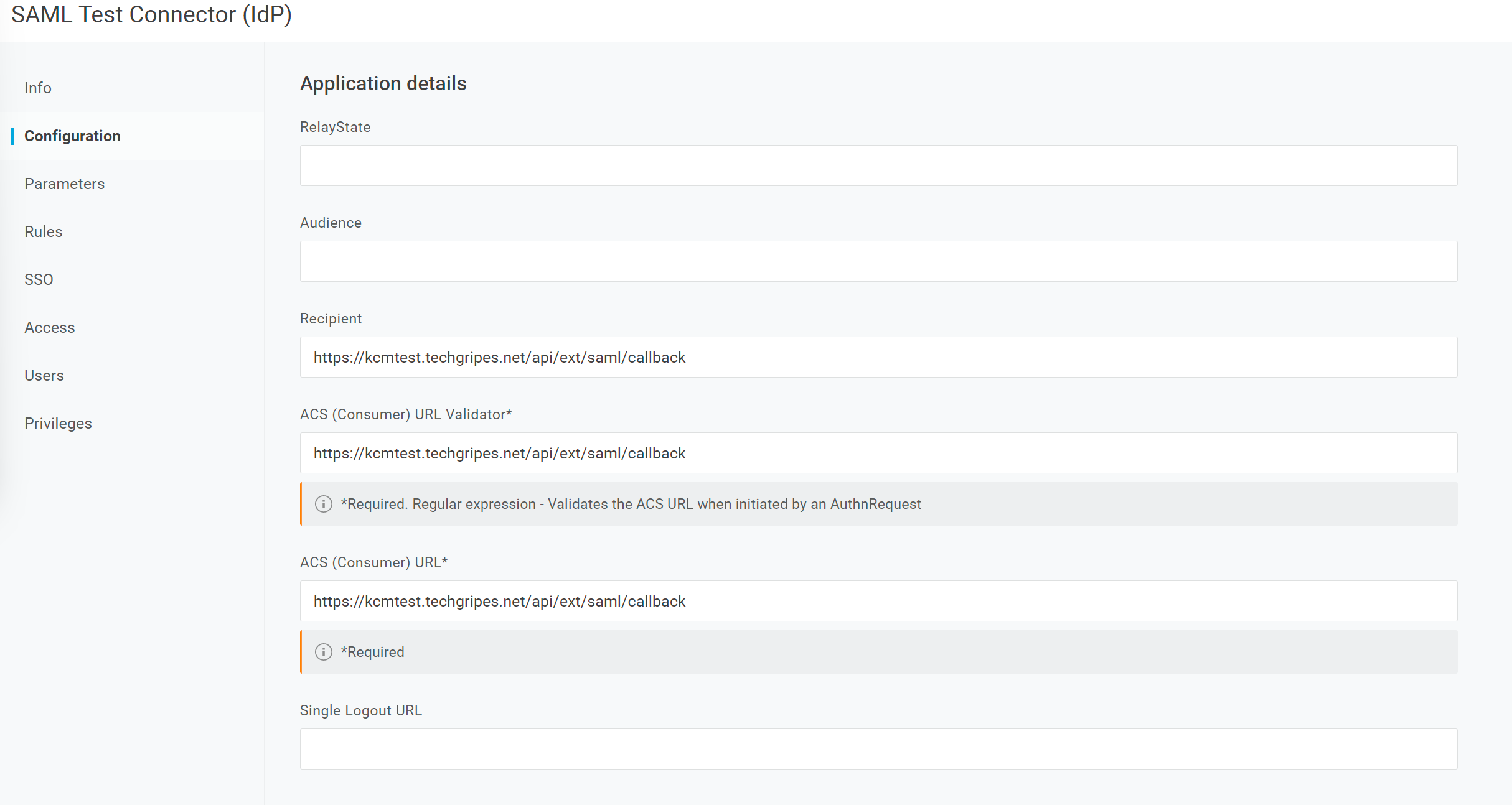
4. **\[Configuration]** (設定) タブに移動し、**\[Recipient]** (受信者)、**\[ACS (Consumer) URL Validator]** (ACS (コンシューマー) URL検証)、**\[ACS (Consumer) URL]** (ACS (コンシューマー) URL) に、それぞれ以下に示すように、KCMサーバーのURLと末尾に `/api/ext/saml/callback` を付加して指定します。
5. **\[More Actions]** (その他のアクション) のドロップダウンメニューをクリックします。**\[SAML Metadata]** (SAMLメタデータ) を選択してダウンロードし、`.XML` ファイルを保存します。
6. 上部の **\[Users]** (ユーザー) タブで、SSOを使用してログインする必要のあるユーザーをクリックし、左側の **\[Applications]** (アプリケーション) タブで新しいSAMLアプリケーションをそのユーザーに追加します。
---
# Agent Instructions
This documentation is published with GitBook. GitBook is the documentation platform designed so that both humans and AI agents can read, navigate, and reason over technical content effectively. Learn more at gitbook.com.
## Querying This Documentation
If you need additional information that is not directly available in this page, you can query the documentation by asking a question.
Perform an HTTP GET request on the following URL with the `ask` and `goal` query parameters:
```
GET https://docs.keeper.io/keeper-connection-manager/jp/authentication/authenticating-users-with-saml/onelogin.md?ask=&goal=
```
`ask` is the immediate question: it should be specific, self-contained, and written in natural language.
`goal` is what the user is ultimately trying to achieve, the reason they need the answer. Sharing it helps GitBook give you a better, more relevant answer. A goal is most helpful when it describes the outcome the user wants rather than restating the question. For example, with `ask=how do I create an API token`, a goal like `automate deployments from our CI pipeline` lets GitBook tailor the answer to that use case.
The response will contain a direct answer to the question and relevant excerpts and sources from the documentation.
Use this mechanism when the answer is not explicitly present in the current page, you need clarification or additional context, or you want to retrieve related documentation sections.