> For the complete documentation index, see [llms.txt](https://docs.keeper.io/llms.txt). Markdown versions of documentation pages are available by appending `.md` to page URLs; this page is available as [Markdown](https://docs.keeper.io/keeper-connection-manager/jp/authentication/authenticating-users-with-saml/oracle.md).
# Oracle
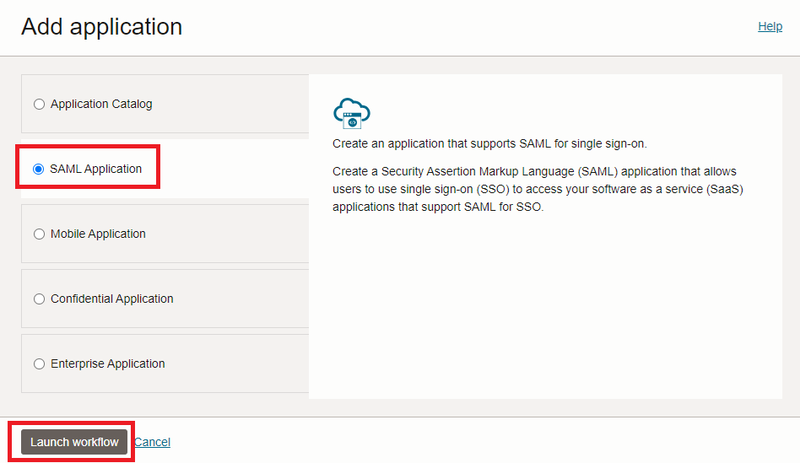
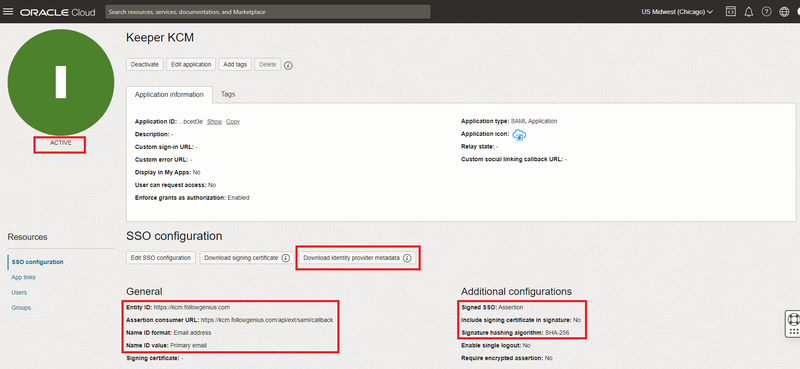
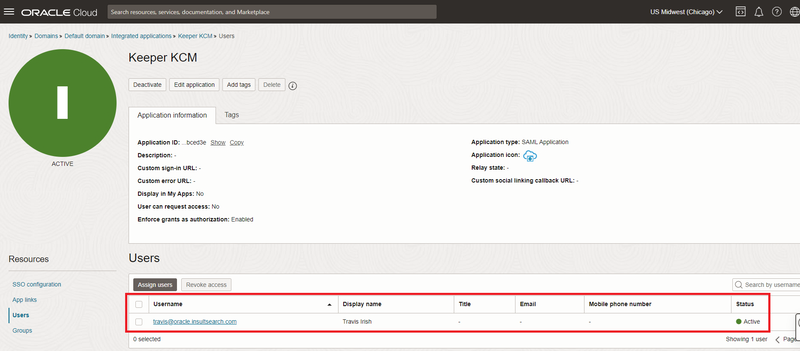
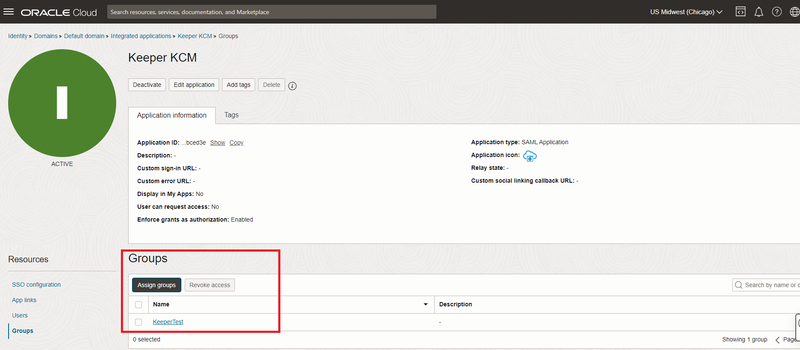
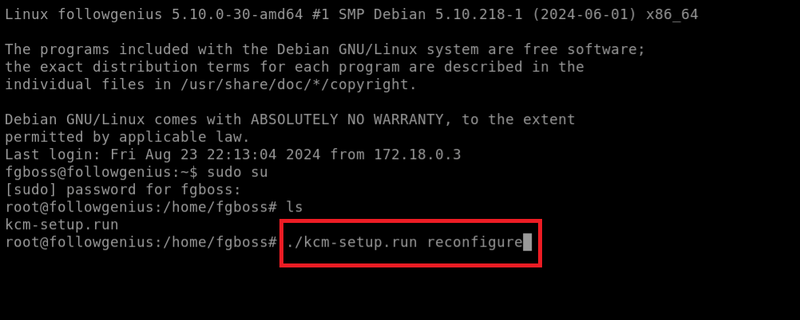
シングルサインオンを目的としてOracle Cloud環境をKeeperコネクションマネージャーに接続する方法
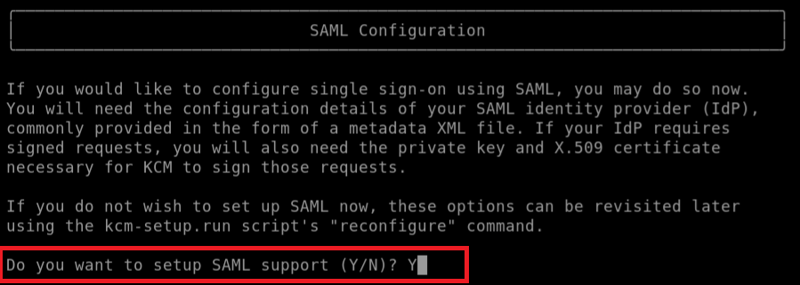
**\[Do you want to setup SAML support (Y/N)?]** に対して **「Y」** と答えます。
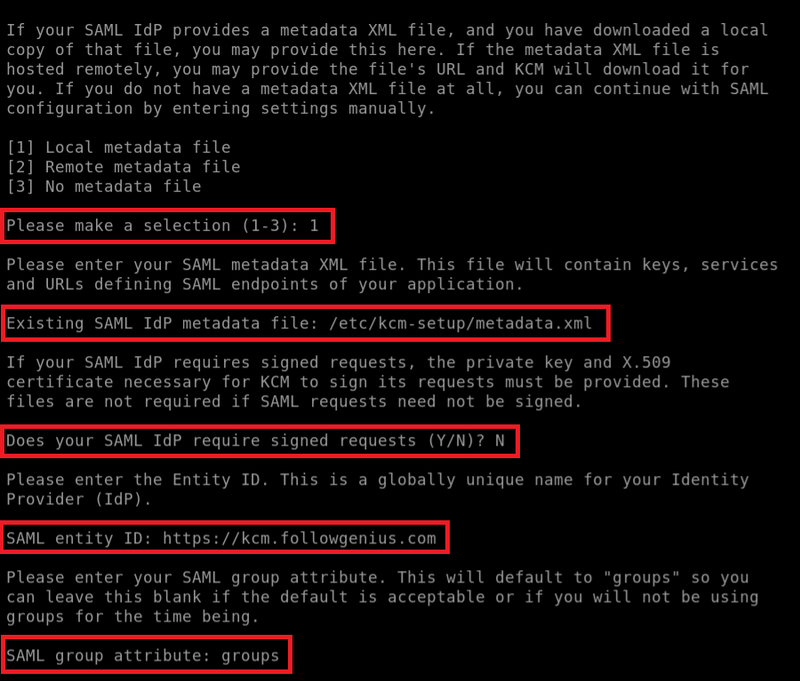
メタデータ
**ローカルメタデータファイル**の**1**を選択します。次に、**メタデータファイル**のパスとして **/etc/kcm-setup/metadata.xml** と入力し、Enterキーを押します。
**\[Does your SAML IdP require signed requests (Y/N)?]** という質問に **「N」** と回答し、コネクションマネージャーインスタンスのURLとして**SAML entity ID**を入力します (例: \*\*
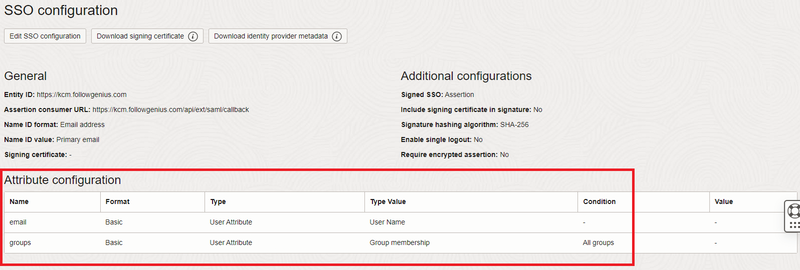
次に、**SAML group attribute** として **「groups」** と入力します。
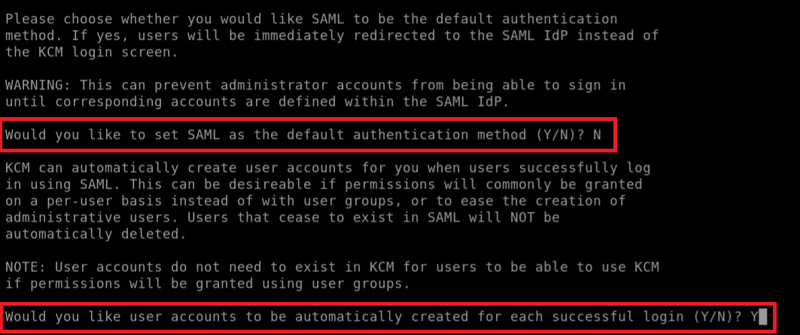
デフォルト
**デフォルトの認証方法**に関して、セキュリティ態勢に最も適した設定を選択します。ユーザーのジャストインタイムプロビジョニングが必要な場合は、**\[Would you like user accounts to be automatically created for each successful login (Y/N)?]** という質問に **「Y」** と答えます。
SAMLログイン
**SAML**リンクをクリックして、メインのサインオンページで認証します。
ユーザー作成
認証後、ユーザーの**メールアドレス**が右上隅に表示されます。
---
# Agent Instructions
This documentation is published with GitBook. GitBook is the documentation platform designed so that both humans and AI agents can read, navigate, and reason over technical content effectively. Learn more at gitbook.com.
## Querying This Documentation
If you need additional information that is not directly available in this page, you can query the documentation by asking a question.
Perform an HTTP GET request on the following URL with the `ask` and `goal` query parameters:
```
GET https://docs.keeper.io/keeper-connection-manager/jp/authentication/authenticating-users-with-saml/oracle.md?ask=&goal=
```
`ask` is the immediate question: it should be specific, self-contained, and written in natural language.
`goal` is what the user is ultimately trying to achieve, the reason they need the answer. Sharing it helps GitBook give you a better, more relevant answer. A goal is most helpful when it describes the outcome the user wants rather than restating the question. For example, with `ask=how do I create an API token`, a goal like `automate deployments from our CI pipeline` lets GitBook tailor the answer to that use case.
The response will contain a direct answer to the question and relevant excerpts and sources from the documentation.
Use this mechanism when the answer is not explicitly present in the current page, you need clarification or additional context, or you want to retrieve related documentation sections.