> For the complete documentation index, see [llms.txt](https://docs.keeper.io/llms.txt). Markdown versions of documentation pages are available by appending `.md` to page URLs; this page is available as [Markdown](https://docs.keeper.io/keeperpam/commander-cli/command-reference/import-and-export-commands/delinea-thycotic-secret-server-import.md).
# Delinea / Thycotic Secret Server Import
Automatic migration of your Delinea (Thycotic) Secret Server vault
## Secret Server Import
This document outlines the process for automatically and seamlessly migrating Secret Server (Delinea/Thycotic) data into Keeper which includes private folders, shared folders, permissions, file attachments, TOTP codes. This process utilizes the Secret Server API to automate the process.
Note: A basic import capability is available on the Keeper Web Vault and Desktop App which supports Thycotic XML format. Visit the vault Settings > Import > Thycotic screen. The XML format does not include attachments or permissions. Therefore, we recommend using the automated method as described in this document.
### Pre-requisites
In Secret Server admin settings, ensure Webservices are enabled
***Settings -> Configuration -> Edit -> Enable Webservices***
### Adjust Session Timeout
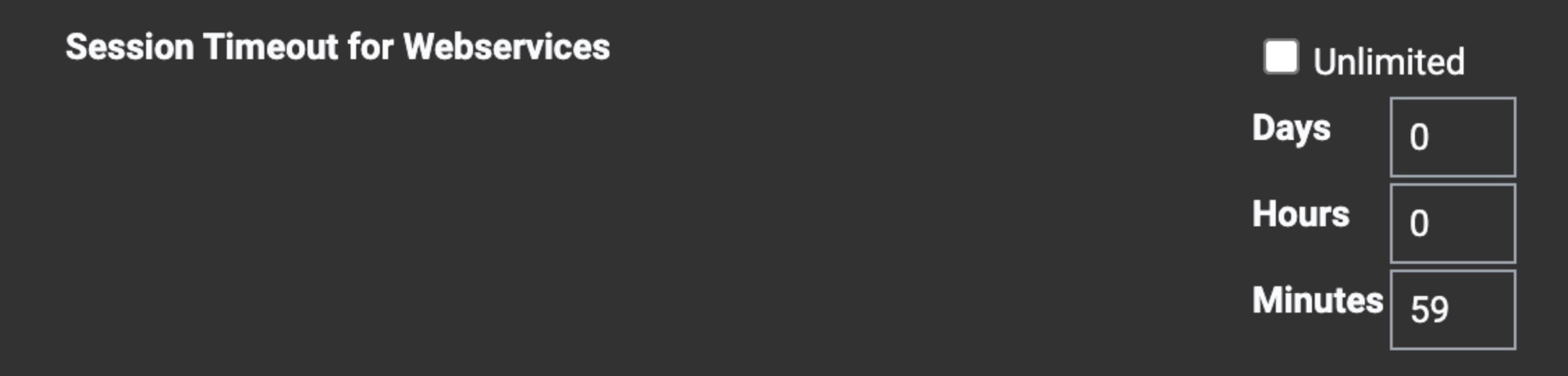
In Secret Server admin settings, ensure that "Session Timeout for Webservices" is set to a high enough value.
{% hint style="info" %}
Large vaults will take time to process - consider approximately 30 minutes per 1,000 secrets.
{% endhint %}
***Settings -> Application -> Session Timeout for Webservices***
Session Timeout
### Step 1. Download Team and Shared Folder Structure
Prior to running the above code snippet, make sure to:
* Verify the base Thycotic URL in your browser
* The Username is in the correct format:
* If it's a AD user, the format is `DOMAIN\username` otherwise `username`
In Keeper Commander, the Keeper/Thycotic Administrator will run the following:
```
download-membership --source=thycotic
```
You will then be prompted with the following:
```
... Thycotic Host or URL: https://xyz.acme.com/secretserver
... Thycotic Username: acme.com\user
```
Executing the above code snippet will perform the following 3 functions:
* Download all Shared Folder information
* Download Team Membership
* Download Shared Folder permissions
This step downloads a file locally called "shared\_folder\_membership.json" which contains the team and shared folder structure. *The file location should be under your user folde*r
{% hint style="info" %}
Keeper does not yet support folders within shared folders that have different permissions than the parent.
`download-membership` command provides an option `--sub-folder` to control how these folders are imported.
`--sub-folder=ignore` preserves folder structure. Folder permissions are ignored.
`--sub-folder=flatten` folder will be moved to the root folder of the Keeper vault as its own shared folder.
{% endhint %}
### Step 2. Import Shared Folders
Before importing records, we will first create the shared folder structure on the Keeper side. Run the below command:
```
import --format=json shared_folder_membership.json
```
### Step 3. Export TOTP Codes
The TOTP codes stored in Thycotic/Delinea Secret Server can only be retrieved by manually downloading a CSV file. The admin of Secret Server needs to go to **Secret Server** > **Export Secrets** and select the following options:
* Export Type: Export All
* Export Folder Path: Checked
* Export TOTP Settings: Checked
* Export Format: CSV
Export the file and save it to your home folder or the folder where Keeper Commander is running. By default, the file will be called "secrets-export.csv."
### Step 4. Import the Secret Server Vault
In Keeper Commander, the Keeper/Thycotic Administrator will run the following command to perform the import of data using the Secret Server API:
```
import --format=thycotic https://your-secret-server-hostname
or
import --format=thycotic username@your-secret-server-hostname
```
This command will take several minutes (or more) to complete, depending on the number of vault records and users. A large Secret Server instance could take 20 minutes or more.
Commander will attempt to build the same folder structure as Secret Server in the admin's Keeper vault.
Commander will also look for the file "secrets-export.csv" in the user's home folder or current Commander folder to import TOTP codes.
**Note 1:** This command will import and populate regular folders, shared folders and records within the folders. This will NOT import the private folders of other users within Secret Server. This step will only import the information available to the admin.
**Note 2:** If a Shared Folder is found within another shared folder with different permissions, the shared folder will be moved to the root folder (since Keeper does not support subfolder permissions).
**Note 3:** Commander may not be able to import secrets with certain security policies applied. For instance, if a secret has the `require comment` security policy applied (directly or by inheritance), Commander will not be able to import it.
#### Advanced Import Parameters
The `import` command supports arguments which can be used to customize the Secret Server import experience:
`--filter-folder DELINEA_ROOT_FOLDER`: Specify a **root** Secret Server folder to import. Commander will only import content from that folder.
`--folder KEEPER_FOLDER`: Specify a **root** Keeper folder to import the content into.
`--update`: Update the password of existing records which share identical fields. This can be useful if you need to re-import content that might have changed in Secret Server during your migration.
We recommend checking how Commander maps secrets to specific record types [below](#record-type-mapping).
### Step 5. Applying Memberships
Note: All Thycotic teams must exist in Keeper **with exact matching names** before execution. This way, existing users will be applied to the corresponding teams. You can create missing teams through:
* Keeper Admin Console (*Teams > Create New Team*)
* Commander's `create-team` command
In Keeper Commander, the Keeper/Thycotic Administrator will run the following:
```
apply-membership
```
This will read the file called "shared\_folder\_membership.json" from Step 1 and apply the shared folder permissions for any users and teams in the Keeper enterprise environment. This command is safe to run repeatedly and will not generate duplicates.
**Explanation:** When users are invited/created through SSO or your invitation process, their public keys are created. Therefore, Keeper cannot apply membership until the users exist.
For this reason, the Keeper Admin must run the "apply-membership" command daily, hourly, or on demand when users are created in Keeper.
### Step 6. End-Users are invited to Keeper
The Keeper Admin will invite users through one of the following methods:
* Just-in-time provisioning through SSO login
* Invite through the Admin Console
* SCIM
When the user registers to create their vault, they will generate a public/private key pair. At this point, they will be able to receive shared folders, as outlined in the next step.
### Receiving Shared Folders
The next time that the Admin runs the `apply-membership` command, any new Keeper users will receive access to their Shared Folders.
Due to the number of steps, we recommend performing a pilot test with a few users before rolling out to the entire organization.
If you have any questions, please email .
### Record Type Mapping
When importing secrets with the `import` command (as outined in Step 4), Commander will create records of specific record types depending on a number of variables. The logic can be found below - whichever statement matches first will be applied:
* If the secret's template name matches the name of a record type or custom record type on the Keeper vault, Commander will create a record of that type.\
Note: Keeper record type names are limited to 32 characters. Commander will only evaluate the first 32 characters of the Secret Server template name.
* If the secret's template name is `Pin` or `Security Alarm Code`, Commander will create a record of type `Secure Note` .
* If the secret's template name is `Contact`, Commander will create a record of type `Address`.
* If the secret's template name is `Credit Card`, Commander will create a record of type `Payment Card`.
* If the secret contains the item label `private-key`, Commander will create a record of type `SSH Key`.
* If the secret contains the item label `card-number`, Commander will create a record of type `Credit Card`.
* If the secret contains the item labels `account-number` and `routing-number`, Commander will create a record of type `Bank Account`.
* If the secret contains the item label `ssn`, Commander will create a record of type `Identity Card`.
* If the secret contains the item label `license-key`, Commander will create a record of type `Software License`.
* If the secret contains the item label `combination`, Commander will create a record of type `Secure Note`.
* If the secret contains the item label `healthcare-provider-name`, Commander will create a record of type `Health Insurance`.
* If the secret contains any of the item labels `host`, `server` or `ip-address---host-name`, Commander will create a record of type `Server`, unless it also has the item label `database`, in which case Commander will create a record of type `Database`.
* If all the above is false, Commander will create a record of type `Login`.
### Troubleshooting
The `import` command supports the `--secret-ids` argument, which can be helpful for debugging specific secrets:
{% code overflow="wrap" %}
```
import --format thycotic https://your-secret-server-hostname --secret-ids "123,124,125"
```
{% endcode %}
When using this argument, Commander will only attempt to fetch and import the specified IDs. This can be helpful to test the import for specific secrets, but also because in some cases (e.g. Secret Policies), Secret Server secrets can be fetched individually, but don't come up in the lookup API.
Note that Commander will still perform a lookup of Secret Server secrets - and print a report on whether the specified IDs were found in the lookup:
{% code overflow="wrap" %}
```
From the specified 3 secret IDs, 2 were found in the secret server lookup.
123, 125
```
{% endcode %}
For instance, with a standard import:
{% code overflow="wrap" %}
```
import --format thycotic https://your-secret-server-hostname --secret-ids "123,124,125"
```
{% endcode %}
Commander will search the entire Secret Server server, report on whether IDs 123, 124 and 125 were found in that lookup, then attempt to import IDs 123, 124 and 125.
Alternatively, if you filter the import to a specific Secret Server root folder:
{% code overflow="wrap" %}
```
import ... --secret-ids "123,124,125" --filter-folder "Secret_Server_folder"
```
{% endcode %}
Commander will search for all secrets descending from `Secret_Server_folder`, and report on whether IDs 123, 124 and 125 were found in that lookup.
---
# Agent Instructions
This documentation is published with GitBook. GitBook is the documentation platform designed so that both humans and AI agents can read, navigate, and reason over technical content effectively. Learn more at gitbook.com.
## Querying This Documentation
If you need additional information that is not directly available in this page, you can query the documentation by asking a question.
Perform an HTTP GET request on the following URL with the `ask` and `goal` query parameters:
```
GET https://docs.keeper.io/keeperpam/commander-cli/command-reference/import-and-export-commands/delinea-thycotic-secret-server-import.md?ask=&goal=
```
`ask` is the immediate question: it should be specific, self-contained, and written in natural language.
`goal` is what the user is ultimately trying to achieve, the reason they need the answer. Sharing it helps GitBook give you a better, more relevant answer. A goal is most helpful when it describes the outcome the user wants rather than restating the question. For example, with `ask=how do I create an API token`, a goal like `automate deployments from our CI pipeline` lets GitBook tailor the answer to that use case.
The response will contain a direct answer to the question and relevant excerpts and sources from the documentation.
Use this mechanism when the answer is not explicitly present in the current page, you need clarification or additional context, or you want to retrieve related documentation sections.