> For the complete documentation index, see [llms.txt](https://docs.keeper.io/llms.txt). Markdown versions of documentation pages are available by appending `.md` to page URLs; this page is available as [Markdown](https://docs.keeper.io/keeperpam/endpoint-privilege-manager/deployment.md).
# Deployment
Deploying the Keeper Agent to your endpoints
Deploying Endpoint Privilege Manager is very simple. The admin creates a custom deployment package associated to a collection of endpoints, and pushes the Keeper agent to those endpoints. When the agent starts up, it immediately registers itself with the Keeper tenant and starts collecting basic information about the endpoint, including the executables and local user accounts. By default, the Keeper agent goes into a "monitoring" mode, and no action is taken.
### There are two main parts:
1. **Create a deployment package** in the Keeper Admin Console
2. **Install and register the agent** on endpoints
Once complete, the device can receive policies and report activity.
## Core Deployment Workflow
All deployment methods follow the same steps:
1. Create deployment package
2. Install agent
3. Register endpoint
4. Assign to collections
5. Validate deployment
### Requirements
* **macOS**: Tahoe *→ Full Support (best experience)* | *Sonoma / Sequoia* → Partial support
* **Linux**: Ubuntu 22.04+
* **Windows**: 11, Server 2022 and 2025 (Intel x64 Only)
{% hint style="danger" %}
**Domain Controller Installation Not Supported**
Keeper Endpoint Privilege Manager (EPM) **cannot be installed on Windows Domain Controllers.** The installer actively blocks installation on Domain Controllers and will display the error:
*"This software cannot be installed on a Domain Controller."*
Domain Controllers serve a specialized role in Active Directory environments and are not supported endpoints for the EPM agent. If you need to manage privilege policies across your domain, install the EPM agent on member workstations and servers rather than on the Domain Controller itself.
{% endhint %}
{% hint style="warning" %}
**⚠️ Directory Integration Required**
EPM policies targeting user and group collections depend on AD or Entra ID sync to function correctly. The `epm scim` command requires an Active Directory integration in the Keeper Admin Console before use. If this integration is not configured, collections will be incomplete and policy enforcement will not apply as expected.\
\
Visit this [page](/keeperpam/commander-cli/command-reference/endpoint-privilege-manager-commands.md) for more information.
{% endhint %}
### Encryption
All communications between the Keeper Agent and the Keeper Admin Console are using end-to-end encryption with a zero knowledge architecture, which means that Keeper's servers and employees have no ability to decrypt any information about the endpoint. Only the Keeper Administrator who logs in to the Admin Console can decrypt the endpoint collections and associated metadata.
### Deployment Package
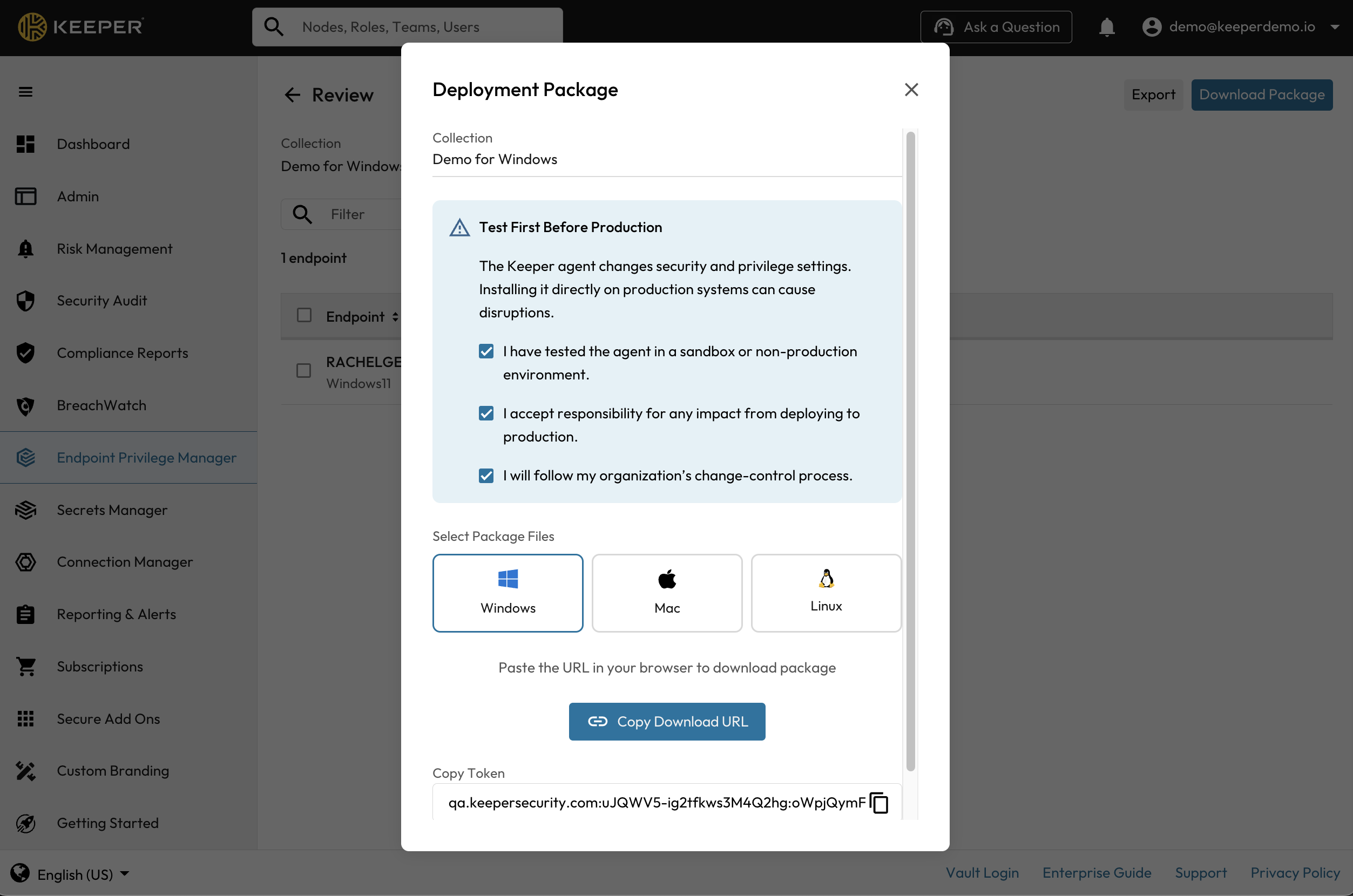
From the **Endpoint Privilege Manager** > **Deployments** screen, select "**New Deployment Package**". The Keeper agent can be deployed to any Windows, macOS or Linux endpoint. The executable requires local admin privilege to install the agent. For automatic deployment through your remote management solution or group policy, push out the installer in silent mode using the provided command-line string.
### Deployment Collections
When creating a deployment package, the assigned "Collection" name is referenced throughout the privilege manager when applying policies. The collection name typically refers to a group of users sharing a common platform or use case.
### Agent Deployment
From the Admin Console UI, copy the installer zip file and download it to your machine. Unzip the file to extract the packages for each specific platform. Copy the deployment token for use in the installer command. A valid deployment token is required to register the Keeper Agent to your tenant.
{% hint style="danger" %}
Always verify the Keeper agent in your sandbox or non-production test environment before installing directly on production systems.
{% endhint %}
See the [Command Line Policy](/keeperpam/endpoint-privilege-manager/policies/policy-types/command-line-policy-type.md) documentation for configuration and usage instructions.
* The Keeper Agent will launch for users upon a new login session. Therefore logout/login may be required.
* The `sudo` policy controls are documented on the [Command Line Policy](/keeperpam/endpoint-privilege-manager/policies/policy-types/command-line-policy-type.md) page.
* Installation of packages (.pkg) and images (.dmg) requires that the user explicitly opens the request from the Keeper agent UI.
### Discovery of Inventory Data
#### Inventory Collection Schedules
**Basic (inventory-basic / InventoryBasic):** runs every 7200 minutes (5 days); also runs on AgentRegistered and Startup\
**User (user-inventory / UserInventory):** runs every 7200 minutes (5 days); also runs on AgentRegistered and Startup\
**Application (file-inventory / FileInventory):** runs every 7200 minutes (5 days); also runs on Startup only (no AgentRegistered trigger)
#### **Details**
**Schedule:** All three use the same interval: intervalMinutes: 7200 (120 hours = 5 days).\
Basic and User also run on:\
**AgentRegistered –** when the agent registers with the backend\
**Startup –** when the agent starts\
Application (file inventory) runs on the same 5‑day interval and on Startup only; it does not have an AgentRegistered trigger. User, Application, and Basic all run on a 5‑day (7200‑minute) schedule; Basic and User additionally run on agent registration and startup.
When the agent is installed and deployed to the endpoints, there are 3 types of discovery that is performed on the endpoint:
* **Basic Inventory**: Operating system, version, type
* **Account Inventory**: Local users and groups
* **File Inventory**: All executables on the system
The Keeper Admin Console will receive the discovered inventory as encrypted telemetry data, containing information about the endpoint including:
* Computer name and type
* OS information (Windows, macOS, Linux) and version
* Local user account information
* Local group account information
* Installed applications
{% hint style="info" %}
When deploying Keeper, we recommend installing the agent on reference machines in order to collect as much standardized inventory data as possible, before deploying to your fleet of devices.
{% endhint %}
The Deployment page displays the endpoint stats organized by collection.
The collection can be enabled or disabled from the dashboard. When a collection is disabled, the policy engine will no longer apply to those devices. Individual endpoints can also be disabled, to prevent the agent from applying policies.
### Automation with Commander
Keeper Commander supports deployment automation through our command-line interface, Service Mode [REST API](/keeperpam/commander-cli/service-mode-rest-api.md) and Python SDK. [Learn more](/keeperpam/commander-cli/command-reference/endpoint-privilege-manager-commands.md) about Endpoint Privilege Manager commands.
#### Agent Management
The `epm agent` command provides management over individual agents running on the endpoint.
```
My Vault> epm agent -h
pedm command [--options]
Command Description
---------- -------------------------
list List EPM agents
edit Update EPM agents
delete Delete EPM agents
collection List EPM agent resources
```
#### Deployment
The `epm deployment` command provides management over agent deployments.
```
My Vault> epm deployment -h
pedm command [--options]
Command Description
--------- --------------------------------
list List EPM deployments
add Add EPM deployments
update Update EPM deployment
delete Delete EPM deployment
download Download EPM deployment package
```
#### Reports
The `epm report` command provides event logs and event reports.
```
My Vault> epm report -h
pedm command [--options]
Command Description
--------- -----------------------------
column Run column reports
event Run audit event reports
summary Run audit summary reports
```
## Antivirus / EDR Exclusion Requirements
When deploying Keeper Endpoint Privilege Manager alongside third‑party antivirus or EDR solutions, the EPM installation directory should be excluded from real‑time scanning. This prevents performance degradation and avoids interference with policy evaluation, process interception, and privilege‑elevation workflows.
### Required Exclusion Path
```
C:\Program Files\Keeper Security\Endpoint Privilege Manager\Plugins\bin\KeeperUSession
```
### Product‑Specific Instructions
**Microsoft Defender**\
Run in elevated PowerShell:
```
Add-MpPreference -ExclusionPath 'C:\Program Files\Keeper Security\Endpoint Privilege Manager'
```
**CrowdStrike Falcon**\
Falcon Console → Endpoint Security → Configure → Exclusions → Add folder path (include subfolders)\
\
**SentinelOne**\
Management Console → Sentinels → Exclusions → Add Path Exclusion\
Mode: Interoperability – Extended (include subfolders)\
\
**Sophos Central**\
Global Settings → Global Exclusions → Add Exclusion → File or Folder (Windows)\
Apply to real‑time and scheduled scanning
If you experience CallerCheck alerts on you endpoints, you can exclude them with the specific thumbprint of the event:\
Global Settings → Global Exclusions → Add Exclusion → Detected Exploits (Windows/Mac) → `` (same across machines but unique per Sophos account).\
\
**Symantec/Broadcom SEP**\
SEPM Console → Policies → Exceptions → Add Windows Exception → Folder (include subfolders)\
\
**Trend Micro Apex One**\
Apex Central or local console → Scan Exclusion List → Add directory
### GPO Deployment (Microsoft Defender)
```
Computer Configuration
→ Administrative Templates
→ Windows Components
→ Microsoft Defender Antivirus
→ Exclusions → Path Exclusions
```
**Add:** *C:\Program Files\Keeper Security\Endpoint Privilege Manager* **with a value of 0.**
---
# Agent Instructions
This documentation is published with GitBook. GitBook is the documentation platform designed so that both humans and AI agents can read, navigate, and reason over technical content effectively. Learn more at gitbook.com.
## Querying This Documentation
If you need additional information that is not directly available in this page, you can query the documentation by asking a question.
Perform an HTTP GET request on the following URL with the `ask` and `goal` query parameters:
```
GET https://docs.keeper.io/keeperpam/endpoint-privilege-manager/deployment.md?ask=&goal=
```
`ask` is the immediate question: it should be specific, self-contained, and written in natural language.
`goal` is what the user is ultimately trying to achieve, the reason they need the answer. Sharing it helps GitBook give you a better, more relevant answer. A goal is most helpful when it describes the outcome the user wants rather than restating the question. For example, with `ask=how do I create an API token`, a goal like `automate deployments from our CI pipeline` lets GitBook tailor the answer to that use case.
The response will contain a direct answer to the question and relevant excerpts and sources from the documentation.
Use this mechanism when the answer is not explicitly present in the current page, you need clarification or additional context, or you want to retrieve related documentation sections.