# Global Deny File Access

<figure><img src="/files/qQLXlNyf4WGwHJCXjzyg" alt=""><figcaption></figcaption></figure>

This example shows a **File Access Policy** used as to **Deny users from running specific applications**. When enabled, it applies to all applications which are defined in an **Application Collection**, which is added as a filter to your File Access Policy. When a user attempt to launch one of the applications in the specified Application Collection, point across all endpoints. After this **Global Deny File Access Policy** is in place, additional policies can be layered to allow specific users, teams, or scenarios to run an otherwise denied application with approval or justification.

## What this Policy Does

When a user on any **in-scope endpoint** tries to run an application that matches this policy:

1. The request is evaluated by the **File Access** policy engine.
2. Because the policy targets a defined set of applications (not a wildcard), it matches only execution attempts for those specifically identified executables on those endpoints.
3. The policy applies a **Deny** control, immediately blocking the action from proceeding.

### Why it Behaves this Way

This policy is intentionally written as a "targeted match" policy, then applies a hard block:

* **Enforced**: The policy is active and will apply controls (not just log).
* **Deny control on success**: When the policy matches, it immediately blocks the execution and notifies the user.
* **All users**: A wildcard user filter makes it apply to any user account on in-scope machines.
* **Specific applications**: Application Collections are used to define application filters which will only apply to the applications within the selected Application Collection(s) being evaluated by this File Access policy.
* **Built-in checks**: Standard checks (user, machine, file, date/time/day, certificate) are present. If those constraints aren't narrowed (for example, no date/time/day/cert restrictions are provided), the policy behaves as a persistent block for the targeted applications on the targeted endpoints.

### What the User Experiences

* Any attempt to launch an application that is specifically defined within the selected Application Collection(s) on the targeted endpoints will be **immediately blocked**.
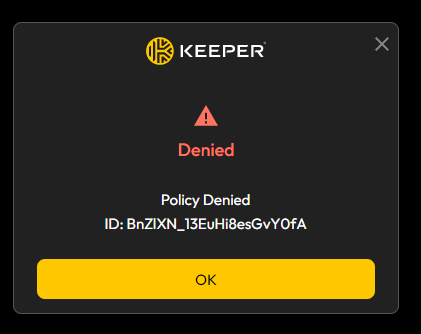
* The policy includes a user-facing notification message that clearly explains that the application which they attempted to run was <mark style="color:red;">**Denied**</mark>. Because acknowledgement is required, the user will see a notification prompt they must dismiss — so the block is both enforced and explicitly communicated.

<figure><img src="/files/ITpTbsyECptHiwl7yuCe" alt="" width="211"><figcaption></figcaption></figure>

## Important Notes and Common Adjustments

* **Expand the application list** as needed:
  * Add additional App IDs to cover variants of the same tool (e.g., different install paths or versions of the same executable)
  * Use certificate constraints to target only untrusted or unsigned builds of an application, avoiding blocking legitimate signed versions
* **Narrow the user scope** if needed:
  * Restrict the user filter to specific users or groups if only certain roles should be blocked (e.g., standard users but not IT admins)
* **Add time/day/date restrictions** for temporary or business-hours-only enforcement windows
* **Layer with an Allow or Approval policy** for users or groups who have a legitimate need — a higher-priority Allow or Approval policy targeting those users will take precedence over this global deny

## How Build a Global Deny File Access Policy

{% stepper %}
{% step %}
**Create Policy**

From the **Policies** tab of the Admin Console's Endpoint Privilege Manager page, click the <mark style="color:blue;">**Create Policy**</mark> button.

<figure><img src="/files/3ecWavTeic15GmajK9z1" alt=""><figcaption></figcaption></figure>

This will open the **Create Policy Form** in a modal window.

<figure><img src="/files/LWzvTY7s4EjX6uIwD9z7" alt=""><figcaption></figcaption></figure>
{% endstep %}

{% step %}
**Policy Name**

Enter a descriptive name for your new **Global Deny File Access Policy**.

<figure><img src="/files/DV2Cs3sONbZaj70Lr5L2" alt="" width="375"><figcaption></figcaption></figure>
{% endstep %}

{% step %}
**Policy Type**

Select <mark style="color:blue;">**File Access**</mark> from the **Policy Type** select list.
{% endstep %}

{% step %}
**Status**

Select the status that you would like your new **Global Deny File Access Policy** to be in upon submission of the completed **Create Policy** form.

<figure><img src="/files/1hmM7NBZW1VEnfPDuxCa" alt="" width="375"><figcaption></figcaption></figure>
{% endstep %}

{% step %}
**Controls**

**Approve Controls** & **Deny Controls** are specified within the JSON form which is accessible by clicking on the <mark style="color:blue;">**Advanced Mode**</mark> link, located in the bottom left corner of the Create Policy. This will toggle the Advanced form, which will allow you to view and edit the JSON structure of your new **Global Deny File Access Policy.**

<figure><img src="/files/zsU6QYEAex5cN5ObKko6" alt=""><figcaption></figcaption></figure>

You will need to **specify Deny as a Control** for your **Global Deny File Access Policy**, as neither Approve Controls & Deny Controls are available controls within the Create Policy's Controls sub-form, as shown below:

```
			"Controls": [
				"DENY"
			]
```

{% endstep %}

{% step %}
**User Groups**

Click the <mark style="color:blue;">**Add Group**</mark> link in the Create Policy form. This will open the **Add Group** sub-form.

<figure><img src="/files/2k7L7XWPriirzpO35dPv" alt="" width="273"><figcaption></figcaption></figure>

Check the <mark style="color:blue;">**Select all users**</mark> checkbox in the **Add Group** sub-form then click off of the sub-form to close it. **All Users and Groups** will now appear under **User Groups** as applied to your **Global Deny File Access Policy.**

<figure><img src="/files/bsZ62y2xIWDhPYHBn3bU" alt="" width="375"><figcaption></figcaption></figure>
{% endstep %}

{% step %}
**Machine Collections**

Click the <mark style="color:blue;">**Add Collection**</mark> link in the Create Policy form. This will open the **Add Collection** sub-form.

<figure><img src="/files/kkKWBcUroEaxpbtGJowp" alt="" width="375"><figcaption></figcaption></figure>

Check the <mark style="color:blue;">**Select all machines**</mark> checkbox in the **Add Collection** sub-form then click off of the sub-form to close it. **All Machines** will now appear under **machine Collections** as applied to your **Global Deny File Access Policy.**
{% endstep %}

{% step %}
**Applications**

Click the <mark style="color:blue;">**Add Applications**</mark> link in the Create Policy form. This will open the **Add Applications** sub-form.

<figure><img src="/files/y9THtnAszQ0jzLfUNr1t" alt="" width="375"><figcaption></figcaption></figure>

Search for and select the **specific applications** you want to deny. Do **not** use the **Select all applications** checkbox — this policy is intentionally scoped to a defined list of blocked applications, not all applications. Check the checkbox(s) of each application you want to deny.

The **Applications** that you selected will now appear under **Applications** as applied to your **Global Deny File Access Policy.**
{% endstep %}

{% step %}
**Date & Time**

For a **Global Deny File Access Policy,** it is recommended that the **Date and Time Ranges** be set to <mark style="color:blue;">**Always**</mark>, ensuring the block is continuously enforced with no time-based gaps.

<figure><img src="/files/a3Gup6TdGSnQgUqsHXlw" alt="" width="375"><figcaption></figcaption></figure>
{% endstep %}

{% step %}
**Save Your New Global Deny File Access Policy**

Once the form has been sufficiently filled in per the previous steps, the <mark style="color:blue;">**Save**</mark> button will be changed from an inactive to an active state. Click on the <mark style="color:blue;">**Save**</mark> button. The **Create Policy** modal form will be closed and your **Global Deny File Access Policy** will be saved.

<div align="right"><figure><img src="/files/4PlnXaUxyroccfZRuKAT" alt="" width="44"><figcaption></figcaption></figure></div>
{% endstep %}
{% endstepper %}

## Use-Case Definitions

This pattern — a **Global Deny File Access Policy** that blocks specific known-bad or unauthorized applications across all endpoints — serves a precise and important strategic purpose in endpoint privilege management. Here's a full breakdown of the use-cases and the reasoning behind it:

### The Core Concept: "Explicit Block for Known-Bad or Unauthorized Applications"

Rather than relying solely on broad approval gates or user education to prevent the use of risky tools, this approach takes a **direct enforcement stance**: specific applications are explicitly blocked for all users across all in-scope endpoints. It is conceptually similar to a firewall rule that drops traffic from a known-malicious source — targeted, deterministic, and immediate.

### Primary Use-Cases

#### **1. Blocking Living-Off-the-Land (LOTL) Binaries**

Many advanced threats abuse legitimate system tools — such as scripting engines, command-line interpreters, or remote execution utilities — to carry out malicious activity. A Global Deny policy targeting these tools by their specific application identities prevents their execution by standard users across the fleet, closing a common attack vector without requiring per-incident response.

#### **2. Enforcing a Software Blocklist**

Organizations often maintain a list of prohibited applications (unauthorized remote access tools, peer-to-peer clients, unlicensed software, shadow IT applications). A Global Deny policy is the mechanism by which that blocklist is technically enforced at the endpoint — ensuring the prohibition is not merely policy on paper but an actively enforced control.

#### **3. Compliance and Regulatory Requirements**

Certain compliance frameworks (e.g., PCI-DSS, CMMC, NIST 800-171) require that organizations demonstrate technical controls preventing the use of specific categories of software on regulated endpoints. A Global Deny policy provides a documented, auditable enforcement record of those controls.

#### **4. Rapid Response to Threat Intelligence**

When a new vulnerability or active exploitation technique is identified against a specific binary or application, a Global Deny policy can be deployed immediately to all endpoints — providing a fast, broad defensive response while patches or permanent mitigations are prepared.

#### **5. Reducing the Attack Surface for Standard Users**

As part of a broader least-privilege initiative, certain administrative or high-risk tools (debugging utilities, package managers, scripting runtimes) may be appropriate for IT staff but should be inaccessible to standard users. A Global Deny policy enforces that separation across the entire endpoint fleet without requiring per-machine configuration.

#### **6. Incident Response / Breach Containment**

If a specific application or binary is known or suspected to be involved in an active compromise, a Global Deny policy can be pushed immediately to **prevent further execution of that tool** across all endpoints while the investigation and remediation proceed — limiting lateral movement or persistence mechanisms that rely on that application.

## Why File Access Policy (Not Privilege Elevation) for the use-cases?

This is a nuanced but important distinction. A **File Access policy** intercepts the *execution* of a file (the moment an application is launched), while a Privilege Elevation policy only intercepts attempts to run something with elevated privileges. By using File Access here, the deny control applies to **any launch attempt** — regardless of whether the user is trying to run the application with standard or elevated rights — giving complete coverage against the targeted executables.

### The Layered Policy Strategy That Follows

Implement sophisticated policy combinations using layered policies — applying multiple policies to the same resources for defense-in-depth. Once the Global Deny baseline is in place, a controlled exception model can be layered above it:

<table data-header-hidden="false" data-header-sticky><thead><tr><th width="159.666748046875">Priority</th><th>Policy</th><th>Scope</th></tr></thead><tbody><tr><td>High</td><td><strong>Allow</strong> — Specific users with legitimate need (e.g., IT admins)</td><td>Specific users/groups, denied apps</td></tr><tr><td>High</td><td><strong>Approval</strong> — Temporary or justified access for edge cases</td><td>Specific users/groups, denied apps</td></tr><tr><td>Low (catch-all)</td><td><strong>Deny</strong> — Blocked applications</td><td>All users, specific denied apps</td></tr></tbody></table>

Users matched by a higher-priority Allow or Approval policy will be permitted or prompted accordingly. All other users attempting to launch the denied applications will be blocked by this global deny.

## Key Operational Consideration

Because this policy uses a **Deny** control with mandatory acknowledgement, users will see a block notification every time they attempt to launch a covered application. Deploying this policy first in **Monitor** mode to confirm the correct application IDs are targeted — before switching to Enforce — is strongly recommended, to avoid unintended disruption to legitimate workflows.


---

# Agent Instructions: Querying This Documentation

If you need additional information that is not directly available in this page, you can query the documentation dynamically by asking a question.

Perform an HTTP GET request on the current page URL with the `ask` query parameter:

```
GET https://docs.keeper.io/keeperpam/endpoint-privilege-manager/policies/policy-examples/policy-global-deny-file-access.md?ask=<question>
```

The question should be specific, self-contained, and written in natural language.
The response will contain a direct answer to the question and relevant excerpts and sources from the documentation.

Use this mechanism when the answer is not explicitly present in the current page, you need clarification or additional context, or you want to retrieve related documentation sections.
