> For the complete documentation index, see [llms.txt](https://docs.keeper.io/llms.txt). Markdown versions of documentation pages are available by appending `.md` to page URLs; this page is available as [Markdown](https://docs.keeper.io/keeperpam/jp/commander-cli/command-reference/enterprise-management-commands/scim-push-configuration.md).
# SCIMプッシュ配信設定
コマンダーでSCIMメッセージをKeeperバックエンドAPIにプッシュ
SCIMに対応していないIDプロバイダーでは、Keeperコマンダーの[scim push](/keeperpam/jp/commander-cli/command-reference/enterprise-management-commands.md#scim-command)コマンドを使用してユーザーとチームをプロビジョニングできます。
## 共通のセットアップ手順
要件: [ユーザーとチームのプロビジョニング](/enterprise-guide/jp/user-and-team-provisioning.md)を理解しておいてください。
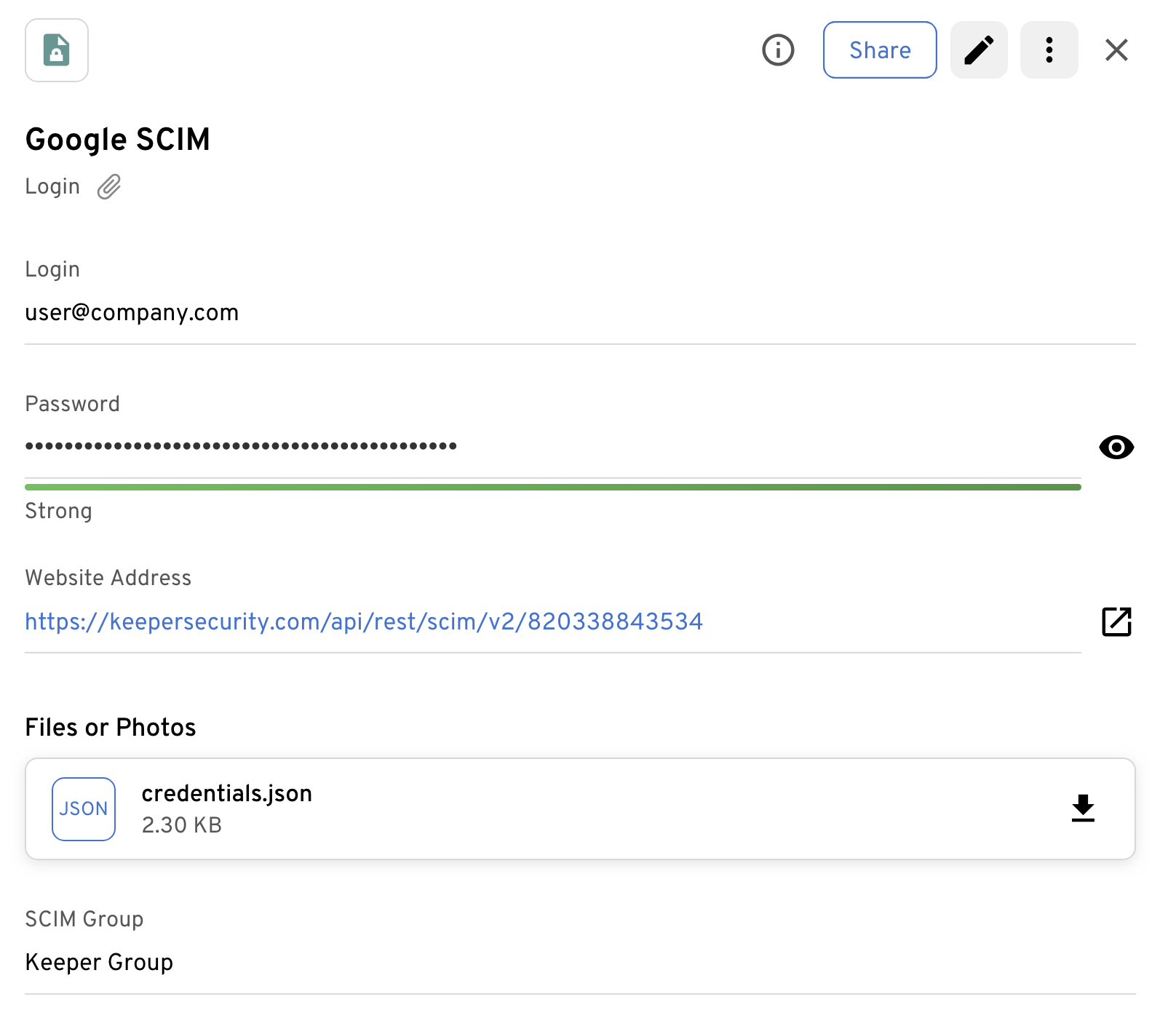
1. 管理コンソールまたはコマンダーで、企業のSCIMプロビジョニングを作成
2. Keeperにログインレコードタイプのレコードを作成し、SCIM構成を保存
3. SCIM URLをレコードのウェブサイトアドレスフィールドに貼り付け
4. SCIMトークンをパスワードフィールドに貼り付け
## Google Workspace
このセクションのセットアップ手順では、Google Workspaceアカウントからユーザーとチームをプロビジョニングできます。
要件: [有効なGoogle Workspace](https://admin.google.com) サブスクリプションと[Google Cloud Platform](https://console.cloud.google.com/)アカウント
`pip` でインストールしたコマンダー: Google API Client Pythonパッケージがインストールされていることを確認してください。
### プロビジョニングデータのプッシュ
GoogleユーザーとチームをKeeperにプッシュするには、以下のコマンドを使用します。
```
scim push --source=google --record=
```
SCIM IDは、管理コンソールまたはコマンダーで確認できます。例:
```
My Vault> scim list
SCIM ID Node Name Node ID Status Last Synced
--------------- --------------------- --------------- ------- ------------
288797895952358 Lurey, Inc.\Corporate 288797895950343 active Wed Jul 6 09:44:44 2022
288797895951707 Lurey, Inc.\Azure 288797895951061 active Fri Jul 7 14:25:31 2023
288797895951110 Lurey, Inc.\Google 288797895951063 active Mon May 30 23:42:52 2022
```
### Google Workspaceの自動プロビジョニング
Google Workspaceユーザーとチームのプロビジョニングを自動実行するGoogle Cloud Functionが利用できます。手順は以下をご参照ください。
{% embed url="" %}
## Active Directory
このセクションのセットアップ手順では、`scim push` コマンドを使用してActive Directoryからユーザーとチームをプロビジョニングできます。
前提条件:
1. Active Directoryブラウザでグループを作成し、KeeperでプロビジョニングするADユーザーとグループを追加
2. Active Directory接続URLを取得 (例: `ldap(s):<ドメインコントローラーのホストまたはIP>`)
3. Active Directoryを読み取れるユーザーを選択
KeeperのActive Directory構成レコードには、以下のフィールドが含まれている必要があります。
フィールド
セクション
値
Password
Common #4
管理コンソールで生成されたSCIMトークン
Website Address
Common #3
管理コンソールから貼り付けたSCIM URL
SCIM Group
AD # 1
インポート対象のすべてのユーザーとグループを列挙するADグループ名
AD URL
AD #2
AD接続URL
ldap(s)://<ドメインコントローラー>
AD User
AD #3
ADユーザーログインまたは識別名 DOMAIN\USERNAME CN=...
AD Password
AD #3
ADパスワード
### プロビジョニングデータのプッシュ
Active DirectoryユーザーとチームをKeeperにプッシュするには、以下のコマンドを使用します。
```
scim push --source=ad --record=
```
---
# Agent Instructions
This documentation is published with GitBook. GitBook is the documentation platform designed so that both humans and AI agents can read, navigate, and reason over technical content effectively. Learn more at gitbook.com.
## Querying This Documentation
If you need additional information that is not directly available in this page, you can query the documentation by asking a question.
Perform an HTTP GET request on the following URL with the `ask` and `goal` query parameters:
```
GET https://docs.keeper.io/keeperpam/jp/commander-cli/command-reference/enterprise-management-commands/scim-push-configuration.md?ask=&goal=
```
`ask` is the immediate question: it should be specific, self-contained, and written in natural language.
`goal` is what the user is ultimately trying to achieve, the reason they need the answer. Sharing it helps GitBook give you a better, more relevant answer. A goal is most helpful when it describes the outcome the user wants rather than restating the question. For example, with `ask=how do I create an API token`, a goal like `automate deployments from our CI pipeline` lets GitBook tailor the answer to that use case.
The response will contain a direct answer to the question and relevant excerpts and sources from the documentation.
Use this mechanism when the answer is not explicitly present in the current page, you need clarification or additional context, or you want to retrieve related documentation sections.