> For the complete documentation index, see [llms.txt](https://docs.keeper.io/llms.txt). Markdown versions of documentation pages are available by appending `.md` to page URLs; this page is available as [Markdown](https://docs.keeper.io/keeperpam/jp/endpoint-privilege-manager/setup.md).
# セットアップ
特権昇格および委任管理 (PEDM) のインストールとセットアップ
Keeperエンドポイント特権マネージャー (EPM) は、エンドポイント全体での特権昇格、ファイルアクセス、コマンド実行を制御するのに役立ちます。本節では、ライセンス、有効化、権限、展開の概要、および要求の扱い方の大まかな流れを取り扱います。
## セットアップの手順
エンドポイント特権マネージャーの利用を始めるには、以下の手順に進んでください。
{% stepper %}
{% step %}
**Keeperエンタープライズライセンス**
Keeper EPMは**Keeperエンタープライズ**の一部です。次が必要です。
* エンドポイント特権マネージャー (EPM) を含む、有効な**Keeperエンタープライズ**のサブスクリプション。
* 展開予定のエージェント数に見合う**エンドポイントシート**。
有効化とシート割り当ては**Keeper管理コンソール**で行います。ライセンスやEPMの権利について不明な点がある場合は、Keeperまたは担当のアカウントチームへお問い合わせください。
Keeperのお客様でない場合、または必要なライセンスがない場合は、弊社サイトから[無料トライアルを開始](https://www.keepersecurity.com/password-manager-free-trial-sign-up.html)できます。無料トライアルにはKeeperPAMの全機能が含まれます。
{% endstep %}
{% step %}
**エンドポイント特権マネージャーの有効化**
1. **Keeper管理コンソール** (ダッシュボード) に**ログイン**します。
2. 組織でエンドポイント特権マネージャーを**オン**にします。コンソールのバージョンにより、メニュー名は「エンドポイント特権マネージャー」「特権マネージャー」などと表示されます。
3. エージェント用の**登録トークン**を取得します。各エンドポイントの登録時に使います。トークンの形式は次のとおりです。\
`hostname:deployment-uid:private-key`\
安全に保管してください。新規エージェントごとに必要になります。
有効化後、承認者、コレクション、ポリシー、展開グループを定義し、エンドポイントへエージェントを展開できます。
{% endstep %}
{% step %}
**権限の有効化**
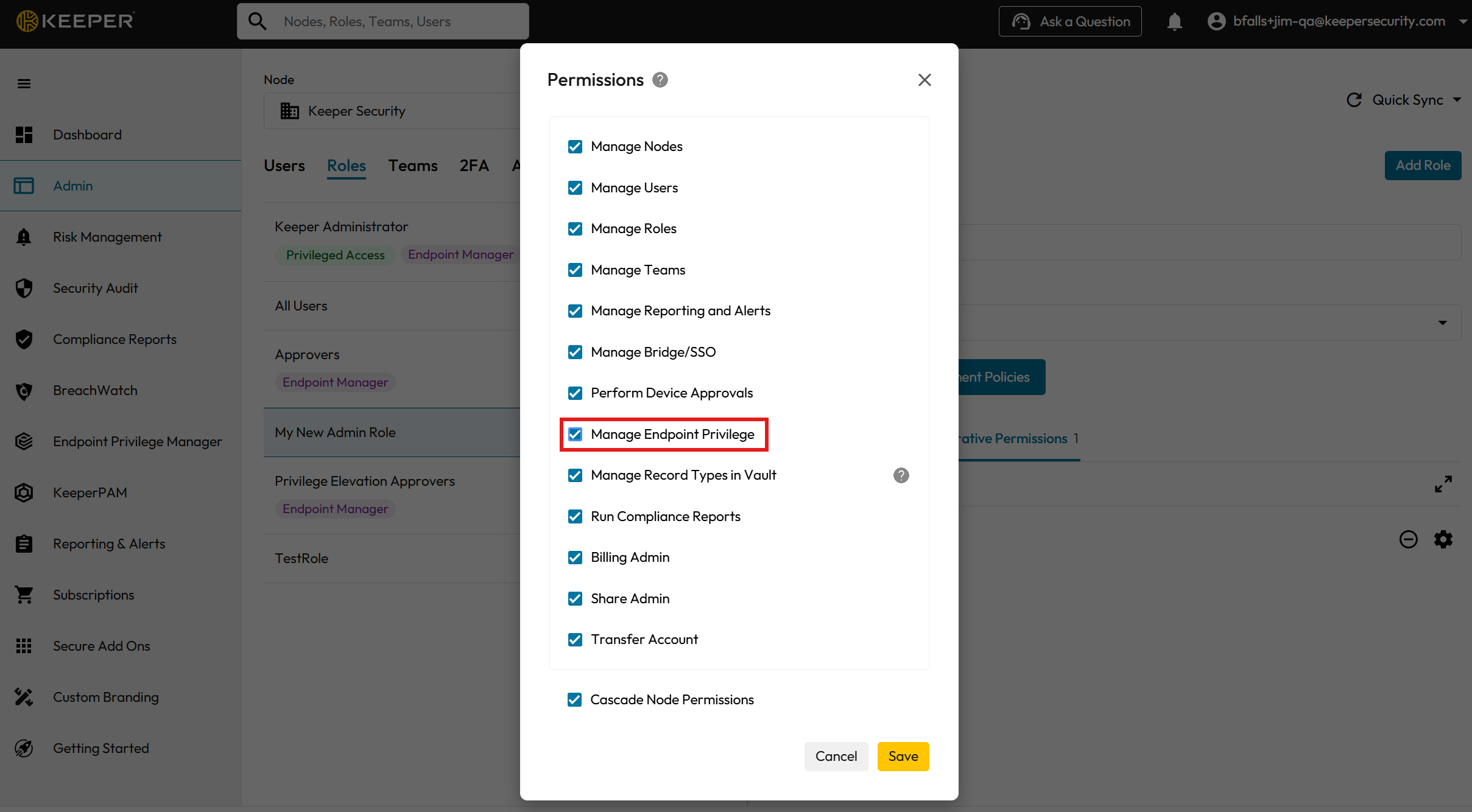
エンドポイント特権マネージャーでは、エンドユーザー向け特権をカバーする権限を持つ管理者ロールが必要です。
* リージョンに応じたKeeper管理コンソールにログインします。
* **\[管理者]** > **\[ロール]** で、新しいロールを作成するか既存のロールを変更します。
* ロール設定で **\[管理権限]** タブを開き、**\[管理ノードを追加]** を選択します。
* **\[特権アクセスを管理]** 権限をオンにします。
* 自分自身またはテスト用の管理者アカウントをこのロールに割り当てます。
{% hint style="warning" %}
ユーザーおよびグループのコレクションを対象とするEPMポリシーは、ADまたはEntra IDの同期が正しく機能していることが前提です。 `epm scim` コマンドを使用する前に、Keeper管理コンソールでActive Directory連携を構成する必要があります。連携が未構成の場合、コレクションが不完全になり、ポリシー適用も想定どおりに機能しません。\
\
詳しくは[こちらのページ](/keeperpam/jp/commander-cli/command-reference/endpoint-privilege-manager-commands.md)をご参照ください。
{% endhint %}
{% endstep %}
{% step %}
**インストール場所の確認**
次の場所に製品がインストールされているか確認します。
* **Windows:** 例: `C:\Program Files\KeeperPrivilegeManager`
* **Linux / macOS:** 例: `/opt/keeper/`
メインの実行ファイル、構成ファイル (`appsettings.json`)、および `Plugins/`、`Jobs/`、`KeeperStorage/` などのフォルダが見えるはずです。
{% endstep %}
{% step %}
**サービスの確認と起動**
* **Windows (PowerShell):**\
確認: `Get-Service | Where-Object {$`*`.Name -match 'keeper' -or $`*`.DisplayName -match 'keeper'} | Select-Object Name, DisplayName, Status`\
起動: `Get-Service | Where-Object {$`*`.Name -match 'keeper' -or $`*`.DisplayName -match 'keeper'} | Where-Object {$_.Status -ne 'Running'} | Start-Service`
* **Linux (KeeperSudo):**\
確認: `sudo systemctl status keeper-privilege-manager`\
起動: `sudo systemctl start keeper-privilege-manager`\
任意: 自動起動には `sudo systemctl enable keeper-privilege-manager`。
* **macOS:**\
付属のlaunchd構成を使い、Keeperサービスを読み込んで起動します。
{% endstep %}
{% endstepper %}
---
# Agent Instructions
This documentation is published with GitBook. GitBook is the documentation platform designed so that both humans and AI agents can read, navigate, and reason over technical content effectively. Learn more at gitbook.com.
## Querying This Documentation
If you need additional information that is not directly available in this page, you can query the documentation by asking a question.
Perform an HTTP GET request on the following URL with the `ask` and `goal` query parameters:
```
GET https://docs.keeper.io/keeperpam/jp/endpoint-privilege-manager/setup.md?ask=&goal=
```
`ask` is the immediate question: it should be specific, self-contained, and written in natural language.
`goal` is what the user is ultimately trying to achieve, the reason they need the answer. Sharing it helps GitBook give you a better, more relevant answer. A goal is most helpful when it describes the outcome the user wants rather than restating the question. For example, with `ask=how do I create an API token`, a goal like `automate deployments from our CI pipeline` lets GitBook tailor the answer to that use case.
The response will contain a direct answer to the question and relevant excerpts and sources from the documentation.
Use this mechanism when the answer is not explicitly present in the current page, you need clarification or additional context, or you want to retrieve related documentation sections.
%20(2).png?alt=media)
.png?alt=media)