> For the complete documentation index, see [llms.txt](https://docs.keeper.io/llms.txt). Markdown versions of documentation pages are available by appending `.md` to page URLs; this page is available as [Markdown](https://docs.keeper.io/keeperpam/jp/privileged-access-manager/cloud-security/tenable-integration.md).
# Tenable連携
Tenableの検出結果をKeeperクラウドセキュリティに接続し、クローズドループの是正を実現
## 概要
Tenable連携では、クラウドセキュリティの検出結果をKeeperクラウドセキュリティへ送り、是正に活用できます。認証情報のローテーション、管理対象へのオンボード、特権アクセス制御の強化が必要な問題向けに設計されています。
### KeeperとTenableを連携する理由
Tenableは露出したアイデンティティ、リスクの高いアクセスパス、クラウドの設定ミスを特定します。Keeperでは、それらの検出結果を管理対象の特権アクセス制御に変換して対応できます。
この連携でできること
* 関連するTenable検出結果のKeeperへの直接送信
* KeeperPAM制御によるアイデンティティとリソースの是正
* 両システム間での是正ステータスの同期
### 是正ワークフロー
1. 管理者がTenableで検出結果を受信します。
2. 管理者が検出結果を確認し、是正のためにKeeperへ送信します。
3. Keeper管理者が検出結果を受信し、影響を受けたリソースをKeeperにマッピングします。
4. 是正が完了すると、KeeperはTenable上の検出結果を解決済みとしてマークします。
{% hint style="info" %}
この一連の処理では、ゼロ知識アーキテクチャを維持するために[Keeper Encrypter](/keeperpam/jp/privileged-access-manager/cloud-security/keeper-encrypter.md)が使われます。
{% endhint %}
## セットアップ
{% stepper %}
{% step %}
### TenableでのKeeper連携のセットアップ
以下の手順で、Tenable Cloud SecurityとのKeeper連携をセットアップします。
* Tenable側で[サービスアカウントとシークレットの作成](https://docs.app.tenable.com/docs/api-get-started#create-a-service-account-and-secret)の手順を行います。シークレットは必ず保存してください。
* APIエンドポイントについてはTenableのドキュメントをご参照ください。URLは必ず保存してください (例: `https://us.app.ermetic.com/api/graph/`)。
* [TenableでのWebhook作成](#create-a-webhook-in-tenable)の手順に進むまでは、Webhookを作成しないでください。
{% endstep %}
{% step %}
### PAM構成の選択
**\[シークレットマネージャー]** に移動し、CNAPPプロバイダをリンクするPAM構成を選択します。
PAM構成で以下を行います。
* CNAPPプロバイダとして **\[Tenable]** を選択します。
* 「+」ボタンをクリックして、新しい **\[CNAPP構成レコード]** を作成します。
* 構成の値は以下の手順で入力します。
{% endstep %}
{% step %}
### CNAPP構成レコード
CNAPP構成レコードに以下の値を入力します。
* **\[タイトル]** を入力します。
* [Encrypterキーのセットアップ](/keeperpam/jp/privileged-access-manager/cloud-security/keeper-encrypter.md#generate-a-256-bit-encryption-key)で生成した暗号化キーを貼り付けて **\[セキュアノート]** に入力します。
* [EncrypterのDNS設定](/keeperpam/jp/privileged-access-manager/cloud-security/keeper-encrypter.md#configure-dns-ssl-tls-for-encrypter)で構成した **\[EncrypterベースURL]** を入力します。
* **\[秘密鍵]** を入力するか、ダイスのアイコンを使ってパスワードを生成します。
* 上記の[Keeper連携](#set-up-a-keeper-integration-in-tenable)の手順で作成した **\[サービスアカウントのシークレット]** を入力します。
* **\[追加]** ボタンをクリックして、新しい構成レコードを保存します。
{% endstep %}
{% step %}
### Keeper Encrypterのデプロイと検証
PAM構成で以下を行います。
* **\[連携セットアップの完了]** のリンクをクリックします。
**\[接続の確認]** タブを使って、このPAM構成にKeeper Encrypterを接続します。
* **\[Docker Compose]** ボタンをクリックしてダウンロードします。
* [Keeper Encrypter](/keeperpam/jp/privileged-access-manager/cloud-security/keeper-encrypter.md#configure-and-deploy-encrypter)の設定とデプロイの手順に従います。
* **\[検証]** をクリックします。緑色のチェックマークが表示されれば、Keeper Encrypterの接続が確認できました。
{% endstep %}
{% step %}
### TenableでのWebhook作成
前の手順と同じダイアログの **\[接続の確認]** タブを下にスクロールし、**\[Tenable構成]** セクションを表示します。
* **\[Webhook URL]** の値をコピーします。
* **\[APIトークン]** の値をコピーします。
* Tenable側で[Webhookの追加](https://docs.app.tenable.com/docs/webhooks#add-a-webhook)の手順を行い、以下のとおりHTTPヘッダーを追加します。
* **\[Name]** に `Authorization` を設定します。
* **\[Value]** に `Bearer [token]` を設定します。**\[token]** には、先ほどコピーした **\[APIトークン]** を使用します。
{% endstep %}
{% step %}
### Tenableの承認
**\[Tenableで認証]** タブで以下を行います。
* 上記の[Keeper連携](#set-up-a-keeper-integration-in-tenable)の手順で作成した **\[APIエンドポイントURL]** を入力します。
* **\[承認]** ボタンをクリックします。
承認が完了したら、PAM構成を保存します。**\[CNAPPキューを表示]** ボタンをクリックすると、クラウドセキュリティダッシュボードに移動します。
{% endstep %}
{% endstepper %}
## ユーザー体験
### クラウドセキュリティダッシュボード
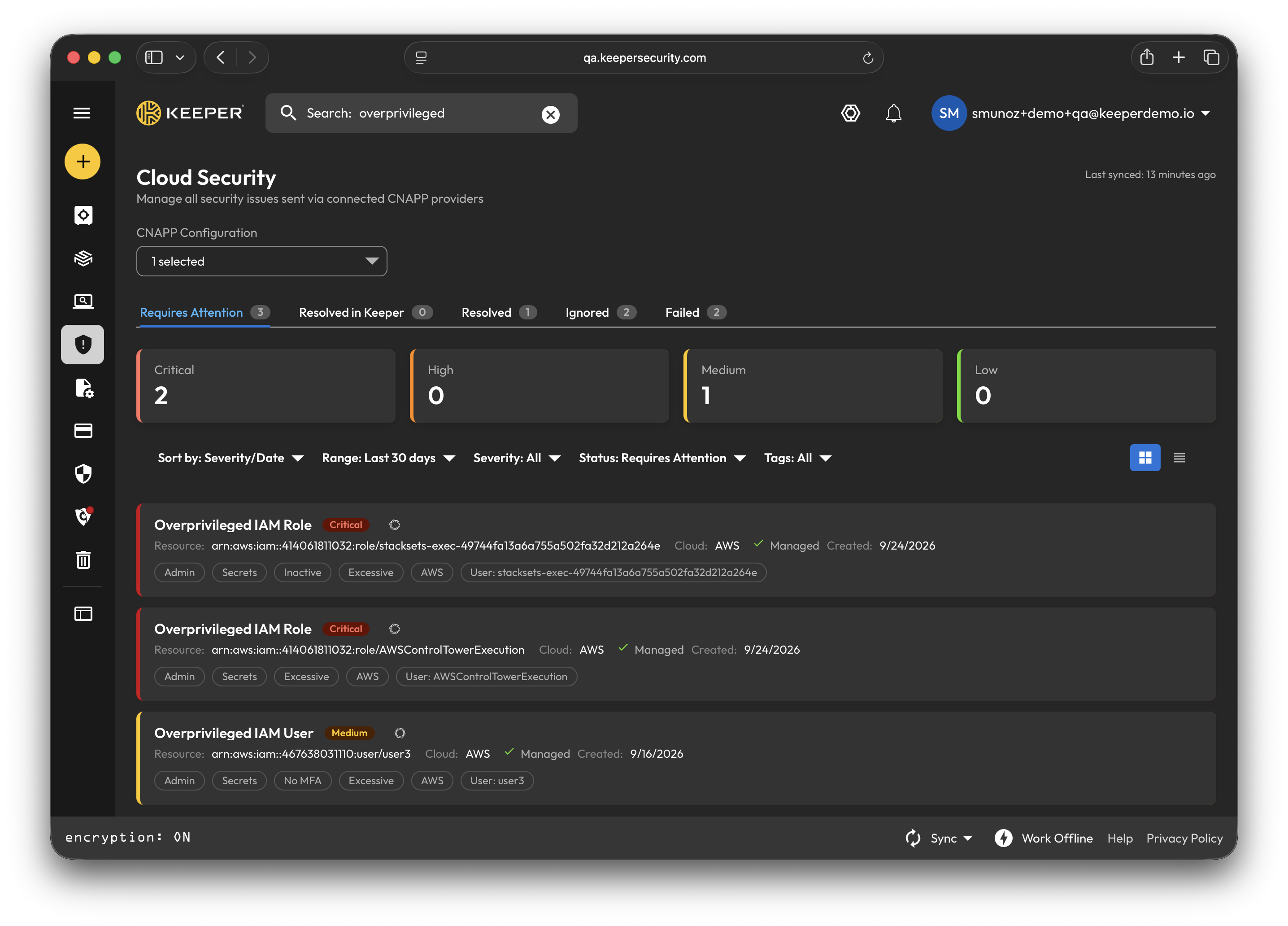
Tenableコンソールから、管理者は検出結果をKeeperへ送信します。
送信後、CNAPPプロバイダの詳細情報とともに **\[クラウドセキュリティ]** ダッシュボードに問題が表示されます。
### 脆弱性の詳細
CNAPPプロバイダが問題を特定しています。是正を開始するには、問題にカーソルを合わせてクリックします。
続いて、CNAPPプロバイダからの詳細な説明を確認し、**\[対処方法]** を選択して是正を開始できます。
### 是正方法の選択
リソースのオンボードが完了したら、4つの是正方法から選択できます。
* 認証情報のローテーション
* アクセス権を管理
* JITアクセスを有効化
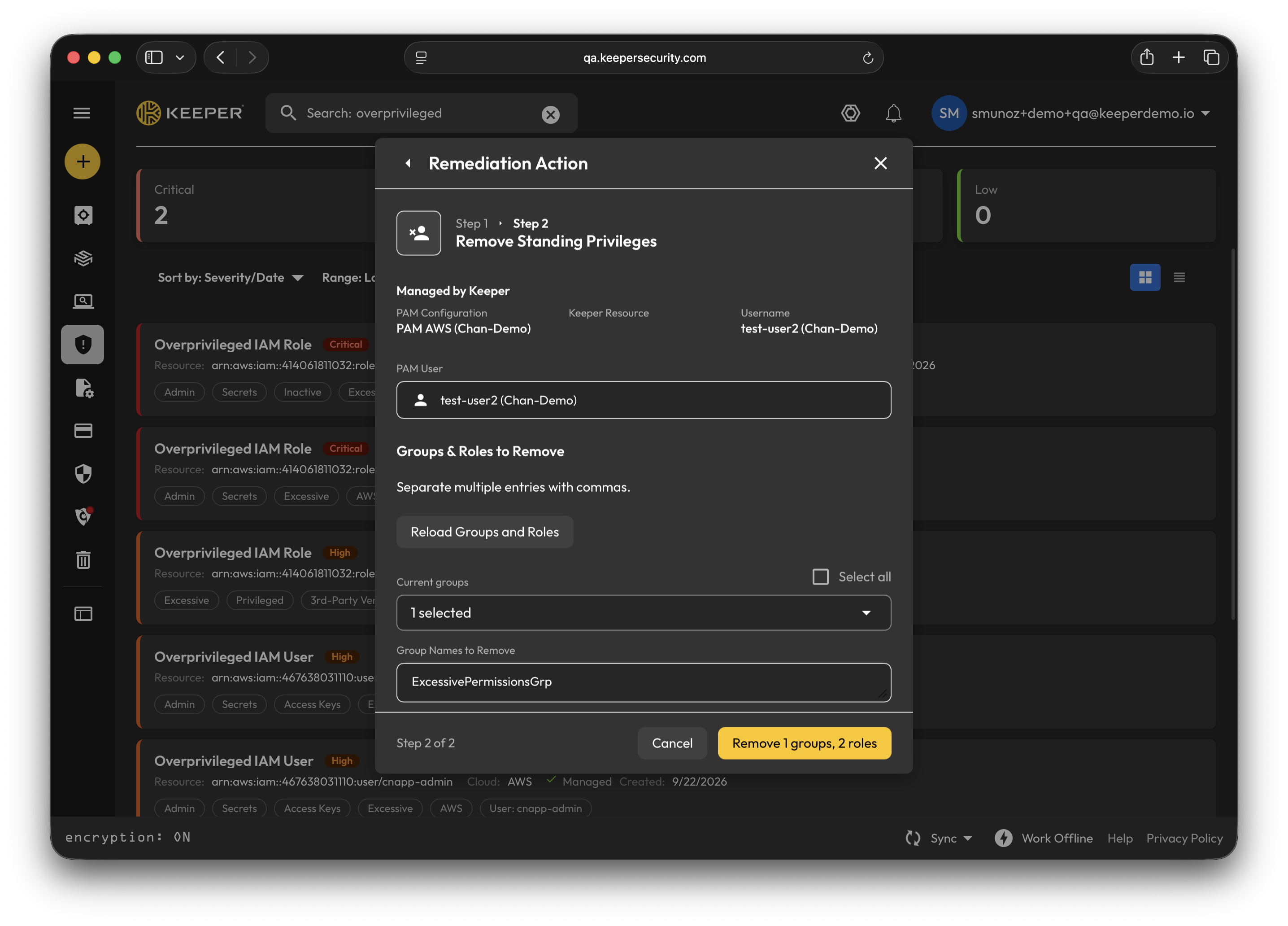
* 常時付与されている権限を削除
必要な是正方法を選び、**\[次へ]** をクリックします。
### リソースのオンボード
オンボードするリソースに適したレコードタイプを選択します。該当する構成ドキュメントに従い、**\[追加]** をクリックします。
**\[クラウドセキュリティ]** ダッシュボードでは、リソース向けに5種類のレコードタイプをオンボードできます。
* [PAMデータベース](/keeperpam/jp/privileged-access-manager/getting-started/pam-resources/pam-database.md)
* [PAMマシン](/keeperpam/jp/privileged-access-manager/getting-started/pam-resources/pam-machine.md)
* [PAMディレクトリ](/keeperpam/jp/privileged-access-manager/getting-started/pam-resources/pam-directory.md)
* [PAMリモートブラウザ](/keeperpam/jp/privileged-access-manager/getting-started/pam-resources/pam-remote-browser.md)
* [PAMクラウド](/keeperpam/jp/privileged-access-manager/getting-started/pam-resources/pam-cloud.md)
まず、是正を行うPAM構成を選択します。必要であれば、新しいPAM構成を作成することもできます。
**\[JITアクセスを有効化]** または **\[アクセス権を管理]** の是正方法を選択した場合は、続けてリソースをオンボードできます。
リソースをオンボードしたら、そのリソースにリンクする[PAMユーザー](/keeperpam/jp/privileged-access-manager/getting-started/pam-resources/pam-user.md)レコードをオンボードできます。CNAPPプロバイダが侵害されたクラウドアイデンティティを検出した場合は、PAMデータベース、PAMマシン、PAMディレクトリ、PAMリモートブラウザをオンボードせずに、PAMユーザーレコードを直接オンボードできます。**\[追加]** をクリックし、続けて **\[対処を開始]** をクリックします。
### 是正の開始
是正方法として **\[認証情報のローテーション]** を選択した場合は、[ローテーション設定](/keeperpam/jp/privileged-access-manager/password-rotation/rotation-overview.md#configure-rotation-settings)を編集し、新しく生成されるパスワードをカスタマイズします。ローテーションの構成が完了したら **\[更新]** をクリックし、続けて **\[保存して続行]** をクリックします。
是正方法として **\[アクセス権を管理]** を選択した場合は、[接続構成設定](/keeperpam/jp/privileged-access-manager/connections.md)を編集し、ゼロトラストのインタラクティブセッション経由でオンボード済みリソースへのアクセスを管理します。接続の構成が完了したら **\[更新]** をクリックし、続けて **\[保存して続行]** をクリックします。
是正方法として **\[JITアクセスを有効化]** を選択した場合は、[JIT構成設定](/keeperpam/jp/privileged-access-manager/just-in-time-access-jit/ephemeral-accounts-and-privilege-elevation.md)を編集し、レコード向けのジャストインタイムアクセスを設定します。
続いて **\[ワークフロー]** を選択すると、[ワークフロー構成設定](/keeperpam/jp/privileged-access-manager/just-in-time-access-jit.md#pages-in-this-section)を編集し、リソースへのアクセス時間の制限、必要な承認者の追加、レコードのチェックイン、MFAの必須化などを設定できます。[JITロールアウト](/keeperpam/jp/privileged-access-manager/just-in-time-access-jit.md#recommended-rollout)の構成が完了したら **\[更新]** をクリックし、続けて **\[保存して続行]** をクリックします。
是正方法として **\[常時付与されている権限を削除]** を選択した場合は、オンボードされたユーザーに関連付けられたグループとロールを削除します。オンボード済みユーザーの現在のグループとロールはすべて自動的に表示されます。削除するグループとロールを選択したら、**\[削除]** をクリックします。
すべての是正処理が完了すると、KeeperはTenableへ問題に対処した旨を自動的に通知します。検出結果は **\[クラウドセキュリティ]** ダッシュボードの **\[解決済み]** タブに移り、Tenable側でも手動での追加対応なしに更新されたステータスを確認できます。
---
# Agent Instructions
This documentation is published with GitBook. GitBook is the documentation platform designed so that both humans and AI agents can read, navigate, and reason over technical content effectively. Learn more at gitbook.com.
## Querying This Documentation
If you need additional information that is not directly available in this page, you can query the documentation by asking a question.
Perform an HTTP GET request on the following URL with the `ask` and `goal` query parameters:
```
GET https://docs.keeper.io/keeperpam/jp/privileged-access-manager/cloud-security/tenable-integration.md?ask=&goal=
```
`ask` is the immediate question: it should be specific, self-contained, and written in natural language.
`goal` is what the user is ultimately trying to achieve, the reason they need the answer. Sharing it helps GitBook give you a better, more relevant answer. A goal is most helpful when it describes the outcome the user wants rather than restating the question. For example, with `ask=how do I create an API token`, a goal like `automate deployments from our CI pipeline` lets GitBook tailor the answer to that use case.
The response will contain a direct answer to the question and relevant excerpts and sources from the documentation.
Use this mechanism when the answer is not explicitly present in the current page, you need clarification or additional context, or you want to retrieve related documentation sections.
.png?alt=media)

.png?alt=media)

%20(1).png?alt=media)


.png?alt=media)
.png?alt=media)

.png?alt=media)
.png?alt=media)

%20(1).png?alt=media)
.png?alt=media)
.png?alt=media)

%20(1).png?alt=media)