> For the complete documentation index, see [llms.txt](https://docs.keeper.io/llms.txt). Markdown versions of documentation pages are available by appending `.md` to page URLs; this page is available as [Markdown](https://docs.keeper.io/keeperpam/jp/privileged-access-manager/cloud-security/wiz-integration.md).
# Wiz連携
Wizの検出結果をKeeperクラウドセキュリティに接続し、クローズドループの是正を実現
## 概要
Wiz連携では、クラウドセキュリティの検出結果をKeeperクラウドセキュリティへ送り、是正に活用できます。認証情報のローテーション、管理対象へのオンボード、特権アクセス制御の強化が必要な問題向けに設計されています。
### KeeperとWizを連携する理由
Wizは露出したアイデンティティ、リスクの高いアクセスパス、クラウドの設定ミスを特定します。Keeperでは、それらの検出結果を管理対象の特権アクセス制御に変換して対応できます。
* 関連するWiz検出結果のKeeperへの直接送信
* KeeperPAM制御によるアイデンティティとリソースの是正
* 両システム間での是正ステータスの同期
### 是正ワークフロー
* 管理者によるWizでの検出結果の受信
* 検出結果の確認とKeeperへの是正送信
* Keeper管理者による影響リソースのマッピング
* 是正後のWiz上での進行中ステータスへの更新
* Wiz検証サイクル完了後の解消済みへの移行 (リスク解消時)
この一連の処理では、ゼロ知識アーキテクチャを維持するために[Keeper Encrypter](/keeperpam/jp/privileged-access-manager/cloud-security/keeper-encrypter.md)が使われます。
## セットアップ
{% stepper %}
{% step %}
### WizでのKeeper連携のセットアップ
[WizでのKeeper連携のセットアップ](https://docs.wiz.io/docs/keeper-security-webhook-integration)を行います。クライアントID、クライアントシークレット、APIエンドポイントURLを控えておきます。[WizでのWebhook作成](#create-a-webhook-in-wiz)の手順に進むまでは、Webhookを作成しないでください。
{% endstep %}
{% step %}
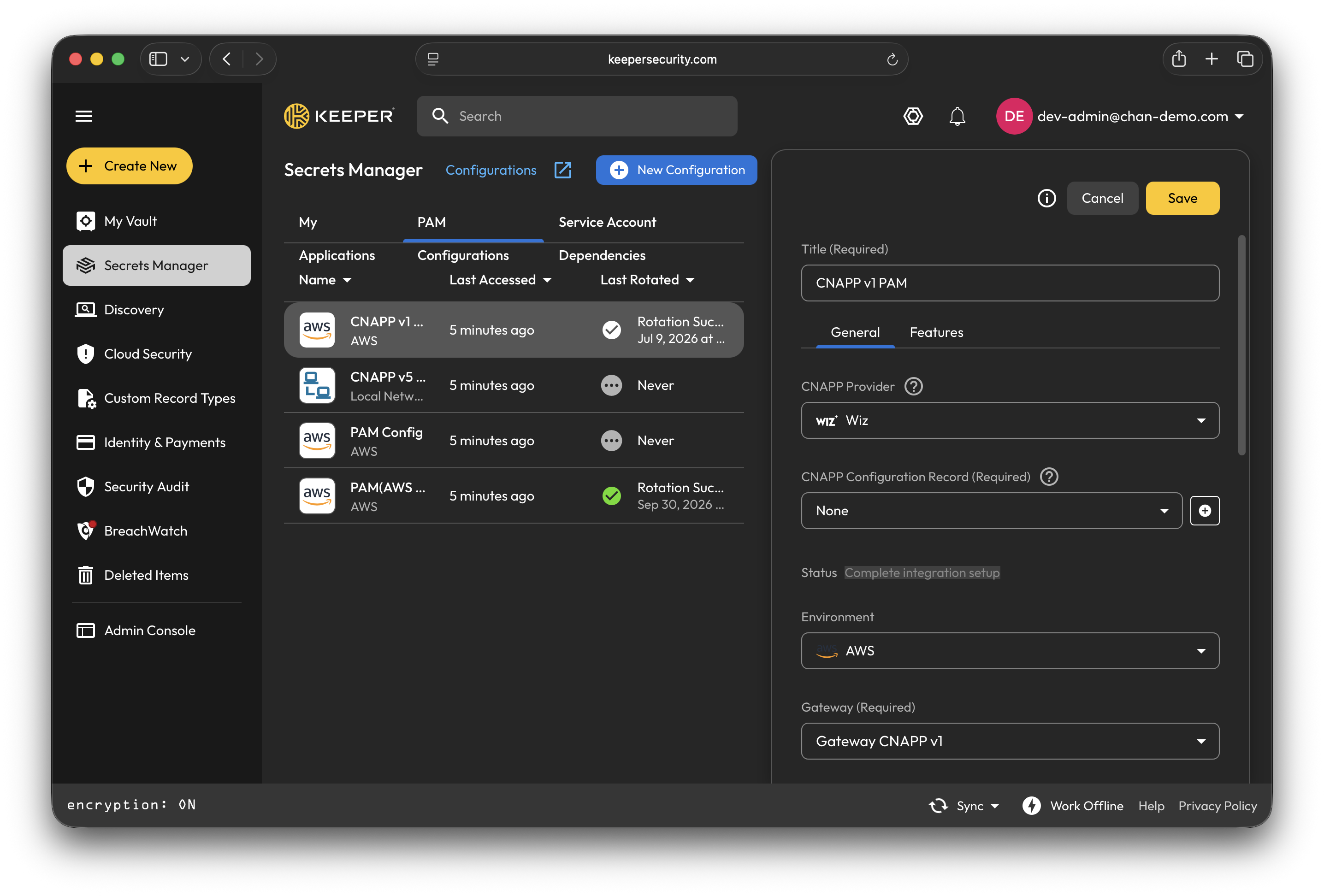
### PAM構成の選択
**\[シークレットマネージャー]** に移動し、CNAPPプロバイダをリンクするPAM構成を選択します。
PAM構成で以下を行います。
* CNAPPプロバイダとして **\[Wiz]** を選択します。
* 「+」ボタンをクリックして、新しい **\[CNAPP構成レコード]** を作成します。
* 構成の値は以下の手順で入力します。
{% endstep %}
{% step %}
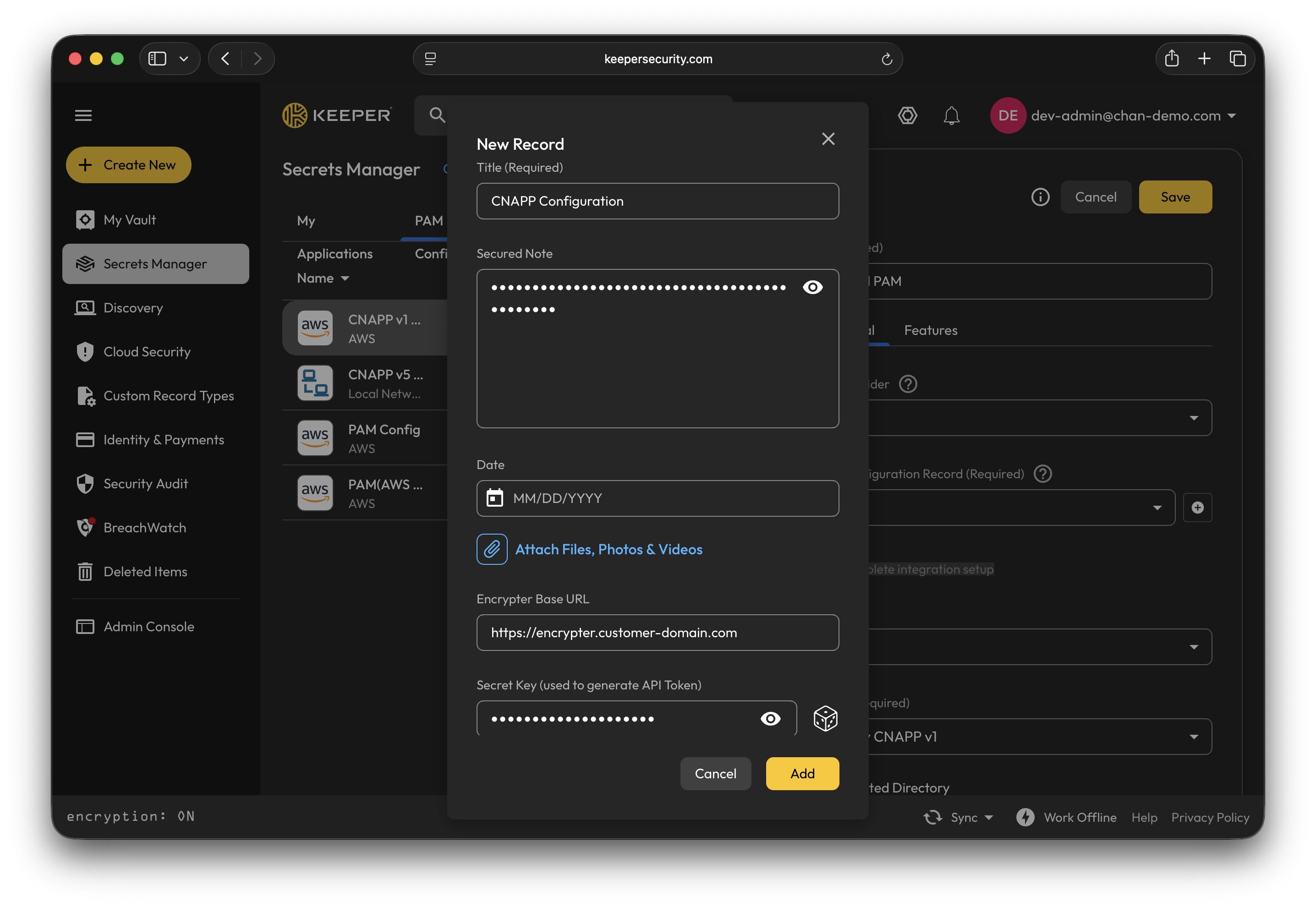
### CNAPP構成レコード
CNAPP構成レコードに以下の値を入力します。
* **\[タイトル]** を入力します。
* [Encrypterキーのセットアップ](/keeperpam/jp/privileged-access-manager/cloud-security/keeper-encrypter.md#generate-a-256-bit-encryption-key)で生成した暗号化キーを貼り付けて **\[セキュアノート]** に入力します。
* [EncrypterのDNS設定](/keeperpam/jp/privileged-access-manager/cloud-security/keeper-encrypter.md#configure-dns-ssl-tls-for-encrypter)で構成した **\[EncrypterベースURL]** を入力します。
* **\[秘密鍵]** を入力するか、ダイスのアイコンを使ってパスワードを生成します。
* **\[追加]** ボタンをクリックして、新しい構成レコードを保存します。
{% endstep %}
{% step %}
### Keeper Encrypterのデプロイと検証
PAM構成で以下を行います。
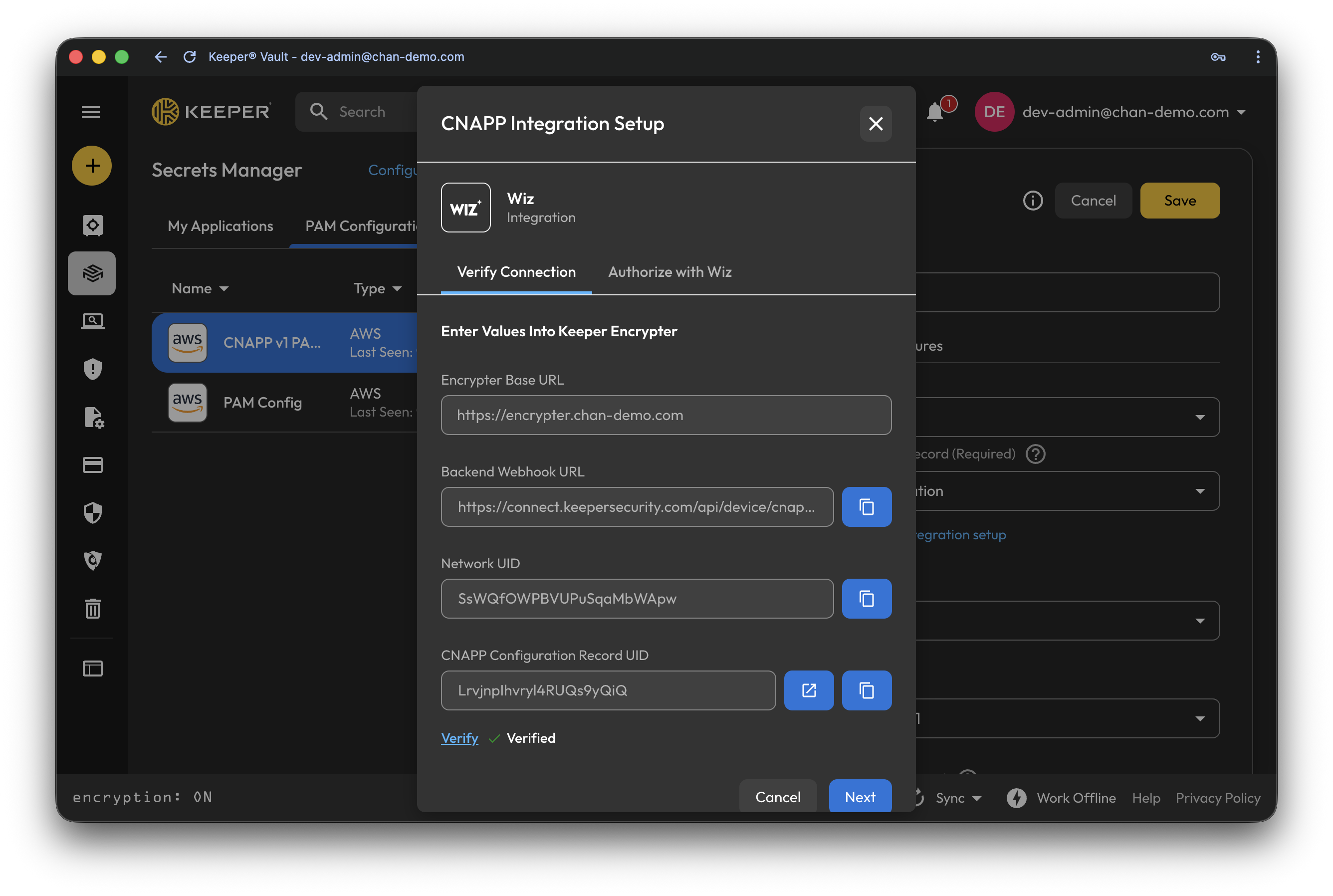
* **\[連携セットアップの完了]** のリンクをクリックします。
**\[接続の確認]** タブを使って、このPAM構成にKeeper Encrypterを接続します。
* **\[Docker Compose]** ボタンをクリックしてダウンロードします。
* [Keeper Encrypter](/keeperpam/jp/privileged-access-manager/cloud-security/keeper-encrypter.md#configure-and-deploy-encrypter)の設定とデプロイの手順に従います。
* **\[検証]** をクリックします。緑色のチェックマークが表示されれば、Keeper Encrypterの接続が確認できました。
{% endstep %}
{% step %}
### WizでのWebhook作成
前の手順と同じダイアログの **\[接続の確認]** タブを下にスクロールし、**\[Wiz構成]** セクションを表示します。
* **\[Webhook URL]** の値をコピーします。
* **\[APIトークン]** の値をコピーします。
* コピーしたURLとトークンを使って、Wiz側で[Webhookの作成](https://docs.wiz.io/docs/keeper-security-webhook-integration#add-a-keeper-security-webhook-integration-in-wiz)の手順を行います。
{% endstep %}
{% step %}
### Wizの承認
2番目のタブで、Wizから取得した認証情報を入力し、**\[承認]** をクリックします。
{% endstep %}
{% endstepper %}
## ユーザー体験
### クラウドセキュリティダッシュボード
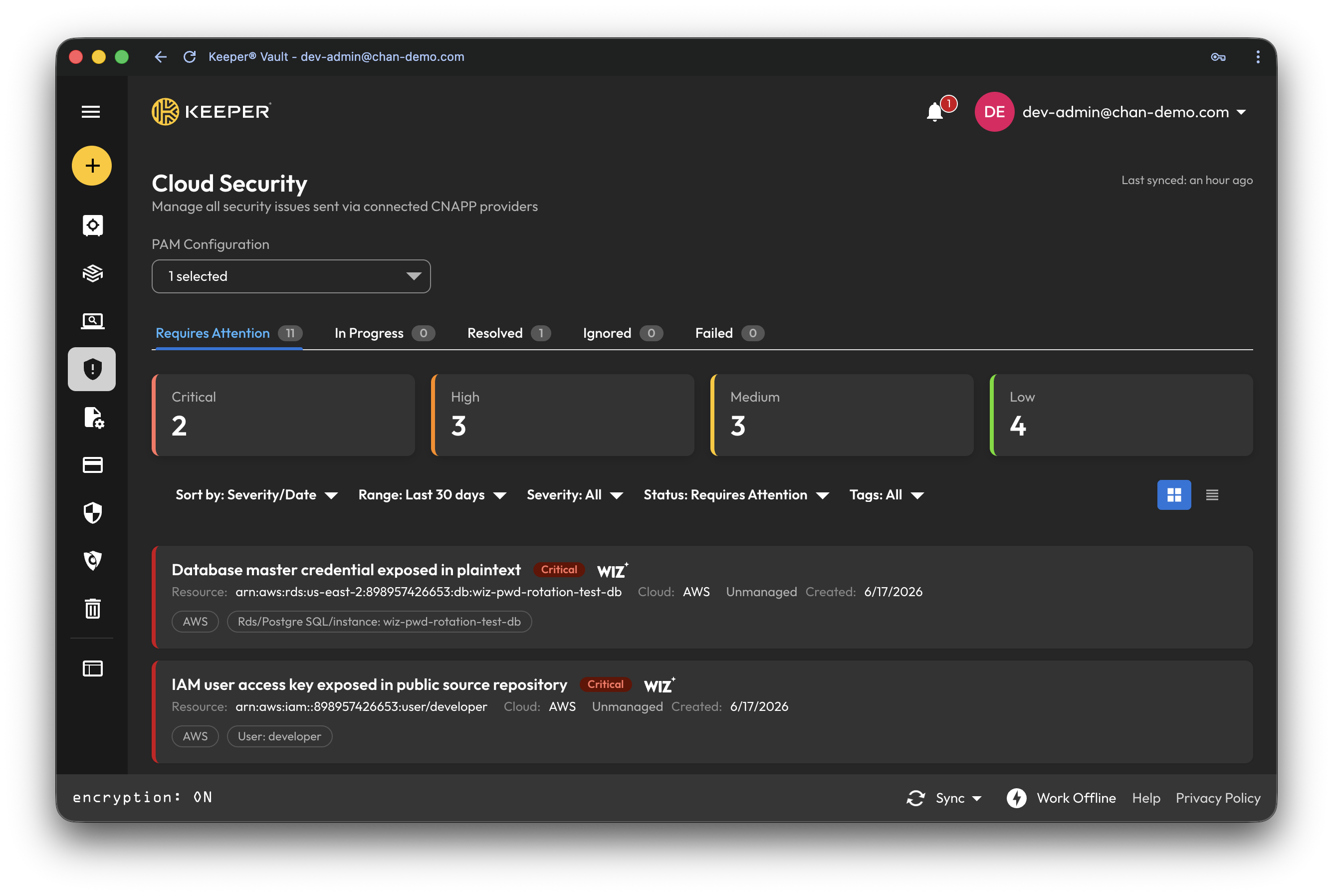
Wizコンソールから、管理者は[WizでのKeeper連携](https://docs.wiz.io/docs/keeper-security-integration)を通じて検出結果をKeeperへ送信します。
送信後、CNAPPプロバイダの詳細情報とともに **\[クラウドセキュリティ]** ダッシュボードに問題が表示されます。
### 脆弱性の詳細
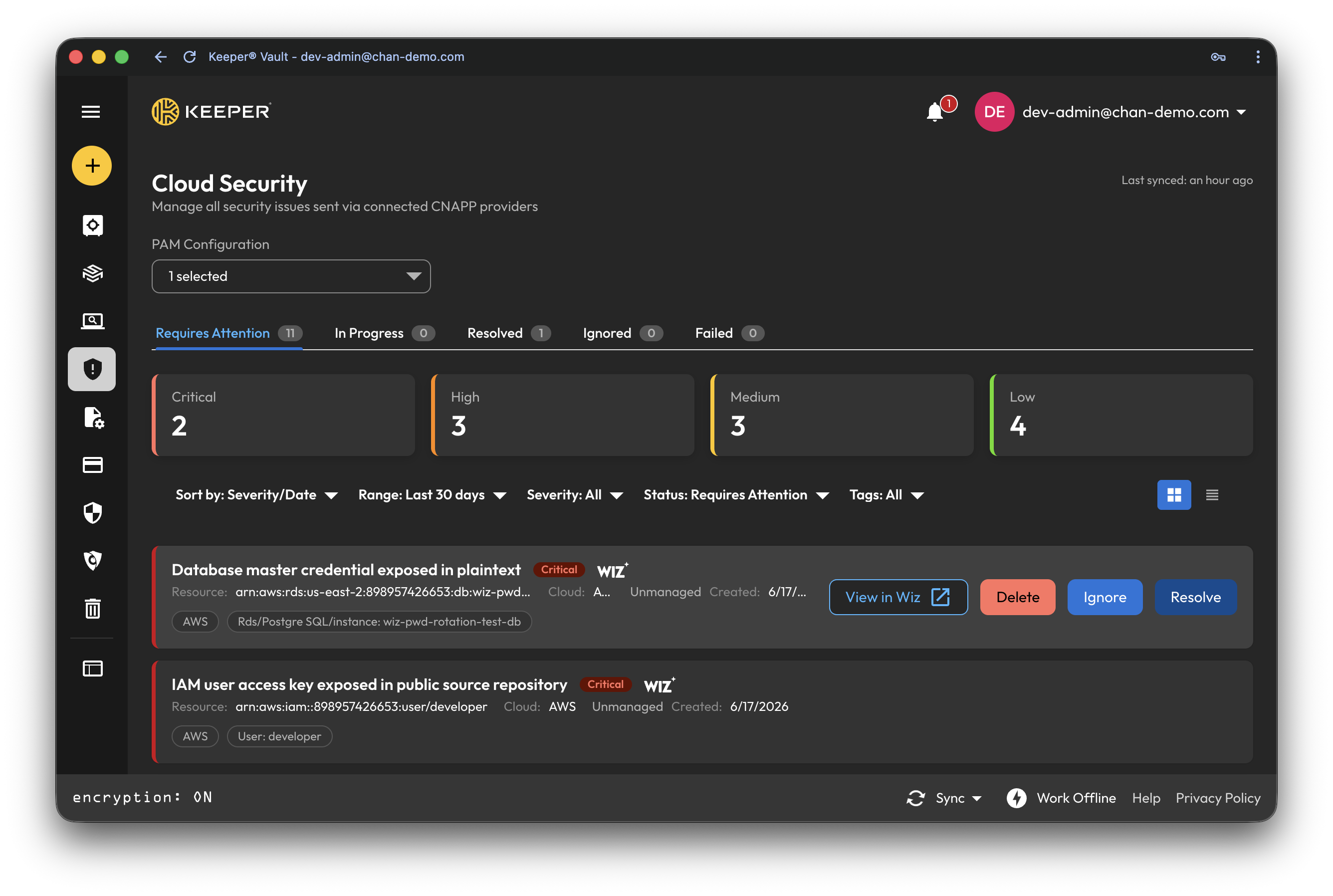
管理アカウントの認証情報が露出していると、CNAPPプロバイダの検出結果として表示されます。是正を開始するには、問題にカーソルを合わせ、**\[解決]** をクリックします。
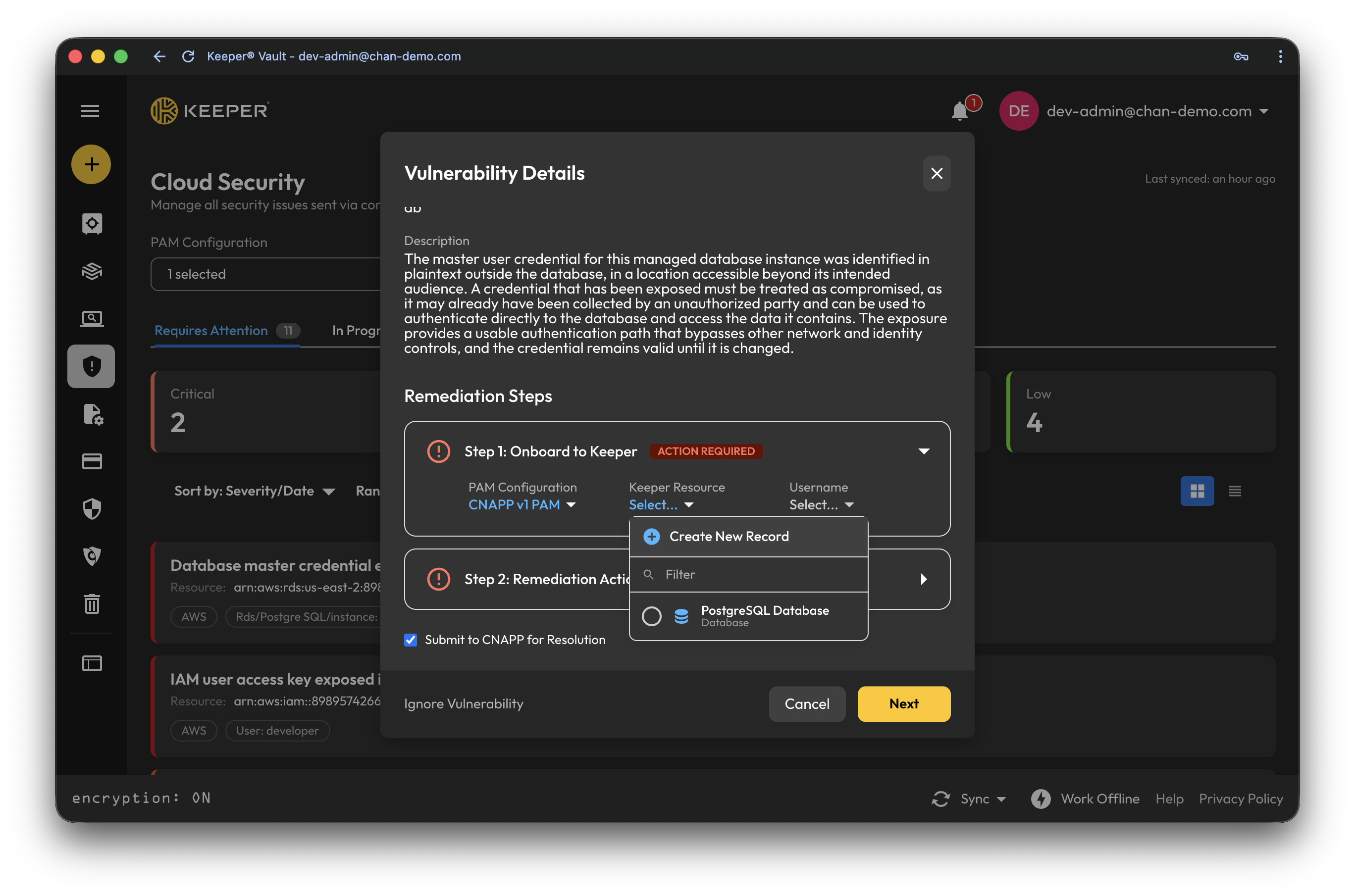
続いて、CNAPPプロバイダからの詳細な説明を確認し、**\[新規レコードの作成]** を選択して露出したリソースをKeeperにオンボードできます。
### リソースのオンボード
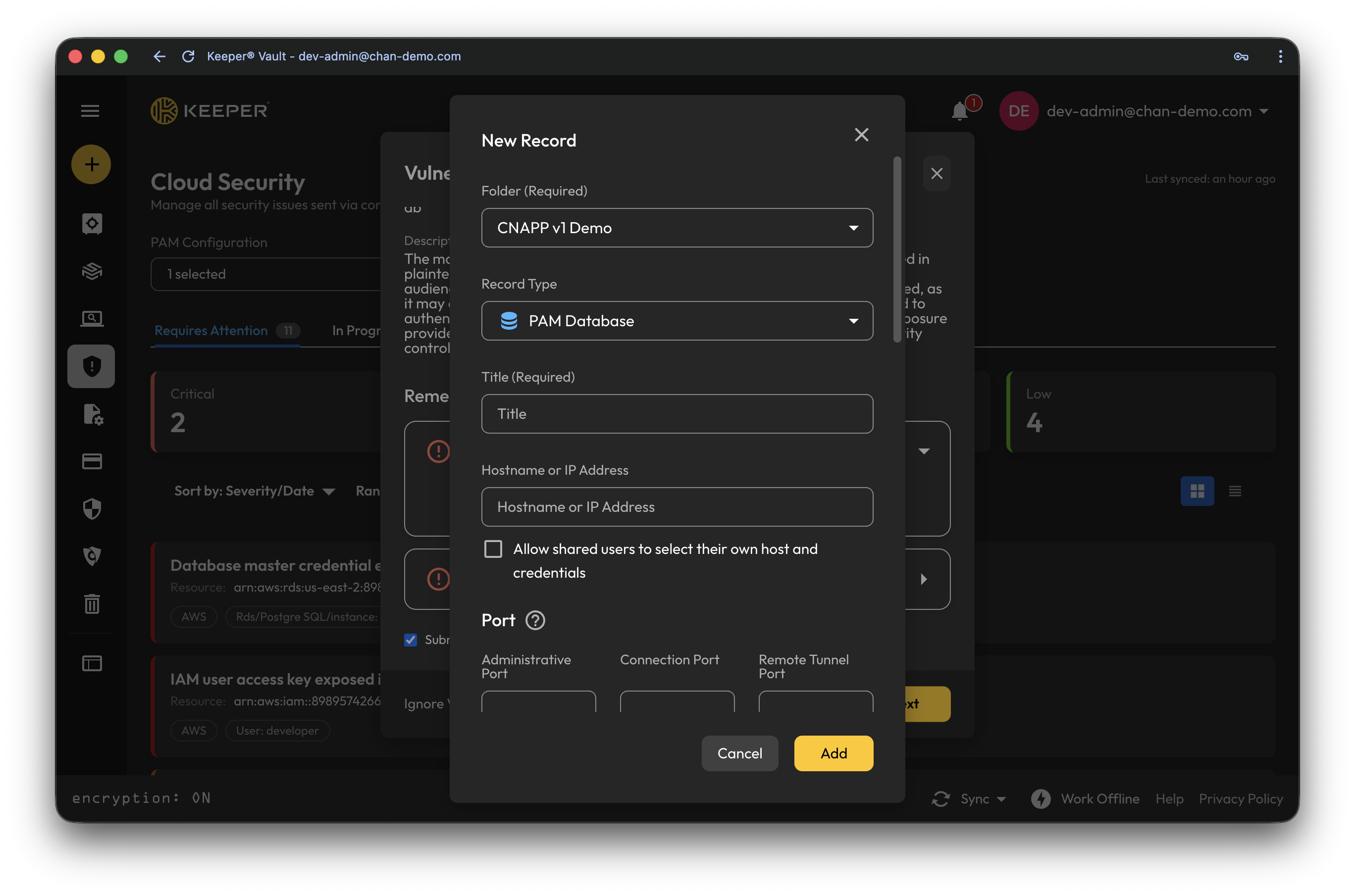
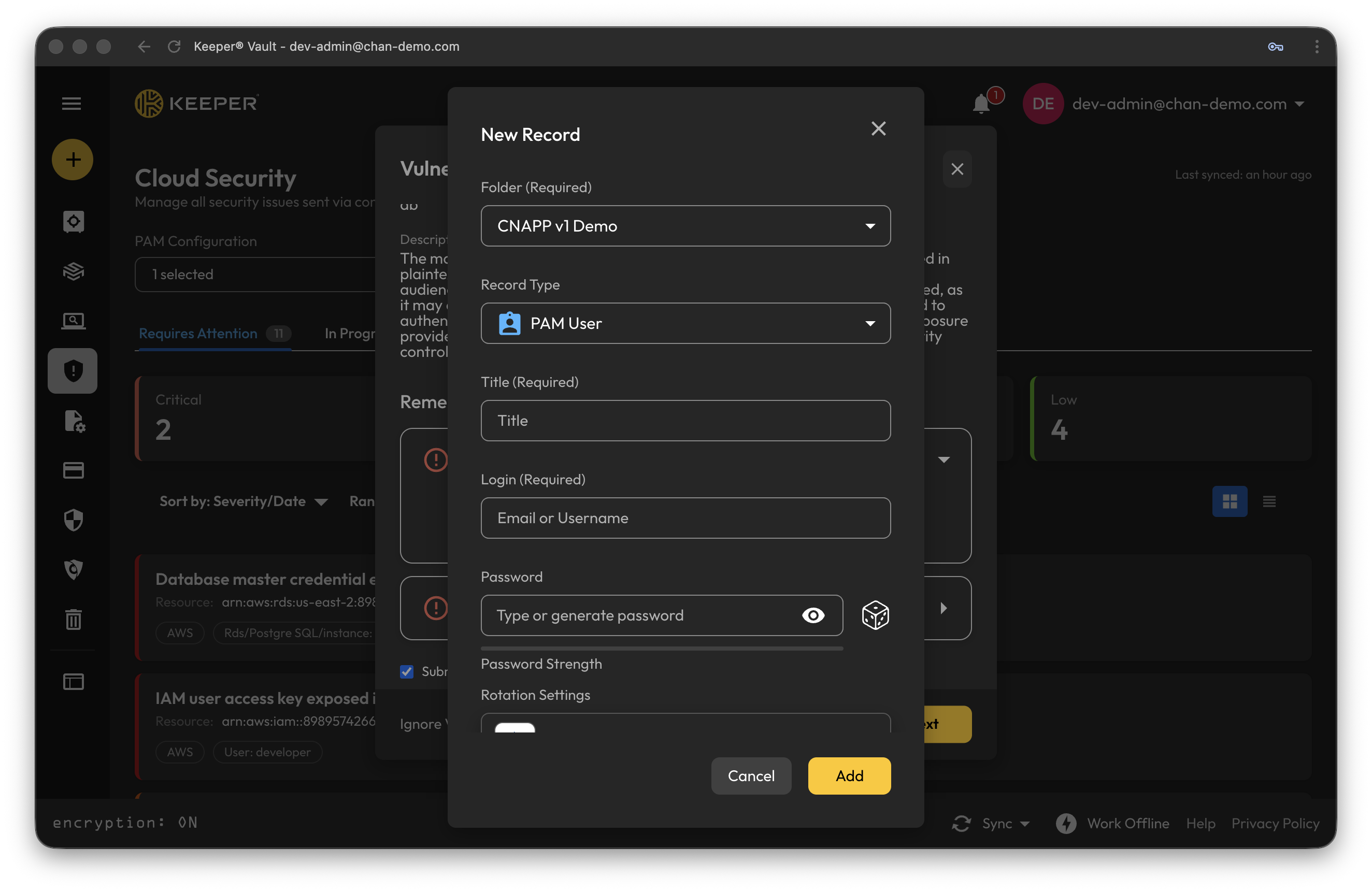
オンボードするリソースに適したレコードタイプを選択します。該当する構成ドキュメントに従い、**\[追加]** をクリックします。
**\[クラウドセキュリティ]** ダッシュボードでは、リソース向けに5種類のレコードタイプをオンボードできます。
1. [PAMデータベース](/keeperpam/jp/privileged-access-manager/getting-started/pam-resources/pam-database.md)
2. [PAMマシン](/keeperpam/jp/privileged-access-manager/getting-started/pam-resources/pam-machine.md)
3. [PAMディレクトリ](/keeperpam/jp/privileged-access-manager/getting-started/pam-resources/pam-directory.md)
4. [PAMリモートブラウザ](/keeperpam/jp/privileged-access-manager/getting-started/pam-resources/pam-remote-browser.md)
5. [PAMクラウド](/keeperpam/jp/privileged-access-manager/getting-started/pam-resources/pam-cloud.md)
リソースをオンボードしたら、[PAMユーザー](/keeperpam/jp/privileged-access-manager/getting-started/pam-resources/pam-user.md)レコードをオンボードしてそのリソースにリンクできます。CNAPPプロバイダが侵害されたクラウドアイデンティティを検出した場合は、PAMデータベース、PAMマシン、PAMディレクトリ、PAMリモートブラウザをオンボードせずに、PAMユーザーレコードを直接オンボードできます。
### 問題の是正
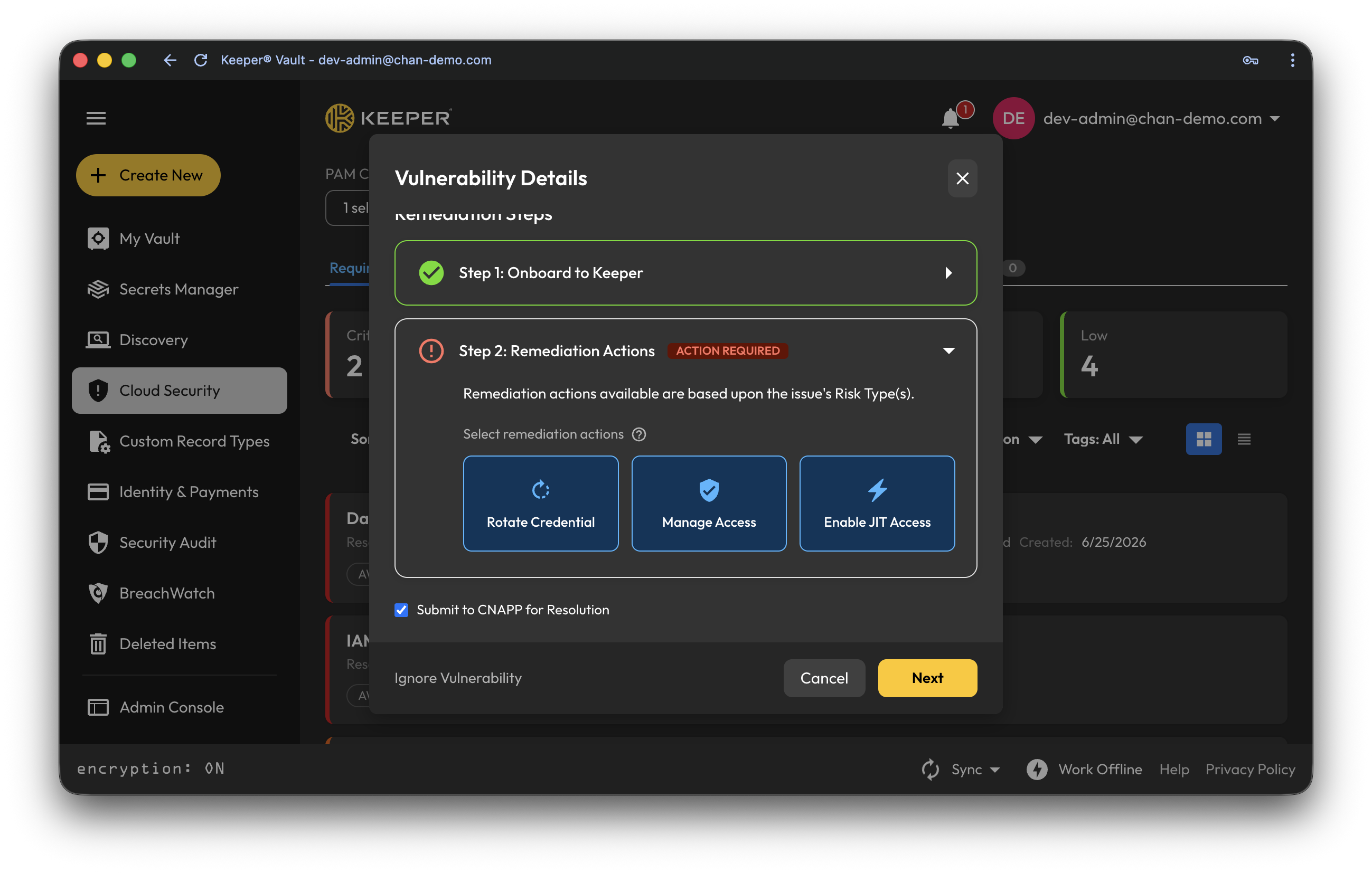
リソースのオンボードが完了したら、3つの是正方法から選択できます。
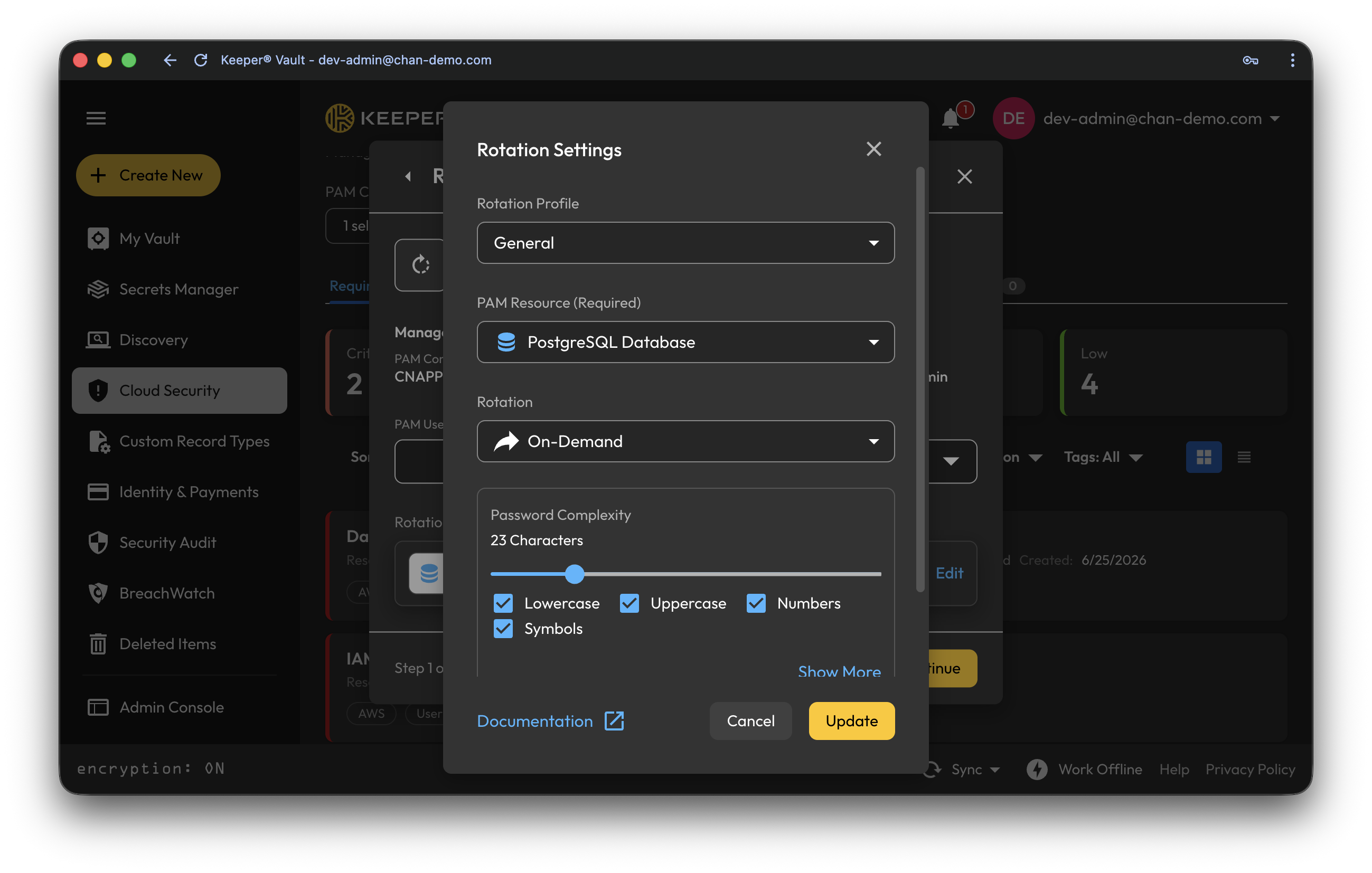
* [認証情報のローテーション](/keeperpam/jp/privileged-access-manager/password-rotation/rotation-overview.md#configure-rotation-settings)
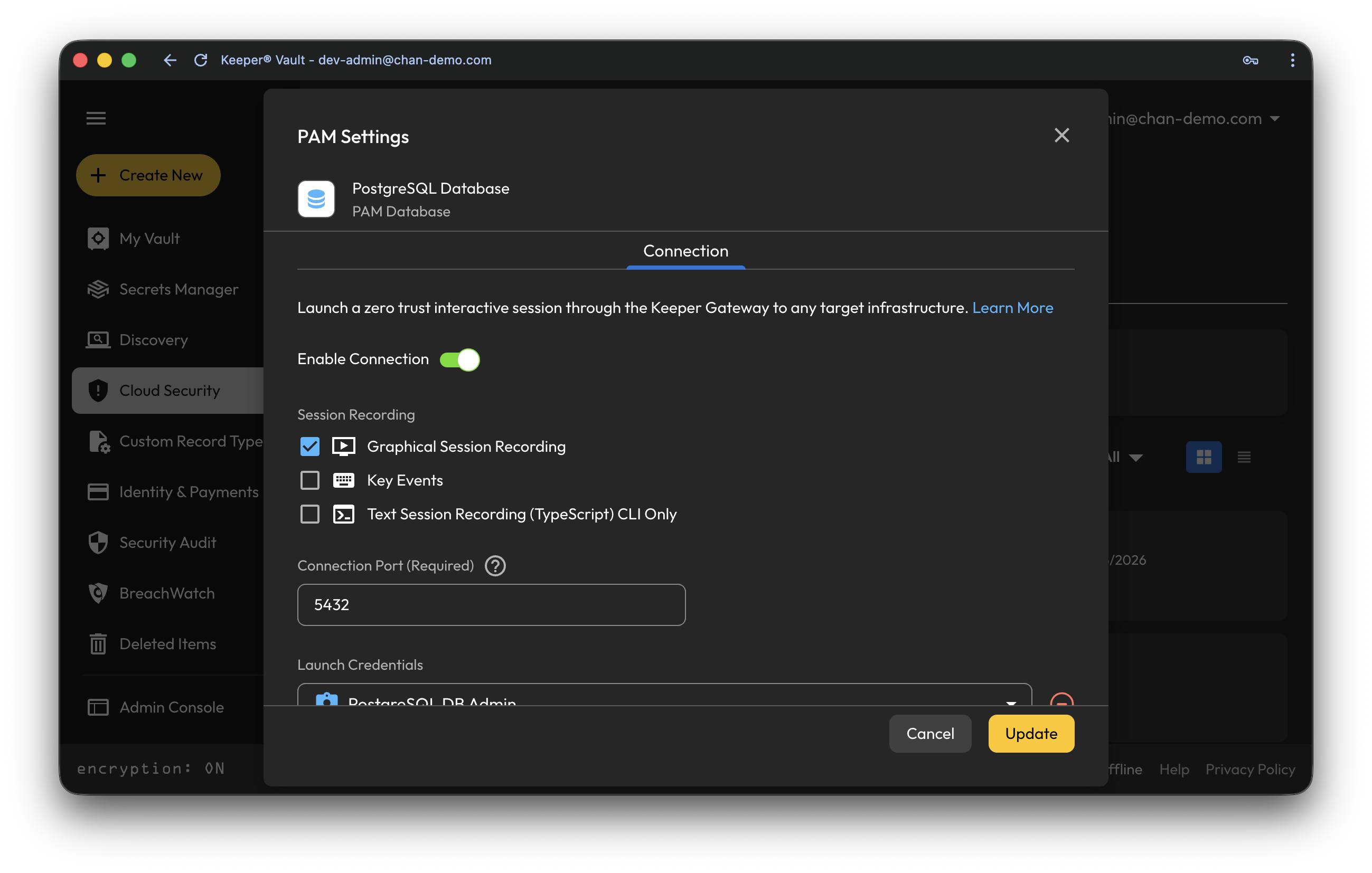
* [アクセスの管理](/keeperpam/jp/privileged-access-manager/connections/getting-started.md)
* [JITアクセスの有効化](/keeperpam/jp/privileged-access-manager/just-in-time-access-jit.md)
必要な是正方法を選び、**\[次へ]** をクリックします。
**\[認証情報のローテーション]** を選択すると、[ローテーション設定](/keeperpam/jp/privileged-access-manager/password-rotation/rotation-overview.md#configure-rotation-settings)を編集し、新しく生成されるパスワードをカスタマイズできます。ローテーションの構成が完了したら **\[更新]** をクリックし、続けて **\[保存して続行]** をクリックします。
**\[アクセスの管理]** を選択すると、[接続構成設定](/keeperpam/jp/privileged-access-manager/connections.md)を編集し、ゼロトラストのインタラクティブセッション経由でオンボード済みリソースへのアクセスを管理できます。接続の構成が完了したら **\[更新]** をクリックし、続けて **\[保存して続行]** をクリックします。
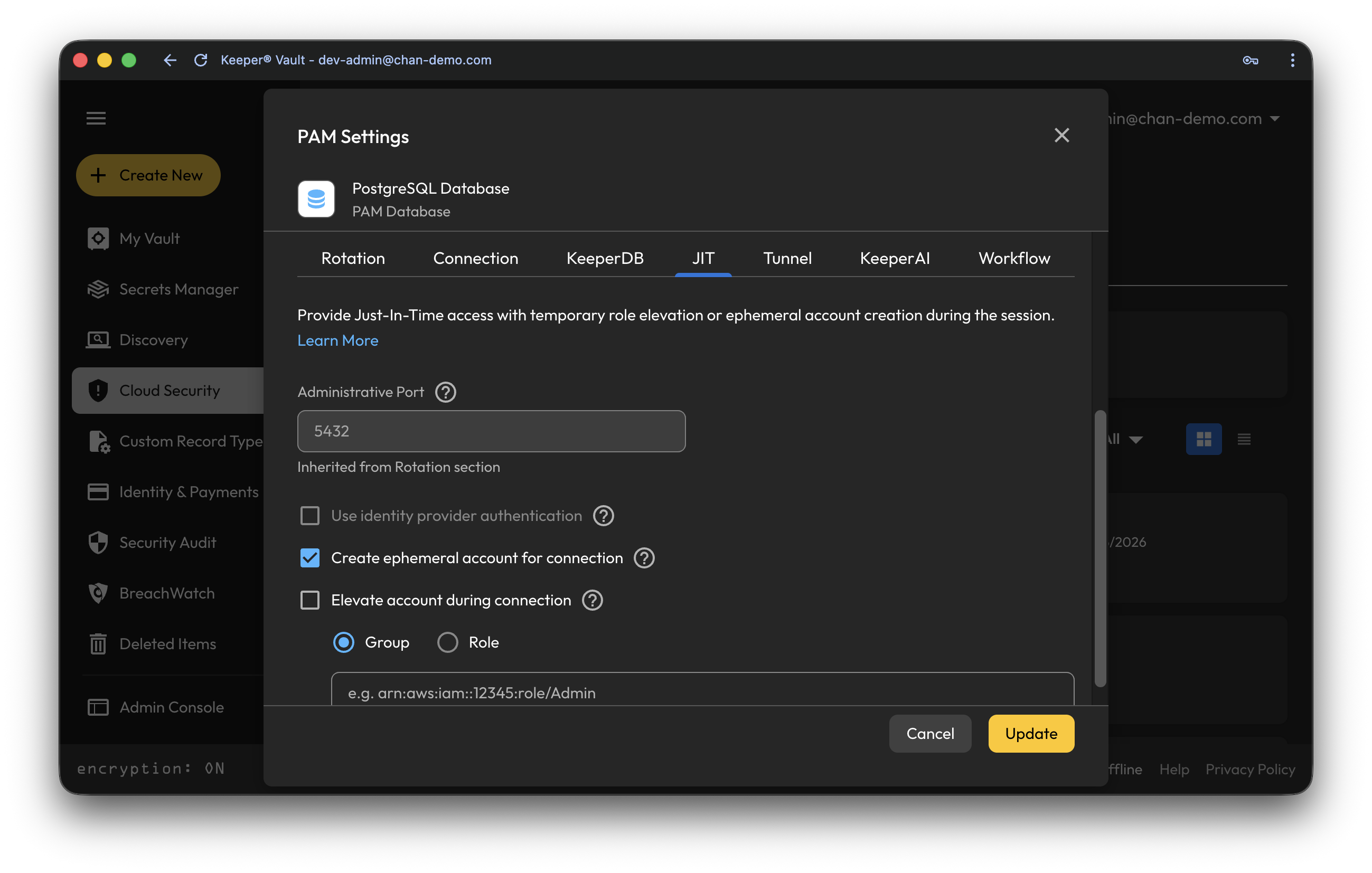
**\[JITアクセスの有効化]** を選択すると、[JIT構成設定](/keeperpam/jp/privileged-access-manager/just-in-time-access-jit/ephemeral-accounts-and-privilege-elevation.md)を編集し、レコード向けのジャストインタイムアクセスを設定できます。
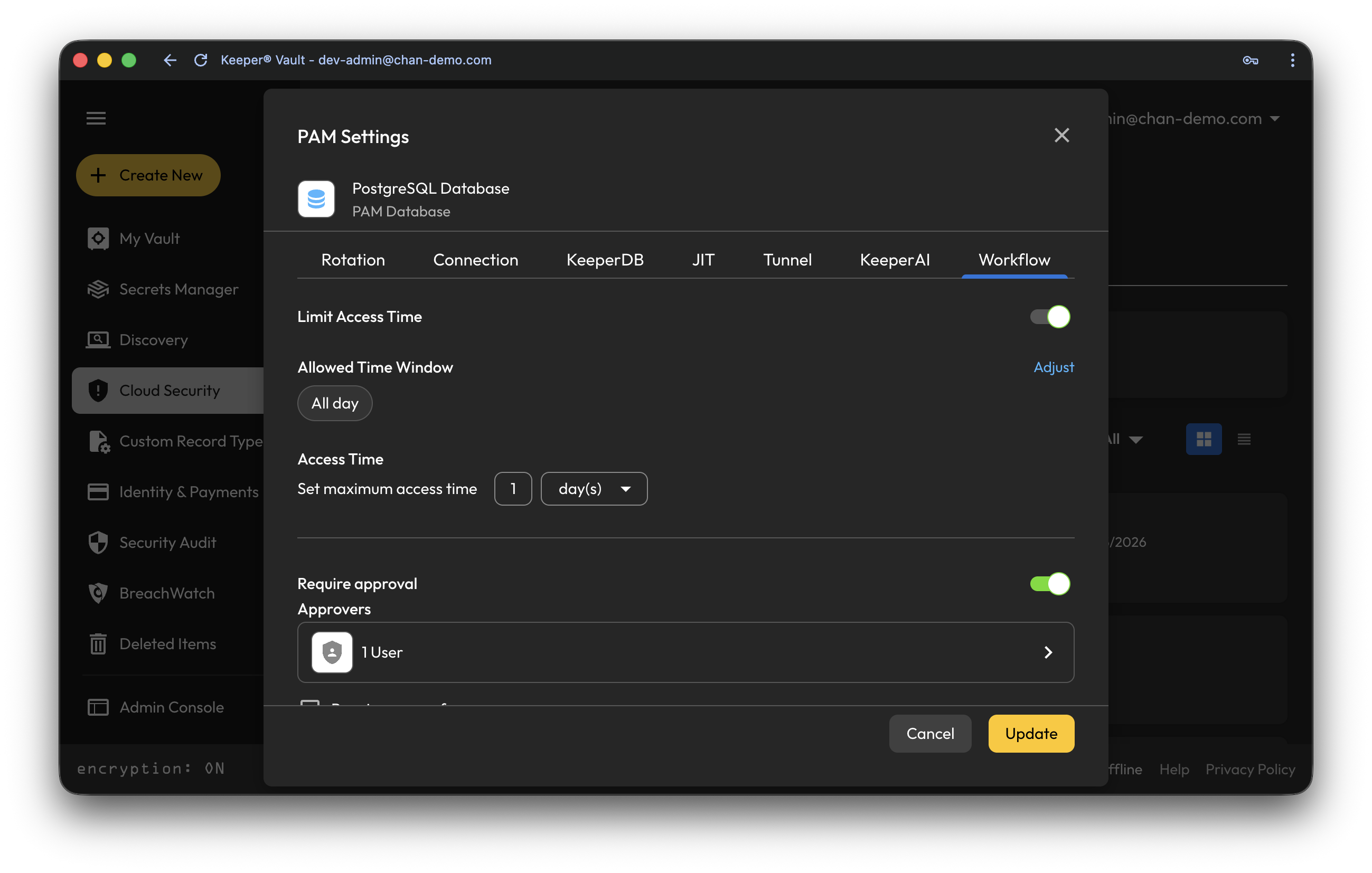
**\[ワークフロー]** を選択すると、[ワークフロー構成設定](/keeperpam/jp/privileged-access-manager/just-in-time-access-jit.md#pages-in-this-section)を編集し、リソースへのアクセス時間の制限、必要な承認者の追加、レコードのチェックイン、MFAの必須化などを設定できます。[推奨ロールアウト](/keeperpam/jp/privileged-access-manager/just-in-time-access-jit.md#recommended-rollout)の構成が完了したら **\[更新]** をクリックし、続けて **\[保存して続行]** をクリックします。
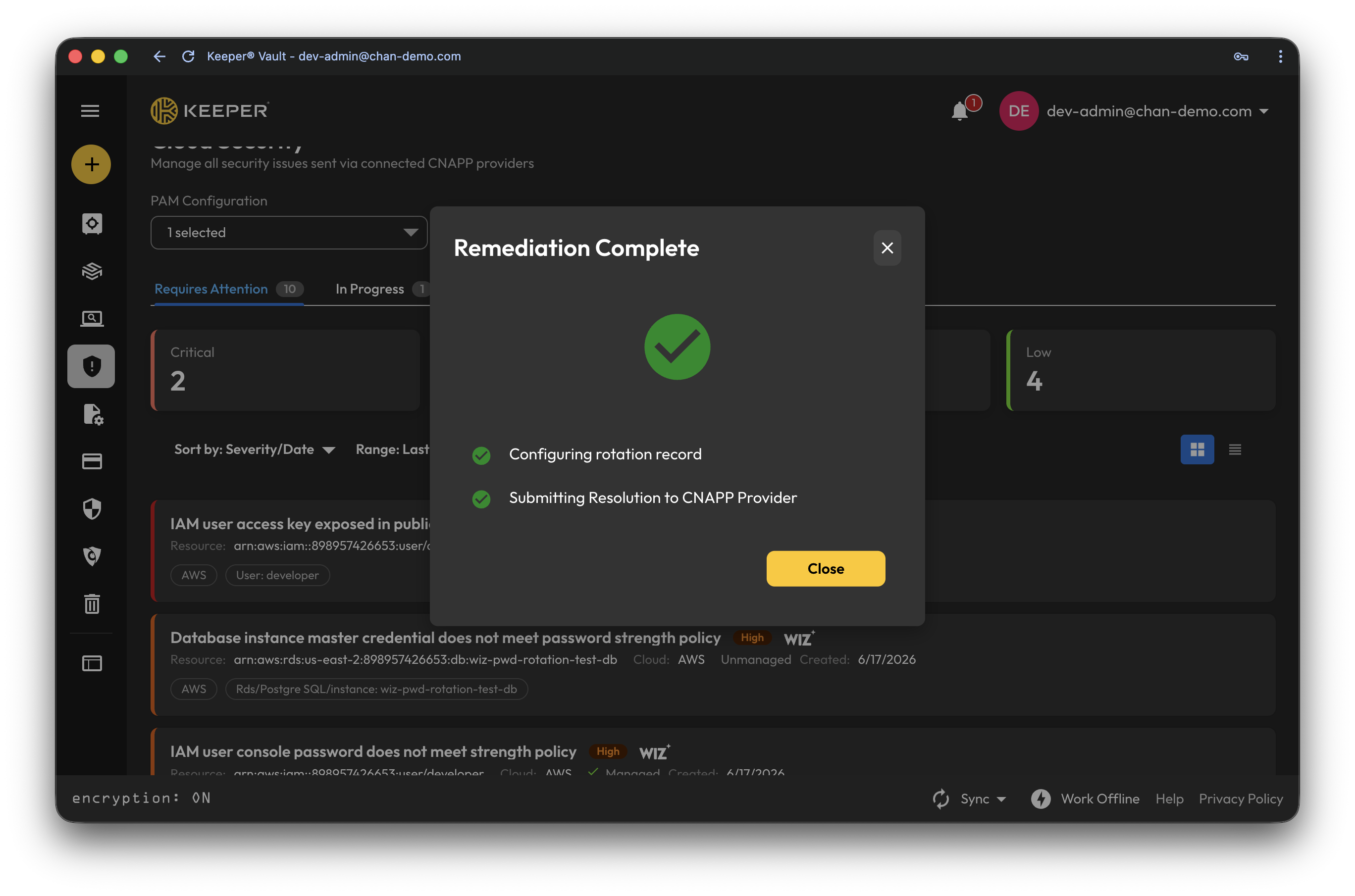
KeeperからWizへ、問題に対処した旨が自動的に通知されます。検出結果は **\[クラウドセキュリティ]** ダッシュボードの **\[進行中]** タブに移り、Wiz側でも手動での追加対応なしにステータスの更新を確認できます。
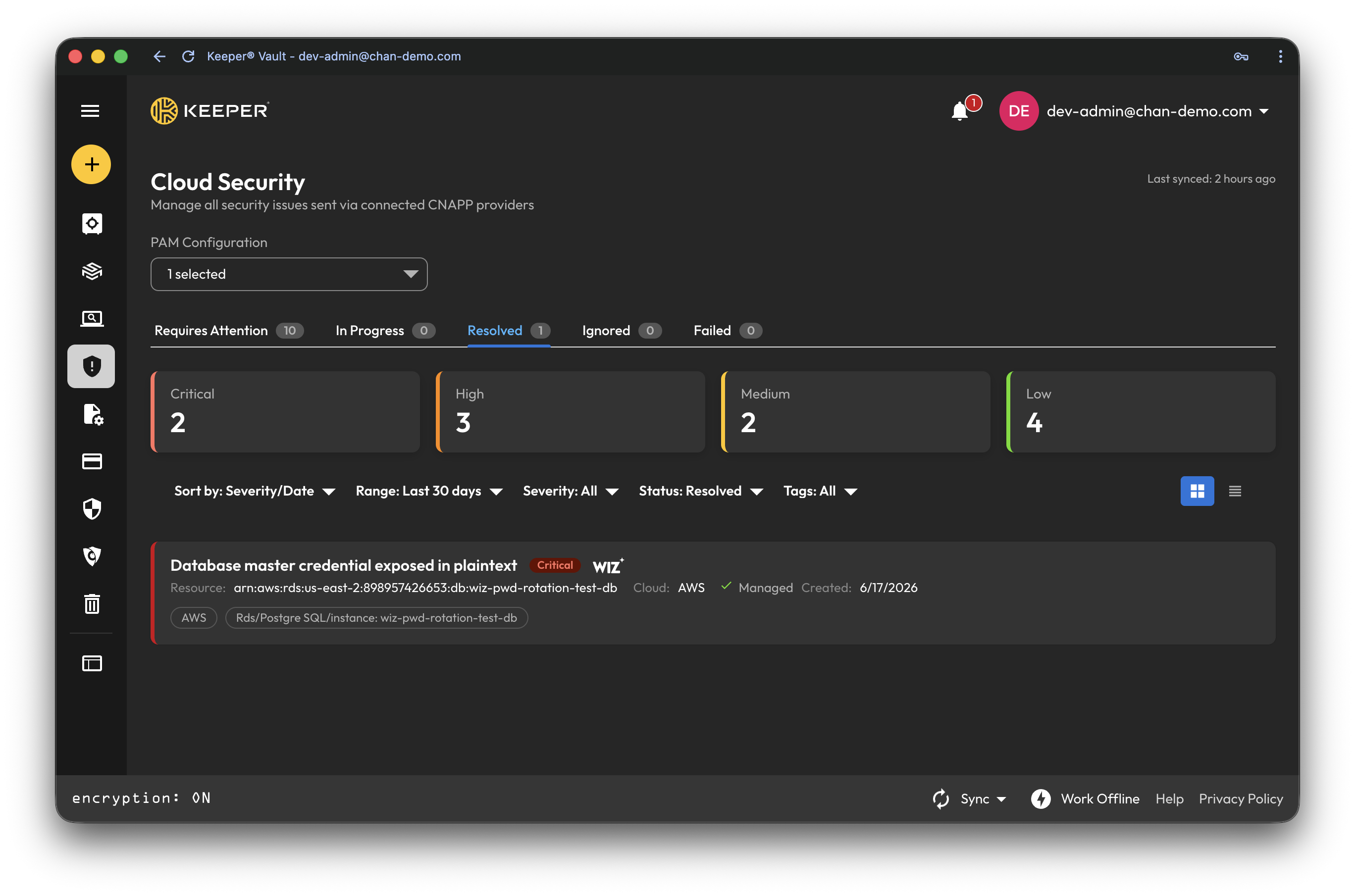
次回のWizスキャンサイクルでは、露出した認証情報は表示されなくなります。Wizから解決済みの検出結果がKeeperへ返送されると、**\[進行中]** から **\[解決済み]** へスムーズに移行します。
---
# Agent Instructions
This documentation is published with GitBook. GitBook is the documentation platform designed so that both humans and AI agents can read, navigate, and reason over technical content effectively. Learn more at gitbook.com.
## Querying This Documentation
If you need additional information that is not directly available in this page, you can query the documentation by asking a question.
Perform an HTTP GET request on the following URL with the `ask` and `goal` query parameters:
```
GET https://docs.keeper.io/keeperpam/jp/privileged-access-manager/cloud-security/wiz-integration.md?ask=&goal=
```
`ask` is the immediate question: it should be specific, self-contained, and written in natural language.
`goal` is what the user is ultimately trying to achieve, the reason they need the answer. Sharing it helps GitBook give you a better, more relevant answer. A goal is most helpful when it describes the outcome the user wants rather than restating the question. For example, with `ask=how do I create an API token`, a goal like `automate deployments from our CI pipeline` lets GitBook tailor the answer to that use case.
The response will contain a direct answer to the question and relevant excerpts and sources from the documentation.
Use this mechanism when the answer is not explicitly present in the current page, you need clarification or additional context, or you want to retrieve related documentation sections.

.png?alt=media)