


# Azure Container Apps上のゲートウェイ

<figure><img src="/files/vtVHpRj37g4c3Pi2Ty0T" alt=""><figcaption></figcaption></figure>

## 概要 <a href="#overview" id="overview"></a>

本文書では、Azure Container Apps上にKeeperゲートウェイをインストール、構成、更新する手順を説明します。Keeperゲートウェイのコンテナは、Rocky Linux 9のベースイメージを基にビルドされ、[DockerHub](https://hub.docker.com/r/keeper/gateway)で配布されています。

## 要件 <a href="#prerequisites" id="prerequisites"></a>

#### Azure環境の要件 <a href="#azure-environment-requirements" id="azure-environment-requirements"></a>

* 有効なAzureサブスクリプション
* `containerapp` 拡張機能付きのAzure CLI
* Keeperボルトから取得したゲートウェイの構成文字列
* オプションBを利用する場合は `keyvault` 拡張機能が必要
* `Microsoft.App/environments` に委任したACA環境用サブネット (プレフィックス長は少なくとも `/27`)

#### **Docker Hubの認証** <a href="#docker-hub-authentication" id="docker-hub-authentication"></a>

Azureで匿名のイメージプルに起因するレート制限を避けるため (多くの場合 `429 Too Many Requests` となります)、以下が必要です。

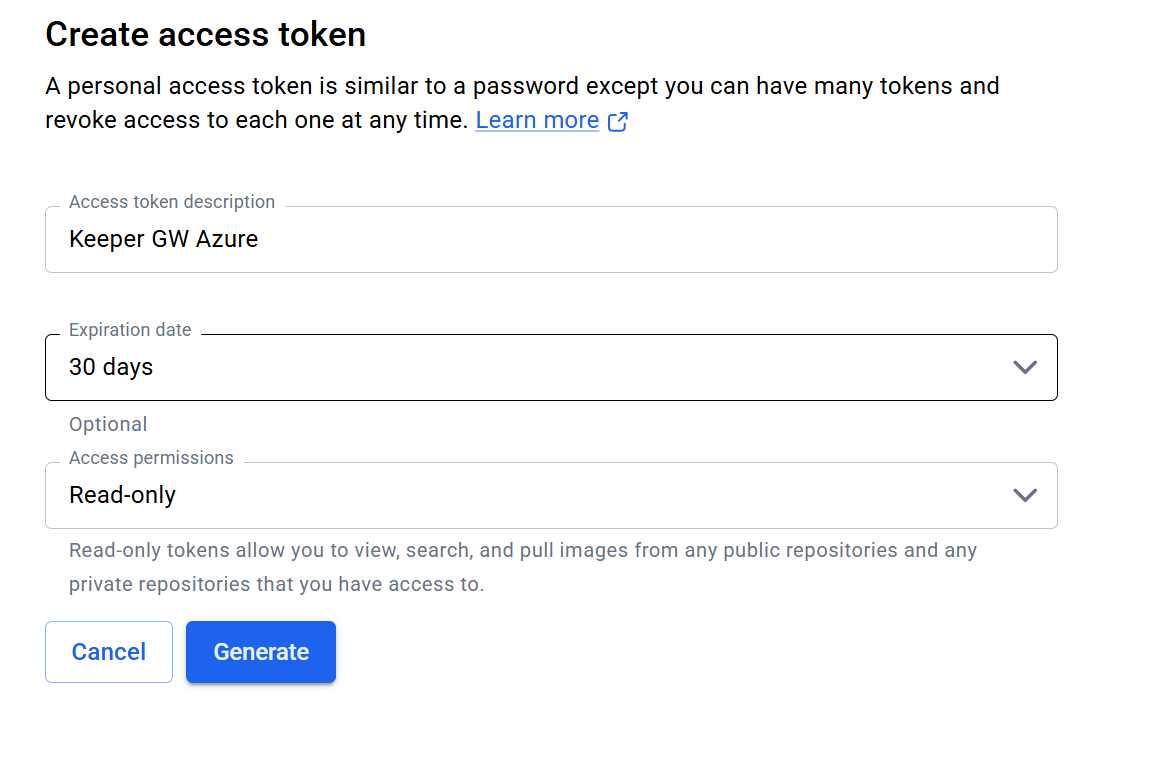
* **Docker Hubアカウント:** [hub.docker.com](https://hub.docker.com/)に登録したアカウント
* **パーソナルアクセストークン:** **\[アカウント設定]** > **\[セキュリティ]** で生成し、`Read Only` 権限を付与したトークン

<figure><img src="/files/UfEG4WARSoGqveWyJsF4" alt=""><figcaption></figcaption></figure>

***

## ゲートウェイの作成 <a href="#create-a-gateway" id="create-a-gateway"></a>

新しいゲートウェイは、ウェブボルトまたはデスクトップアプリで **\[新規作成]** > **\[ゲートウェイ]** から作成できます。

KeeperコマンダーのCLIからゲートウェイと構成ファイルを作成することもできます。

```
pam gateway new -n "<Gateway Name>" -a <Application Name or UID> -c b64
```

アプリケーション名とUIDは `secrets-manager app list` で確認できます。

***

## 環境のセットアップ <a href="#environment-setup" id="environment-setup"></a>

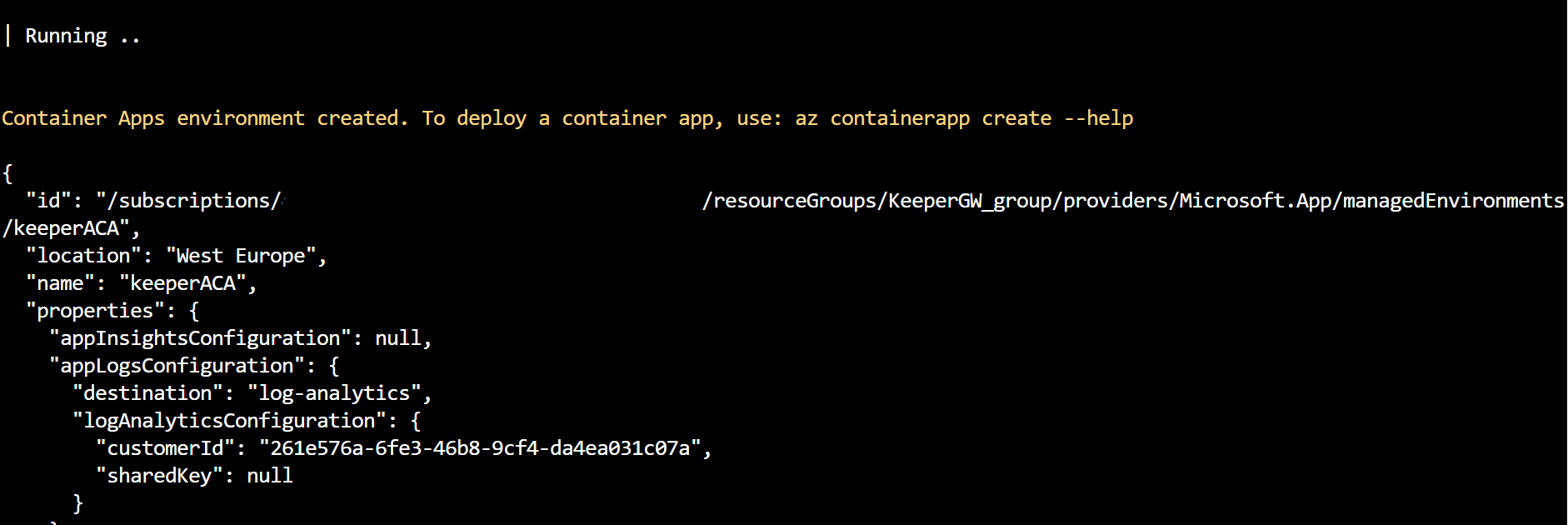
コンテナアプリ環境は、ゲートウェイを配置するセキュリティ上の境界となります。

```
az containerapp env create \
--name <ENVIRONMENT_NAME> \
--resource-group <RESOURCE_GROUP> \
--location <LOCATION> \
--infrastructure-subnet-resource-id /subscriptions/<SUBSCRIPTION_ID>/resourceGroups/<VNET_RESOURCE_GROUP>/providers/Microsoft.Network/virtualNetworks/<VNET_NAME>/subnets/<SUBNET_NAME>
```

<figure><img src="/files/xCXjxwbYvv2LaCghFFLU" alt=""><figcaption></figcaption></figure>

### シークレット管理の選択肢 <a href="#secrets-management-options" id="secrets-management-options"></a>

`GATEWAY_CONFIG` は、内部マネージドシークレットまたはAzure Key Vaultのいずれかで管理します。

#### オプションA: 内部マネージドシークレット <a href="#option-a-internal-managed-secrets" id="option-a-internal-managed-secrets"></a>

```
az containerapp create \
  --name <APP_NAME> \
  --resource-group <RESOURCE_GROUP> \
  --environment <ENVIRONMENT_NAME> \
  --image keeper/gateway:latest \
  --cpu 2.0 --memory 8Gi \
  --min-replicas 2 \
  --max-replicas 5 \
  --registry-server index.docker.io \
  --registry-username <DOCKER_HUB_USER> \
  --registry-password <DOCKER_HUB_PASSWORD_OR_PAT> \
  --secrets "gateway-config-secret=<YOUR_BASE64_CONFIG>" \
  --env-vars "ACCEPT_EULA=Y" "GATEWAY_CONFIG=secretref:gateway-config-secret"
```

#### オプションB: Azure Key Vault <a href="#option-b-azure-key-vault" id="option-b-azure-key-vault"></a>

**シークレットの保存:** ゲートウェイの構成値をAzure Key Vaultに保存します。

```
az keyvault secret set --vault-name <VAULT_NAME> --name "DOCKER-TOKEN" --value "<YOUR_DOCKER_HUB_PAT>"
az keyvault secret set --vault-name <VAULT_NAME> --name "GATEWAY-CONFIG" --value "<YOUR_BASE64_CONFIG>"
```

**IDを付与してデプロイ:** システム割り当てマネージドIDを有効にしてコンテナアプリを作成します。

```
az containerapp create \
  --name <APP_NAME> \
  --resource-group <RESOURCE_GROUP> \
  --environment <ENVIRONMENT_NAME> \
  --image keeper/gateway:latest \
  --cpu 2.0 --memory 8Gi \
  --system-assigned \
  --registry-server index.docker.io \
  --registry-username <DOCKER_HUB_USER> \
  --registry-password <Enter your Docker PAT, which starts with dckr_pat_...>
  --env-vars "ACCEPT_EULA=Y"
```

<figure><img src="/files/bRaUmJsglfTWQqqoyuef" alt=""><figcaption></figcaption></figure>

**アクセスの付与:** コンテナアプリのマネージドIDに、Key Vaultのシークレット読み取り権限を付与します。

```
PRINCIPAL_ID=$(az containerapp show -n <APP_NAME> -g <RESOURCE_GROUP> --query identity.principalId -o tsv) 
az role assignment create --assignee $PRINCIPAL_ID --role "Key Vault Secrets User" --scope /subscriptions/<SUB_ID>/resourceGroups/providers/Microsoft.KeyVault/vaults/<VAULT_NAME>
```

**シークレットの参照:** Key Vaultのシークレットをコンテナアプリのシークレットとして登録します。

```
az containerapp secret set -n <APP_NAME> -g <RESOURCE_GROUP> \
--secrets "docker-password-kv=keyvaultref:https://<VAULT_NAME>.vault.azure.net/secrets/DOCKER-TOKEN,identityref:system" \
"gateway-config-kv=keyvaultref:https://<VAULT_NAME>.vault.azure.net/secrets/GATEWAY-CONFIG,identityref:system"
```

**レジストリへの割り当て:** Docker Hub へのイメージプル認証用シークレットを登録します。

```
az containerapp registry set 
-n <APP_NAME> \
-g <RESOURCE_GROUP> \
--server index.docker.io \
--username <DOCKER_HUB_USER> \
--password "secretref:gateway-config-kv"
```

<figure><img src="/files/RpMHliTpKg7twNBydyxn" alt=""><figcaption></figcaption></figure>

***

### 共有メモリの有効化 <a href="#enable-shared-memory" id="enable-shared-memory"></a>

セッション録画のため、Keeperゲートウェイは共有メモリ (`/dev/shm`) の容量拡張が必要です。初回作成後にYAMLを更新して反映します。

**構成のエクスポート**

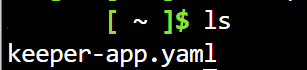
`az containerapp show -n <APP_NAME> -g <RESOURCE_GROUP> -o yaml > keeper-app.yaml`

<figure><img src="/files/dTcJMDTO0PZiKaO6wqKs" alt=""><figcaption></figcaption></figure>

<figure><img src="/files/CoPEmMdcHV1G6jZgIfln" alt=""><figcaption></figcaption></figure>

**YAMLの編集**

`template` セクションを開き、 `volumes` および `volumeMounts` のブロックを追加します。

```
template:
  containers:
  - name: <APP_NAME>
    image: keeper/gateway:latest
    env:
    - name: GATEWAY_CONFIG
      secretRef: gateway-config-kv # Use name from Option A or B
    volumeMounts:
    - mountPath: /dev/shm
      volumeName: shm-volume
  volumes:
  - name: shm-volume
    storageType: EmptyDir
```

**更新の適用**

`az containerapp update -n <APP_NAME> -g <RESOURCE_GROUP> --yaml keeper-app.yaml`

#### 運用コマンド <a href="#operational-commands" id="operational-commands"></a>

| **操作**     | **コマンド**                                                                                           |
| ---------- | -------------------------------------------------------------------------------------------------- |
| 共有メモリの確認   | `az containerapp exec -n <APP_NAME> -g <RESOURCE_GROUP> --command "df -h \| grep shm"`             |
| ログの表示      | `az containerapp logs show -n <APP_NAME> -g <RESOURCE_GROUP> --follow`                             |
| レプリカ数のゼロ化  | `az containerapp scale update -n <APP_NAME> -g <RESOURCE_GROUP> --min-replicas 0 --max-replicas 0` |
| レプリカ数の引き上げ | `az containerapp scale update -n <APP_NAME> -g <RESOURCE_GROUP> --min-replicas 2 --max-replicas 5` |

***

## ネットワーク構成 <a href="#network-configuration" id="network-configuration"></a>

Keeperゲートウェイはアウトバウンド専用の接続を確立するため、インバウンドのファイアウォールルールは必要ありません。ただし、以下のアウトバウンド接続は許可されている必要があります。

| 宛先エンドポイント                                                                                                                                                                                                                                                                             | 必要なポート                                                                           | 備考                                                               |
| ------------------------------------------------------------------------------------------------------------------------------------------------------------------------------------------------------------------------------------------------------------------------------------- | -------------------------------------------------------------------------------- | ---------------------------------------------------------------- |
| <p><strong>Keeperクラウド</strong> <code>keepersecurity.\[x]</code></p><p>エンドポイント:</p><p>US: <code>.com</code></p><p>EU: <code>.eu</code></p><p>AU: <code>.com.au</code></p><p>JP: <code>.jp</code></p><p>CA: <code>.ca</code></p><p>US\_GOV: <code>.us</code></p>                        | TLSポート443                                                                        | Keeperクラウドと通信し、ネイティブプロトコル (例: SSH、RDP) を介して対象インフラストラクチャにアクセスします。 |
| <p><strong>Keeperルーター</strong> <code>connect.keepersecurity.\[x]</code></p><p>エンドポイント:</p><p>US: <code>.com</code></p><p>EU: <code>.eu</code></p><p>AU: <code>.com.au</code></p><p>JP: <code>.jp</code></p><p>CA: <code>.ca</code></p><p>US\_GOV: <code>.us</code></p>                | TLSポート443                                                                        | Keeperルーターと通信し、安全なリアルタイムWebSocket接続を確立します。                       |
| <p><strong>Keeper Stun/Turnサービス</strong></p><p><code>krelay.keepersecurity.\[x]</code></p><p>エンドポイント:</p><p>US: <code>.com</code></p><p>EU: <code>.eu</code></p><p>AU: <code>.com.au</code></p><p>JP: <code>.jp</code></p><p>CA: <code>.ca</code></p><p>US\_GOV: <code>.us</code></p> | <p>TCPおよびUDPのポート3478を開放。<br><br>さらに、TCPおよびUDPのポート49152～65535のアウトバウンドアクセスを許可。</p> | ゲートウェイを介して、エンドユーザーのボルトと対象システム間の安全で暗号化されたWebRTC接続を確立します。          |

ゲートウェイでは、すべての暗号化および復号化処理をローカルで実行することでゼロ知識を保持します。Keeperクラウドとの通信にはKeeperシークレットマネージャーのAPIを使用します。


---

# Agent Instructions: Querying This Documentation

If you need additional information that is not directly available in this page, you can query the documentation dynamically by asking a question.

Perform an HTTP GET request on the current page URL with the `ask` query parameter:

```
GET https://docs.keeper.io/keeperpam/jp/privileged-access-manager/getting-started/gateways/gateway-on-azure-container-app.md?ask=<question>
```

The question should be specific, self-contained, and written in natural language.
The response will contain a direct answer to the question and relevant excerpts and sources from the documentation.

Use this mechanism when the answer is not explicitly present in the current page, you need clarification or additional context, or you want to retrieve related documentation sections.
