> For the complete documentation index, see [llms.txt](https://docs.keeper.io/llms.txt). Markdown versions of documentation pages are available by appending `.md` to page URLs; this page is available as [Markdown](https://docs.keeper.io/keeperpam/jp/privileged-access-manager/getting-started/pam-configuration/hashicorp-vault-environment-setup.md).
# HashiCorp Vault環境のセットアップ
KeeperPAM用HashiCorp Vault環境の構成
## HashiCorp Vault環境の概要
{% hint style="info" %}
ボルトUIはバージョン18.8で更新される予定です。
{% endhint %}
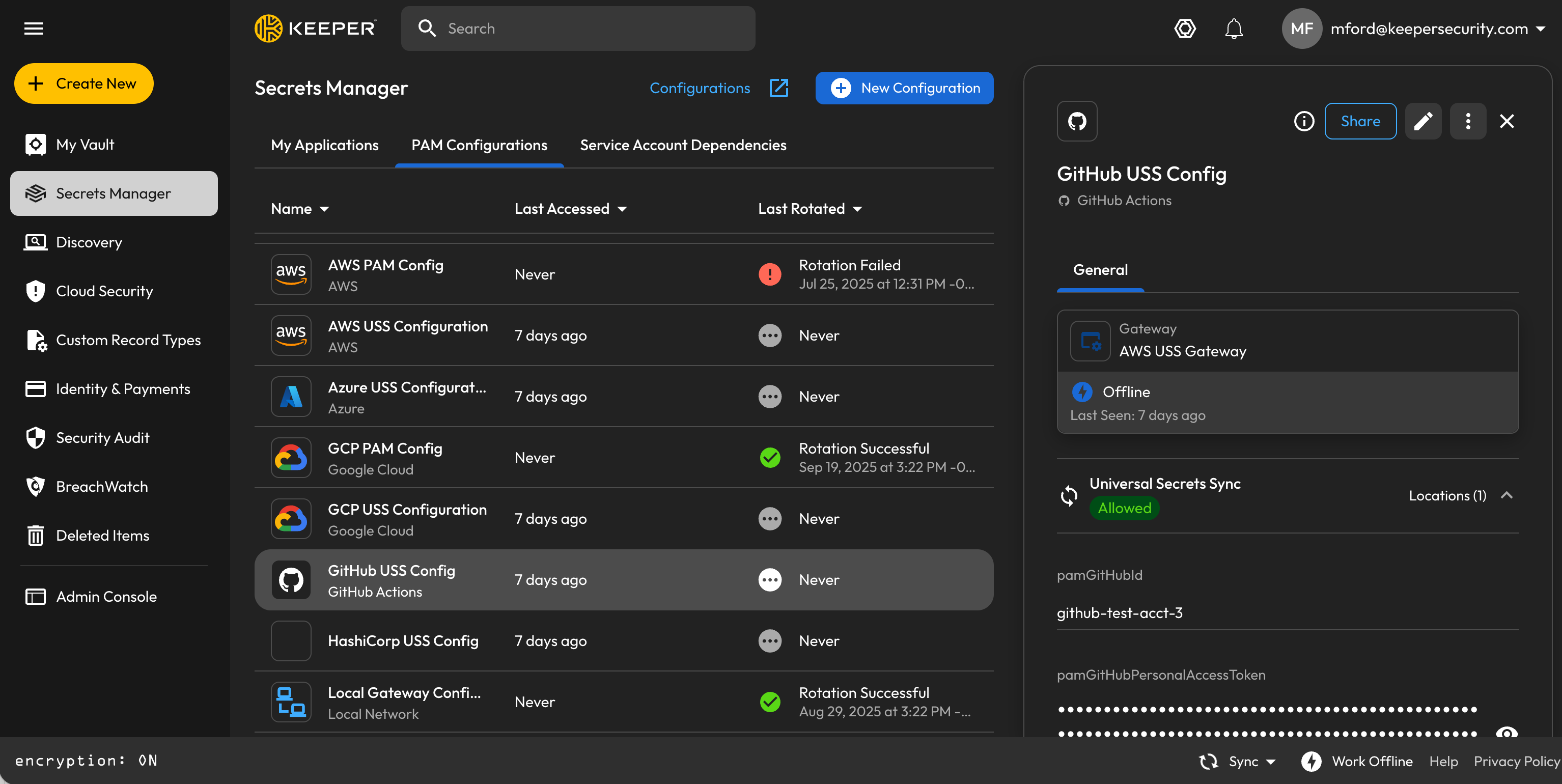
HashiCorp Vaultのシークレットは、PAM構成レコードで指定したトークンを使用してKeeperゲートウェイが管理できます。本ガイドでは、HashiCorp Vaultテナント向けPAM構成の設定手順を取り扱います。
**注**: 現時点では、HashiCorp PAMはユニバーサルシークレット同期にのみ使用できます。
### 要件
1. 本ガイドに進む前に、[Keeperゲートウェイのインストールと構成](/keeperpam/jp/privileged-access-manager/getting-started/gateways/one-time-access-token.md)が完了していることを確認してください。
2. ゲートウェイが使用できる、権限を絞ったポリシーを持つ長期有効なパーソナルアクセストークンを作成します。最も簡単な方法は、オーファンの定期トークンを使用することです。たとえば、以下のコマンドは、更新間隔が1年のトークンを生成します。
{% code overflow="wrap" %}
```
vault token create -orphan -period=8760h -policy="" -display-name="one-year-token"
```
{% endcode %}
その他のトークン生成方法については、[HashiCorpのドキュメント](https://developer.hashicorp.com/vault/docs/concepts/tokens)をご参照ください。
## HashiCorp PAM構成のセットアップ
### HashiCorp PAM構成の作成
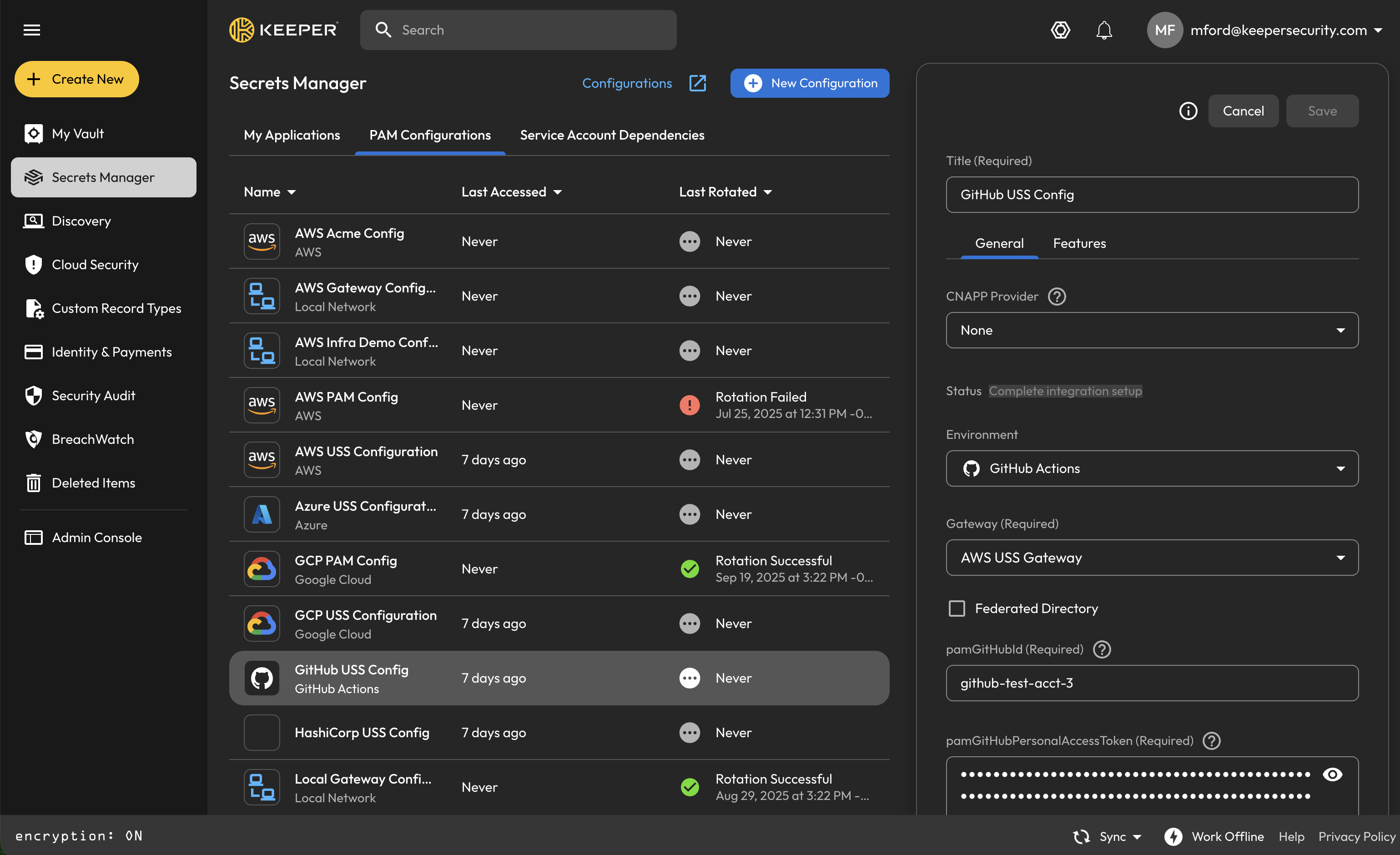
上記の手順がすべて完了したら、HashiCorp Vault向けの新しいPAM構成を追加します。
* **HashiCorp ID:** わかりやすい名前
* **Vault Address:** VaultサーバーまたはクラスターのURL。セルフホスト型のVault EnterpriseまたはCommunity Editionの場合は、サーバーアドレスを使用します (例: [https://vault.mycompany.com:8200)。HCP](https://docs.keeper.io/keeperpam/jp/privileged-access-manager/getting-started/pam-configuration/https:/vault.mycompany.com:8200\)。HCP) Vault Dedicatedの場合は、クラスターのパブリックエンドポイントを使用します (例: [https://xxx.vault.hashicorp.cloud:8200)。](https://docs.keeper.io/keeperpam/jp/privileged-access-manager/getting-started/pam-configuration/https:/xxx.vault.hashicorp.cloud:8200\)。)
* **Vault Token:** 上記で作成したトークンの値
* **Namespace (任意):** すべての同期操作の対象とするVaultの名前空間。Vault Community Edition、またはルート名前空間を使用するセルフホスト型Enterpriseクラスターの場合は空欄のままにします。HCP Vault Dedicatedの場合は、組織でカスタム名前空間を使用していない限りadminと入力します。
* **KV Mount Path (任意):** シークレットの書き込み先となるKV v2シークレットエンジンのマウントポイント。空欄の場合は `secret` が既定値になります。
---
# Agent Instructions
This documentation is published with GitBook. GitBook is the documentation platform designed so that both humans and AI agents can read, navigate, and reason over technical content effectively. Learn more at gitbook.com.
## Querying This Documentation
If you need additional information that is not directly available in this page, you can query the documentation by asking a question.
Perform an HTTP GET request on the following URL with the `ask` and `goal` query parameters:
```
GET https://docs.keeper.io/keeperpam/jp/privileged-access-manager/getting-started/pam-configuration/hashicorp-vault-environment-setup.md?ask=&goal=
```
`ask` is the immediate question: it should be specific, self-contained, and written in natural language.
`goal` is what the user is ultimately trying to achieve, the reason they need the answer. Sharing it helps GitBook give you a better, more relevant answer. A goal is most helpful when it describes the outcome the user wants rather than restating the question. For example, with `ask=how do I create an API token`, a goal like `automate deployments from our CI pipeline` lets GitBook tailor the answer to that use case.
The response will contain a direct answer to the question and relevant excerpts and sources from the documentation.
Use this mechanism when the answer is not explicitly present in the current page, you need clarification or additional context, or you want to retrieve related documentation sections.