> For the complete documentation index, see [llms.txt](https://docs.keeper.io/llms.txt). Markdown versions of documentation pages are available by appending `.md` to page URLs; this page is available as [Markdown](https://docs.keeper.io/keeperpam/jp/privileged-access-manager/references/importing-pam-resources/adding-pam-resources-to-an-existing-model.md).
# 既存のモデルへのPAMリソースの追加
新規モデルではなく既存のPAM構成へコンテンツを追加する
PAMのコンテンツを手動で作成した場合、または `pam project import` コマンドで作成した場合のいずれでも、その後は `pam project extend` コマンドでさらにコンテンツを追加できます。
{% hint style="info" %}
`pam project extend` コマンドは、Keeperコマンダー17.2.8以降で利用できます。
{% endhint %}
## JSONテンプレート
この手続きでは、[PAMリソースのインポート](https://github.com/Keeper-Security/gitbook-jp-secrets-manager/tree/main/privileged-access-manager/references/importing-pam-resources.md)の手順で生成されるものと同様の `pam_import.json` テンプレートが必要です。ただし、以下の点が異なります。
* テンプレートには `pam_data` オブジェクトのみを含めればよい。`extend` での追加ではプロジェクト情報は不要 (含めても処理は失敗しない)
* PAMディレクトリレコードは再作成されないが、接続の管理用認証情報 (ADドメイン管理者) を参照できるようにするため、ディレクトリ定義をテンプレートに含める必要がある
* 新規の `pamMachine` / `pamUser` の `title` は、ファイル内および既存のPAMモデル全体で一意 (競合防止)
```json
{
"pam_data": {
"resources": [
{
"type": "pamDirectory",
"title": "My Domain Controller",
"directory_type": "active_directory",
"host": "lureydemo.local",
"port": "636",
"use_ssl": true,
"domain_name": "lureydemo.local",
"pam_settings": {
"options": {
"rotation": "on",
"connections": "on",
"tunneling": "on",
"graphical_session_recording": "on"
},
"connection": {
"protocol": "rdp",
"port": "3389",
"security": "any",
"ignore_server_cert": true,
"administrative_credentials": "My Domain Admin"
}
},
"users": [
{
"type": "pamUser",
"title": "My Domain Admin",
"login": "administrator@lureydemo.local",
"password": "YourExistingDomainPassword",
"rotation_settings": {
"rotation": "general",
"enabled": "on",
"schedule": {
"type": "on-demand"
}
}
}
]
},
{
"type": "pamMachine",
"title": "extended_machine_1",
"host": "desktop-machine1",
"port": "5986",
"ssl_verification": true,
"operating_system": "Windows",
"pam_settings": {
"options": {
"rotation": "on",
"connections": "on",
"tunneling": "on",
"graphical_session_recording": "on"
},
"connection": {
"protocol": "rdp",
"port": "3389",
"security": "any",
"ignore_server_cert": true,
"administrative_credentials": "My Domain Controller.My Domain Admin"
}
},
"users": [
{
"type": "pamUser",
"title": "user_extended_machine_1",
"login": "extended_user",
"password": "LocalAdminPassword123",
"rotation_settings": {
"rotation": "general",
"enabled": "on",
"schedule": {
"type": "on-demand"
}
}
}
]
}
]
}
}
```
このテンプレートを使うと、既存のモデルに新しい pamMachine および pamUser レコードが1件ずつインポートされます。テンプレートの構造については、[PAMリソースのインポート](https://github.com/Keeper-Security/gitbook-jp-secrets-manager/tree/main/privileged-access-manager/references/importing-pam-resources.md)をご参照ください。わかりやすさのためコメントは省いており、掲載している値はサンプル実行の例と同じです。
## フォルダ管理
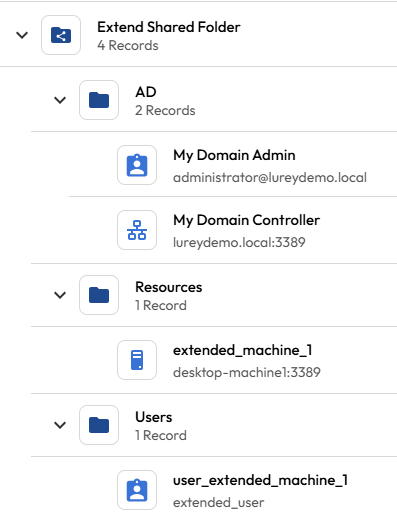
JSONの各オブジェクト (リソースおよびユーザー) に `folder_path` 属性を追加すると、インポートする新しいレコードの共有フォルダおよび個人用フォルダの保存場所を指定できます。
```json
...
{
"type": "pamDirectory",
"title": "My Domain Controller",
"folder_path": "Extend Shared Folder/AD",
...
{
"type": "pamUser",
"title": "My Domain Admin",
"folder_path": "Extend Shared Folder/AD",
...
{
"type": "pamMachine",
"title": "extended_machine_1",
"folder_path": "Extend Shared Folder/Resources",
...
{
"type": "pamUser",
"title": "user_extended_machine_1",
"folder_path": "Extend Shared Folder/Users",
```
**補足**
* 共有フォルダが既定の2つより多い構成のPAMモデルでは、各レコードへの `folder_path` 指定が必須
* 指定する共有フォルダは事前に存在していること
* ネストした個人用フォルダが未作成の場合は自動的に作成される
## インポートの実行
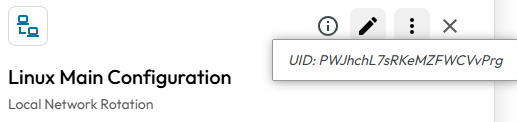
上記のJSONテンプレートファイルの用意ができたら、ボルトまたはコマンダーからPAM構成のUIDを取得します。このUIDが、追加先となる既存のPAMモデルへの参照になります。
* ボルトでの確認
* コマンダーでの確認
```bash
# List all configurations
pam config list
```
コマンダーでは、以下のコマンドで `pam project extend` によるインポートを実行します。
```bash
pam project extend --config PWJhchL7sRKeMZFWCVvPrg --filename "path/to/pam_import.json"
```
### ドライラン
インポートを実行する前に `--dry-run` フラグを付けると、作成されるレコードとフォルダを確認できます。
```bash
pam project extend -c PWJhchL7sRKeMZFWCVvPrg -f "path/to/pam_import.json" --dry-run
[DRY RUN] No changes will be made. This is a simulation only.
[DRY RUN] Will use PAM Configuration: PWJhchL7sRKeMZFWCVvPrg "Import Demo Project" Configuration
[DRY RUN] Will use PAM Gateway: dbYL-PiETJ2vpyhIo7dexQ "Import Demo Project" Gateway
[DRY RUN] Will use KSM Application: vt8rk_CVNOPpCHb4llPuzQ "Import Demo Project" Application
[DRY RUN] Total shared folders found for the KSM App: 2
[DRY RUN] Found shared folder: aJqCPub1pEqgsG5-STORsQ "Import Demo Project - Users" (Editable)
[DRY RUN] Found shared folder: lTQFgRx8u5nu3OOa9-6FlA "Import Demo Project - Resources" (Editable)
[DRY RUN] Processed 0 folder paths:
[DRY RUN] - Good paths: 0
[DRY RUN] - Bad paths: 0
[DRY RUN] 0 existing folders, 0 new folders to be created
[DRY RUN] [existing] folder=autodetect record=pamDirectory: "My Domain Controller" uid=1uml7drZ4QrpCBDvvJ7idQ
[DRY RUN] [new] folder=autodetect record=pamMachine: extended_machine_2
[DRY RUN] [existing] folder=autodetect record=pamUser: "My Domain Admin" (nested on "My Domain Controller") uid=rTk2mdsnhbAaDZEp948_AQ
[DRY RUN] [new] folder=autodetect record=pamUser: user_extended_machine_2 (nested on extended_machine_2)
[DRY RUN] 2 existing records (skipped), 2 new records to be created
[DRY RUN COMPLETE] No changes were made. All actions were validated but not executed.
```
---
# Agent Instructions
This documentation is published with GitBook. GitBook is the documentation platform designed so that both humans and AI agents can read, navigate, and reason over technical content effectively. Learn more at gitbook.com.
## Querying This Documentation
If you need additional information that is not directly available in this page, you can query the documentation by asking a question.
Perform an HTTP GET request on the following URL with the `ask` and `goal` query parameters:
```
GET https://docs.keeper.io/keeperpam/jp/privileged-access-manager/references/importing-pam-resources/adding-pam-resources-to-an-existing-model.md?ask=&goal=
```
`ask` is the immediate question: it should be specific, self-contained, and written in natural language.
`goal` is what the user is ultimately trying to achieve, the reason they need the answer. Sharing it helps GitBook give you a better, more relevant answer. A goal is most helpful when it describes the outcome the user wants rather than restating the question. For example, with `ask=how do I create an API token`, a goal like `automate deployments from our CI pipeline` lets GitBook tailor the answer to that use case.
The response will contain a direct answer to the question and relevant excerpts and sources from the documentation.
Use this mechanism when the answer is not explicitly present in the current page, you need clarification or additional context, or you want to retrieve related documentation sections.