> For the complete documentation index, see [llms.txt](https://docs.keeper.io/llms.txt). Markdown versions of documentation pages are available by appending `.md` to page URLs; this page is available as [Markdown](https://docs.keeper.io/keeperpam/jp/secrets-manager/integrations/ai-agents/claude.md).
# Claude
Claude CodeのプラグインマーケットプレースでKeeper Agent Kitを追加する手順。数コマンドでKeeperシークレットマネージャーおよびコマンダー用スキルを導入
本書では、Claude Codeのプラグインマーケットプレースからのインストールについて説明します。別のエージェントを使用する場合は、AIエージェント向けの[インストール方法](/keeperpam/jp/secrets-manager/integrations/ai-agents.md#installation)をすべてご参照ください。
***
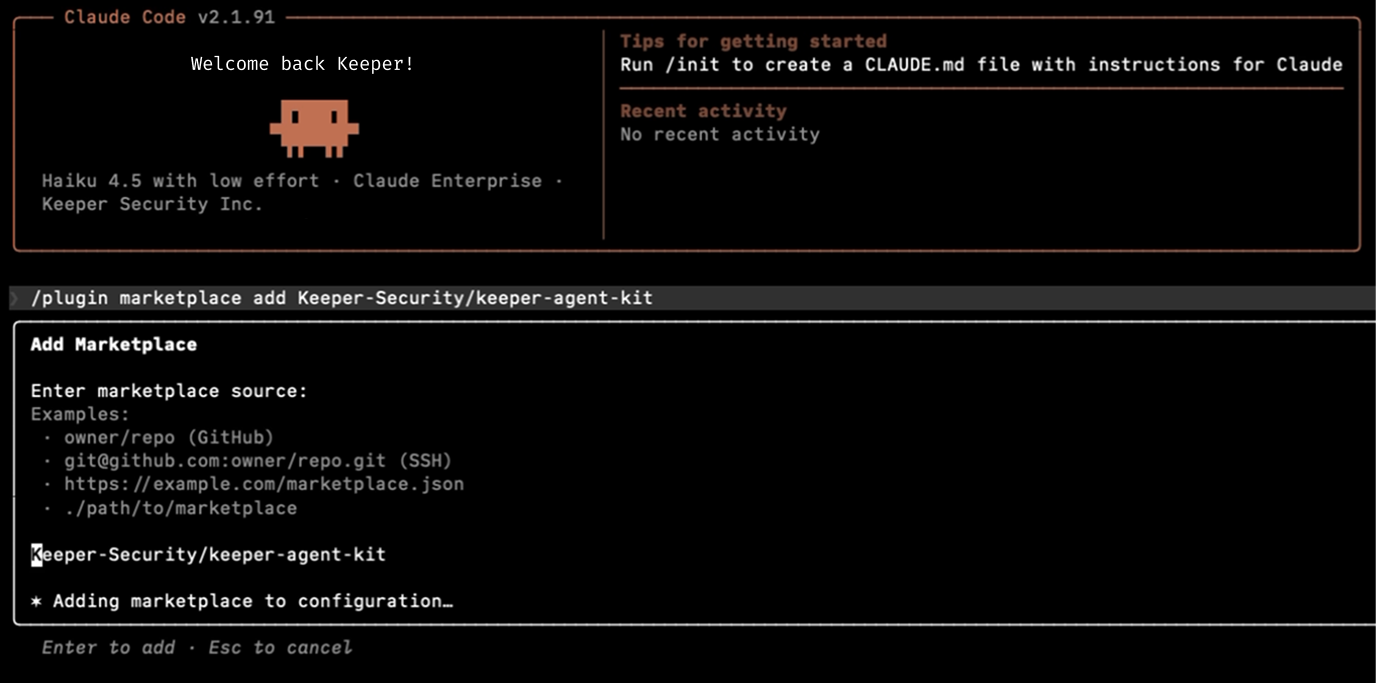
### 手順1: マーケットプレースを追加
Claude Codeのセッションを開き、以下を実行します。
```bash
/plugin marketplace add Keeper-Security/keeper-agent-kit
```
これでKeeper Agent KitのカタログがClaude Codeに登録されます。この時点ではスキルはまだインストールされていません。
{% columns fullWidth="false" %}
{% column %}
{% endcolumn %}
{% column %}
{% endcolumn %}
{% column %}
{% endcolumn %}
{% endcolumns %}
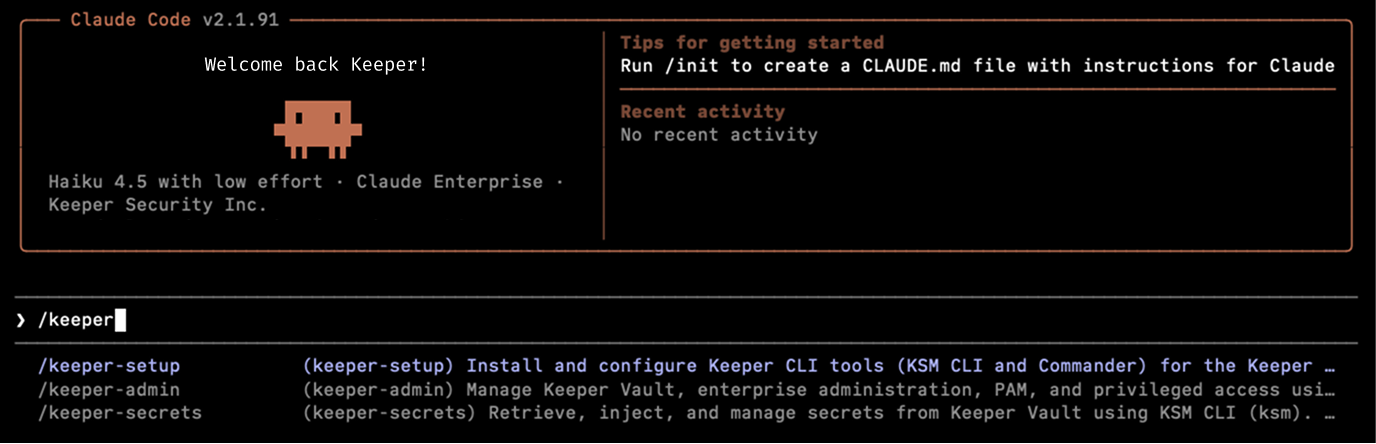
### 手順3: 動作確認
`/plugin` を実行し、**\[インストール済み]** タブを開きます。Keeperのスキルが一覧に表示されているか確認してください。動作確認として、例えば以下のプロンプトを入力してみてください。
> "How do I list my KSM profiles?"
エージェントが `ksm profile list` と応答すれば、スキルが動作しています。
***
### スコープの選択
Claude CodeのUIからインストールするときは、スコープの選択が求められます。各スコープの意味は以下のとおりです。
| スコープ | 誰が使えるか | 保存場所 | 使い分け |
| ---------------- | -------------- | ---------------------------- | ------------------------------ |
| **ユーザー** (デフォルト) | あなた、すべてのプロジェクト | `~/.claude/skills/` | 複数のリポジトリでKeeperを利用する場合 |
| **プロジェクト** | リポジトリ上の全員 | `.claude/skills/` (gitにコミット) | チーム全員に同じスキルを揃えたい場合 |
| **ローカル** | このリポジトリのみのあなた | `.claude/skills/` (コミットしない) | 検証中、または1つのリポジトリでのみKeeperが必要な場合 |
コマンドラインから `/plugin install` でインストールする場合、スキルのデフォルトは**ユーザー**スコープです。別のスコープを選ぶ場合は、対話型のUIを使用してください。
***
### 自動更新
Claude Codeには、起動時にマーケットプレースのプラグインを自動更新する機能があります。Keeper Agent Kitはサードパーティのマーケットプレースのため、自動更新のデフォルトは**オフ**です。
自動更新を有効にする手順は以下のとおりです。
1. `/plugin` を実行
2. **\[マーケットプレース]** タブを開く
3. Keeperのマーケットプレースを選択
4. **\[自動更新を有効にする]** を選択
更新がある場合は、`/reload-plugins` の実行を促すメッセージが表示されます。
***
### アンインストール
個別のスキルを削除するには、以下のコマンドを実行します。
```bash
/plugin uninstall keeper-secrets@keeper-security
/plugin uninstall keeper-admin@keeper-security
/plugin uninstall keeper-setup@keeper-security
```
マーケットプレースのカタログを丸ごと削除するには、以下のコマンドを実行します。
```bash
/plugin marketplace remove Keeper-Security/keeper-agent-kit
```
削除されるのはエージェント用のスキルのみです。KSM CLIとコマンダーCLIはマシン上に残ります。
---
# Agent Instructions
This documentation is published with GitBook. GitBook is the documentation platform designed so that both humans and AI agents can read, navigate, and reason over technical content effectively. Learn more at gitbook.com.
## Querying This Documentation
If you need additional information that is not directly available in this page, you can query the documentation by asking a question.
Perform an HTTP GET request on the following URL with the `ask` and `goal` query parameters:
```
GET https://docs.keeper.io/keeperpam/jp/secrets-manager/integrations/ai-agents/claude.md?ask=&goal=
```
`ask` is the immediate question: it should be specific, self-contained, and written in natural language.
`goal` is what the user is ultimately trying to achieve, the reason they need the answer. Sharing it helps GitBook give you a better, more relevant answer. A goal is most helpful when it describes the outcome the user wants rather than restating the question. For example, with `ask=how do I create an API token`, a goal like `automate deployments from our CI pipeline` lets GitBook tailor the answer to that use case.
The response will contain a direct answer to the question and relevant excerpts and sources from the documentation.
Use this mechanism when the answer is not explicitly present in the current page, you need clarification or additional context, or you want to retrieve related documentation sections.
.png?alt=media)
.png?alt=media)
.png?alt=media)