> For the complete documentation index, see [llms.txt](https://docs.keeper.io/llms.txt). Markdown versions of documentation pages are available by appending `.md` to page URLs; this page is available as [Markdown](https://docs.keeper.io/keeperpam/jp/secrets-manager/integrations/ai-agents/skills-cli.md).
# Skills CLI
skills CLIでKeeper Agent Kitをインストール。Cursor、Codex、GitHub Copilot、Claude Code、SKILL.md形式のエージェント向けの概要
本書では、 `npx skills` で操作する[Skills CLI](https://github.com/vercel-labs/skills)を使います。ほとんどのAIコーディングエージェント向けのクロスプラットフォームインストーラーです。Claude Codeのみを使う場合は、プラグインマーケットプレースからの方法の方が簡単です。別のエージェントを使う場合は、AIエージェント向けの[インストール方法](/keeperpam/jp/secrets-manager/integrations/ai-agents.md#installation)をすべてご確認ください。
***
### 要件
* **Node.js 18+** ( `npx` の実行に必要 )
インストールされているエージェントは自動的に検出されます。
***
### インストール
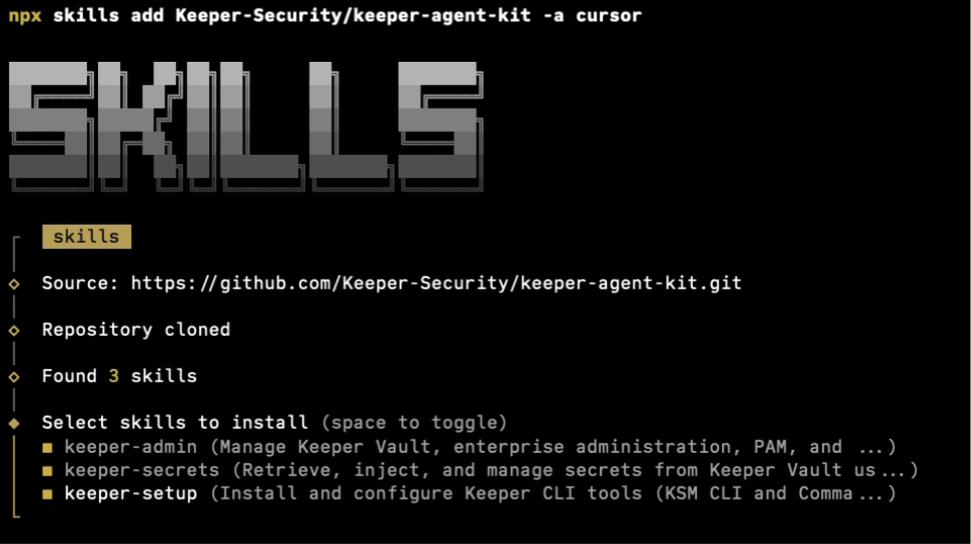
**対話型 (推奨)**。インストールするスキルとエージェントを対話形式で選べます。
```bash
npx skills add Keeper-Security/keeper-agent-kit
```
**特定のエージェントを指定する場合**
```bash
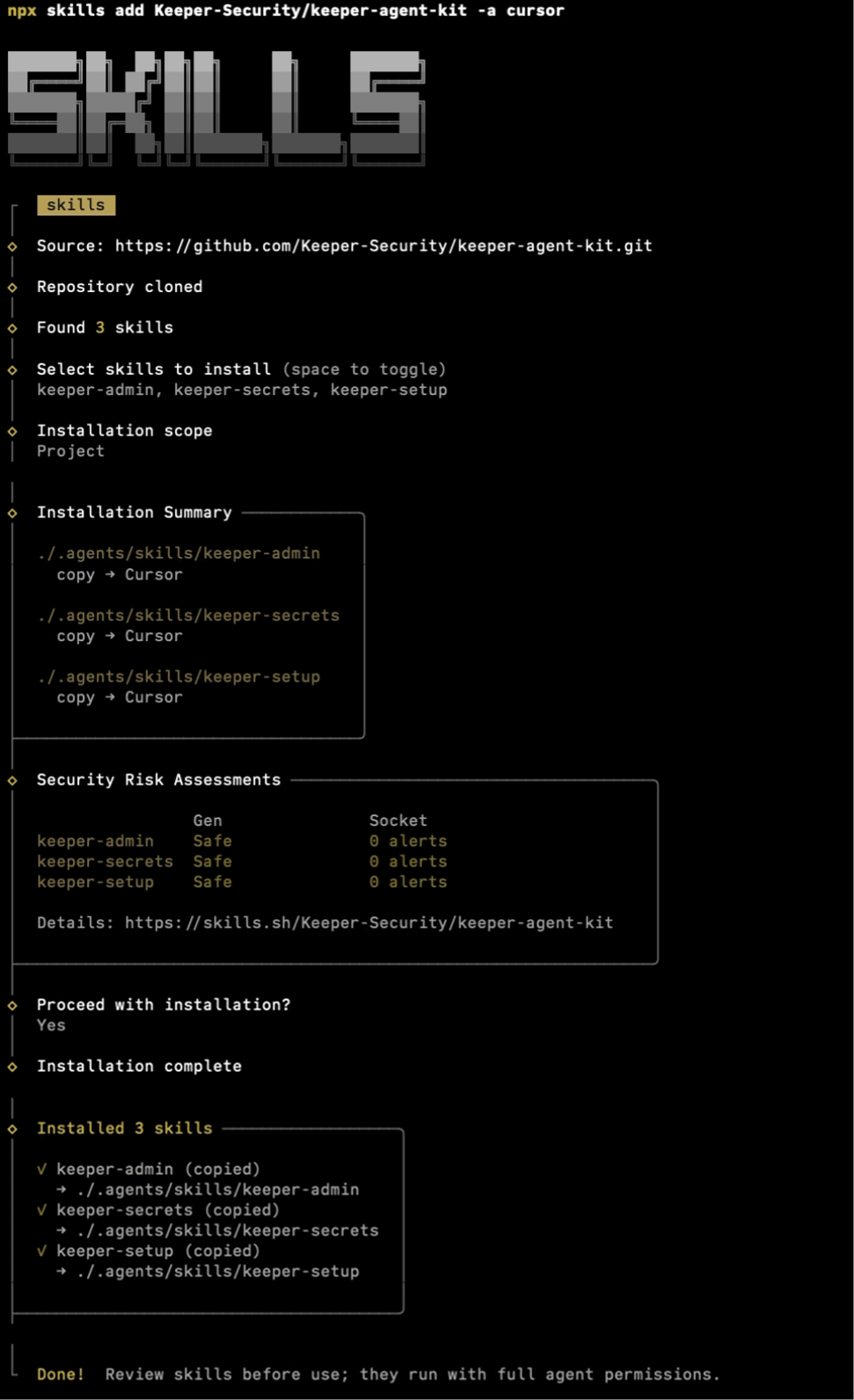
npx skills add Keeper-Security/keeper-agent-kit -a cursor
npx skills add Keeper-Security/keeper-agent-kit -a claude-code
npx skills add Keeper-Security/keeper-agent-kit -a codex
```
**検出されたエージェントすべてに一度にインストールする場合**
```bash
npx skills add Keeper-Security/keeper-agent-kit --all
```
**単一のスキルだけをインストールする場合**
```bash
npx skills add Keeper-Security/keeper-agent-kit --skill keeper-secrets
```
***
### グローバルとプロジェクト単位のインストール
デフォルトでは、 `npx skills add` は現在のプロジェクトディレクトリへインストールされます。
**プロジェクト単位** (デフォルト)。スキルは `./.agents/skills/` に置かれ、検出された各エージェントのディレクトリへシンボリックリンクが張られます。チーム全員が同じKeeperスキルを揃えたい場合に適しています。
**グローバル**。ホームディレクトリに置かれ、すべてのプロジェクトで利用できます。
```bash
npx skills add Keeper-Security/keeper-agent-kit -g
```
複数のリポジトリでKeeperを扱い、プロジェクトごとにインストールしたくない場合は、グローバルインストールを使います。
***
### 動作確認
インストール内容の確認。
```bash
npx skills list
```
エージェントを指定した絞り込み。
```bash
npx skills ls -a cursor
```
`keeper-secrets`、`keeper-admin`、`keeper-setup` が一覧に表示されます。
***
### 更新
新しいバージョンの有無の確認。
```bash
npx skills check
```
最新版の取得。
```bash
npx skills update
```
***
### 対応エージェント
下表は、Skills CLIがインストール先として扱えるエージェントの一覧です。インストール済みのエージェントが検出され、それぞれに合ったディレクトリが用意されます。
| エージェント | フラグ | スキルのパス |
| -------------- | ---------------- | --------------------- |
| Claude Code | `-a claude-code` | `~/.claude/skills/` |
| Cursor | `-a cursor` | `~/.cursor/skills/` |
| Codex | `-a codex` | `~/.codex/skills/` |
| GitHub Copilot | `-a copilot` | `~/.github/skills/` |
| OpenCode | `-a opencode` | `~/.opencode/skills/` |
| Gemini CLI | `-a gemini` | `~/.gemini/skills/` |
一覧にないエージェントの場合は、汎用の `.agents/skills/` ディレクトリが作成されます。適切なパスはエージェントのドキュメントをご参照のうえ、ファイルをそこへコピーしてください。
***
### アンインストール
```bash
npx skills remove keeper-secrets
npx skills remove keeper-admin
npx skills remove keeper-setup
```
これでエージェント向けスキルだけが削除されます。KSM CLIとコマンダー CLI はマシン上に残ります。
---
# Agent Instructions
This documentation is published with GitBook. GitBook is the documentation platform designed so that both humans and AI agents can read, navigate, and reason over technical content effectively. Learn more at gitbook.com.
## Querying This Documentation
If you need additional information that is not directly available in this page, you can query the documentation by asking a question.
Perform an HTTP GET request on the following URL with the `ask` and `goal` query parameters:
```
GET https://docs.keeper.io/keeperpam/jp/secrets-manager/integrations/ai-agents/skills-cli.md?ask=&goal=
```
`ask` is the immediate question: it should be specific, self-contained, and written in natural language.
`goal` is what the user is ultimately trying to achieve, the reason they need the answer. Sharing it helps GitBook give you a better, more relevant answer. A goal is most helpful when it describes the outcome the user wants rather than restating the question. For example, with `ask=how do I create an API token`, a goal like `automate deployments from our CI pipeline` lets GitBook tailor the answer to that use case.
The response will contain a direct answer to the question and relevant excerpts and sources from the documentation.
Use this mechanism when the answer is not explicitly present in the current page, you need clarification or additional context, or you want to retrieve related documentation sections.