> For the complete documentation index, see [llms.txt](https://docs.keeper.io/llms.txt). Markdown versions of documentation pages are available by appending `.md` to page URLs; this page is available as [Markdown](https://docs.keeper.io/keeperpam/jp/secrets-manager/integrations/ansible/ansible-automation-controller.md).
# Automation Controller
Keeperアカウントを操作し、Automation Controller (旧Ansible Tower) による自動化で使用できるAnsibleプラグインのコレクション

## 機能
* シークレットマネージャー構成をAutomation Controllerで安全に保存します
* Automation Controllerで以下の機能を搭載した[シークレットマネージャーAnsibleプラグイン](/keeperpam/jp/secrets-manager/integrations/ansible/ansible-plugin.md)を使用して、Ansibleプロジェクトを管理および実行します。
* Ansibleプレイブックで使用するシークレットをKeeperボルトから取得
* AnsibleからKeeperボルトのシークレットの値を更新
* レコードのメモフィールドを更新
* 新規レコードを作成
* Keeperボルトからファイルをコピー
{% hint style="info" %}
Keeperシークレットマネージャー機能の完全なリストについては、[概要](/keeperpam/jp/secrets-manager/overview.md)をご参照ください。
{% endhint %}
## KSMの設定
Automation ControllerとKeeperシークレットマネージャーを使用するには、最初にBase64形式の構成を取得して初期化します。[シークレットマネージャー構成](/keeperpam/jp/secrets-manager/about/secrets-manager-configuration.md)ドキュメントでは、[KeeperシークレットマネージャーCLI](/keeperpam/jp/secrets-manager/secrets-manager-command-line-interface.md)または[コマンダーCLI](/keeperpam/jp/commander-cli/overview.md)を使って構成を取得する方法が説明されています。
**コマンダーCLI**を使用して、新しいデバイスを追加すると、ワンタイムアクセストークンを使用せずにBase64設定を生成できます。
```
keeper secrets-manager client add --app MyApp --config-init b64
```
KeeperシークレットマネージャーCLIの場合、ワンタイムアクセストークンが必要です。これは、アプリケーションに新しいデバイスを追加することによって、Webボルトから取得できます。
```
$ ksm init default US:XXXX
```
別の方法として、Keeperシークレットマネージャーコレクションに含まれる `keeper_init_token` ロールを使用する方法があります。Automation Controllerのセットアップ後に利用できます。サンプルは本ページの最後に記載されています。
Base64形式の構成は、inventories、hosts、またはtemplatesの変数セクションに追加できます。また、playbookリポジトリにAnsibleシークレットとして追加することも可能です。変数名は `keeper_config` です。
## 認証情報タイプと認証情報の作成
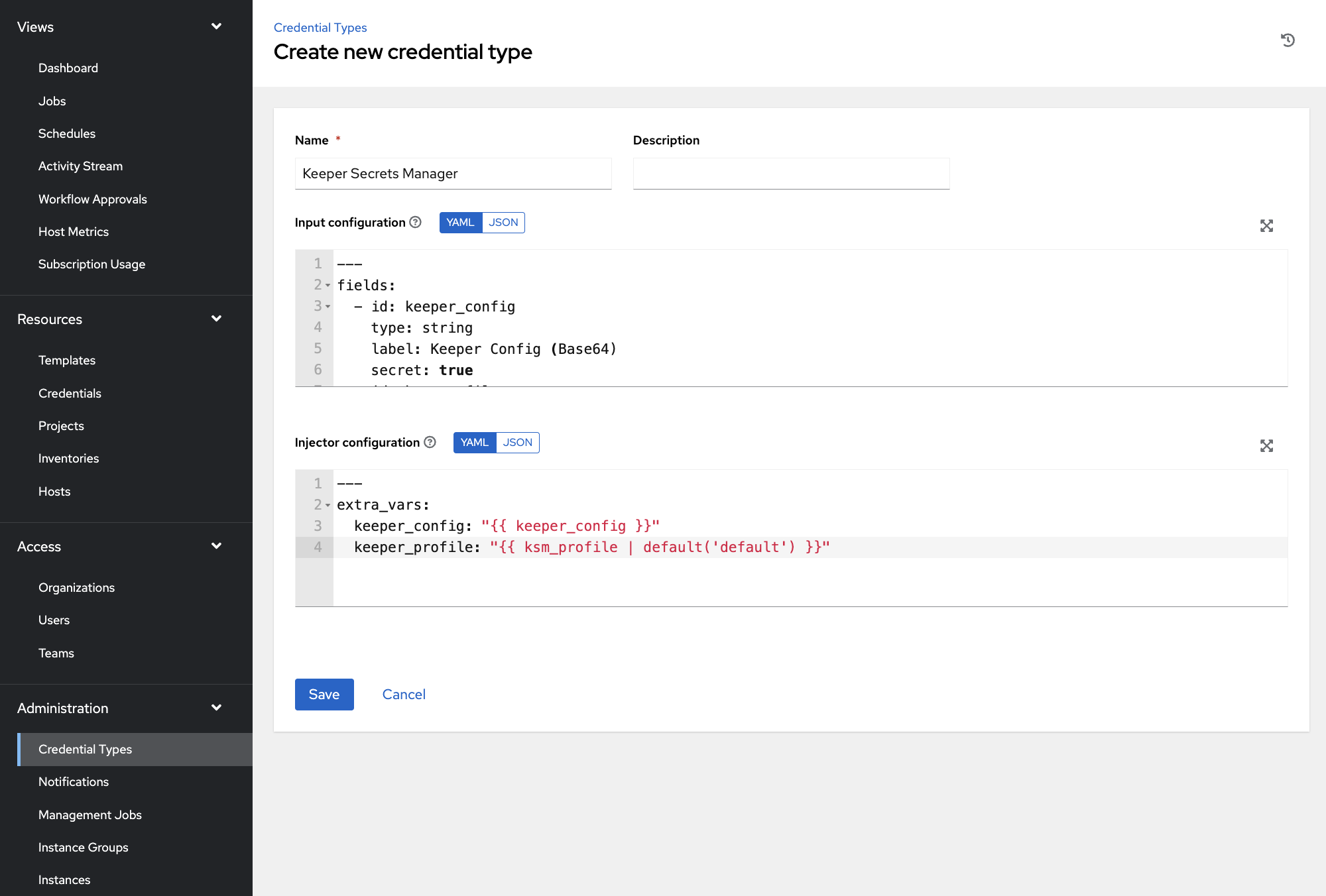
Keeperシークレットマネージャーのカスタム認証情報タイプを作成するには、管理メニューの **\[Credential Types]** (認証情報タイプ) に移動し、**\[Add]** (追加) をクリックします。
認証情報タイプに名前を付け、**\[Input configuration]** (入力構成) を以下のように設定します。
```yaml
---
fields:
- id: keeper_config
type: string
label: Keeper Config (Base64)
secret: true
required:
- keeper_config
```
次に **\[Injector configuration]** (インジェクター構成) を以下のように設定します。
```yaml
---
extra_vars:
keeper_config: "{{ keeper_config }}"
```
**\[Save]** (保存) をクリックします。
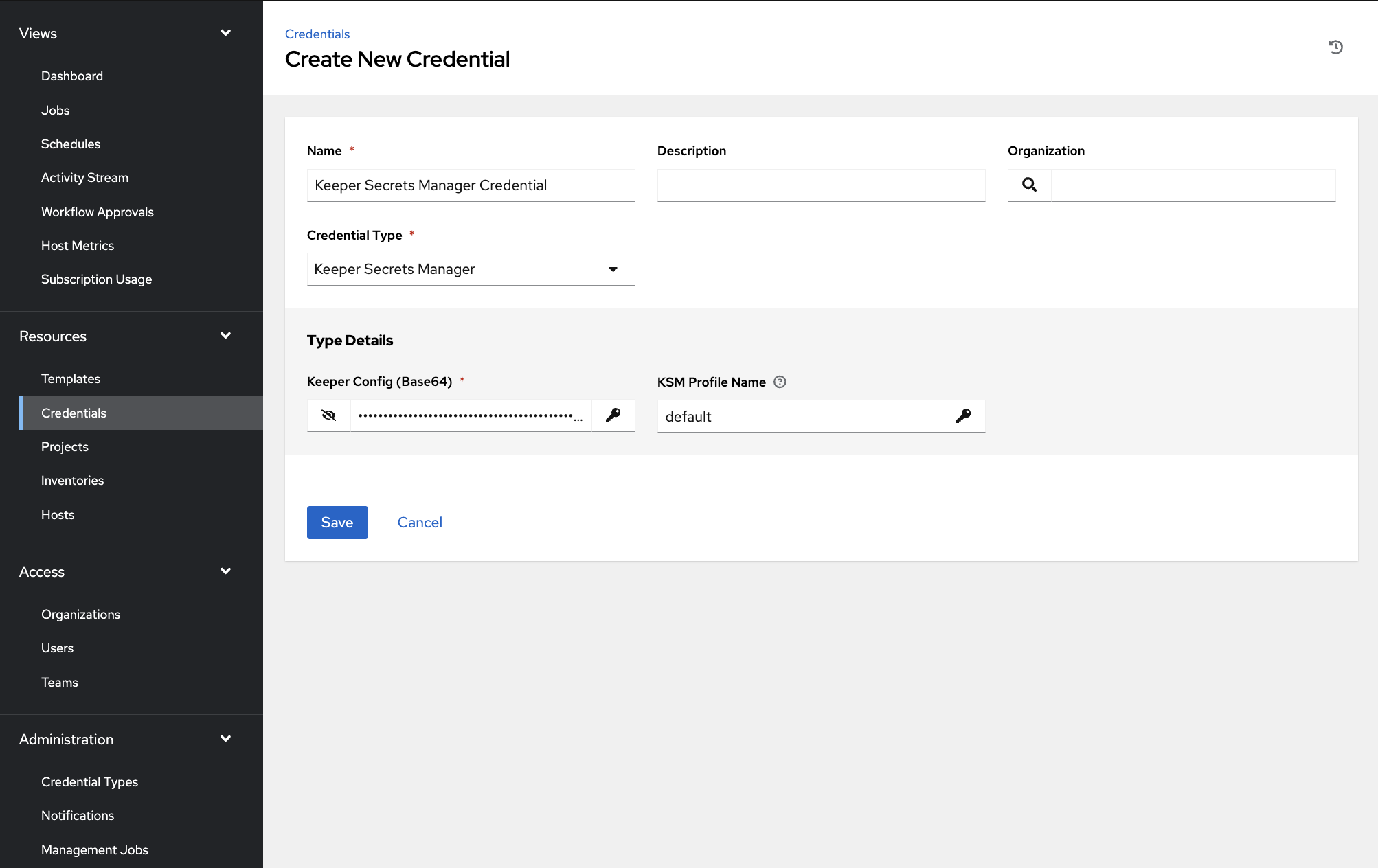
**\[Resources]** (リソース) セクションの **\[Credentials]** (認証情報) に移動し、**\[Add]** (追加) をクリックします。
認証情報に **\[Name]** (名前) を設定し、先ほど作成した **\[Credential Type]** (認証情報タイプ) を選択し、**\[Keeper Config]** (Keeper構成) 入力欄にBase64トークンを追加します。**\[Save]** (保存) をクリックします。
この認証情報は、**\[Template]** (テンプレート) をセットアップするときに使用されます。
## 実行環境
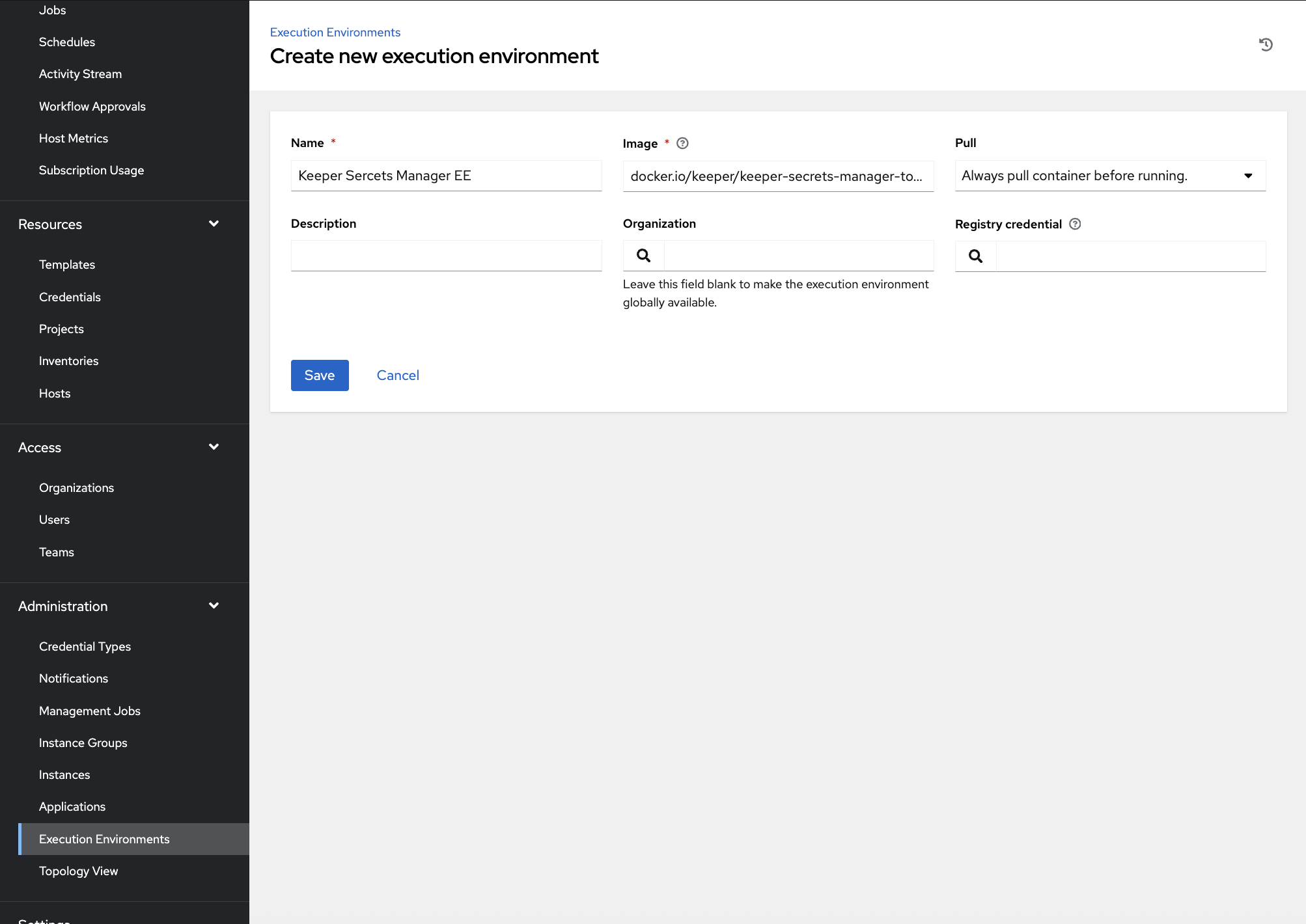
Automation ControllerでKeeperシークレットマネージャープラグインを使用するには、KeeperシークレットマネージャーSDKを利用できる実行環境が必要となります。このSDKは、Dockerイメージ `keeper/keeper-secrets-manager-tower-ee` に含まれています。Ansible Automation Controllerのインスタンスで、管理メニューの **\[Execution Environment]** (実行環境) を選択し、**\[Add]** (追加) をクリックします。
**\[Image]** の値は、`docker.io/keeper/keeper-secrets-manager-tower-ee:latest` または `docker.io/keeper/keeper-secrets-manager-tower-ee:` (特定のタグバージョンがある場合) となります。
**\[Pull]** (プル) の値は、**latest**タグを使用している場合、**\[Always pull container before running]** (実行前に常にコンテナをプル) に設定する必要があります。`keeper/keeper-secrets-manager-tower-ee` の特定のタグバージョンを指定している場合は、**\[Only pull the image if not present before running]** (実行前に存在しない場合のみイメージをプル) に設定してください。
詳しくは、イメージの[DockerHubページ](https://hub.docker.com/r/keeper/keeper-secrets-manager-tower-ee)をご覧ください。
{% hint style="info" %}
バージョン1.4.0以降では、Execution Environmentイメージに、Ansible Automation Platformで必要となる以下のシステムパッケージが含まれています。
* `openssh-clients` (コンテナ起動時にAAPで必要な `ssh-agent` を利用できます)
* `sshpass` (パスワードベースのSSH接続に必要)
* `rsync` (`ansible.builtin.synchronize` モジュールで必要)
* `git` (`ansible.builtin.git` モジュールで必要)
1.4.0未満のイメージタグに固定していると、`[dumb-init] ssh agent: No such file or directory` が表示されることがあります。その場合は1.4.0以降のイメージタグに更新してください。
{% endhint %}
## プロジェクト
### プレイブックのリポジトリ
#### [Ansible Galaxy](https://galaxy.ansible.com/ui/repo/published/keepersecurity/keeper_secrets_manager/)のKeeperシークレットマネージャーコレクションを使用
プロジェクトでKeeperシークレットマネージャープラグインを使用するには、ソースリポジトリ内に `collections` ディレクトリを作成します (まだ存在しない場合)。その後、`requirements.yml` ファイルを作成するか、既存のファイルに以下の値を追加します。
```yaml
---
collections:
- keepersecurity.keeper_secrets_manager
```
#### プレイブック
ディレクトリ構造は以下のようになるはずです。
```
$ tree
.
├── collections
│ └── requirements.yml
├── playbook_1.yml
└── playbook_2.yml
```
{% hint style="info" %}
Automation Controllerは、独自の標準出力コールバックプラグインを使用するため、keeper\_redactは動作しません。ログにシークレットが出力されうるタスクには、`no_log: True` を指定してください。
{% endhint %}
```yaml
---
- name: Playbook One
hosts: all
collections:
- keepersecurity.keeper_secrets_manager
tasks:
- name: "Make User SSH Directory, if does not exists"
file:
path: "/home/user/.ssh"
state: directory
recurse: yes
- name: "Copy SSH Keys"
keeper_copy:
notation: "{{ your_record_uid }}/field/keyPair[{{ item.notation_key }}]"
dest: "/home/user/.ssh/{{ item.filename }}"
mode: "0600"
loop:
- { notation_key: "privateKey", filename: "id_rsa" }
- { notation_key: "publicKey", filename: "id_rsa.pub" }
```
### プロジェクト
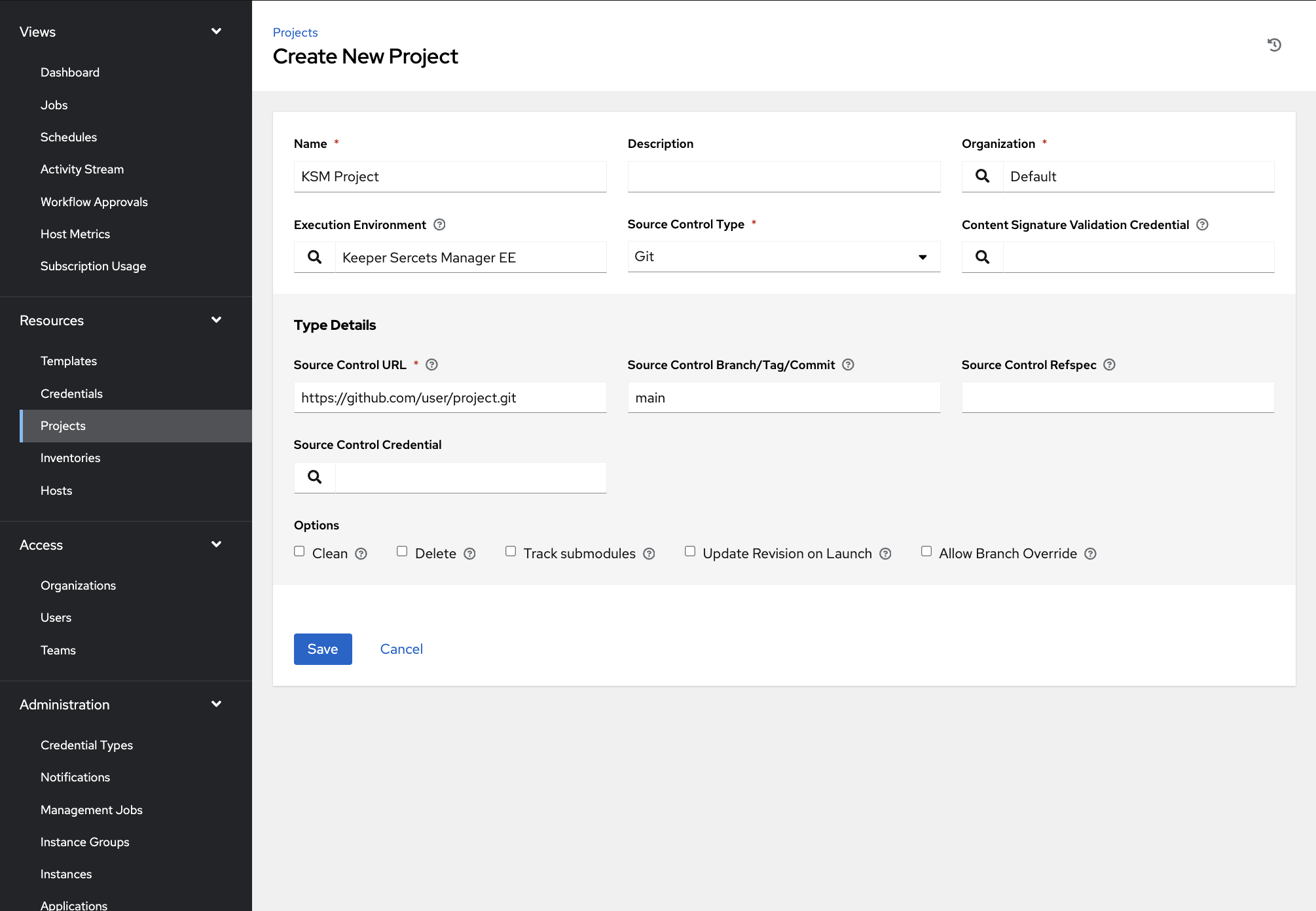
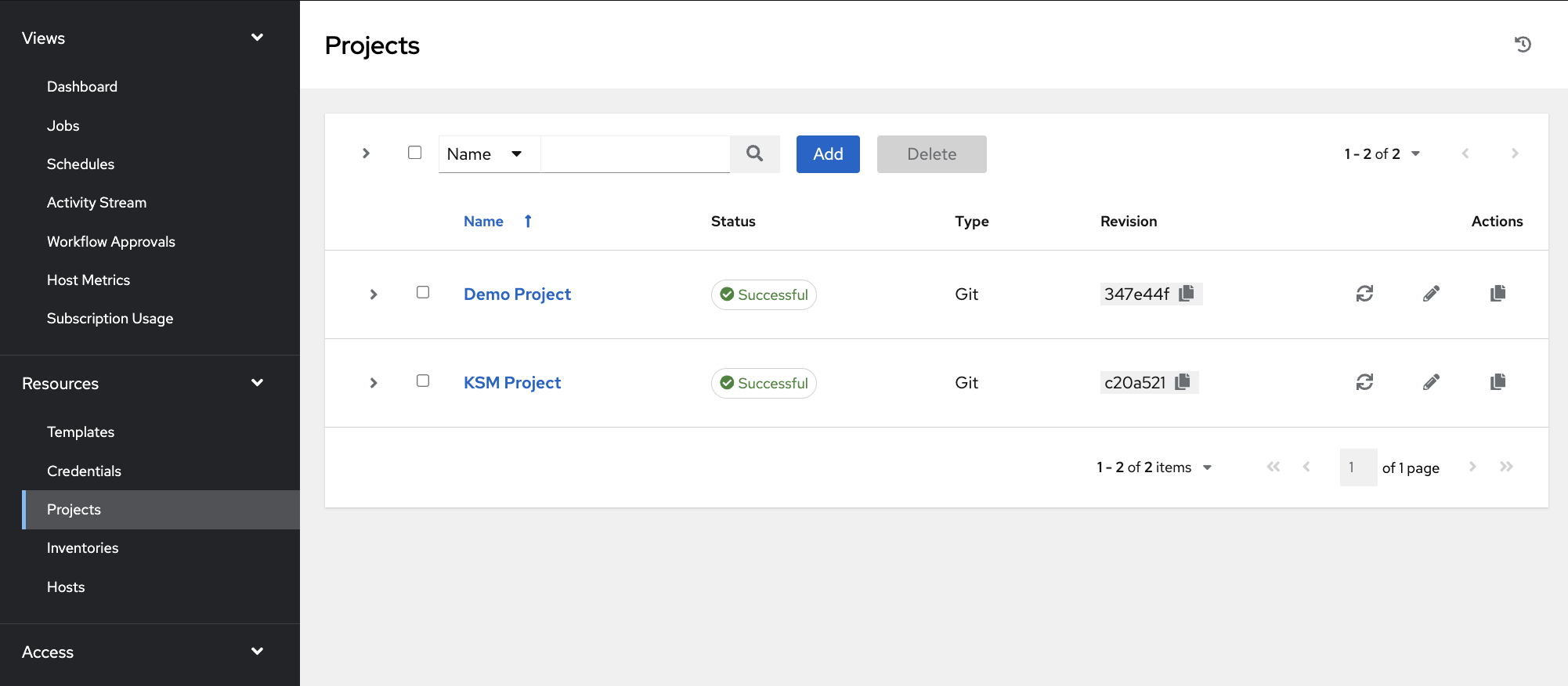
ソースリポジトリにコレクションを追加すると、新しい**Project** (プロジェクト) を作成できます。
`keeper/keeper-secrets-manager-tower-ee` を使用して作成した実行環境を選択してください。
上記の例のソースリポジトリは、適切な詳細情報を含むGitでした。会社によっては、別のソース管理を使用している場合があります。
保存後、作成したプロジェクトが同期します。
## テンプレート
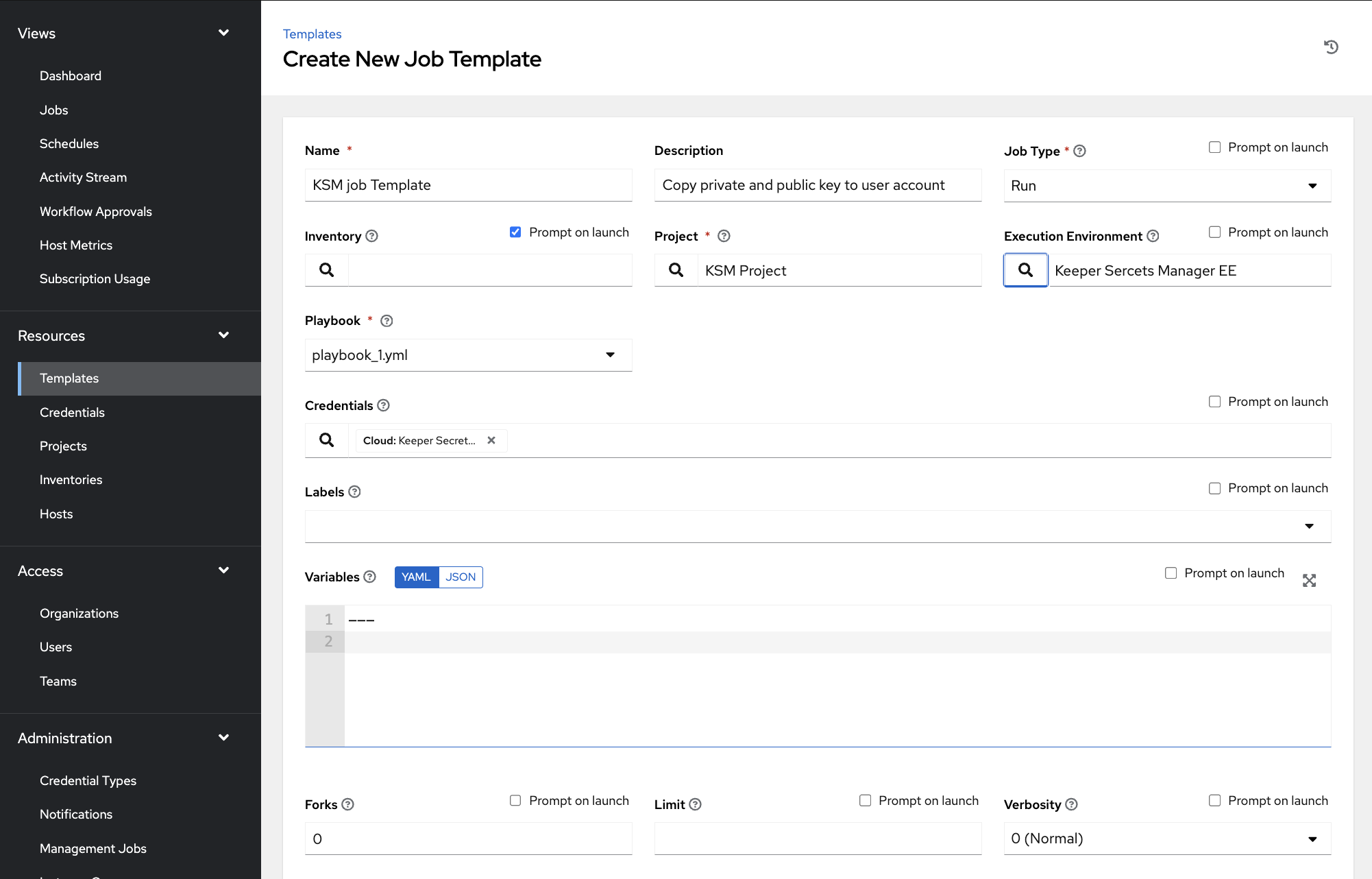
Ansible Automation Controllerのインスタンスで、**\[Resources]** (リソース) メニューの **\[Templates]** (テンプレート) を選択し、**\[Add]** (追加) をクリックします。
**\[Projects]** (プロジェクト) では、先ほど作成したプレイブックを含むプロジェクトを選択します。
**\[Execution Environment]** (実行環境) では、Keeper Secrets Manager Tower EE のDockerイメージを含む実行環境を選択します。
**\[Playbook]** (プレイブック) では、ソースリポジトリからプレイブックを選択します。
**\[Credentials]** (認証情報) では、作成したKeeperシークレットマネージャーの認証情報を選択します。また、インベントリサーバーへの接続に使用する認証情報を選択することもできます。
最後に、ページ下部の **\[Save]** (保存) ボタンをクリックして完了します。
## テンプレートの起動
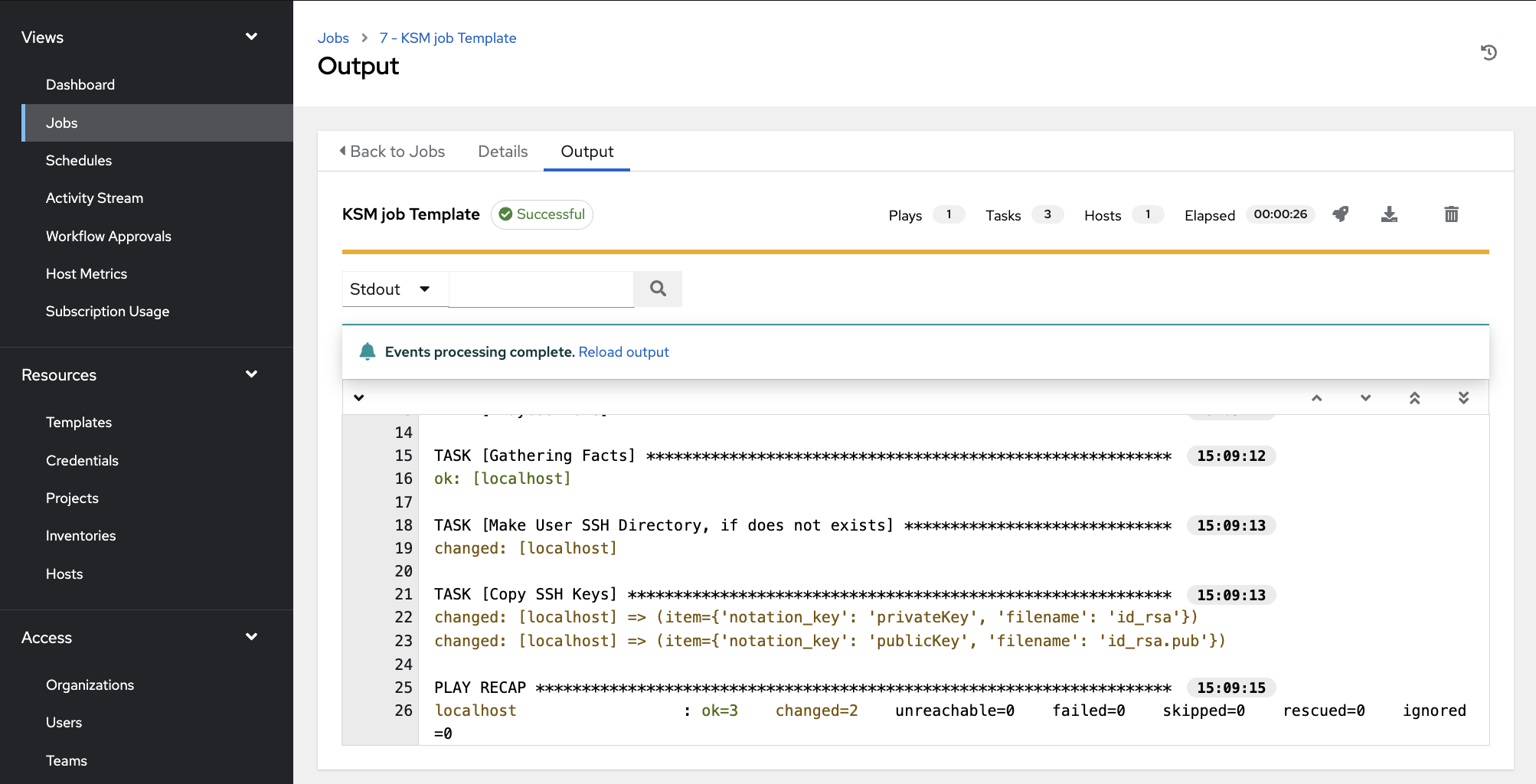
最後にテンプレートを起動してジョブを作成します。
構成が利用可能な変数に追加されると、`keeper_copy` アクションはKeeperボルトから公開鍵および秘密鍵のSSHキーを取得し、リモートマシン上の指定された場所にコピーできます。
{% hint style="info" %}
Ansibleで使用できるすべてのシークレットマネージャー機能については、[Ansibleプラグインのドキュメント](/keeperpam/jp/secrets-manager/integrations/ansible/ansible-plugin.md)をご参照ください。
{% endhint %}
---
# Agent Instructions
This documentation is published with GitBook. GitBook is the documentation platform designed so that both humans and AI agents can read, navigate, and reason over technical content effectively. Learn more at gitbook.com.
## Querying This Documentation
If you need additional information that is not directly available in this page, you can query the documentation by asking a question.
Perform an HTTP GET request on the following URL with the `ask` and `goal` query parameters:
```
GET https://docs.keeper.io/keeperpam/jp/secrets-manager/integrations/ansible/ansible-automation-controller.md?ask=&goal=
```
`ask` is the immediate question: it should be specific, self-contained, and written in natural language.
`goal` is what the user is ultimately trying to achieve, the reason they need the answer. Sharing it helps GitBook give you a better, more relevant answer. A goal is most helpful when it describes the outcome the user wants rather than restating the question. For example, with `ask=how do I create an API token`, a goal like `automate deployments from our CI pipeline` lets GitBook tailor the answer to that use case.
The response will contain a direct answer to the question and relevant excerpts and sources from the documentation.
Use this mechanism when the answer is not explicitly present in the current page, you need clarification or additional context, or you want to retrieve related documentation sections.