> For the complete documentation index, see [llms.txt](https://docs.keeper.io/llms.txt). Markdown versions of documentation pages are available by appending `.md` to page URLs; this page is available as [Markdown](https://docs.keeper.io/keeperpam/jp/secrets-manager/integrations/freshservice-itsm.md).
# FreshService ITSM
Freshserviceへのセキュリティアラートやインシデント通知の安全な取り込み
## 概要
Keeper Security ITSMアプリケーションにより、Keeper SecurityのアラートとFreshserviceのインシデントチケットを安全かつ効率的に連携できます。Keeperが生成したセキュリティアラートの取り込み、変換、Freshserviceインシデントチケットの作成を自動化し、一元管理できます。
この連携により、セキュリティチームは可視性を維持し、対応スピードを向上させ、既存のFreshserviceワークフローに沿ってKeeper Securityのアラートを一貫して処理できます。
[マーケットプレイス](https://www.freshworks.com/apps/keeper_security_itsm_1/)
## 機能
* 保護されたWebhookエンドポイント経由でKeeper Securityのアラートやインシデントを受信し、認可された送信元のみがデータを送信できるようにする。
* Webhookとアラート重大度マッピングを構成するガイド付きセットアップ。
* 受信したアラートのFreshserviceインシデントチケットへの変換。
* Keeper Securityアラートタイプに応じたカスタム優先度マッピングにより、Freshservice管理者が優先度に応じてインシデントに対応できるようにする。
## 活用事例
以下のような活用ができます。
**KeeperボルトでのパスワードBreachWatch検知**
1. **トリガー:** BreachWatchがKeeperボルト内で、脆弱なパスワードを使用しているレコードを検知する。
2. **アクション:** BreachWatchインシデントを含むアラートが、FreshserviceのWebhookへ送信される。
3. FreshserviceのKeeper Security ITSMアプリがアラートを受信し、優先度マッピングを確認した上でインシデントチケットを作成する。
4. **結果:** Freshservice管理者は、報告されたインシデントを確認し、対応できる。
**特権ユーザー行動監視**
1. **トリガー:** 管理者がKeeperの管理者アカウントで新しいチームまたは新しいポリシーを作成する。
2. **アクション:** インシデント情報を含むアラートがFreshserviceのWebhookへ送信され、インシデントチケットが作成される。
3. **結果:** Freshservice管理者は、報告されたインシデントを確認し、対応できる。
### 要件
* Keeper管理コンソールでアラート設定が構成されていること
* Freshserviceのサブスクリプション
## 構成手順
FreshserviceでKeeper Security ITSMアプリを構成するには、以下の手順を実行します。
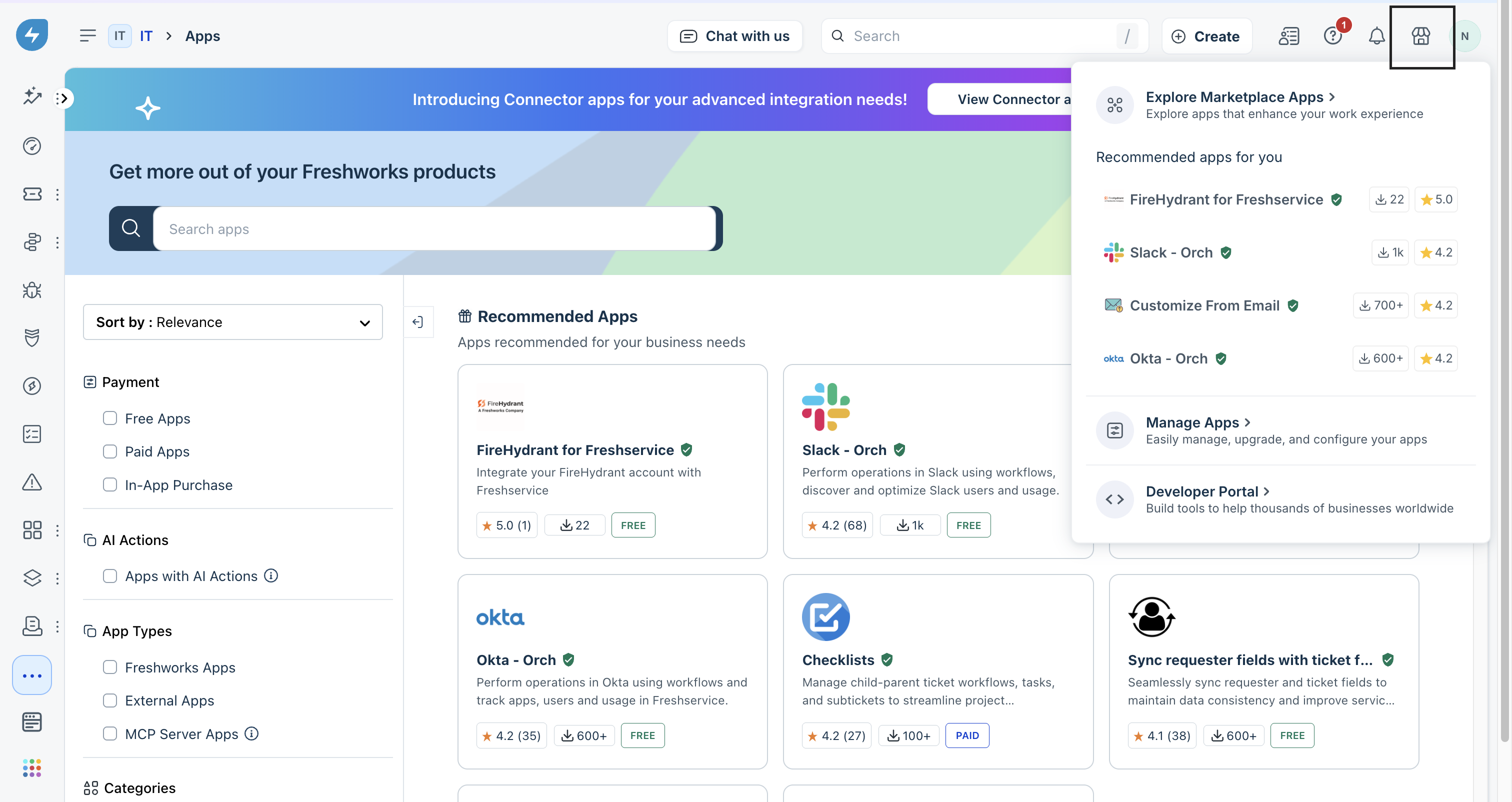
1. 管理者としてFreshserviceポータルにログインし、**\[Marketplace]** アイコンをクリックします。**\[Keeper Security ITSM]** で検索し、アプリをダウンロードします。
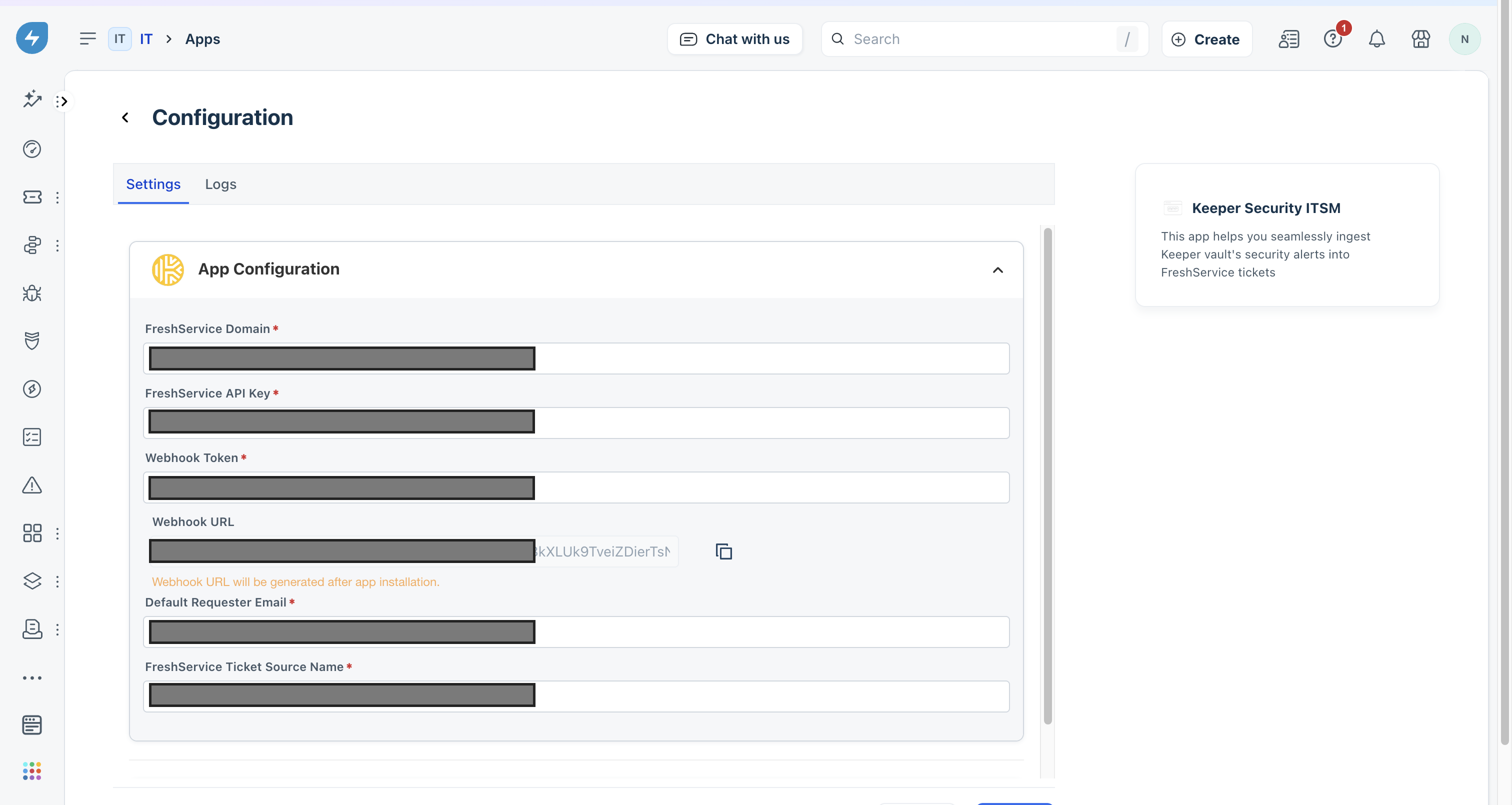
2. ダウンロード後、**\[Manage Apps]** > **\[Keeper Security ITSM]** > **\[Install]** をクリックします。\
以下のアプリ構成ページが表示されます。
### Webhookトークンの取得
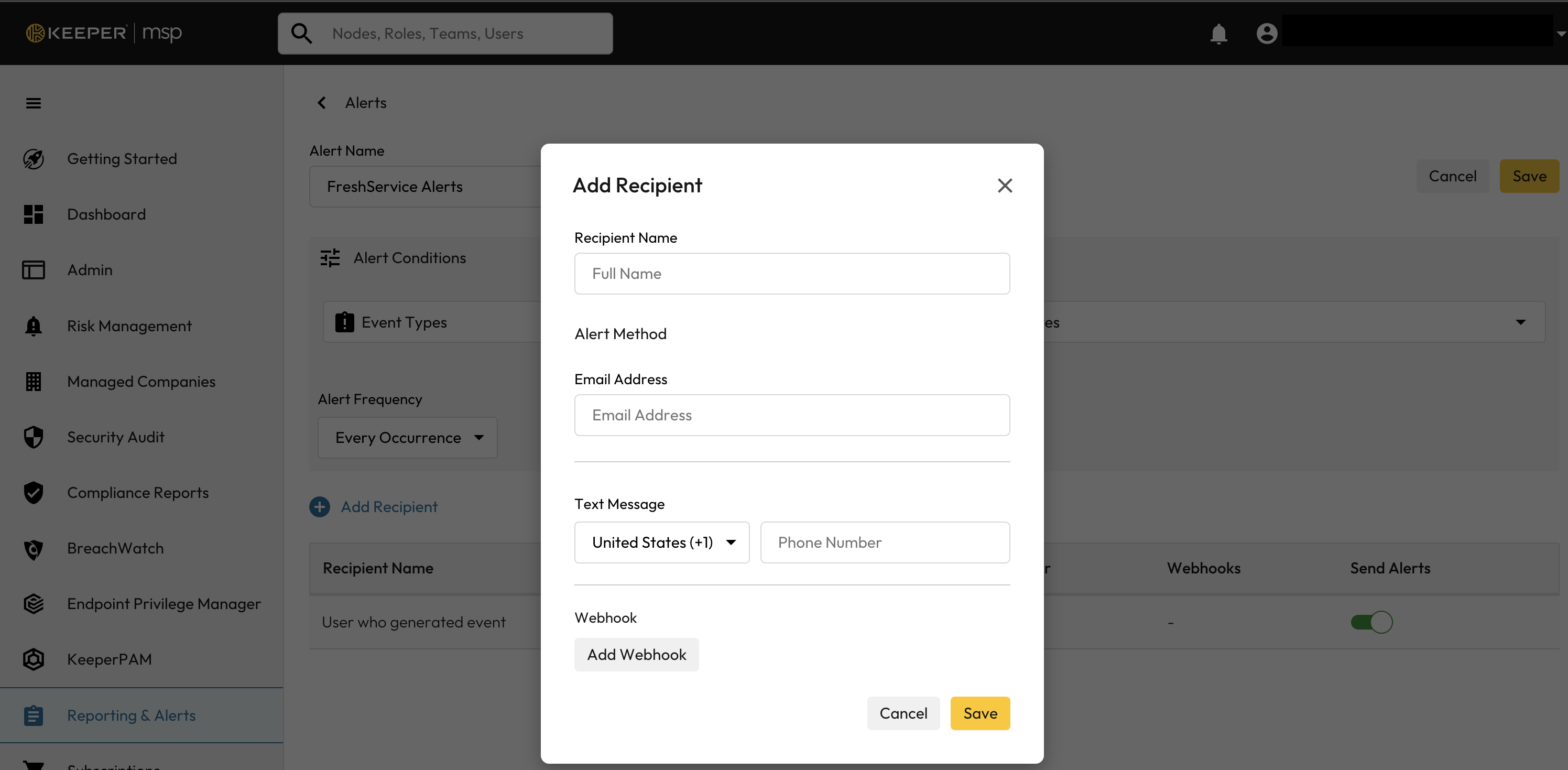
Webhook認証トークンを取得するには、Keeper管理コンソールにログインし、**\[レポートとアラート]** をクリックして新しいアラートを作成します。
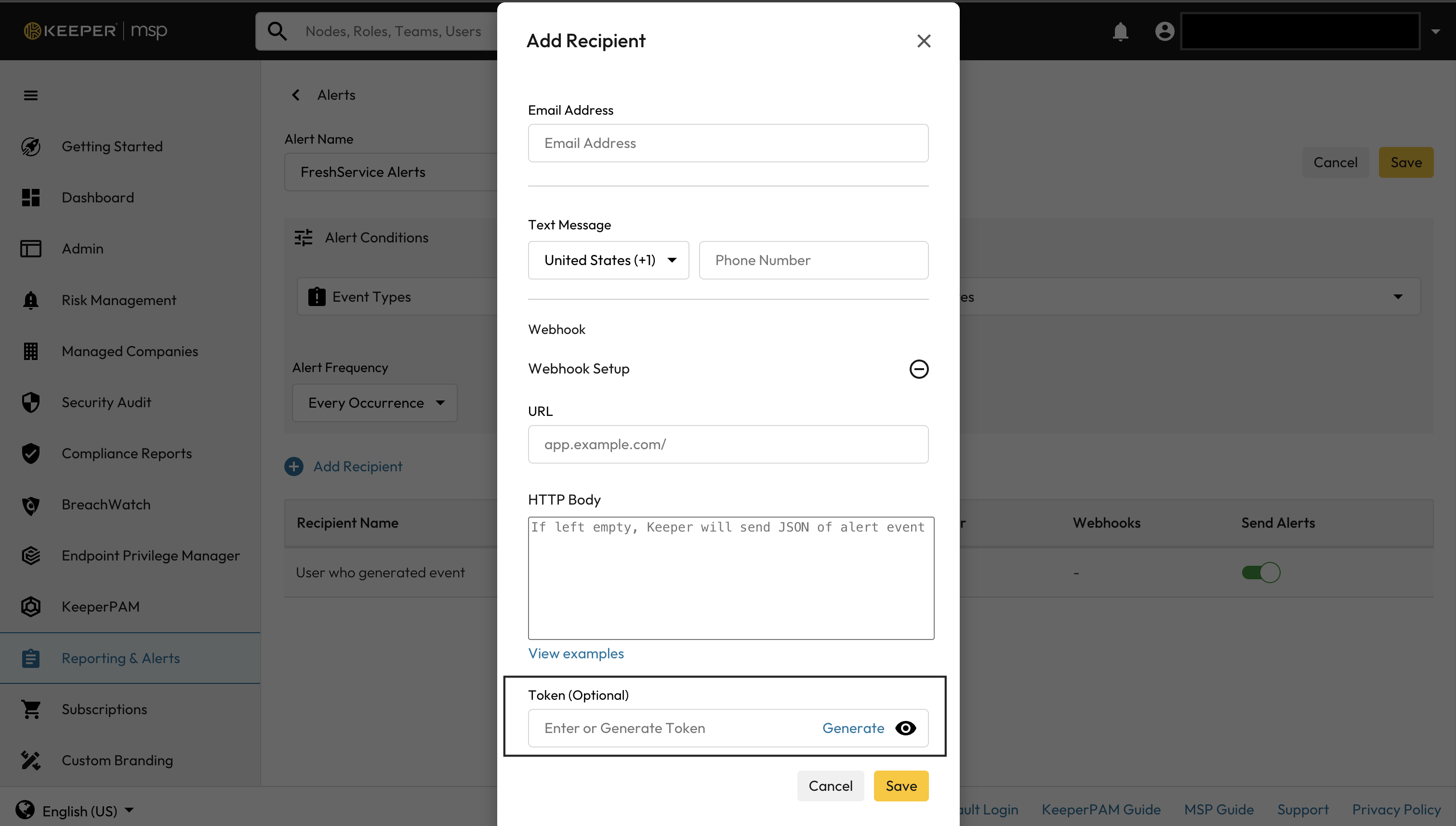
**\[受信者を追加]** をクリックし、**\[Webhookを追加]** をクリックします。
**\[生成]** をクリックしてトークンを生成します。
生成したトークンを、Freshservice ITSMアプリの構成ページにコピーします。
アプリのインストールが完了したら、Webhook URLをKeeper側のアラート設定に貼り付け、管理コンソールで保存します。
### アラートの受信
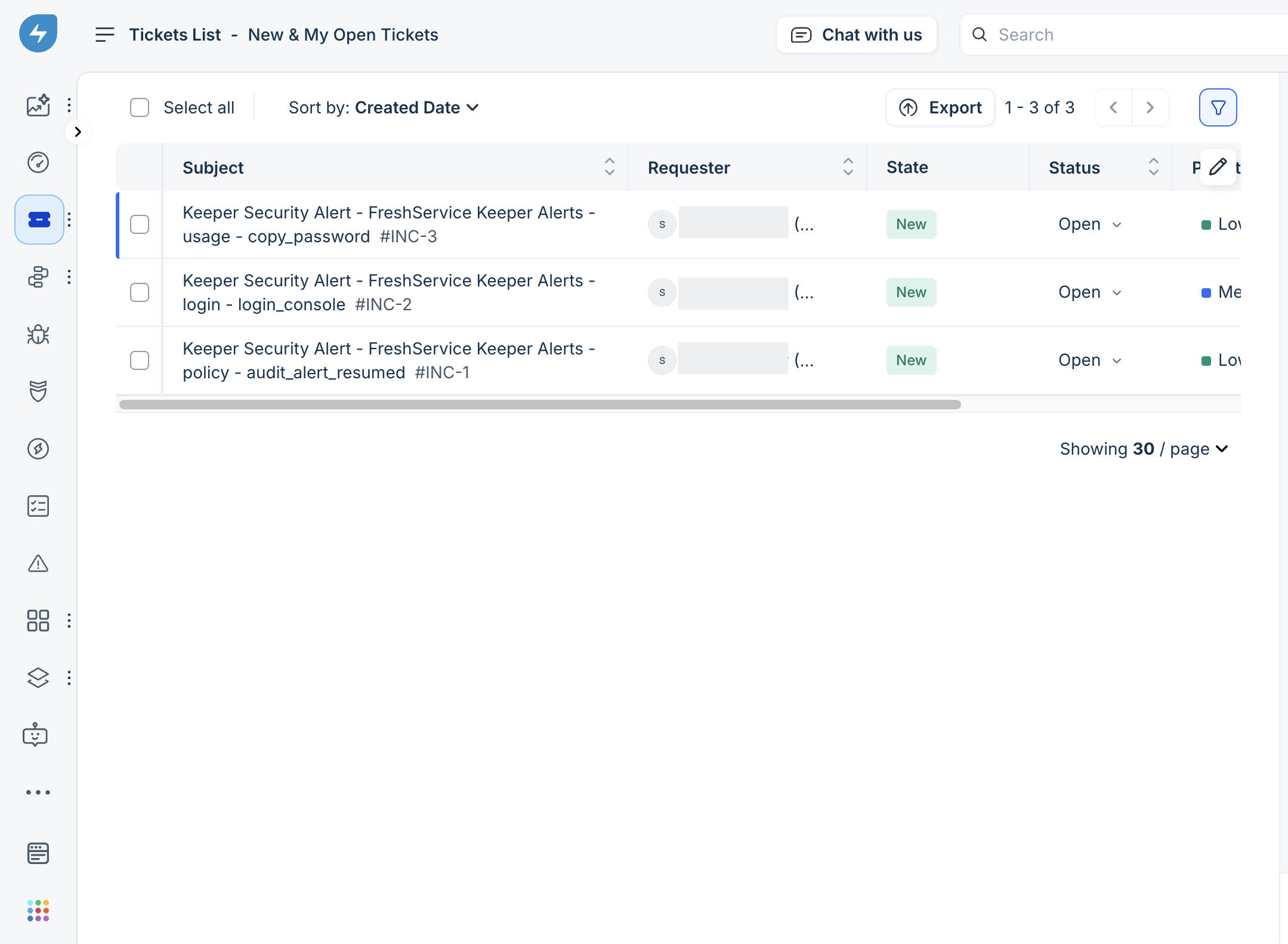
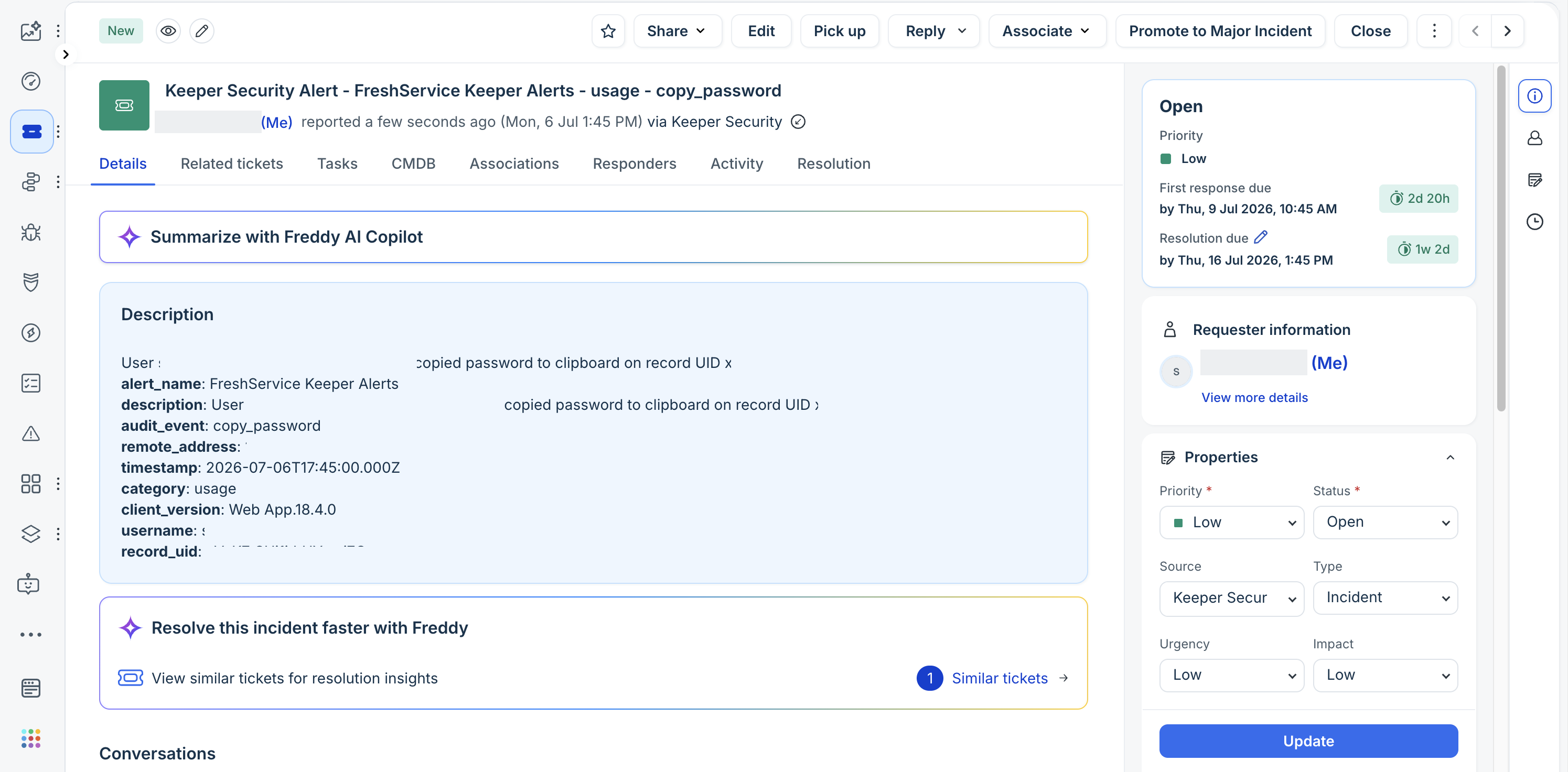
アプリケーションの構成が完了すると、チケット一覧にアラートが表示されます。
### Keeper Securityイベントタイプのマッピング
アプリ構成では、イベントタイプごとに優先度、緊急度、影響度を設定できます。チケット作成時は、これらの値に基づいてアラートが分類されます。チームのインシデント管理プロセスに合わせて構成します。
### トラブルシューティング
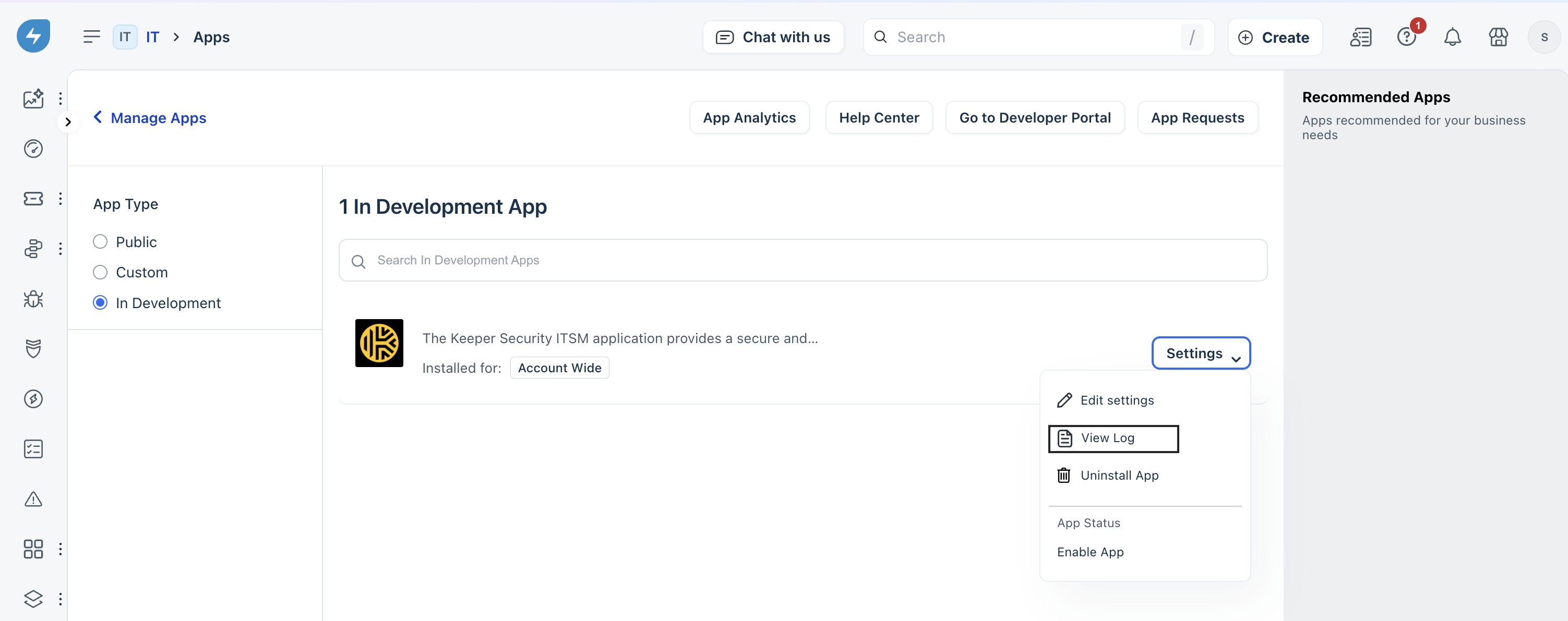
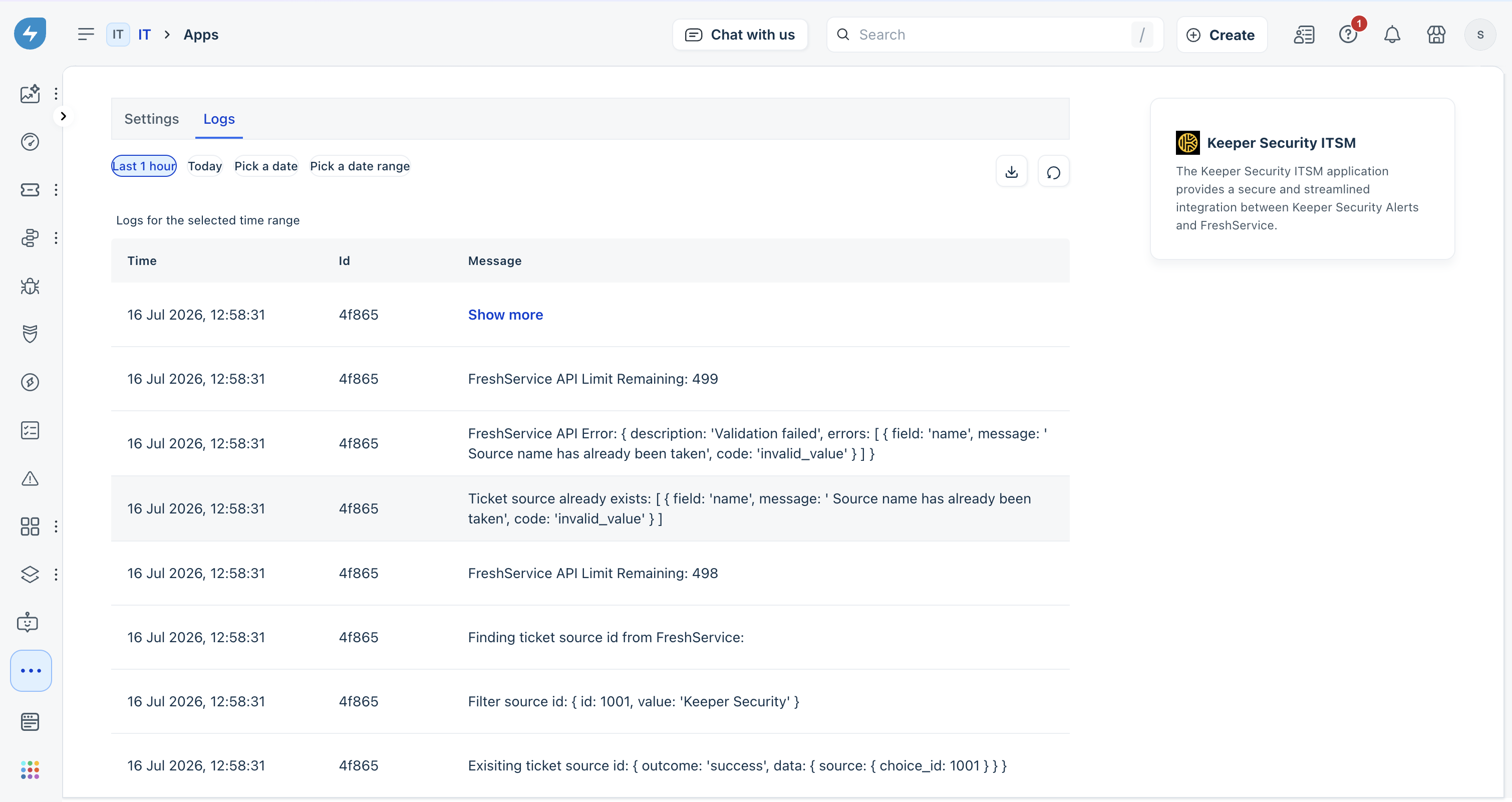
トラブルシューティングでは、アプリケーションログを確認します。
---
# Agent Instructions
This documentation is published with GitBook. GitBook is the documentation platform designed so that both humans and AI agents can read, navigate, and reason over technical content effectively. Learn more at gitbook.com.
## Querying This Documentation
If you need additional information that is not directly available in this page, you can query the documentation by asking a question.
Perform an HTTP GET request on the following URL with the `ask` and `goal` query parameters:
```
GET https://docs.keeper.io/keeperpam/jp/secrets-manager/integrations/freshservice-itsm.md?ask=&goal=
```
`ask` is the immediate question: it should be specific, self-contained, and written in natural language.
`goal` is what the user is ultimately trying to achieve, the reason they need the answer. Sharing it helps GitBook give you a better, more relevant answer. A goal is most helpful when it describes the outcome the user wants rather than restating the question. For example, with `ask=how do I create an API token`, a goal like `automate deployments from our CI pipeline` lets GitBook tailor the answer to that use case.
The response will contain a direct answer to the question and relevant excerpts and sources from the documentation.
Use this mechanism when the answer is not explicitly present in the current page, you need clarification or additional context, or you want to retrieve related documentation sections.

.png?alt=media)
%20(8).png?alt=media)