> For the complete documentation index, see [llms.txt](https://docs.keeper.io/llms.txt). Markdown versions of documentation pages are available by appending `.md` to page URLs; this page is available as [Markdown](https://docs.keeper.io/keeperpam/jp/secrets-manager/integrations/google-chat-app/publishing-the-keeper-google-chat-app-internally.md).
# Keeper Google Chatアプリを組織内で公開する
Keeper Google Chatアプリは、組織内のユーザーが利用できるようになる前に社内向けに公開する必要があります。公開後は、組織内のユーザーがアプリをインストールし、アクセス申請を行えるようになります。
公式ドキュメント: [公開方法について](https://developers.google.com/workspace/marketplace/how-to-publish) (英語)
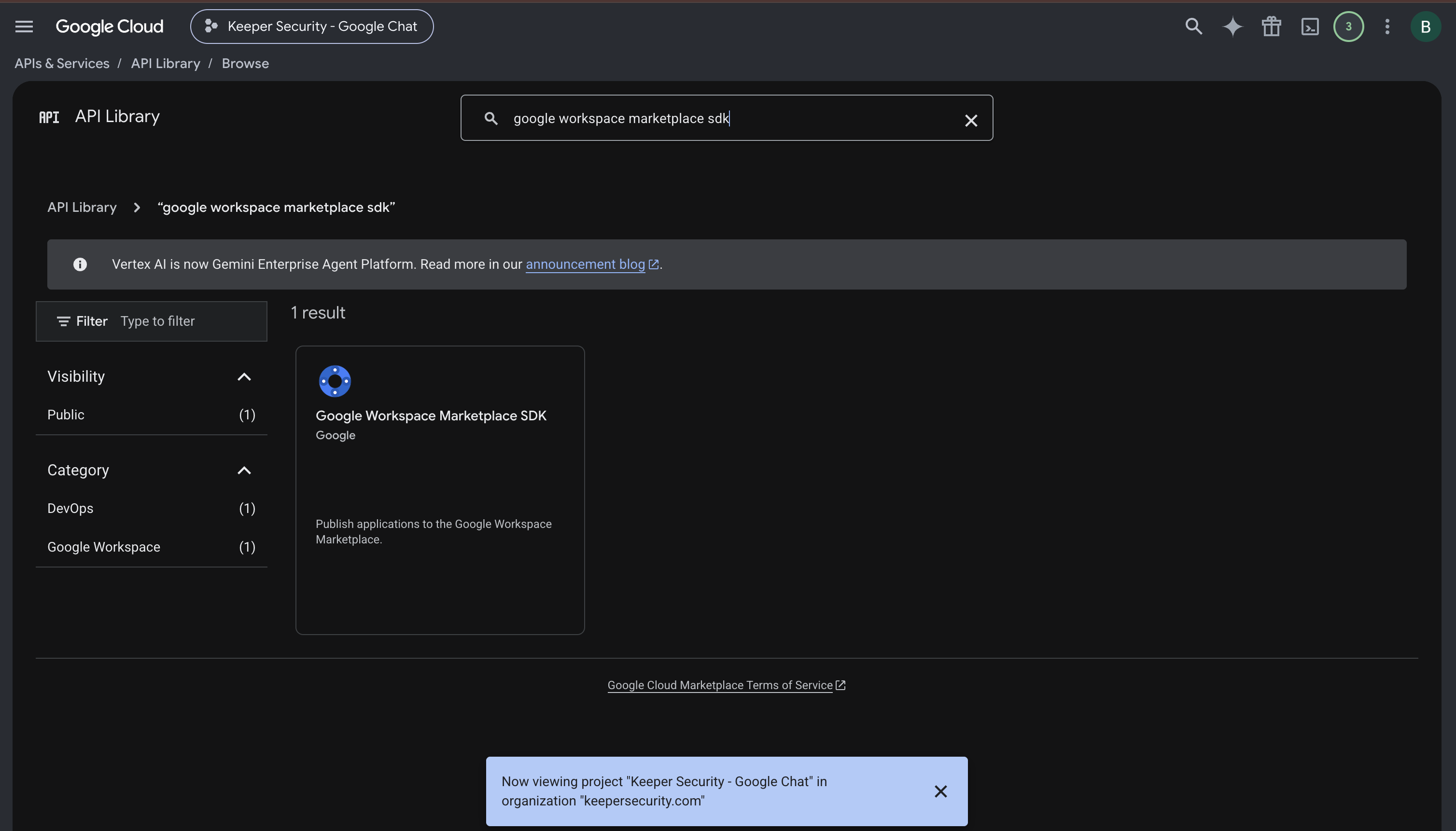
### 1. Marketplace SDKの有効化
1. [Google Cloud Console](https://console.cloud.google.com) を開きます。
2. Chatアプリを所有するCloudプロジェクトを選択します。
3. **\[APIs & Services]** (APIとサービス) → **\[Library]** (ライブラリ) に移動します。
4. **Google Workspace Marketplace SDK** を検索します。
5. それを開き、**\[Enable]** (有効にする) をクリックします。
***
### 2. アプリの構成
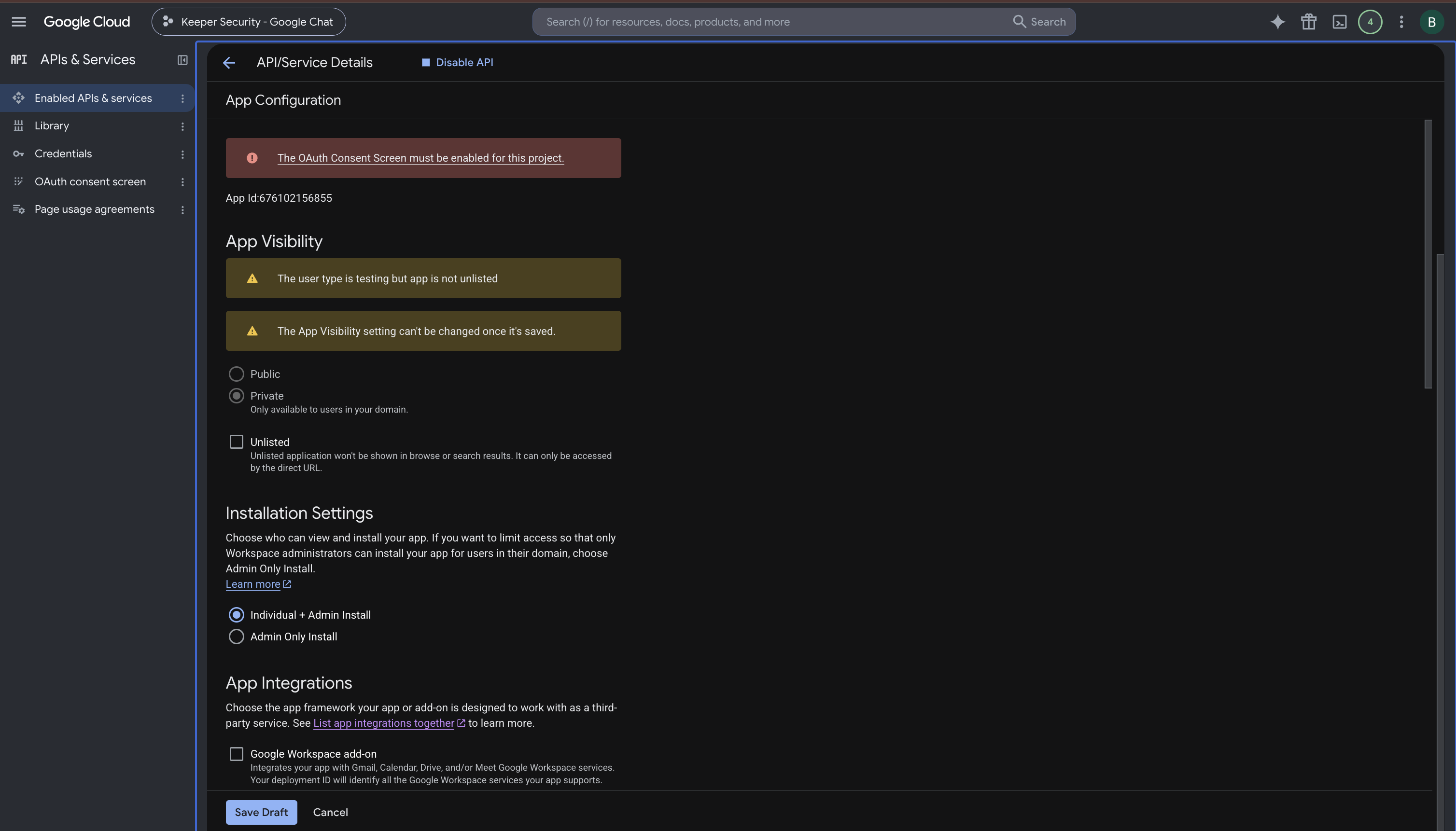
1. **\[APIs & Services]** (APIとサービス) → **\[Google Workspace Marketplace SDK]** → **\[App Configuration]** (アプリの構成) に移動します。\
(または「Marketplace SDK」を検索 → **\[Manage]** (管理) → **\[App Configuration]** (アプリの構成))。
2. **アプリの公開範囲** (重要 -- 後から変更できません)
* **\[Private]** (非公開) を選択します。
* **組織内**のユーザーのみがアプリを検索・インストールできます。
* URLのみでのアクセス (Internal Appsでの参照・検索は不可) にする場合を除き、**\[Unlisted]** (非掲載) はオフのままにします。
3. **インストール設定**
* **\[Individual + Admin Install]** (個別インストールおよび管理者インストール) を選択します。
4. **アプリ連携**
* **\[Google Chat app]** のみをチェックします。
5. **開発者情報**
* **Developer Name (開発者名):** 組織名を入力します。
* **Developer Website (開発者ウェブサイト):** 組織のウェブサイトを入力します。
* **Developer Email (開発者メールアドレス):** アプリの管理を担当する管理者または連絡先のメールアドレスを入力します。
6. **\[Save]** (保存) または **\[Save Draft]** (下書きを保存) をクリックします。
{% hint style="danger" %}
**「The OAuth consent screen must be enabled for this project」** (このプロジェクトではOAuth同意画面を有効にする必要があります) というメッセージが表示された場合は、以下の手順を行います。
1. **\[Get Started]** (開始) をクリックします。
2. **App name** (アプリ名) に **Keeper Security** と入力します。
3. 自社の**サポート用メールアドレス**を入力 → **\[Next]** (次へ) をクリックします。
4. **Audience** (対象範囲) で **\[Internal]** (組織内) を選択 → **\[Next]** (次へ) をクリックします。
5. **連絡先情報**を入力します。
{% endhint %}
***
### 3. ストア掲載情報
1. **\[APIs & Services]** (APIとサービス) → **\[Google Workspace Marketplace SDK]** → **\[Store Listing]** (ストア掲載情報) に移動します。
2. **アプリの詳細**
* 言語 (デフォルト言語および翻訳がある場合はその言語)。
* アプリケーション名 (Chatの表示名と一致させます)。
* 簡単な説明: `Keeper vault credentials access in chat`
* 詳細な説明:
**`Keeper Security is a zero-trust, zero-knowledge cybersecurity platform`**` `` ``that provides password management, secrets management, and privileged access control. `
* カテゴリ: 無料
* カテゴリ: Web Development
1. **画像アセット**
* アイコン (**32×32**、**128×128**) をアップロードします。
{% file src="/files/WL3GtEX2gOJLpl5ZLh2E" %}
{% file src="/files/91LQkLzsHX2vu35aabz0" %}
* カードバナー (**220×140**) をアップロードします。
{% file src="/files/SMpMLO80PQbcMArVdP2H" %}
* Chatアプリの利用画面のスクリーンショットを、最低1枚アップロードします。
{% file src="/files/njYzkuIFEyj63AJqAWu2" %}
1. **サポートリンク** (必須)
* 利用規約URL:
* プライバシーポリシーURL:
* サポートURL:
2. **配信設定** (任意): すべての地域を対象にするか、必要に応じて範囲を限定します。
3. **\[Publish]** (公開) をクリックします。
{% hint style="warning" %}
**デバッグ:** **「Please enter the detailed description again」** (詳細な説明を再入力してください) のようなエラーが表示された場合は、ページを再読み込みして説明を入力し、再度公開ボタンをクリックしてください。
{% endhint %}
***
### 4. 確認
1. 公開後、組織内のユーザーはGoogle ChatからKeeper Chatアプリを検索してインストールできるようになります。
* アプリのインストール後、ユーザーは利用可能なスラッシュコマンドを使用してKeeperへのアクセス申請を行えます。
* 申請が正常に受理され、承認ワークフローが実行されることを確認します。
---
# Agent Instructions
This documentation is published with GitBook. GitBook is the documentation platform designed so that both humans and AI agents can read, navigate, and reason over technical content effectively. Learn more at gitbook.com.
## Querying This Documentation
If you need additional information that is not directly available in this page, you can query the documentation dynamically by asking a question.
Perform an HTTP GET request on the current page URL with the `ask` query parameter, and the optional `goal` query parameter:
```
GET https://docs.keeper.io/keeperpam/jp/secrets-manager/integrations/google-chat-app/publishing-the-keeper-google-chat-app-internally.md?ask=&goal=
```
`ask` is the immediate question: it should be specific, self-contained, and written in natural language.
`goal` is optional and describes the broader end goal you are ultimately trying to accomplish on behalf of the user. GitBook uses it to tailor the answer towards what is most useful for that goal.
The response will contain a direct answer to the question and relevant excerpts and sources from the documentation.
Use this mechanism when the answer is not explicitly present in the current page, you need clarification or additional context, or you want to retrieve related documentation sections.