|
## アプリのダウンロードとインストール
**System Administrator (`admin`)** ロールを持つユーザーのみ、ServiceNow Storeからアプリケーションをインストールできます。
1. [ServiceNow Storeの掲載ページ](https://store.servicenow.com/store/app/4b6de27987ebfe14e95f40c5cebb35d9)を開きます。
2. **\[Get]** をクリックします。
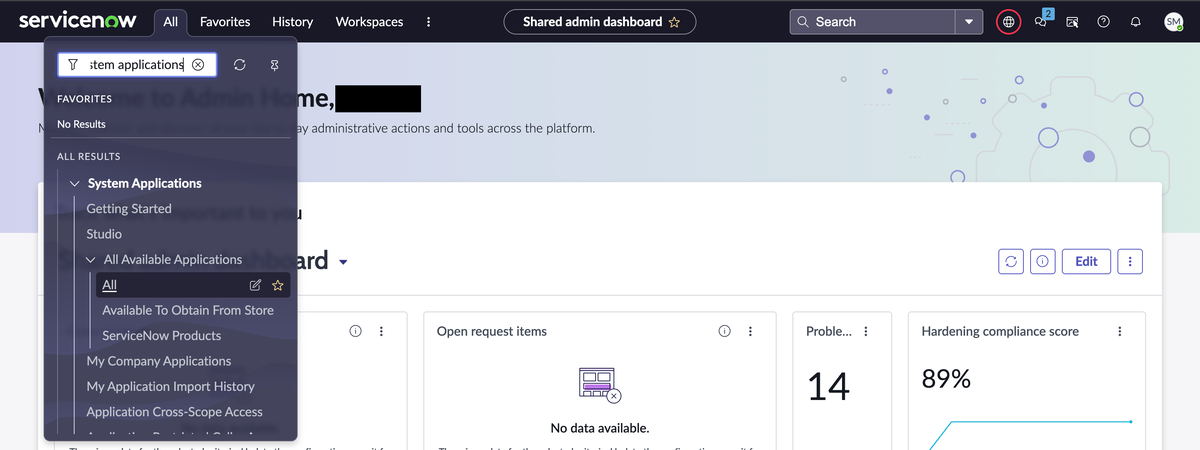
3. アプリがServiceNowインスタンスに正常に追加されたら、 **\[All]** > **\[System Applications]** > **\[All Available Applications]** > **\[All]** に移動します。
4. **\[install]** をクリックします。
## 構成手順
### MIDサーバーの構成
Keeper Security WorkflowアプリをServiceNowで使うには、管理者がMIDサーバーを構成し、ServiceNowで検証済みにする必要があります。
MIDサーバーは、KeeperコマンダーCLIとサービスモードをホストするServiceNow上のエージェントです。
MIDサーバーを構成するには、次の手順に従います。
1. 管理者権限でServiceNowインスタンスにログインします。
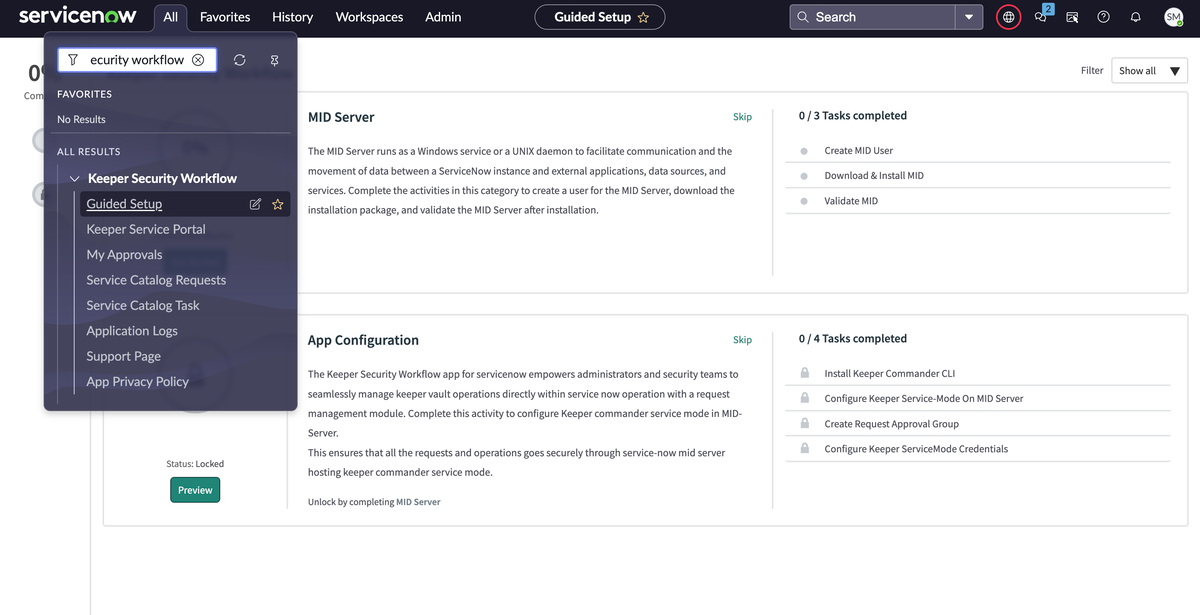
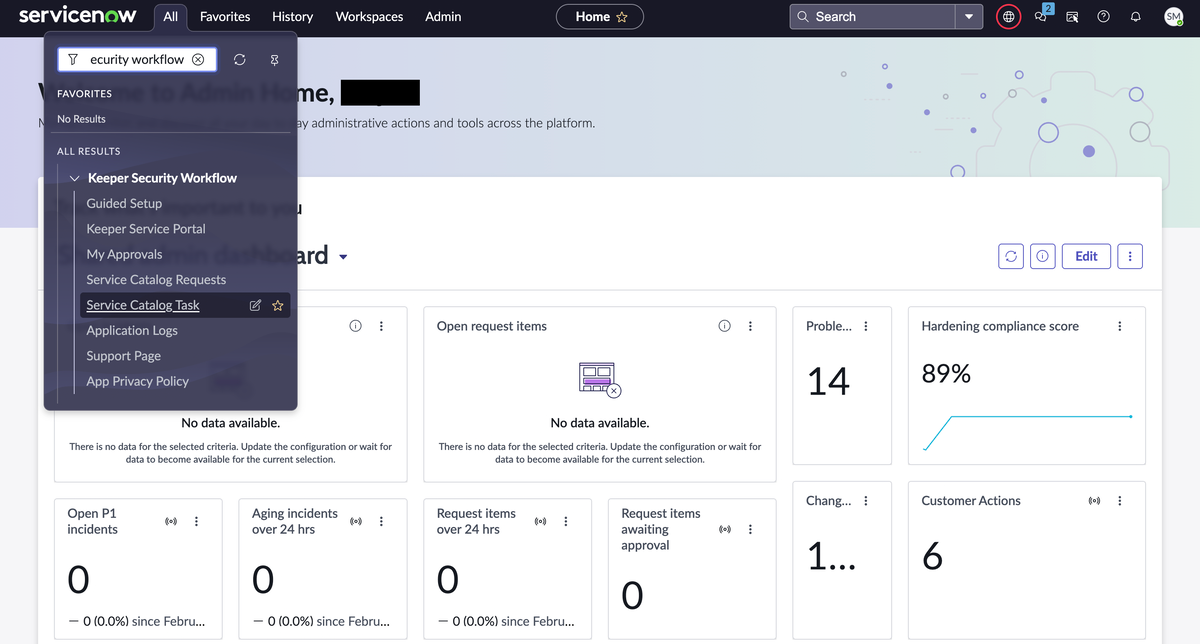
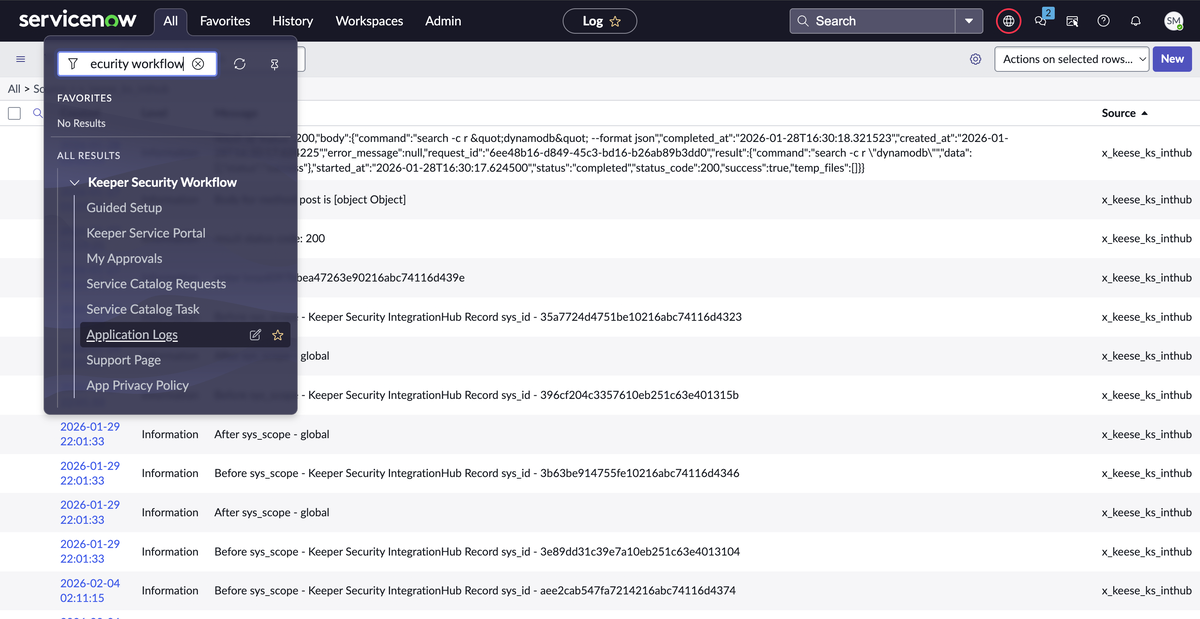
2. **\[All]** タブに移動し、 **\[keeper security Workflow]** を検索して **\[Guided Setup > MID Server]** を開きます。
MIDサーバーインストールのトラブルシューティングについては、ServiceNowの手順を[こちら](https://www.servicenow.com/docs/bundle/zurich-servicenow-platform/page/product/mid-server/concept/mid-server-installation.html)をご参照ください。
### Keeper Security Workflowの構成
MIDサーバーの構成と検証が完了したら、次の手順でアプリを構成します。
1. 管理者権限でServiceNowインスタンスにログインします。
2. **\[All]** タブに移動し、 **\[Keeper Security Workflow]** を検索して **\[Guided Setup]** を開きます。
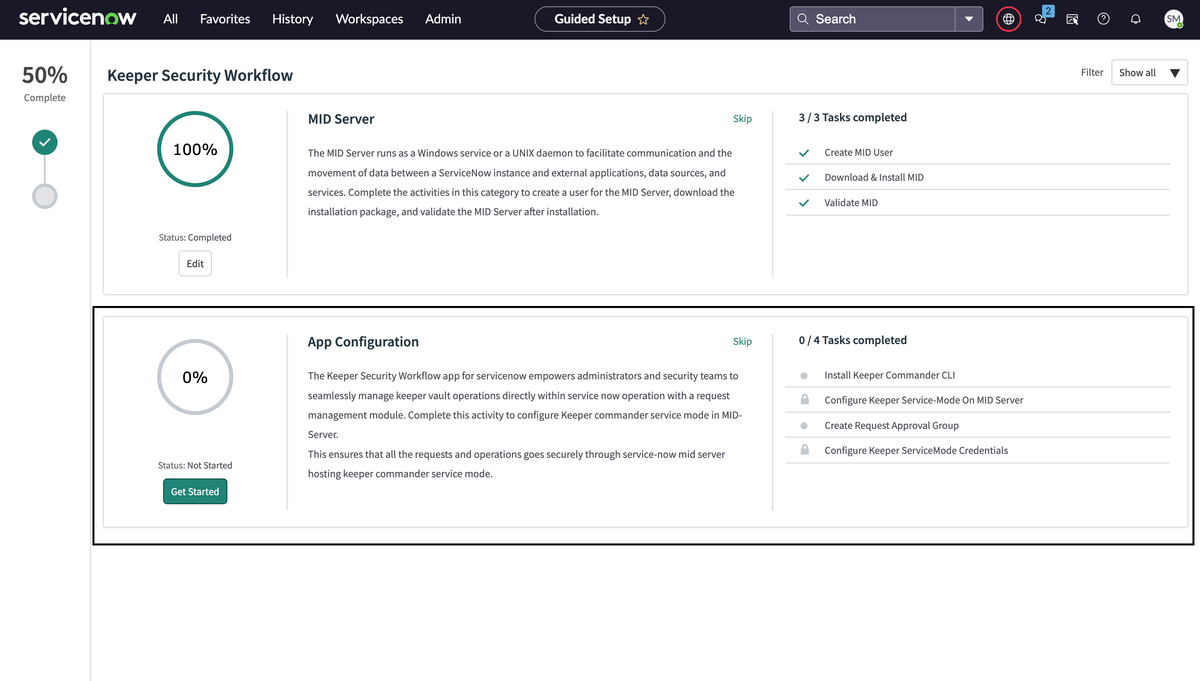
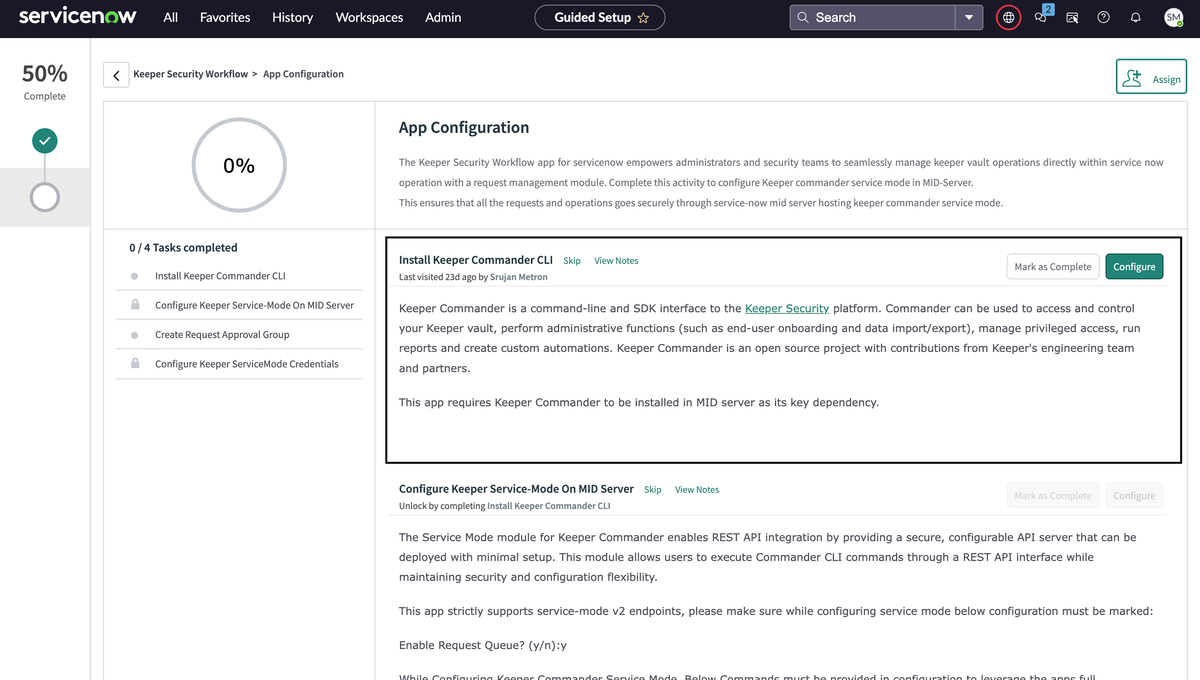
3. **\[Install Keeper Commander CLI]** をクリックし、 **\[Configure]** をクリックして、MIDサーバーへのKeeperコマンダーCLIのインストール手順に従います。
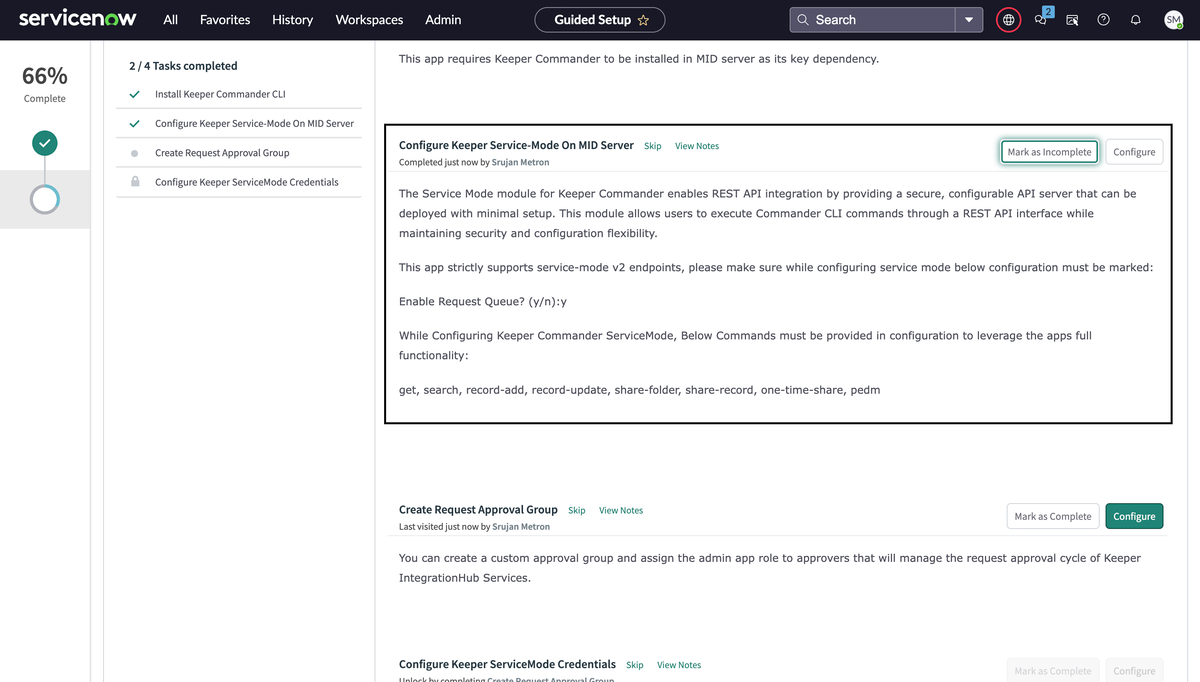
4. 次のステップ **\[Configure Keeper Service Mode On MID Server]** に進み、**\[configure]** をクリックして、MIDサーバー上でサービスモードを構成し起動する手順に従います。
設定例は次のとおりです。
```
My Vault> service-create
Enter Port No:9090
Enable Ngrok Tunneling? (y/n):n
Enable TLS Certificate (y/n):n
Enable Request Queue? (y/n):y
Enable Advanced Security? (y/n):n
Select Run Mode (foreground/background):foreground
List of supported commands, Enter comma separated: get, list-sf, sync-down, search, record-add, nsf-record-add, record-update, nsf-record-update, share-folder, nsf-share-record, nsf-share-folder, share-record, one-time-share, epm
Select configuration format (json/yaml):json
Generated API key: xxxxxxxxxxxxxxxxxxxxxxxxxxxxxxxxxxx
```
```
Uploading service_config.yaml ...
Commander Service starting on https://localhost:9090/api/v2/
Commander Service started with PID: 35215
```
### 承認グループ
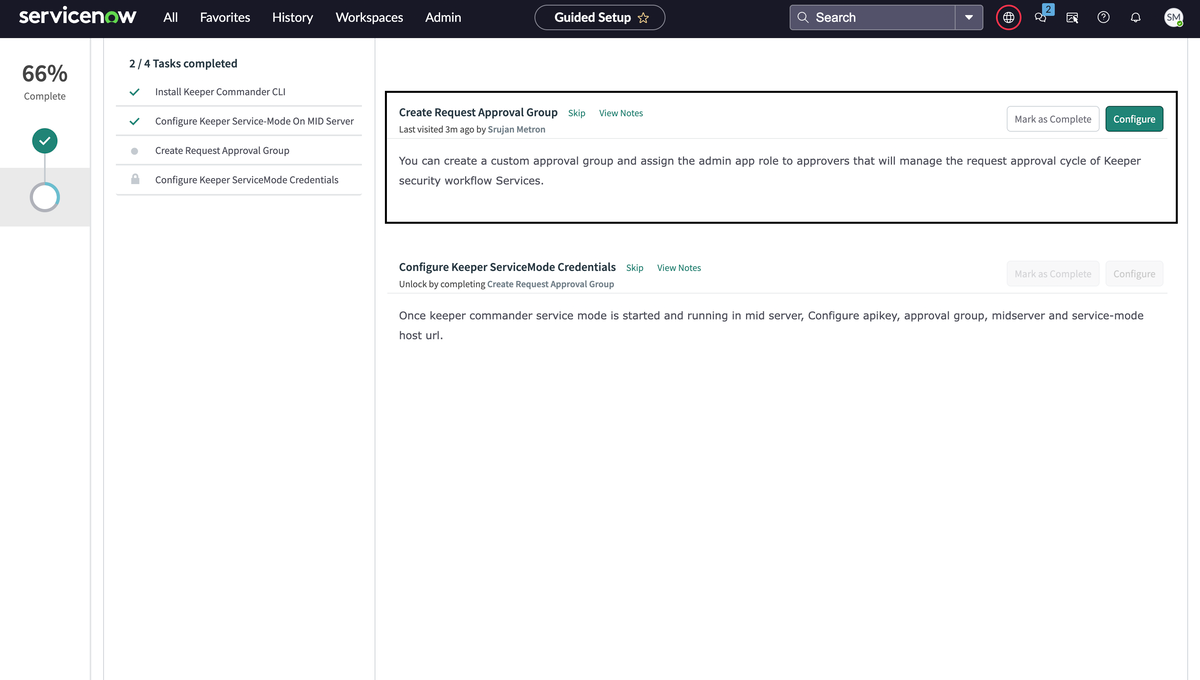
MIDサーバー上でサービスモードが稼働したら、ガイド付きセットアップで承認グループを構成します。
承認グループのメンバーは、申請者が起票した各リクエストの承認依頼を受け取ります。
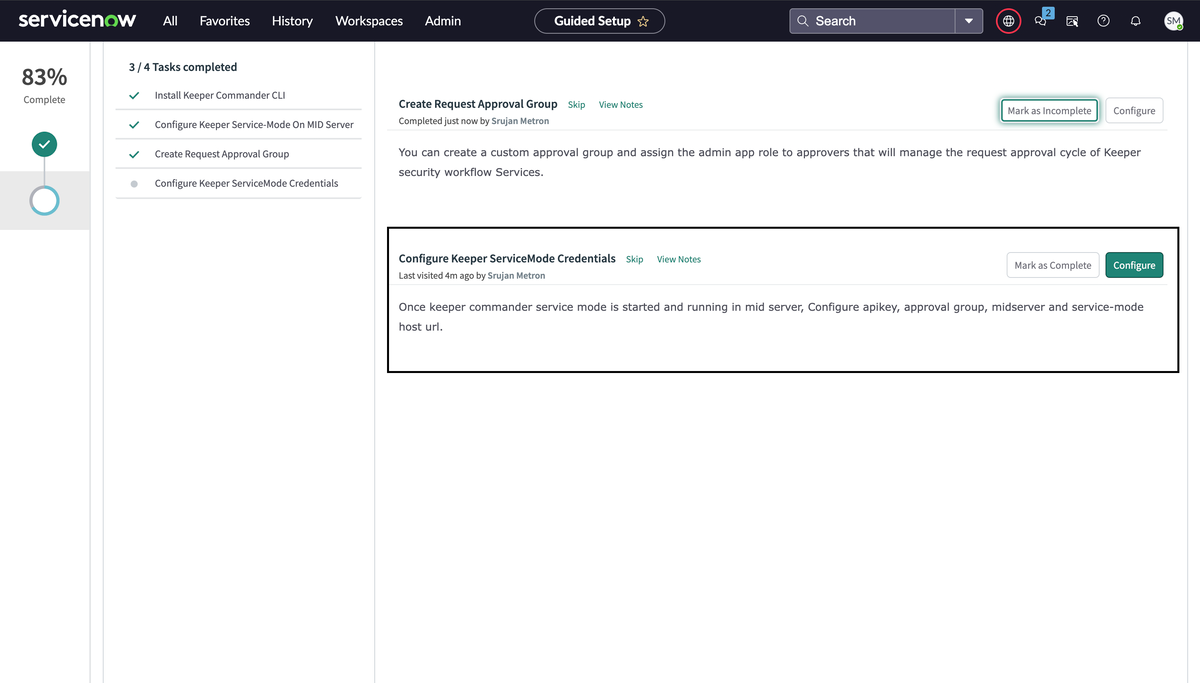
5. ガイド付きセットアップの最終ステップ **\[Configure Keeper ServiceMode Credentials]** に進み、 **\[Configure]** をクリックします。
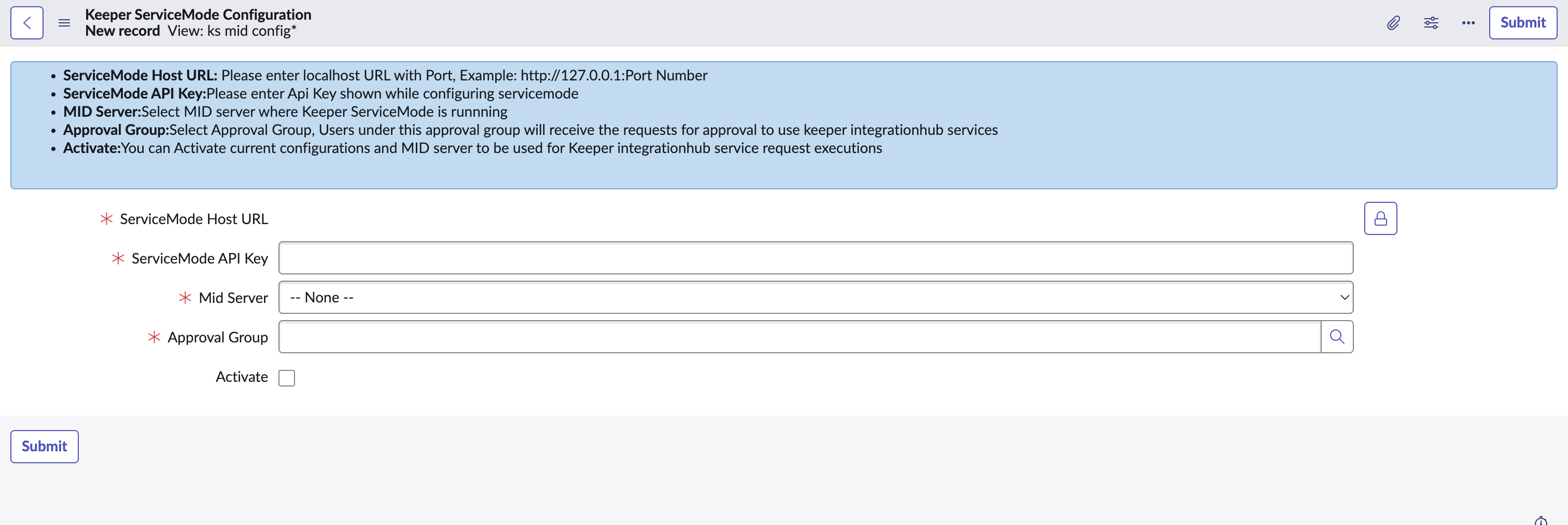
6. **\[New]** をクリックし、MIDサーバー上で動作しているサービスモードの詳細を構成します。
## サービスのリクエスト
申請者は次の手順でサービスをリクエストできます。
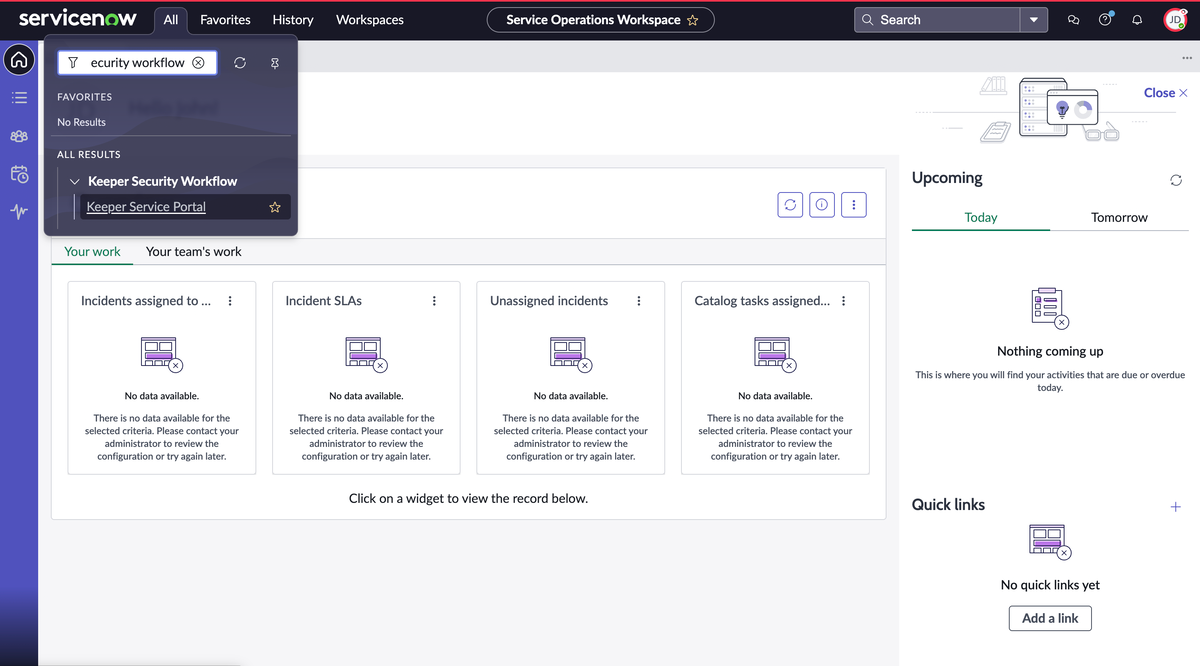
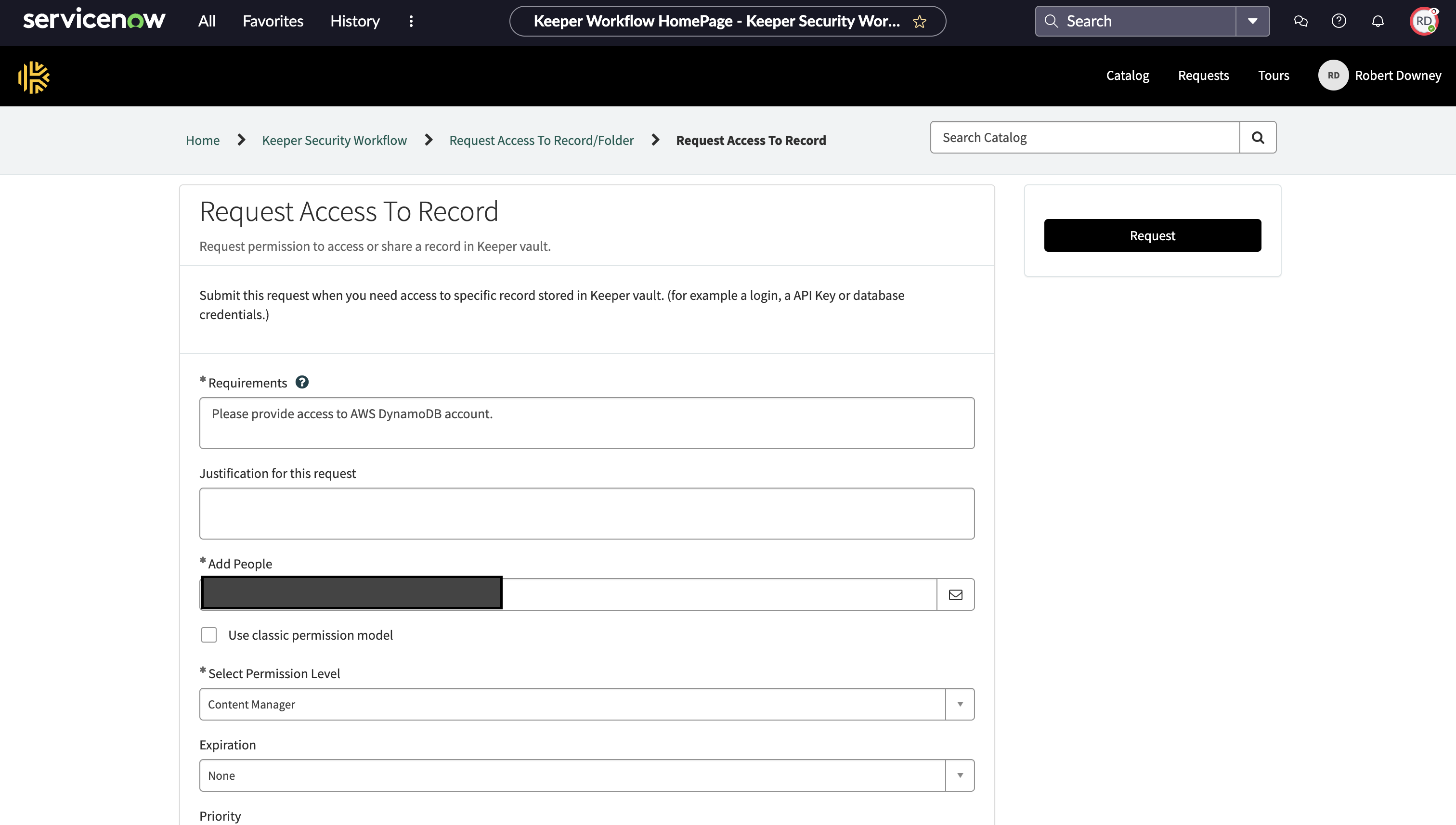
1. **\[All]** > **\[Keeper Security Workflow]** > **\[Keeper Service Portal]** に移動します。
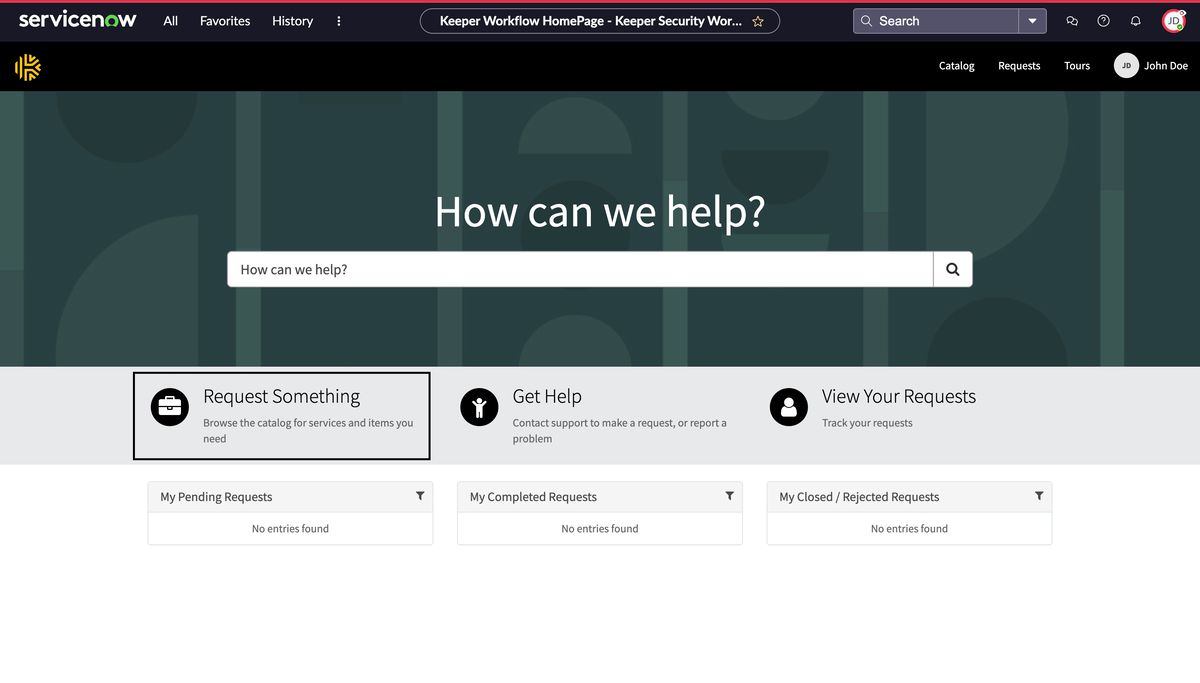
2. サービスポータルページで **\[Request something]** をクリックします。
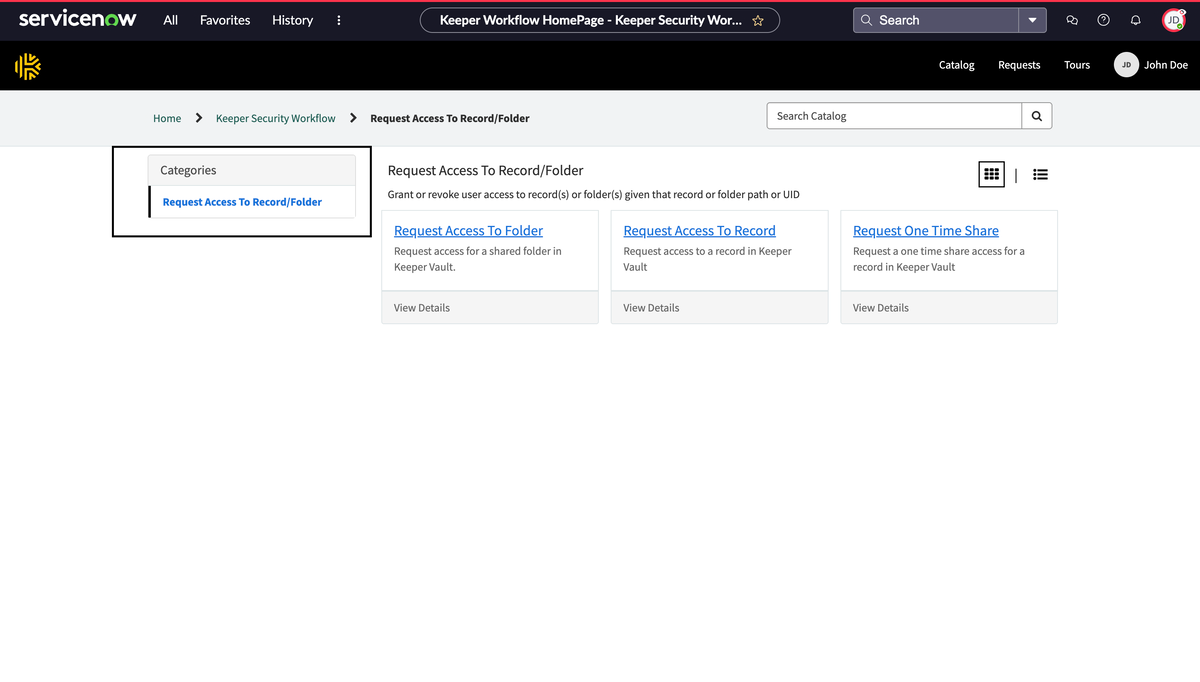
3. 目的のカテゴリをクリックし、リクエストするサービスを選択します。
4. 項目に関するフォームに入力し、**\[Request]** をクリックします。
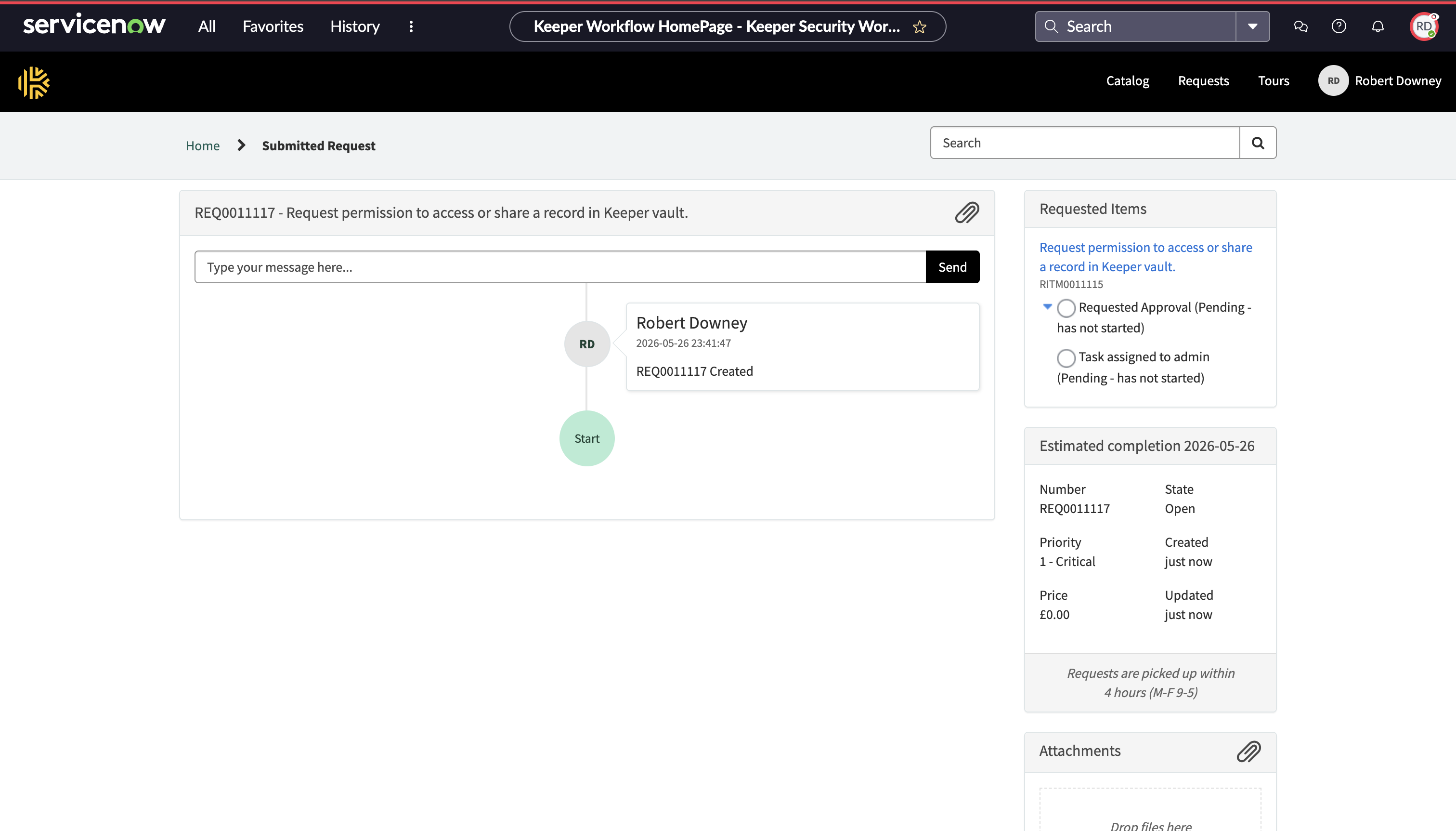
5. 次の画面のとおり詳細付きで、申請者にリクエストチケットが割り当てられます。
### リクエストの承認
アプリ管理者側では、リクエストの表示、承認または却下、必要に応じたタスクの実行が行えます。
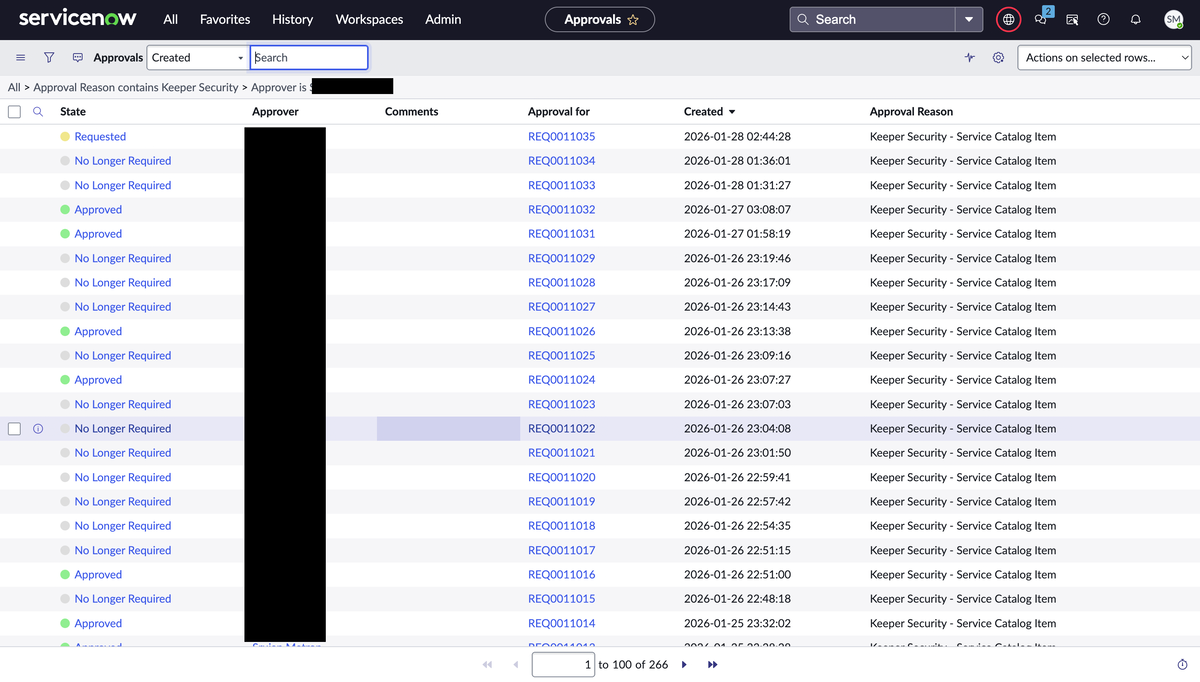
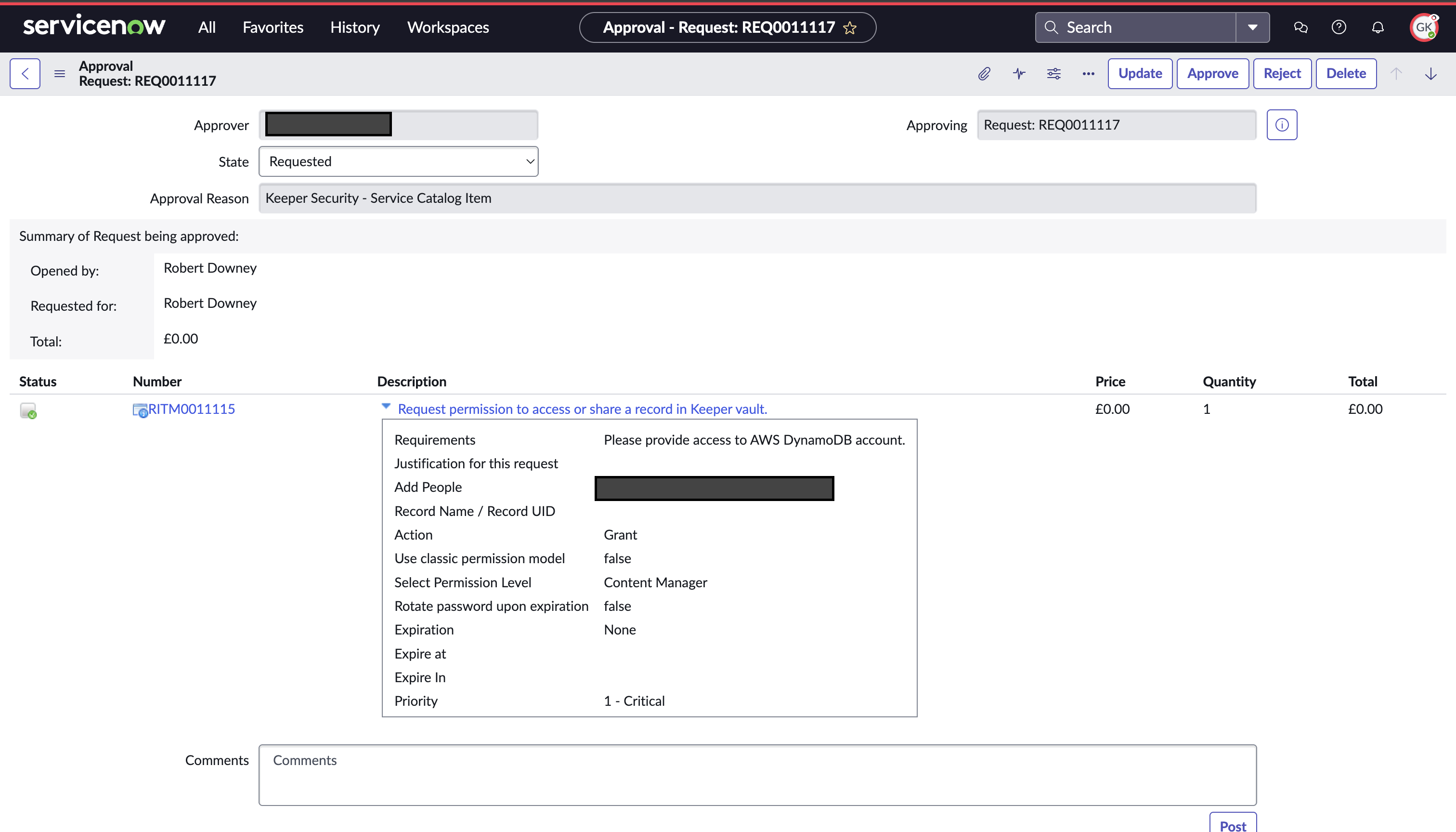
1. リクエストの表示および承認/却下のため、アプリ管理者または承認者は **\[All] > \[Keeper Security Workflow] > \[My Approvals]** に移動します。
2. 承認者は、該当ボタンをクリックしてリクエストを承認または却下します。
### タスクの履行
タスクに追加情報やフルフィルメント作業が必要な場合 (共有する正しいレコードの取得やユーザー申請の権限変更など)、タスク欄から対応できます。
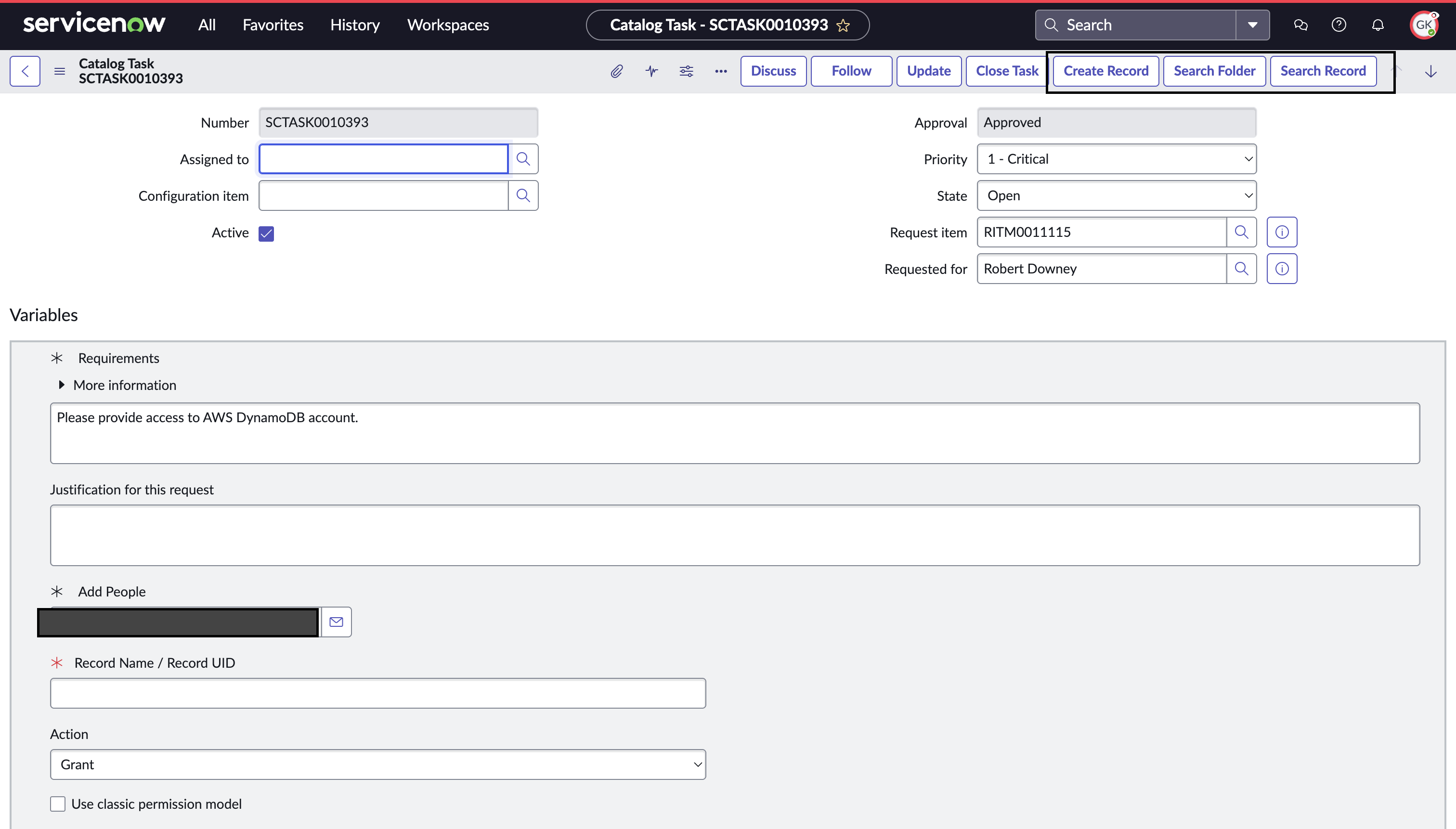
1. **\[All]** > **\[Keeper Security Workflow]** > **\[Service Catalog Task]** に移動します。
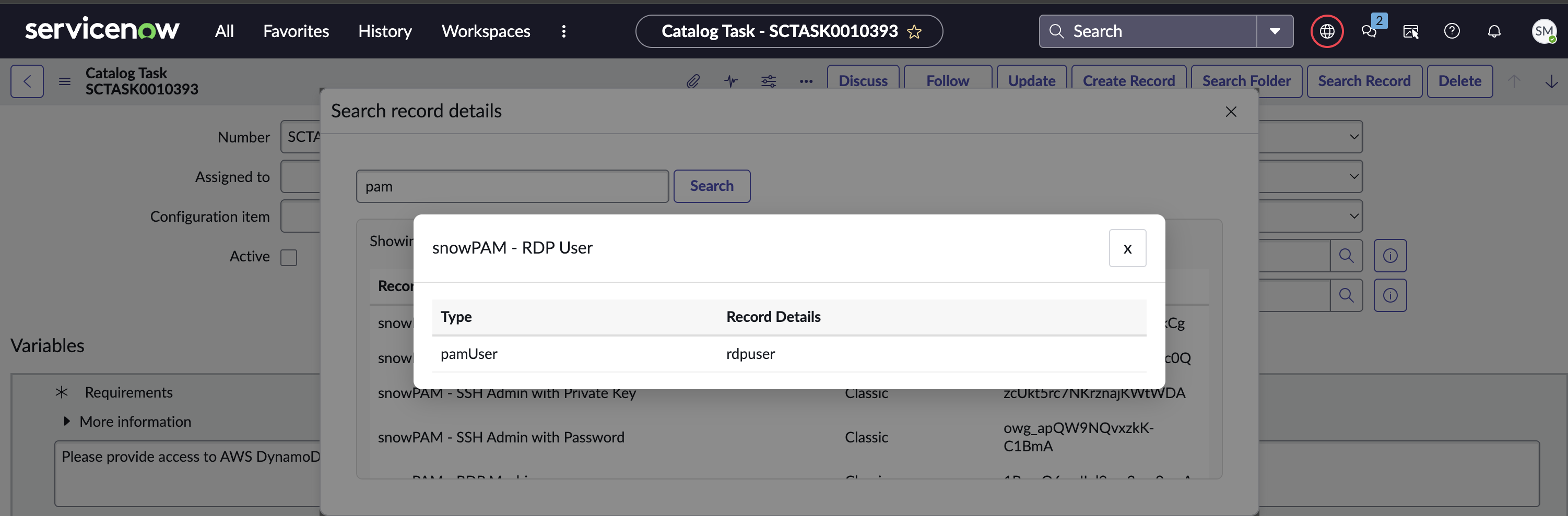
2. タスク欄では、アプリ管理者は共有するレコードやフォルダを検索したり、ServiceNowから直接Keeperボルトに新しいレコードを作成したりできます。
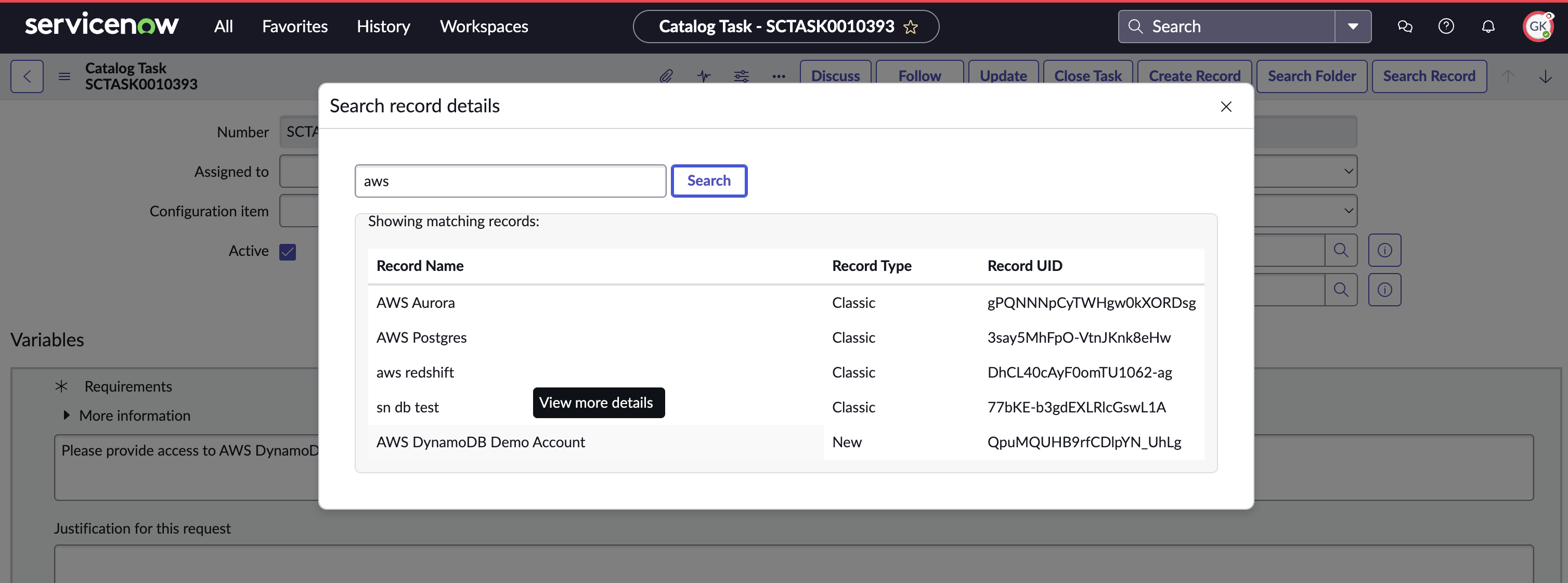
3. タスク欄で、アプリ管理者はレコードを検索できます。
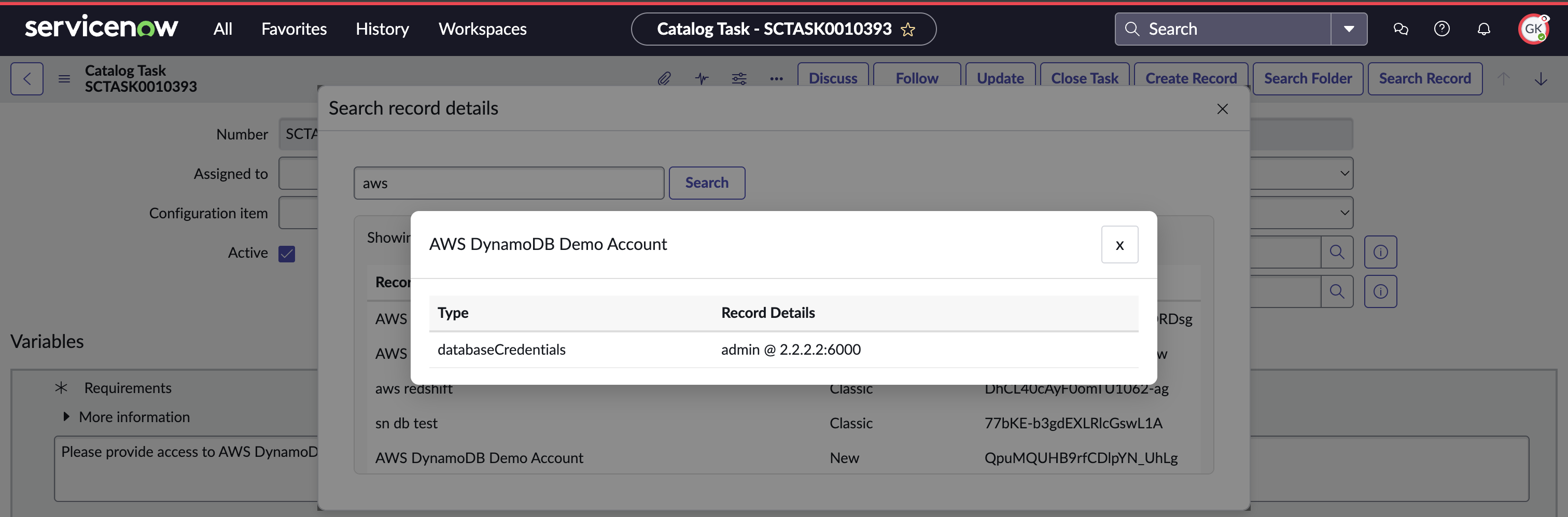
4. レコード名をクリックすると、アカウントの詳細を確認できます。
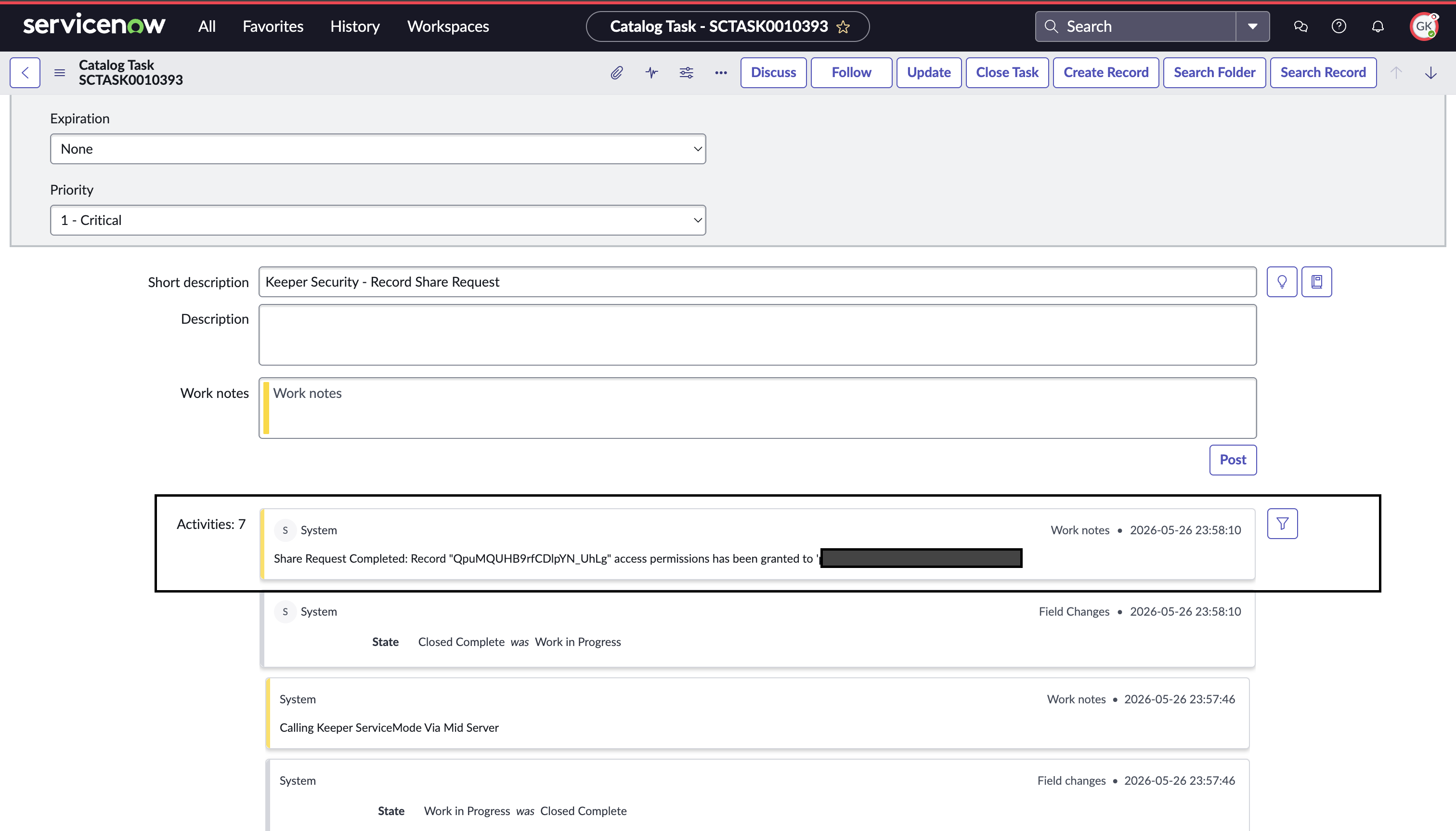
5. タスクが完了すると、申請ユーザーに目的のレコードが共有され、コマンダーサービスモードから受け取ったメッセージが表示されます。
***
## 従来型権限モデルと新権限モデル
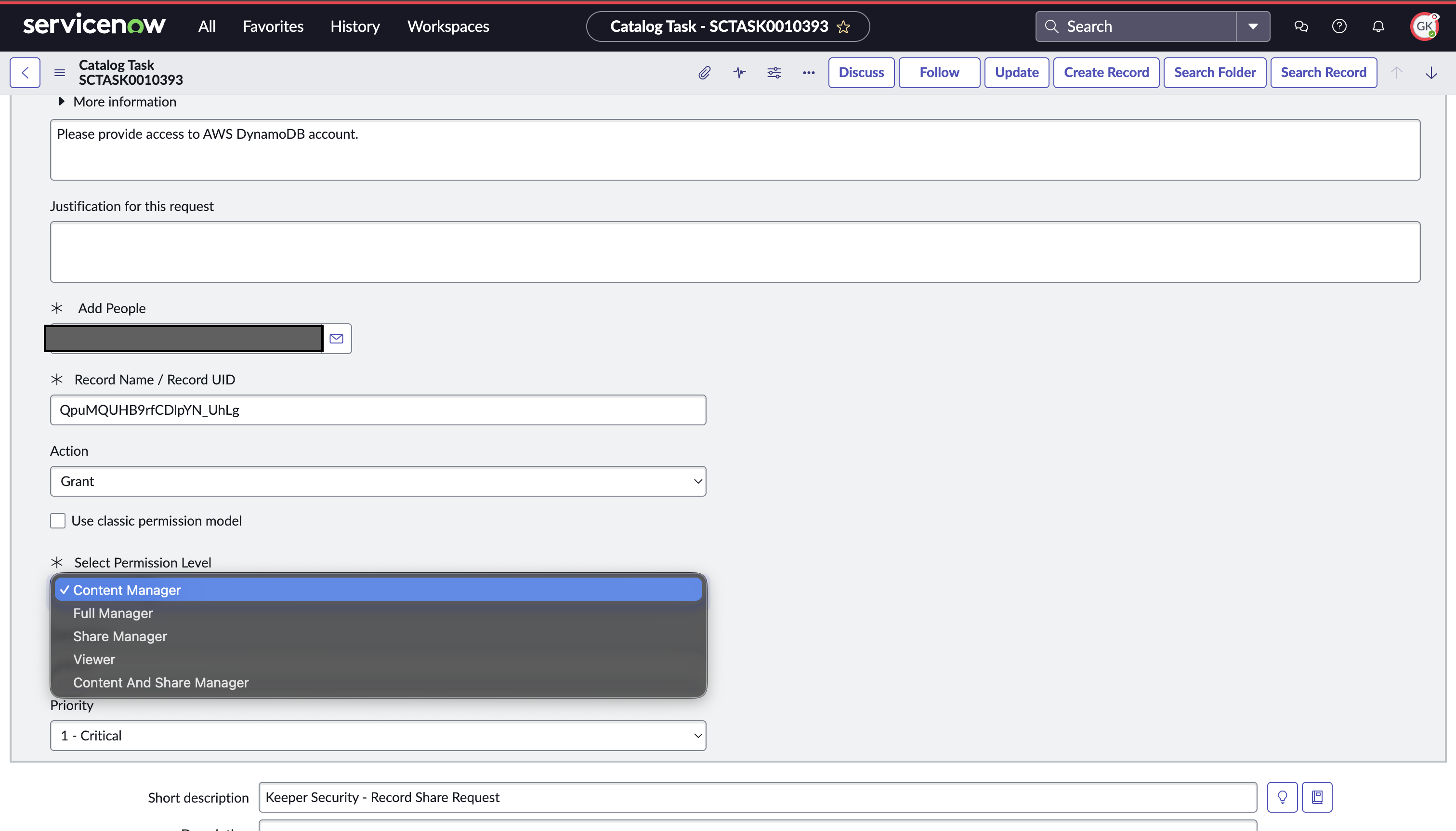
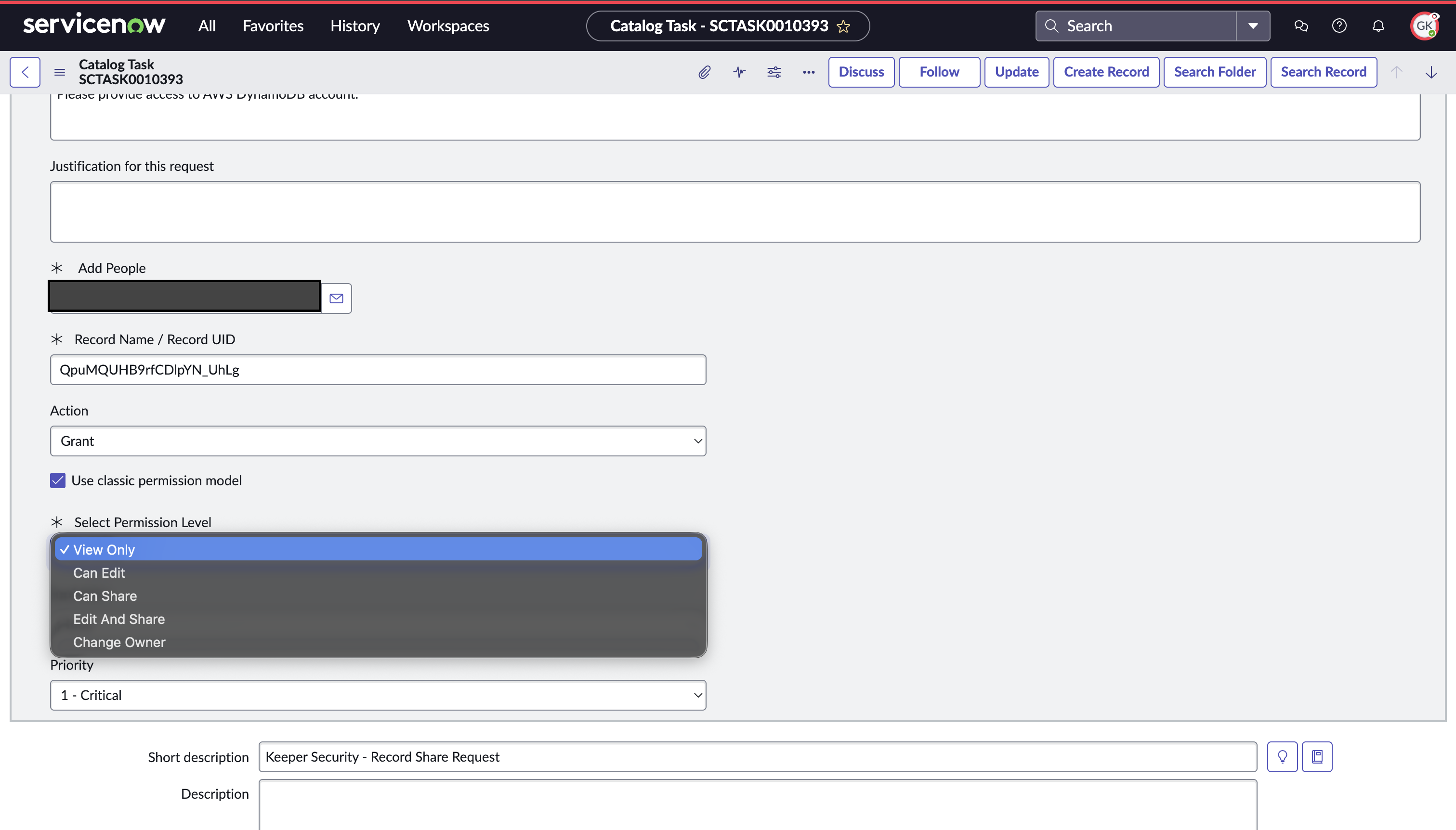
権限付与時は、旧ワークフロー向けの従来型権限モデルと、新ワークフロー向けの新権限モデルの両方から選択できます。
**新権限モデル**
**従来型権限モデル**
## KeeperPAM自動ローテーション機能
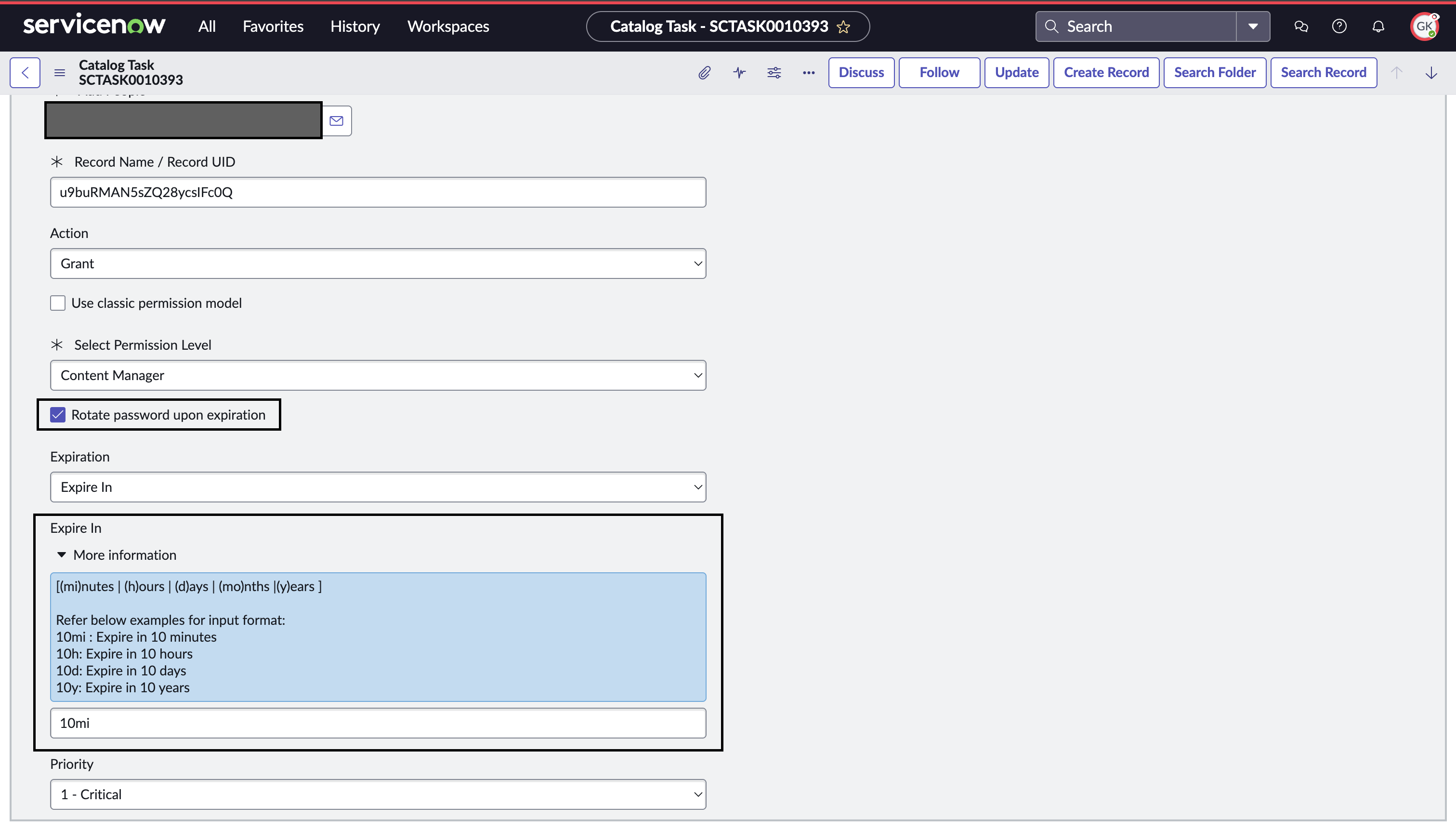
アプリ管理者がPAM Userタイプのレコード詳細を共有する際は、自動ローテーション機能を設定できます。
アプリ管理者が**PamUser**タイプの `record_uid` を指定すると、有効期限付きの自動ローテーションフィールドを構成できます。
付与したアクセス期間が満了すると、そのPAMレコードのパスワードがローテーションされます。
***
## エンドポイント特権マネージャー
エンドポイント特権管理の承認サイクルは[ServiceNow Keeper Security ITSM](/keeperpam/jp/secrets-manager/integrations/servicenow-itsm.md)アプリに依存します。
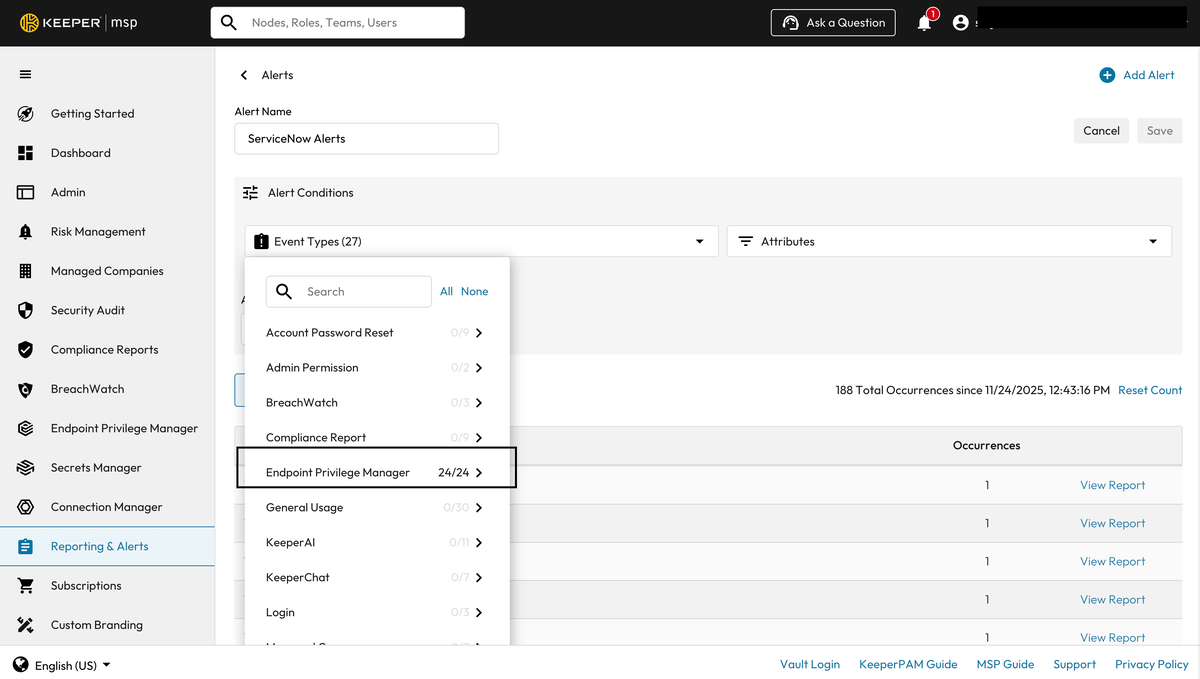
この機能を使うには、管理者がKeeper管理コンソールでエンドポイント特権マネージャーのアラートを有効にする必要があります。
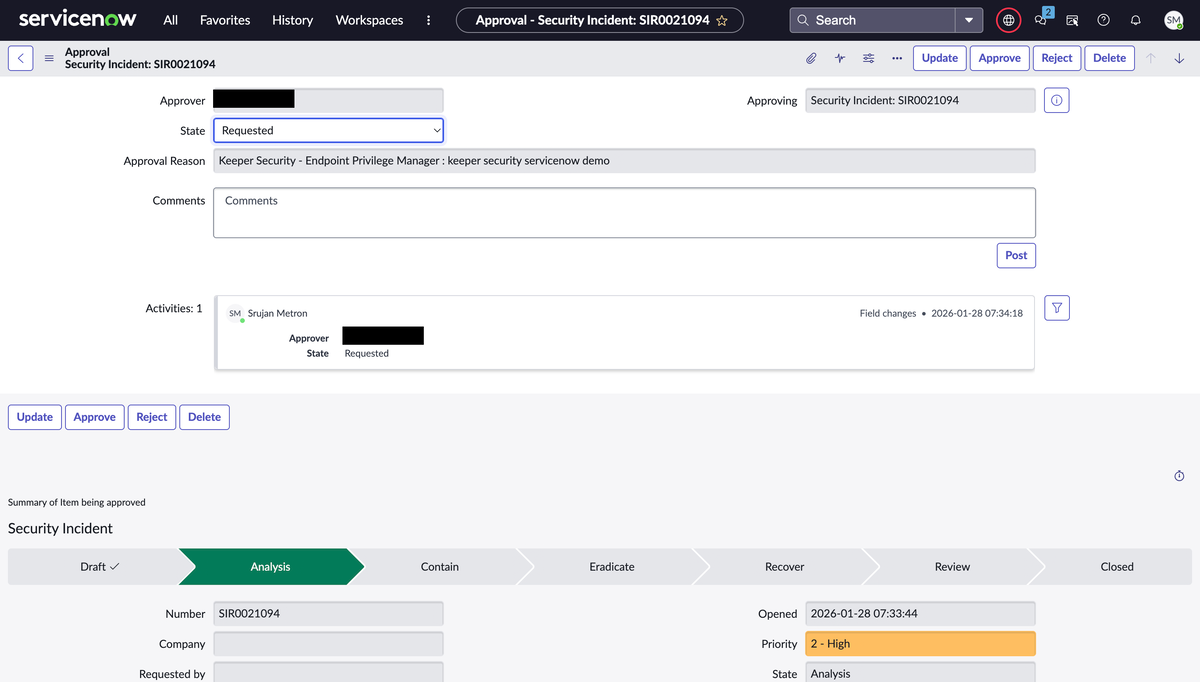
1. EPMリクエストが起票されると、 **\[Keeper Security Workflow]** > **\[My Approvals]** にリクエストが表示されます。
2. セキュリティインシデントチケットを参照するリクエストが作成されます。
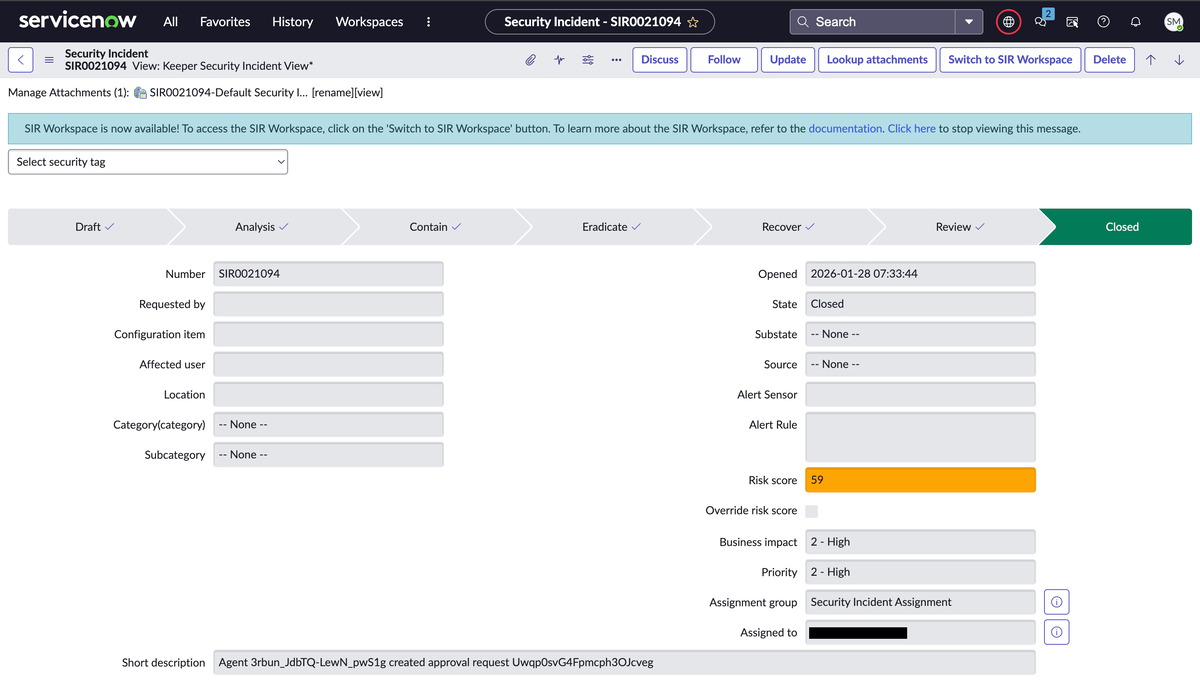
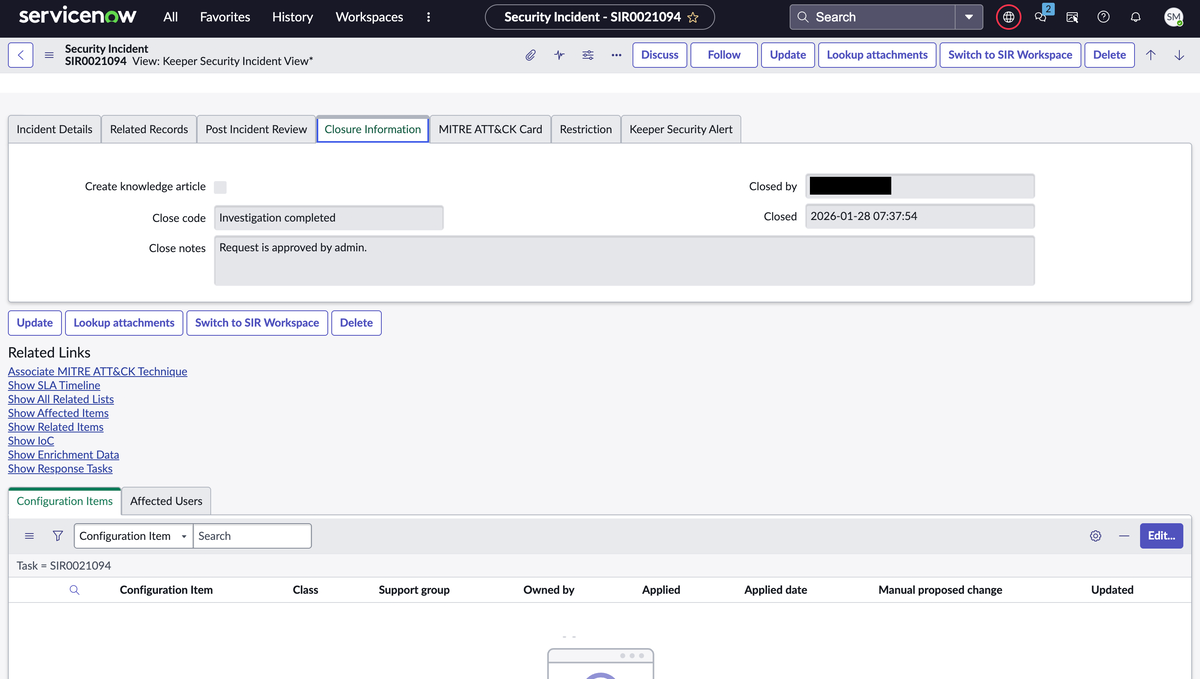
3. アプリ管理者がリクエストを承認または却下すると、承認プロセス完了後にセキュリティインシデントチケットが適切なコメント付きでクローズされます。
***
## トラブルシューティング
#### サービスモード構成エラー
MIDサーバーでサービスモードを構成する際に次のエラーが出る場合は、次の手順で調査してください。
1. サービスモードのホストまたはAPIキーを確認する。
2. 構成フォーム送信時に正しいMIDサーバーが選ばれているか確認する。
#### **\[My Approvals]** に承認リクエストが表示されない
1. ServiceNowでサービスモードをセットアップするときに、正しい承認グループが構成されているか確認する。
2. アプリ管理者が、フォームで設定した承認グループのメンバーになっているか確認する。
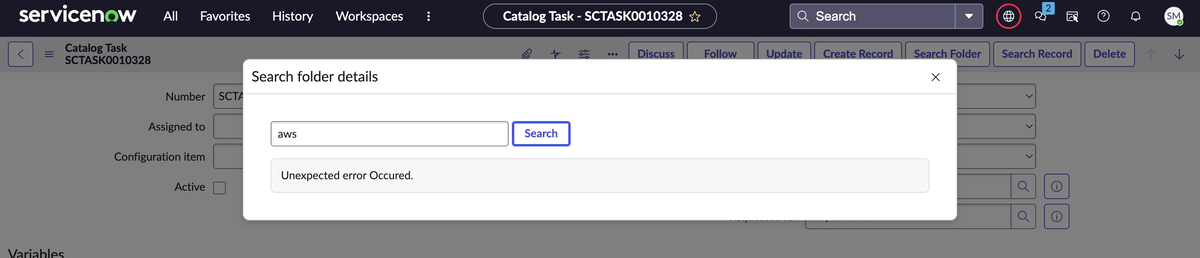
#### レコード/フォルダ検索で **\[Unexpected error occurred]** が表示される
1. MIDサーバーのステータスがUPか確認する。Downの場合はMIDサーバーを再起動する。
2. MIDサーバーが検証済みか確認する。
3. 正しいMIDサーバー上でサービスモードが動作し、設定したポートで待ち受けているか確認する。
#### **\[My Approvals]** にEPMリクエストが表示されない
1. Keeper管理コンソールのアラートで、エンドポイント特権マネージャーのアラートが有効か確認する。
2. Keeper Security ITSMアプリがインストールされ有効化されているか確認する。
3. Keeper Security ITSMアプリが正しく構成されているか確認する。
#### **\[My Approvals]** で `sysapproval_approver` のクエリエラーが表示される
**\[My Approvals]** セクションを開いたときに以下のエラーが表示される場合は、ACLロールを追加してください。
.png?alt=media)
1. ロールを `security_admin` に昇格する。
2. **\[System Security]** > **\[Access Control (ACL)]** に移動する。
3. 操作 `query_range`、フィールド `sysapproval_approver.approval_reason`、ロール **x\_keese\_ks\_inthub.ks\_admin** 用のACLロールを新規追加する。
### アプリケーションログ
アプリケーションログの詳細は、常に **\[Application Log]** セクションで確認できます。
---
# Agent Instructions
This documentation is published with GitBook. GitBook is the documentation platform designed so that both humans and AI agents can read, navigate, and reason over technical content effectively. Learn more at gitbook.com.
## Querying This Documentation
If you need additional information that is not directly available in this page, you can query the documentation by asking a question.
Perform an HTTP GET request on the following URL with the `ask` and `goal` query parameters:
```
GET https://docs.keeper.io/keeperpam/jp/secrets-manager/integrations/servicenow-workflow.md?ask=&goal=
```
`ask` is the immediate question: it should be specific, self-contained, and written in natural language.
`goal` is what the user is ultimately trying to achieve, the reason they need the answer. Sharing it helps GitBook give you a better, more relevant answer. A goal is most helpful when it describes the outcome the user wants rather than restating the question. For example, with `ask=how do I create an API token`, a goal like `automate deployments from our CI pipeline` lets GitBook tailor the answer to that use case.
The response will contain a direct answer to the question and relevant excerpts and sources from the documentation.
Use this mechanism when the answer is not explicitly present in the current page, you need clarification or additional context, or you want to retrieve related documentation sections.