> For the complete documentation index, see [llms.txt](https://docs.keeper.io/llms.txt). Markdown versions of documentation pages are available by appending `.md` to page URLs; this page is available as [Markdown](https://docs.keeper.io/keeperpam/privileged-access-manager/getting-started/gateways/one-time-access-token.md).
# Creating a Gateway
Creating a KeeperPAM Gateway
## Overview
In order to install and setup a KeeperPAM Gateway device, you need to have a few resources set up:
* Shared Folders to hold the PAM Resources (Machines, Databases, Users, etc)
* Keeper Secrets Manager application
* PAM Configuration
To simplify the process, we have a new Gateway wizard which creates all of the necessary components. Or, you can run each step individually.
## Using the Gateway Wizard
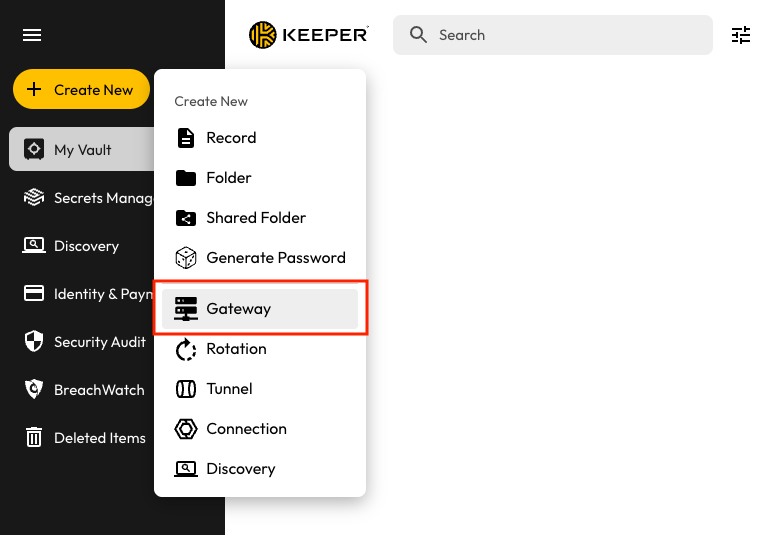
The fastest way to create a Gateway and associated resources is using the Gateway Wizard. From the Web Vault or Desktop App, click on **Create New** > **Gateway.**
Creating a Gateway
The below link describes how to create a sandbox environment in just a few steps:
* [Quick Start: Sandbox](/keeperpam/privileged-access-manager/quick-start-sandbox.md)
***
## Using Keeper Secrets Manager
To set up a KeeperPAM Gateway manually using the Keeper Secrets Manager application resources, follow these steps.
{% stepper %}
{% step %}
**Create a Secrets Manager Application**
* In the Keeper Web Vault or Desktop App user interface, create a Shared Folder. This Shared Folder will contain the PAM resource records.
* Navigate to the "Secret Managers" tab on the left and click on "Create Application" to create a KSM application
* In the prompted window:
* Enter the name of your KSM application
* Choose the Shared Folder
* Set the Record Permissions for Application to "Can Edit"
* Click on "Generate Access Token" and then click on "OK"
* You can safely ignore the first One-Time Access Token generated for the newly created KSM application. When creating a KeeperPAM Gateway device, a different One-Time Access Token will be created.
Create a KSM Application
{% endstep %}
{% step %}
**Generate the Gateway Token**
* From the Application screen, open the **Gateways** tab
* Click on **Provision Gateway**
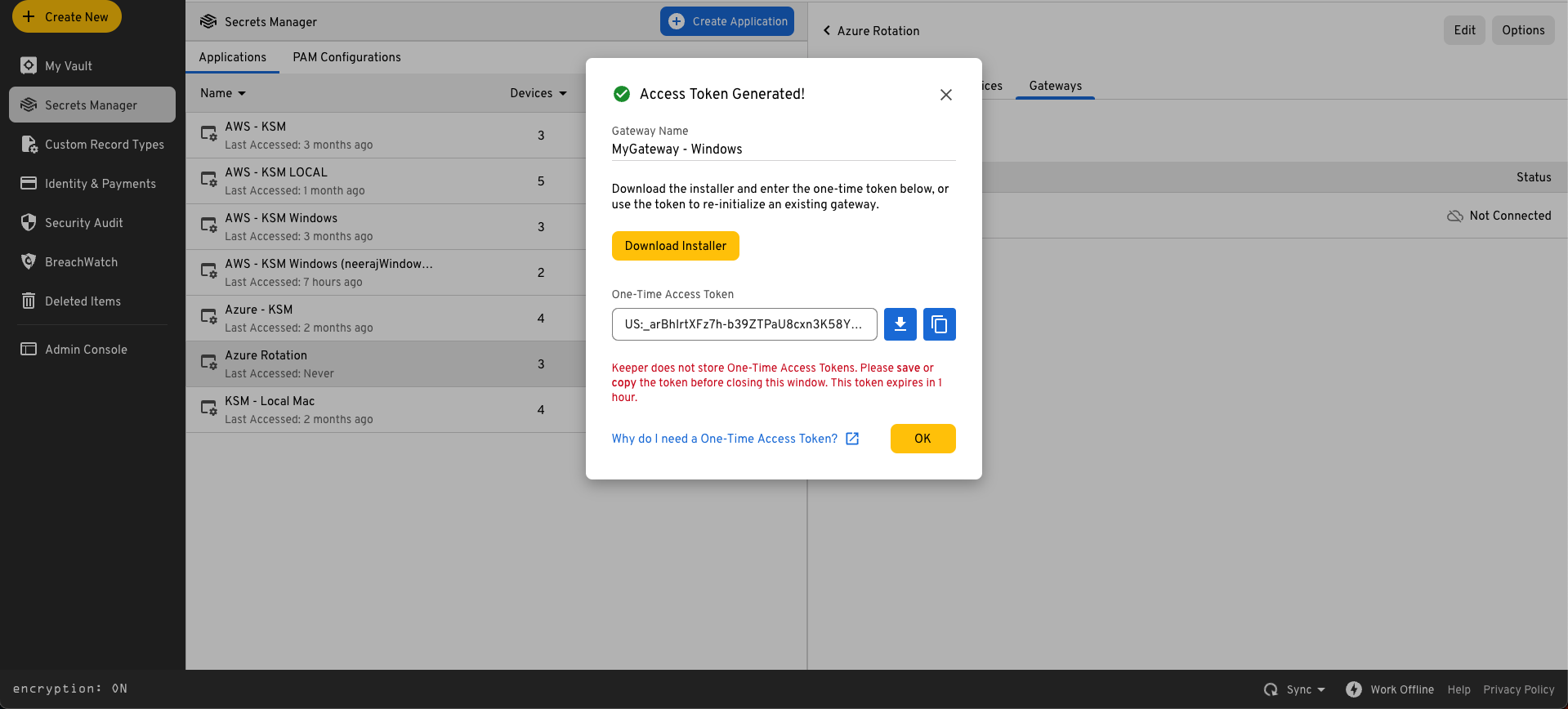
* Select a name for the Gateway and the operating system
* Follow the on-screen instructions based on the type of install
Windows Gateway
{% endstep %}
{% endstepper %}
***
## Using Commander CLI
You can also create a Gateway and configuration file from the Commander CLI. The below CLI commands will create a Secrets Manager application, shared folders and other resources before creating a Gateway instance.
#### Create an Application
```
secrets-manager app create "My Infrastructure"
```
#### Create Folders
```
mkdir -uf "My Infrastructure"
mkdir -sf -a "My Infrastructure/Resources"
mkdir -sf -a "My Infrastructure/Users"
```
#### Share the KSM app to the Shared Folders
```
secrets-manager share add --app "My Infrastructure" --secret
secrets-manager share add --app "My Infrastructure" --secret
```
#### Create a Gateway
To initialize a Gateway for [Linux](/keeperpam/privileged-access-manager/getting-started/gateways/linux-installation.md) or [Windows](/keeperpam/privileged-access-manager/getting-started/gateways/windows-installation.md) native install methods, the one-time token method is used:
```
pam gateway new -n "My Demo Gateway" -a "My Infrastructure"
```
To initialize a Gateway using [Docker](/keeperpam/privileged-access-manager/getting-started/gateways/gateway-with-docker.md), the base64 configuration is provided as `GATEWAY_CONFIG` environment variable as described in the [Docker Installation](/keeperpam/privileged-access-manager/getting-started/gateways/gateway-with-docker.md) instructions.
```
pam gateway new -n "My Demo Gateway" -a "My Infrastructure" -c b64
```
---
# Agent Instructions
This documentation is published with GitBook. GitBook is the documentation platform designed so that both humans and AI agents can read, navigate, and reason over technical content effectively. Learn more at gitbook.com.
## Querying This Documentation
If you need additional information that is not directly available in this page, you can query the documentation by asking a question.
Perform an HTTP GET request on the following URL with the `ask` and `goal` query parameters:
```
GET https://docs.keeper.io/keeperpam/privileged-access-manager/getting-started/gateways/one-time-access-token.md?ask=&goal=
```
`ask` is the immediate question: it should be specific, self-contained, and written in natural language.
`goal` is what the user is ultimately trying to achieve, the reason they need the answer. Sharing it helps GitBook give you a better, more relevant answer. A goal is most helpful when it describes the outcome the user wants rather than restating the question. For example, with `ask=how do I create an API token`, a goal like `automate deployments from our CI pipeline` lets GitBook tailor the answer to that use case.
The response will contain a direct answer to the question and relevant excerpts and sources from the documentation.
Use this mechanism when the answer is not explicitly present in the current page, you need clarification or additional context, or you want to retrieve related documentation sections.