# PAM User

<figure><img src="https://762006384-files.gitbook.io/~/files/v0/b/gitbook-x-prod.appspot.com/o/spaces%2F-MJXOXEifAmpyvNVL1to%2Fuploads%2FkAjqR7emtY9jLtKEyEkg%2FKeeperPAM%20User.jpg?alt=media&#x26;token=b43bd7ce-e079-4e7e-aabc-592ef88f5e11" alt=""><figcaption></figcaption></figure>

## Overview

A PAM User is a type of KeeperPAM resource that represents an account credential. The PAM User is linked from other resources.

<table><thead><tr><th width="215">PAM Record Type</th><th>Supported Account Types</th></tr></thead><tbody><tr><td>PAM User</td><td>Local Windows accounts, Domain accounts, Active Directory users, IAM users, database accounts, SaaS accounts, Linux accounts, SSH Private Keys</td></tr></tbody></table>

## What is a PAM User

KeeperPAM User records define a specific account inside another PAM resource. PAM Machines, PAM Databases, PAM Directories and PAM Remote Browser records link to a PAM User.

## Features Available

The PAM User resource supports the following features:

* On-demand and scheduled password rotation
* PAM Scripts for privilege automation
* Persistent sharing to users and teams
* Sharing with time-limited access
* Auto-rotation after share revocation

## Creating a PAM User

Prior to creating a PAM User, make sure you have already created a PAM Configuration and a PAM Resource such as a Machine, Database, Directory or Browser.

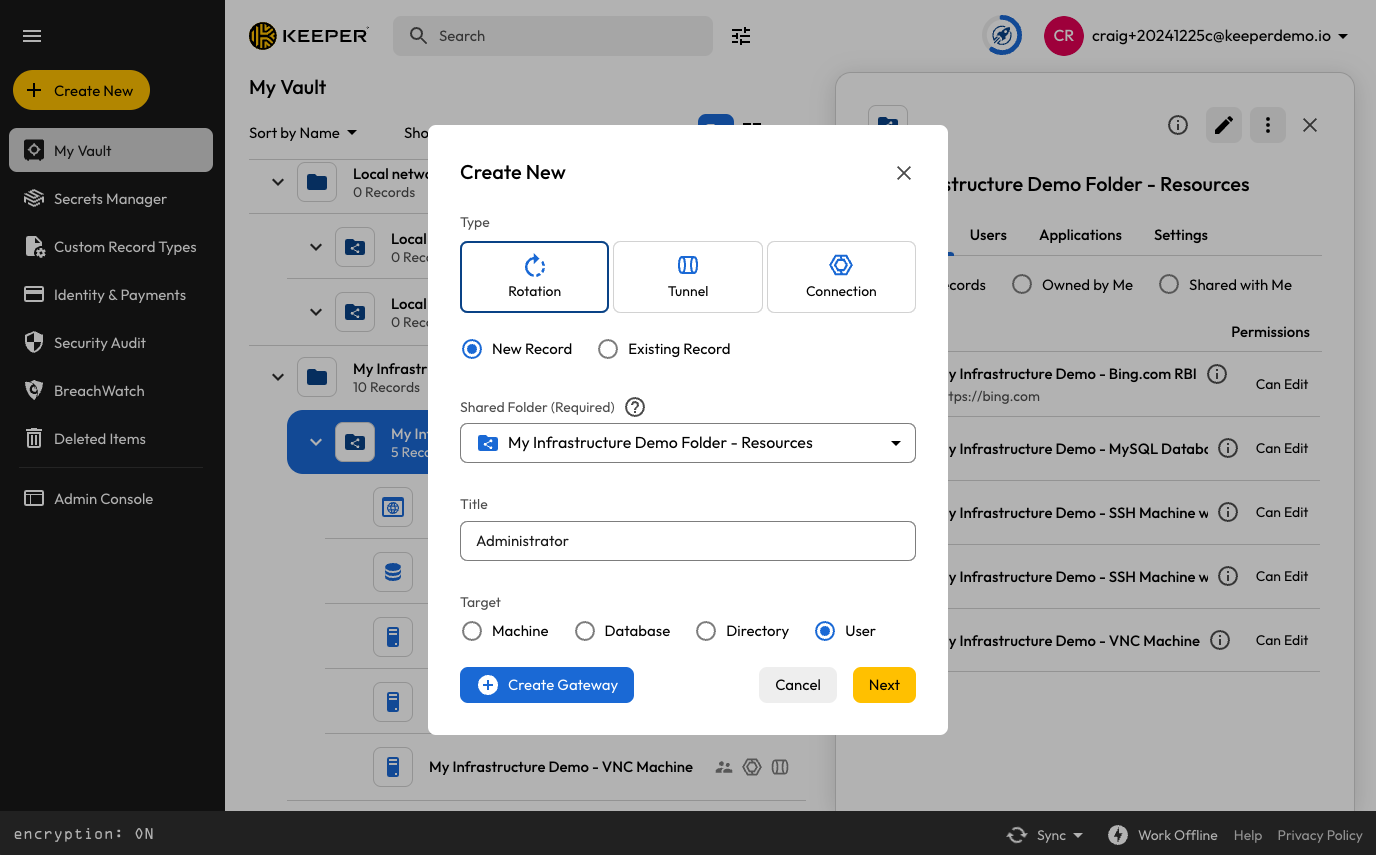
To create a PAM User:

* Click on **Create New**
* Depending on your use case, click on "**Rotation**", "**Tunnel**", or "**Connection**"
* On the prompted window:
  * Select "**New Record**"
  * Select the Shared Folder you want the record to be created in
  * Specify the Title
  * Select "**User**" for the Target
* Click "**Next**" and complete all of the required information.

<figure><img src="https://762006384-files.gitbook.io/~/files/v0/b/gitbook-x-prod.appspot.com/o/spaces%2F-MJXOXEifAmpyvNVL1to%2Fuploads%2FIRM2u2catMzTjLm3TP6n%2FScreenshot%202024-12-28%20at%207.44.54%E2%80%AFPM.png?alt=media&#x26;token=39192e46-6bd5-44c1-90de-12e3a2f17a18" alt=""><figcaption><p>Creating a PAM User</p></figcaption></figure>

## PAM **User** Record Type Fields

The following table lists all the configurable fields on the PAM Remote Browser Record Type:

<table><thead><tr><th width="168">Field</th><th width="251">Description</th><th>Notes</th></tr></thead><tbody><tr><td>Login</td><td>Username; exact context and format depends on the associated resource.<br><br>See <a href="#note-1">Note (1)</a> below.</td><td><strong>Required</strong><br><br>Examples:<br><code>username</code><br><code>username@domain</code><br><code>DOMAIN\username</code></td></tr><tr><td>Password</td><td>Password of the user</td><td>Can be rotated</td></tr><tr><td>Private Key</td><td>PEM-encoded SSH Private Key associated with user.</td><td>Can be rotated</td></tr><tr><td>Distinguished Name</td><td>Distinguished name; used if associated with a PAM Directory</td><td><p><strong>Required</strong> only when the User is managed by a directory<br><br>Example:<br>CN=Jeff Smith,OU=Sales,DC=demo,DC=COM<br></p><p>If left blank, defaults are attempted depending on the provider type</p></td></tr><tr><td>Managed User</td><td>Flag for accounts that are managed by the AWS or Azure IAM systems</td><td>Set by Keeper Discovery to indicate that the password cannot be rotated. For example, AWS token-based auth.</td></tr><tr><td>Connect Database</td><td>Used in certain scenarios if a database name is needed</td><td>Edge cases, e.g. using LDAP to connect to a MySQL database</td></tr></tbody></table>

#### Note (1)

When connecting to Windows machines that are domain-joined:

* For domain-joined systems, always use the UPN format (`user@domain.local`) as it is more modern, DNS-reliant, and avoids NetBIOS issues.
* Reserve `DOMAIN\user` for older systems or mixed environments where UPN isn't supported.

Note that Keeper will attempt to login to the remote system using the username exactly as supplied. If authentication fails, Keeper will then attempt to use the below variations:

* **User Principal Name (UPN) format:** <admin@company.com>
* **Domain NetBIOS format:** COMPANY\admin
* **Shortened UPN format (no TLD):** admin\@company
* **Domain FQDN with backslash format:** company.com\admin

### SSH Key Passphrase

When the PAM User record is storing an SSH key, the PEM-encoded private key is added to the "Private PEM Key" field. If the SSH key file is encrypted, you can create a custom field (Hidden Field on the Vault or `secret` field in Commander) with the label of "Private Key Passphrase" which stores the SSH key passphrase.

<table><thead><tr><th width="168">Field</th><th width="251">Description</th><th>Notes</th></tr></thead><tbody><tr><td>Private Key Passphrase</td><td>Used to decrypt the SSH Private Key for use in connections.</td><td>Required if the SSH key is encrypted</td></tr></tbody></table>

### Configure rotation settings

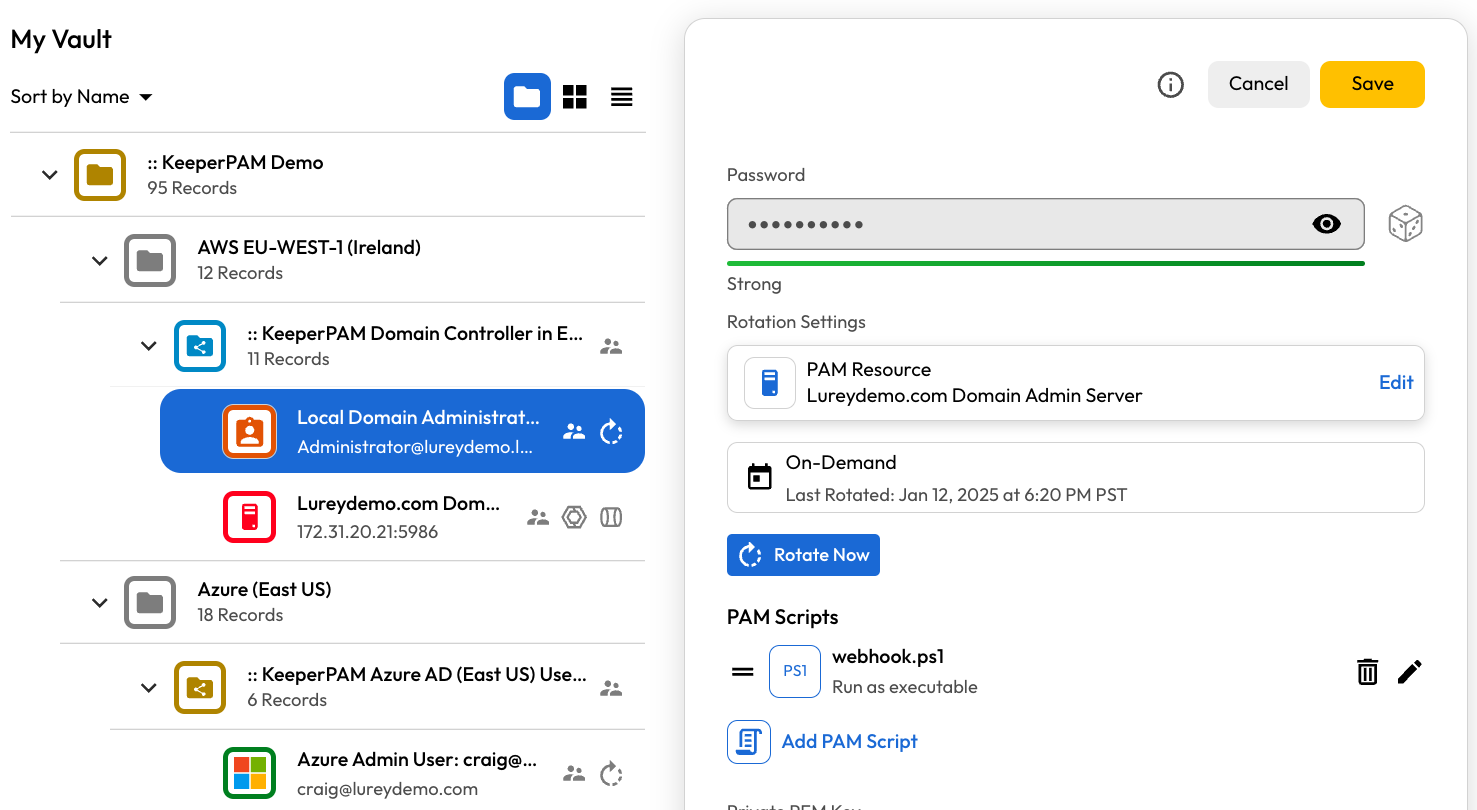
<figure><img src="https://762006384-files.gitbook.io/~/files/v0/b/gitbook-x-prod.appspot.com/o/spaces%2F-MJXOXEifAmpyvNVL1to%2Fuploads%2FOXi2mFqCpWzFOEFamNfS%2FScreenshot%202025-01-23%20at%204.33.26%E2%80%AFPM.png?alt=media&#x26;token=5fdba450-37b9-4cf8-9ecb-f9ce341948c3" alt=""><figcaption><p>PAM User record editing</p></figcaption></figure>

### Password Rotation Settings

<table><thead><tr><th>Field</th><th width="235">Description</th><th>Required</th></tr></thead><tbody><tr><td>Rotation Type</td><td>Specifies which type of rotation is being performed (and which protocol is utilized).</td><td><strong>Required</strong><br><br>"General", "IAM User" or "Run PAM Scripts Only". See below for details.</td></tr><tr><td>PAM Resource</td><td>For General rotation type, specifies the PAM Resource record which can provide the necessary privilege.<br><br>For IAM User rotation type, specifies the PAM Configuration utilizing cloud APIs.</td><td><strong>Required</strong> only for "General" and "IAM User" rotation types</td></tr><tr><td>Rotation Schedule</td><td>Rotation can be performed on-demand or on a specific schedule.</td><td>For advanced scheduling, see the <a href="https://github.com/Keeper-Security/gitbook-secrets-manager/blob/master/privileged-access-manager/references/cron-spec/README.md">cron spec</a>.</td></tr><tr><td>Password Complexity</td><td>Applies to password-based rotations, not PEM keys.</td><td>Select "Show More" to control special characters and symbols.</td></tr></tbody></table>

### Rotation Type

Keeper supports 3 different types of rotation:

* **General:** Uses native protocols for performing the rotation, such as LDAP, Databases, SSH keys, etc.
* **IAM User:** Uses the cloud-specific APIs for performing rotation, such as AWS IAM users, Azure managed resources, and Google Workspace principals. In this case, only the PAM Configuration is required since it contains the necessary credentials.
* **Run PAM scripts only:** Skips the standard rotation and only executes the attached PAM Scripts.

<figure><img src="https://762006384-files.gitbook.io/~/files/v0/b/gitbook-x-prod.appspot.com/o/spaces%2F-MJXOXEifAmpyvNVL1to%2Fuploads%2F5nWthY6PzkuyCPswOm1g%2FScreenshot%202025-01-14%20at%209.42.30%E2%80%AFAM.png?alt=media&#x26;token=b0fffa2c-42ee-4f11-97de-b37e14d56924" alt=""><figcaption><p>Password Rotation Settings</p></figcaption></figure>

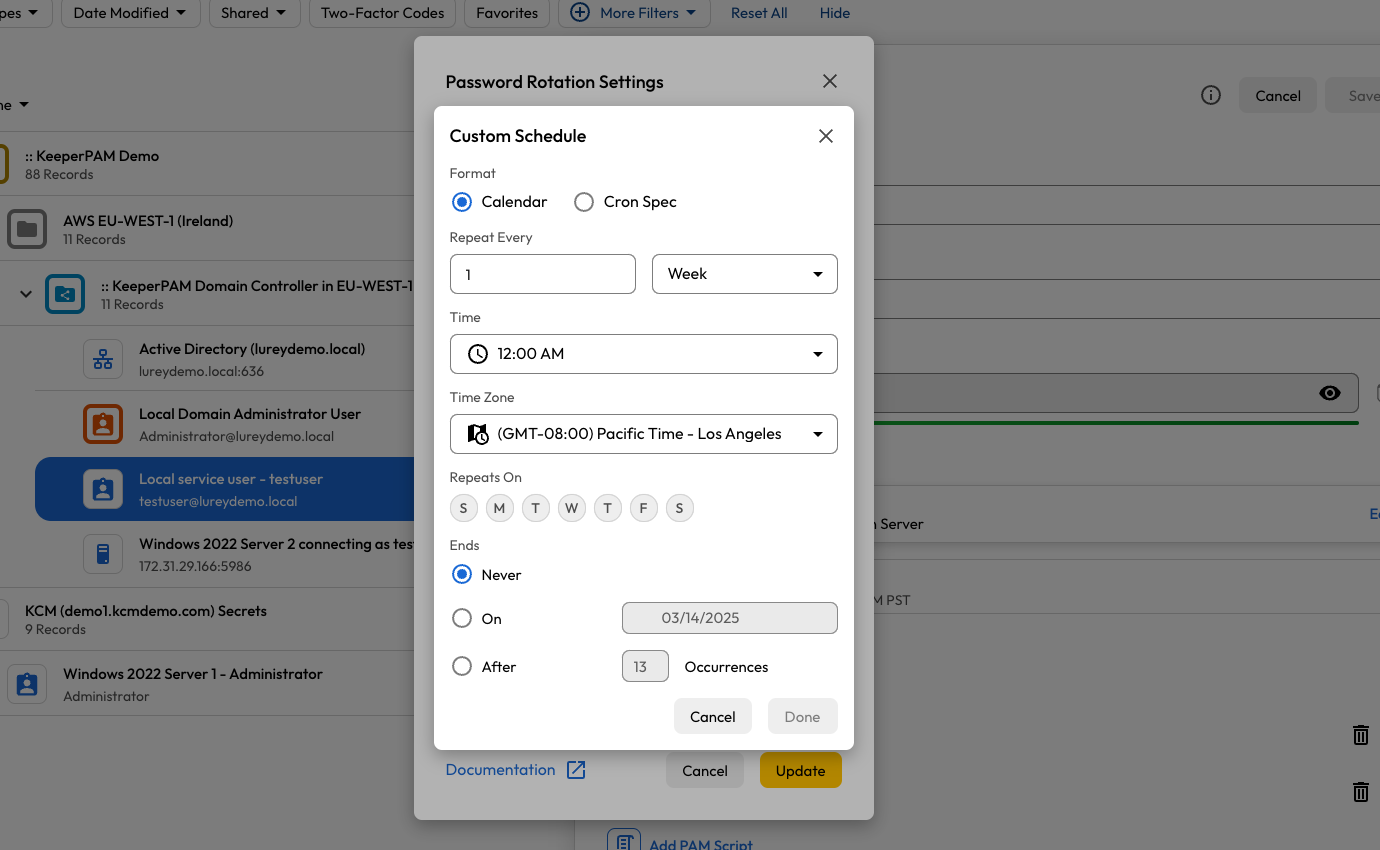
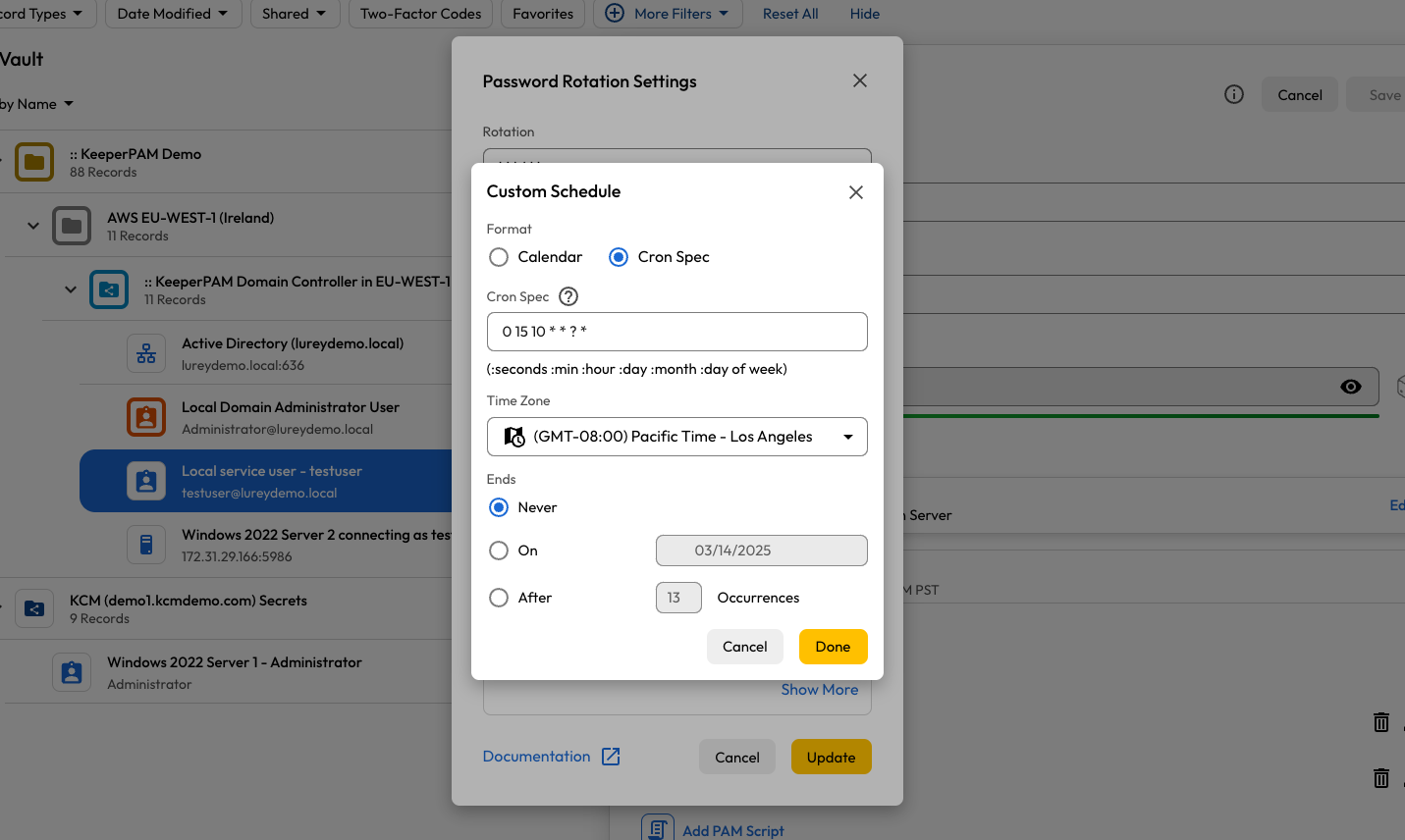
The rotation schedule can be set on a specific interval, or using a [cron spec](https://docs.keeper.io/en/keeperpam/privileged-access-manager/references/cron-spec).

<figure><img src="https://762006384-files.gitbook.io/~/files/v0/b/gitbook-x-prod.appspot.com/o/spaces%2F-MJXOXEifAmpyvNVL1to%2Fuploads%2FTmiv0hvl0miQxomi0CnG%2FScreenshot%202025-01-14%20at%209.50.46%E2%80%AFAM.png?alt=media&#x26;token=fd5381d6-f451-4f2a-8e46-c4cab48e3b47" alt=""><figcaption><p>Custom Schedule</p></figcaption></figure>

<figure><img src="https://762006384-files.gitbook.io/~/files/v0/b/gitbook-x-prod.appspot.com/o/spaces%2F-MJXOXEifAmpyvNVL1to%2Fuploads%2F0he1Hr0prQpo7N7GqIZ3%2FScreenshot%202025-01-14%20at%209.50.56%E2%80%AFAM.png?alt=media&#x26;token=fc6b40d7-0612-415d-b029-8df7d6ba3d1e" alt=""><figcaption><p>Calendar Settings</p></figcaption></figure>

<figure><img src="https://762006384-files.gitbook.io/~/files/v0/b/gitbook-x-prod.appspot.com/o/spaces%2F-MJXOXEifAmpyvNVL1to%2Fuploads%2F4y6jRZ4RfZ7fDm0KQN3Y%2FScreenshot%202025-01-14%20at%209.51.03%E2%80%AFAM.png?alt=media&#x26;token=b4e3104e-b14e-462d-84e2-2b19e946b9ed" alt=""><figcaption><p>Cron Spec</p></figcaption></figure>

### PAM Resource

To complete the Rotation setup, you need to select a resource, which depends on the rotation type.

For a "General" rotation, the Keeper Gateway uses a native protocol for performing the necessary rotation, and the rotation will be executed on the associated PAM Resource supplied. If necessary, the rotation will use the associated administrative credential on the PAM Resource.

In the example below, a Windows service account password is going to be rotated on the associated Windows Server.

<figure><img src="https://762006384-files.gitbook.io/~/files/v0/b/gitbook-x-prod.appspot.com/o/spaces%2F-MJXOXEifAmpyvNVL1to%2Fuploads%2F8OB6YiUox2fAgFUgyNWv%2FScreenshot%202025-01-23%20at%206.13.23%E2%80%AFPM.png?alt=media&#x26;token=fe9db3bc-0e29-4734-9778-3f2fb1c14783" alt=""><figcaption><p>Rotation Resource</p></figcaption></figure>

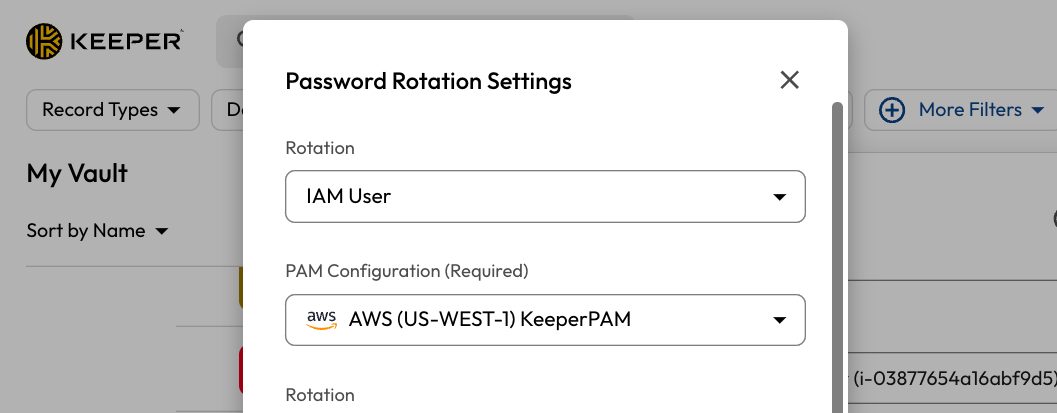
For an "IAM User" rotation type, the Keeper Gateway will use the referenced PAM Configuration to determine which APIs and methods are used to perform the rotation. In the example below, an IAM user in AWS will use the "AWS (US-WEST-1)" configuration.

When using the IAM User rotation method, it is assumed that the Keeper Gateway either inherits its privilege from the instance role policy, or through explicit access keys that are provided on the PAM Configuration record.

<figure><img src="https://762006384-files.gitbook.io/~/files/v0/b/gitbook-x-prod.appspot.com/o/spaces%2F-MJXOXEifAmpyvNVL1to%2Fuploads%2F06v6s4b2EYgJJhux1s2N%2FScreenshot%202025-01-23%20at%206.14.34%E2%80%AFPM.png?alt=media&#x26;token=9ae719fc-b73d-406c-9c25-6cd0b2ee9778" alt=""><figcaption><p>IAM User rotation type</p></figcaption></figure>

### In Summary:

* The PAM User record holds the credential that is being rotated.
* The Rotation Settings of the PAM User record references a specific PAM Machine, PAM Database or PAM Directory resource. This is the target resource where the rotation is performed.
* The Keeper Gateway uses the Admin Credential associated to the PAM Machine, PAM Database or PAM Directory resource to perform the rotation with native protocols.
* For AWS, Azure and GCP managed resources, Keeper uses Instance Role permission of the Gateway, or specific PAM Configuration secrets to perform the rotation with APIs.
* For Google Cloud managed resources, Keeper uses the Service Account permissions of the Gateway.

### Examples

Below are some examples of PAM User records.

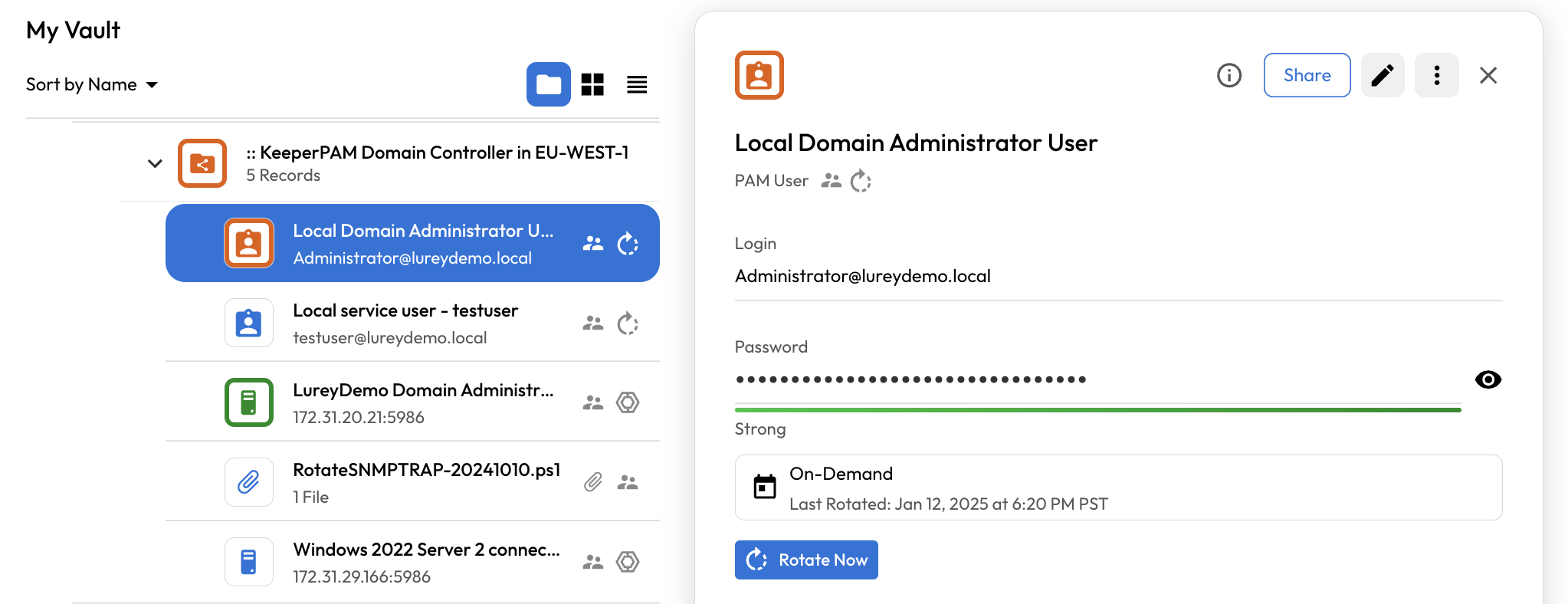
* Windows Domain Admin

<figure><img src="https://762006384-files.gitbook.io/~/files/v0/b/gitbook-x-prod.appspot.com/o/spaces%2F-MJXOXEifAmpyvNVL1to%2Fuploads%2F29D3LswWwgW5pvSOMUMl%2FScreenshot%202025-01-12%20at%207.16.05%E2%80%AFPM.png?alt=media&#x26;token=01c3c45f-518a-4ca5-b198-723ff0f1a227" alt=""><figcaption><p>Windows Domain Admin User</p></figcaption></figure>

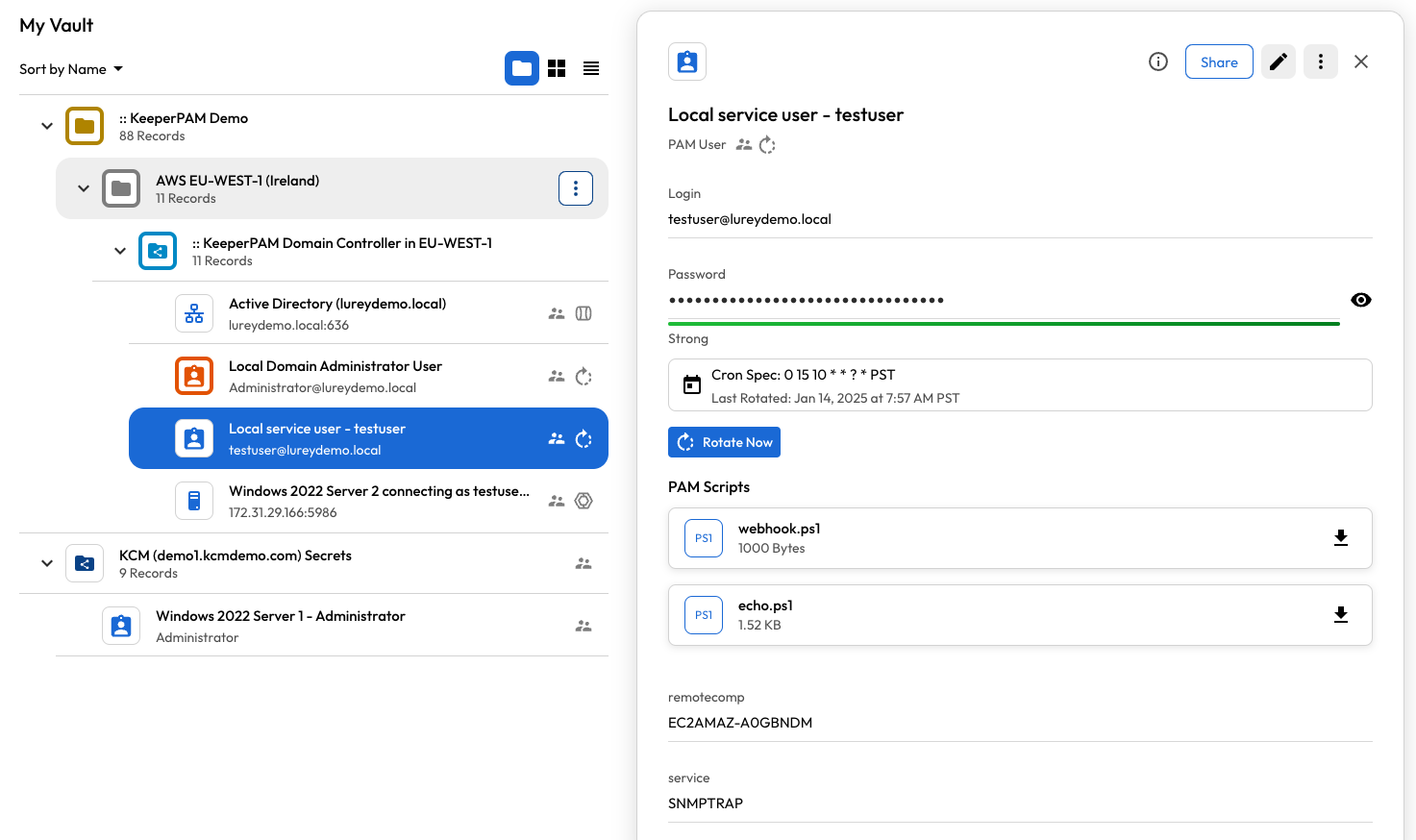
* Windows Domain User with post-rotation scripts

<figure><img src="https://762006384-files.gitbook.io/~/files/v0/b/gitbook-x-prod.appspot.com/o/spaces%2F-MJXOXEifAmpyvNVL1to%2Fuploads%2FUBcUVVRpqUFzjfXGUd47%2FScreenshot%202025-01-14%20at%209.32.50%E2%80%AFAM.png?alt=media&#x26;token=a49d938d-f2b3-420a-9cdb-301ea9b9a1ad" alt=""><figcaption><p>Windows Domain User with post-rotation scripts</p></figcaption></figure>

* AWS IAM User

<figure><img src="https://762006384-files.gitbook.io/~/files/v0/b/gitbook-x-prod.appspot.com/o/spaces%2F-MJXOXEifAmpyvNVL1to%2Fuploads%2FvL1pNfWvzwMfSUbfG6oA%2FScreenshot%202025-01-12%20at%207.17.12%E2%80%AFPM.png?alt=media&#x26;token=975b84a9-26a5-4040-b193-bbd90e272827" alt=""><figcaption><p>AWS IAM User</p></figcaption></figure>

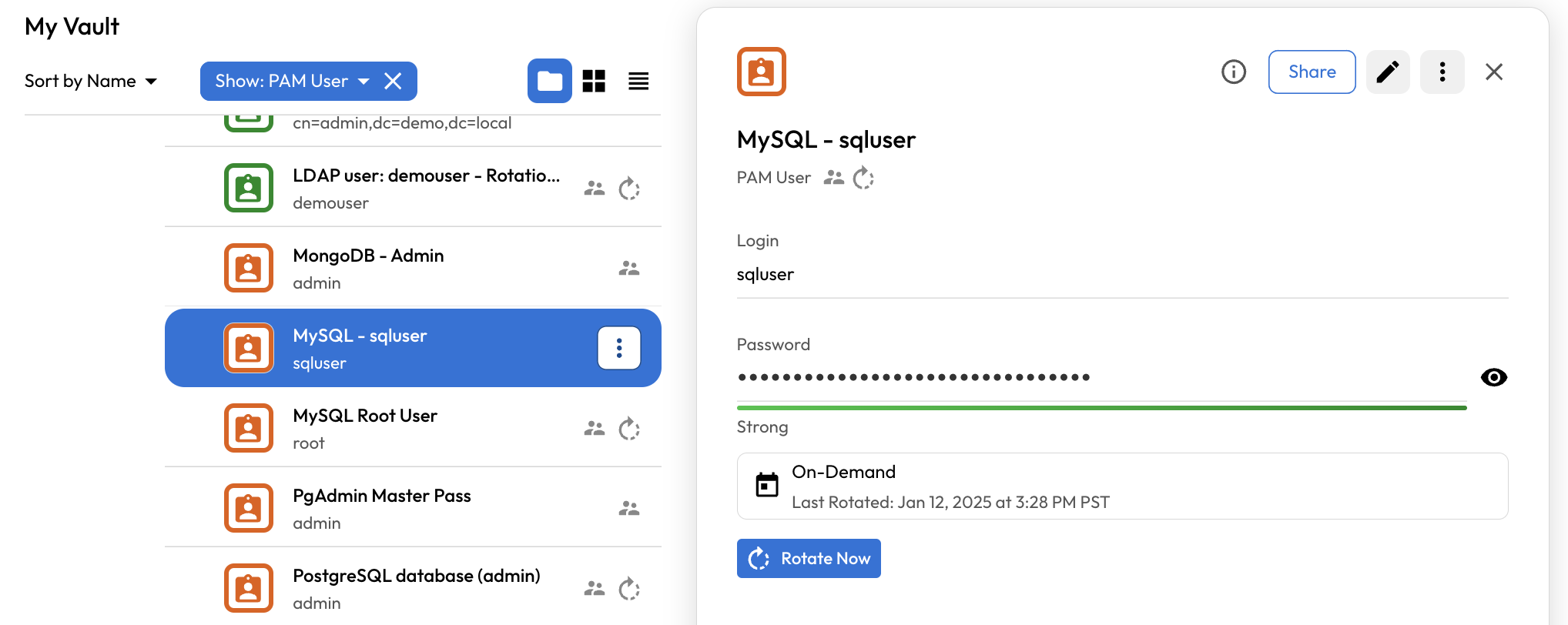
* Database user

<figure><img src="https://762006384-files.gitbook.io/~/files/v0/b/gitbook-x-prod.appspot.com/o/spaces%2F-MJXOXEifAmpyvNVL1to%2Fuploads%2FwQ8O48hEFY00feefNoI4%2FScreenshot%202025-01-12%20at%207.17.32%E2%80%AFPM.png?alt=media&#x26;token=f4ecf7da-2231-4dd7-902e-80a57cbadb52" alt=""><figcaption><p>Database user</p></figcaption></figure>

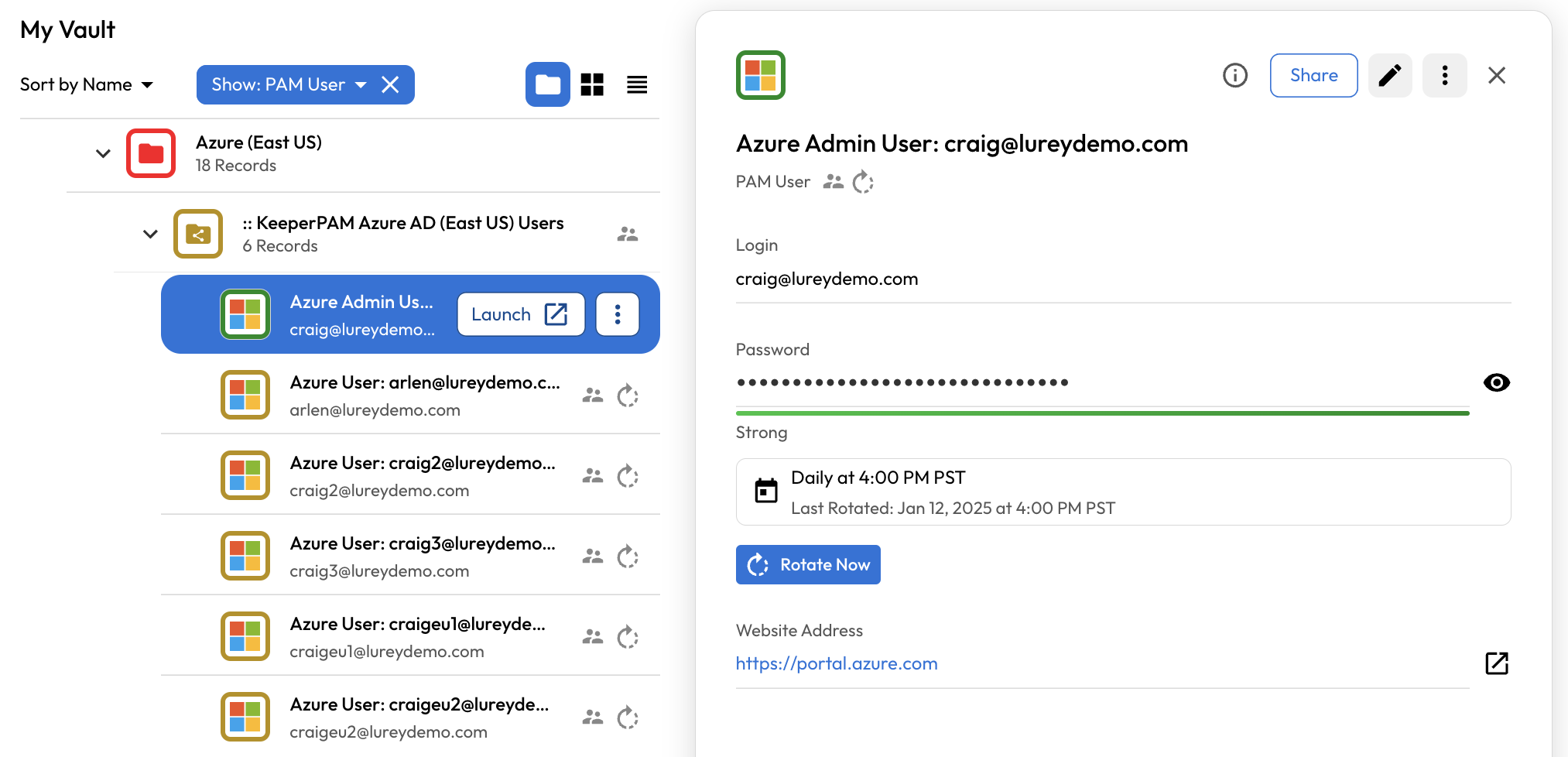
* Azure AD User

<figure><img src="https://762006384-files.gitbook.io/~/files/v0/b/gitbook-x-prod.appspot.com/o/spaces%2F-MJXOXEifAmpyvNVL1to%2Fuploads%2FGzKgObBvzWPED5PdcznT%2FScreenshot%202025-01-12%20at%207.18.52%E2%80%AFPM.png?alt=media&#x26;token=393cb4c4-0d1f-44ad-bc09-fc66a93e666f" alt=""><figcaption><p>Azure AD User</p></figcaption></figure>

### Commander CLI

The Keeper Commander CLI provides specialized automation tools to create PAM User records, perform rotations, share credentials to team members, and deliver credentials through one-time share links for new employee onboarding.

References:

* [Commander CLI](https://docs.keeper.io/en/keeperpam/commander-cli/overview)
* [KeeperPAM Commands](https://docs.keeper.io/en/keeperpam/commander-cli/command-reference/keeperpam-commands)
* [Sharing Commands](https://docs.keeper.io/en/keeperpam/commander-cli/command-reference/sharing-commands)
* [Automation Commands](https://docs.keeper.io/en/keeperpam/commander-cli/command-reference/automation-commands)