# GCP Principal User Password

<figure><img src="https://762006384-files.gitbook.io/~/files/v0/b/gitbook-x-prod.appspot.com/o/spaces%2F-MJXOXEifAmpyvNVL1to%2Fuploads%2FfK1W8695Arq6M3NBTAzF%2FGoogle%20Cloud%20service%20principal%20rotation.jpg?alt=media&#x26;token=dc68b042-9888-4996-bb44-da1a12a30666" alt=""><figcaption></figcaption></figure>

## Overview

In this guide, you will learn how to rotate passwords for Google Workspace users. In Keeper, the **PAM Configuration** contains all of the information needed to rotate passwords. The record containing the Google Principal user accounts to be rotated are stored in the **PAM User** record.

## Prerequisites

This guide assumes the following tasks have already taken place:

* Keeper Secrets Manager is enabled for your [role](/keeperpam/privileged-access-manager/getting-started/enforcement-policies.md#secrets-manager)
* Keeper Rotation is enabled for your [role](/keeperpam/privileged-access-manager/getting-started/enforcement-policies.md#keeper-rotation)
* A Keeper Secrets Manager [application](/keeperpam/privileged-access-manager/getting-started/applications.md) has been created
* A Keeper Rotation [gateway](/keeperpam/privileged-access-manager/getting-started/gateways.md) is already installed and running
* Your Google Cloud environment is [configured](/keeperpam/privileged-access-manager/getting-started/pam-configuration/google-cloud-environment-setup.md) per our documentation

The Keeper Gateway uses Google Admin APIs to rotate the credentials defined in the **PAM User** records.

## 1. Create Shared Folder <a href="#managed-directory-services" id="managed-directory-services"></a>

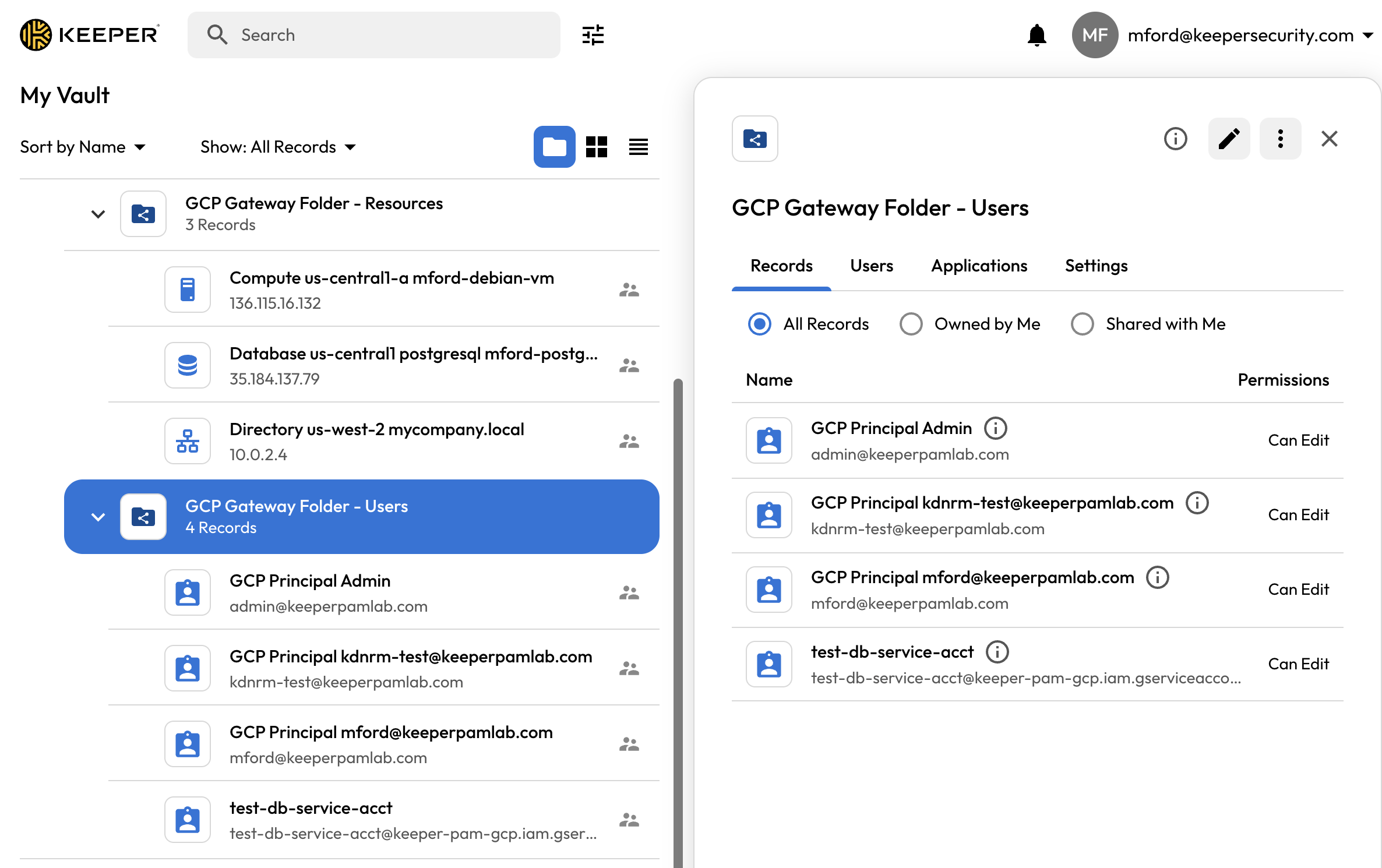
In this folder, you’ll create records for the Google Principal accounts that you’ll rotate. You will create a **PAM User** record for each user that will be rotated.

<figure><img src="https://762006384-files.gitbook.io/~/files/v0/b/gitbook-x-prod.appspot.com/o/spaces%2F-MJXOXEifAmpyvNVL1to%2Fuploads%2FRoVNTkA2Ao6nkHjCOnQ8%2FScreenshot%202025-11-24%20at%203.36.56%E2%80%AFPM.png?alt=media&#x26;token=04d957ac-5ea0-43ae-8960-2fe6cea891d9" alt="PAM User Records for IAM Users"><figcaption><p>Shared Folder containing PAM User records</p></figcaption></figure>

{% hint style="warning" %}
Note: The target user to be rotated must be in a domain that the Google Workspace Administrator whose email is set on the PAM Configuration can manage.
{% endhint %}

Keeper Rotation uses the Google Admin API to rotate the PAM User records in your Google Workspace environment. The PAM User records need to be in a shared folder that is shared to the KSM application created in the prerequisites.

The following table lists all the required fields on the PAM User record:

<table><thead><tr><th width="213.5">Field</th><th>Description</th></tr></thead><tbody><tr><td><strong>Title</strong></td><td>Keeper record title i.e. <code>AWS user: TestUser</code></td></tr><tr><td><strong>Login</strong></td><td>Complete email address of the account being rotated.</td></tr><tr><td><strong>Password</strong></td><td>Providing a password is optional. Performing a rotation will set one if this field is left blank.</td></tr></tbody></table>

<figure><img src="https://762006384-files.gitbook.io/~/files/v0/b/gitbook-x-prod.appspot.com/o/spaces%2F-MJXOXEifAmpyvNVL1to%2Fuploads%2FFJKuktHjqE8I0ArGaF7H%2FScreenshot%202025-11-24%20at%203.39.40%E2%80%AFPM.png?alt=media&#x26;token=7b10f254-f757-4d55-b22d-008f728432cf" alt=""><figcaption><p>PAM User records for IAM Users</p></figcaption></figure>

## 3. Set up PAM Configuration <a href="#managed-directory-services" id="managed-directory-services"></a>

Note: You can skip this step if you already have a PAM Configuration set up for this environment.

In the left menu of the vault, select "Secrets Manager", then select the "PAM Configurations" tab, and click on "New Configuration".\
\
The following table lists all the required fields on the **PAM Configuration** Record:

<table><thead><tr><th width="195">Field</th><th>Description</th><th data-hidden></th></tr></thead><tbody><tr><td><strong>Title</strong></td><td>Configuration name, example: <code>GCP Workspace Configuration</code></td><td></td></tr><tr><td><strong>Environment</strong></td><td>Select: <code>Google Cloud</code></td><td></td></tr><tr><td><strong>Gateway</strong></td><td>Select the Gateway that is configured on the Keeper Secrets Manager application.</td><td></td></tr><tr><td><strong>Application</strong> <strong>Folder</strong></td><td>Select the Shared folder where the PAM Configuration will be stored. We recommend placing this in a shared folder with the PAM User records.</td><td></td></tr><tr><td><strong>GCP ID</strong></td><td>A unique ID for this instance of Google Cloud. This is only for your reference and can be anything, but its recommended to be kept short<br>Ex: <code>GCP-DepartmentName</code></td><td></td></tr><tr><td><strong>Service Account Key</strong></td><td>Copy the JSON text of the service account key of the Gateway</td><td></td></tr><tr><td><strong>Google Workspace Administrator Email</strong></td><td>The email address for a Workspace administrator account that can be used to manage passwords for GCP Principals.</td><td></td></tr></tbody></table>

For more details on all the configurable fields in the PAM Configuration record, visit this [page](/keeperpam/privileged-access-manager/getting-started/pam-configuration.md).

<figure><img src="https://762006384-files.gitbook.io/~/files/v0/b/gitbook-x-prod.appspot.com/o/spaces%2F-MJXOXEifAmpyvNVL1to%2Fuploads%2FBdHUOf8QacjnQRDmt2aB%2FScreenshot%202025-11-24%20at%203.44.43%E2%80%AFPM.png?alt=media&#x26;token=9e482dd1-d5e8-4b2e-a4dc-40a9ab85ddde" alt=""><figcaption><p>PAM Configuration for Google Cloud Environment</p></figcaption></figure>

## 4. Configure Rotation on the PAM User Records

Select the **PAM User** record(s) from Step 2, edit the record and open the "Password Rotation Settings".

* Select "IAM User" as the rotation method, since this uses Google Admin APIs.
* The "Rotation Settings" should use the PAM Configuration setup previously.
* Select the desired schedule and password complexity.
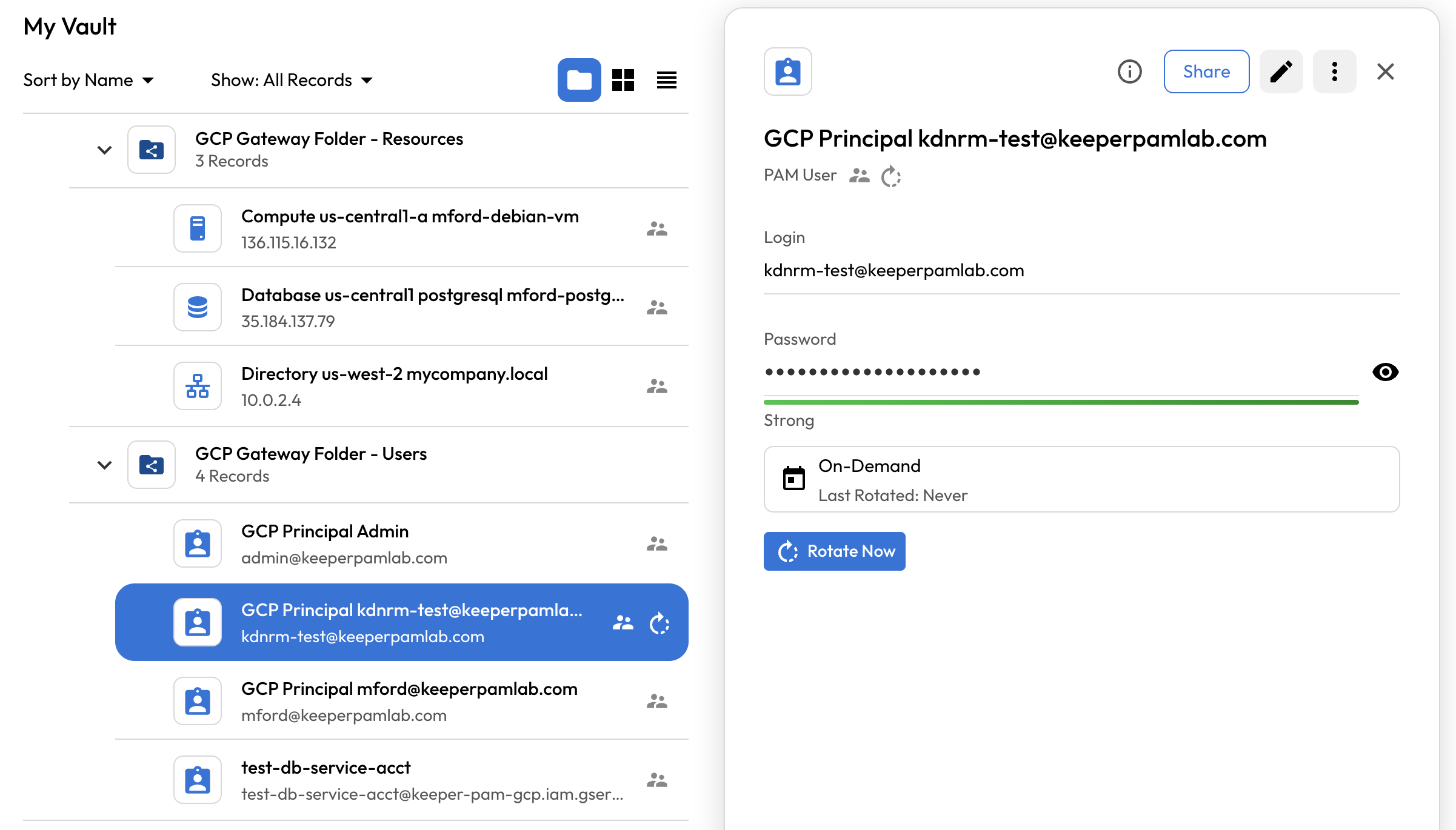
* Upon saving, the rotation button will be enabled and available to rotate on demand, or via the selected schedule.

<figure><img src="https://762006384-files.gitbook.io/~/files/v0/b/gitbook-x-prod.appspot.com/o/spaces%2F-MJXOXEifAmpyvNVL1to%2Fuploads%2FtvPo98tKfAu4CXvWdRTp%2FScreenshot%202025-11-24%20at%203.48.51%E2%80%AFPM.png?alt=media&#x26;token=a3faa198-183f-4bde-b3fa-6bfb615ae48c" alt=""><figcaption><p>Google Cloud IAM User Password</p></figcaption></figure>

Any user with `edit` rights to a PAM User record has the ability to setup rotation for that record.


---

# Agent Instructions: Querying This Documentation

If you need additional information that is not directly available in this page, you can query the documentation dynamically by asking a question.

Perform an HTTP GET request on the current page URL with the `ask` query parameter:

```
GET https://docs.keeper.io/keeperpam/privileged-access-manager/password-rotation/rotation-use-cases/google-cloud/iam-user.md?ask=<question>
```

The question should be specific, self-contained, and written in natural language.
The response will contain a direct answer to the question and relevant excerpts and sources from the documentation.

Use this mechanism when the answer is not explicitly present in the current page, you need clarification or additional context, or you want to retrieve related documentation sections.