> For the complete documentation index, see [llms.txt](https://docs.keeper.io/llms.txt). Markdown versions of documentation pages are available by appending `.md` to page URLs; this page is available as [Markdown](https://docs.keeper.io/keeperpam/privileged-access-manager/password-rotation/service-management.md).

# Service Management

## Overview

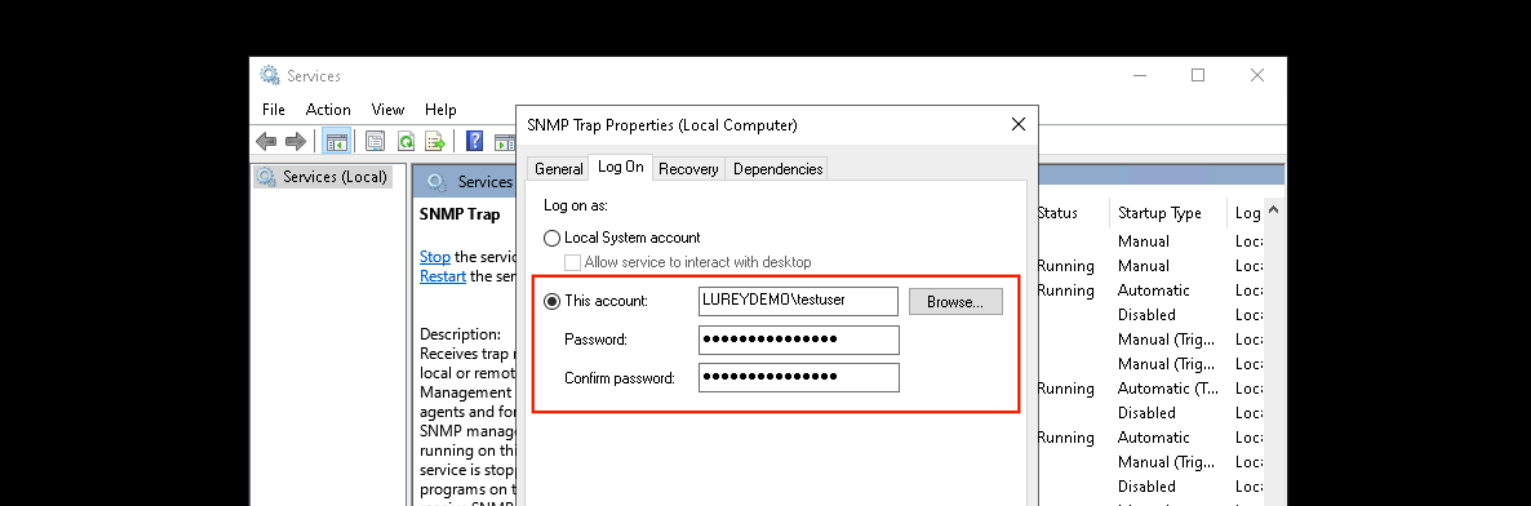
KeeperPAM Password Rotation is able to automatically manage the "log on" credentials for Windows services and scheduled tasks and IIS pools.&#x20;

When rotation is performed for a specific **PAM User** record, the Keeper Gateway will update the credentials for all services and scheduled tasks on the associated PAM Machine, and restart the services. One **PAM User** record can be associated to any number of **PAM Machine** records, allowing you to update the services and scheduled tasks across a fleet of servers.

<figure><img src="https://762006384-files.gitbook.io/~/files/v0/b/gitbook-x-prod.appspot.com/o/spaces%2F-MJXOXEifAmpyvNVL1to%2Fuploads%2F8TUKk4dbcuvSLVXqSsT2%2FScreenshot%202025-02-09%20at%2012.37.11%E2%80%AFPM.png?alt=media&#x26;token=ec17d88c-4429-4311-8496-48e8afb64416" alt=""><figcaption><p>Windows Service Management</p></figcaption></figure>

## Prerequisites

This guide assumes the following tasks have already taken place:

* [Rotation enforcements](/keeperpam/privileged-access-manager/getting-started/enforcement-policies.md) are configured for your role
* A Keeper Secrets Manager [application](/keeperpam/privileged-access-manager/getting-started/applications.md) has been created
* Your [Keeper Gateway](/keeperpam/privileged-access-manager/getting-started/gateways.md) is online
* The Keeper Gateway can communicate over WinRM or SSH to the target machine:
  * **WinRM:** Enabled and running on port 5986.\
    Verification: Run `winrm get winrm/config` to verify that WinRM is running. See [WinRM setup page](/keeperpam/privileged-access-manager/references/setting-up-winrm.md) for installation help.\
    **OR...**
  * **SSH:** Enabled and running on port 22.\
    Verification: Run `ssh [your-user]@[your-machine] -p 22` to verify that SSH is running.
* Any Windows-based PAM Machine record being managed needs to have the operating system field set to `windows`

## Setup

Service account and scheduled task management works by associating a PAM User record with one or more PAM Machine records in the vault. This mapping tells the Keeper Gateway to reach into each machine and look up any services running as the user, updating the password and restarting the service.

{% hint style="info" %}
Ensure that you are using a PAM Machine record to manage services and scheduled tasks on the resource. If you are using a different type of resource (Database, Directory, etc) you can create another resource which is a PAM Machine that is associated to the same PAM User.
{% endhint %}

### Using Vault

Navigate to a **PAM User record** within your Vault. Select the **user** from the "Record Type" dropdown menu and click **Edit** under "Rotation Settings".&#x20;

<figure><img src="/files/zDdqIqxV13c2yv3QvREi" alt=""><figcaption><p>Check the box for turning on Windows Services and Scheduled Tasks</p></figcaption></figure>

**Check** the box for "Update services and scheduled tasks and IIS pools on Windows systems"

<figure><img src="/files/nNvfJUpAAx73xOVcldGi" alt=""><figcaption><p>Select the Windows machines you want to associate with this user.</p></figcaption></figure>

Next, a list of available shared folders will appear. Select the **shared folder(s)** containing the Windows machines you want to associate with this user. You can add as many machines as needed for the given service account. Click **Update** to apply your changes.

<figure><img src="/files/Cpu3PNt7l1u8HXpue9k1" alt=""><figcaption><p>Managing the selected Folders. </p></figcaption></figure>

Upon saving, a "Service Accounts" card will appear on the user's profile indicating the number of Windows machines that are associated with the account.

<figure><img src="/files/PWf8lE7O72Do6UBH3MbN" alt="" width="375"><figcaption></figcaption></figure>

Click the **View** button to open a read-only summary of all machines linked to this service account.

<figure><img src="/files/VQGo1QH6QzDknR8WXv1f" alt=""><figcaption><p>Summary of service machines. </p></figcaption></figure>

From the machine summary view, click **View All Dependencies** to be taken to the **Service Account Dependencies tab**, located in the Keeper Secrets Manager section of the vault or you can navigate there directly by selecting the **Keeper Secrets Manager** tab from the left navigation menu.&#x20;

This central view displays service account associations across all PAM users in one place. From here you can:

* Filter the list to focus on a specific user, machine, or shared folder
* Review the Dependency Details panel for additional context on each association

<figure><img src="/files/TrEcyFapoyDSvNmKC7ZI" alt=""><figcaption></figcaption></figure>

**How Rotation Works**

Once configured, when a password rotation is triggered for the PAM User:

1. The Keeper Gateway updates the **"log on" credentials** for all associated Windows services and scheduled tasks on the target machine.
2. Any **actively running services** are automatically restarted to apply the new credentials.
3. Services that were **already stopped** will remain stopped — they will not be started automatically.

### Using Discovery

When running a [Discovery job](/keeperpam/privileged-access-manager/discovery.md), Keeper will automatically locate any services or scheduled tasks that require update when a password is rotated.

If you don't use Discovery, this can be managed directly through the Commander CLI interface using the `pam action service` commands.

### Using the Commander CLI

Keeper Commander provides the necessary commands to associate services and scheduled tasks, such that password rotations will trigger an update and restart of the service.

#### Installing Commander

If you haven't set up Keeper Commander yet, please follow the [installation instructions](/keeperpam/commander-cli/commander-installation-setup.md).

#### Locate Gateway UID

Use the `pam gateway list` command to locate the Gateway UID which manages the machine containing the services and scheduled tasks. You'll need this for the next step.

```
My Vault> pam gateway list

KSM Application Name (UID)   Gateway Name    Gateway UID             Status
--------------------------   ------------    ----------------------  --------
My Application1              East Cost       oVCr3n7qV8uARjwSqBQBBw  ONLINE
My Application2              West Coast      qSiGWa55QVaGEv3_xAO3UA  ONLINE
My Application3              GovCloud        31t78gWKRQeY54l0u1sbMA  ONLINE
My Application4              Tokyo           2XT9aKlYTLOyTnVlpny-dA  ONLINE
```

#### Locate PAM Machine and PAM User UID

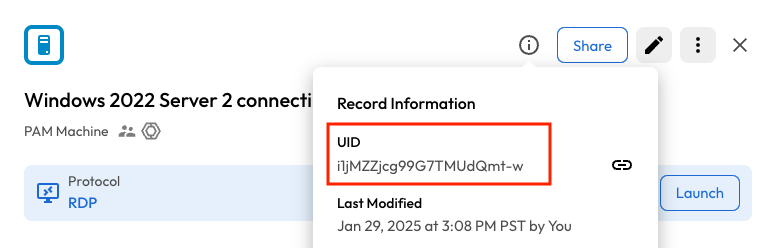
The PAM Machine and PAM User UIDs can be found in Commander by using the `ls -l` command inside a folder or by using the `search` command.

The UIDs can also be found in the Keeper Vault "Record Information" screen:

<figure><img src="https://762006384-files.gitbook.io/~/files/v0/b/gitbook-x-prod.appspot.com/o/spaces%2F-MJXOXEifAmpyvNVL1to%2Fuploads%2FlNtf78QhSwXyeeefxEaE%2FScreenshot%202025-02-09%20at%201.34.38%E2%80%AFPM.png?alt=media&#x26;token=72ecb18a-9521-432a-8222-10aba8548023" alt=""><figcaption><p>Find the Record UID</p></figcaption></figure>

#### Services Management Commands

Use the `pam action service` command to instruct Keeper to update services and scheduled tasks on a particular machine, for a particular user, within a network.

```
My Vault> pam action service
pam command [--options]

Command    Description
---------  ------------------------------------------
list       List all mappings
add        Add a user and machine to the mapping
remove     Remove a user and machine from the mapping
```

#### Adding a Service / Task / IIS

To instruct Keeper to update and restart services and scheduled tasks on a particular machine, use the syntax below:

{% code overflow="wrap" %}

```
pam action service add -g <Gateway_UID> -m <Machine_UID> -u <User_UID> -t service
pam action service add -g <Gateway_UID> -m <Machine_UID> -u <User_UID> -t task
pam action service add -g <Gateway_UID> -m <Machine_UID> -u <User_UID> -t iis
```

{% endcode %}

#### Removing a Service / Task / IIS

To instruct Keeper to remove the associations of services and scheduled tasks on a machine:

{% code overflow="wrap" %}

```
pam action service remove -g <Gateway_UID> -m <Machine_UID> -u <User_UID) -t service
pam action service remove -g <Gateway_UID> -m <Machine_UID> -u <User_UID) -t task
pam action service remove -g <Gateway_UID> -m <Machine_UID> -u <User_UID) -t iis
```

{% endcode %}

#### Listing all Mappings

To display the current mappings between Gateway, Machine and User accounts where services and tasks need to be managed, use the `pam action service list` command.

```
My Vault> pam action service list -g oVCr3n7qV8uARjwSqBQBBw

User Mapping
  Local service user - testuser (pEFr_dJn5EAc3MT_v30DQw)
    * Lureydemo.com Server (CrvdntH-f9mIcraY1InGiw) : Services, Scheduled Tasks
    * Windows 2022 Server  (U3fHEK2i7LIkWZAzANz2sA) : Services, Scheduled Tasks
```

#### Triggering the service update

To perform a password rotation of a PAM User account, click on the Rotate button from the vault user interface.

<figure><img src="https://762006384-files.gitbook.io/~/files/v0/b/gitbook-x-prod.appspot.com/o/spaces%2F-MJXOXEifAmpyvNVL1to%2Fuploads%2FHP9WTgunipFrYgFLp0py%2FScreenshot%202025-02-09%20at%201.43.19%E2%80%AFPM.png?alt=media&#x26;token=5d2ce1b2-67a2-4d19-8080-cfa1d50c23c1" alt=""><figcaption><p>Rotate the Windows Credential</p></figcaption></figure>

To perform the rotation from Commander, run `pam action rotate` :

```
My Vault> pam action rotate -r pEFr_dJn5EAc3MT_v30DQw
Scheduled action id: +dXjf690oGKgg==
```

To view the status of the rotation job, check the Vault UI or run the `pam action job-info` command as instructed:

```
My Vault> pam action job-info +dXjf690oGKgg== --gateway=oVCr3n7qV8uARjwSqBQBBw
Job id to check [+dXjf690oGKgg==]

Execution Details
-------------------------
Status              : finished
Duration            : 0:01:01.923147
Response Message    : Rotation completed for record uid XXX with post-execution
```

### Troubleshooting

#### Service Restarts

Keeper will not start a service which is currently stopped. We will only restart any actively running services after updating the log on credential.

When troubleshooting a service credential update issue, please make sure of the following:

* For a Windows server, ensure the operating system field is set to `windows`
* Ensure that the Keeper Gateway can communicate to the PAM Machine via WinRM or SSH.
* Check the Event Viewer > Windows Logs > Application events for any error messages
* Ensure that you are using a PAM Machine record to manage services and scheduled tasks.


---

# Agent Instructions
This documentation is published with GitBook. GitBook is the documentation platform designed so that both humans and AI agents can read, navigate, and reason over technical content effectively. Learn more at gitbook.com.

## Querying This Documentation
If you need additional information that is not directly available in this page, you can query the documentation dynamically by asking a question.

Perform an HTTP GET request on the current page URL with the `ask` query parameter:

```
GET https://docs.keeper.io/keeperpam/privileged-access-manager/password-rotation/service-management.md?ask=<question>
```

The question should be specific, self-contained, and written in natural language.
The response will contain a direct answer to the question and relevant excerpts and sources from the documentation.

Use this mechanism when the answer is not explicitly present in the current page, you need clarification or additional context, or you want to retrieve related documentation sections.