# Quick Start: Sandbox

<figure><img src="https://762006384-files.gitbook.io/~/files/v0/b/gitbook-x-prod.appspot.com/o/spaces%2F-MJXOXEifAmpyvNVL1to%2Fuploads%2FVMZVbvKRGtNmjQ4SE0rH%2FQuick%20Start%20Wizard.jpg?alt=media&#x26;token=99638796-c22f-462c-b0cf-f5fc2ff23215" alt=""><figcaption></figcaption></figure>

## Quick Start Wizard

To learn some KeeperPAM basics, we have created a wizard that is integrated into the Vault. If you select the Docker install method, this wizard will create all the necessary vault records, configurations and a customized Docker Compose file for quickly standing up a sandbox demo environment in less than 2 minutes.

{% stepper %}
{% step %}

### Activate KeeperPAM

* Login to the Admin Console in your region:

<table><thead><tr><th>Region</th><th width="412">URL</th></tr></thead><tbody><tr><td><strong>US</strong></td><td><a href="https://keepersecurity.com/console">https://keepersecurity.com/console</a></td></tr><tr><td><strong>EU</strong></td><td><a href="https://keepersecurity.eu/console">https://keepersecurity.eu/console</a></td></tr><tr><td><strong>AU</strong></td><td><a href="https://keepersecurity.com.au/console">https://keepersecurity.com.au/console</a></td></tr><tr><td><strong>JP</strong></td><td><a href="https://keepersecurity.jp/console">https://keepersecurity.jp/console</a></td></tr><tr><td><strong>GOV</strong></td><td><a href="https://govcloud.keepersecurity.us/console">https://govcloud.keepersecurity.us/console</a></td></tr></tbody></table>

* Under **Admin** > **Roles**, create a new role for PAM or modify an existing role
* Go to **Enforcement Policies** and open the "**Privilege Access Manager**" section.
* Enable all the PAM enforcement policies
* Ensure you are assigned to this role
  {% endstep %}

{% step %}

### Run the New Gateway Wizard

* Login to the [Keeper Vault](https://keepersecurity.com/vault)
* Click on **Create New** > **Gateway**
* Enter a name for the project, such as "**My Infrastructure Demo**"
* Select **Docker** for the gateway
* Select "**Create with example records**"
* Click **Next**
* After the wizard is finished, run the provided installer.
  {% endstep %}

{% step %}

### Test some PAM features

* You can now instantly connect to any of the resources by clicking "Launch" from the record detail view.
* The MySQL account, SSH password and SSH key can be rotated by clicking "Rotate" from the record detail within the Users folder.
* Note: Remote Browser Isolation won't work on some ARM processors
  {% endstep %}
  {% endstepper %}

<figure><img src="https://762006384-files.gitbook.io/~/files/v0/b/gitbook-x-prod.appspot.com/o/spaces%2F-MJXOXEifAmpyvNVL1to%2Fuploads%2FGAFwmf1jqC395eiB5Aap%2FScreenshot%202026-01-10%20at%208.23.24%E2%80%AFAM.png?alt=media&#x26;token=63a09691-dd80-415d-bceb-182971fa377b" alt=""><figcaption><p>Create a Sandbox</p></figcaption></figure>

### Records Created

The wizard will create the following in your vault:

* A folder containing Resources and Users in separate shared folders
* A MySQL database
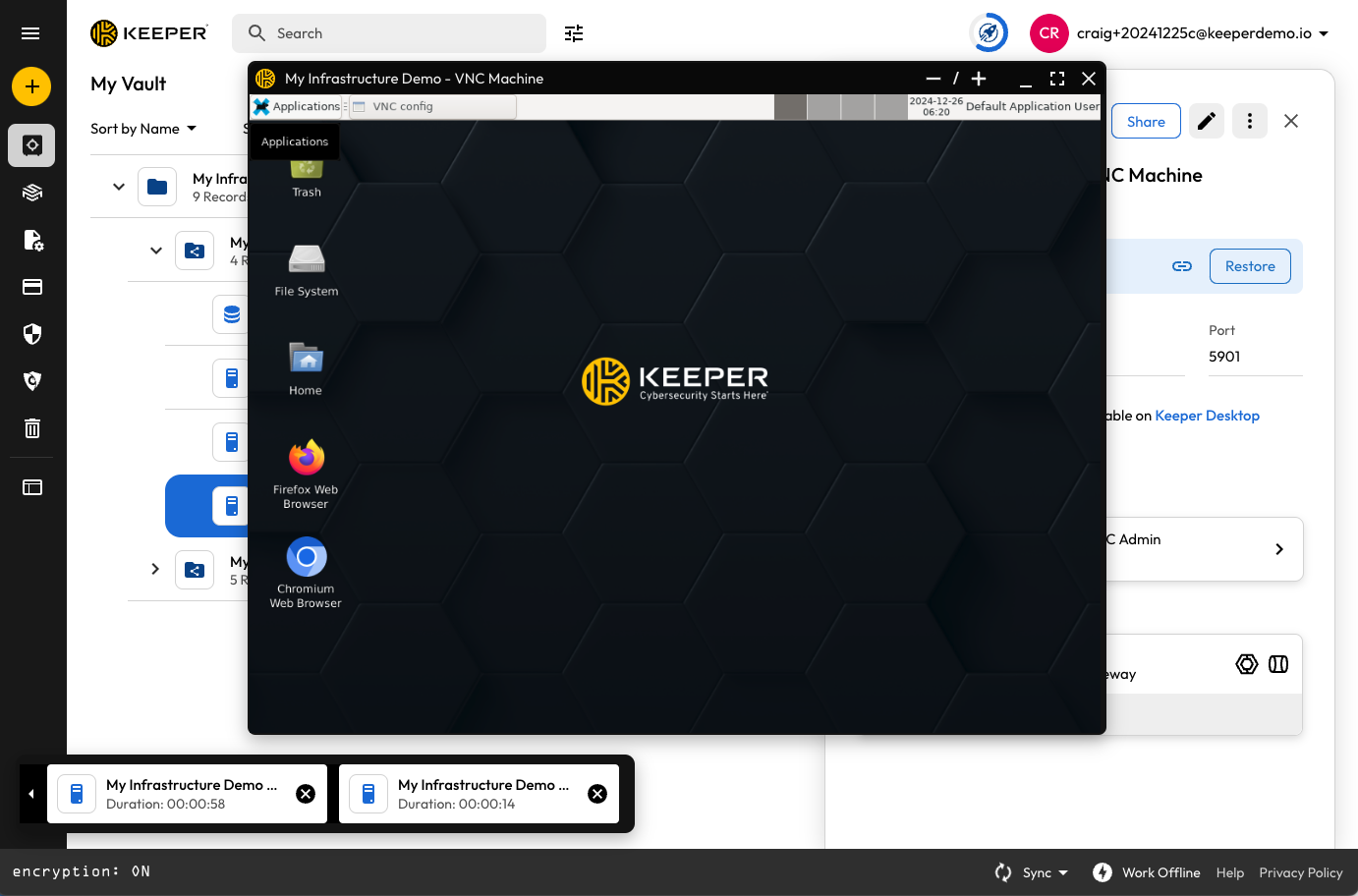
* A Linux machine with VNC connection to the desktop UI
* A Linux machine with SSH connection using an SSH Key
* A Linux machine with SSH connection using a password
* A Linux machine with RDP connection to the desktop UI
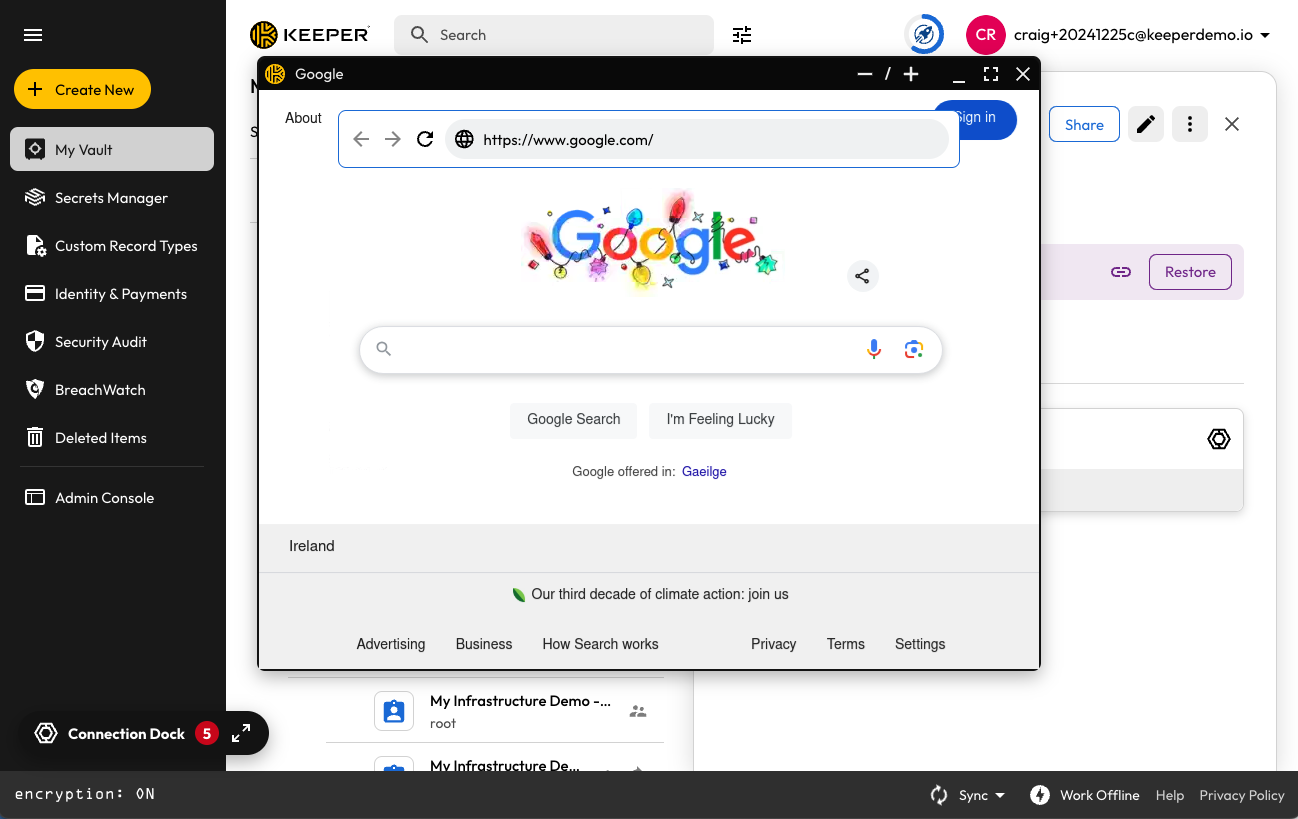
* A Remote Browser Isolation session to bing.com
* A Secrets Manager Application and PAM Configuration with all PAM features enabled
* A Keeper Gateway ready to initialize

{% hint style="warning" %}
The sandbox virtual machines created by the “example records” are for learning and demonstration only.
{% endhint %}

### Quick Start Video

We've created a helpful Keeper 101 video to set up your sandbox environment:

{% embed url="<https://vimeo.com/1053833331>" %}

### Screenshots

Below are screenshots of the Quick Start Wizard from start to finish.

<figure><img src="https://762006384-files.gitbook.io/~/files/v0/b/gitbook-x-prod.appspot.com/o/spaces%2F-MJXOXEifAmpyvNVL1to%2Fuploads%2FgYC14x7E1QcGzXDCS8IK%2FScreenshot%202024-12-25%20at%209.20.40%E2%80%AFPM.png?alt=media&#x26;token=b63cffd4-b67f-405e-9932-fccbda6d6e98" alt=""><figcaption><p>Create a Gateway</p></figcaption></figure>

<figure><img src="https://762006384-files.gitbook.io/~/files/v0/b/gitbook-x-prod.appspot.com/o/spaces%2F-MJXOXEifAmpyvNVL1to%2Fuploads%2FtvLJtb0lTIRSlTzlT01u%2FScreenshot%202024-12-25%20at%209.21.26%E2%80%AFPM.png?alt=media&#x26;token=e4be08ee-de0d-4805-9abb-c0c3bfbad325" alt=""><figcaption><p>Creating the New Project and Gateway</p></figcaption></figure>

<figure><img src="https://762006384-files.gitbook.io/~/files/v0/b/gitbook-x-prod.appspot.com/o/spaces%2F-MJXOXEifAmpyvNVL1to%2Fuploads%2FOV3irVolM5F1QtT0yjpA%2FScreenshot%202024-12-25%20at%209.25.23%E2%80%AFPM.png?alt=media&#x26;token=57f9c78c-17bd-463f-9101-c9795ac676fd" alt=""><figcaption><p>Building the Gateway</p></figcaption></figure>

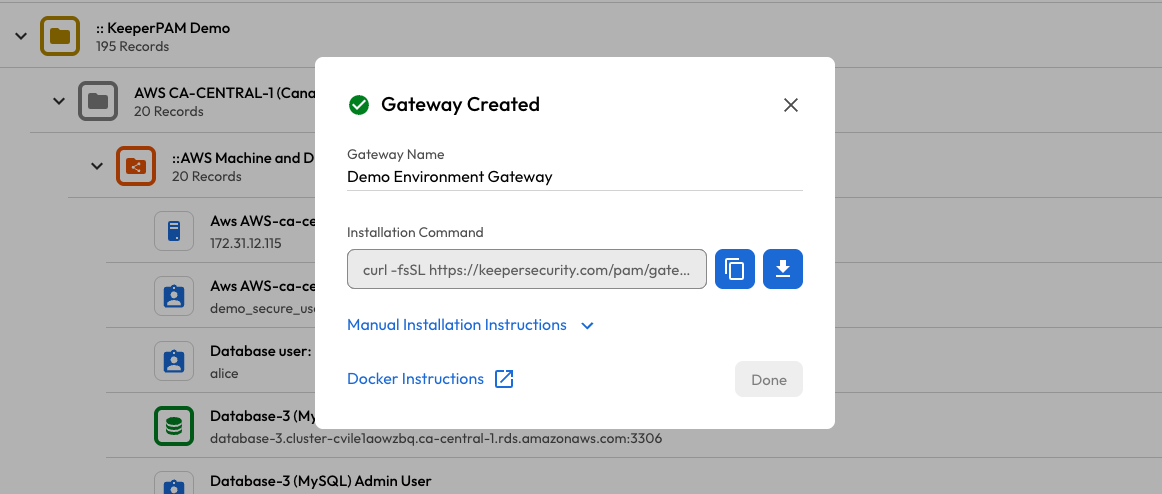
<figure><img src="https://762006384-files.gitbook.io/~/files/v0/b/gitbook-x-prod.appspot.com/o/spaces%2F-MJXOXEifAmpyvNVL1to%2Fuploads%2FsRr4hSkskH0Lf3EzBCvx%2FScreenshot%202025-08-12%20at%209.58.48%E2%80%AFPM.png?alt=media&#x26;token=93e113a3-567e-46fe-8d11-1c722ea13cbe" alt=""><figcaption><p>Install the Gateway with the provided command</p></figcaption></figure>

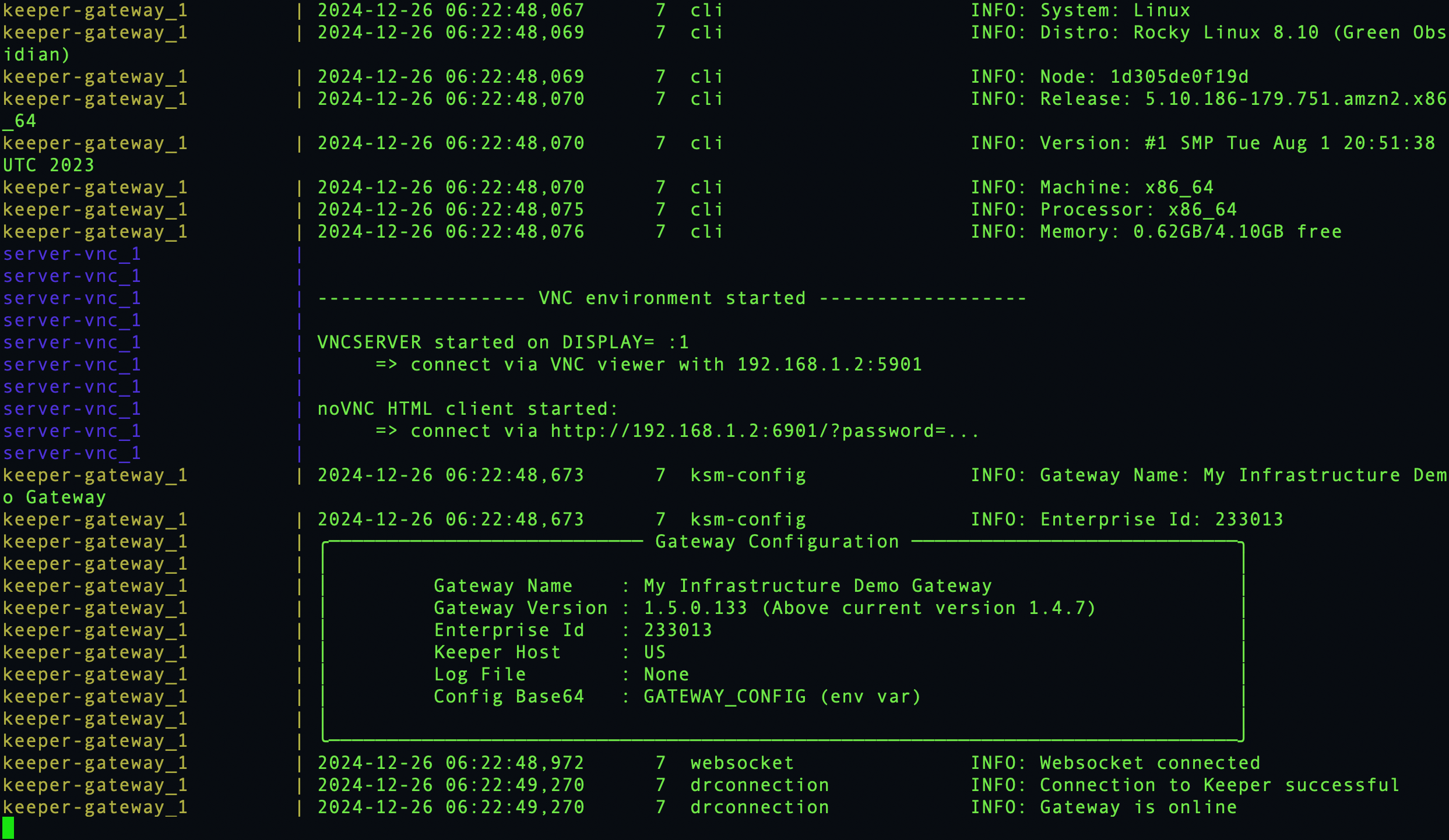
<figure><img src="https://762006384-files.gitbook.io/~/files/v0/b/gitbook-x-prod.appspot.com/o/spaces%2F-MJXOXEifAmpyvNVL1to%2Fuploads%2F4OXAnXlotRevEJgz6mqC%2FScreenshot%202024-12-25%20at%2010.23.04%E2%80%AFPM.png?alt=media&#x26;token=e1ece765-6365-4210-8db2-5a339bbbd1c0" alt=""><figcaption><p>Docker running the Gateway and Sandbox Infrastructure</p></figcaption></figure>

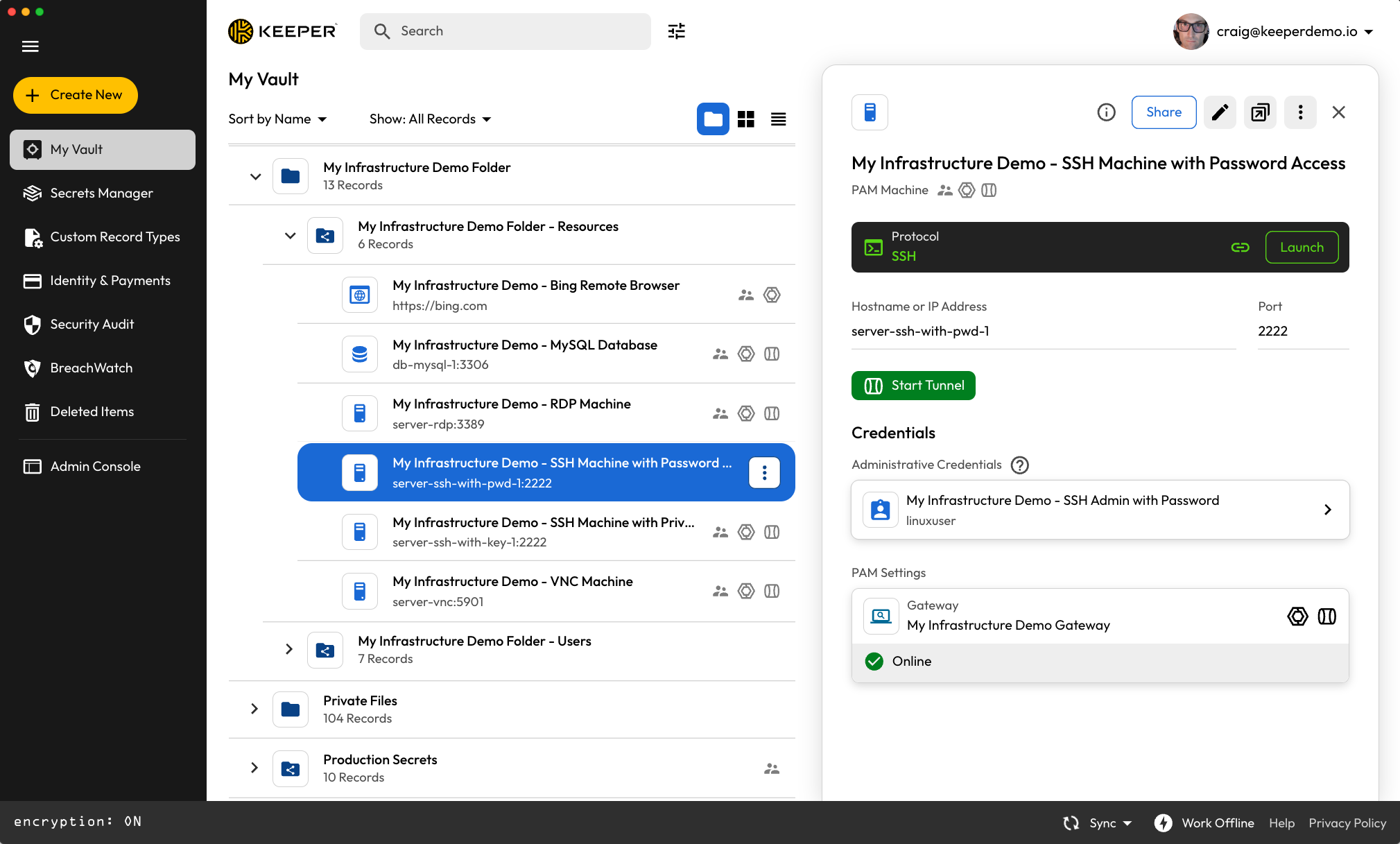
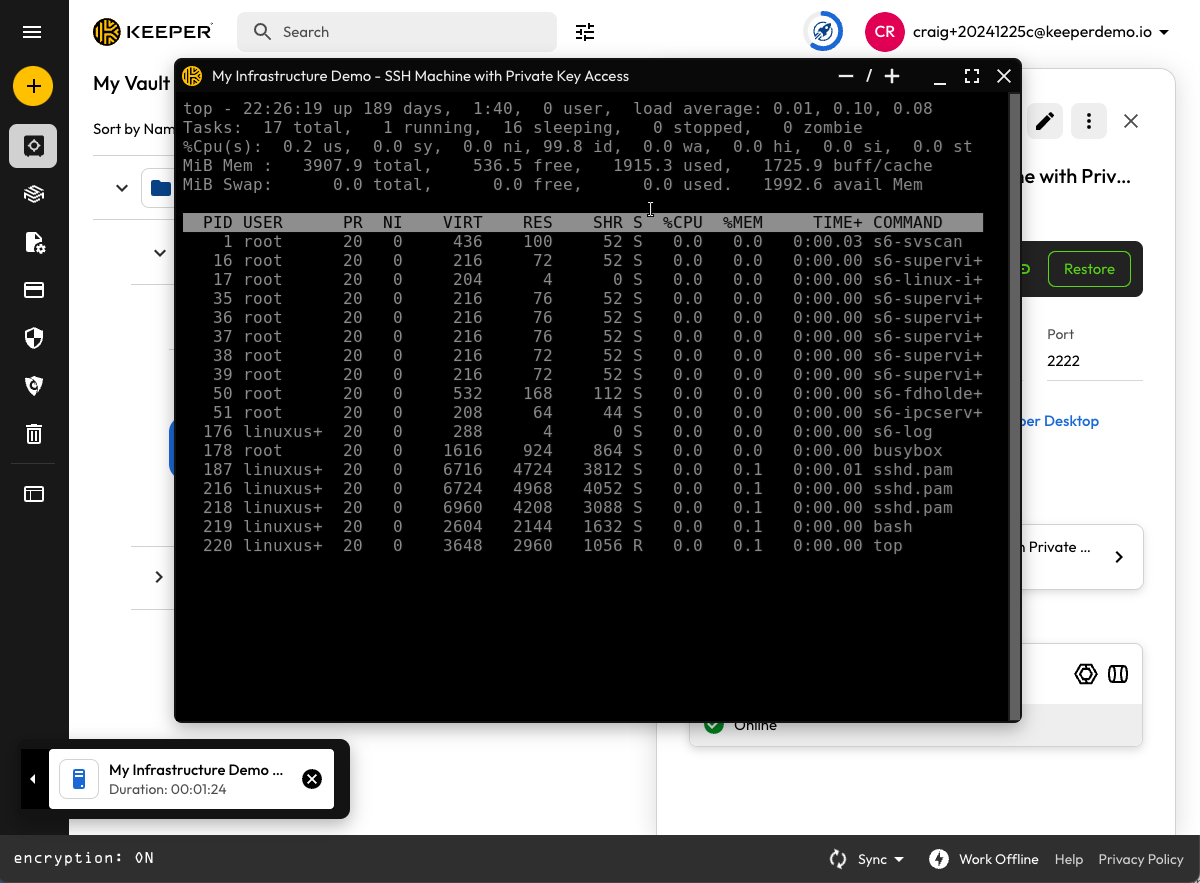
<figure><img src="https://762006384-files.gitbook.io/~/files/v0/b/gitbook-x-prod.appspot.com/o/spaces%2F-MJXOXEifAmpyvNVL1to%2Fuploads%2FGepR1nIvKA1SJS8HC6qf%2FScreenshot%202025-01-17%20at%201.23.12%E2%80%AFPM.png?alt=media&#x26;token=4082c2b6-f38c-417a-bcef-213abc14bf0c" alt=""><figcaption><p>SSH Machine Example</p></figcaption></figure>

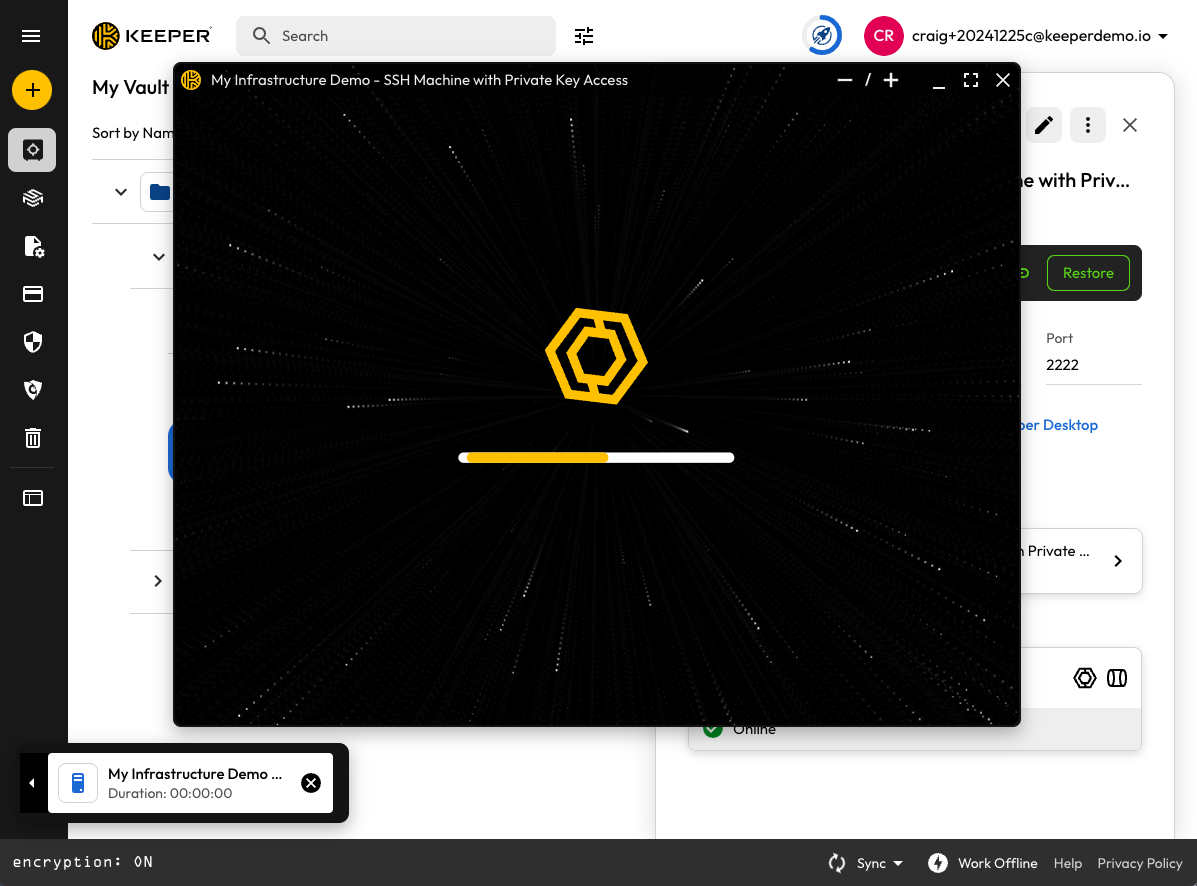
<figure><img src="https://762006384-files.gitbook.io/~/files/v0/b/gitbook-x-prod.appspot.com/o/spaces%2F-MJXOXEifAmpyvNVL1to%2Fuploads%2FvWqA9i0mealeR0JSrfey%2FScreenshot%202024-12-25%20at%2010.24.51%E2%80%AFPM.png?alt=media&#x26;token=958d992b-5af8-479c-9be7-44a6c94764f9" alt=""><figcaption><p>Launching a Connection</p></figcaption></figure>

<figure><img src="https://762006384-files.gitbook.io/~/files/v0/b/gitbook-x-prod.appspot.com/o/spaces%2F-MJXOXEifAmpyvNVL1to%2Fuploads%2FSEgi9qgukTZNkOdhF7fT%2FScreenshot%202024-12-25%20at%2010.26.21%E2%80%AFPM.png?alt=media&#x26;token=8c1d81d2-76f9-4536-8a6f-aab87dc77bc3" alt=""><figcaption><p>Connecting to a Linux machine with SSH</p></figcaption></figure>

<figure><img src="https://762006384-files.gitbook.io/~/files/v0/b/gitbook-x-prod.appspot.com/o/spaces%2F-MJXOXEifAmpyvNVL1to%2Fuploads%2FXX5zsf7XqFGDueFqOGwA%2FScreenshot%202024-12-25%20at%2010.20.46%E2%80%AFPM.png?alt=media&#x26;token=271096d3-df8f-4ae6-9952-6205d58d49b9" alt=""><figcaption><p>Connecting to a virtual Linux machine over VNC</p></figcaption></figure>

<figure><img src="https://762006384-files.gitbook.io/~/files/v0/b/gitbook-x-prod.appspot.com/o/spaces%2F-MJXOXEifAmpyvNVL1to%2Fuploads%2F4aXx1lFW6oFNEnzo67os%2FScreenshot%202024-12-25%20at%2011.14.46%E2%80%AFPM.png?alt=media&#x26;token=fdd64afc-c538-48ba-8a75-a0fc9c49c5a9" alt=""><figcaption><p>Connecting to a web application</p></figcaption></figure>