> For the complete documentation index, see [llms.txt](https://docs.keeper.io/llms.txt). Markdown versions of documentation pages are available by appending `.md` to page URLs; this page is available as [Markdown](https://docs.keeper.io/sso-connect-on-prem/identity-provider-setup/centrify-configuration.md).
# Centrify Configuration
How to configure Keeper SSO Connect On-Prem with Centrify for seamless and secure SAML 2.0 authentication.
{% hint style="info" %}
For a 100% cloud-based integration with Centrify, see [Keeper SSO Connect Cloud](https://docs.keeper.io/sso-connect-cloud)
{% endhint %}
### Centrify
Login to the Centrify Admin portal via the cloud login.

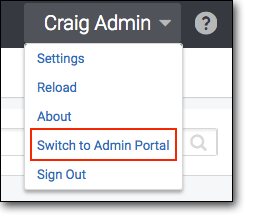
Switch to the Admin Portal from the pull down menu.
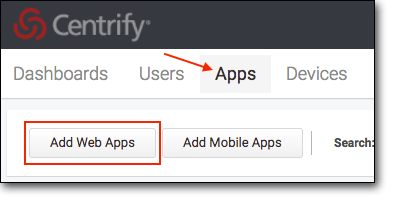
Close the Quick Start Wizard if it pops up. Select **Apps** from the menu then **Add Web Apps**.
On the Add Web Apps window, select the Custom tab and then scroll down and choose **Add** for SAML.

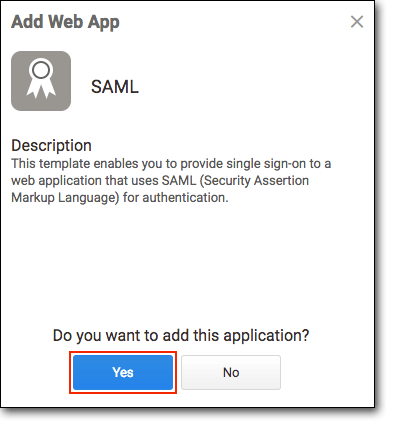
Select **Yes** to “**Do you want to add this application?**”.
Close the Add Web Apps Window.

The next step is to upload Keeper’s SSO Metadata to Centrify.\
\
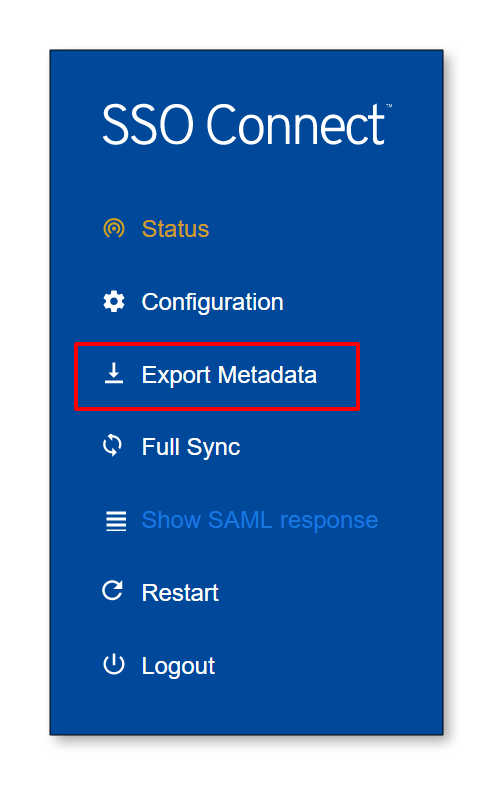
In Keeper SSO connect, export the Keeper SSO Connect metadata using the **Export Metadata** link and save this file for the next step.
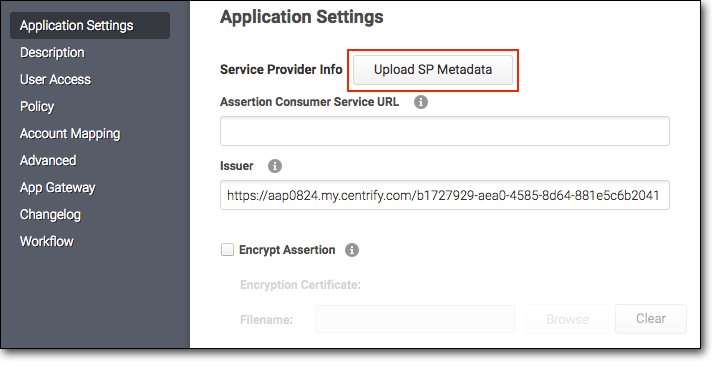
In the SAML Application Settings section in Centrify, select **Upload SP Metadata**.
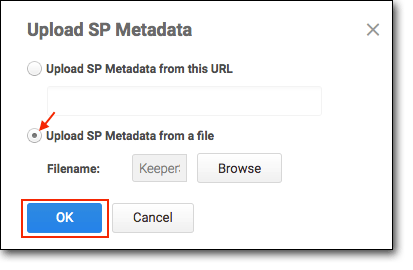
Select **Upload SP Metadata from a file** and browse for the KeeperSSOMetadata.xml file. Select **Ok**.
Download the Identity Provider SAML Metadata. This will be uploaded to Keeper SSO Connect.

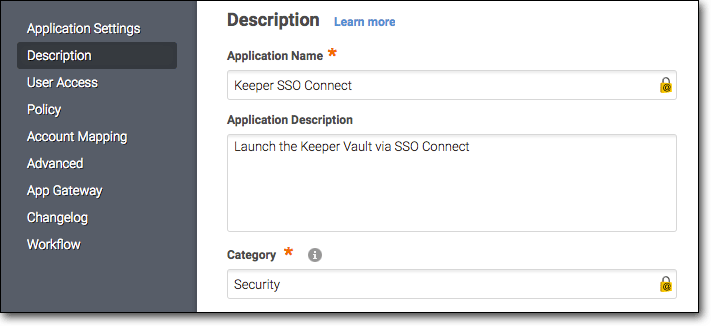
On the Description section enter **Keeper SSO Connect** in the Application Name field and select **Security** in the Category field.
Download the Keeper logo.\
\
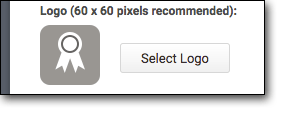
Select **Select Logo** and upload the Keeper logo (keeper60x60.png).
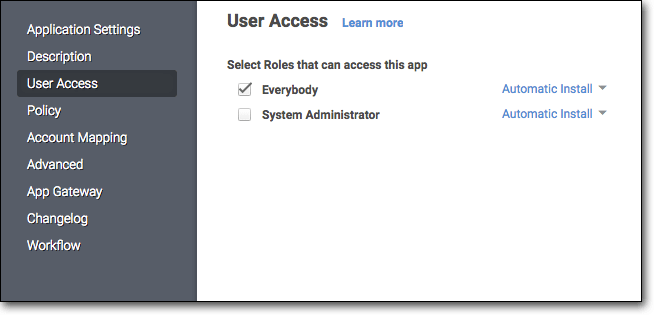
On the User Access section select the roles that can access the Keeper App:
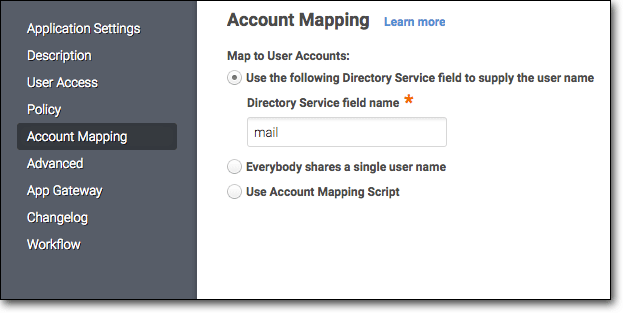
Under the Account Mapping section, select "Use the following..." and input **mail**.
On the **Advanced** section, append the script to include the following lines of code:
```
setAttribute("Email", LoginUser.Get("mail"));
setAttribute("First", LoginUser.FirstName);
setAttribute("Last", LoginUser.LastName);
setSignatureType("Response");
```

* The above script reads the display name from the User Account section. The FirstName attribute is parsed from the first string of DisplayName and the LastName attribute is parsed from the second string of DisplayName.

Select **Save** to finish the setup.
Upload the Identity Provider SAML Metadata file into the Keeper SSO Connect interface by dragging and dropping the file into the Setup screen:

Select **Save** and Your Keeper SSO Connect setup is now complete!
---
# Agent Instructions
This documentation is published with GitBook. GitBook is the documentation platform designed so that both humans and AI agents can read, navigate, and reason over technical content effectively. Learn more at gitbook.com.
## Querying This Documentation
If you need additional information that is not directly available in this page, you can query the documentation by asking a question.
Perform an HTTP GET request on the following URL with the `ask` and `goal` query parameters:
```
GET https://docs.keeper.io/sso-connect-on-prem/identity-provider-setup/centrify-configuration.md?ask=&goal=
```
`ask` is the immediate question: it should be specific, self-contained, and written in natural language.
`goal` is what the user is ultimately trying to achieve, the reason they need the answer. Sharing it helps GitBook give you a better, more relevant answer. A goal is most helpful when it describes the outcome the user wants rather than restating the question. For example, with `ask=how do I create an API token`, a goal like `automate deployments from our CI pipeline` lets GitBook tailor the answer to that use case.
The response will contain a direct answer to the question and relevant excerpts and sources from the documentation.
Use this mechanism when the answer is not explicitly present in the current page, you need clarification or additional context, or you want to retrieve related documentation sections.