# Ping Identity Configuration

{% hint style="info" %}
For a 100% cloud-based integration with Ping, see [Keeper SSO Connect Cloud](https://docs.keeper.io/sso-connect-cloud)
{% endhint %}

### Ping Identity

Login to the Ping Identity portal.

<div align="left"><img src="https://2635959690-files.gitbook.io/~/files/v0/b/gitbook-legacy-files/o/assets%2F-LTyMp7XGU8wh-hRPBiB%2F-LlEXsRotx9skluw72Hm%2F-LlEXzMJew0TkvemNhiM%2FPing.png?alt=media&#x26;token=c6adbde6-bdad-41f8-ba5d-f9152a75b902" alt=""></div>

From the Ping Identity menu select **Applications**.

<div align="left"><img src="https://2635959690-files.gitbook.io/~/files/v0/b/gitbook-legacy-files/o/assets%2F-LTyMp7XGU8wh-hRPBiB%2F-LU2XMIWxEapTee8NpLo%2F-LU2aPp2KATJtm8kifeY%2Fsso-step-111b.png?alt=media&#x26;token=10f25c9d-7e8c-4779-8f7e-1e119fc7d5f8" alt=""></div>

Then select **Add Application** and select **New SAML Application**.

<div align="left"><img src="https://2635959690-files.gitbook.io/~/files/v0/b/gitbook-legacy-files/o/assets%2F-LTyMp7XGU8wh-hRPBiB%2F-LU2XMIWxEapTee8NpLo%2F-LU2akZVIsmkf-JZ7DYt%2Fsso-step-112b.png?alt=media&#x26;token=e6f0aa41-1606-49c0-bfb6-0f37d2f6cc89" alt=""></div>

On the Application Details page, add the following data:

* Application Name: Keeper Password Manager\
  Application Detail: Password Manager and Digital Vault\
  Category: Compliance (or other)\
  Graphic: Upload the Keeper Graphic\
  <http://s3.amazonaws.com/keeper-email-images/common/keeper256x256.png>

Then select **Continue to Next Step**.

![](https://2635959690-files.gitbook.io/~/files/v0/b/gitbook-legacy-files/o/assets%2F-LTyMp7XGU8wh-hRPBiB%2F-LlEXsRotx9skluw72Hm%2F-LlEXwlBjYtvKSquMBkh%2Fping_2.png?alt=media\&token=c707bf81-3c6b-45fa-8d57-ff27123406cd)

The next step is to download the SAML Metadata from Ping Identity. Select the Download link next to **SAML Metadata**.

<div align="left"><img src="https://2635959690-files.gitbook.io/~/files/v0/b/gitbook-legacy-files/o/assets%2F-LTyMp7XGU8wh-hRPBiB%2F-LU2XMIWxEapTee8NpLo%2F-LU2bAVler3Eonb8bSYH%2Fsso-step-114b.png?alt=media&#x26;token=6cd06f1e-b161-4b39-8ee7-f9932c6b5a65" alt=""></div>

The **saml2-metadata-idp.xml** file will download to the browser. Copy this file to the Keeper SSO Connect server and upload it into the Keeper SSO Connect interface by dragging and dropping the file into the Setup screen:\
\
Select **Save**.

![](https://2635959690-files.gitbook.io/~/files/v0/b/gitbook-legacy-files/o/assets%2F-LTyMp7XGU8wh-hRPBiB%2F-LU2XMIWxEapTee8NpLo%2F-LU2bLIhZzK3yRbGibpe%2Fsso-step-115b.png?alt=media\&token=b8ea323b-ff07-46f0-a851-dbf882298ed6)

The remaining step on the Keeper SSO Connect Server is to download the KeeperSsoMetadata.xml file and upload it to the Ping Application configuration\
\
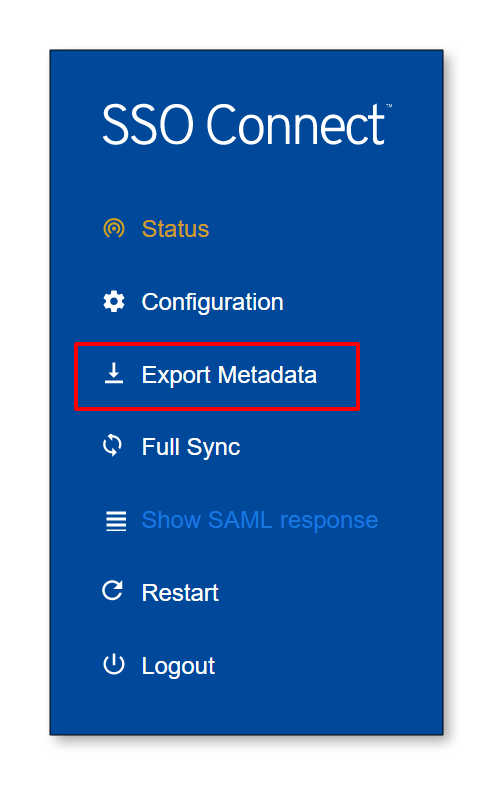
Select **Export Metadata** on the Keeper SSO Connect.

<div align="left"><img src="https://2635959690-files.gitbook.io/~/files/v0/b/gitbook-legacy-files/o/assets%2F-LTyMp7XGU8wh-hRPBiB%2F-LlELLNsxWEt_eMnwY5u%2F-LlELNMKVPjjG2VsjMNB%2FConfig_1_D.png?alt=media&#x26;token=5b2815ac-7edf-4864-b030-6856a6ae3f4a" alt=""></div>

Back on the Ping Identity application configuration, select the **Select File** button and choose the file **KeeperSsoMetadata.xml**.

<div align="left"><img src="https://2635959690-files.gitbook.io/~/files/v0/b/gitbook-legacy-files/o/assets%2F-LTyMp7XGU8wh-hRPBiB%2F-LU2XMIWxEapTee8NpLo%2F-LU2byABBF8JjskFcJDk%2Fsso-step-117b.png?alt=media&#x26;token=7ac48136-4142-401b-b9f4-f834e0c2fd74" alt=""></div>

Select **Continue to Next Step**.

<div align="left"><img src="https://2635959690-files.gitbook.io/~/files/v0/b/gitbook-legacy-files/o/assets%2F-LTyMp7XGU8wh-hRPBiB%2F-LU2XMIWxEapTee8NpLo%2F-LU2c6Hoion5_tyX6JFP%2Fsso-step-118b.png?alt=media&#x26;token=a2d3170a-db35-48ac-aa2b-d018ded1fe51" alt=""></div>

The next step is the map the attributes. Select the **Add new attribute** button.

![](https://2635959690-files.gitbook.io/~/files/v0/b/gitbook-legacy-files/o/assets%2F-LTyMp7XGU8wh-hRPBiB%2F-LU2XMIWxEapTee8NpLo%2F-LU2cF02DsSo5vR9DCkw%2Fsso-step-119b.png?alt=media\&token=5f4f970e-a23f-4c3c-8677-1e1c1ed12829)

* In attribute 1, type “**First**” in the Application Attribute column, select **First Name** in the Identity Bridge Attribute or Literal Value column, and check the Required button. Select the **Add new attribute** button.\\
* In attribute 2, type "**Last"** in the Application Attribute column, select **Last Name** in the Identity Bridge Attribute or Literal Value column, and check the Required button. Select the **Add new attribute** button.\\
* In attribute 3, type "**Email"** in the Application Attribute column, select **Email** in the Identity Bridge Attribute or Literal Value column, and check the Required button.\
  \
  Application Attributes: First, Last, Email must begin with a capital letter.

![](https://2635959690-files.gitbook.io/~/files/v0/b/gitbook-legacy-files/o/assets%2F-LTyMp7XGU8wh-hRPBiB%2F-LU2cOGxQooacFM0-kzw%2F-LU2coL7NNVMyhtyy-Q7%2Fsso-step-120b.png?alt=media\&token=8e4fd0c6-910e-4671-aea4-6168cc5b5d04)

Select the **Save & Publish** button.\
\
Review the setup and and then select the **Finish** button.

<div align="left"><img src="https://2635959690-files.gitbook.io/~/files/v0/b/gitbook-legacy-files/o/assets%2F-LTyMp7XGU8wh-hRPBiB%2F-LU2cOGxQooacFM0-kzw%2F-LU2cza5qlMUf8RX_iI4%2Fsso-step-121b.png?alt=media&#x26;token=4edae956-4bb7-4552-a779-1193e9581001" alt=""></div>

The Keeper Application should be added and enabled.

![](https://2635959690-files.gitbook.io/~/files/v0/b/gitbook-legacy-files/o/assets%2F-LTyMp7XGU8wh-hRPBiB%2F-LlEXsRotx9skluw72Hm%2F-LlEXuG6Jw319-bOUKEm%2Fping_3.png?alt=media\&token=80d54eb4-b469-4e71-b82a-ebab42cae5bf)

**Important Note: In the Application Configuration section of your Ping Identity setup, ensure that the "Signing" section has "Sign Response" selected with "RSA\_SHA256" as the Signing Algorithm.**

Your Keeper SSO Connect setup is now complete!


---

# Agent Instructions: Querying This Documentation

If you need additional information that is not directly available in this page, you can query the documentation dynamically by asking a question.

Perform an HTTP GET request on the current page URL with the `ask` query parameter:

```
GET https://docs.keeper.io/sso-connect-on-prem/identity-provider-setup/ping-identity-configuration.md?ask=<question>
```

The question should be specific, self-contained, and written in natural language.
The response will contain a direct answer to the question and relevant excerpts and sources from the documentation.

Use this mechanism when the answer is not explicitly present in the current page, you need clarification or additional context, or you want to retrieve related documentation sections.