> For the complete documentation index, see [llms.txt](https://docs.keeper.io/llms.txt). Markdown versions of documentation pages are available by appending `.md` to page URLs; this page is available as [Markdown](https://docs.keeper.io/sso-connect-on-prem/jp/identity-provider-setup/aws-sso-configuration.md).
# AWS SSOの設定
Amazon AWS SSOとのKeeperオンプレミスSSOコネクト連携設定
{% hint style="info" %}
AWSとの完全なクラウドベースの統合については、[KeeperクラウドSSOコネクト](https://docs.keeper.io/sso-connect-cloud/jp/)をご参照ください
{% endhint %}
### AWS SSO
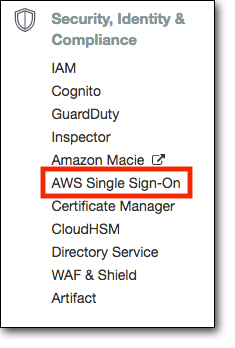
AWSにログインし、 **\[AWS Single Sign-On]** を選択します。
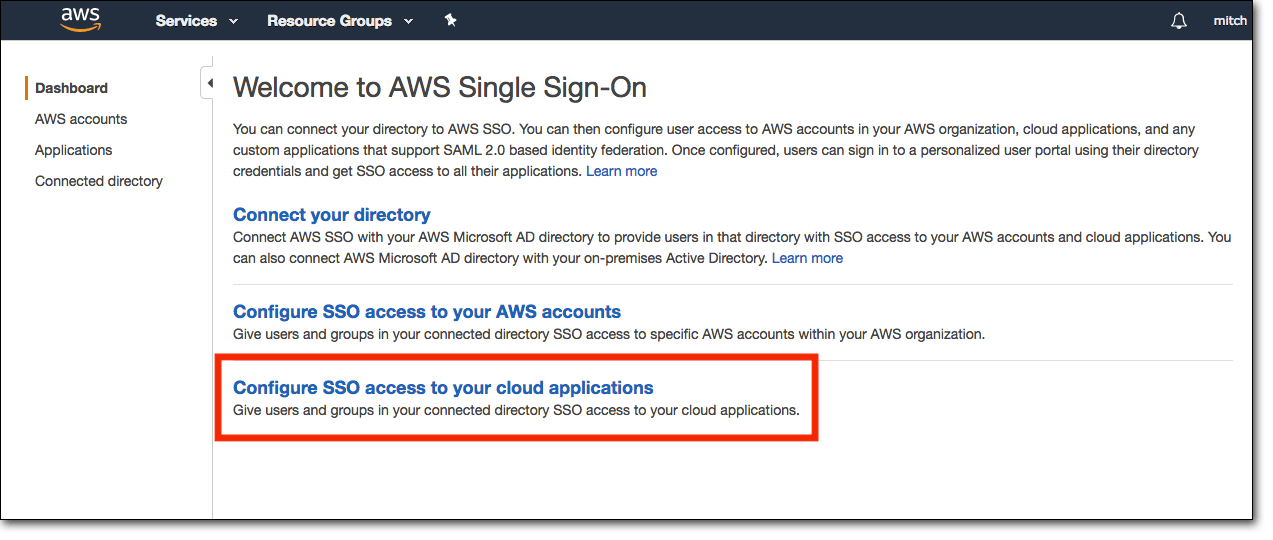
SSOダッシュボードで、 **\[Configure SSO access to your cloud applications]** を選択します。
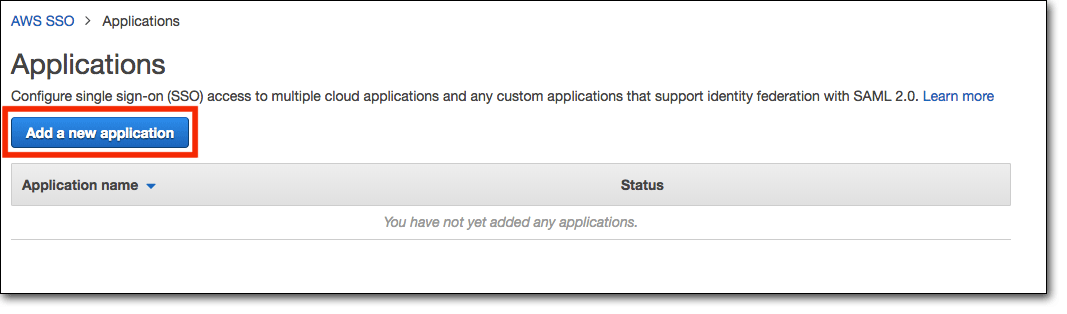
**\[Applications]** メニューで、 **\[Add a new application]** を選択します。
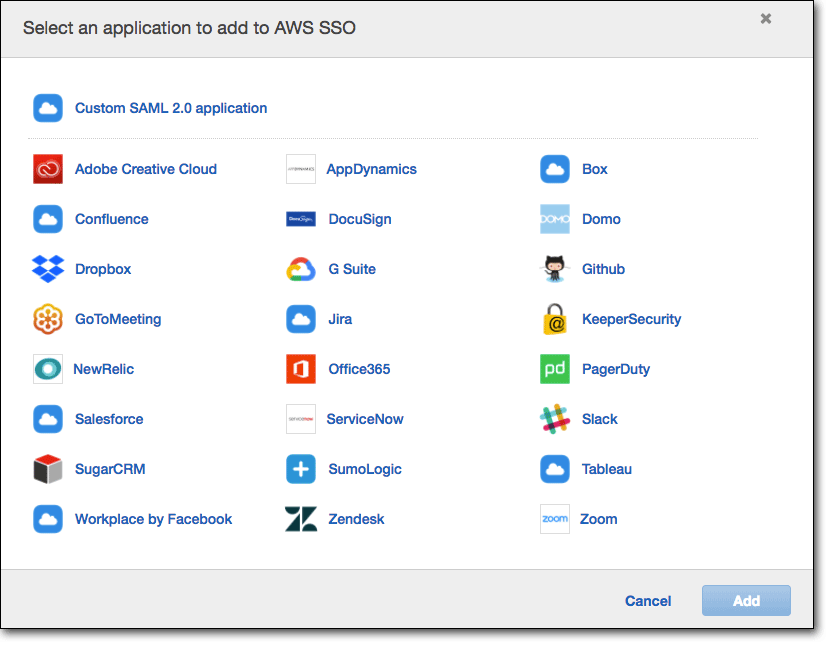
次に、**Keeper Security**を選択し、 **\[Add]** を選択します。
{% hint style="info" %}
**Keeperは、AWSとアプリケーションコネクタを共同開発しています。**
{% endhint %}
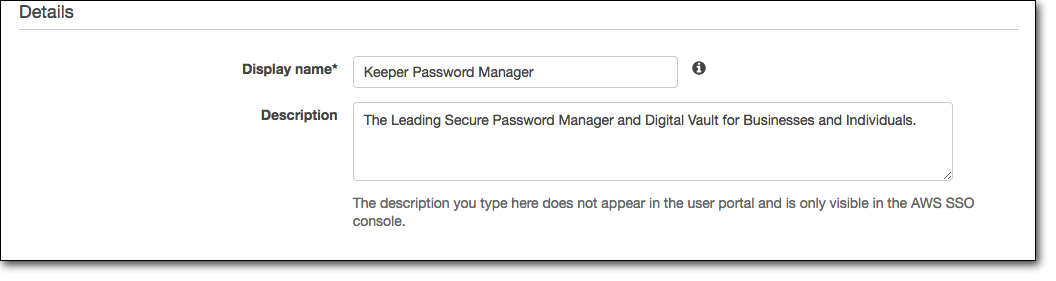
**\[Details]** セクションで **\[Display name]** と **\[Description]** (任意) を入力します。
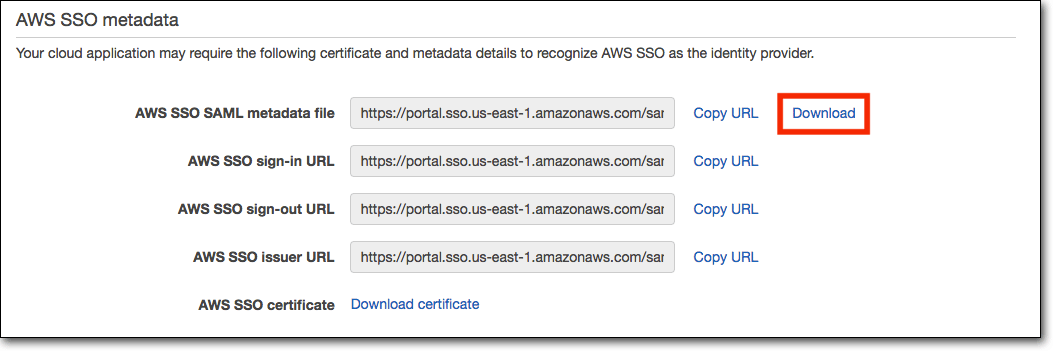
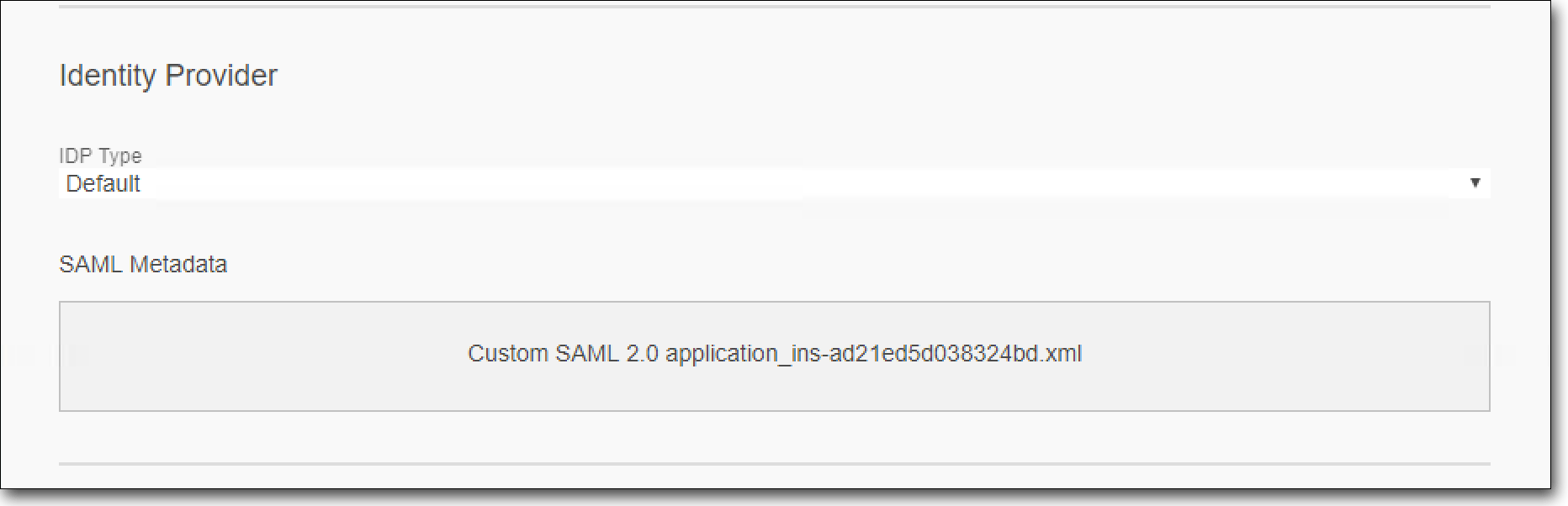
**\[AWS SSO metadata]** セクションで **\[Download]** を選択して、AWS SSO SAMLメタデータファイルをエクスポートします。このファイルは、設定画面の **\[SSO Connect IdP Metadata]** セクションでインポートします。
このファイルをKeeper SSOコネクトサーバーにコピーし、以下の設定画面にドラッグアンドドロップして、Keeper SSOコネクトにアップロードします。\
\
**\[保存]** を選択します。
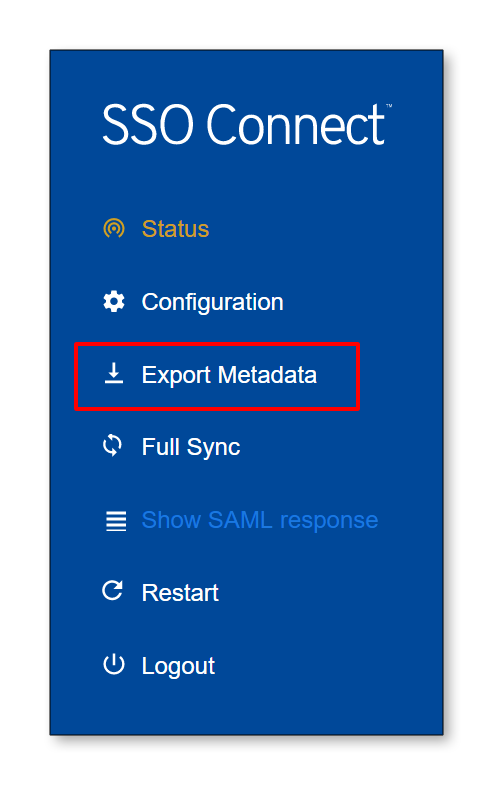
Keeper SSOコネクトサーバー側の残りの手順は、Keeperの `sso_connect.xml` メタデータファイルをダウンロードして、AWSアプリケーションにアップロードすることです。\
\
Keeper SSOコネクトで **\[メタデータをエクスポート]** を選択します。
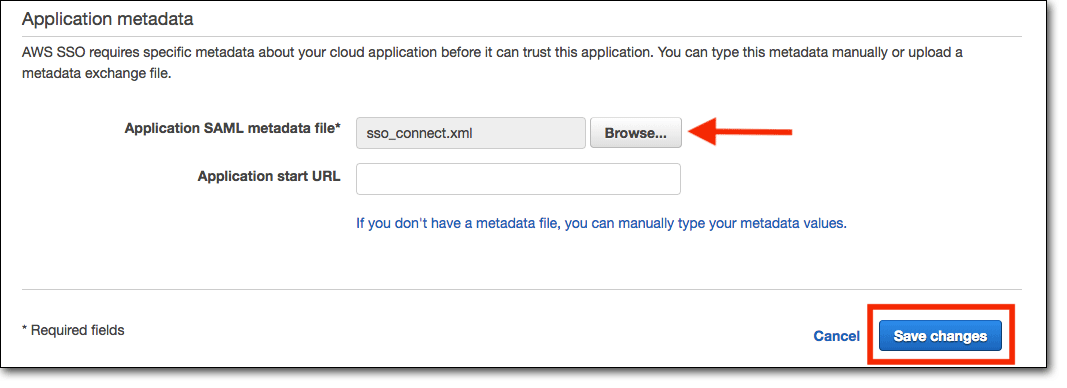
`sso_connect.xml` ファイルをアプリケーション設定画面の **\[Application metadata]** セクションにインポートします。
変更を保存すると、**Configuration for Keeper Password Manager has been saved**という成功メッセージが表示されます。
{% hint style="info" %}
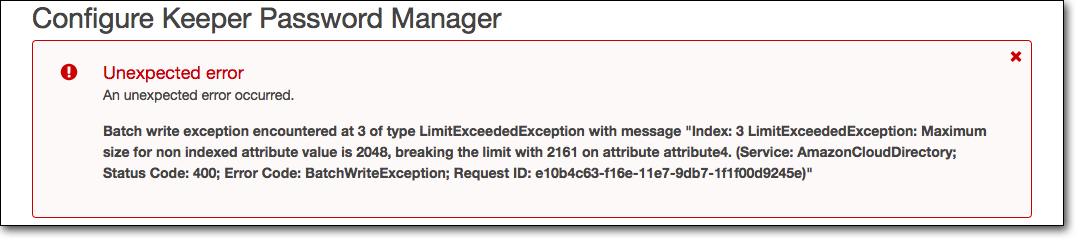
**Keeper SSL証明書は、2048Kを超えることはできません。超えると、以下のエラーが表示されます。**
{% endhint %}
* より小さいSSL証明書を生成するか、メタデータファイルを再エクスポートしてインポートするか、またはAWS SSOアプリケーションの設定でACS URLとAudience URLを手動で設定してください。
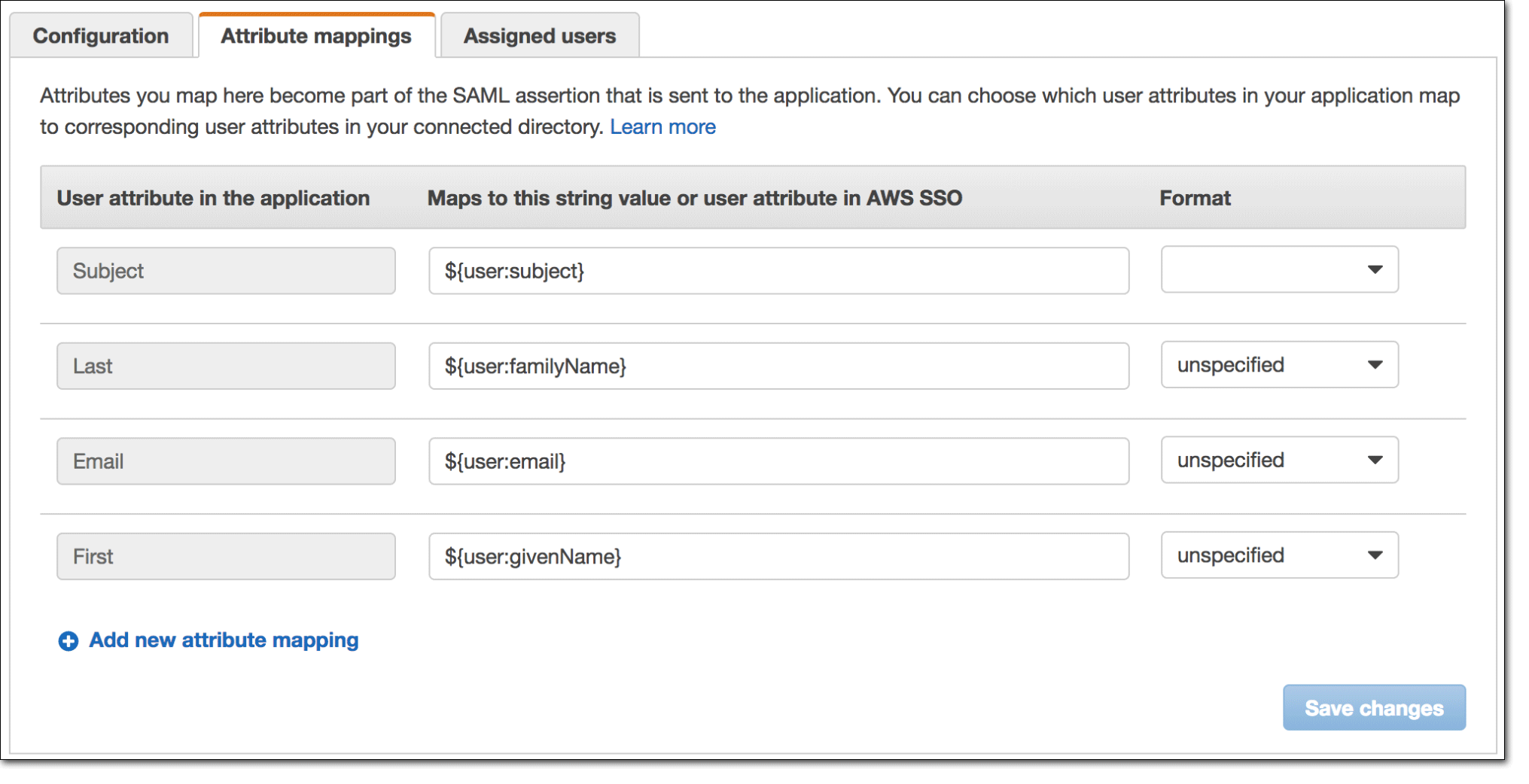
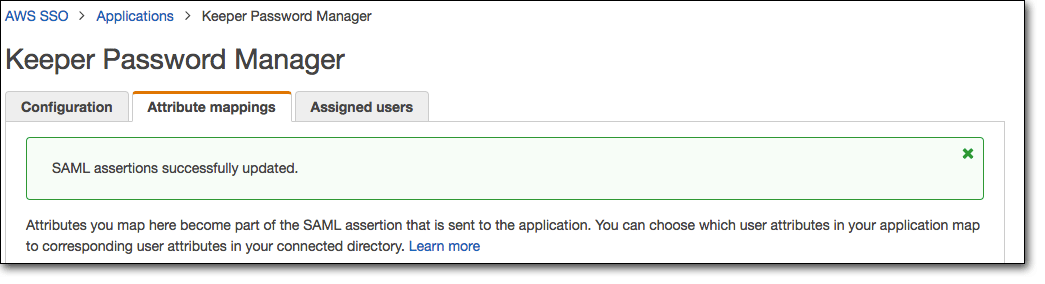
次に、AWS SSOにマッピングするKeeperアプリケーションの属性が正しいことを確認します (デフォルトで設定されているはずです)。 **\[Attribute mappings]** タブを選択します。\
\
AWSの文字列値を `${user:subject}` に、形式を空白または `unspecified` にします。\
\
Keeper属性を以下のように設定します。
| Keeper属性 | AWS SSO文字列値 | 形式 |
| -------- | ------------------ | ----------- |
| Email | ${user:email} | unspecified |
| First | ${user:givenName} | unspecified |
| Last | ${user:familyName} | unspecified |
{% hint style="info" %}
**AWSのメールがAD UPNにマッピングされている場合 (ユーザーの実際のメールアドレスではない可能性があります)、ユーザーのADプロファイルに関連付けられているメールアドレスに再マッピングできます。**
{% endhint %}
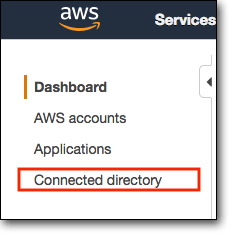
この変更を行うには、AWS SSOページの **\[Connected Directory]** に移動します。
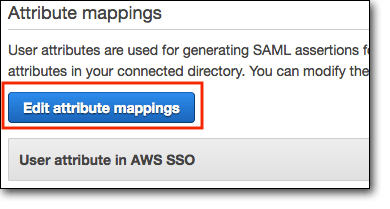
**\[Edit attribute mappings]** を選択します。
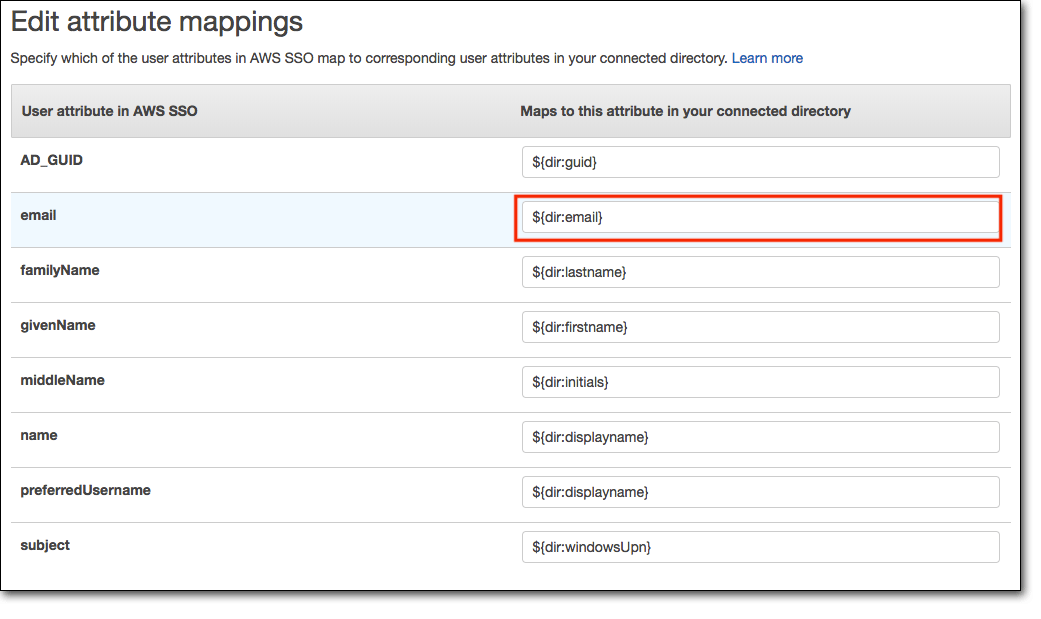
AWS SSOの**email**属性を `${dir:windowsUpn}` から `${dir:email}` に変更します。
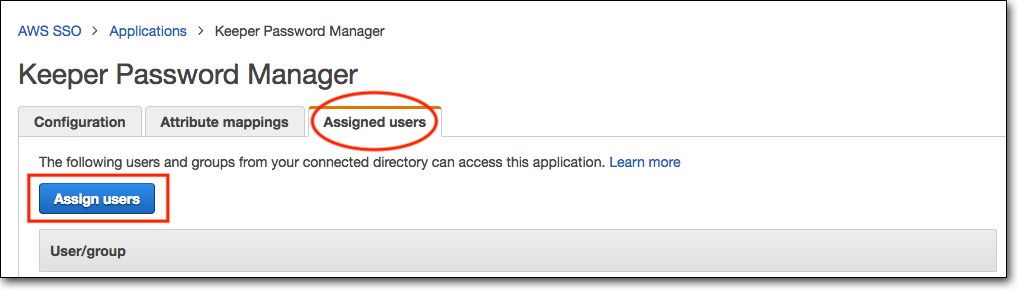
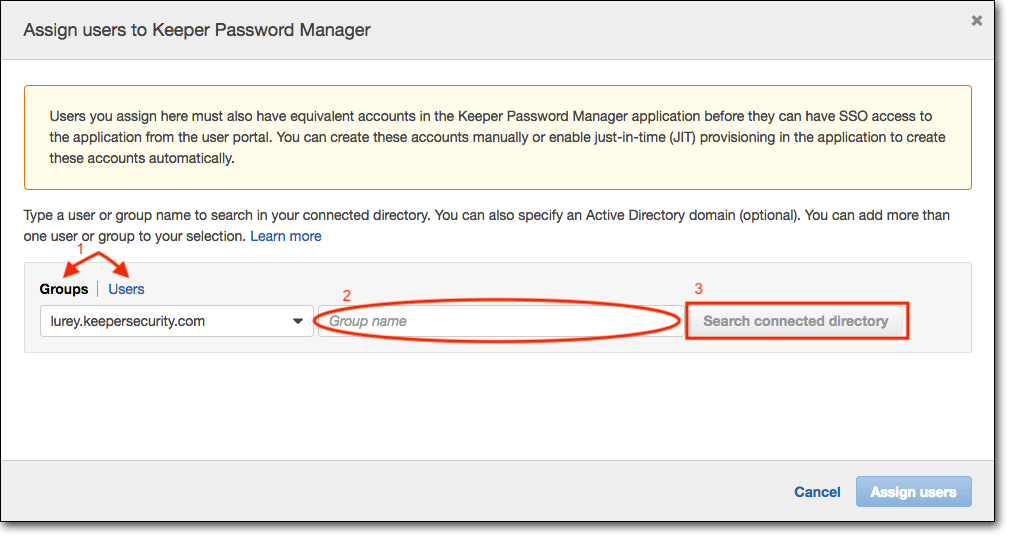
**\[Assigned users]** タブを選択してから、 **\[Assign users]** を選択して、アプリケーションを割り当てるユーザーまたはグループを選択します。
**\[Assign users]** ウィンドウで、以下の操作を行います。
* グループまたはユーザーを選択
* グループまたはユーザーの名前を入力
* **\[Search connected directory]** を選択して、検索を開始します。
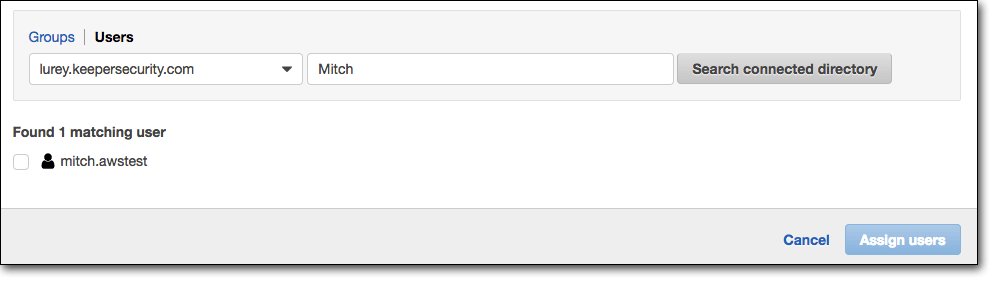
ディレクトリ検索の結果は、検索ウィンドウの下に表示されます。
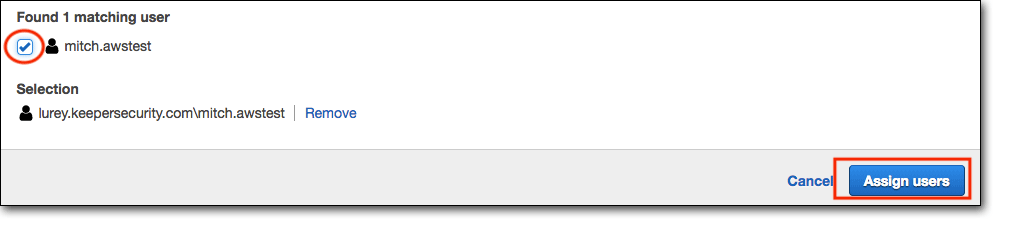
アプリケーションにアクセスする必要のあるユーザー/グループを選択し、 **\[Assign users]** を選択します。
**Keeper SSOコネクトは、SAMLレスポンスが署名されていることを想定しています。IDプロバイダがSAMLレスポンスに署名するように設定されていることをご確認ください。**
これでKeeper SSOコネクトの設定は完了です。
---
# Agent Instructions
This documentation is published with GitBook. GitBook is the documentation platform designed so that both humans and AI agents can read, navigate, and reason over technical content effectively. Learn more at gitbook.com.
## Querying This Documentation
If you need additional information that is not directly available in this page, you can query the documentation by asking a question.
Perform an HTTP GET request on the following URL with the `ask` and `goal` query parameters:
```
GET https://docs.keeper.io/sso-connect-on-prem/jp/identity-provider-setup/aws-sso-configuration.md?ask=&goal=
```
`ask` is the immediate question: it should be specific, self-contained, and written in natural language.
`goal` is what the user is ultimately trying to achieve, the reason they need the answer. Sharing it helps GitBook give you a better, more relevant answer. A goal is most helpful when it describes the outcome the user wants rather than restating the question. For example, with `ask=how do I create an API token`, a goal like `automate deployments from our CI pipeline` lets GitBook tailor the answer to that use case.
The response will contain a direct answer to the question and relevant excerpts and sources from the documentation.
Use this mechanism when the answer is not explicitly present in the current page, you need clarification or additional context, or you want to retrieve related documentation sections.