> For the complete documentation index, see [llms.txt](https://docs.keeper.io/llms.txt). Markdown versions of documentation pages are available by appending `.md` to page URLs; this page is available as [Markdown](https://docs.keeper.io/sso-connect-on-prem/jp/identity-provider-setup/centrify-configuration.md).
# Centrifyの設定
CentrifyとのKeeperオンプレミスSSOコネクト連携設定
{% hint style="info" %}
Centrifyとの完全なクラウドベースの統合については、[KeeperクラウドSSOコネクト](https://docs.keeper.io/sso-connect-cloud/jp/)をご参照ください
{% endhint %}
### Centrify
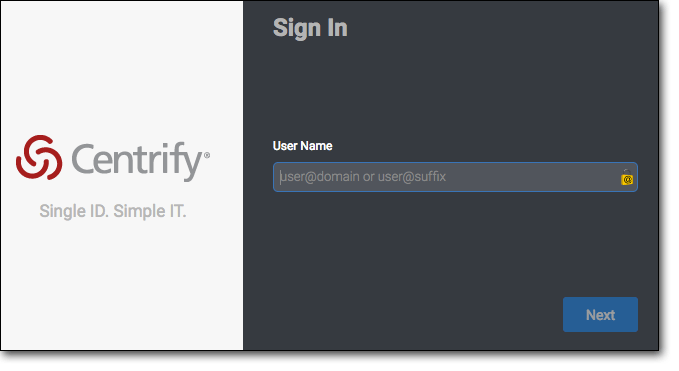
クラウドログインを使用して、Centrifyの**Admin Portal**にログインします。
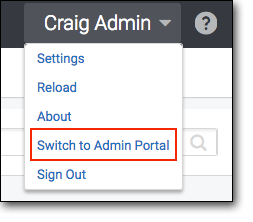
プルダウンメニューから**Admin Portal**に切り替えます。
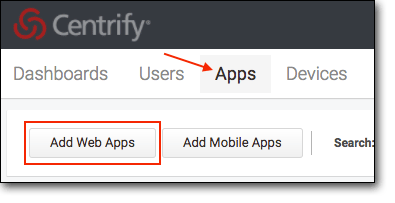
**Quick Start Wizard**が表示された場合は閉じます。メニューから **\[Apps]** を選択し、 **\[Add Web Apps]** を選択します。
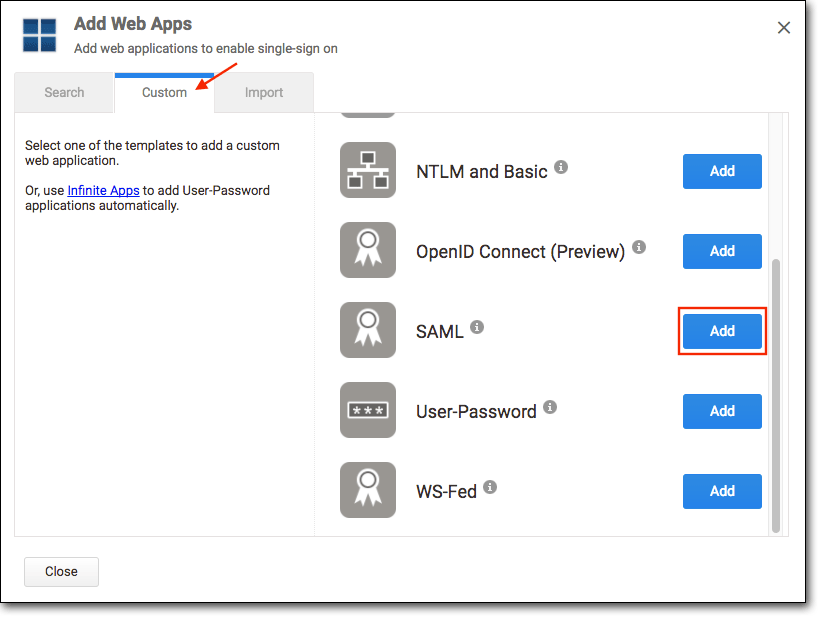
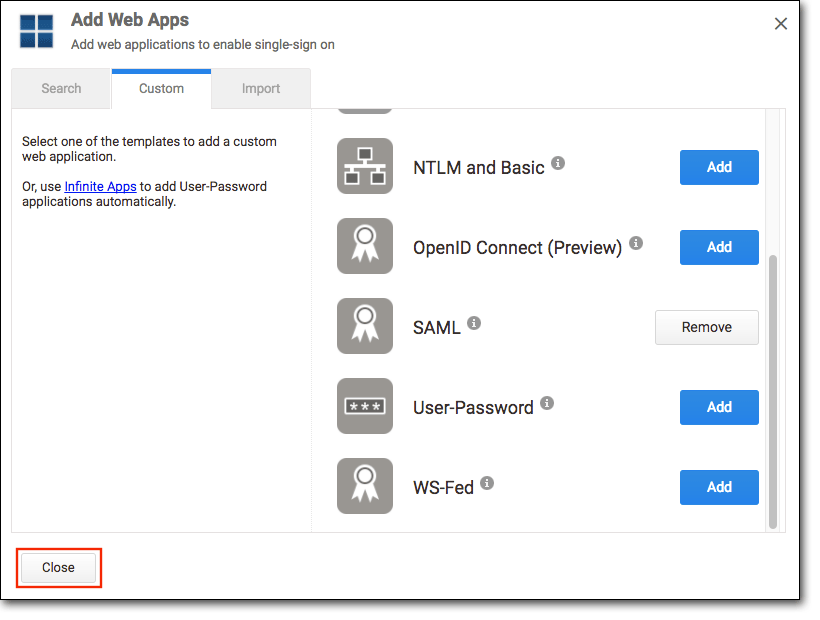
**Add Web Apps**ウィンドウで **\[Custom]** タブを選択し、下にスクロールしてSAMLの **\[Add]** を選択します。
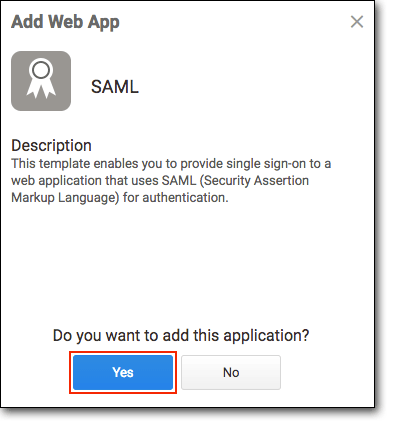
「Do you want to add this application?」と表示されたら、 **\[Yes]** を選択します。
**Add Web Apps**ウィンドウを閉じます。
以下の手順で、KeeperのSSOメタデータをCentrifyにアップロードします。\
\
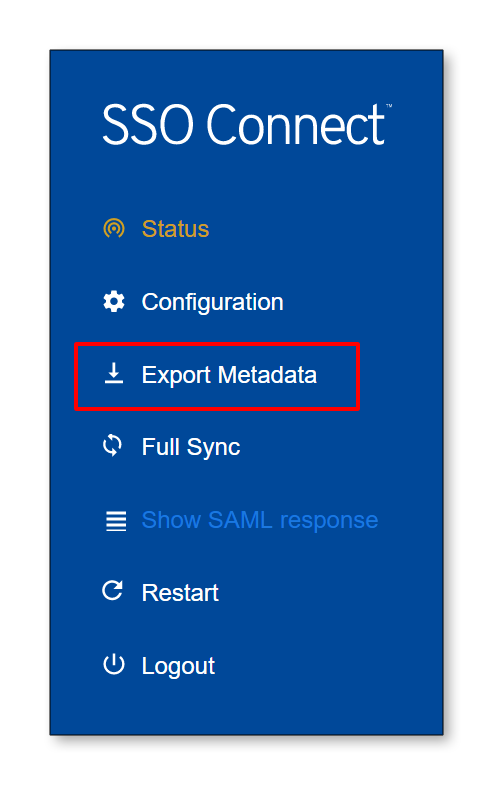
Keeper SSOコネクトで、 **\[メタデータをエクスポート]** リンクを使用してKeeper SSOコネクトメタデータをエクスポートし、以降の手順のためにこのファイルを保存します。
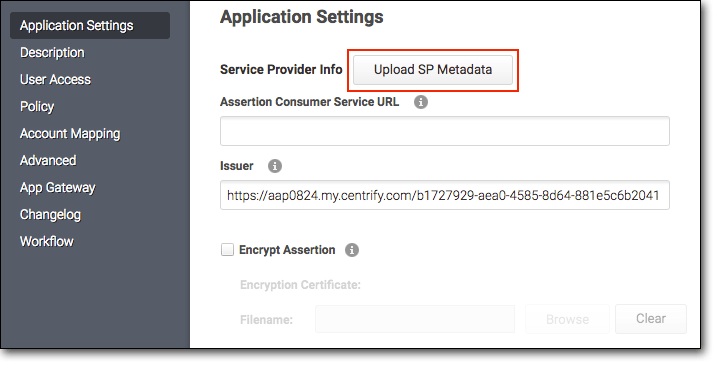
Centrifyの **\[SAML Application Settings]** セクションで、 **\[Upload SP Metadata]** を選択します。
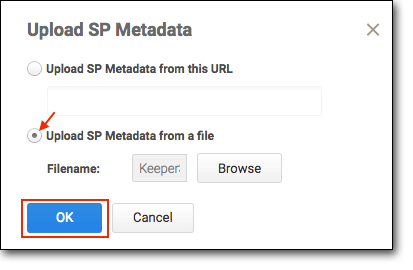
**\[Upload SP Metadata from a file]** を選択し、KeeperSSOMetadata.xmlファイルを参照します。 **\[OK]** を選択します。
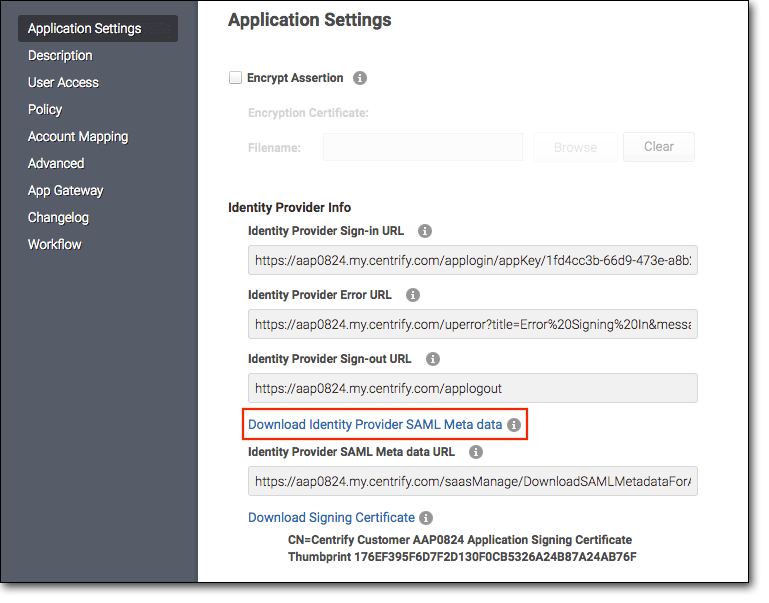
Identity Provider SAML Metadataをダウンロードします。これがKeeper SSOコネクトにアップロードされます。
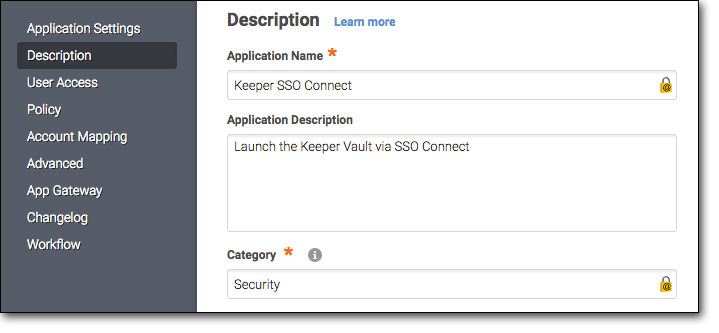
**Description**セクションで、**Application Name**フィールドに**Keeper SSO Connect**と入力し、**Category**フィールドで **\[Security]** を選択します。
Keeperのロゴをダウンロードします。\
\
**\[Select Logo]** を選択して、Keeperのロゴ (keeper60x60.png) をアップロードします。
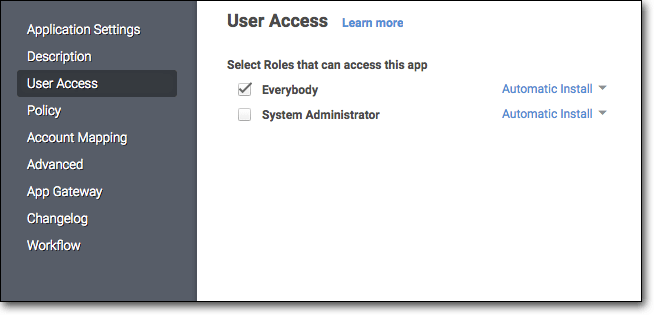
**\[User Access]** セクションで、Keeperアプリにアクセスできるロールを選択します。
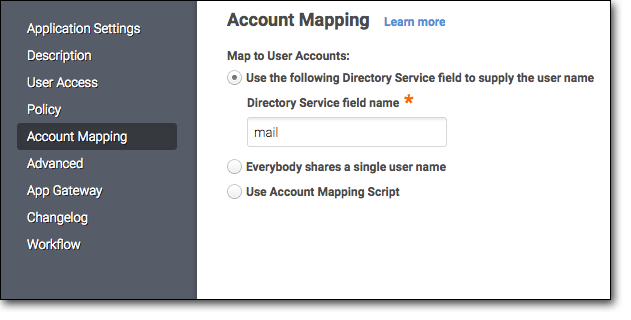
**Account Mapping**セクションで、「Use the following Directory Service field to supply the user name」を選択して**mail**と入力します。
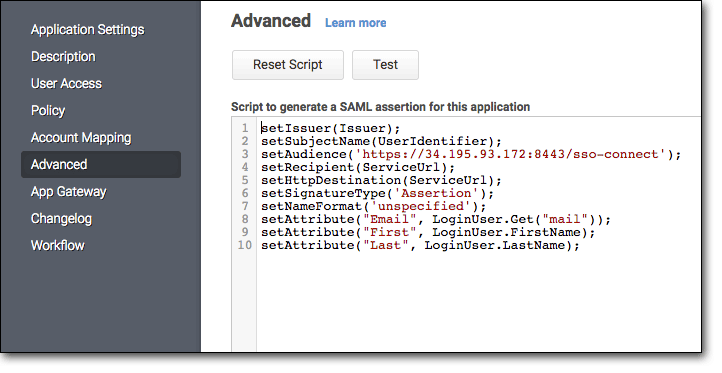
**\[Advanced]** セクションで、以下のコード行を含むスクリプトを追加します。
```
setAttribute("Email", LoginUser.Get("mail"));
setAttribute("First", LoginUser.FirstName);
setAttribute("Last", LoginUser.LastName);
setSignatureType("Response");
```
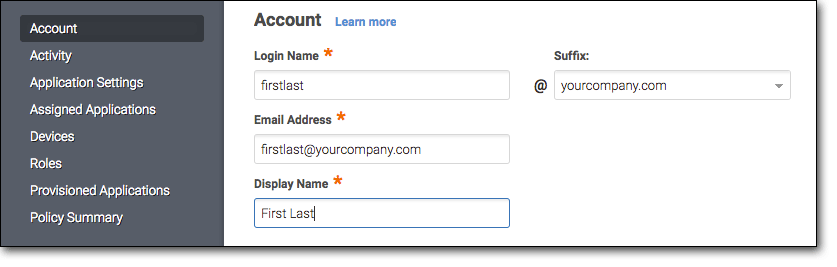
* 上記のスクリプトは、**User Account**セクションから表示名を読み取ります。FirstName属性はDisplayNameの最初の文字列から、LastName属性は2番目の文字列から取得します。
**\[Save]** を選択して設定を完了します。
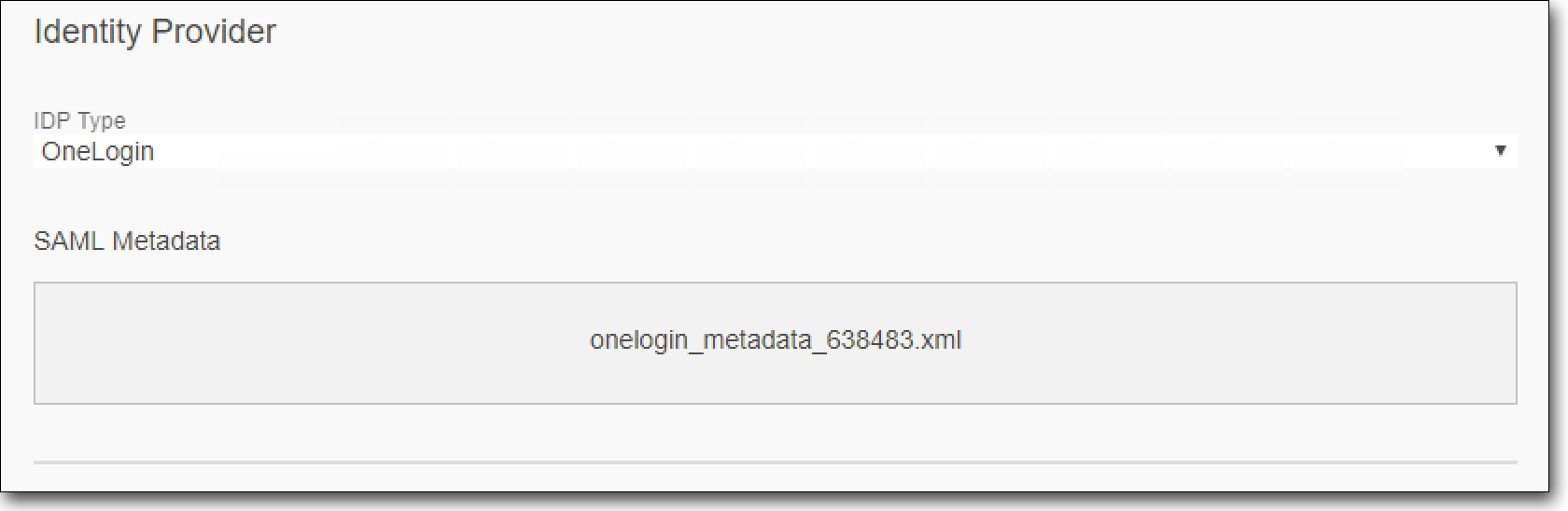
ファイルを設定画面にドラッグアンドドロップして、IDプロバイダのSAMLメタデータファイルをKeeper SSOコネクトインターフェースにアップロードします。
**\[保存]** を選択して、Keeper SSOコネクトの設定は完了です。
---
# Agent Instructions
This documentation is published with GitBook. GitBook is the documentation platform designed so that both humans and AI agents can read, navigate, and reason over technical content effectively. Learn more at gitbook.com.
## Querying This Documentation
If you need additional information that is not directly available in this page, you can query the documentation by asking a question.
Perform an HTTP GET request on the following URL with the `ask` and `goal` query parameters:
```
GET https://docs.keeper.io/sso-connect-on-prem/jp/identity-provider-setup/centrify-configuration.md?ask=&goal=
```
`ask` is the immediate question: it should be specific, self-contained, and written in natural language.
`goal` is what the user is ultimately trying to achieve, the reason they need the answer. Sharing it helps GitBook give you a better, more relevant answer. A goal is most helpful when it describes the outcome the user wants rather than restating the question. For example, with `ask=how do I create an API token`, a goal like `automate deployments from our CI pipeline` lets GitBook tailor the answer to that use case.
The response will contain a direct answer to the question and relevant excerpts and sources from the documentation.
Use this mechanism when the answer is not explicitly present in the current page, you need clarification or additional context, or you want to retrieve related documentation sections.