> For the complete documentation index, see [llms.txt](https://docs.keeper.io/llms.txt). Markdown versions of documentation pages are available by appending `.md` to page URLs; this page is available as [Markdown](https://docs.keeper.io/sso-connect-on-prem/jp/identity-provider-setup/jumpcloud-configuration.md).
# JumpCloudの設定
JumpCloudとのKeeperオンプレミスSSOコネクト連携設定
{% hint style="info" %}
JumpCloudとの完全なクラウドベースの統合については、[KeeperクラウドSSOコネクト](https://docs.keeper.io/sso-connect-cloud/jp/)をご参照ください。
{% endhint %}
### JumpCloud
Keeper Securityを使用したシングルサインオン (SSO) を設定するためのJumpCloudの手順です。\
\
JumpCloud SSOの前提条件に記載されているように、パブリック証明書と秘密鍵のペアが必要です。手順は、以下をご確認ください。
JumpCloud管理者コンソールにログインします。
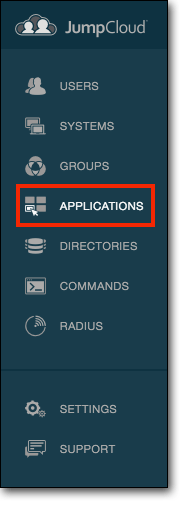
サイドメニューの **\[Applications]** タブを選択します。
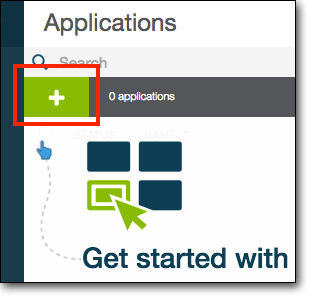
次に、左上隅の「**+**」アイコンを選択します。
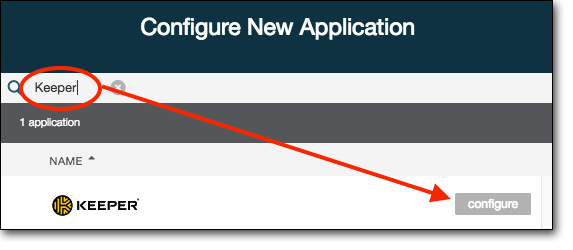
アプリケーションリストの検索バーで**Keeper**を検索します。Keeperアプリケーションの **\[Configure]** を選択します。
次に、Keeperアプリケーションのコネクタページで、**IDP ENTITY ID**を入力します。
IDP Entity IDは、JumpCloudがこのサービスプロバイダ (SP) に対して使用する、大文字と小文字を区別する一意の識別子です。この値は、Keeper SSOコネクトの **\[エンティティID]** フィールドで指定した値と一致する必要があります。例としては、ドメイン名、SSOコネクトサーバー名、またはIPアドレスなどが考えられます。\
\
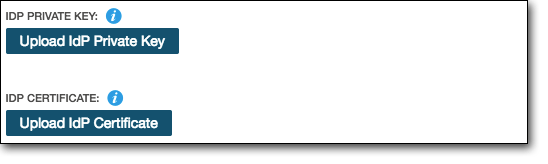
次に、IdP秘密鍵 (`private.pem`) とIdP証明書 (`cert.pem`) をアップロードします。
**SP Entity ID**フィールドに、Keeper SSOコネクトのサービスプロバイダセクションの **\[エンティティID]** フィールドにある値を入力します。
**ACS URL**フィールドに、Keeper SSOコネクトのサービスプロバイダセクションのACS URLフィールドにある値を入力します。
IdP URLの末端フィールドは、デフォルト値のままにするか、またはこのコネクタに固有のプレーンテキスト文字列 (`keepersecurity`) を入力します。
**Display Label**フィールドには、JumpCloudユーザーコンソール内のサービスプロバイダのロゴの下に表示されるラベル (`Keeper Security`) を入力します。
**Keeper SSOコネクトは、SAMLレスポンスが署名されていることを想定しています。JumpCloudがSAMLレスポンスに署名するように設定されていることをご確認ください。**
設定を完了するには、 **\[activate]** ボタンを選択します。
最後の手順では、このコネクタからメタデータをエクスポートし、Keeper SSOコネクトにインポートします。
このファイルを設定画面にドラッグアンドドロップして、Keeper SSOコネクトインターフェースにアップロードします。
**\[保存]** を選択して、Keeper SSOコネクトの設定は完了です。
{% hint style="info" %}
**ユーザープロビジョニング SSO+SCIM**
JumpCloud®はSCIM (System for Cross Domain Identity Management) による自動プロビジョニングに対応しており、JumpCloud®で変更が加えられると、Keeperユーザーアカウントを更新して無効化します。手順の詳細は、[こちら](/enterprise-guide/jp/user-and-team-provisioning/jumpcloud-provisioning-with-scim.md)のページをご参照ください。
{% endhint %}
---
# Agent Instructions
This documentation is published with GitBook. GitBook is the documentation platform designed so that both humans and AI agents can read, navigate, and reason over technical content effectively. Learn more at gitbook.com.
## Querying This Documentation
If you need additional information that is not directly available in this page, you can query the documentation by asking a question.
Perform an HTTP GET request on the following URL with the `ask` and `goal` query parameters:
```
GET https://docs.keeper.io/sso-connect-on-prem/jp/identity-provider-setup/jumpcloud-configuration.md?ask=&goal=
```
`ask` is the immediate question: it should be specific, self-contained, and written in natural language.
`goal` is what the user is ultimately trying to achieve, the reason they need the answer. Sharing it helps GitBook give you a better, more relevant answer. A goal is most helpful when it describes the outcome the user wants rather than restating the question. For example, with `ask=how do I create an API token`, a goal like `automate deployments from our CI pipeline` lets GitBook tailor the answer to that use case.
The response will contain a direct answer to the question and relevant excerpts and sources from the documentation.
Use this mechanism when the answer is not explicitly present in the current page, you need clarification or additional context, or you want to retrieve related documentation sections.