> For the complete documentation index, see [llms.txt](https://docs.keeper.io/llms.txt). Markdown versions of documentation pages are available by appending `.md` to page URLs; this page is available as [Markdown](https://docs.keeper.io/sso-connect-on-prem/jp/identity-provider-setup/ping-identity-configuration.md).
# Ping Identityの設定
Ping IdentityとのKeeperオンプレミスSSOコネクト連携設定
{% hint style="info" %}
Pingとの完全なクラウドベースの統合については、[KeeperクラウドSSOコネクト](https://docs.keeper.io/sso-connect-cloud/jp/)をご参照ください
{% endhint %}
### Ping Identity
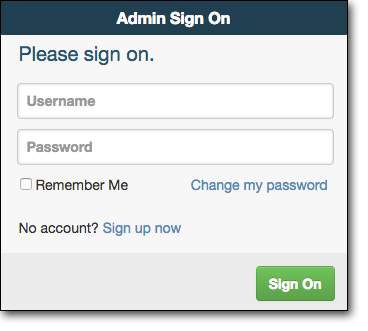
Ping Identityポータルにログインします。
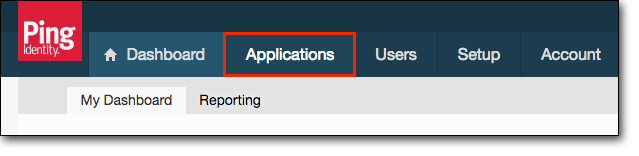
Ping Identityのメニューから、 **\[Applications]** を選択します。
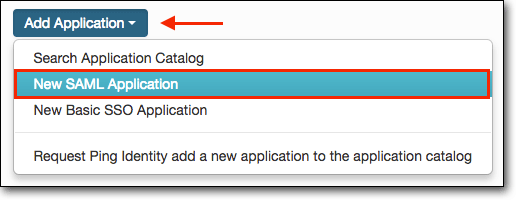
次に、 **\[Add Application]** を選択し、 **\[New SAML Application]** を選択します。
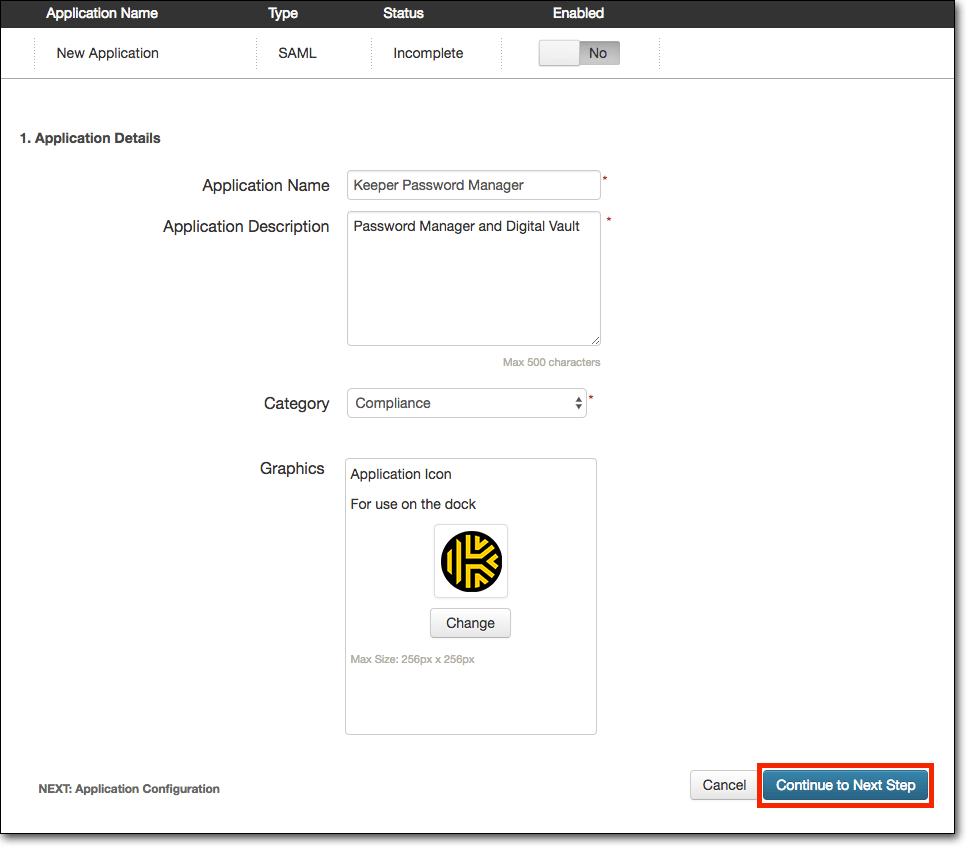
**Application Details**ページで、以下のデータを追加します。
* **Application Name:** Keeper Password Manager\
**Application Detail:** Password Manager and Digital Vault\
**Category:** Compliance (またはその他)\
**Graphic:** Keeperの画像をアップロード\
続いて、 **\[Continue to Next Step]** を選択します。
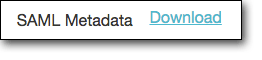
以下の手順で、Ping IdentityからSAMLメタデータをダウンロードします。 **\[SAML Metadata]** の隣の **\[Download]** リンクを選択します。
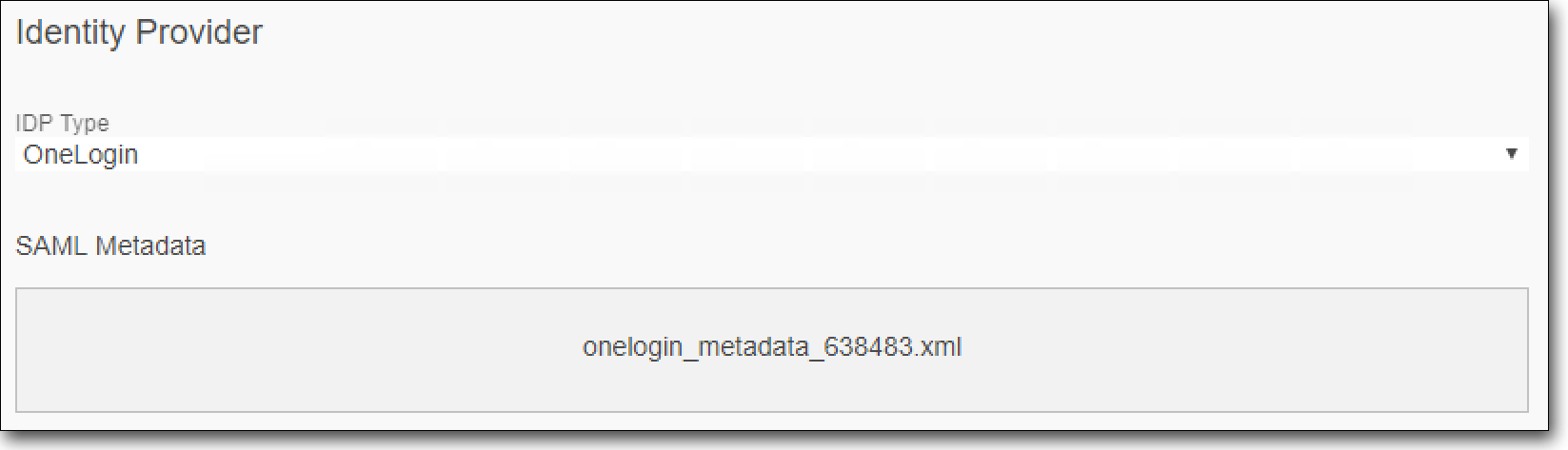
**saml2-metadata-idp.xml**ファイルがブラウザにダウンロードされます。このファイルをKeeper SSOコネクトサーバーにコピーし、ファイルを以下の設定画面にドラッグアンドドロップして、Keeper SSOコネクトインターフェースにアップロードします。\
\
**\[保存]** を選択します。
Keeper SSOコネクトサーバーに関する残りの手順は、KeeperSsoMetadata.xmlファイルをダウンロードして、Pingアプリケーションの設定にアップロードすることです。\
\
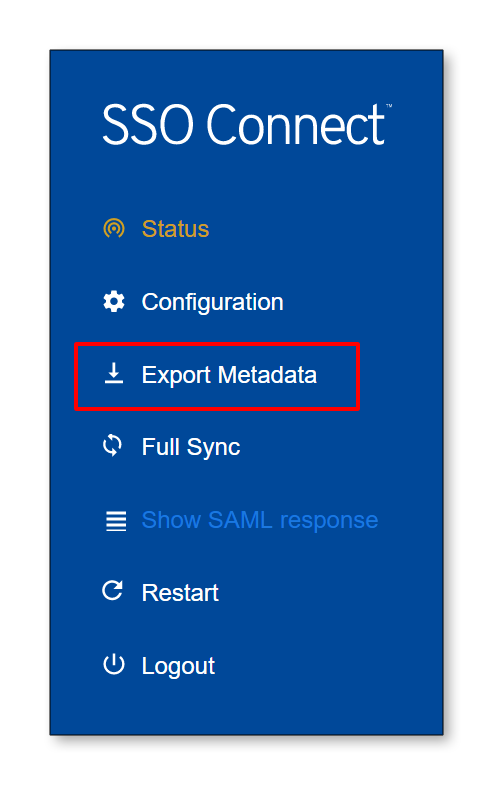
Keeper SSOコネクトの **\[メタデータをエクスポート]** を選択します。
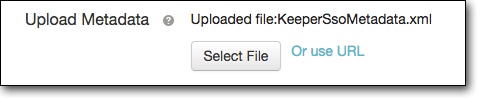
Ping Identityアプリケーションの設定に戻って、 **\[Select File]** ボタンを選択し、**KeeperSsoMetadata.xml**ファイルを選択します。
**\[Continue to Next Step]** を選択します。
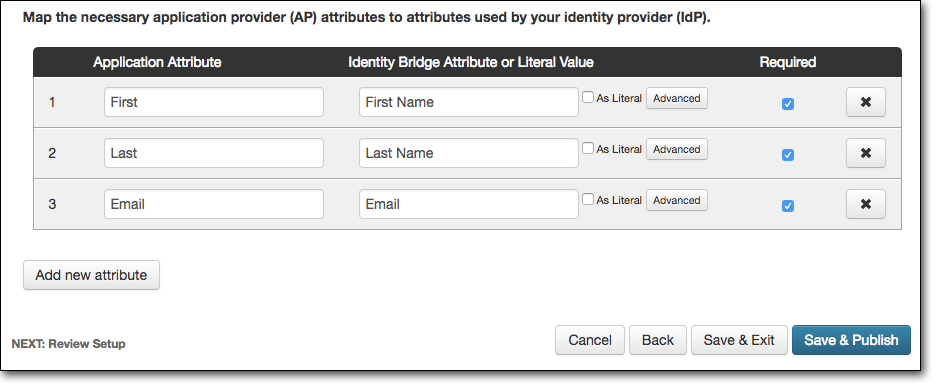
以下の手順で、属性をマッピングします。 **\[Add new attribute]** ボタンを選択します。
* 属性1では、**Application Attribute**列に**First**と入力し、**Identity Bridge Attribute or Literal Value**列で**First Name**を選択して、**Required**をチェックします。 **\[Add new attribute]** ボタンを選択します。
* 属性2では、**Application Attribute**列に**Last**と入力し、**Identity Bridge Attribute or Literal Value**列で**Last Name**を選択して、**Required**をチェックします。 **\[Add new attribute]** ボタンを選択します。
* 属性3では、**Application Attribute**列に**Email**と入力し、**Identity Bridge Attribute or Literal Value**列で**Email**を選択して、**Required**をチェックします。\
\
Application Attributes: **First**、**Last**、**Email**は大文字で始まる必要があります。
**\[Save & Publish]** ボタンを選択します。\
\
設定内容を確認してから、 **\[Finish]** ボタンを選択します。
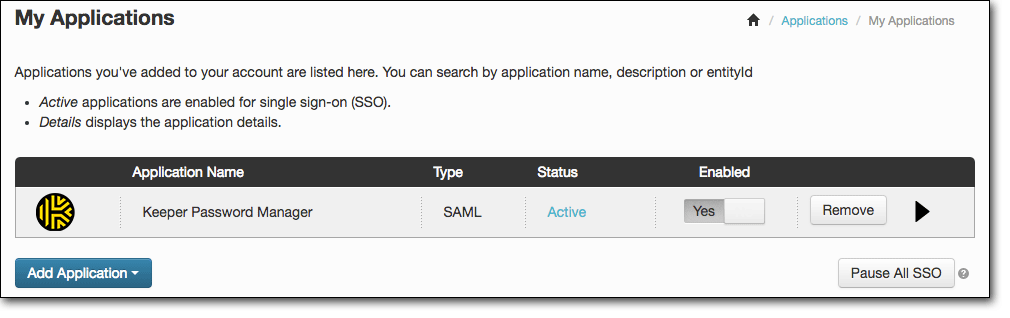
Keeperアプリケーションが追加されて、有効になっているはずです。
**Ping Identity**設定の **\[Application Configuration]** セクションで、 **\[Signing]** セクションの **\[Sign Response]** が選択され、署名アルゴリズムに **\[RSA\_SHA256]** が設定されていることを確認してください。
これでKeeper SSOコネクトの設定は完了です。
---
# Agent Instructions
This documentation is published with GitBook. GitBook is the documentation platform designed so that both humans and AI agents can read, navigate, and reason over technical content effectively. Learn more at gitbook.com.
## Querying This Documentation
If you need additional information that is not directly available in this page, you can query the documentation by asking a question.
Perform an HTTP GET request on the following URL with the `ask` and `goal` query parameters:
```
GET https://docs.keeper.io/sso-connect-on-prem/jp/identity-provider-setup/ping-identity-configuration.md?ask=&goal=
```
`ask` is the immediate question: it should be specific, self-contained, and written in natural language.
`goal` is what the user is ultimately trying to achieve, the reason they need the answer. Sharing it helps GitBook give you a better, more relevant answer. A goal is most helpful when it describes the outcome the user wants rather than restating the question. For example, with `ask=how do I create an API token`, a goal like `automate deployments from our CI pipeline` lets GitBook tailor the answer to that use case.
The response will contain a direct answer to the question and relevant excerpts and sources from the documentation.
Use this mechanism when the answer is not explicitly present in the current page, you need clarification or additional context, or you want to retrieve related documentation sections.