> For the complete documentation index, see [llms.txt](https://docs.keeper.io/llms.txt). Markdown versions of documentation pages are available by appending `.md` to page URLs; this page is available as [Markdown](https://docs.keeper.io/user-guides/es/import-records-1/import-json.md).
# Importar/exportar JSON de Keeper
Instrucciones para importar y exportar un archivo JSON estructurado de Keeper
Keeper admite la importación de un archivo JSON estructurado. Puede usarlo, por ejemplo, si hizo una copia de seguridad de un archivo de Keeper desde otra bóveda o si está creando un archivo a partir de otra fuente de datos. Esta es una función avanzada, que suelen usar los administradores de Keeper Enterprise o clientes más técnicos. Si no es su caso, vaya a la [importación CSV](/user-guides/es/import-records-1/import-a-.csv-file.md).
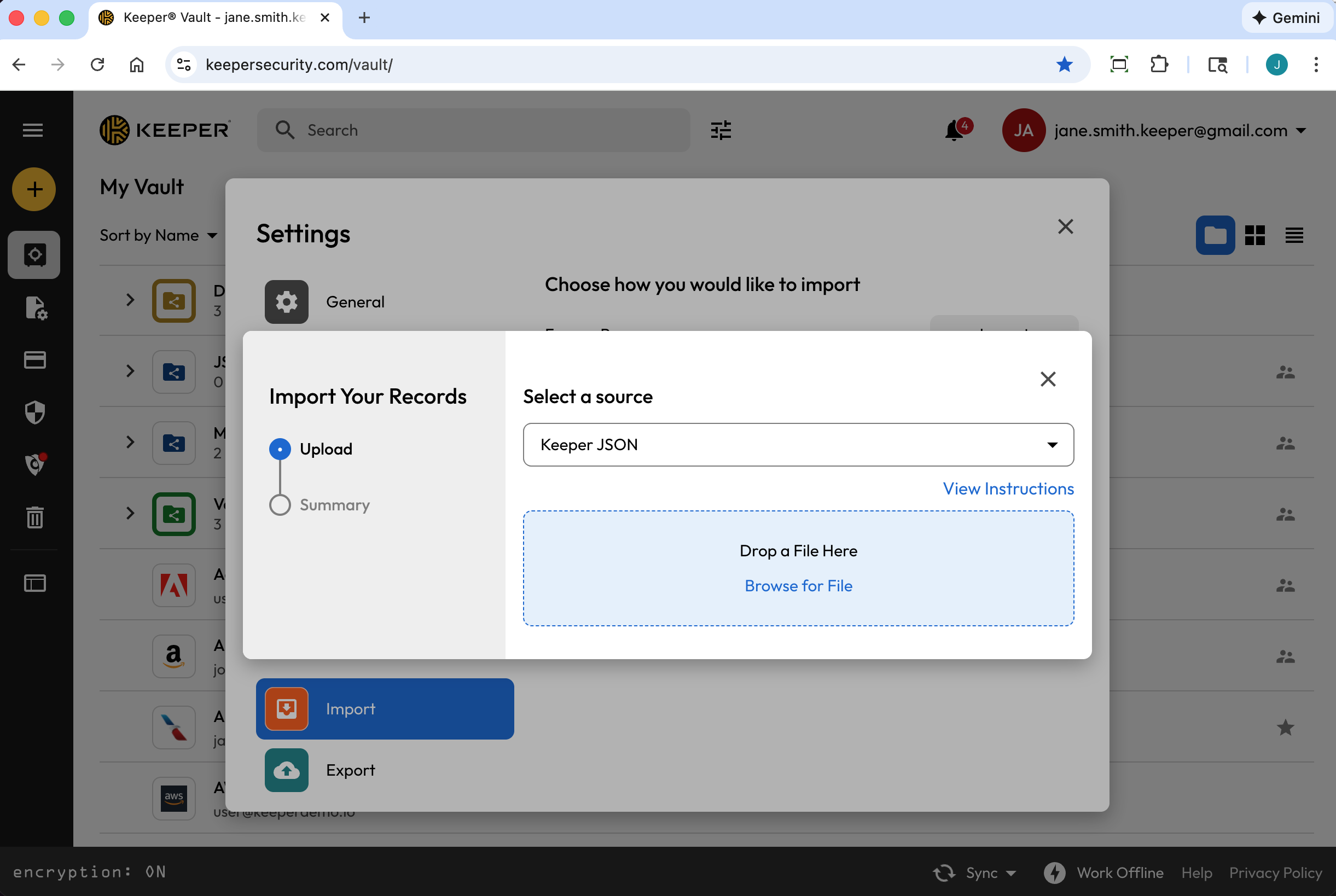
Para empezar, en el **menú desplegable de la cuenta**, haga clic en **Configuración** **> Importar > Importar** (junto a "Usar otra fuente"). En el menú desplegable, seleccione **Keeper JSON**.
El archivo JSON se puede crear de varias formas:
* Exportando un archivo .JSON desde la bóveda de Keeper
* Exportando .JSON desde el SDK de Keeper Commander
* Creando su propio archivo personalizado
Cuando el archivo JSON esté formateado correctamente, arrástrelo y suéltelo en la ventana "Soltar archivo aquí" de Keeper o busque el archivo en su computadora.
{% hint style="info" %}
Los archivos JSON deben estar codificados en UTF-8 para que todos los símbolos y caracteres se importen correctamente.
{% endhint %}
### Crear un archivo .JSON desde una bóveda de Keeper (exportación)
Para crear un archivo .JSON desde su bóveda de Keeper existente, en el **menú desplegable de la cuenta**, haga clic en **Configuración > Exportar**.
Seleccione **JSON** y haga clic en **Exportar**. Si se le solicita, ingrese su Contraseña Maestra y haga clic en **Exportar ahora**.

### Crear un archivo JSON desde Keeper Commander
Keeper Commander es una herramienta para desarrolladores y administradores con muchas funciones para administrar su bóveda y su cuenta Enterprise.
Visite el repositorio del SDK de Keeper Commander aquí:\
El comando para exportar una bóveda en formato JSON se muestra a continuación:
```
$ keeper shell
_ __
| |/ /___ ___ _ __ ___ _ _
| ' export --format json my_export_file.json
Processing... please wait.
318 records exported
```
### Crear un archivo .JSON personalizado para importar a Keeper
Al crear un archivo JSON personalizado para importación, Keeper admite un array de "records", "folders" y "shared\_folders". A continuación se incluyen varios ejemplos que puede importar a su bóveda para probarlos.
Ejemplo de archivo JSON: registros, carpetas y carpetas compartidas
Este archivo muestra varias funciones de importación JSON, entre ellas:
* Array de registros
* Cada registro puede tener campos personalizados, notas y añadirse a carpetas
* Las carpetas se pueden crear como normales (privadas) o como carpetas compartidas
* Los registros también pueden contener semillas TOTP (función avanzada; vea la entrada Facebook en el ejemplo siguiente)
```
{
"records": [
{
"title": "Dev Server 1",
"login": "root",
"password": "123123123",
"login_url": "https://myserver.com",
"notes": "These are some notes.",
"custom_fields": {
"Security Group": "Private"
},
"folders": [
{
"folder": "Private Folder 1"
}
]
},
{
"title": "Prod Server 1",
"login": "root",
"password": "kj949234723jhfs4jf7h",
"login_url": "https://myprodserver.com",
"notes": "These are some notes.",
"custom_fields": {
"Security Group": "Public",
"IP Address": "12.45.67.8"
},
"folders": [
{
"folder": "Private Folder 2"
},
{
"shared_folder": "My Shared Folder 1",
"can_edit": true,
"can_share": true
}
]
},
{
"title":"Google",
"login": "testing",
"password": "1234567890",
"login_url": "https://google.com",
"notes": "These are some notes.",
"custom_fields": {
"Favorite Food":"Cheetos"
},
"folders": [
{
"folder": "My Websites\\Online"
}
]
},
{
"title":"Facebook",
"$type": "login",
"login": "me@gmail.com",
"password": "123123123123",
"login_url": "https://facebook.com",
"notes": "This is our corporate shared record.",
"custom_fields": {
"Facebook Application ID":"ABC12345",
"$oneTimeCode":"otpauth://totp/Amazon:me@company.com?secret=JBSWY3DPEHPK3PXP&issuer=Amazon&algorithm=SHA1&digits=6&period=30"
},
"folders": [
{
"folder": "Social Media"
},
{
"shared_folder": "Shared Social",
"can_edit": false,
"can_share": false
}
]
}
]
}
```
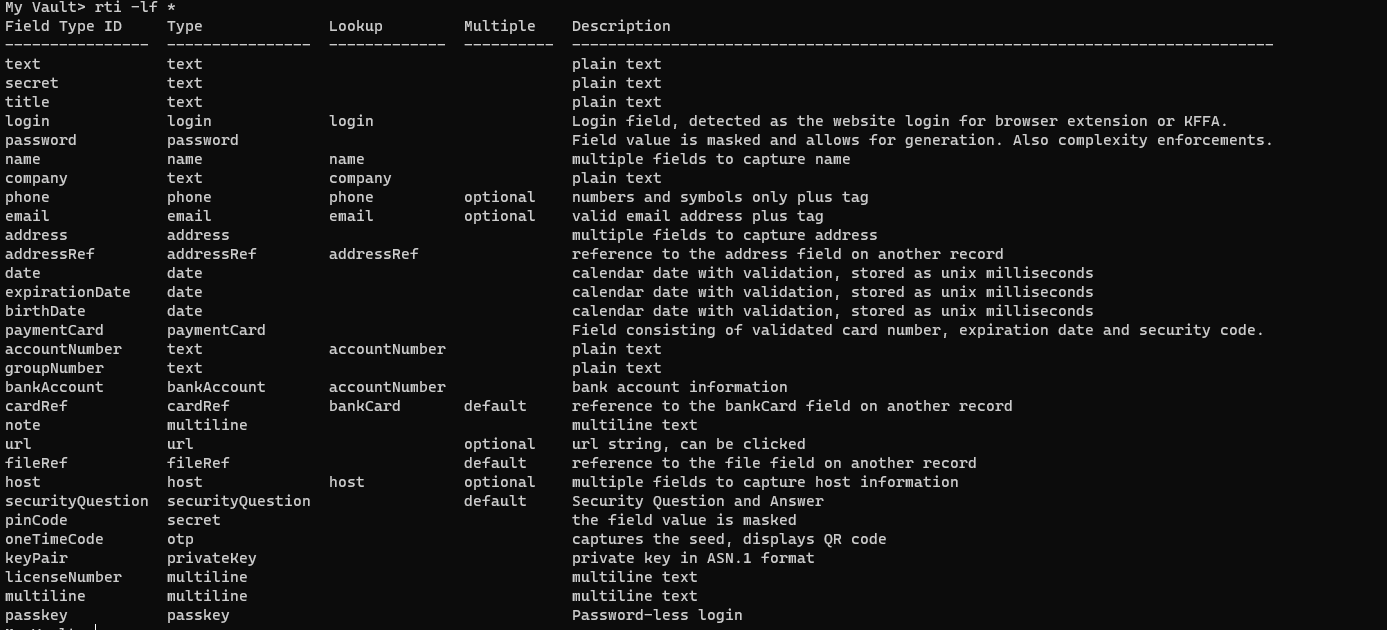
A continuación se muestra una lista de todos los tipos de campo posibles (incluidos los campos personalizados):
Todos los tipos de campo
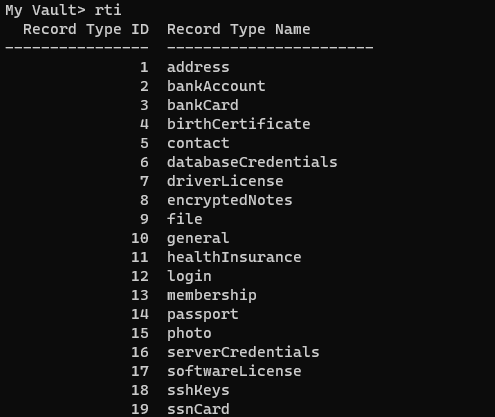
Estos son algunos tipos de registro (puede tener más si creó tipos de registro personalizados, o menos si está restringiendo algunos tipos):
Tipos de registro
**Ejemplo de archivo JSON: carpetas compartidas y permisos (sin registros)**
El archivo JSON siguiente muestra cómo crear una estructura de carpetas compartidas (sin registros) con permisos configurados.
{% hint style="info" %}
Utilice el comando `import` de [Commander CLI](/keeperpam/commander-cli/overview.md) (en inglés) para importar carpetas vacías
{% endhint %}
Nota: las referencias de ejemplo a "UID", "Team UID", etc. son marcadores de posición específicos de su bóveda.
```
{
"shared_folders": [
{
"path": "My Shared Folder 1",
"manage_users": true,
"manage_records": true,
"can_edit": true,
"can_share": true,
"permissions": [
{
"uid": "kVM96KGEoGxhskZoSTd_jw",
"manage_users": true,
"manage_records": true
},
{
"name": "myusername@company.com",
"manage_users": true,
"manage_records": true
}
]
},
{
"path": "Customer1\\My Shared Folder 2",
"manage_users": false,
"manage_records": false,
"can_edit": false,
"can_share": false,
"permissions": [
{
"uid": "",
"manage_users": false,
"manage_records": false
},
{
"name": "",
"manage_users": true,
"manage_records": true
}
]
},
{
"path": "Customer2\\My Shared Folder 3",
"manage_users": true,
"manage_records": true,
"can_edit": true,
"can_share": true,
"permissions": [
{
"uid": "",
"manage_users": true,
"manage_records": true
},
{
"name": "myusername@company.com",
"manage_users": true,
"manage_records": true
}
]
}
]
}
```
**Ejemplo de archivo JSON: registros/carpetas privados y registros/carpetas compartidos**
El archivo JSON de ejemplo siguiente combina varias funciones: carpetas compartidas, carpetas privadas, registros y semillas TOTP.
Nota: las referencias de ejemplo a "UID", "Team UID", etc. son marcadores de posición específicos de su bóveda.
```
{
"shared_folders": [
{
"path": "My Customer 1",
"manage_users": true,
"manage_records": true,
"can_edit": true,
"can_share": true,
"permissions": [
{
"uid": "kVM96KGEoGxhskZoSTd_jw",
"manage_users": true,
"manage_records": true
},
{
"name": "user@mycompany.com",
"manage_users": true,
"manage_records": true
}
]
},
{
"path": "Testing\\My Customer 2",
"manage_users": true,
"manage_records": true,
"can_edit": true,
"can_share": true,
"permissions": [
{
"uid": "ih1CggiQ-3ENXcn4G0sl-g",
"manage_users": true,
"manage_records": true
},
{
"name": "user@mycompany.com",
"manage_users": true,
"manage_records": true
}
]
}
],
"records": [
{
"title": "Bank Account 1",
"login": "customer1234",
"password": "4813fJDHF4239fdk",
"login_url": "https://chase.com",
"notes": "These are some notes.",
"custom_fields": {
"Account Number": "123-456-789"
},
"folders": [
{
"folder": "Optional Private Folder 1"
}
]
},
{
"title": "Bank Account 2",
"login": "mybankusername",
"password": "w4k4k193f$^&@#*%2",
"login_url": "https://amex.com",
"notes": "Some great information here.",
"custom_fields": {
"Security Group": "Public",
"IP Address": "12.45.67.8",
"$oneTimeCode":"otpauth://totp/Amazon:me@company.com?secret=JBSWY3DPEHPK3PXP&issuer=Amazon&algorithm=SHA1&digits=6&period=30"
},
"folders": [
{
"folder": "Optional Private Folder 1"
},
{
"shared_folder": "My Customer 1",
"can_edit": true,
"can_share": true
}
]
}
]
}
```
---
# Agent Instructions
This documentation is published with GitBook. GitBook is the documentation platform designed so that both humans and AI agents can read, navigate, and reason over technical content effectively. Learn more at gitbook.com.
## Querying This Documentation
If you need additional information that is not directly available in this page, you can query the documentation by asking a question.
Perform an HTTP GET request on the following URL with the `ask` and `goal` query parameters:
```
GET https://docs.keeper.io/user-guides/es/import-records-1/import-json.md?ask=&goal=
```
`ask` is the immediate question: it should be specific, self-contained, and written in natural language.
`goal` is what the user is ultimately trying to achieve, the reason they need the answer. Sharing it helps GitBook give you a better, more relevant answer. A goal is most helpful when it describes the outcome the user wants rather than restating the question. For example, with `ask=how do I create an API token`, a goal like `automate deployments from our CI pipeline` lets GitBook tailor the answer to that use case.
The response will contain a direct answer to the question and relevant excerpts and sources from the documentation.
Use this mechanism when the answer is not explicitly present in the current page, you need clarification or additional context, or you want to retrieve related documentation sections.