> For the complete documentation index, see [llms.txt](https://docs.keeper.io/llms.txt). Markdown versions of documentation pages are available by appending `.md` to page URLs; this page is available as [Markdown](https://docs.keeper.io/user-guides/es/sharing/time-limited-access.md).

# Acceso por tiempo limitado

El acceso por tiempo limitado le permite compartir de forma segura registros y carpetas con otros usuarios de Keeper de forma temporal.

<figure><img src="https://187056193-files.gitbook.io/~/files/v0/b/gitbook-x-prod.appspot.com/o/spaces%2Frp3ylVdg2U6pDdl81oP6%2Fuploads%2Fgit-blob-8b098abcef04f9f84eb503a7e16556652a6ee03f%2FTime-Limited%20Access%20(2).jpg?alt=media" alt=""><figcaption></figcaption></figure>

## Descripción general

El acceso por tiempo limitado le permite compartir credenciales o secretos con otros usuarios de Keeper de forma temporal, y revoca el acceso automáticamente a la hora especificada. El acceso por tiempo limitado evita privilegios permanentes y garantiza que la información se elimine de la bóveda del destinatario, lo que reduce de forma notable el riesgo de acceso no autorizado.

{% embed url="<https://vimeo.com/930338779>" %}
Acceso por tiempo limitado (en inglés)
{% endembed %}

## Compartir un registro

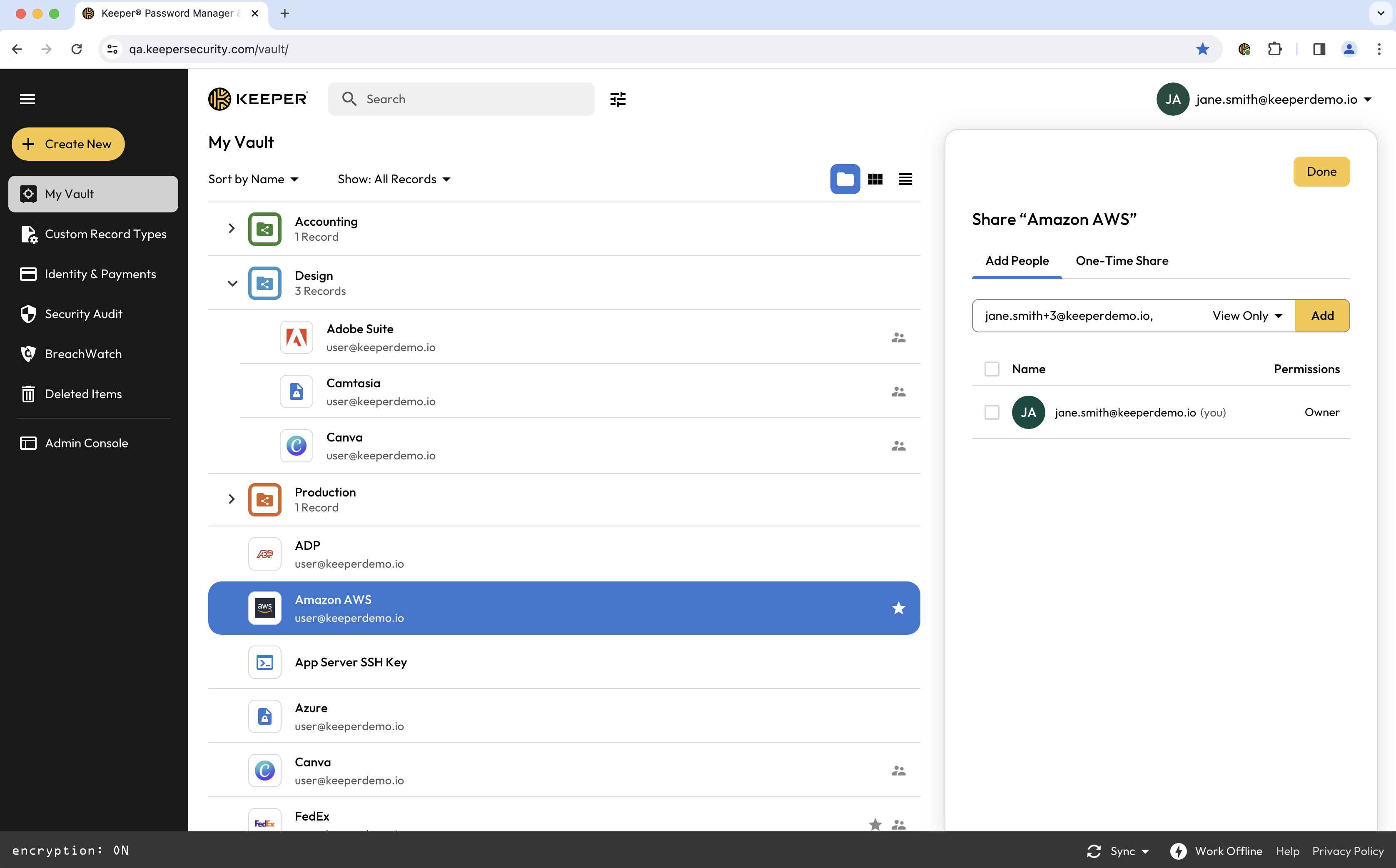
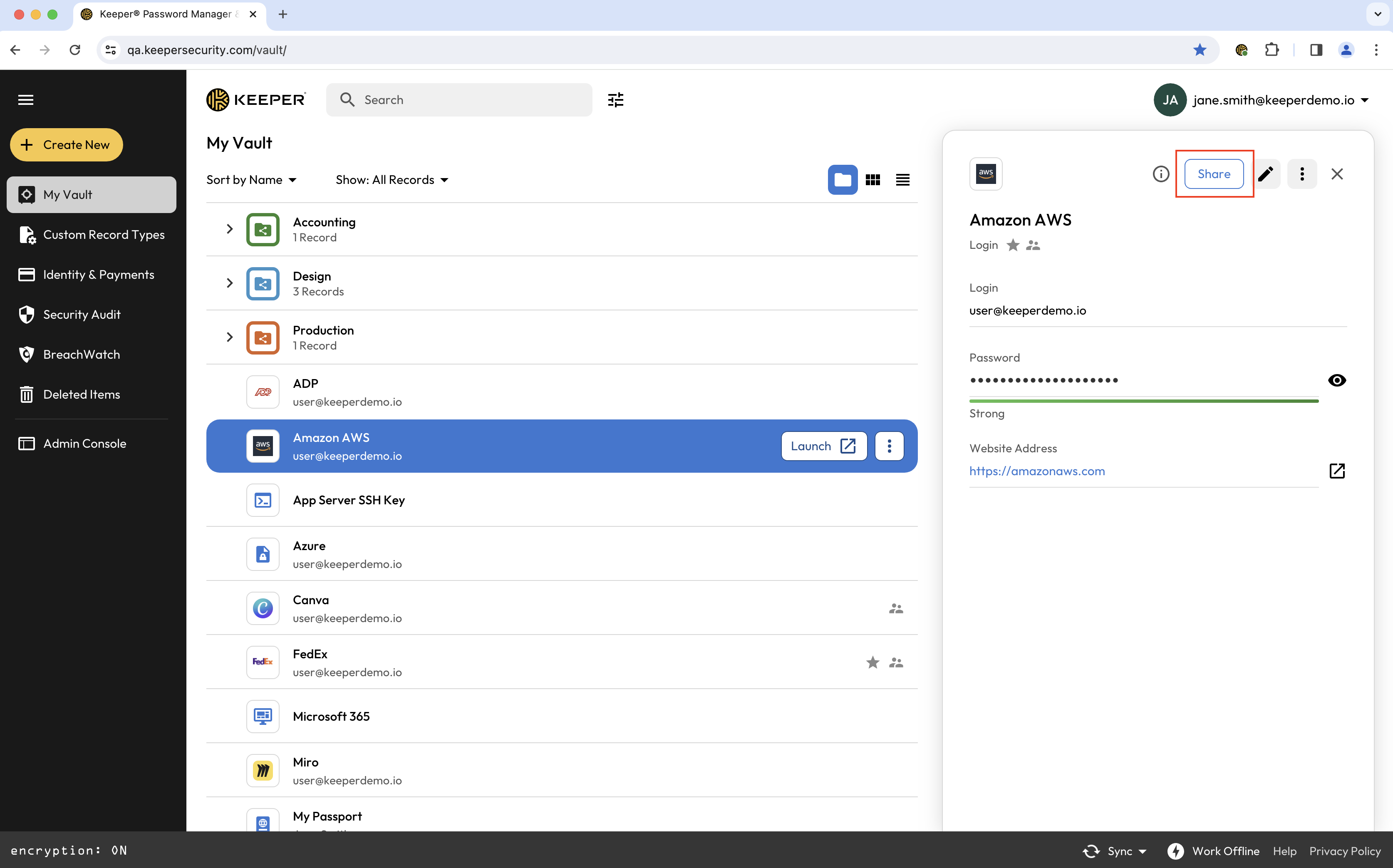
Seleccione el registro en su bóveda y haga clic en **Compartir**, ingrese la dirección de correo electrónico o selecciónela de su lista de contactos. Establezca el nivel de permiso y haga clic en **Añadir**.

<figure><img src="https://187056193-files.gitbook.io/~/files/v0/b/gitbook-x-prod.appspot.com/o/spaces%2Frp3ylVdg2U6pDdl81oP6%2Fuploads%2Fgit-blob-89e0103601f7b04601d8a7992354a439417bf875%2FScreen%20Shot%202024-02-21%20at%2011.24.44%20AM.png?alt=media" alt=""><figcaption><p>Compartir un registro</p></figcaption></figure>

<figure><img src="https://187056193-files.gitbook.io/~/files/v0/b/gitbook-x-prod.appspot.com/o/spaces%2Frp3ylVdg2U6pDdl81oP6%2Fuploads%2Fgit-blob-f19c03ea15f32998bf44db37a0110f7a4da4b5e4%2FScreen%20Shot%202024-02-21%20at%2011.46.20%20AM.png?alt=media" alt=""><figcaption><p>Añadir usuario y establecer permisos</p></figcaption></figure>

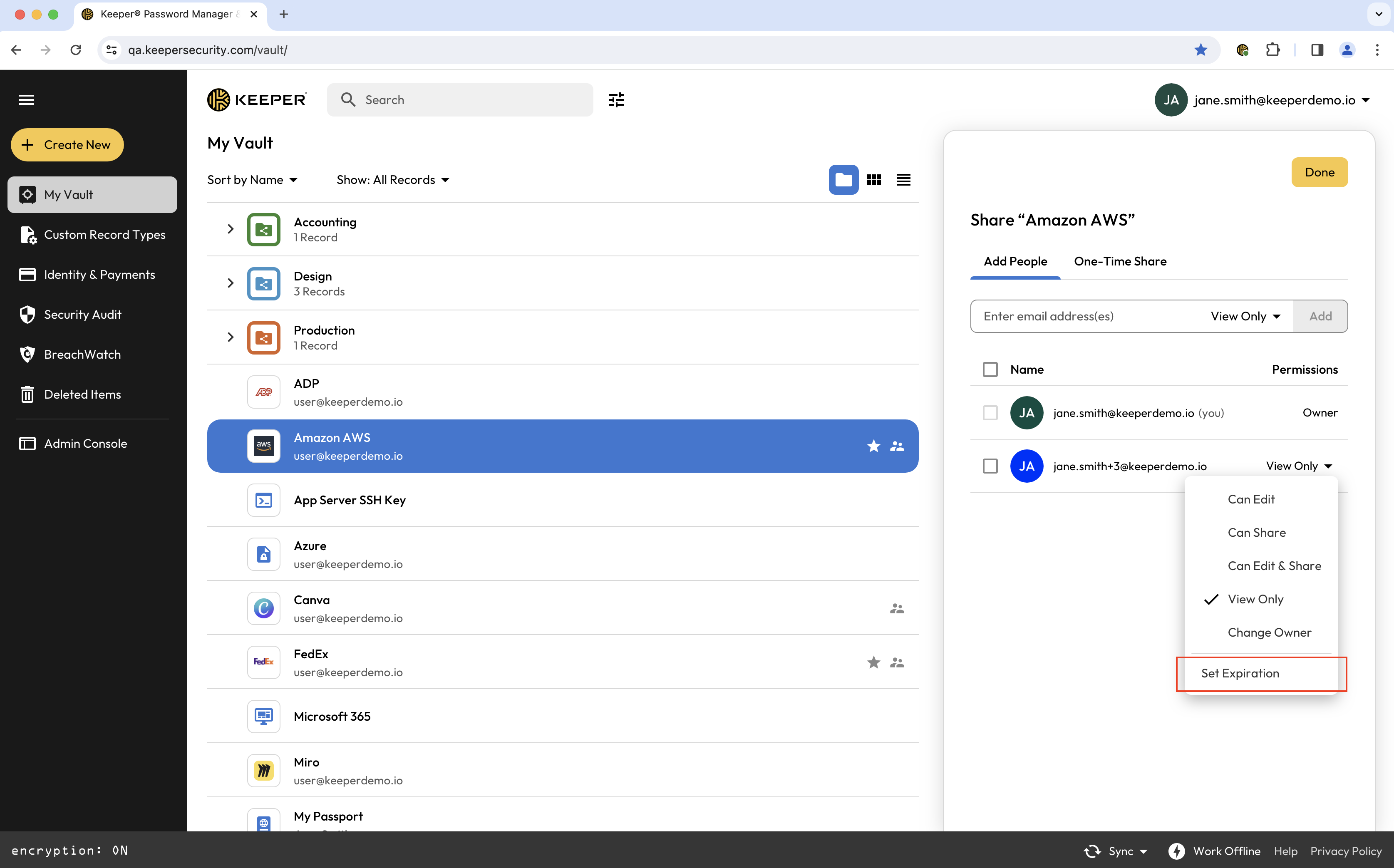
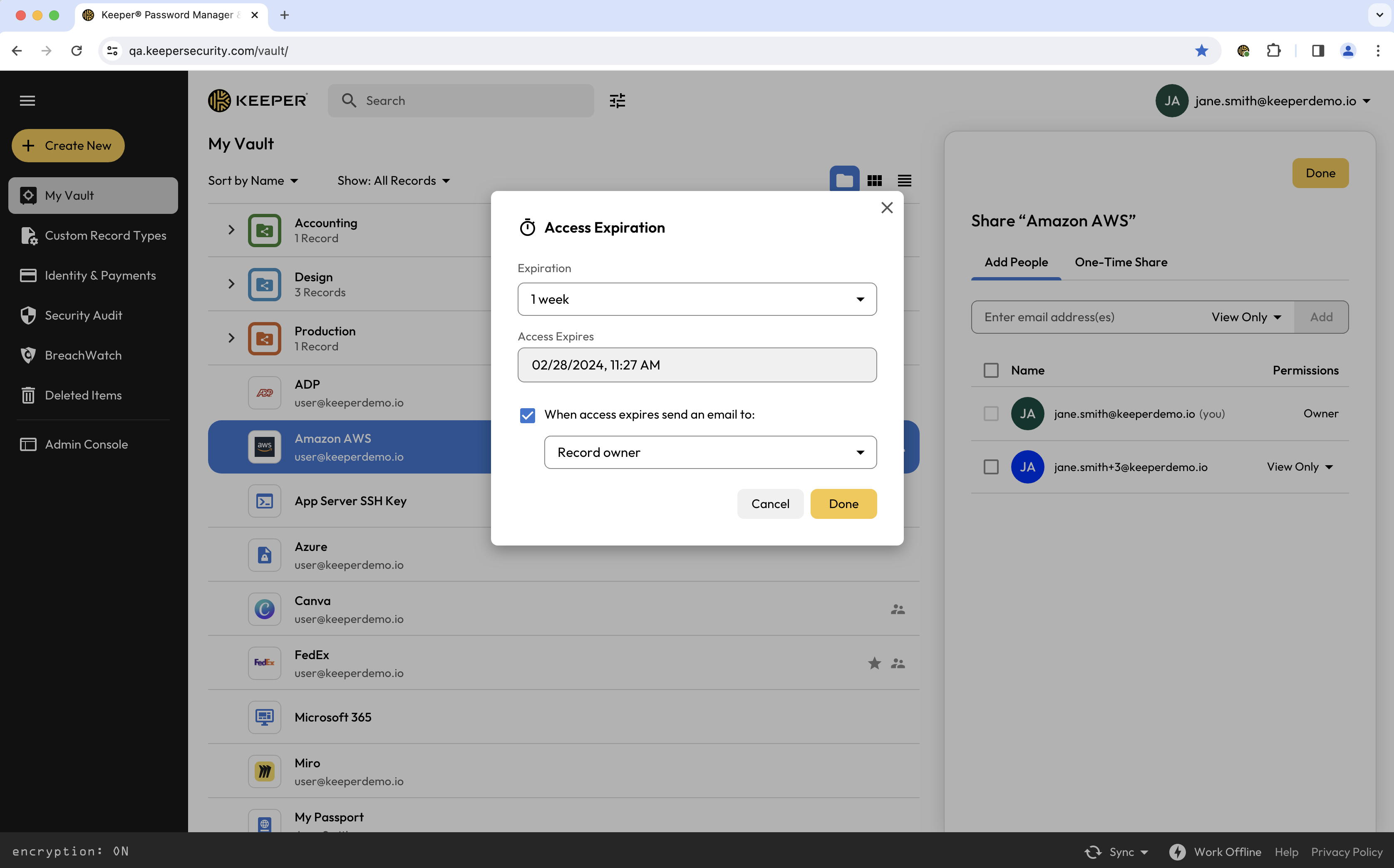
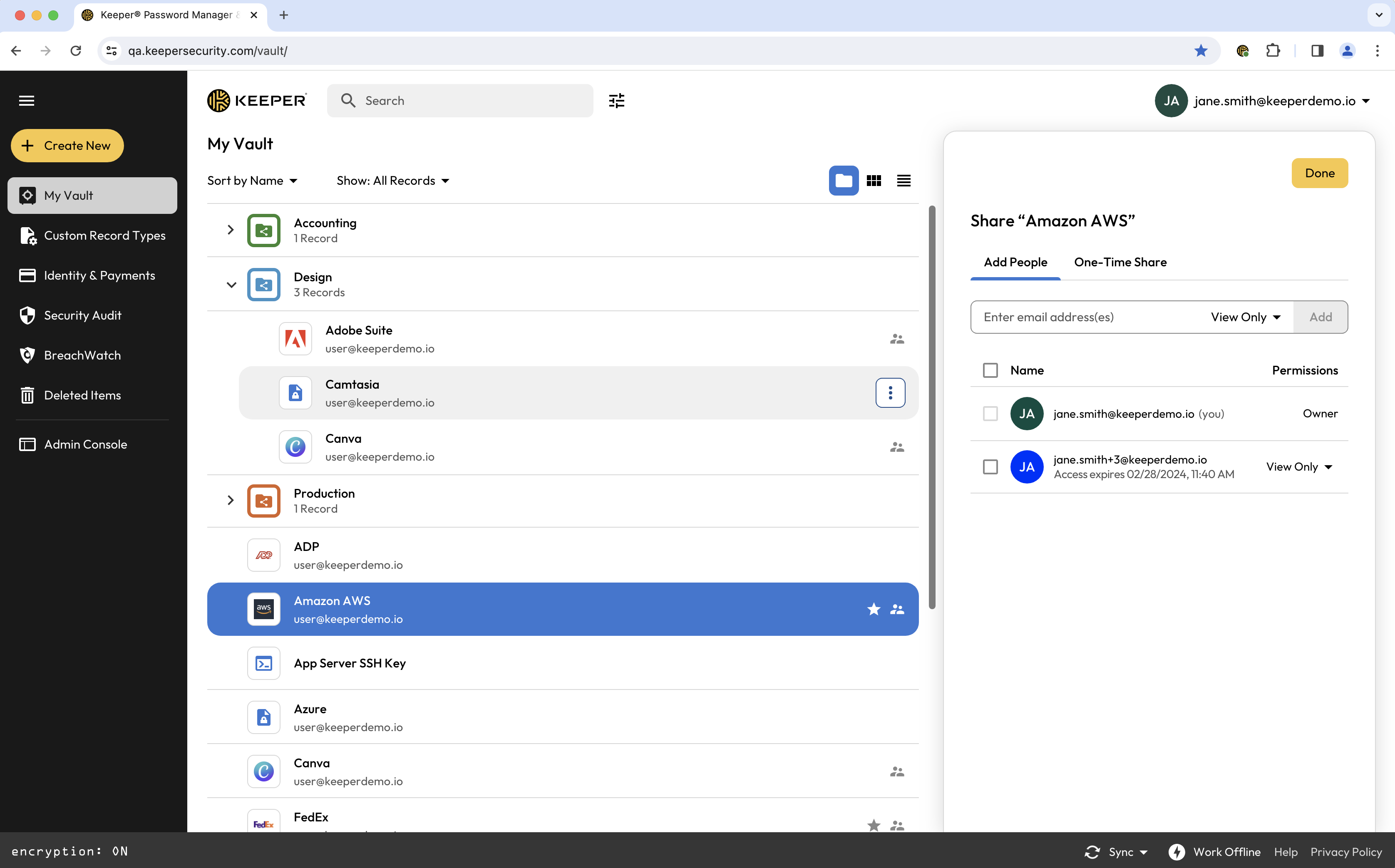
Seleccione el menú desplegable “Permisos” y haga clic en **Establecer caducidad**. Aquí puede elegir una de las caducidades predeterminadas o hacer clic en **Fecha y hora personalizadas** para definir la suya. A continuación, marque la casilla si desea que el propietario del registro (usted) o los usuarios con acceso de edición reciban un correo cuando caduque el acceso del destinatario. Haga clic en **Terminado** para guardar.

<figure><img src="https://187056193-files.gitbook.io/~/files/v0/b/gitbook-x-prod.appspot.com/o/spaces%2Frp3ylVdg2U6pDdl81oP6%2Fuploads%2Fgit-blob-a173235828e9a39e3c916ec972ea1d2710fcc72c%2FScreen%20Shot%202024-02-21%20at%2011.26.15%20AM.png?alt=media" alt=""><figcaption><p>Permisos y opción para añadir caducidad</p></figcaption></figure>

<figure><img src="https://187056193-files.gitbook.io/~/files/v0/b/gitbook-x-prod.appspot.com/o/spaces%2Frp3ylVdg2U6pDdl81oP6%2Fuploads%2Fgit-blob-e52760a8295ca3a5027f73a74c2c885514ca4f9b%2FScreen%20Shot%202024-02-21%20at%2011.27.46%20AM.png?alt=media" alt=""><figcaption><p>Establecer caducidad y notificación por correo</p></figcaption></figure>

<figure><img src="https://187056193-files.gitbook.io/~/files/v0/b/gitbook-x-prod.appspot.com/o/spaces%2Frp3ylVdg2U6pDdl81oP6%2Fuploads%2Fgit-blob-8091000b1c3d327f1c9c603f9a040ba80b2d386f%2FScreen%20Shot%202024-02-21%20at%2011.40.32%20AM.png?alt=media" alt=""><figcaption><p>Caducidad de acceso aplicada al usuario</p></figcaption></figure>

{% hint style="info" %}
El destinatario de un registro compartido con acceso por tiempo limitado puede tener permisos de "ver" y "editar", pero no podrá compartir el registro. Si se aplican permisos de "compartir", se quitará la caducidad.
{% endhint %}

## Compartir una carpeta

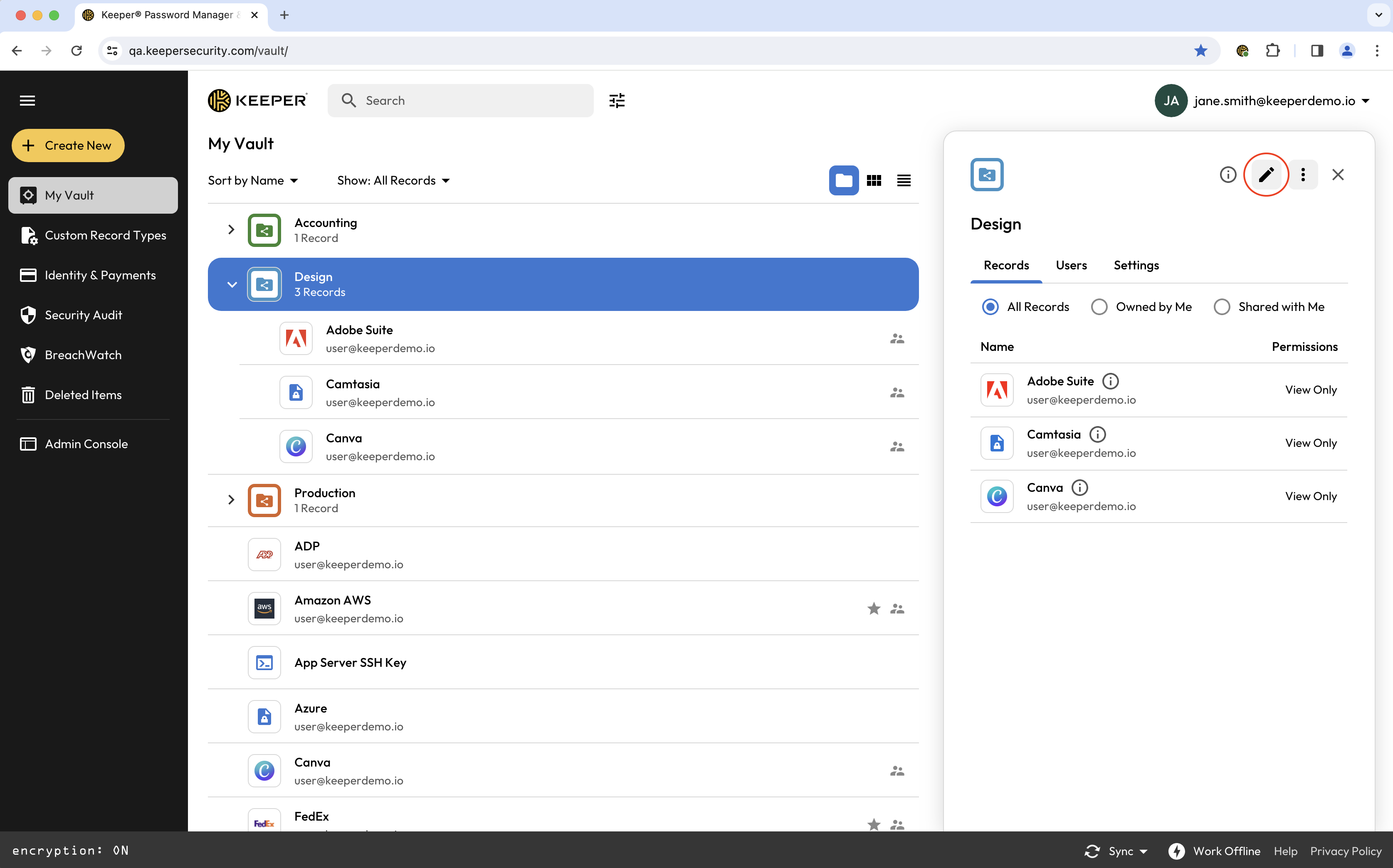
Abra la carpeta compartida en su bóveda, haga clic en el **icono de edición** y, en la pestaña “Usuarios”, añada el usuario o el equipo con el que desea compartir la carpeta.

<figure><img src="https://187056193-files.gitbook.io/~/files/v0/b/gitbook-x-prod.appspot.com/o/spaces%2Frp3ylVdg2U6pDdl81oP6%2Fuploads%2Fgit-blob-56f96151bdbd27f8129cd74c38e6c4f7fdb933bb%2FScreen%20Shot%202024-02-21%20at%2011.31.19%20AM.png?alt=media" alt=""><figcaption><p>Editar carpeta compartida</p></figcaption></figure>

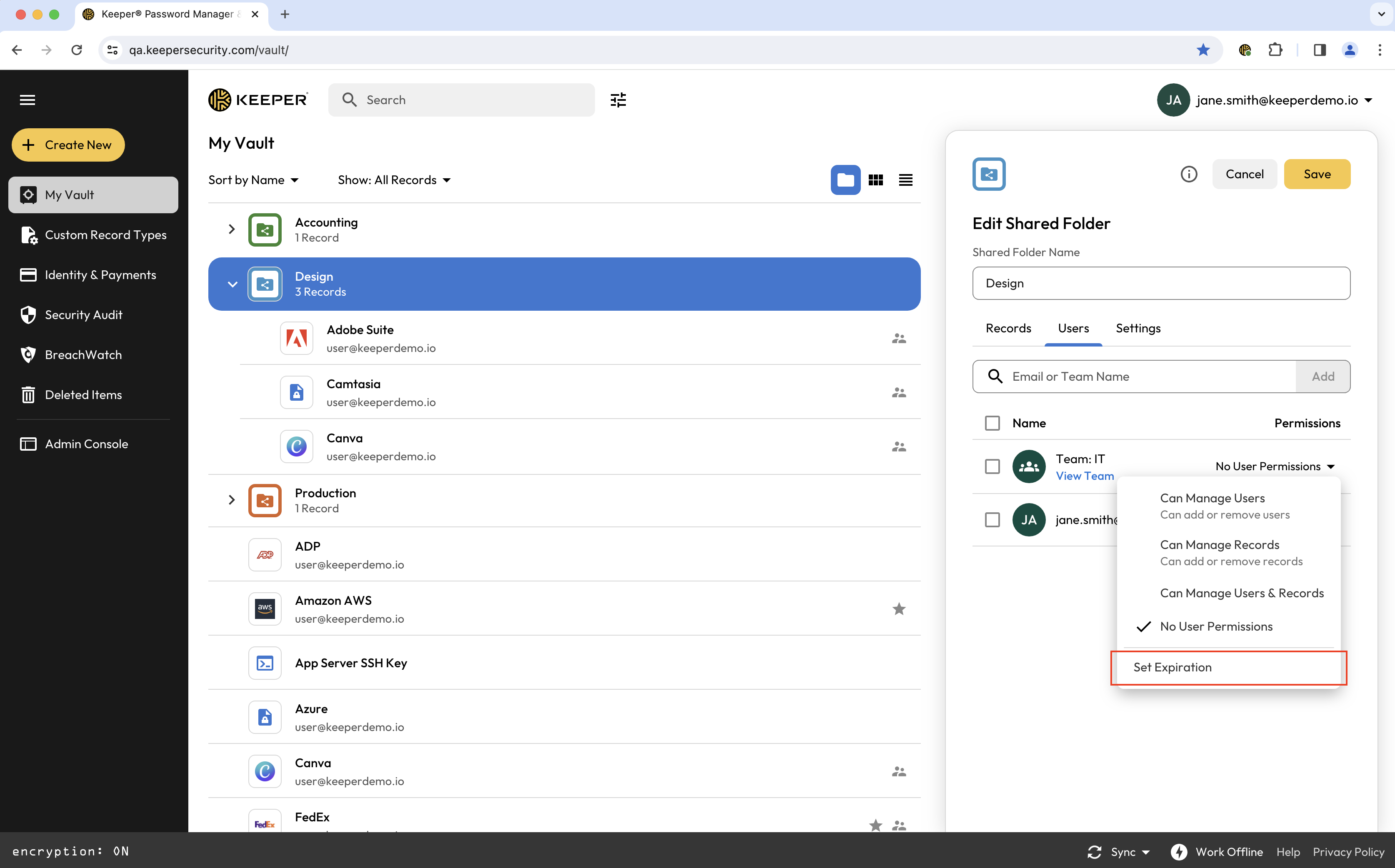
Establezca sus permisos y, en el menú desplegable, haga clic en **Establecer caducidad**, siguiendo los mismos pasos que para compartir un registro (descritos arriba).

<figure><img src="https://187056193-files.gitbook.io/~/files/v0/b/gitbook-x-prod.appspot.com/o/spaces%2Frp3ylVdg2U6pDdl81oP6%2Fuploads%2Fgit-blob-ece31807d69ab91ad636916854615ed249c3fa1b%2FScreen%20Shot%202024-02-21%20at%2011.50.17%20AM.png?alt=media" alt=""><figcaption><p>Permisos y opción para añadir caducidad</p></figcaption></figure>

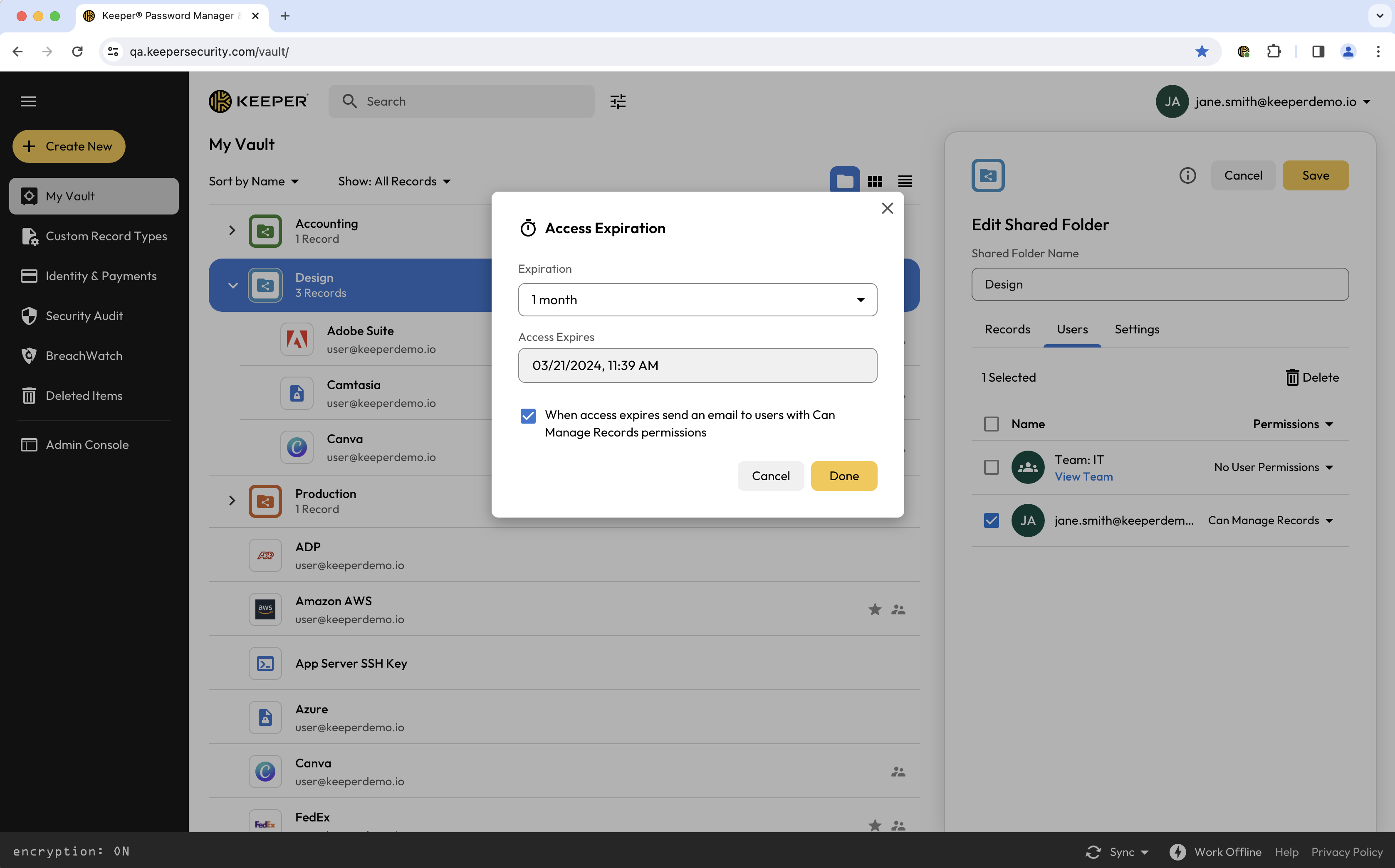
A continuación, marque la casilla si desea que los usuarios con permisos **Puede Administrar Registros** sobre la carpeta reciban un correo cuando caduque el acceso del destinatario. Haga clic en **Terminado** para guardar.

<figure><img src="https://187056193-files.gitbook.io/~/files/v0/b/gitbook-x-prod.appspot.com/o/spaces%2Frp3ylVdg2U6pDdl81oP6%2Fuploads%2Fgit-blob-18920ddfe747fa3e55d051643d1e465bfe7e4ee5%2FScreen%20Shot%202024-02-21%20at%2011.39.49%20AM.png?alt=media" alt=""><figcaption><p>Establecer caducidad y notificación por correo</p></figcaption></figure>

{% hint style="info" %}
El destinatario de una carpeta compartida con acceso por tiempo limitado puede tener permisos **Puede Administrar Registros**, pero la capacidad de administrar usuarios está restringida. Si se aplican esos permisos, se quitará la caducidad.
{% endhint %}


---

# Agent Instructions
This documentation is published with GitBook. GitBook is the documentation platform designed so that both humans and AI agents can read, navigate, and reason over technical content effectively. Learn more at gitbook.com.

## Querying This Documentation
If you need additional information that is not directly available in this page, you can query the documentation by asking a question.

Perform an HTTP GET request on the following URL with the `ask` and `goal` query parameters:

```
GET https://docs.keeper.io/user-guides/es/sharing/time-limited-access.md?ask=<question>&goal=<user_goal>
```

`ask` is the immediate question: it should be specific, self-contained, and written in natural language.
`goal` is what the user is ultimately trying to achieve, the reason they need the answer. Sharing it helps GitBook give you a better, more relevant answer. A goal is most helpful when it describes the outcome the user wants rather than restating the question. For example, with `ask=how do I create an API token`, a goal like `automate deployments from our CI pipeline` lets GitBook tailor the answer to that use case.

The response will contain a direct answer to the question and relevant excerpts and sources from the documentation.

Use this mechanism when the answer is not explicitly present in the current page, you need clarification or additional context, or you want to retrieve related documentation sections.