> For the complete documentation index, see [llms.txt](https://docs.keeper.io/llms.txt). Markdown versions of documentation pages are available by appending `.md` to page URLs; this page is available as [Markdown](https://docs.keeper.io/user-guides/it/tips-and-tricks/login-to-keeper-on-macos-with-touch-id.md).
# Accedere a Keeper su macOS con Touch ID
Come accedere a Keeper con Touch ID sul Mac
### Accesso macOS con Touch ID
Keeper è compatibile con Touch ID su macOS, una tecnologia basata sulla biometria che consente agli utenti di autenticarsi e accedere al dispositivo usando un'impronta digitale. Se Touch ID è configurato sul dispositivo dell'utente e abilitato in Keeper, non è più necessario usare SSO o inserire la Password principale nella schermata di accesso di Keeper, velocizzando ulteriormente il processo di accesso.
Per abilitare Touch ID, faccia clic su **menu a discesa Account** **>** **Impostazioni > Sicurezza** e attivi "Touch ID".
Abilitare Touch ID
#### Configurazione di Touch ID
Se Touch ID non è ancora configurato sul Mac, dovrà prima abilitare la funzione dalle impostazioni del dispositivo. Una volta configurato Touch ID, chiuda la finestra Impostazioni e torni alla cassaforte per procedere con i passaggi sopra.
#### Accedere con Touch ID
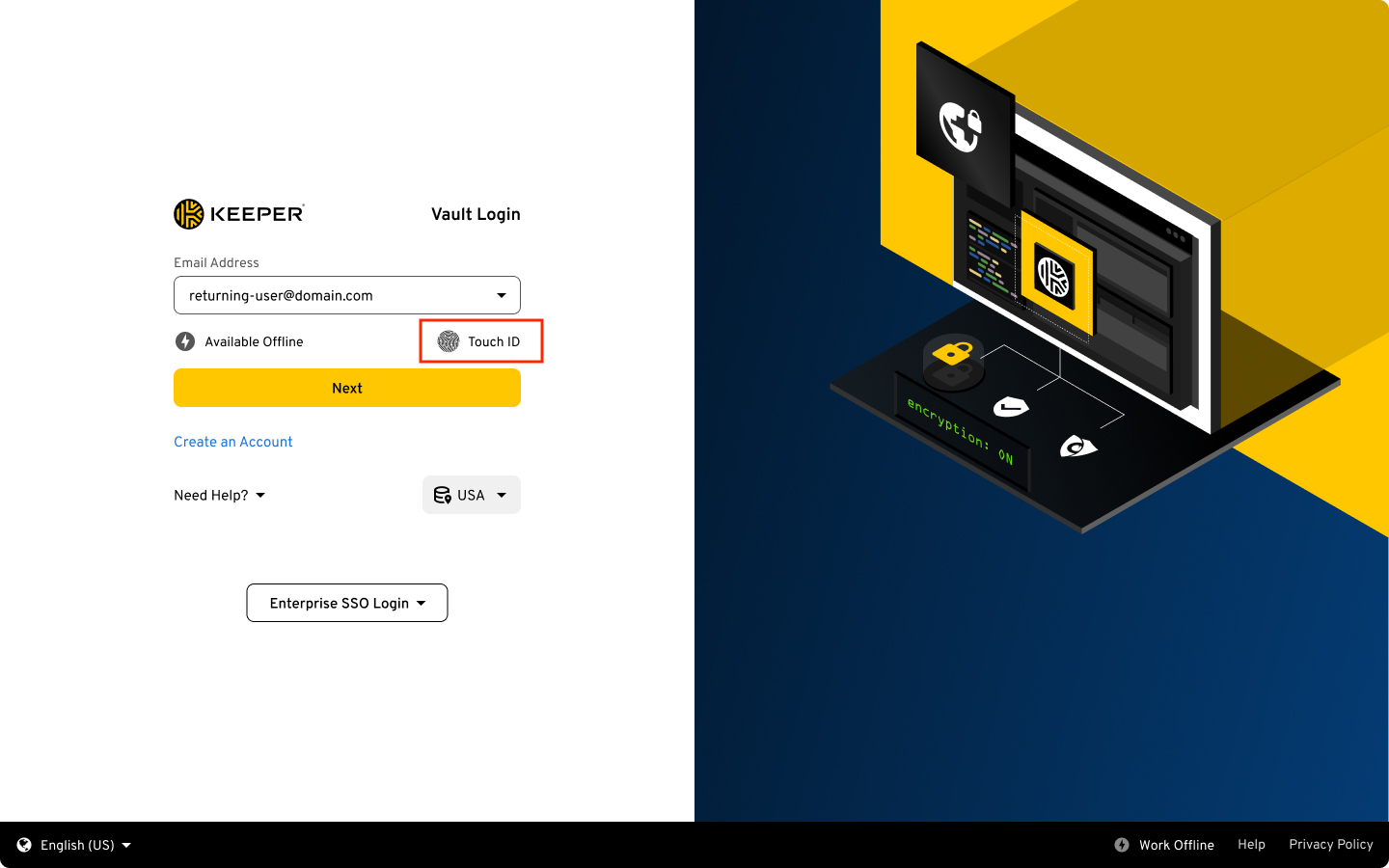
La prossima volta che accederà a Keeper, tocchi l'icona Touch ID dalla schermata di accesso. Una volta autenticato, la cassaforte verrà decrittografata e accederà automaticamente a Keeper.
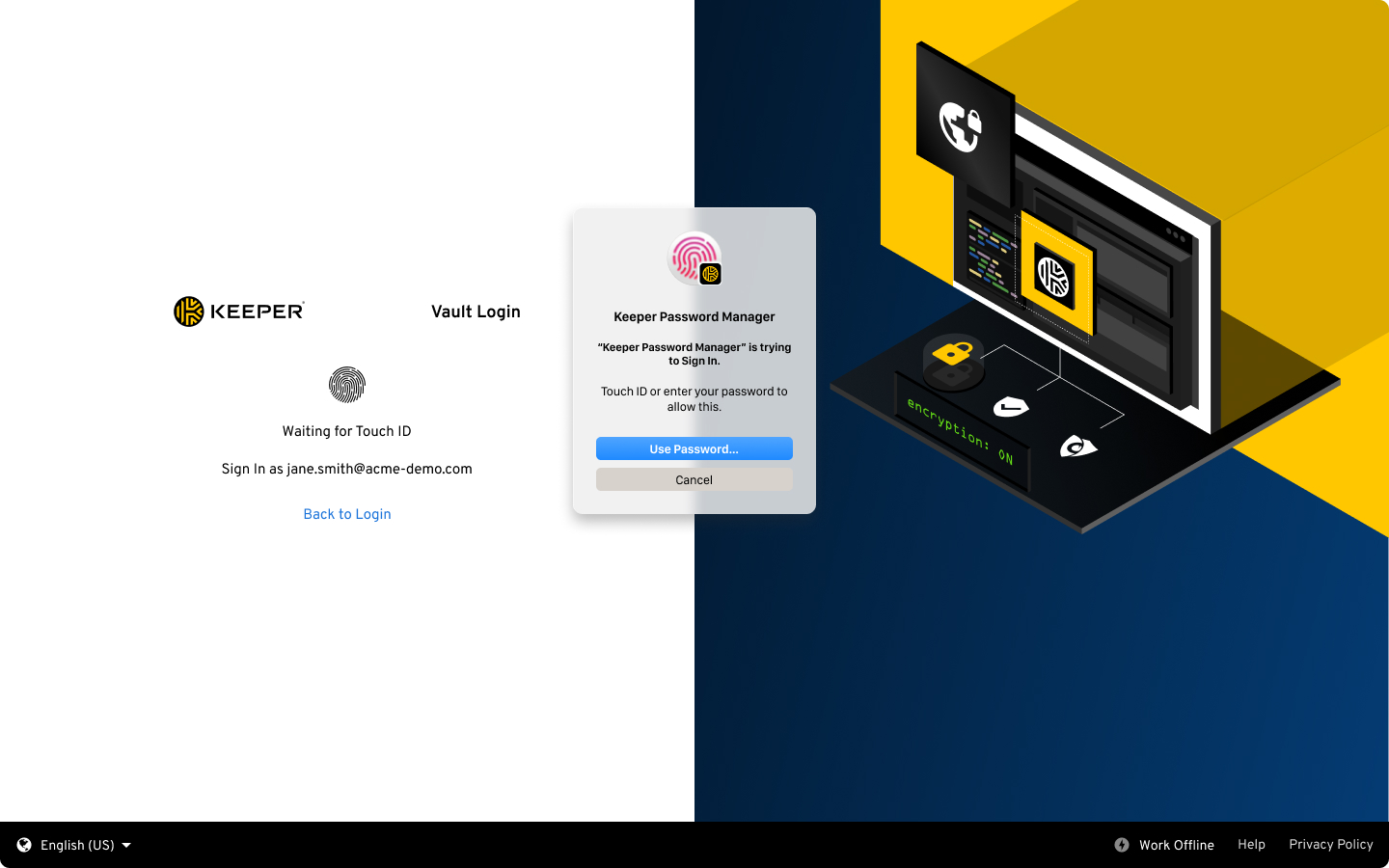
Facendo clic su **Annulla** tornerà alla schermata di accesso per accedere invece con la password principale o SSO.
Accesso con Touch ID
Richiesta Touch ID
---
# Agent Instructions
This documentation is published with GitBook. GitBook is the documentation platform designed so that both humans and AI agents can read, navigate, and reason over technical content effectively. Learn more at gitbook.com.
## Querying This Documentation
If you need additional information that is not directly available in this page, you can query the documentation dynamically by asking a question.
Perform an HTTP GET request on the current page URL with the `ask` query parameter, and the optional `goal` query parameter:
```
GET https://docs.keeper.io/user-guides/it/tips-and-tricks/login-to-keeper-on-macos-with-touch-id.md?ask=&goal=
```
`ask` is the immediate question: it should be specific, self-contained, and written in natural language.
`goal` is optional and describes the broader end goal you are ultimately trying to accomplish on behalf of the user. GitBook uses it to tailor the answer towards what is most useful for that goal.
The response will contain a direct answer to the question and relevant excerpts and sources from the documentation.
Use this mechanism when the answer is not explicitly present in the current page, you need clarification or additional context, or you want to retrieve related documentation sections.
.png?alt=media)