> For the complete documentation index, see [llms.txt](https://docs.keeper.io/llms.txt). Markdown versions of documentation pages are available by appending `.md` to page URLs; this page is available as [Markdown](https://docs.keeper.io/user-guides/jp/sharing/time-limited-access.md).
# 時間制限付きアクセス
時間制限付きアクセスを使用して他のKeeperユーザーと一時的にレコードやフォルダを安全に共有
## 概要
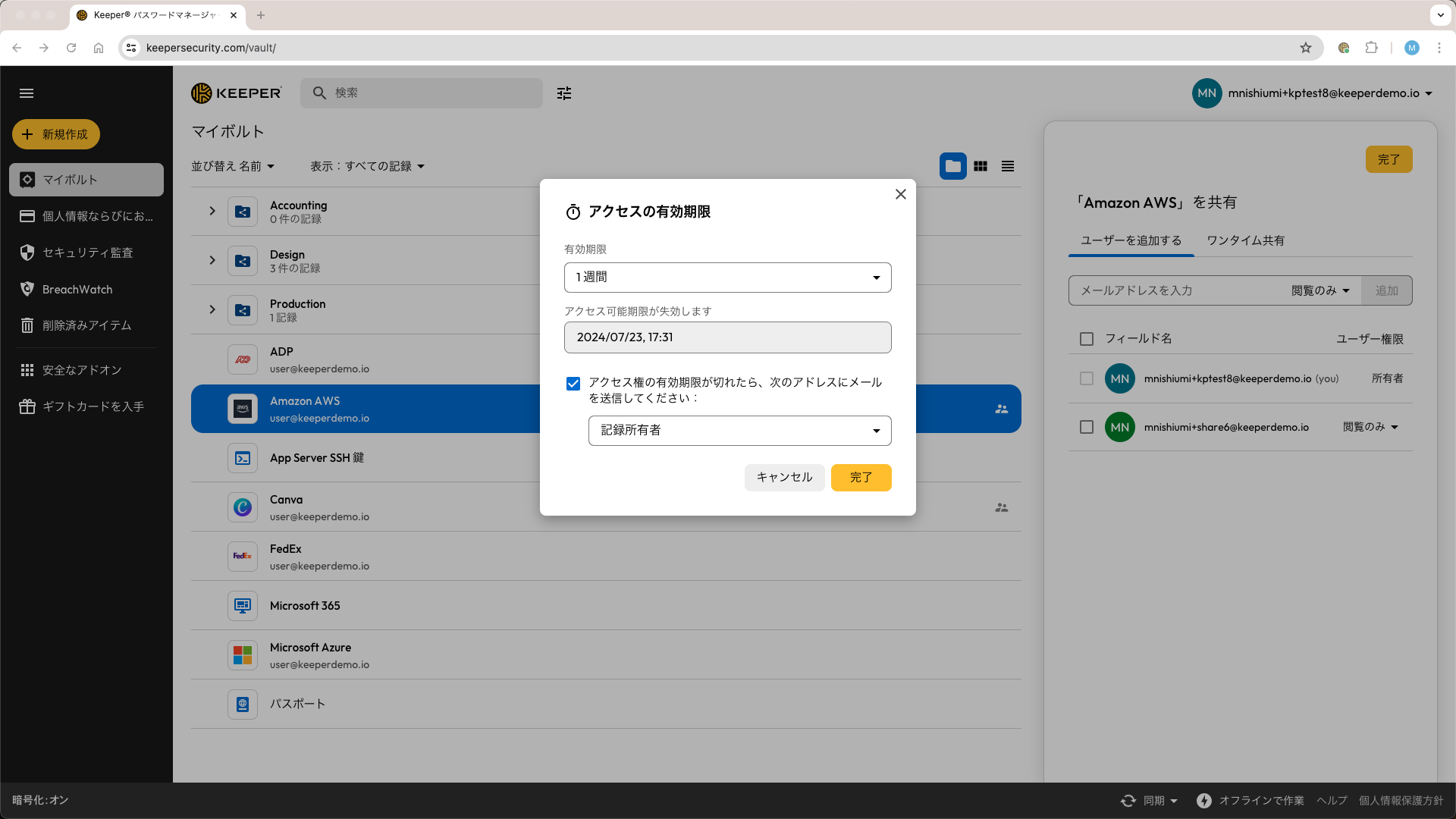
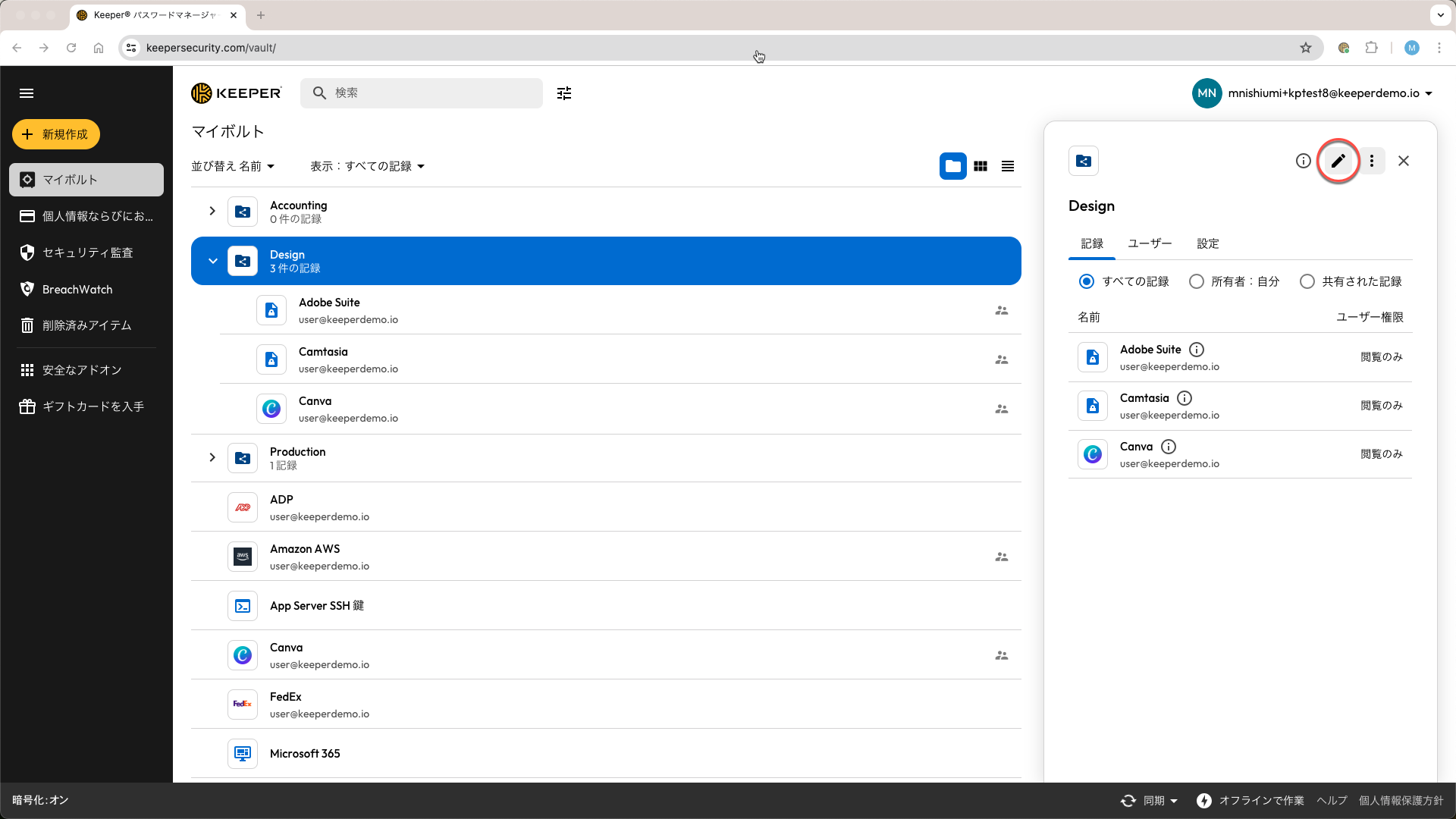
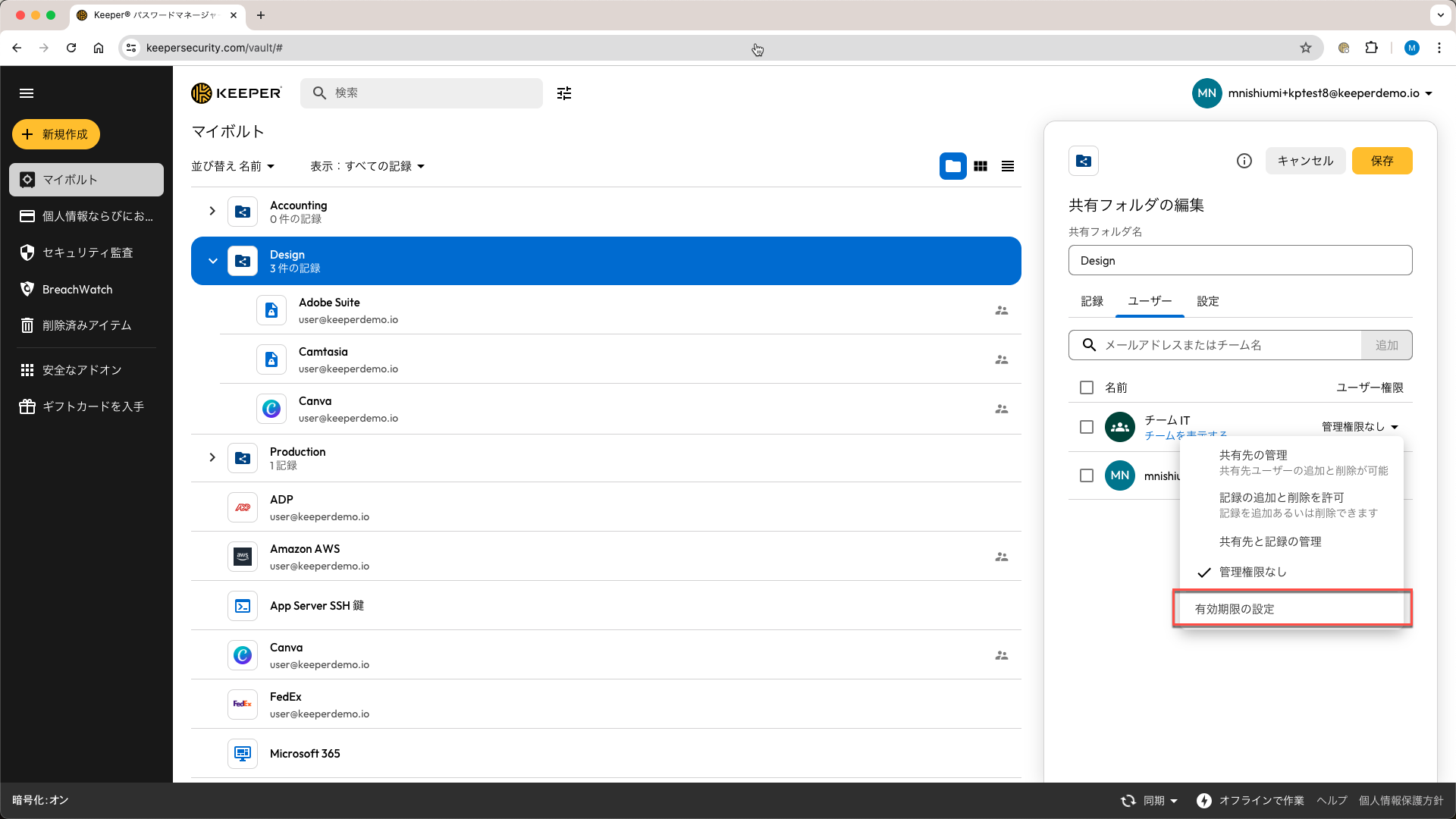
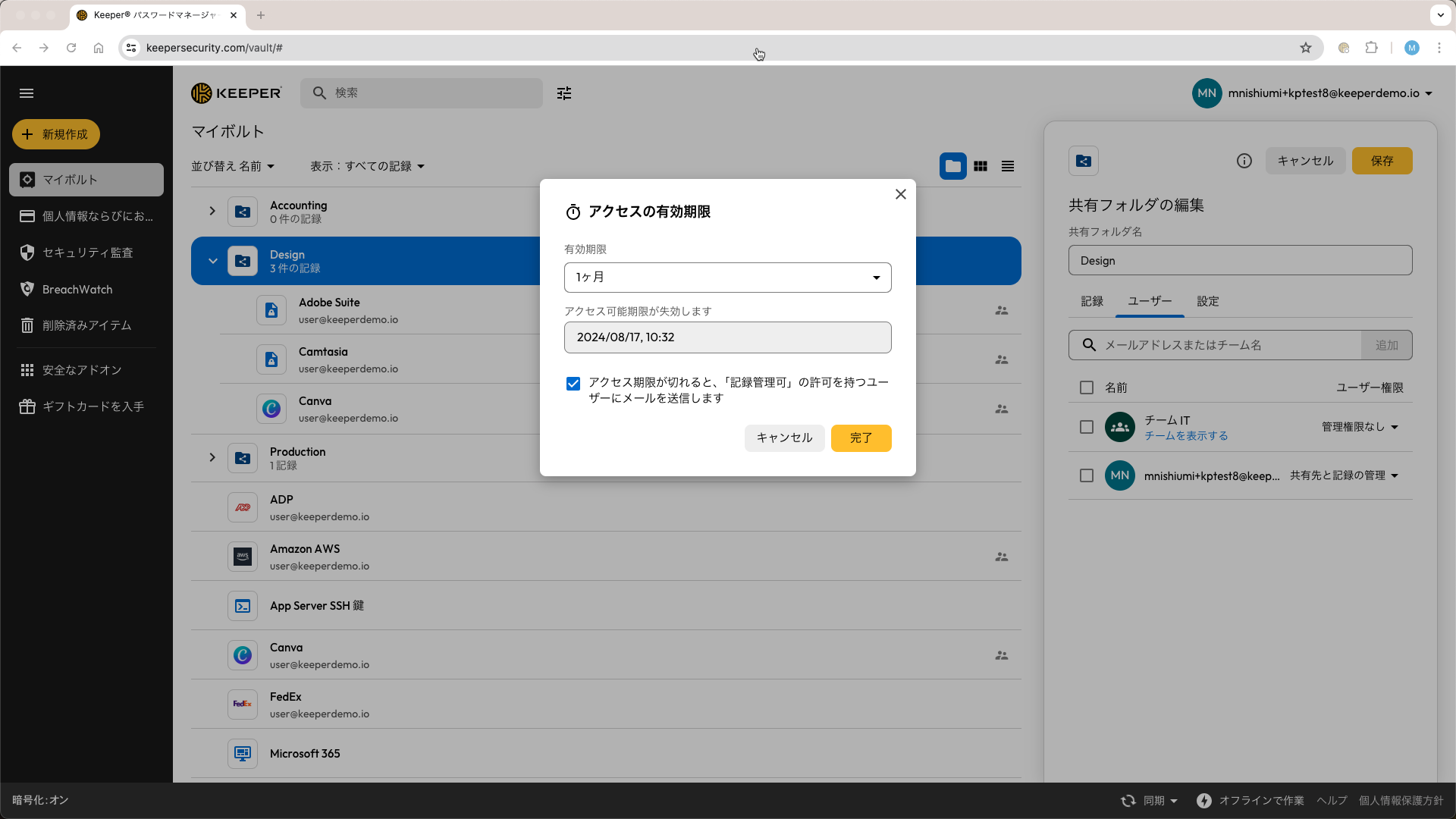
時間制限付きアクセス機能を使用すると、認証情報やシークレットを他のKeeperユーザーと一定期間だけ安全に共有し、指定した日時になるとアクセス権が自動的に取り消されます。これにより、不要な長期アクセス権の付与を防ぎ、共有期間の終了後は受信者のボルトから対象の情報が自動的に削除されるため、不正アクセスのリスクを大幅に低減できます。
{% embed url="" %}
時間制限付きアクセス機能のご紹介
{% endembed %}
## レコードの共有
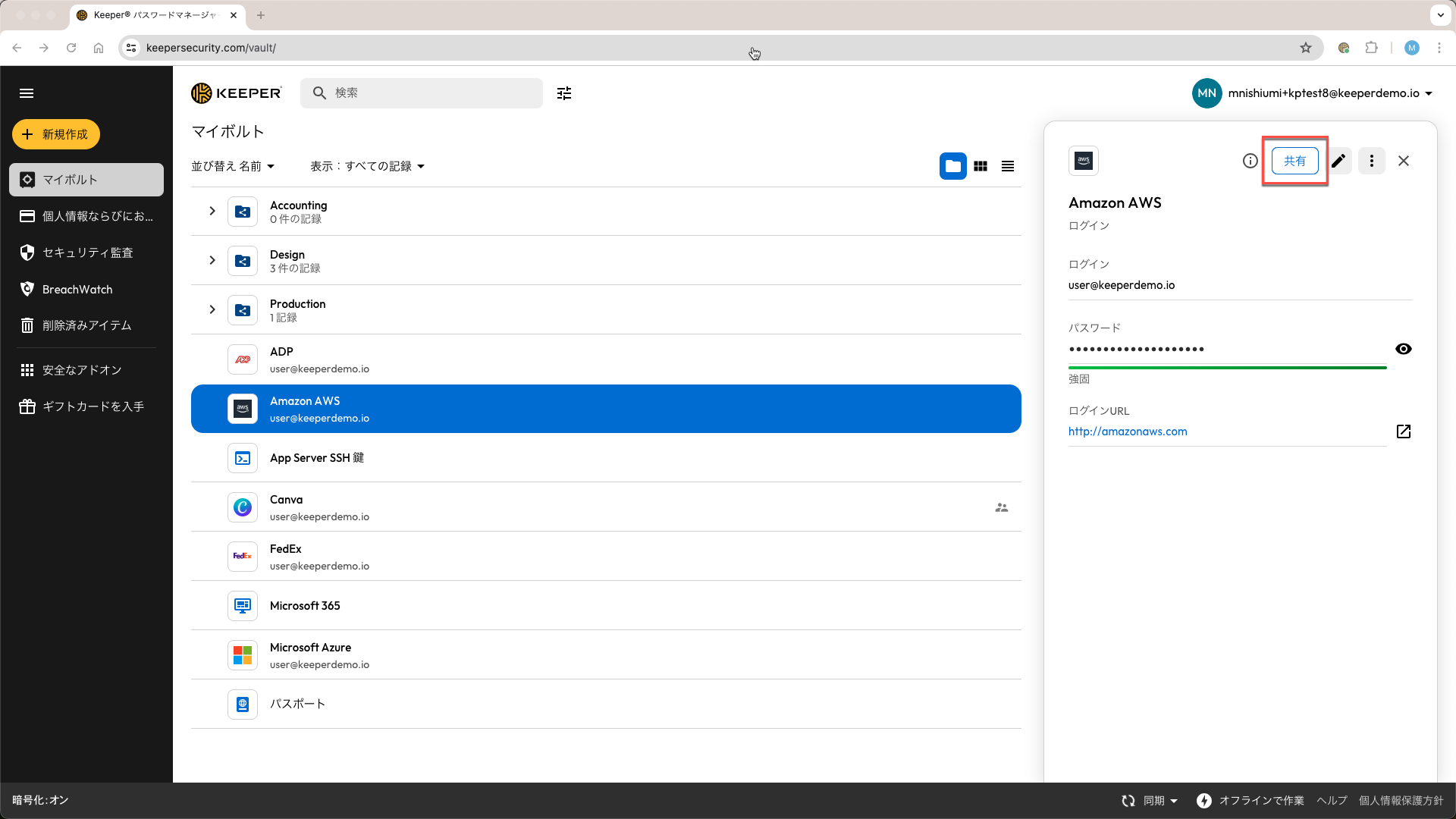
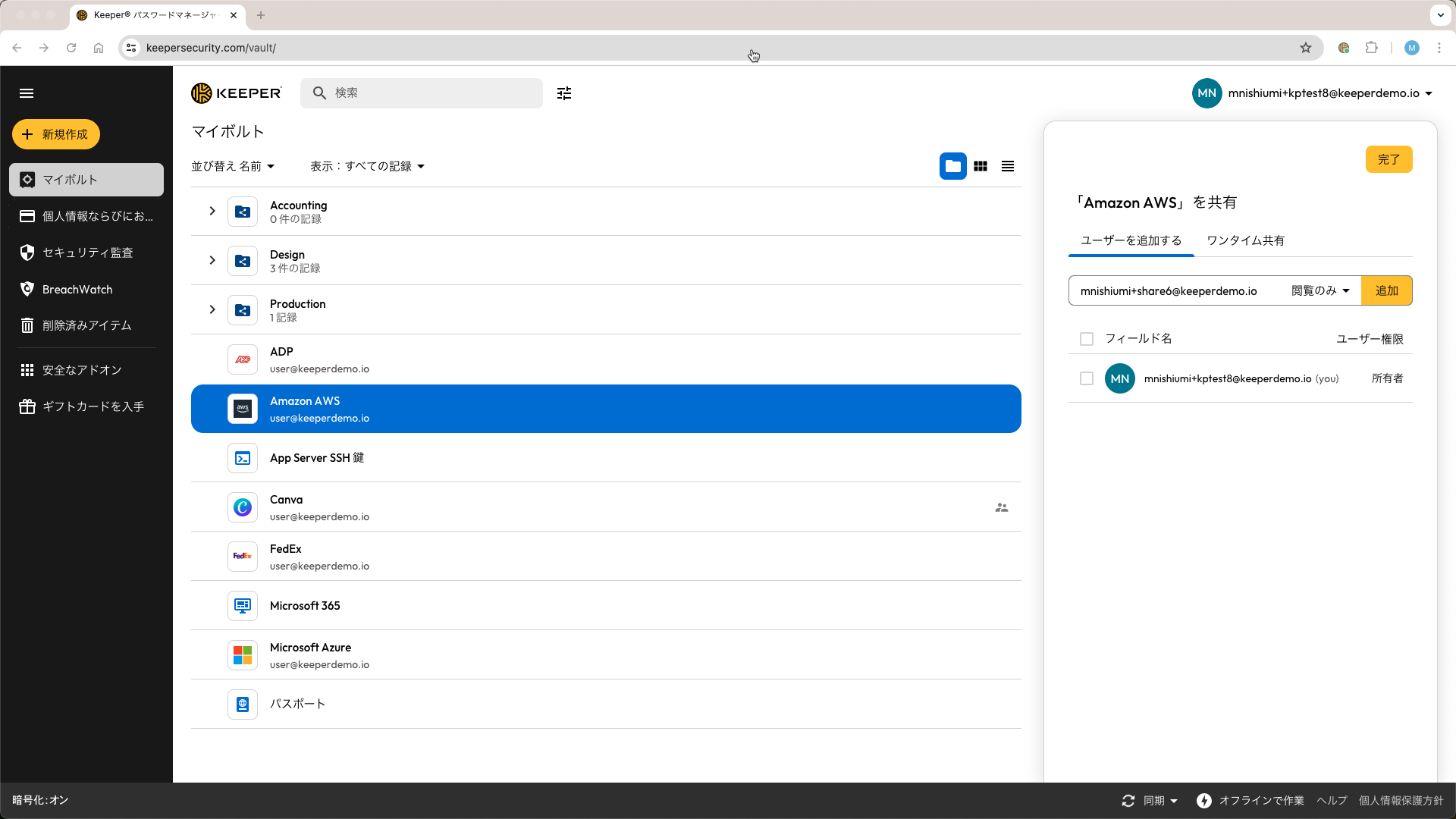
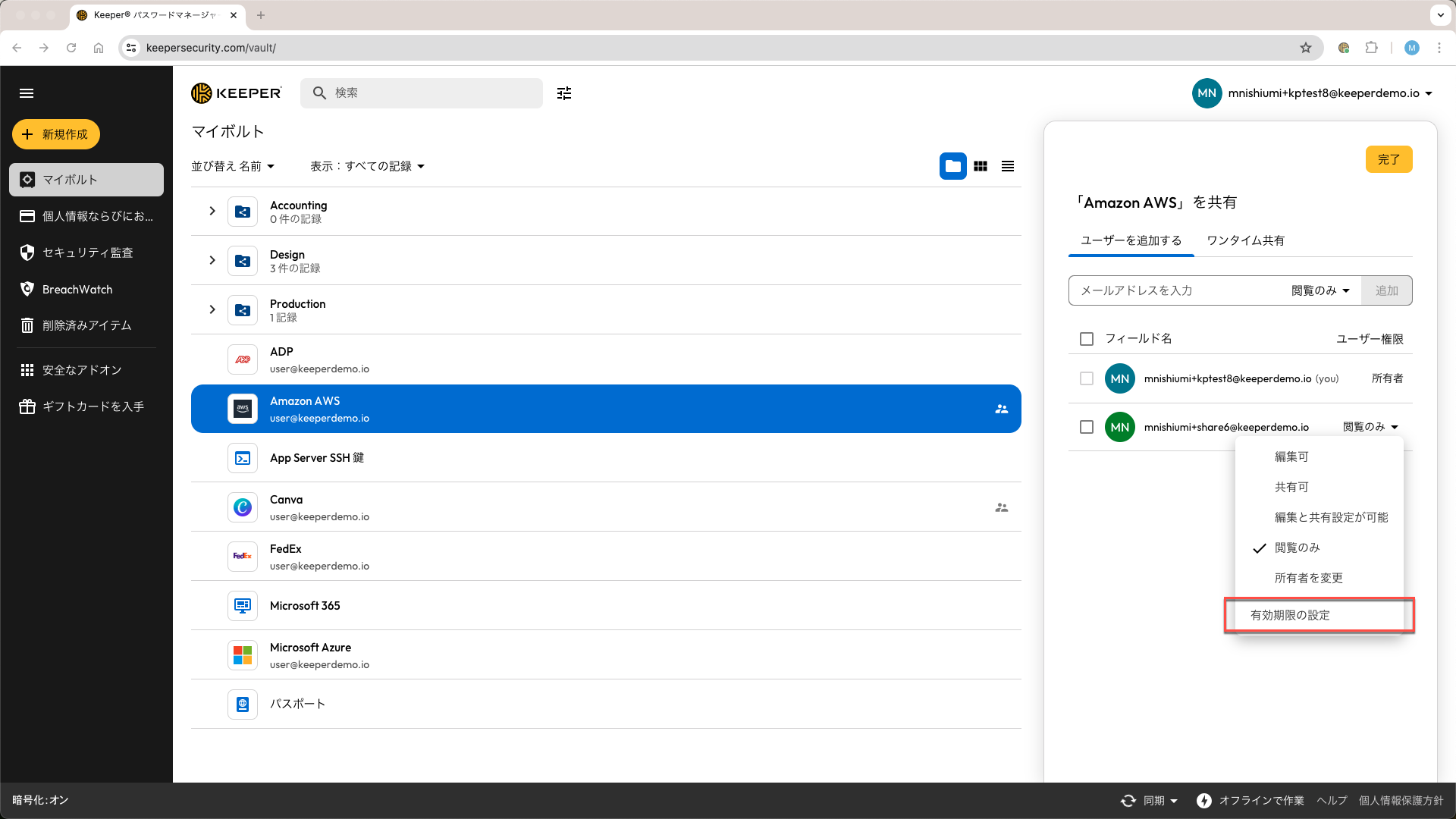
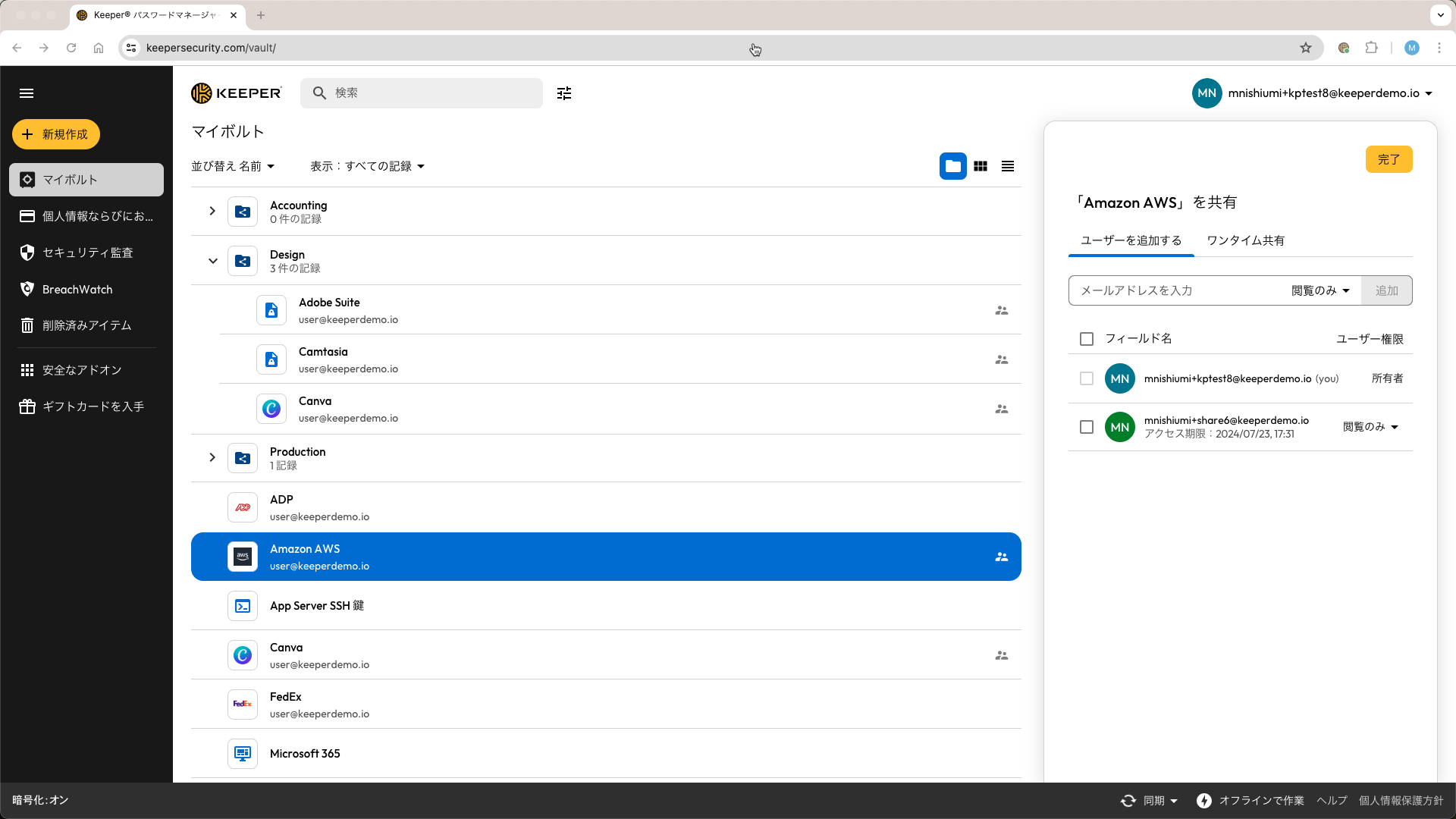
ボルトからレコードを選択して**\[共有]**をクリックし、共有相手のメール アドレスを入力するかリストから選択します。権限レベルを設定し、**\[追加]**をクリックします。
{% hint style="info" %}
時間制限付きで共有されたユーザーには閲覧および編集の権限を付与できますが、「ユーザーを管理」の権限は付与できません。「ユーザーを管理」の権限が適用されている場合は有効期限が削除されます。
{% endhint %}
---
# Agent Instructions
This documentation is published with GitBook. GitBook is the documentation platform designed so that both humans and AI agents can read, navigate, and reason over technical content effectively. Learn more at gitbook.com.
## Querying This Documentation
If you need additional information that is not directly available in this page, you can query the documentation by asking a question.
Perform an HTTP GET request on the following URL with the `ask` and `goal` query parameters:
```
GET https://docs.keeper.io/user-guides/jp/sharing/time-limited-access.md?ask=&goal=
```
`ask` is the immediate question: it should be specific, self-contained, and written in natural language.
`goal` is what the user is ultimately trying to achieve, the reason they need the answer. Sharing it helps GitBook give you a better, more relevant answer. A goal is most helpful when it describes the outcome the user wants rather than restating the question. For example, with `ask=how do I create an API token`, a goal like `automate deployments from our CI pipeline` lets GitBook tailor the answer to that use case.
The response will contain a direct answer to the question and relevant excerpts and sources from the documentation.
Use this mechanism when the answer is not explicitly present in the current page, you need clarification or additional context, or you want to retrieve related documentation sections.